Learning to manage email in Notion is more relevant than ever now that Notion Mail is shutting down — and the good news is you can still make your inbox work inside Notion without a dedicated mail app. You actually have three escalating ways to do it: a quick AI skill you trigger yourself, a background agent that runs on autopilot, and a full sync that pulls the real emails straight into a Notion database. This guide walks through all three, shows you when to reach for each, and hands you the exact skills and setup behind them — so the information trapped in your inbox finally flows into the system where you actually work.
Can You Still Use Email With Notion After Notion Mail Shut Down?
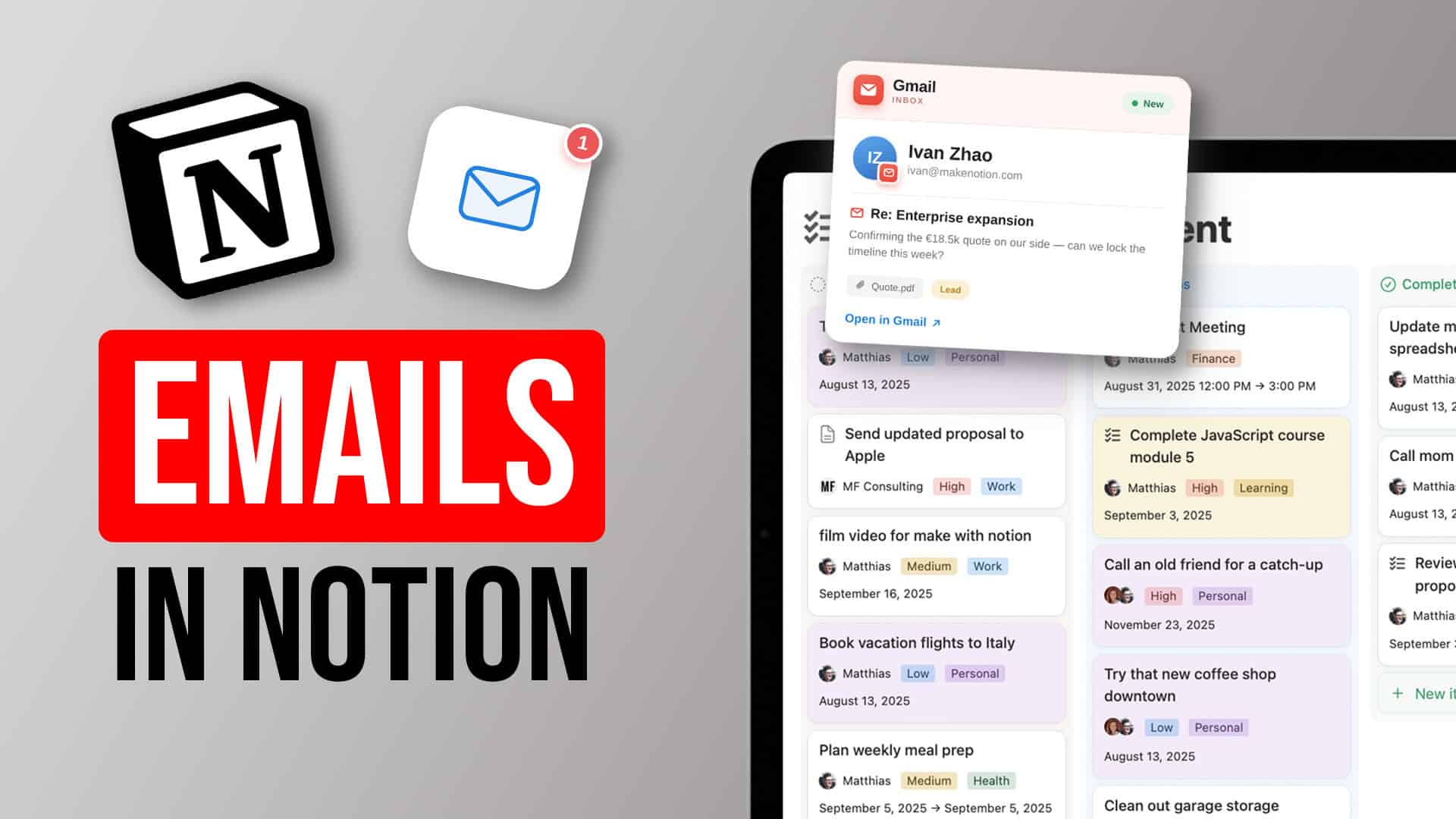
Yes. Even with Notion Mail shutting down, you can make your email fully actionable inside Notion — and the options are better than they’ve ever been.
The mindset shift that makes this work: most of the time you don’t care about the email object itself. You care about the information inside it — the lead to log, the task to capture, the invoice to file.
Once you stop trying to recreate an inbox in Notion and start pulling the useful bits into your system, three clear methods open up. Let’s look at each.
What Are The Three Ways To Manage Email In Notion?
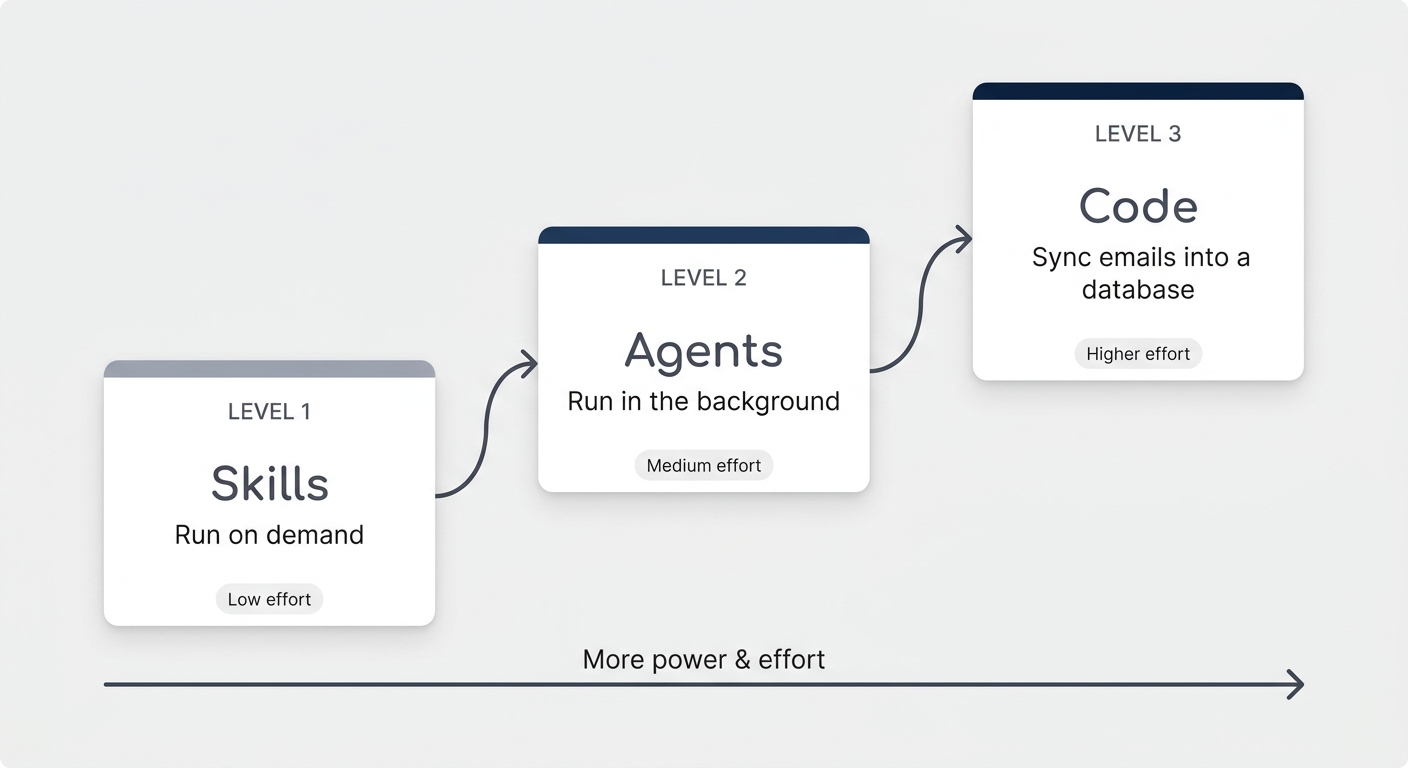
There are three methods, and they escalate in power and effort: skills (run on demand), agents (run in the background), and code (sync the actual emails into a database).
Most people only ever need the first two. Here’s how they compare at a glance:
| Method | What It Is | Cost | Setup Effort | Best For |
|---|---|---|---|---|
| 1. Skills | A saved briefing your personal Notion AI runs on demand | Free (included in your seat) | Low | Recurring inbox jobs you trigger yourself |
| 2. Agents | A skill handed to an agent that runs without you watching | Pay-per-run | Medium | Hands-off tasks like labelling every new email |
| 3. Code | A script that syncs the real emails into a Notion database | Free to build (your time) | Higher | Actually storing the email object in Notion |
How Do Skills Teach Your Notion AI To Handle Your Inbox?
A skill is a saved briefing that teaches your personal Notion AI how to do a repetitive job once, so you can run it any time with a single command.
Think of something you do over and over — like logging a new lead into your CRM. You could open the CRM and type it in by hand every time. Or you can teach your AI how to do it once, then just say “log today’s leads” and let it handle the busywork.
Every good skill is built the same way: a short description of what it does, the overall goal, the tools and databases it works with, and a clear step-by-step process. If you want the full breakdown, we’ve got a complete guide to skill engineering.
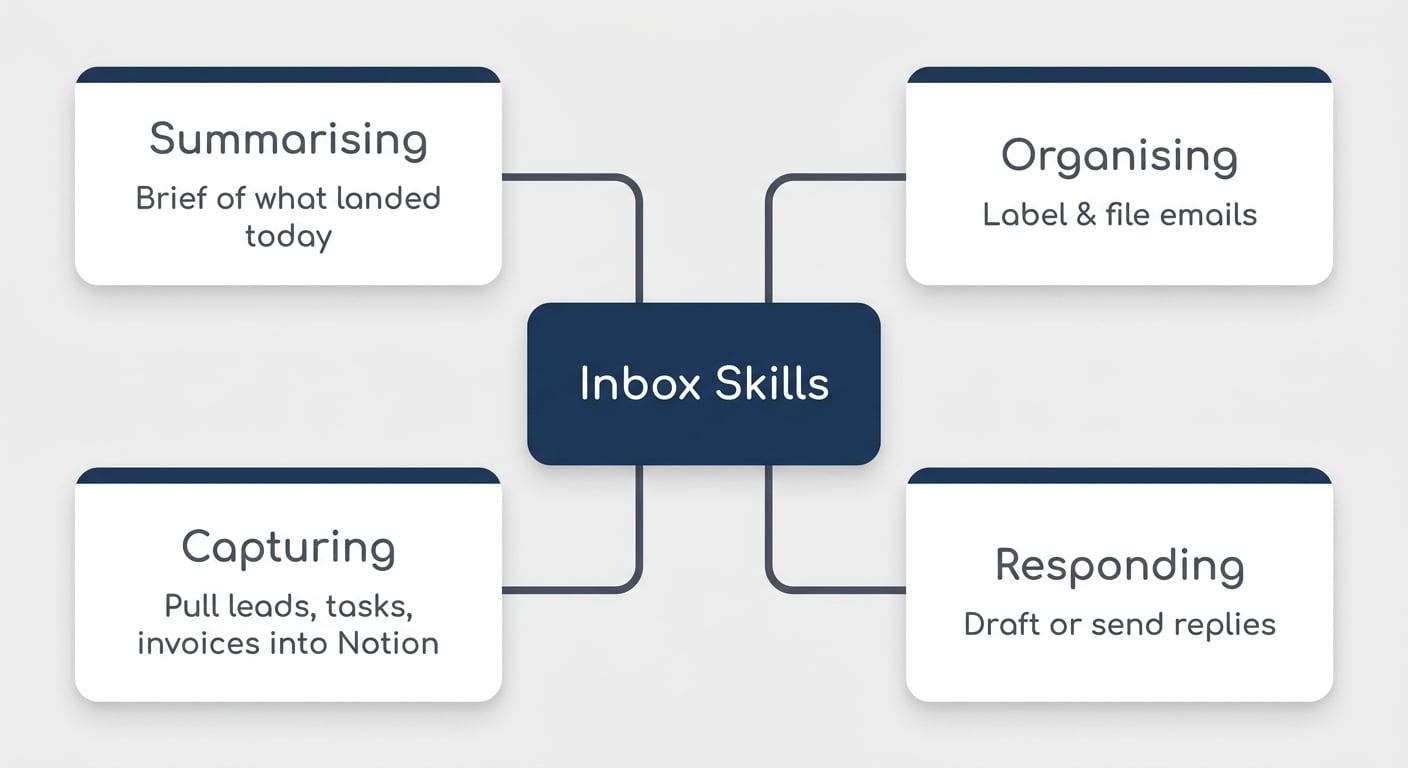
When it comes to your inbox, there are roughly four types of skills worth building:
- ✅ Summarising — “give me a brief of everything that landed today.” Be specific about what’s actually useful, or the summary won’t help you act.
- ✅ Organising — labelling and filing emails so you can sort your inbox at a glance.
- ✅ Capturing — pulling a lead into the CRM, an invoice into your finance database, or a task out of an email and into Notion.
- ✅ Responding — drafting or sending replies on your behalf, e.g. answering common questions from a Notion knowledge base.
The trick to a great skill is teaching the AI your judgement. “Read later” or “interesting news” mean different things to different people, so we use the ACDC framework — having the AI ask you clarifying questions up front — so it labels and files things exactly the way you would.
Here’s a sample triage and labelling skill you can copy, adapt, and run against your own inbox:
---
name: triage-inbox
description: >
  Read today's unlabelled emails and apply one category label to each, so
  the inbox sorts itself. Use it whenever you want to "triage the inbox,"
  "label my mail," or clear a backlog of uncategorised messages.
---

# Triage & Label Today's Inbox

Read every unlabelled email in today's inbox, work out what each one is
actually about, and apply exactly one category label. This skill only
labels — it never archives, deletes, replies, or sends.

## Categories

Apply the single best-fit label per email:

- **Action Required** — needs a reply, decision, or task from you
- **Read Later** — worth reading, not time-sensitive (newsletters, long reads)
- **Interesting News** — product or industry news to be aware of
- **Promotions** — marketing, sales, discount offers
- **Travel Information** — bookings, itineraries, check-ins
- **Invoices** — bills, receipts, payment confirmations

## Process

1. Pull today's messages and focus on threads with no category label yet.
2. Read sender, subject, and a snippet of the body to classify each one.
3. Pick one best-fit label. When two fit, prefer "what needs me" over
   "nice to know": Action Required > Invoices > Travel > Interesting News >
   Read Later > Promotions.
4. Apply the label — only ever add, never strip existing labels.
5. Report back: counts per category, plus anything left unlabelled.

## Rules

- Reuse existing labels by exact name — never spawn near-duplicates like
  "Action Needed."
- One category per email; use the priority order to break ties.
- Labelling only — no archiving, deleting, moving, replying, or sending.
- When intent is unclear, leave it unlabelled and flag it rather than
  forcing a wrong category.
And here’s a lead-capture skill that turns inbound enquiries into clean CRM entries:
---
name: log-leads
description: >
  Scan today's inbox for genuine inbound leads, extract the key details,
  and log each one into the CRM as a linked Contact, Company, and Deal at
  the New Lead stage. Use it for "check my inbox for leads" or "log today's
  leads."
---

# Log New Leads from the Inbox into the CRM

Find real inbound enquiries in today's inbox and turn each into a clean,
deduplicated CRM entry — Contact > Company > Deal at **New Lead** — with no
manual copy-paste.

## Context

- **Inbox** — your connected email account.
- **CRM** — work only inside Deals/Pipeline, Contacts, Companies, and
  (optionally) an Email Sync database.

## Process

1. **Pull today's inbox.** A lead can arrive from any sender or subject, so
   work from the inbox, not a keyword search.
2. **Separate leads from noise.** A lead shows inbound interest in your
   services (a pricing question, a referral intro, a demo request). Ignore
   newsletters, vendor pitches, invoices, and internal mail.
3. **Extract the fields** the CRM needs — name, email, role, company,
   website, what they want, and value only if stated.
4. **Deduplicate first.** Match the Contact by email and the Company by
   name/domain. Reuse and update existing records — never create a double.
5. **Confirm with me.** Show the shortlist of detected leads before writing
   anything, and wait for a go-ahead.
6. **Create records in order:** Company > Contact > Deal, so every relation
   has a target. Set every new Deal to **New Lead**.
7. **Report back** what was logged and anything skipped.

## Rules

- Always confirm the shortlist before creating records.
- Deduplicate on email (Contacts) and name + domain (Companies) every time.
- Leave Value and Expected Close blank unless the email states them —
  invented numbers corrupt pipeline reporting.
- When intent is ambiguous, surface the email for review rather than logging
  or discarding it silently.
💡 Pro Tip: Don’t try to make one giant skill do everything on a busy inbox. Break the work into stages — organise first, then summarise, then respond — so the AI handles a manageable chunk at each step and stays sharp.
💡 Looking for more tips? Join 39k Notion Fans on our bi-weekly newsletter and get access to 41+ free resources — including ready-to-copy skills like these. → matthiasfrank.de/en/special
When Should You Hand A Skill To A Notion Agent?
Hand a skill to an agent when the job should run without you remembering to trigger it — that’s the whole point of an agent: scale and attention.
A skill is reactive. You have to remember to run your triage, your lead capture, your follow-ups. But your human context window is tiny — you can only keep a handful of things front-of-mind at once. An agent removes that mental load by running the skill in the background, every time it’s needed.
First, a quick cost note. Your personal AI (bottom-right corner) is included in your seat — effectively free until you hit your usage limit. A custom agent runs on autopilot but costs money per run, so there’s a real trade-off. (For the full picture, see how Notion agent pricing works and three principles to cut your AI bill.)
So the rule is simple: always build and test a skill manually first, then promote it to an agent once you know it works. A best practice here is to keep the skill stored separately and have the agent simply reference it — that way multiple agents can share one skill, and you update it in one place.
What should run as an agent? A few judgement calls:
- ✅ Great for agents: labelling — it can quietly sort every new email in the background.
- ⚠️ Depends: replies. If you’ll review every draft anyway, an agent buys you nothing — you might as well run the skill yourself.
- ✅ Worth it: small “glue” jobs, like watching for a lead’s reply and updating the CRM stage automatically.
Two more decisions when you set one up. The trigger — for inbox triage, run it whenever a new email is received; for a daily digest, run it on a schedule. The model — test once on a top model to confirm your instructions work, then downsize to something fast and cheap like Haiku to keep costs low. If the smartest model can’t do the job, the problem is your instructions, not the model.
💡 Pro Tip: Before reaching for AI at all, check whether a plain inbox rule can do the job. If certain senders always belong in one folder, a rule handles it for free — save the AI for the calls that actually need judgement.
Want hands-on help building these? We run a live skills workshop — the next one is on Thursday 30 July, and you’ll find the sign-up link in our newsletter.
How Do You Sync Real Emails Into A Notion Database?
If you genuinely need the email object itself inside Notion, you can wire up a script that pushes emails straight into a Notion database — and it’s far easier today than it used to be.
The flow has three parts: a script in Google Apps Script fires a webhook whenever a labelled email arrives, a Notion Worker catches that webhook, and it then writes the email into your Notion database. You don’t need to be a coder — you need to know how to direct an AI coding agent.
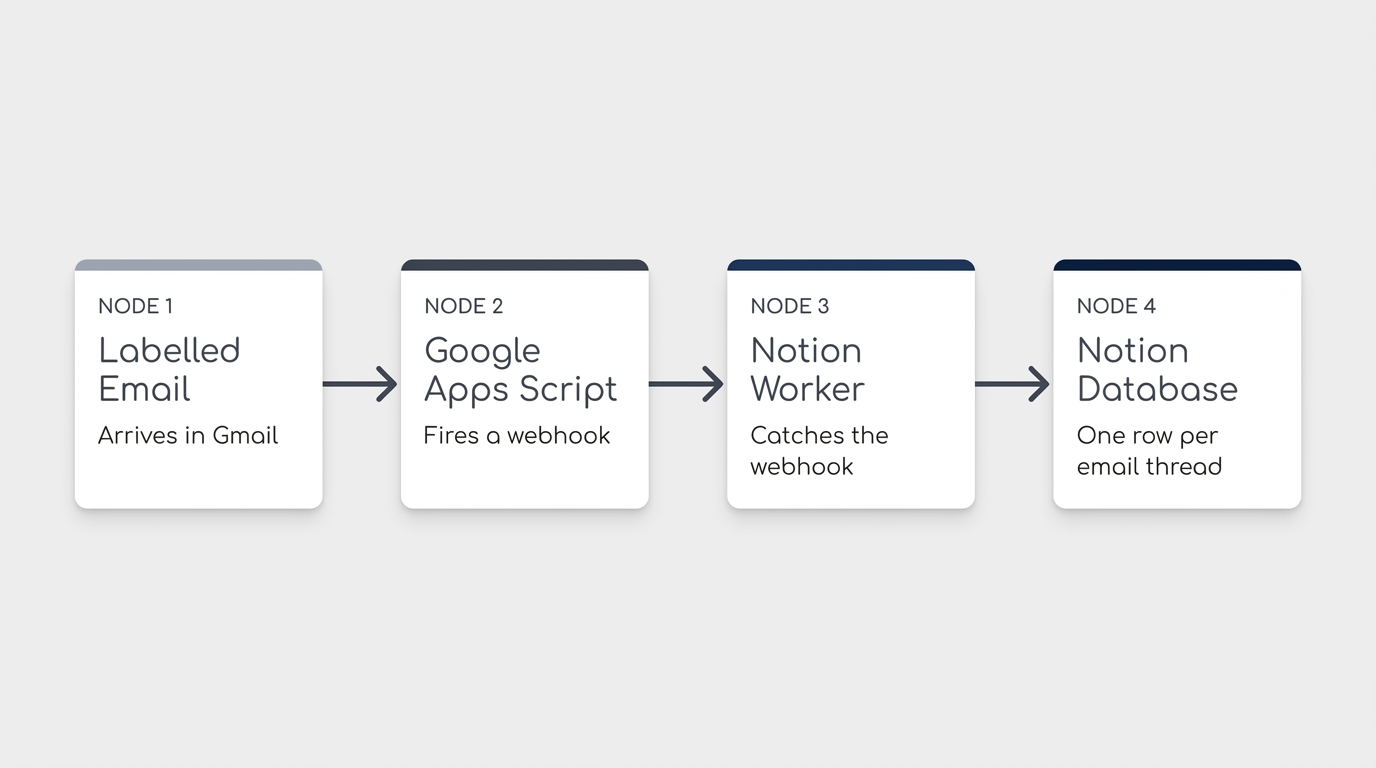
That’s where the five-stage build flow comes in — the same one we use to build a Notion Chrome extension with AI and run with tools like Claude Code and Codex:
- Feasibility — sanity-check that the idea is buildable (for email sync, it is).
- PRD — describe in plain English what should happen, e.g. “one Notion row per email thread.”
- Grill me — let the AI interview you to surface the decisions you forgot to make, like “filter by label, or pull every email?”
- Plan — have the AI turn your answers into a step-by-step build plan.
- Build — let it write the script one slice at a time while you test.
A couple of practical notes from doing this live. Filtering by label is the smart default — apply a label (manually or with your triage agent) and only those emails sync, so your Notion database stays focused on what matters. And never paste your Notion API token into the chat: store it in a .env file using a code editor like VS Code, and grab the token from the Notion Developer Portal so the AI can use it without ever seeing it.
💡 Pro Tip: Don’t expect it to be perfect on the first run — mine wasn’t. Treat it as a loop: test, spot what’s off (for me, the email body landed in the wrong place), feed the correction back, and refine. Cutting the grill-me stage short is usually what causes those misses.
Frequently Asked Questions
Is Notion Mail Really Going Away?
Yes — Notion is shutting down its dedicated Notion Mail product. But that doesn’t mean email and Notion no longer mix. You can still bring your inbox into Notion through skills, agents, and a direct database sync, which for most workflows is more useful than a full mail client anyway.
Do I Need To Know How To Code To Get Emails Into Notion?
No. The skill and agent methods need zero code — you just write clear instructions in plain English. Even the full email-to-database sync is built by directing an AI coding agent through a five-stage process, so your job is to describe what you want, not to write the script yourself.
Should I Use A Skill Or An Agent For My Inbox?
Start with a skill. It’s free with your seat and lets you test the workflow by running it yourself. Once you’ve confirmed it works and the job is something that should happen automatically — like labelling every incoming email — promote it to an agent so it runs in the background.
How Much Does It Cost To Run An Email Agent In Notion?
Your personal AI is included in your seat, so running skills yourself is effectively free until you hit your usage limit. Custom agents cost money per run, but you can keep that low by filtering with inbox rules, using a fast, cheap model like Haiku, and only automating the jobs that truly need to be hands-off.
Which Emails Should Actually Live In Notion?
Usually none of the email objects themselves — just the information inside them. Most of the time you want the lead, task, or invoice extracted into the right database, not the raw email. Only sync the actual emails when you have a specific reason to keep the full thread, such as a shared client record.
💼 Need the support of certified Notion Consultants? My team and I are here to help — especially with rolling email automations out across a team or organisation. → matthiasfrank.de/en/notion-consulting