Notion Changelog & Feature Updates
Every Notion Update.Tracked and explained.
The most comprehensive, independent resource for Notion updates. We track every new feature, improvement, and change — so you're always the first to know.
Need help implementing these features for your team?
Explore Our ConsultingNotion Updates FAQ
Common QuestionsAbout Notion Updates
How to update Notion?
Notion Updates roll out automatically to your workspace, which means you usually don't need to do anything.
However, in some rare cases, your Notion Workspace can get temporarily "stuck". Check the Troubleshooting Notion Updates question below for step-by-step instructions.
Why can't I see the latest Notion Updates in my workspace?
Typically, Notion Updates roll out to all users over the span of a day.
That means other Notion users might already have a new feature and post about it on social media before you can see it in your workspace.
In these cases, all you can do is wait until it's time for your workspace to receive the update (which should usually not take longer than 24 hours).
Notion usually only publishes their update announcement after rolling out the update to everyone — and we also only add an update here after that.
If an update has been officially announced and you still don't see it, check the Troubleshooting Notion Updates question below for step-by-step instructions.
Troubleshooting Notion Updates
If you can't see a Notion Update even after the official announcement, here's what you should do to fix the situation:
1. Check your internet connection
Notion can only update if you have a stable internet connection. If you see a little "Offline" notice at the top of your Notion window, it means something is wrong with your internet connection.
2. Refresh Notion
Most issues with Notion can be resolved by simply refreshing the app. If you use the Notion Desktop app, press Cmd + R (on Mac) or Ctrl + R (on Windows) to refresh it. If you use Notion in your browser, reload the page (most browsers also use Cmd + R or Ctrl + R).
3. Reset Notion
Resetting Notion involves deleting all local data and clearing the cache, which means you will be logged out of all accounts. Make sure you have your login data ready before doing this!
Reset instructions might change occasionally, so make sure to check Notion's official reset documentation.
4. Contact Notion Support
If all else fails, you have to open a ticket and reach out to Notion Support. You can do so by scrolling to the very bottom of your left Notion Sidebar. There, you'll find an option called "Help & support".
I have a Notion Update in my workspace that's missing here. Why?
You might see a Notion Update that's missing here for one of three reasons:
1. Notion Update Rollout in Progress
Notion Updates roll out in steps to every user and it can take up to 24 hours for every workspace to receive the update. Notion usually only officially announces an update once the rollout has been completed — and we also only add features here that should have rolled out to everyone. So if you see a feature already, you might be one of the lucky early users who got the update!
2. Notion is A/B Testing Features
Notion is constantly testing the product UI and sometimes that includes A/B testing changes without an official update. If you don't see anyone talking about this most recent change in the software, you probably got a special version. After a while, Notion will either make this the new official UI for everyone or revert your version back to the standard one.
3. Notion accidentally leaked a feature
From time to time, Notion accidentally pushes a feature (or a hint of a feature) to production that's not supposed to be live yet. These usually disappear quickly, so you won't be able to see it for too long in your workspace.
Do I need to manually update my Notion app for the latest features?
No, Notion will update automatically regardless of whether you use the Notion Desktop App or the Browser Version.
If you should see an update and need to troubleshoot, check the Troubleshooting Notion Updates section above.
Can I roll back to a previous version of Notion if I don't like an update?
Unfortunately no. Notion doesn't support different versions, which means you can always only use the latest update.
However, the team is super responsive — so if you don't like a change, share your constructive feedback with the team via a support ticket or on social media.
I want to learn more about Notion. Can you help me?
Sure thing!
If you want to learn more about Notion, you can check out the Learn Notion Hub on this website or my Notion YouTube Channel.
You can also subscribe to my newsletter to get all the latest updates delivered straight to your inbox. As an added bonus, you'll also get more than 21 free Notion Templates!
I want to implement Notion features for my team. Where do I start?
Knowing about new features is a great start — but actually implementing them for a team requires a completely different skill set.
When I first started working with Notion more than five years ago, technical expertise was all that mattered. The product had a lot of missing pieces, and mastering Notion meant understanding every technicality so you could push the software to its limits.
Today? Technical knowledge is table stakes.
The real challenge isn't understanding what a feature does — it's designing workflows, permissions, and adoption strategies that make the tool work for your entire organisation. How do you actually get your team to work in Notion? What are the most common pitfalls to avoid? And what sets an okay workspace apart from a great one?
That's exactly what we help with. Here are two ways to get started:
Notion Desktop Beta: Tabs in a Window Now Share One Running Copy of Notion
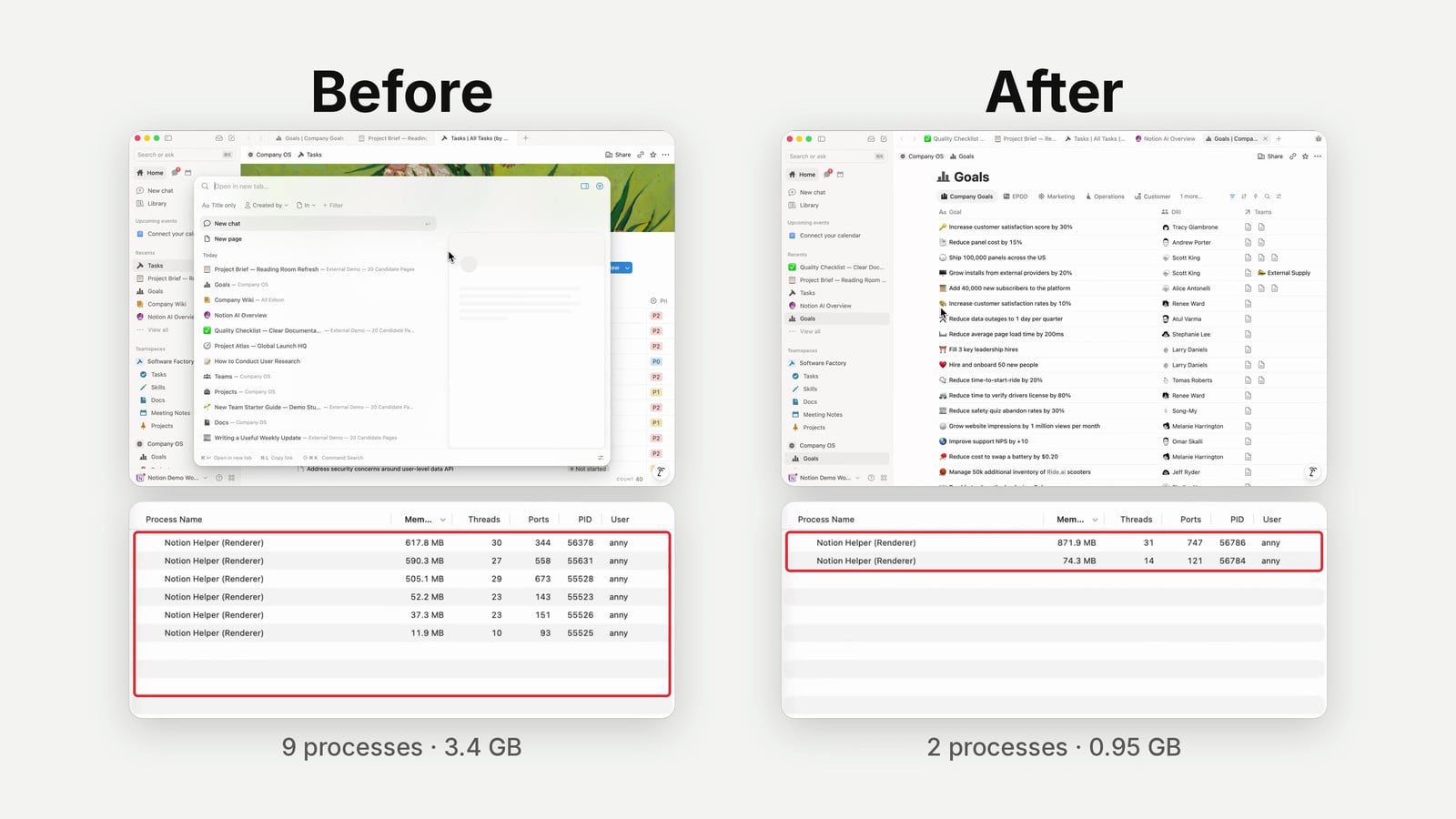
The Notion desktop app has an opt-in beta that changes how tabs work. All the tabs in a window share one running copy of Notion, so switching tabs is faster, the sidebar no longer reloads, and Notion uses less memory with several tabs open.
A few things move when you join. Each window holds one workspace, so a window with pages from more than one workspace splits into one window per workspace, and tab groups become their own windows. Your open tabs carry over, and your classic layout is saved and comes back if you leave. The beta is for the Mac and Windows app only and needs version 7.39.0 or later.
To join, go to Settings → Preferences → Desktop beta, or click Try Desktop Beta in the tab bar when it appears. To leave, click the Beta button in the tab bar and choose Leave beta. Notion restarts each time.
Notion Buttons: Button Automations Can Now Send a Message to an Agent
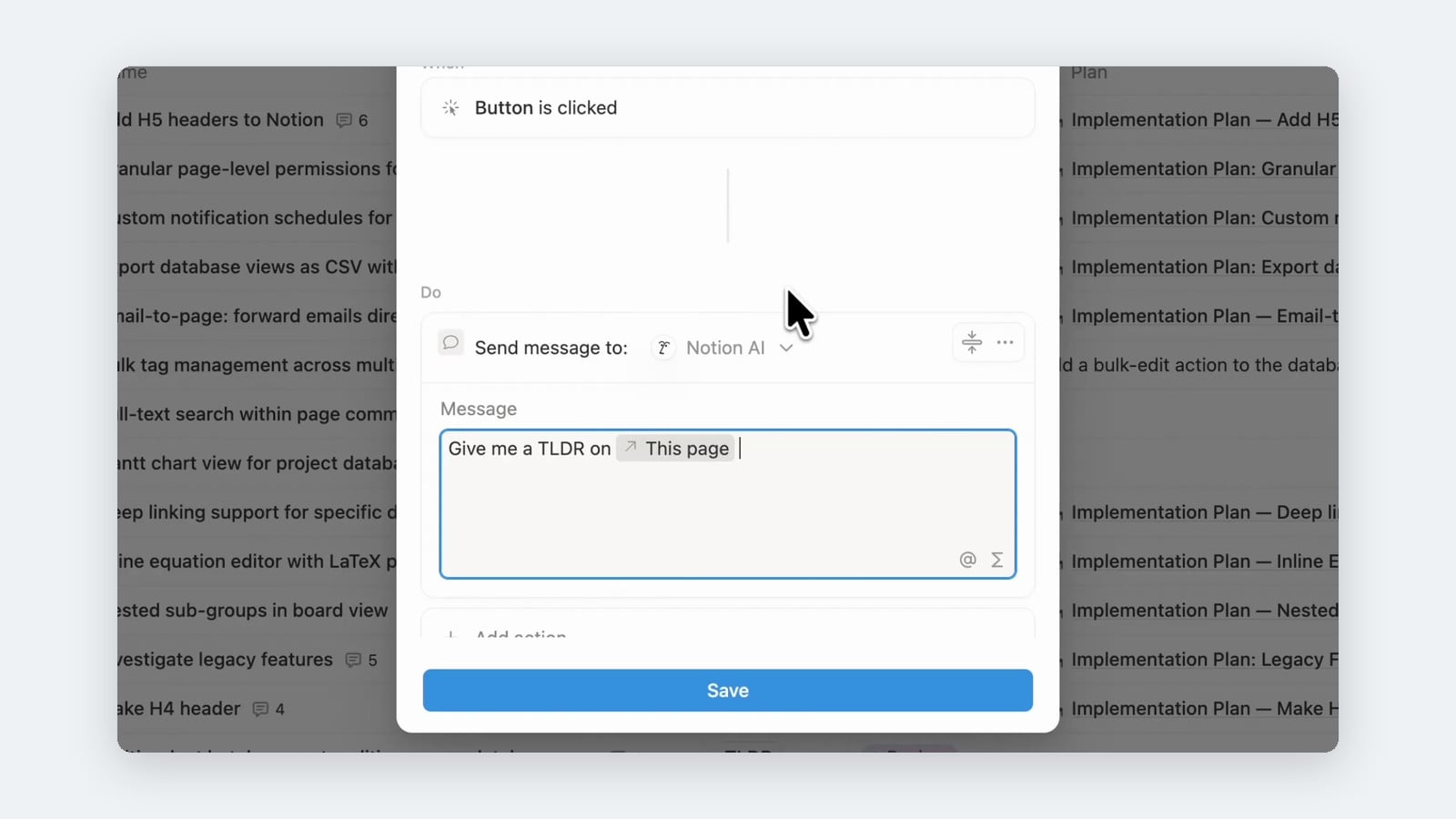
Button automations have a new action, Send message to agent. Clicking the button opens a chat with the agent you chose and sends it a message written in advance, so anyone on your team can start an agent workflow with one click instead of typing the request themselves.
You pick the recipient, Notion AI or one of your Custom Agents, and write the message. It can @-mention pages, including This page, so a Button property in a database can ask for, say, a TLDR of the row it sits in. The agent’s reply appears in the chat panel next to the page.
To set it up, edit the button’s automation, select New action, choose Send message to agent, pick the agent next to Send message to, write the message and select Save.
Notion Agent: Use Your ChatGPT Go Plan for GPT Models, Not Just Plus or Pro
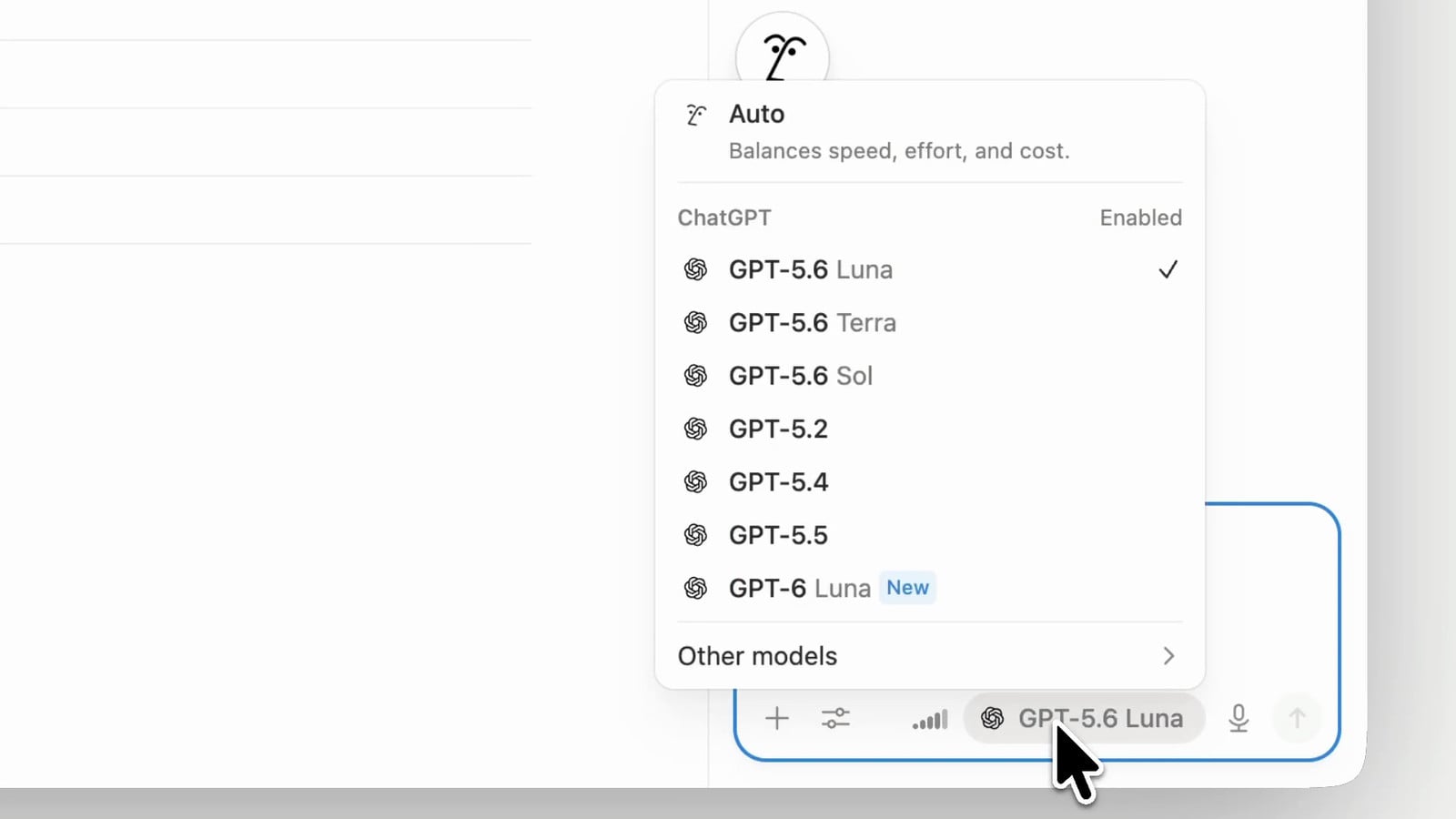
Notion Agent now also runs on a ChatGPT Go plan: connect your ChatGPT account to Notion, select a GPT model, and the session uses your ChatGPT plan instead of your workspace’s Notion credits. Until now only ChatGPT Plus and Pro accounts could be connected (see our entry Use Your ChatGPT Plus or Pro Plan for GPT Models).
Everything else stays the same: your workspace has to be on the Business or Enterprise plan, you have to be a member rather than a guest, and each person connects their own ChatGPT account. Your ChatGPT plan is used only when you select a specific GPT model in Notion Agent; with Auto or a non-GPT model the session runs on your workspace’s Notion credits, and the model picker shows which plan is in use before you send a message. It does not work with Custom Agents.
To connect, go to Settings → Notion AI → Usage and select Connect next to ChatGPT under Connected subscriptions, or open the model picker in Notion Agent and select Connect ChatGPT plan under Subscriptions. Sign in to ChatGPT, allow Notion to connect to your account, and return to Notion.
Notion API: Page Writes Can Now Skip Notifications With notifications.mode
The Create a page, Update a page and Append block children endpoints now accept a notifications object. Set notifications.mode to silent and the change sends no page update notifications to people who follow the page through Notify me, no notifications to people the content @mentions, and none to people the change adds to a Person property. Set it to default, or leave notifications out, for the standard behaviour.
Some effects happen in either mode: database automations the change triggers still run, including Send notification to actions; reminders the change sets still go off at their scheduled time; connection webhooks still receive events for the change; and page history, page activity and workspace audit logs still record it.
To use it, add notifications with mode set to silent to the request body of any of the three calls, for example when an integration bulk-imports pages or syncs a Person property and nobody needs a ping for each write.
Notion MCP: notion-fetch Now Returns File References Instead of Signed URLs
Page markdown from notion-fetch in Notion MCP now cites files in page blocks as stable notion-file-block:// references instead of signed download URLs. Files in database properties are still signed inline.
To get download links, call the new notion-get-file-download-urls tool with up to 25 references copied exactly from the fetched markdown. It returns a signed URL and an expiry time for each file it resolves and lists the rest as unresolved. Or pass include_file_urls: true to notion-fetch to get a map from each reference to a signed URL. The URLs expire after a few minutes, so call again for fresh ones.
When an agent or script edits or copies page markdown, keep the notion-file-block:// references, not the signed URLs.
Notion Agent: Your ChatGPT Plan Now Connects Across Different Email Addresses
You can now use your ChatGPT Plus or Pro plan with Notion Agent even if your ChatGPT account and your Notion account use different email addresses. Until now, the two accounts had to share the same verified email address.
Everything else stays the same: your workspace has to be on the Business or Enterprise plan, you have to be a member rather than a guest, and each person connects their own ChatGPT account. Your ChatGPT plan is used only when you select a specific GPT model in Notion Agent; with Auto or a non-GPT model the session runs on your workspace’s Notion credits. It does not work with Custom Agents.
To connect, go to Settings → Notion AI → Usage and select Connect next to ChatGPT under Connected subscriptions, or open the model picker in Notion Agent and select Connect ChatGPT plan under Subscriptions. Sign in to ChatGPT, allow Notion to connect to your account, and return to Notion.
Notion Agent: Use Your ChatGPT Plus or Pro Plan for GPT Models
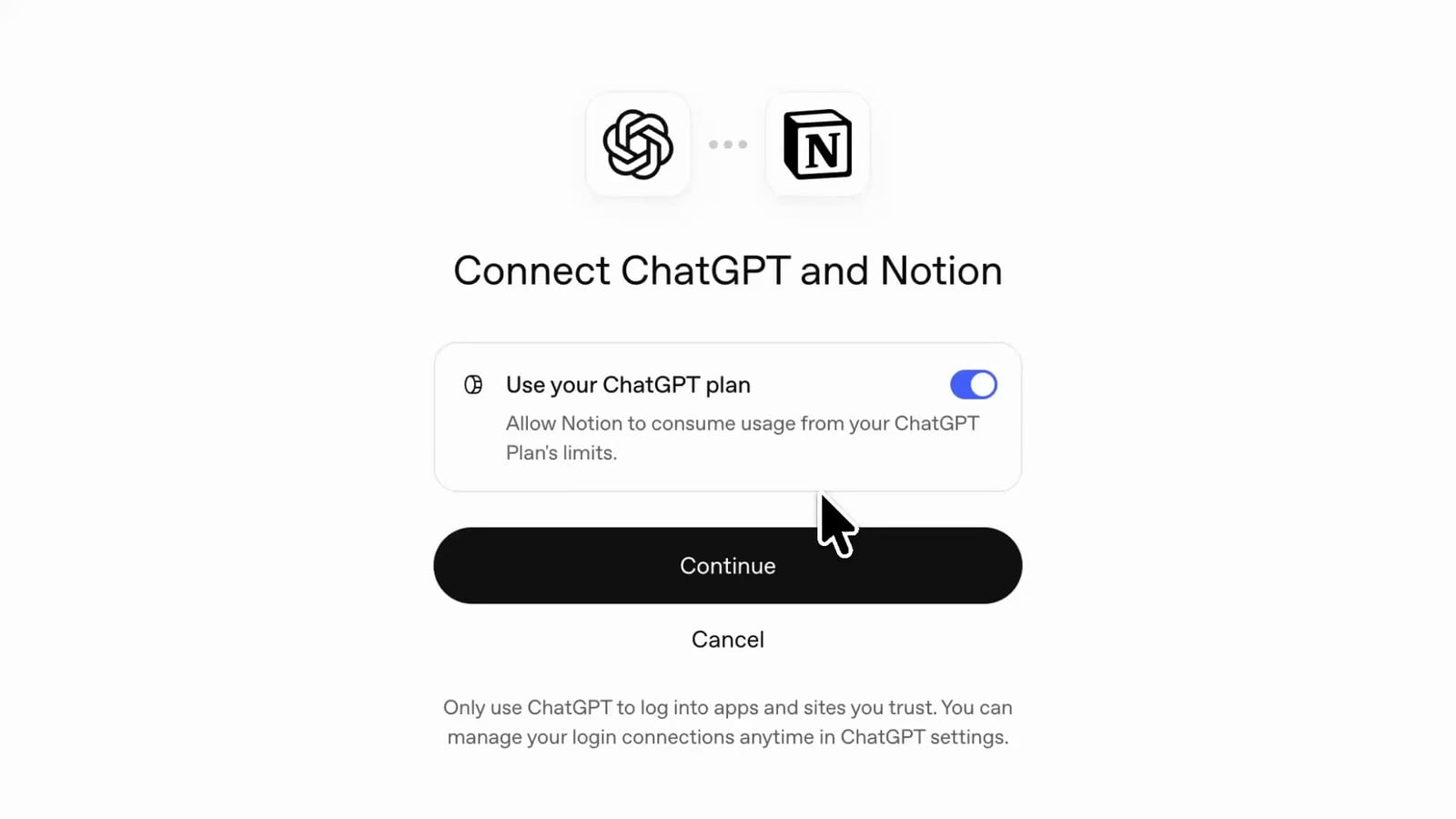
Notion Agent can now run on your ChatGPT Plus or Pro plan: connect your ChatGPT account to Notion, select a GPT model, and the session uses your ChatGPT plan instead of your workspace’s Notion plan.
It works in workspaces on the Business or Enterprise plan and only for members, not guests. Each person connects their own ChatGPT account, which has to use the same verified email address as their Notion account. Your ChatGPT plan is used only when you select a specific GPT model; with Auto or a non-GPT model the session runs on your workspace’s Notion credits, and the model picker shows which plan is in use before you send a message. If you reach the limit of your ChatGPT plan, Notion Agent asks you to switch to your workspace’s Notion credits to continue the session, and it switches back automatically once your ChatGPT usage is available again. It does not work with Custom Agents.
To connect, go to Settings → Notion AI → Usage and select Connect next to ChatGPT under Connected subscriptions, or open the model picker in Notion Agent and select Connect ChatGPT plan under Subscriptions. Sign in to ChatGPT, allow Notion to connect to your account, and return to Notion. In the same settings you can turn off Use your ChatGPT plan to stop using it without disconnecting, or select Disconnect to remove your ChatGPT account from Notion.
Notion Notifications: Now Delivered in Microsoft Teams
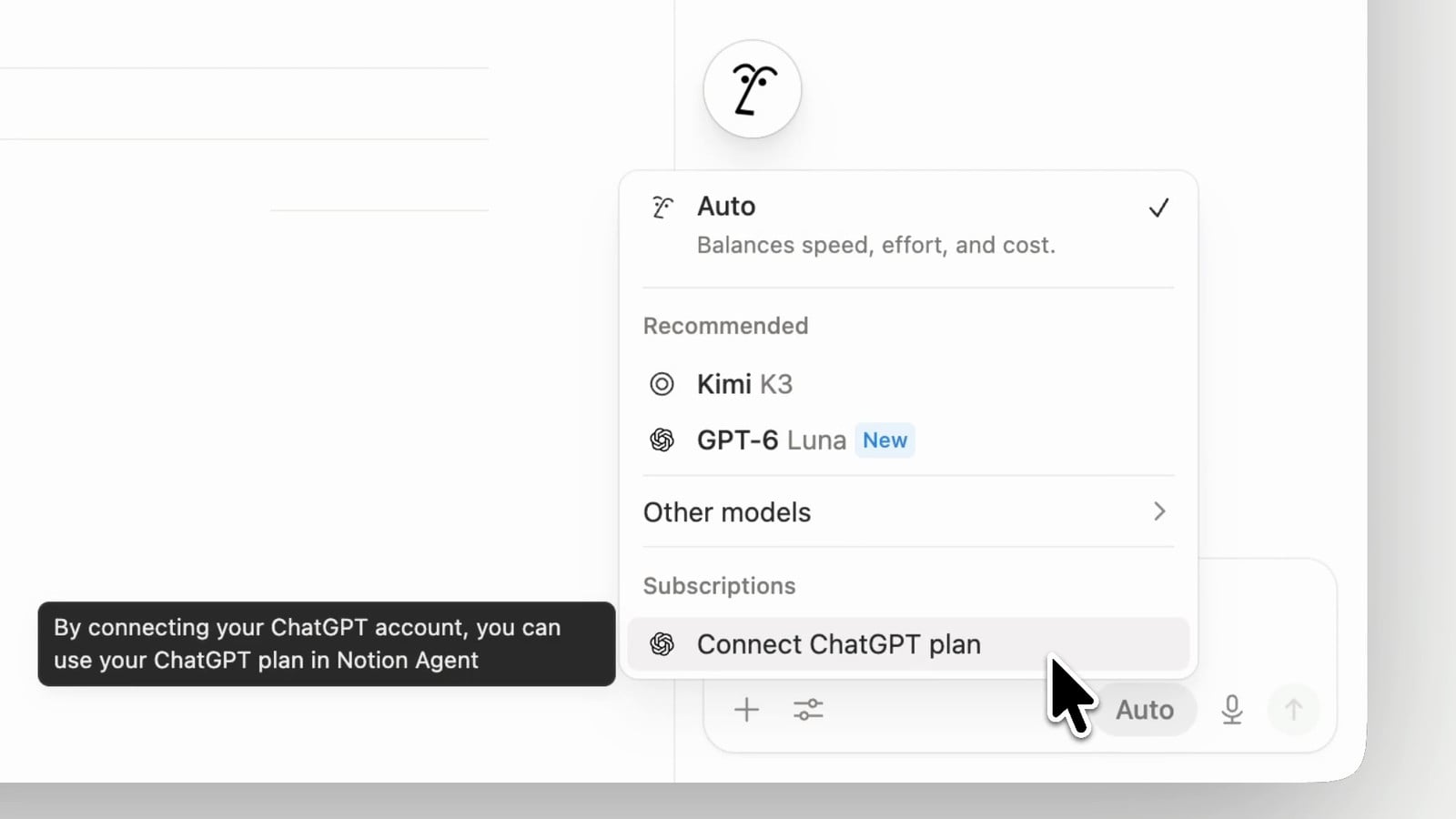
Notion can now send your notifications to Microsoft Teams: once you connect your Teams account, a Notion bot messages you in Teams when there is activity you follow, such as mentions, comments and page invites.
The bot writes when someone mentions you or a group you are in, comments on a page you follow or replies in a thread you are part of, changes a property on a database page you follow, invites you to a page, asks for access to a page you own, or adds you to a teamspace. For property changes you choose between all updates and only the important ones, such as status, assignee and due date. Messages follow your notification settings and your page permissions, so you are never notified about a page you cannot open, and they can take up to two minutes to arrive, because related updates are grouped together. One Teams account can receive notifications from more than one Notion account, and the bot takes the commands list, connect, help and signout. This is separate from the Microsoft Teams AI Connector, which lets Notion AI search your Teams messages, and it is rolling out over time, so the option may not be in your workspace yet.
To set it up, go to the workspace switcher → Settings → Notifications → Connected apps, find Microsoft Teams, open the dropdown and select + Add new account. Add the app in Microsoft Teams and allow the access when prompted, copy the 6-digit code that Notion shows, and enter it in the Notion bot in Teams; the connection is complete only once the code is accepted. You can also connect from the Notion mobile app. To turn the notifications off again, select Off in the same dropdown.
Notion Databases: Property Access Sets Who Can See and Edit Each Column
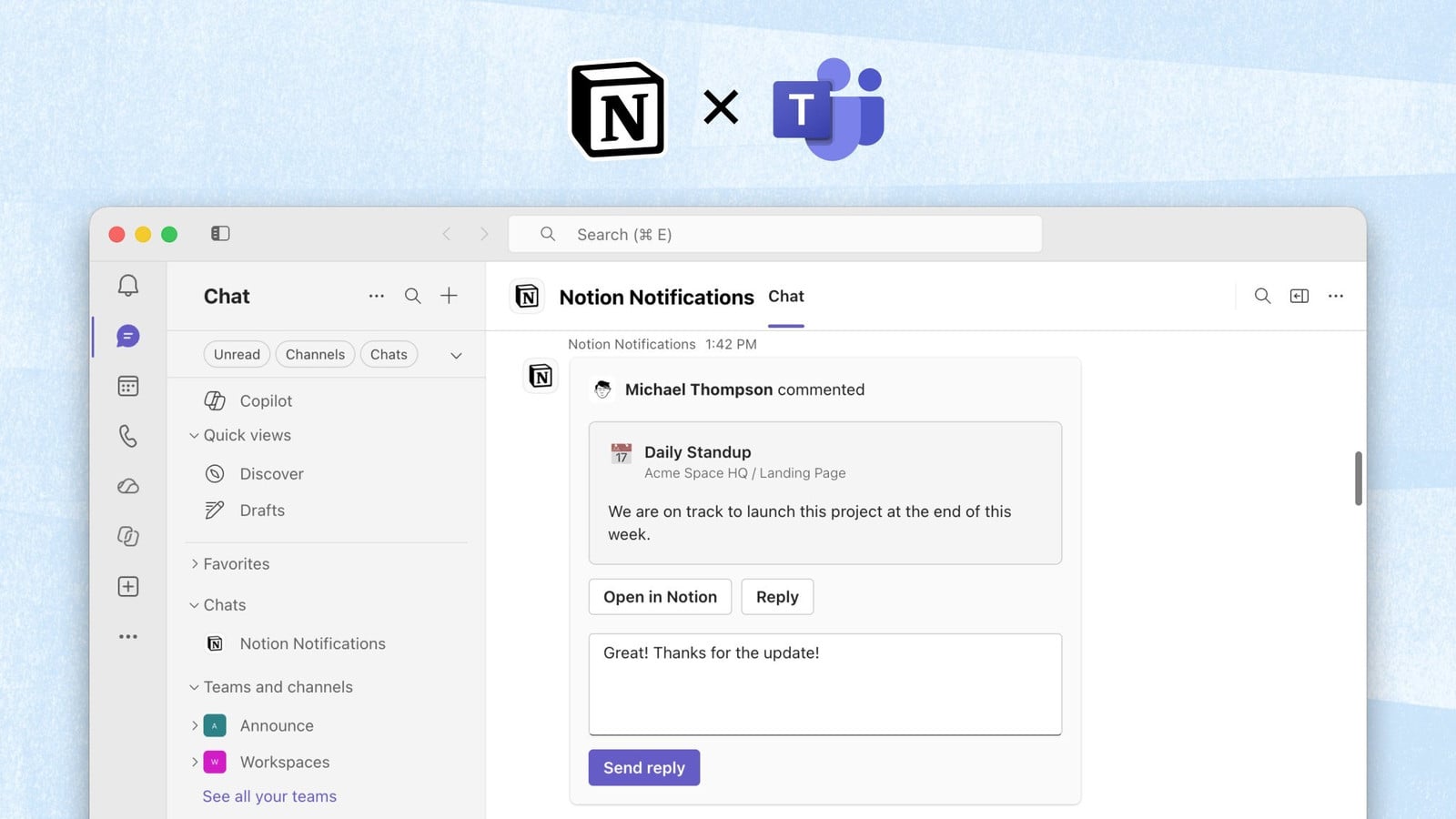
Notion databases now have property access: for each column you set who can view it and who can edit it, so one shared database can show names and roles to everyone while the salary column stays with the people team.
It is available on Business and Enterprise plans; you need Full access to the database to set it up, on web or desktop, and rules also apply on mobile, where they cannot be created. Each column gets a default level for everyone who can open the database, from No access through view-only and Can edit values only up to editing the property itself, plus exceptions for people, groups, agents or a person property, so a Project Owner can edit the cost of their own project and nobody else’s. Where exceptions overlap the least restrictive wins, anyone with Full access to the database is never restricted, and a column rule never opens a page someone could not already see; agents get their user’s access, so a hidden column may be reported as not existing. Title, ID, created and last-edited properties, sub-item and parent relations and some synced properties cannot be restricted, wiki databases are excluded, and a view that filters, sorts or groups by a hidden column may not open for those people.
To set it up, open the original database, not a linked view, in a table view, open the column’s menu and select Property access, choose the default level, add the exceptions, check the result with Preview as a specific person and save; the first rule on a column can take a few minutes on a large database, because Notion moves that column’s data. Our complete property access guide covers the setup in detail.
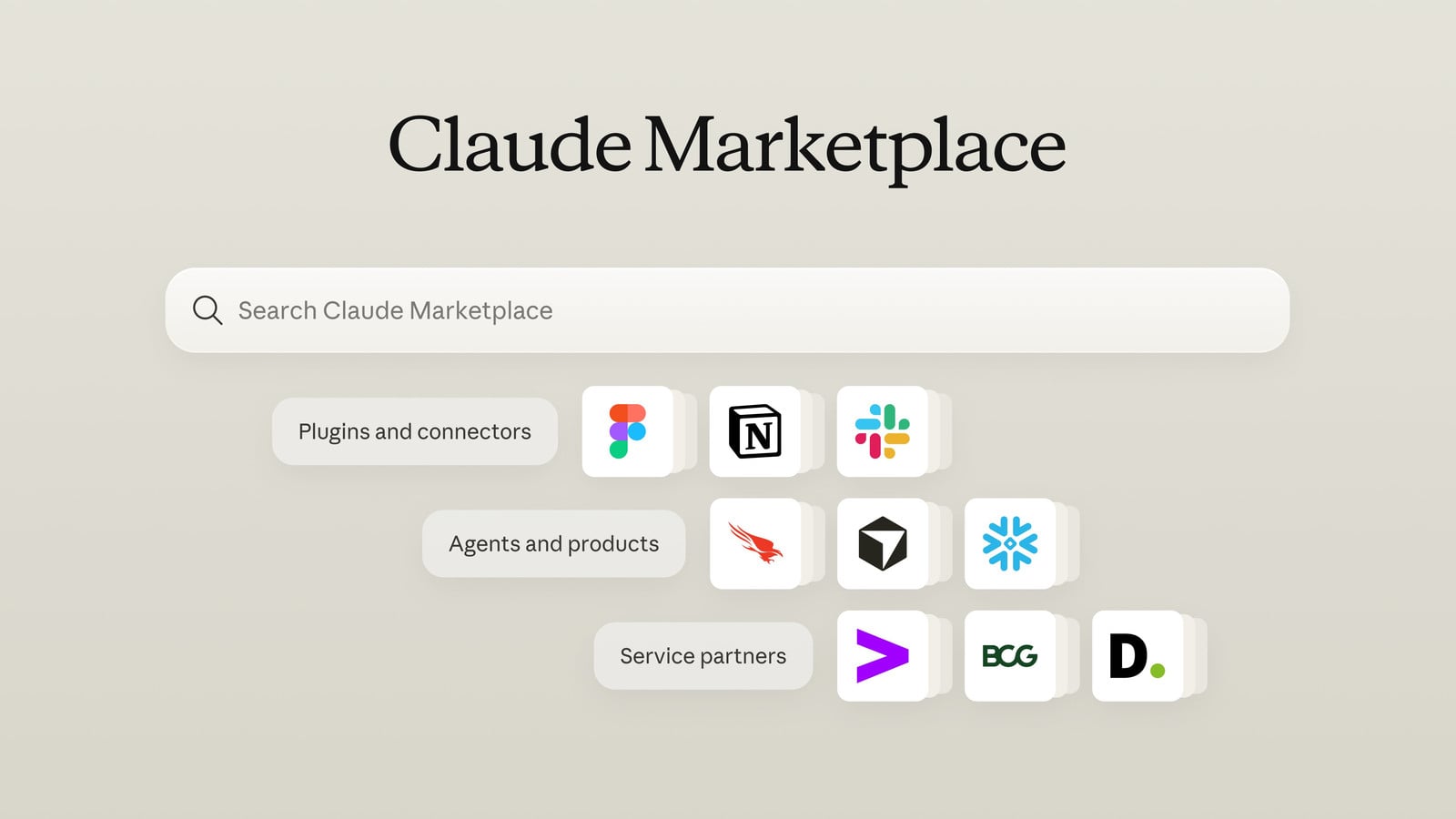
Claude Marketplace: Notion’s Connector Is Now Listed in Anthropic’s Catalogue
Anthropic’s new Claude Marketplace lists Notion’s connector for Claude, so you can find and add it in one catalogue alongside more than 2,000 other connectors and plugins.
The connector itself is not new: made by Notion and verified by Anthropic, it has been available since 2025 and lets Claude search and fetch pages, create, update, move and duplicate them, create and update databases, and read and add comments, acting with your Notion permissions. It works in Claude on the web, Claude Desktop, Cowork and the Claude mobile apps; on Team and Enterprise plans an Owner has to enable connectors before members can connect.
To add it, find Notion in the Claude Marketplace at claude.com/marketplace, or in the Claude app go to Customize → Connectors → Discover, choose Notion, select Connect and sign in to Notion.
Notion API: File Uploads Now Accept CAD and 3D Model Files
The Notion API’s File Upload API now accepts CAD and 3D model files, so a connection can attach drawings and models to a Notion page.
The supported extensions are .dwg, .dxf, .dwf, .rvt, .rfa, .fbx, .3dm, .step, .stp, .iges, .igs, .stl, .obj, .3mf, .gltf, .glb, .dae and .usdz. They attach as file blocks, the same as documents, and the usual size limits apply: 5 MiB per file in a Free workspace, 5 GiB in a paid one, with anything over 20 MiB sent in multi-part mode. A file that an HTTP client labels application/octet-stream is now typed by its filename extension, or by the content_type set when the file upload was created; if neither gives a supported type, the request fails.
To use it, call Create a file upload with a filename that includes the extension, send the file with Send a file upload, and then add a file block through Append block children that references the returned file upload id. An uploaded file has to be attached within one hour.
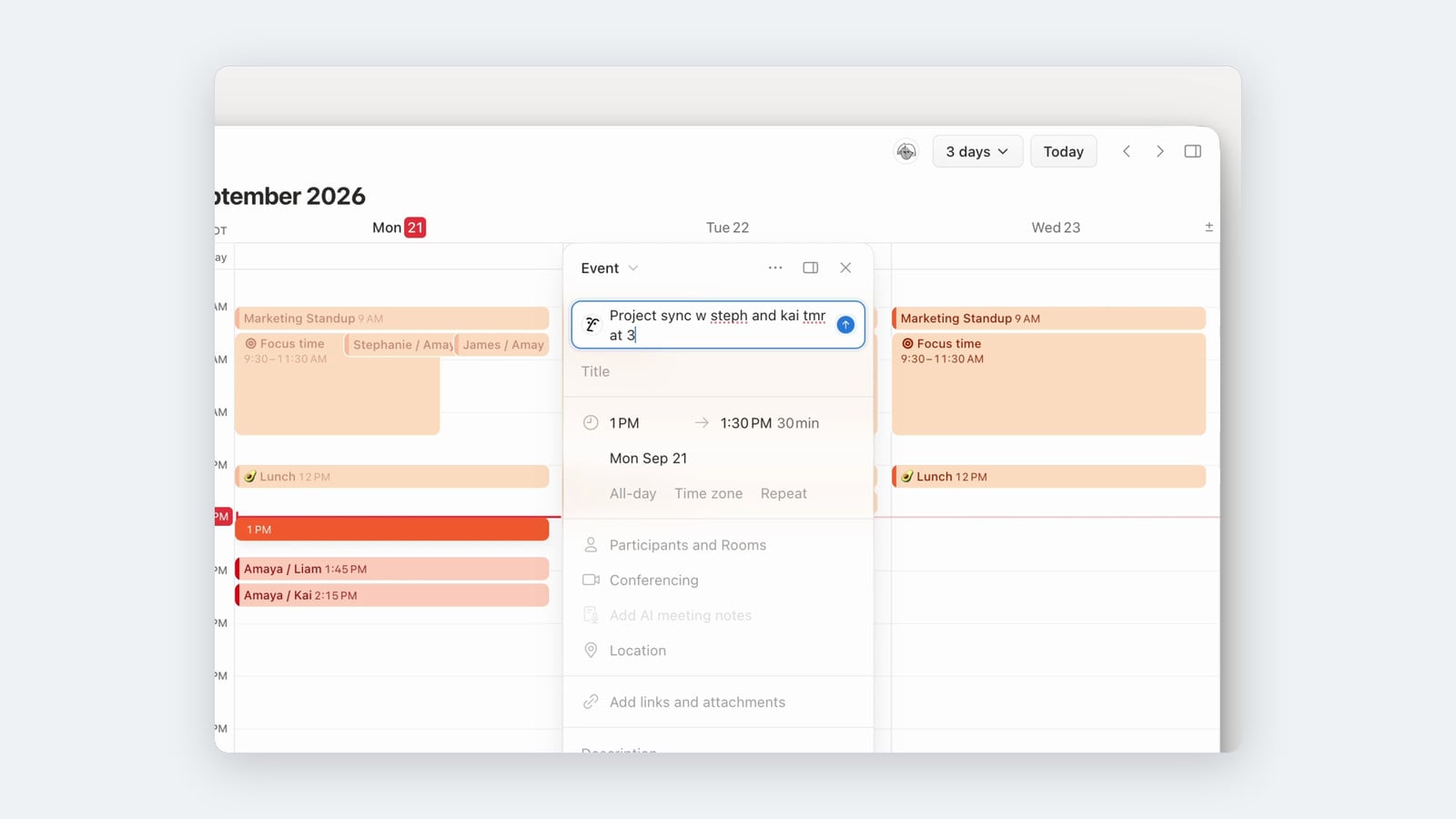
Notion Calendar: Describe an Event in Plain Language and Calendar Fills It In
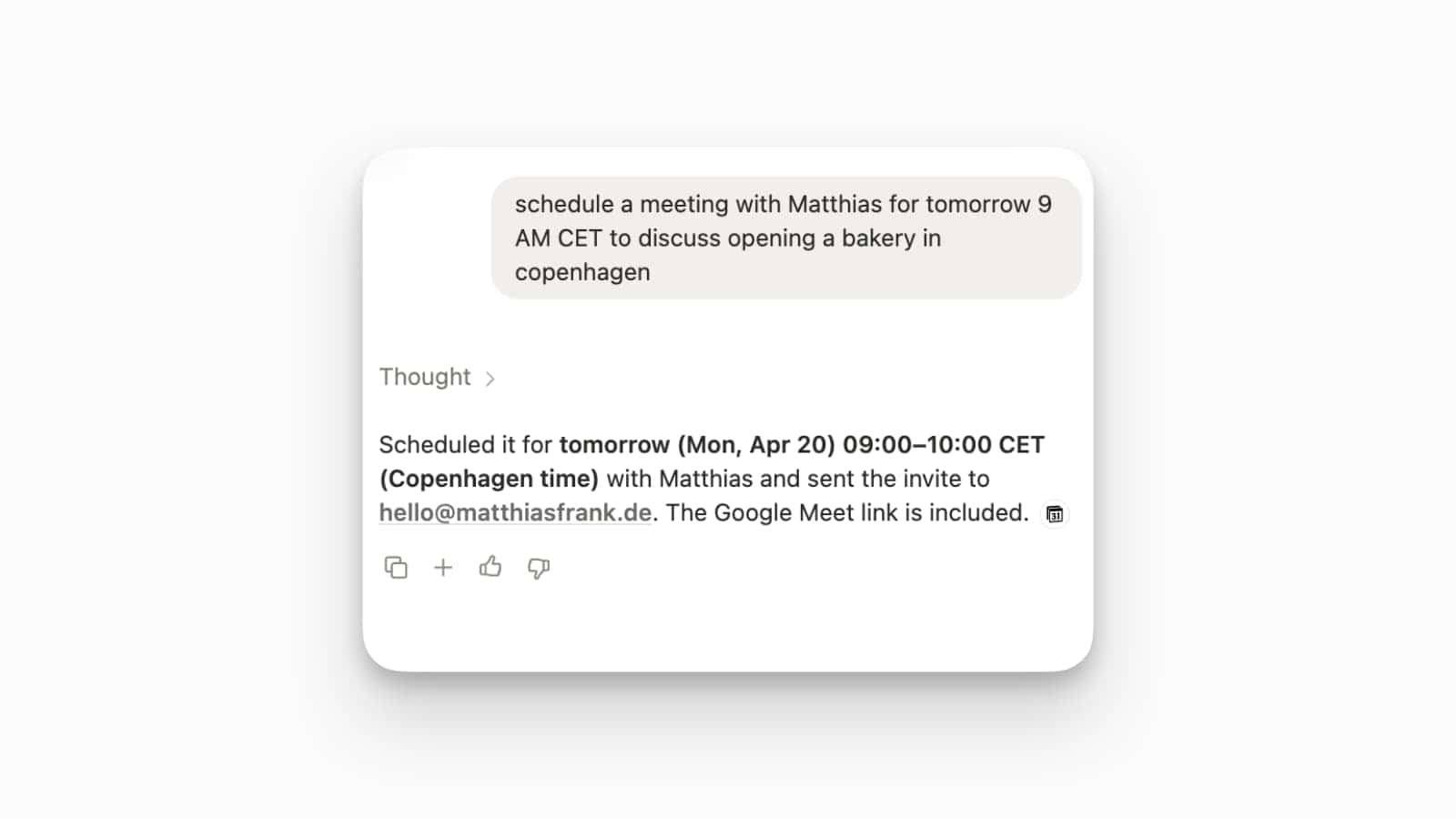
Notion Calendar now creates events from a plain-language description: press Space in a new event, type something like “Project sync with Steph and Kai tomorrow at 3”, and Calendar fills in the title, date, time and participants.
A new event opens with a Describe this event field above the title. Calendar reads the day, time and people out of the sentence, moves the event to that slot, sets the title and adds the people it recognises as participants, so what is left is Send invite. Once the event exists, the same field reads Update this event and takes changes the same way. The field sits in the desktop app’s event panel.
To use it, create a new event, press Space to jump into the description field, describe the plan in your own words and confirm; Calendar fills the rest of the event for you to check before you send the invite.
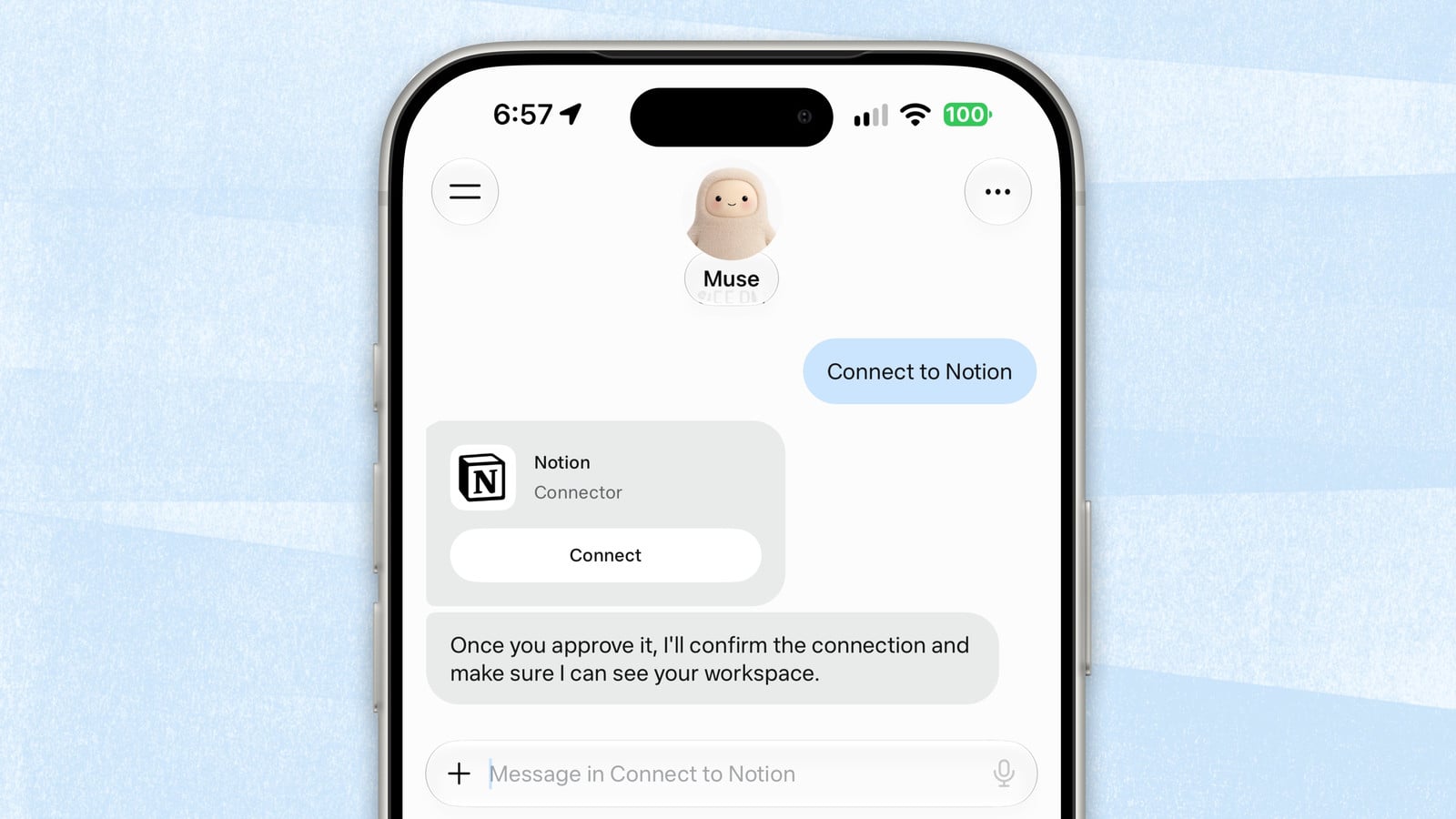
Meta’s Muse Assistant Can Now Connect to Notion
Meta’s Muse assistant can now connect to Notion: once connected, Muse finds context in your workspace, makes updates and keeps track of to-dos and projects for you.
Muse works with whatever the connected Notion account can see, so connecting it hands Muse that account’s access. By default Muse asks for your approval before important actions, and you can change when it asks in Muse’s settings. If you disconnect Notion later, information Muse has already used can remain in its memories and conversation history.
To set it up, open Muse’s Settings → Connectors, tap Connect next to Notion, tap Continue and sign in to Notion to authorise the connection. You can also ask Muse in a chat to connect Notion.
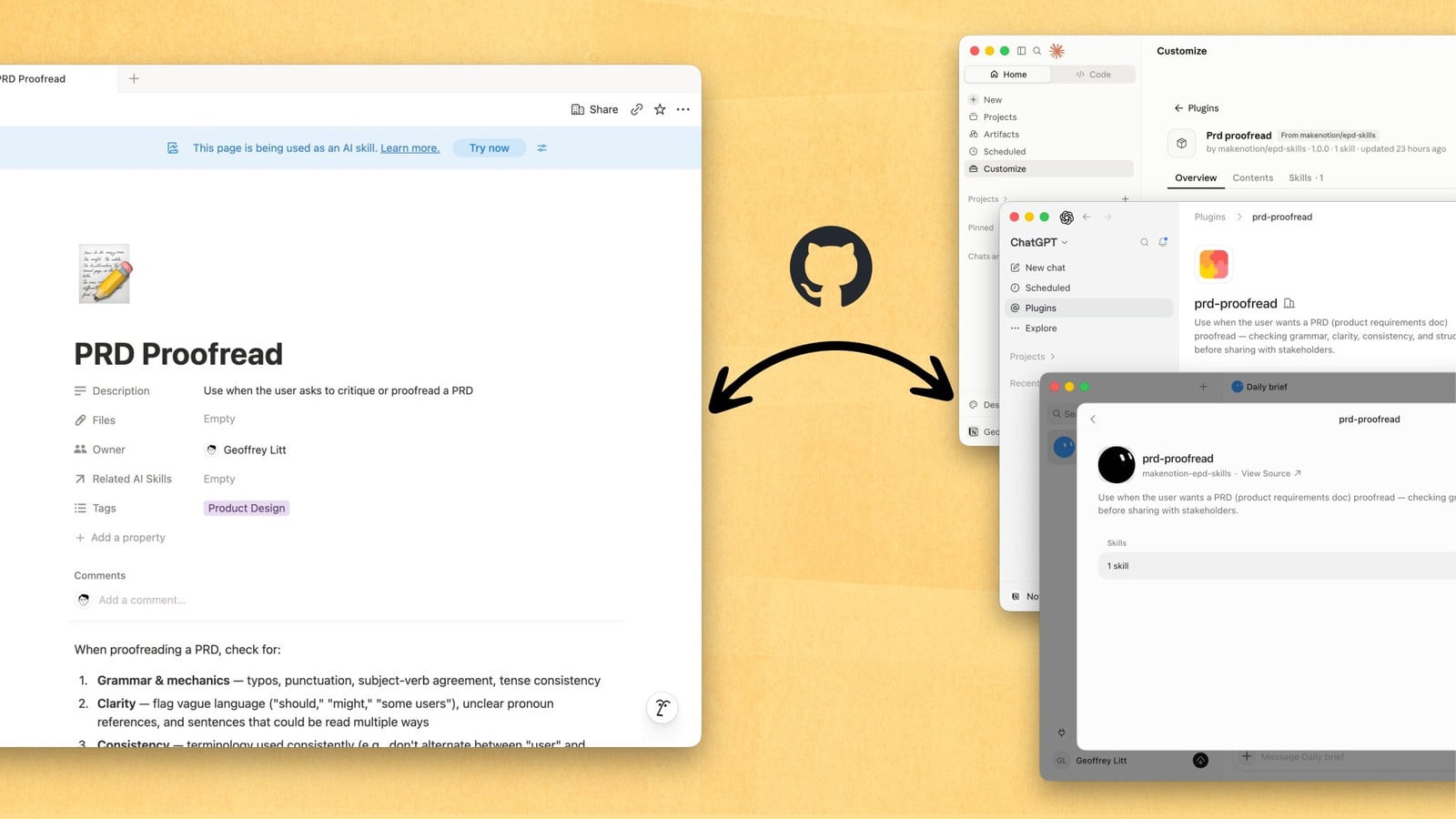
Notion Developers: The Skills API Downloads Your Team’s Skills for Any Agent
The Notion Skills API downloads the skills your team keeps in Notion as standard skill directories, so agents outside Notion, from Claude, ChatGPT and Grok Bot to local coding agents, run instructions that teammates edit as ordinary Notion pages.
Three endpoints do the work. List plugins (GET /v1/ai/plugins) returns the plugins a connection can see: every value of a skills database’s Tags property becomes one plugin, and an untagged skill becomes a plugin of its own, each with a version_id that only changes when its contents change, so a sync can skip what it already has. Get plugin (GET /v1/ai/plugins/{id}) and Get skill (GET /v1/ai/skills/{id}) return a signed URL to a gzipped tar archive holding SKILL.md plus the files attached through the skill’s Files property, in the Agent Skills and Agent Plugins formats; a plugin holds at most 100 skills. Requests need a connection token or personal access token with the Read content capability and the header Notion-Version: 2026-03-11, and only skills shared with that connection come back. Notion’s open-source starter repository, makenotion/notion-skills-github-sync, keeps a GitHub plugin marketplace in step with the workspace, so Claude, ChatGPT or Grok Bot install from it with their own slash-menu invocation and admin installation controls.
To install a skill locally without any code, use Vercel’s skills CLI: npx skills add followed by the URL of the skill page installs that one skill, and npx skills add notion browses the plugins in your workspace and installs the ones you pick.
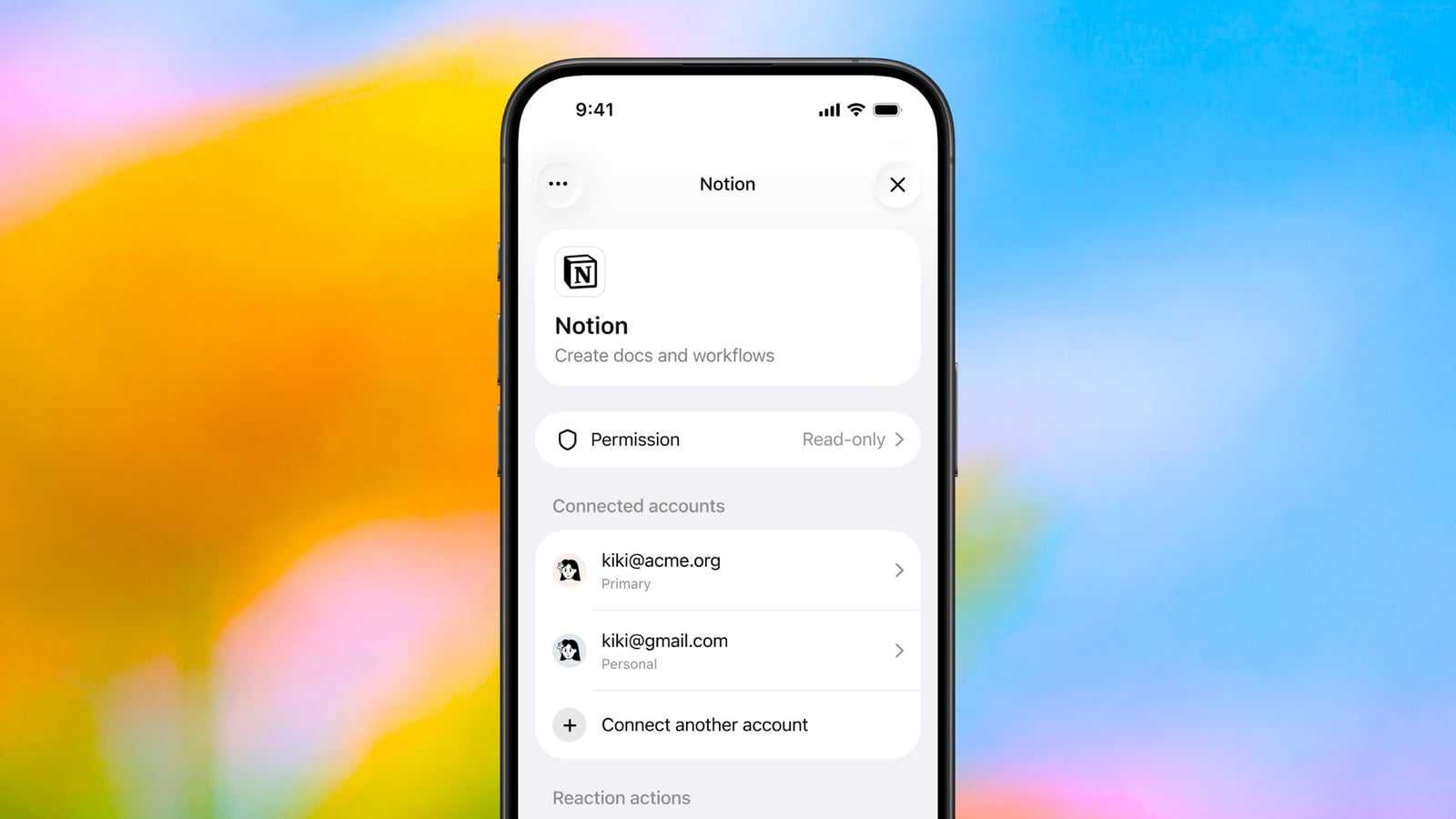
ChatGPT: Connect More Than One Notion Account at Once
ChatGPT can now hold more than one Notion connection at the same time, so a work and a personal workspace, or two client workspaces, can feed the same conversation.
ChatGPT picks the account for each request from its context, and you can name the one you mean in your prompt. Every call runs with that account’s Notion permissions, so each connection brings exactly what its login can see, and disconnecting one account leaves the others in place. OpenAI says multiple accounts per plugin are available on all ChatGPT plans on web, mobile and desktop.
To add a second account, open ChatGPT’s Settings → Plugins → Notion, select Connect another account under Connected accounts and sign in with the other Notion account.
Notion Custom Agents: Hand Work Off to Sub-agents with Their Own Instructions, Access and Model
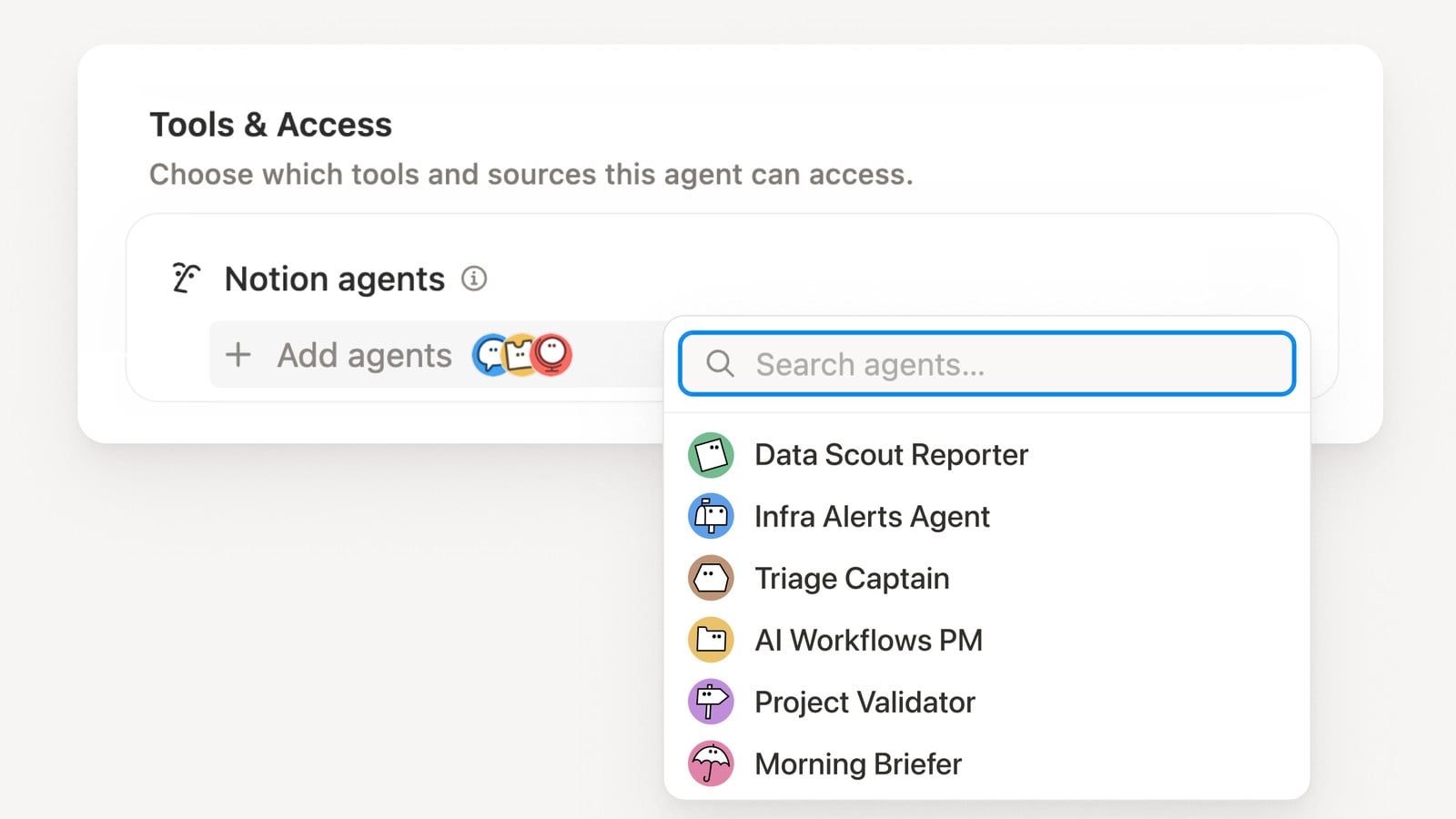
A Custom Agent can now call other Custom Agents as sub-agents during a run, each with its own instructions, context, access and model; the primary agent hands off part of the job and uses what comes back to finish the task.
It is meant for workflows with separate jobs — a reporting agent can hand off planning, data preparation and review, then put the final report together itself. The primary agent decides when to delegate, and models can differ per agent: a stronger one on the primary agent that plans and checks results, lighter ones on the focused sub-agents. Sub-agent work spends Notion credits, so each extra hand-off costs more, and a hand-off on a premium model is charged at that model’s price.
To set it up, open the primary agent’s Settings, go to Tools and access, add the agents it may call, and state in its Instructions which jobs to hand off and what each sub-agent should send back. Start with one or two sub-agents, give each only the access it needs, and compare credits and output quality across runs in the Activity and Insights tabs.
Notion AI: Set Default Notion Agent Instructions for the Whole Workspace
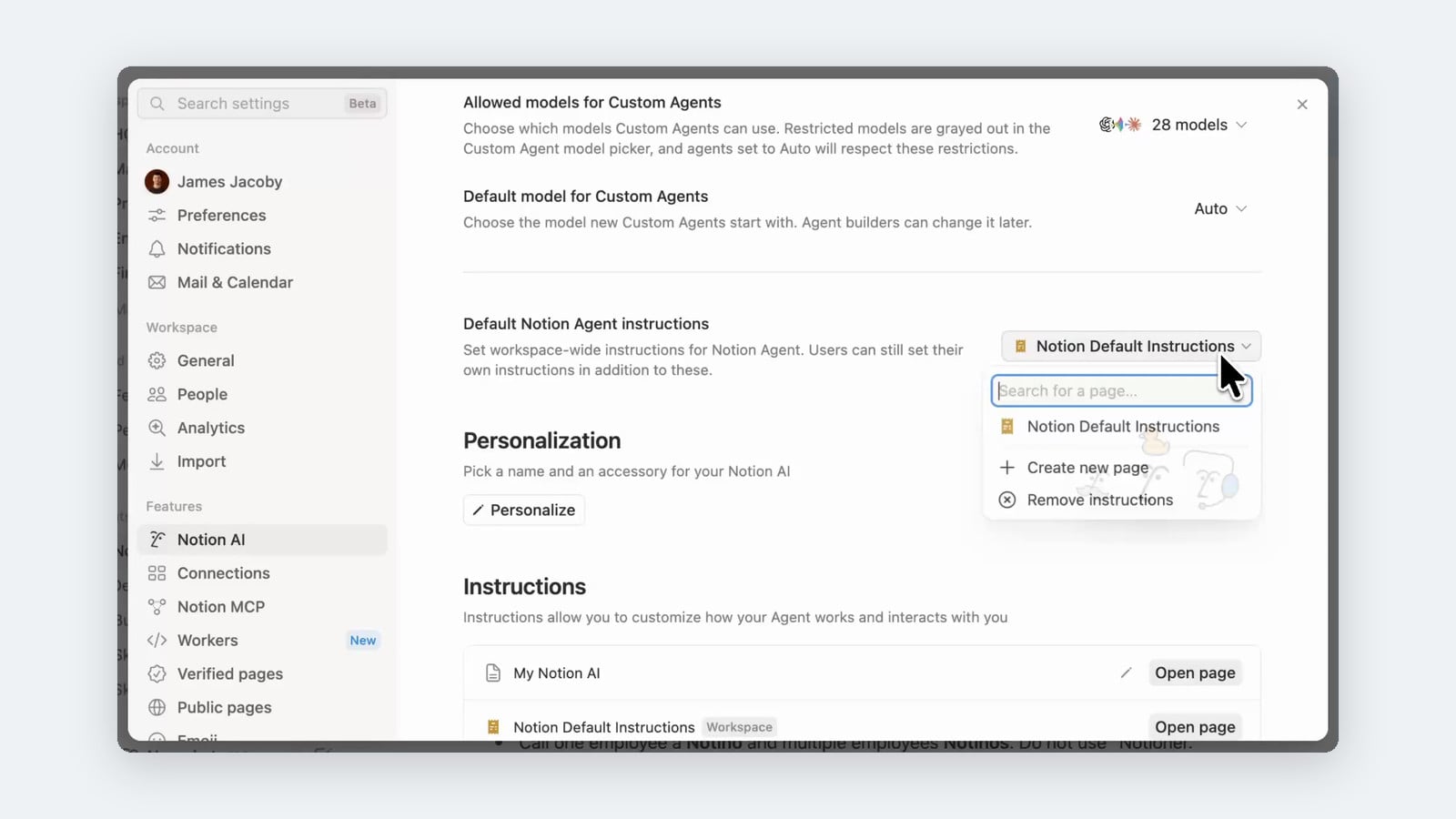
Notion Agent can now follow a set of default instructions that apply across a whole workspace: a workspace-level setting points at a Notion page, and every member’s Notion Agent reads those instructions on top of the personal ones each user sets for themselves.
The setting is Default Notion Agent instructions in Settings → Notion AI → General, directly below the model controls. It takes any page in the workspace, or a new page created from the picker, and the same menu removes the instructions again. Users keep their own Instructions page — the workspace defaults are added to it, not swapped in for it — so house rules such as terminology, naming conventions and capitalisation can be written once instead of repeated per person.
To set it up, open Settings → Notion AI → General, find Default Notion Agent instructions, choose Select page and pick the page that holds the rules, or Create new page; it then appears under Instructions marked Workspace. Choose Remove instructions from the same menu to switch the defaults off.
Notion Agent: Connect MCP Servers Such as GitHub and Amplitude Straight from Chat
Notion Agent can now connect to other apps through MCP servers: ask it in chat to connect GitHub, Amplitude, Figma or any other app with an MCP server, it walks you through the setup, and from then on it looks up information and takes actions there from the same chat.
It is in beta on Business and Enterprise plans, on web and desktop only. A connection belongs to the person who made it and uses that person’s account in the other app, so teammates connect separately with their own logins. Per connection you decide whether supported tools run automatically or ask for approval first, and nothing changes in a connected app until you approve it. Admins choose which MCP servers members may connect from an approved list, decide whether members can add a custom MCP server at all (the Add Custom MCP button only appears when they allow it), see everyone’s connections under Settings → Connections and can remove any of them. Naming the connection in your request helps the agent pick the right one, and Notion says responses slow down once around ten servers are connected.
To add one, ask the agent (“Connect me to GitHub”), or select All sources → MCP servers → Add MCP server in a chat, or go to Settings → Connections → Discover and select Add to Notion AI on the app; sign in when prompted, and the connection appears under All sources → MCP servers.
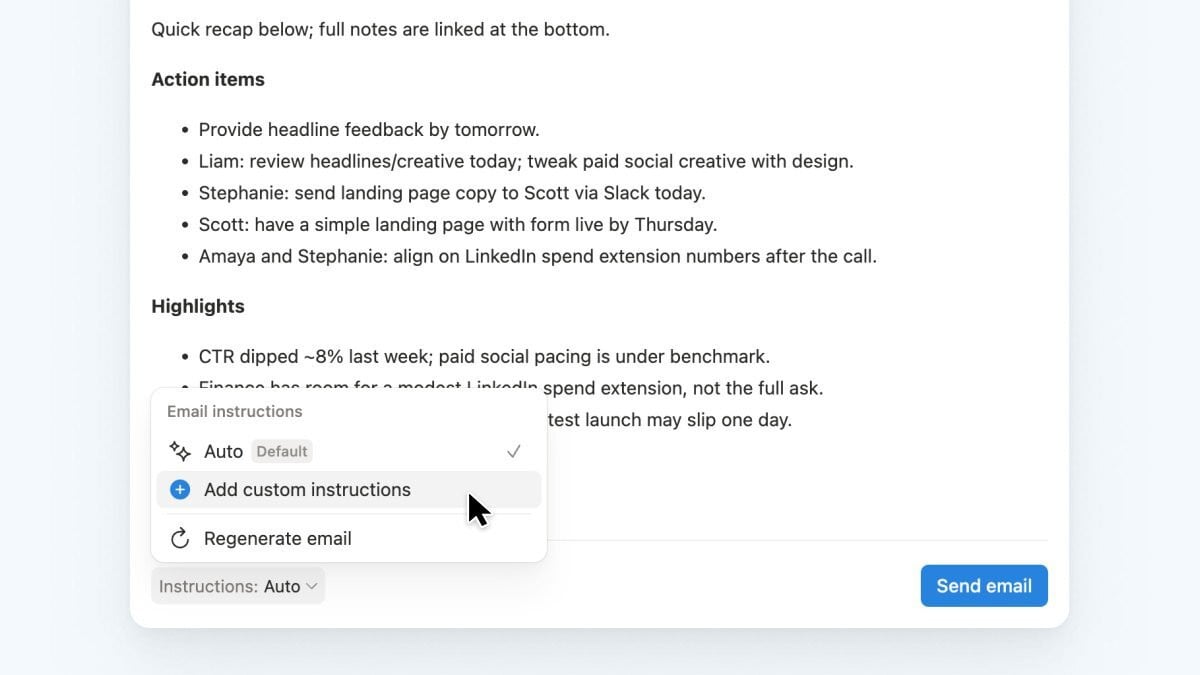
Notion AI Meeting Notes: Draft the Email Recap with Attendees Pre-filled
AI Meeting Notes can now draft the recap email itself: the attendees are filled in from the calendar event the note is linked to, the summary and action items come from the notes, and you review and send it without leaving Notion.
The draft follows a set of email instructions. Auto is the default; Add custom instructions sets your own wording and structure so every recap sounds like you, and Regenerate email rewrites the draft under the current instructions. It is a draft you send, not an automation — nothing goes out until you press Send email.
To use it, open a meeting note that is linked to a calendar event, start the email recap from the note, check the recipients and the text, change Instructions if you want a different tone, and send.
Notion API: Rate Limits Now Follow Your Plan, and a 429 Waits at Most 60 Seconds
The Notion API’s per-connection rate limit now depends on the workspace’s plan: 600 requests per minute on Business and Enterprise, 180 requests per minute on every other plan, counted over a fixed 60-second window.
The budget can be spent at any pace within the window, including in one burst, and a per-connection 429 now asks you to wait at most 60 seconds instead of up to 15 minutes; the separate workspace-wide limit, shared by all of a workspace’s connections, can still ask for longer. Any 429 or 529 with a Retry-After header also repeats the wait in the body as additional_data.retry_after, in whole seconds, so clients that cannot read headers, such as MCP clients, still see it. Two new rate_limit_reason values name an endpoint’s own limit (public_api_endpoint_rate_limit) and a connection whose API access has been restricted (public_api_request_blocked), where retrying will not help.
To handle it, read the wait from Retry-After or additional_data.retry_after, branch on rate_limit_reason and stop retrying on public_api_request_blocked; the JavaScript SDK already retries 429 and 529 responses itself, waiting up to 60 seconds by default.
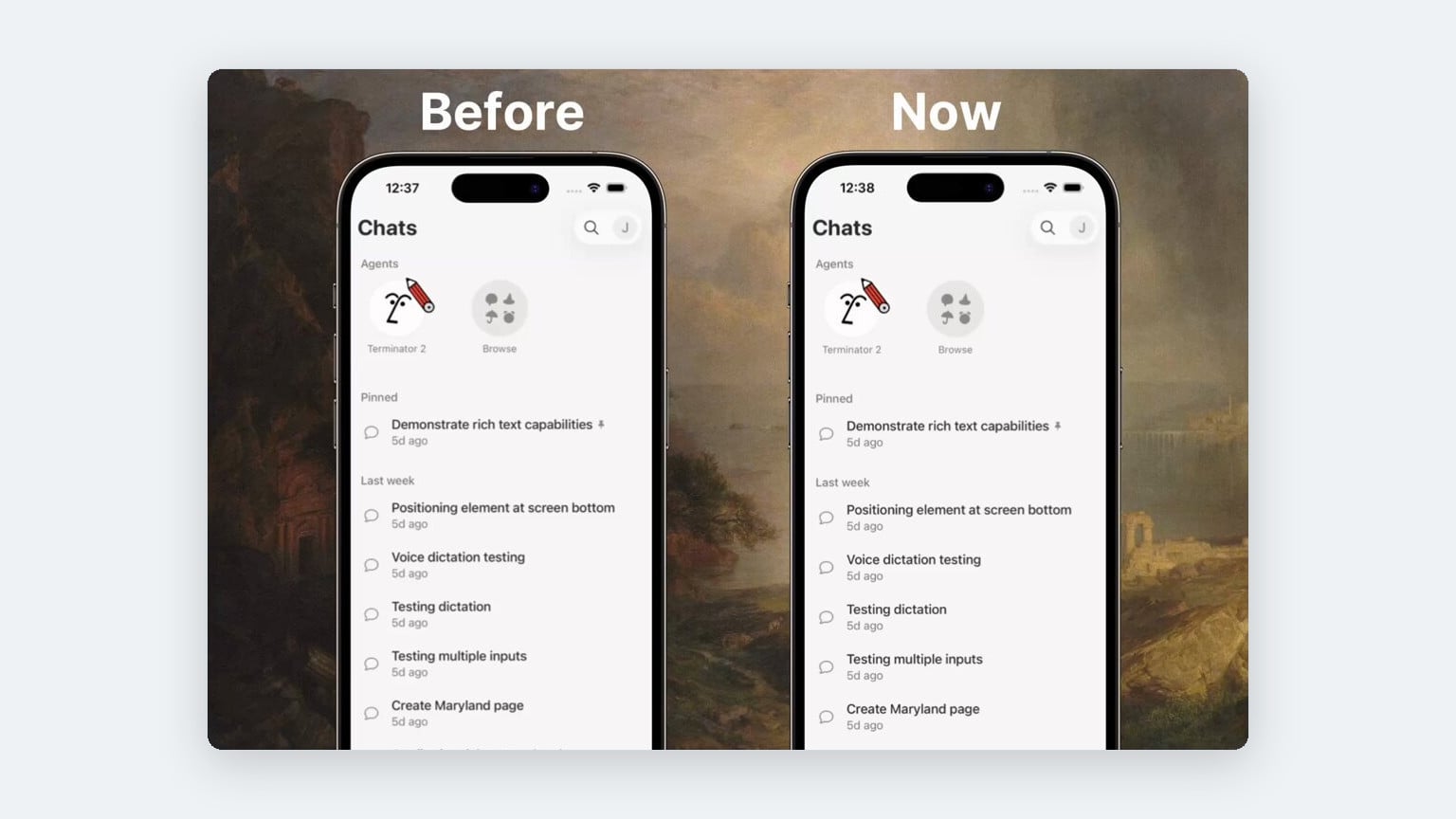
Notion Agents on iPhone: Double-Tap an Answer to Copy Just the Part You Need
In the Notion Agents app on iPhone you can now double-tap an agent’s answer to select text in it and copy only the part you need, instead of the whole response.
Until now an answer could only be copied whole, with the copy icon under it. The Notion Agents app is iPhone-only and needs iOS 26 or later.
To use it, double-tap the response in a chat, select the passage you want and copy it.
Notion: Select Blocks to See Their Word and Character Count
Notion now counts the words and characters in a selection: select one or more blocks and the block menu shows the total for exactly those blocks, alongside the page-wide count that already lives in the page’s ••• menu.
The count covers only the selected blocks and updates as you add blocks to the selection or take some out, so you can check the length of one section without pasting it into another app. The menu shows it as, for example, 70 words, 418 characters.
To use it, select the blocks you want to count — Shift + Up/Down extends a selection block by block, Cmd + Shift + click on Mac or Alt + Shift + click on Windows and Linux adds a single block — and read the count at the bottom of the menu that appears.

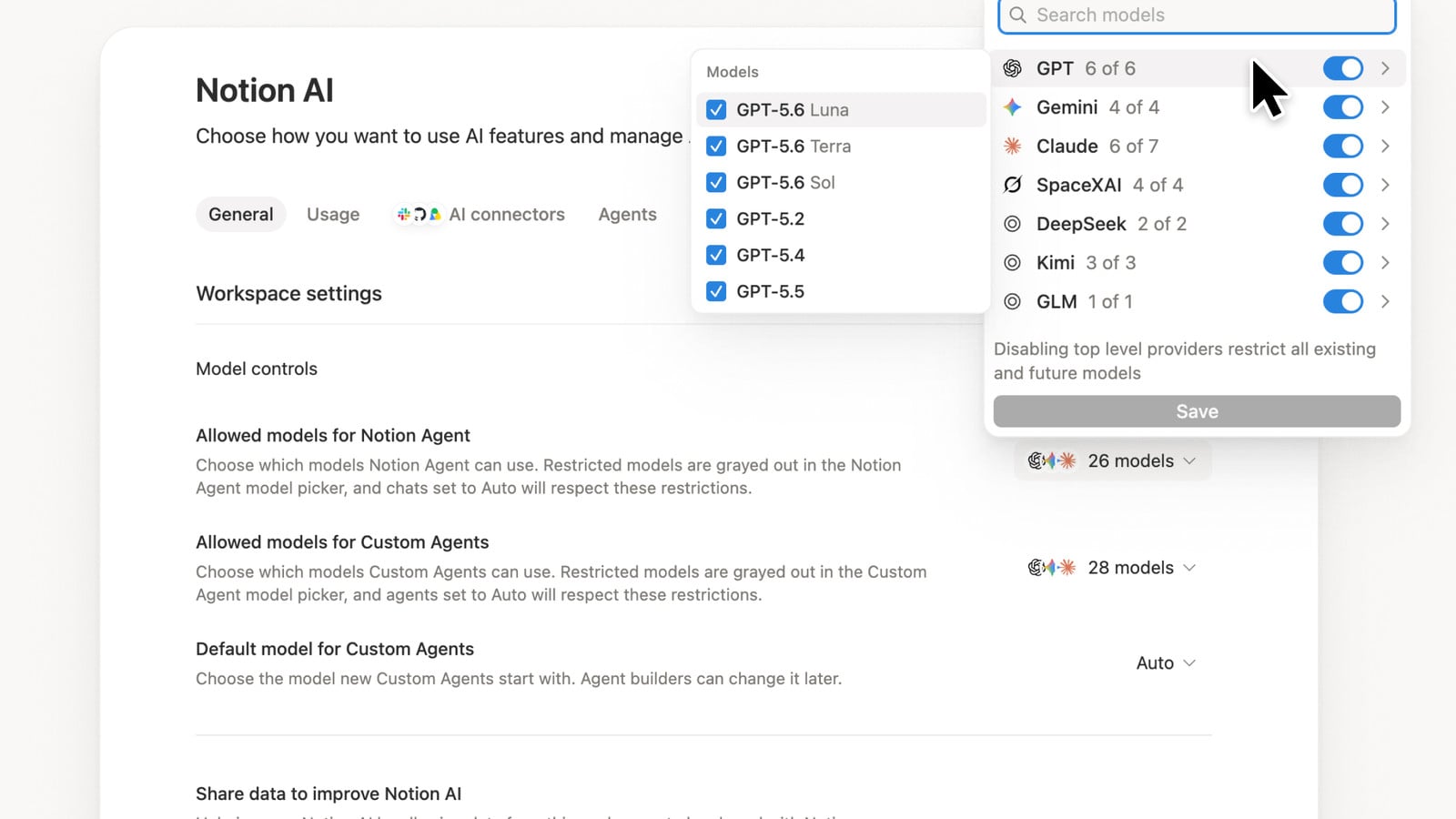
Notion AI: Admins Choose Which Models a Workspace Can Use
Workspace admins can now control which AI models a workspace uses: separate allow-lists for Notion Agent and for Custom Agents, plus a default model that new Custom Agents start with.
Restricted models are greyed out in the model picker, and chats or agents set to Auto respect the restriction. Models are grouped by provider, and disabling a provider restricts all of its current and future models at once. The default model applies to new Custom Agents; agent builders can still change it afterwards. Claude Fable 5 and 5.1 sit apart from these lists: because Anthropic retains data for them, they stay opt-in under Restricted Access Models.
To set it up, open Settings → Notion AI → General → Model controls.
Notion API: Create a Tasks, Projects or Skills Database from Notion’s Own Schema
Create a database in the Notion REST API now takes an optional database_type of tasks, projects or skills, and Notion builds the database from its canonical schema for that type — the same properties and type metadata as a database of that kind created in the Notion app.
Each type creates a fixed set of properties: tasks get Task name, Assignee, Status and Due; projects get Project name, Owner, Dates and Status; skills get Skill name, Description, Files, Tags and Created by. Property names follow the language preference of the user who owns the token, so an internal integration, which has no owner, gets English names. database_type cannot be combined with initial_data_source — sending both returns HTTP 400 — and a database created without a title is named after its type. Database and data-source objects now report the type back in a read-only database_type field.
To use it, send Create a database with a parent and database_type: “skills” and no initial_data_source, then call Retrieve a data source on the returned data source to read the exact property and status-option names before writing pages. Add properties of your own on top with Update a data source.
Notion API: Free Workspace Block Limit Now Enforced on the REST API
The Notion REST API now enforces the Free plan’s block limit: writes from internal connections, and from OAuth connections restricted to selected workspaces, count against the 1,000 lifetime blocks a Free workspace with more than one member gets, and are refused once those are used up.
The limit is not new, and it is shared by the whole workspace rather than set per connection. The write that first reaches it still succeeds and starts the existing three-day grace period; after that, any request that would create blocks — a new page, database or meeting note, appended block children, an applied template — fails with HTTP 403, code restricted_resource and additional_data.block_limit set to block_creation. Reads, deletes and edits that add no blocks keep working, as does adding a data source to an existing database. Deleting blocks does not free capacity. Personal access tokens, OAuth connections installable in any workspace, paid workspaces and single-member Free workspaces are not affected; Notion MCP has its own policy.
To keep an automation from failing quietly, test a 403 for the block_limit field instead of matching the message text, and have a workspace owner upgrade the plan — retrying the same write changes nothing. A queued template can still stop after its request returned success, so wait with a timeout and read the page’s block children before deciding it worked.
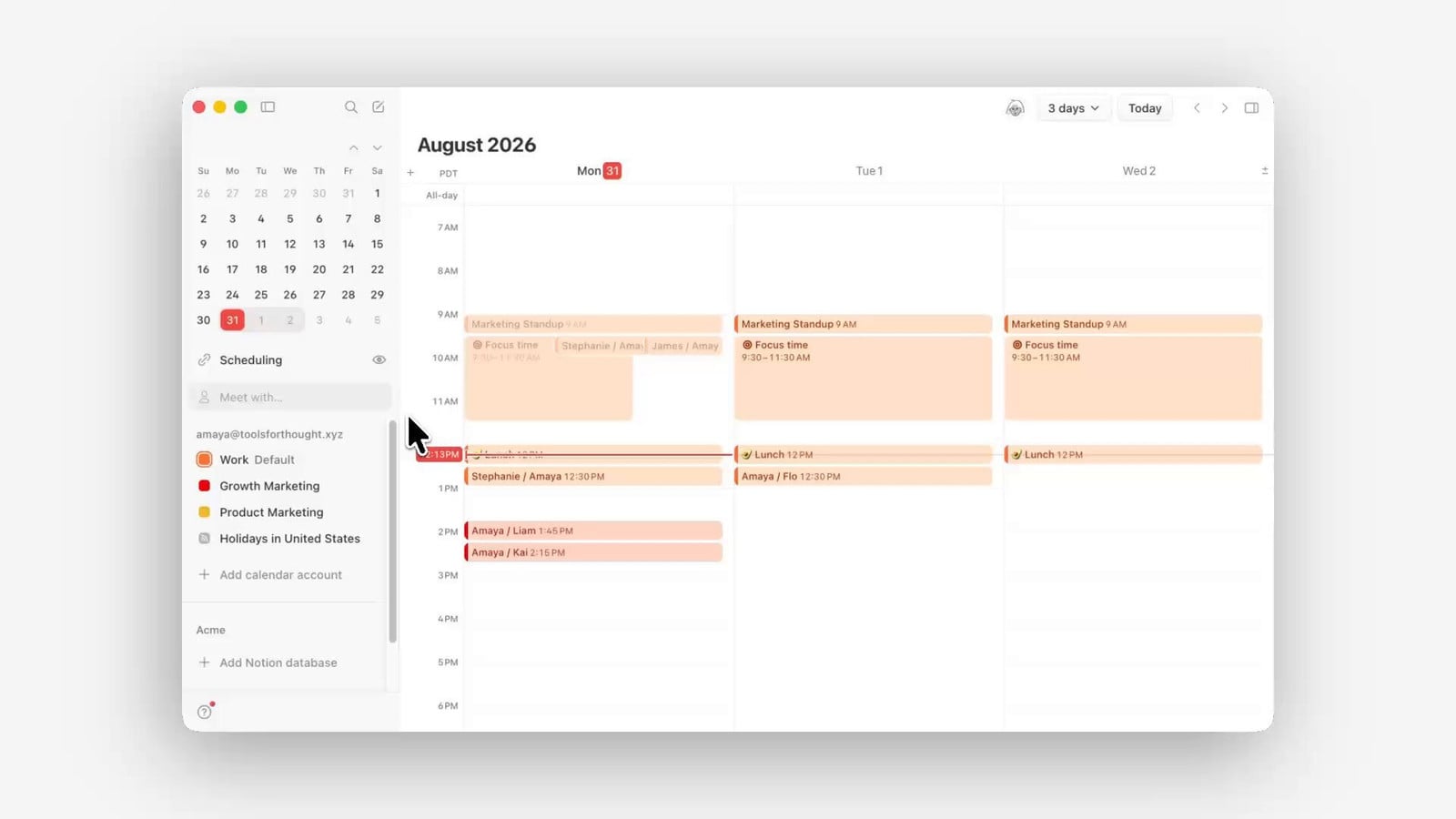
Notion Calendar: Smart Scheduling Recommends Times That Work for Everyone
Notion Calendar now recommends meeting times: add people to a new event and Calendar suggests slots that work for everyone, with conflicts visible before you pick one.
The suggestions appear as you add attendees to a new event, so you can see where a slot collides with someone’s calendar before you commit to it.
To use it, create a new event in Notion Calendar, add the people who should attend and pick one of the recommended times.
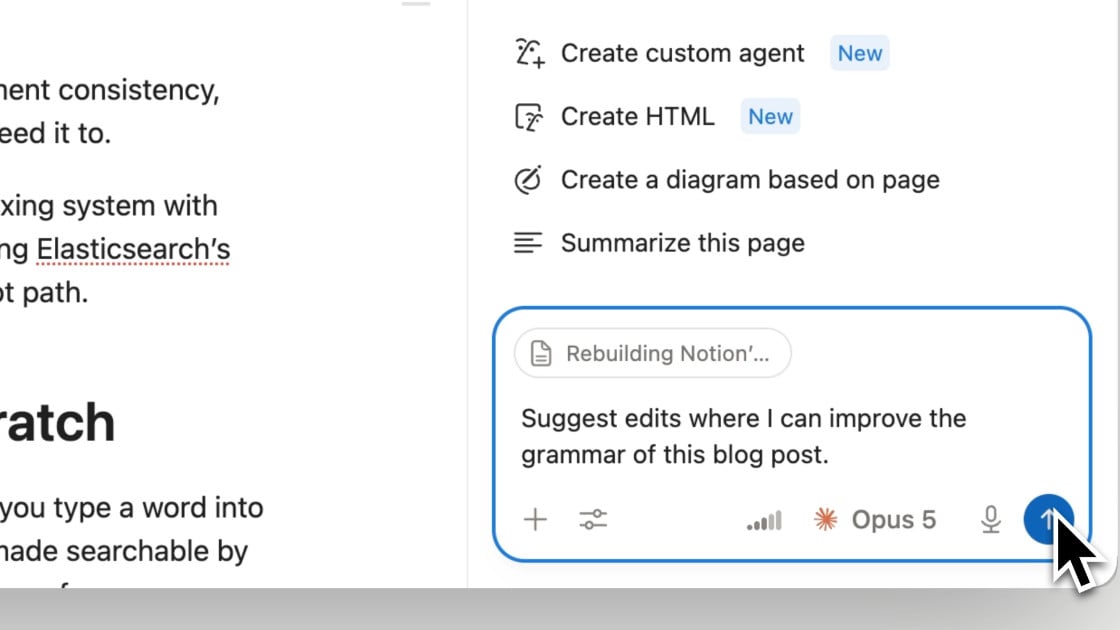
Notion Agents: Ask Your Agent to Suggest Edits
Notion agents can now propose changes instead of making them directly: ask your agent to suggest edits and it marks up the page as suggestions for you to accept one by one.
Review runs from the top of the page down, approving each suggestion in turn, which suits line-level work such as a grammar pass on a page you do not want rewritten in place.
To use it, ask your agent to “suggest edits” in your request, then work through the suggestions from top to bottom.
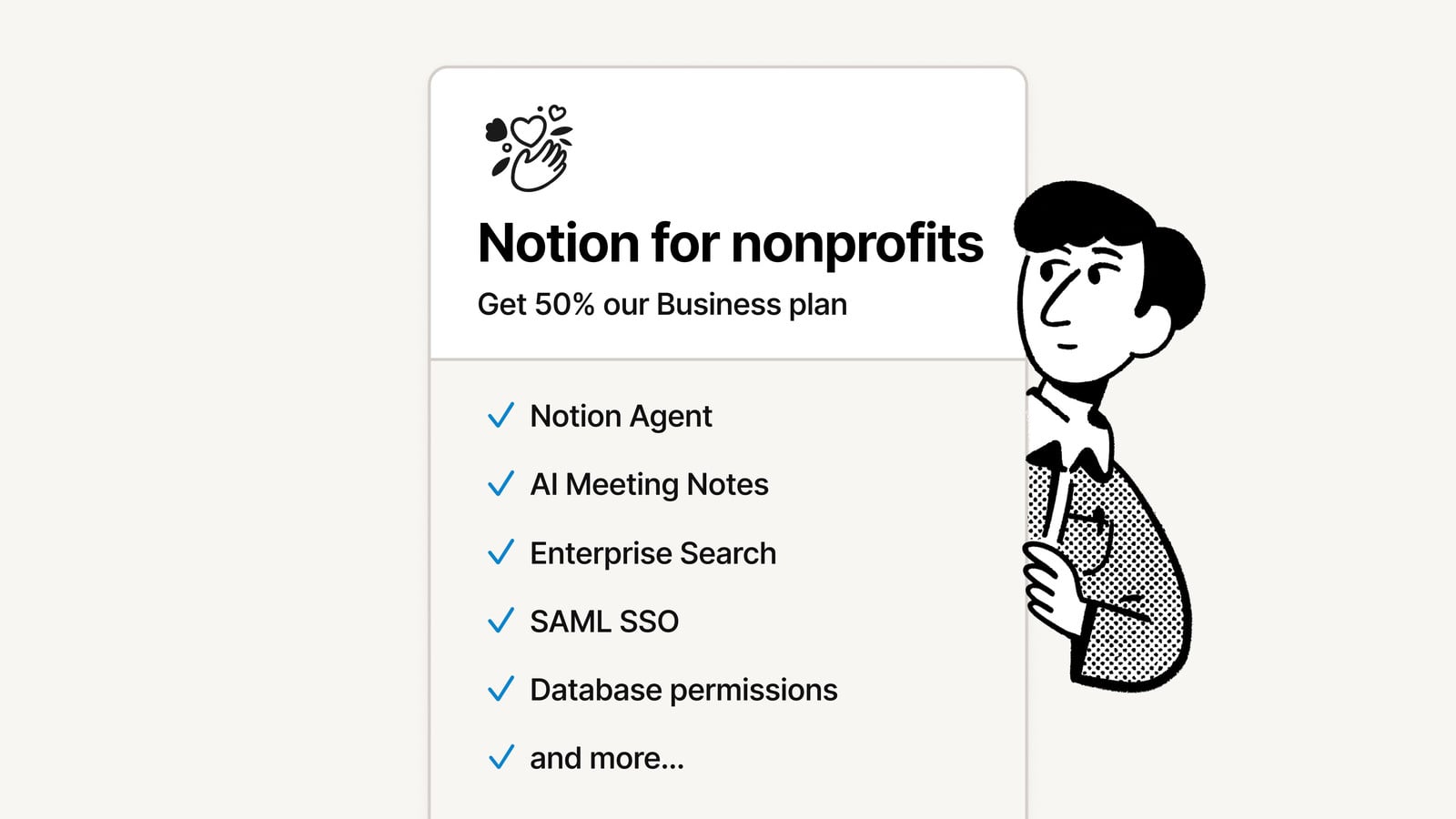
Notion Business Plan: 50% Off for Nonprofits Worldwide
Notion’s Business Plan is now 50% off for nonprofits worldwide: verified civil society organisations pay half price for the plan that Notion AI and Custom Agents require.
Currently only the Business Plan is eligible. Notion verifies each organisation in-house from the documents you submit and public registers, within 3 to 7 business days, then applies the discount to your Business Plan automatically and confirms it by email. Organisations on the Free Plan receive a “coupon applied” email once accepted and can then upgrade to Business at the discounted price; each organisation can request the discount for up to three workspaces.
To apply, open notion.com/nonprofits, choose Apply now and submit your organisation’s documents through the Notion form — it asks for your Workspace ID, which sits at the very bottom of Settings → General.
Notion Enterprise: Admin API Lists Workspace Users and Manages Permission Groups
The Notion Admin API now covers workspace users and permission groups: an organization bot token can list a workspace’s members and create, rename and delete its admin-managed groups and manage who belongs to them.
The user endpoint is read-only: a paginated directory of active members, restricted members and guest bots, with no call to invite or remove anyone. Groups can be listed, created, renamed and deleted, and direct memberships added, switched between owner and member, or removed; SCIM-managed groups and memberships are readable but stay under the identity provider. All of it needs the new user:read, permission-group:read and permission-group:write scopes, available to eligible Enterprise organizations only.
To use it, give an organization bot token those scopes in the organization console, then call the users and groups endpoints under api.notion.com/admin with the required Notion-Version: 2026-06-01 header.
Notion Developers: Custom Agents API in Public Beta
The Notion Agent APIs are in public beta: an app outside Notion can open a session with a Custom Agent, send it a message, stream the reply, submit an action and page through the session’s event history.
The beta also manages agents programmatically — query the agents a token can reach, read per-agent usage insights, set credit limits, and enable, disable or delete agents one at a time or in an asynchronous batch. Calls authenticate with a personal access token or a connection token that carries the Interact with agents capability. The same session control is available from any MCP client: Notion MCP gained tools to search and start sessions, send follow-ups, check or wait on status, stop a run and read session events. A JavaScript/TypeScript SDK on GitHub (makenotion/notion-agents-sdk-js) wraps the API as a typed layer over the official client; it is still labelled alpha and installs from source rather than from npm.
To start, follow the quickstart at developers.notion.com/guides/notion-agent-apis/quickstart with a personal access token.
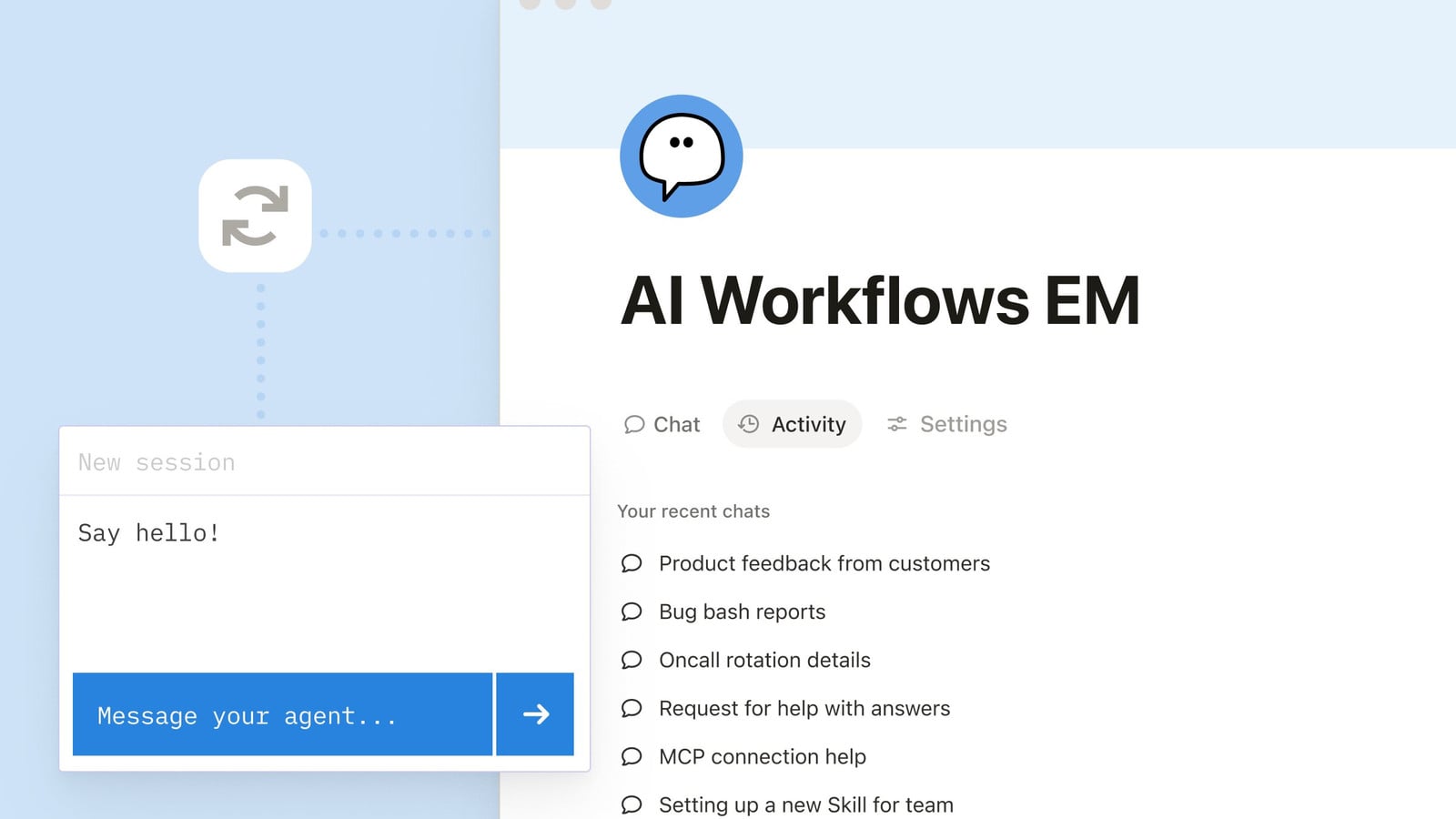
Notion AI: Skills Now Work for Whole Teams
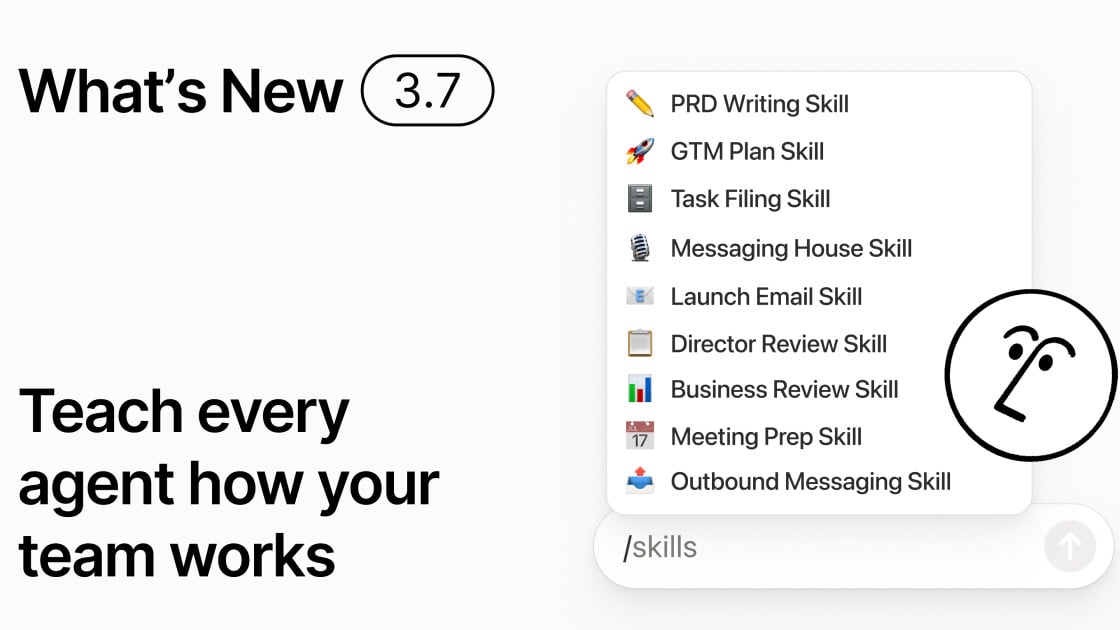
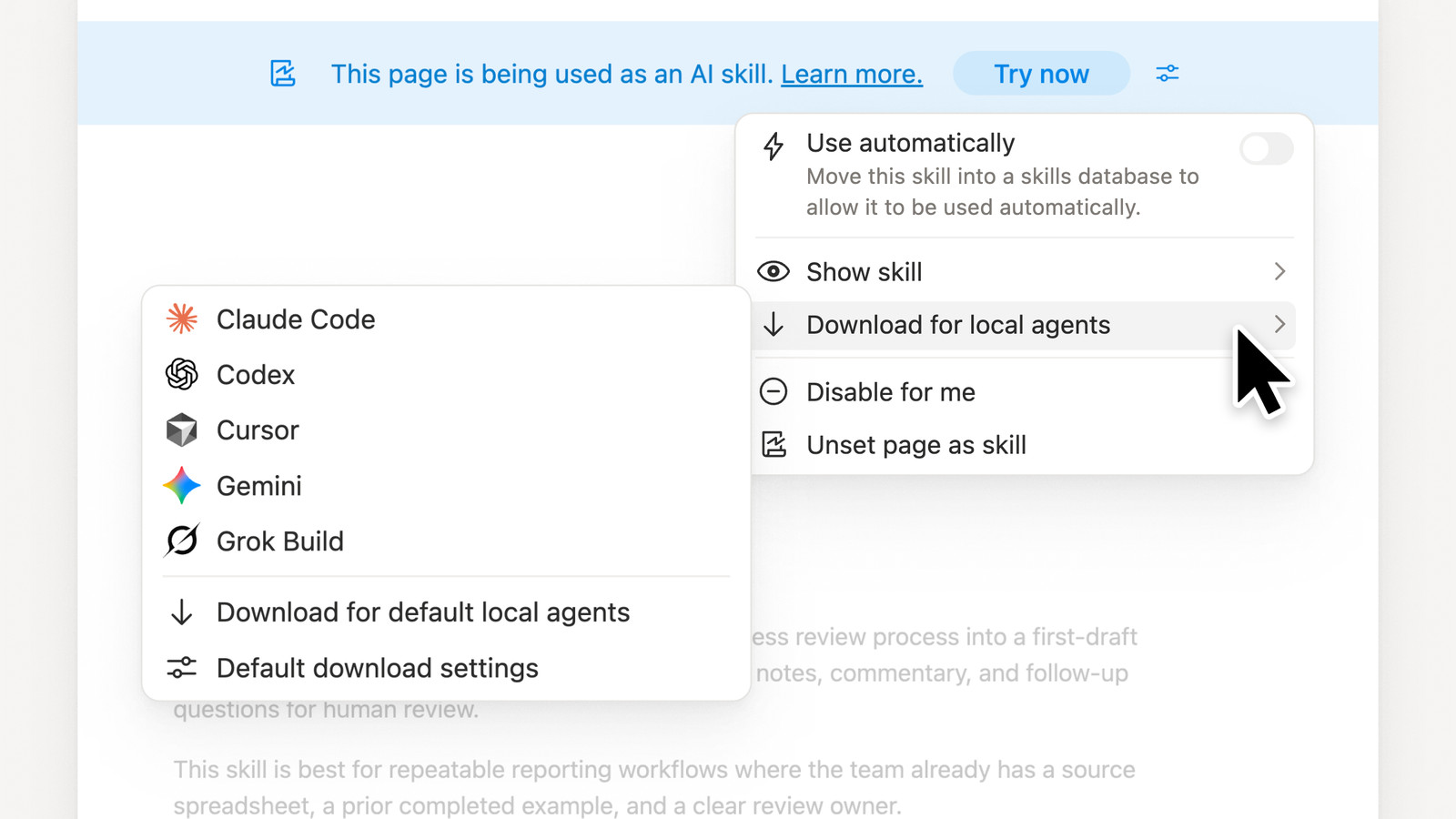
Notion Skills now work for whole teams: a skill is a Notion page holding reusable instructions, shared like any other page, and Notion Agent can pick the right one automatically instead of waiting for a slash command.
Skills themselves have been part of Notion AI since March 2026, when any page could first be turned into a skill or into instructions — see our entry Turn Pages into Skills and Instructions and our complete Notion AI Skills guide. What is new is the team layer around them: skills databases, automatic use and a shared library.
Every page you add to a skills database becomes a skill. Automatic use is on by default for skills that live in such a database and carry a description; the toggle next to Use automatically switches it off for a skill you only want to run by name. Anyone with access to the skill page can run it, and anyone who can edit the page changes the skill. Your own skills, skills shared with you and your workspace’s skills are collected under Library → Skills in the sidebar. The Library’s Discover tab shows skill pages others have shared with you, and Enable for me adds one to your own skills.
You can also take a single skill to a local coding agent: open the skill page, select ••• → Download to local agents. Notion writes a SKILL.md plus the attached files that are approved to share, and marks the download when the skill changes in Notion. To keep a whole team’s skills in sync with agents outside Notion, use the Skills API.
Notion Developers: Developer Portal Moves Into the Sidebar
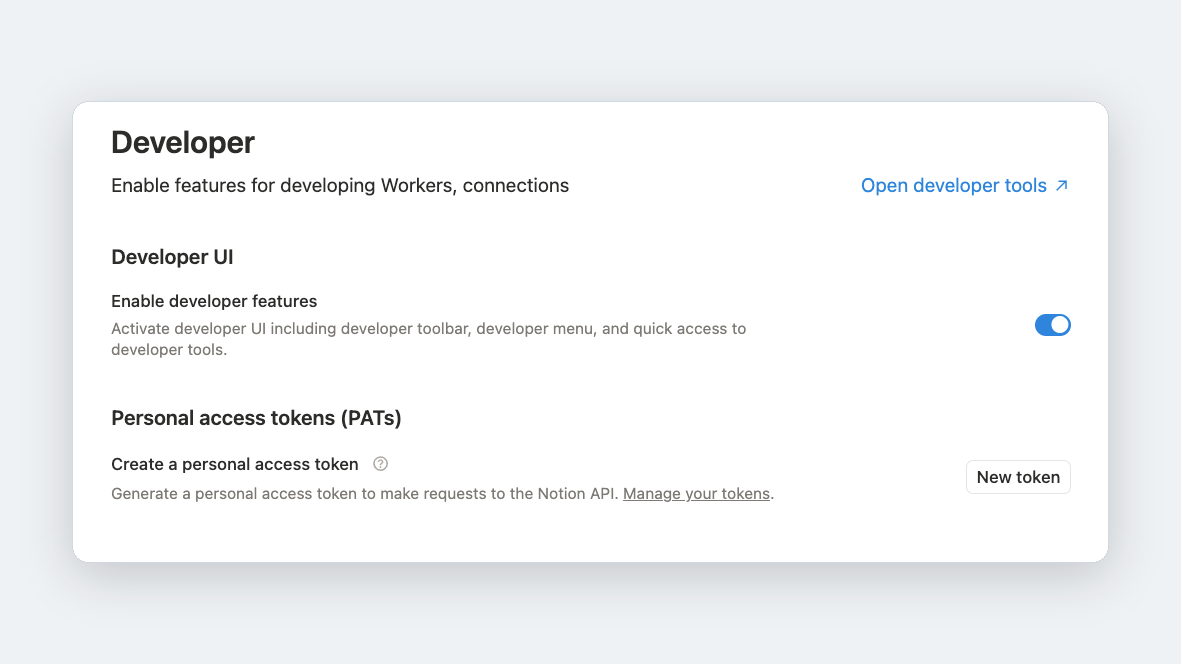
Notion has moved the developer portal into the workspace sidebar: a Developer section that gathers your Workers, connections and personal access tokens in one place.
The section lists deployed Workers alongside their run logs, and personal access tokens are issued from the same screen. Switching it on also enables a developer bar in the app that shows the IDs behind whatever you are looking at — page, database, block, workspace and user — and copies either a single ID or the whole API object in one click.
To turn it on, open Settings → Developer and enable “Enable developer features” under Developer UI.
Notion AI Meeting Notes: Join and Transcribe Finds the Right Note
Join and transcribe now searches the pages linked in a calendar event’s description, and the event’s attachments, to find the meeting note that belongs to that event — so it opens the note you already have instead of starting an empty second one.
That matters most for events synced in from Google or Outlook, where the note is usually a page link pasted into the invite rather than a note attached through Notion. The button did not read that link before, so a fresh note would open while the agenda everyone had been writing in sat one click away.
The button appears in the event about 15 minutes before it starts — when you are the organiser, when you created the linked note or its parent doc, or when it is a recurring event that has been transcribed before.
Notion Inbox: Prioritize With AI
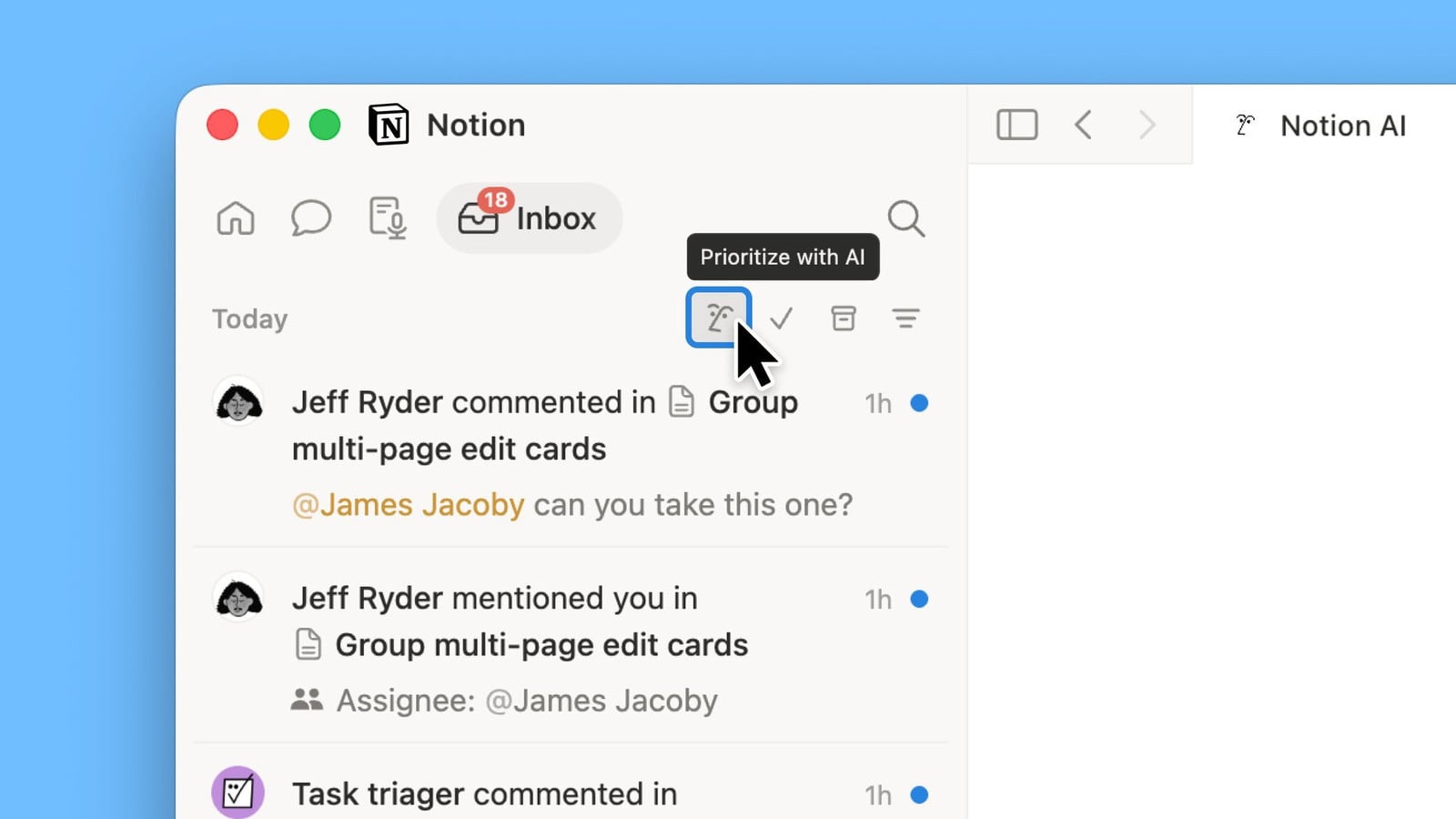
The Notion Inbox has a Prioritize with AI button: Notion AI reads what has piled up, flags the notifications that need your attention, and helps you clear the rest.
This is the in-app Inbox in the Notion sidebar — mentions, comments, assignments and page updates, the notifications Notion itself generates. It is not your email: Notion Mail is a separate product, and its inbox is being wound down on 22 September 2026. Prioritize with AI is built in, so there is no Custom Agent to set up first.
To use it, open Inbox in the sidebar and click the AI icon in the toolbar above the notification list, alongside the mark-as-read, archive and filter controls.
Notion Agents: Effort Control in the Personal Agent
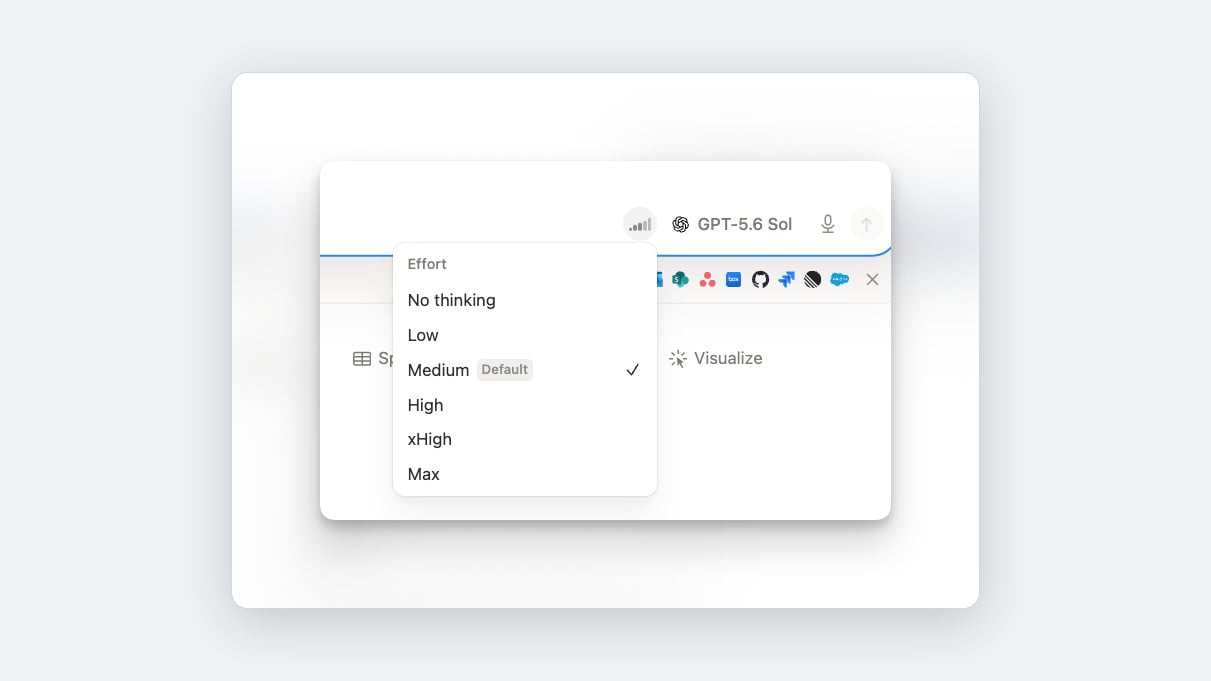
Notion’s Personal Agent now carries the same Effort setting that arrived on Custom Agents, controlling how much reasoning the model spends on a request.
The levels on offer depend on the model you pick rather than being one fixed ladder. Running GPT-5.6 Sol, the menu lists No thinking, Low, Medium, High, xHigh and Max, with Medium marked as the default — so the four-step ladder a Custom Agent showed on 1 August was a property of that model, not a ceiling. Re-check it after switching models rather than assuming the range carries over. Since effort drives how many tokens a request consumes, it is a lever on cost as much as on answer quality.
To change it, open the Effort menu next to the model picker in the agent’s chat input and pick a level.
Notion AI: Model Picker Grouped by Purpose with Favorites
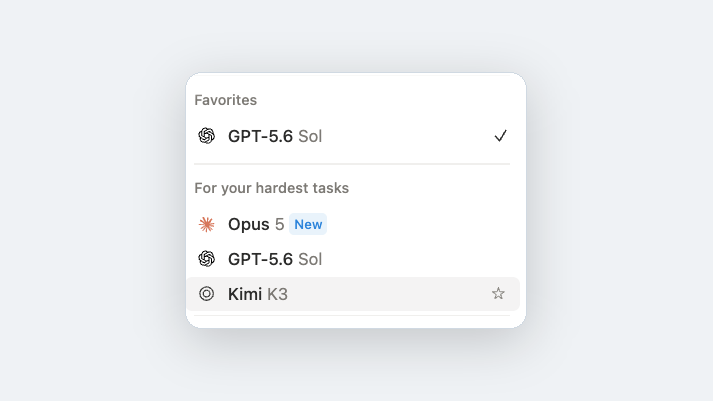
Notion has reworked the AI model picker: models are now grouped by what they are good for rather than by the lab that built them.
Purpose headings replace the flat vendor list — “For your hardest tasks” gathers Opus 5, GPT-5.6 Sol and Kimi K3 under one label, so the choice is framed around the job in front of you rather than which company shipped the model. A Favorites group sits at the top of the picker, pinning the models you reach for most above the rest.
To use it, open the model picker in an AI chat, hover a model and click the star that appears to add it to Favorites.
Notion Agents: Share a Page With a Custom Agent From the Share Menu
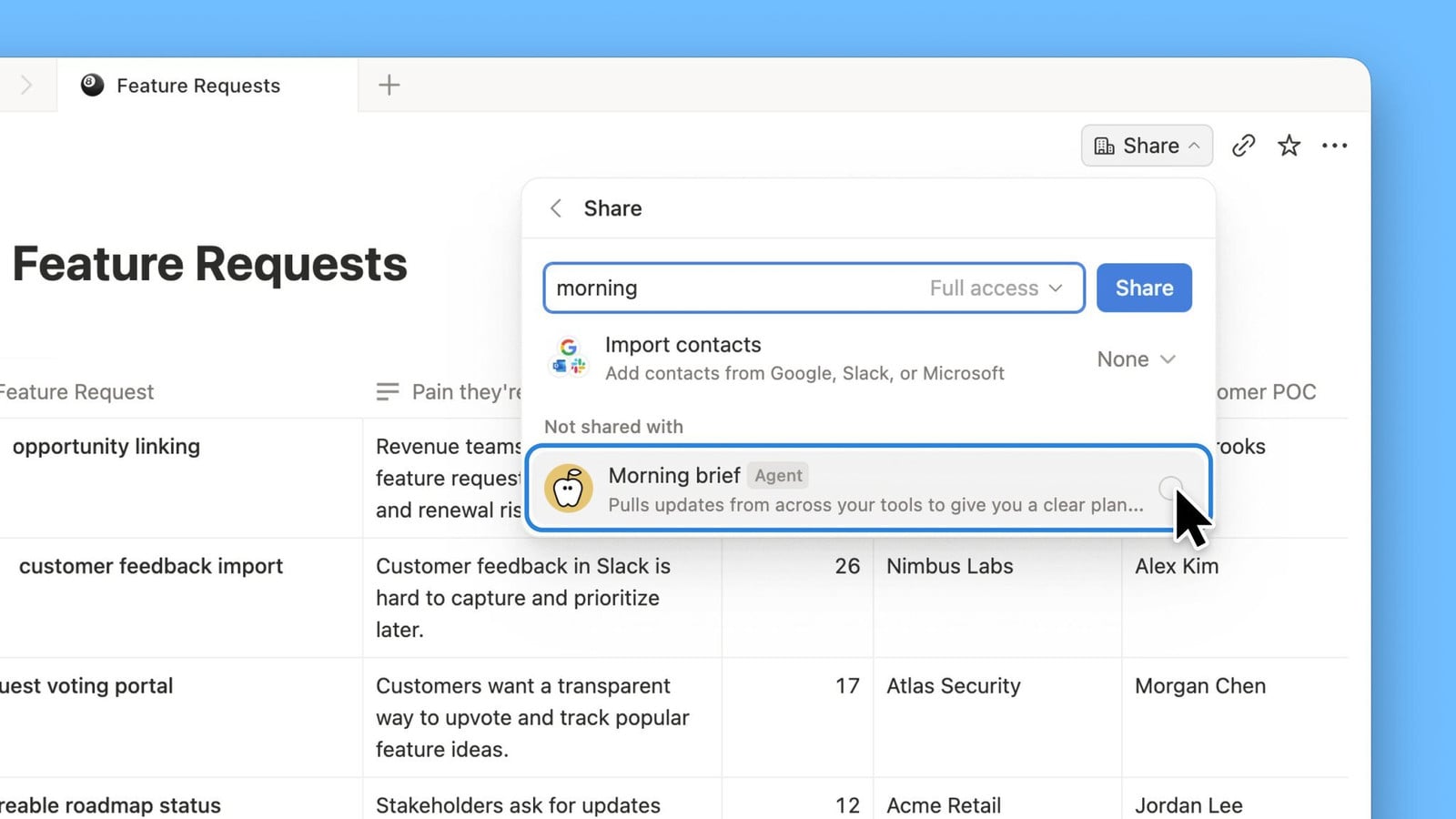
You can now share a page or database with a Custom Agent from that page’s Share menu — the agent appears as a share target, the way a teammate does.
Access used to be granted only from the other end, in the agent’s Settings → Tools and access. The Share menu already listed the agents that could see a page and let you remove one; adding is what’s new. The permission caveat is unchanged: a Custom Agent answers using its own access, not the asker’s, so anyone who can use that agent can reach what you shared with it. Custom Agents need Notion’s Business or Enterprise plan. Notion announced this on X on 5 August 2026; there is no release note or help-centre entry for it yet.
To use it, open the page or database, click Share, start typing the agent’s name, pick it from the list and click Share. The same menu is where you review access later and remove an agent again.
Notion Agents: @Mention a Custom Agent in Slack
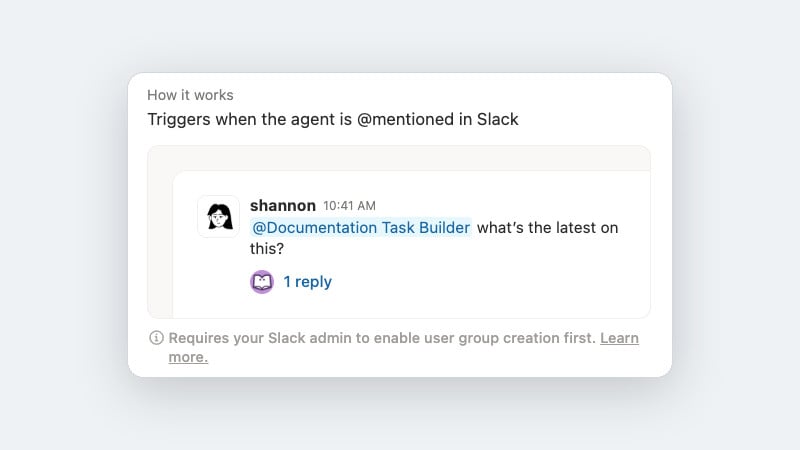
Custom Agents can now be @mentioned by name in Slack, so several agents can share a channel and still be addressed one at a time.
The mention doubles as a trigger: the agent’s settings carry a Slack trigger for “The Custom Agent mentioned in a message”, which fires that agent when someone names it. Notion does the plumbing behind the scenes, creating a Slack user group per agent — which is why the prerequisite sits on Slack’s side rather than Notion’s: a Slack workspace owner has to allow members to create user groups. Custom Agents require Notion’s Business or Enterprise plan.
To use it, have a Slack workspace owner open Admin → Workspace settings → Roles & permissions → Account types and edit “Create and edit user groups”, then add the mention trigger in the agent’s settings.
Notion Agents: Effort Control for Custom Agent Models
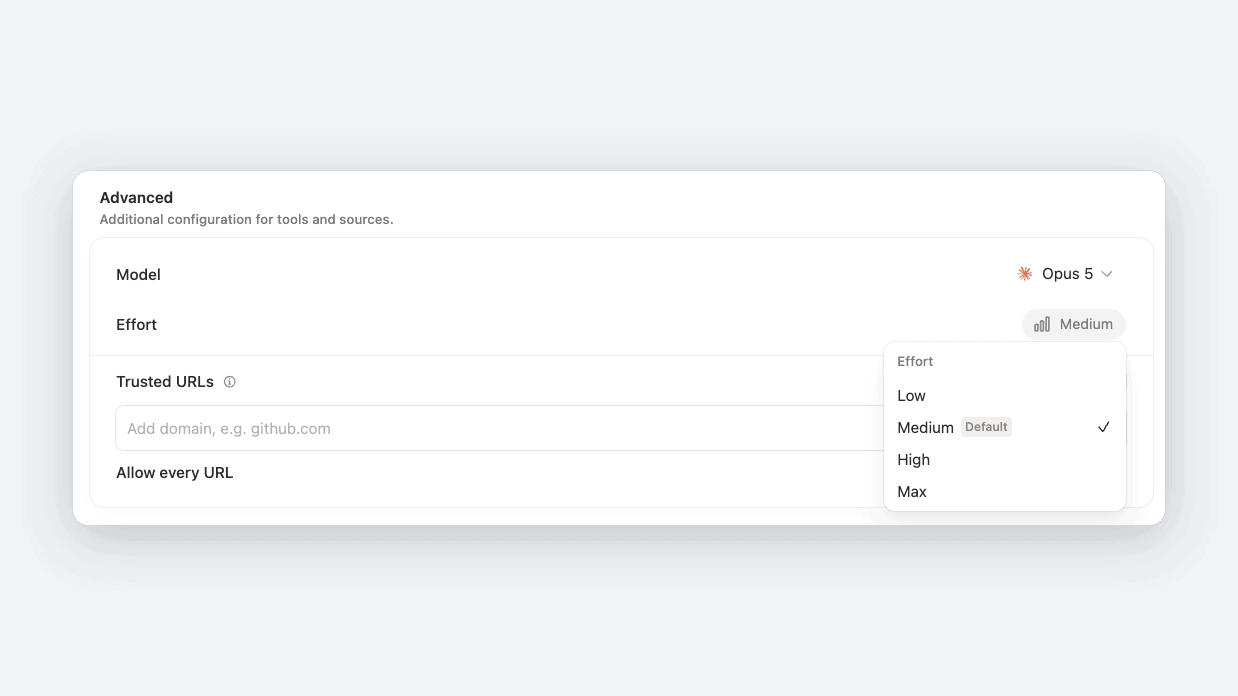
Custom Agents now expose an Effort setting next to the model picker, controlling how much reasoning the model spends on a run.
Four levels — Low, Medium, High and Max — sit under Advanced in the agent’s settings, alongside Trusted URLs. Which one is the default depends on the model you pick. The ladder is Notion’s own rather than the model vendor’s: Anthropic’s API, for instance, offers a fifth level between High and Max that Notion does not surface. Since effort drives how many tokens a run consumes, it is worth setting deliberately on any agent that fires from a trigger rather than on demand.
To change it, open your Custom Agent’s settings → Advanced → Effort and pick a level. Custom Agents remain a Business and Enterprise plan feature.
Notion Agents: AI Meeting Notes as a Trigger
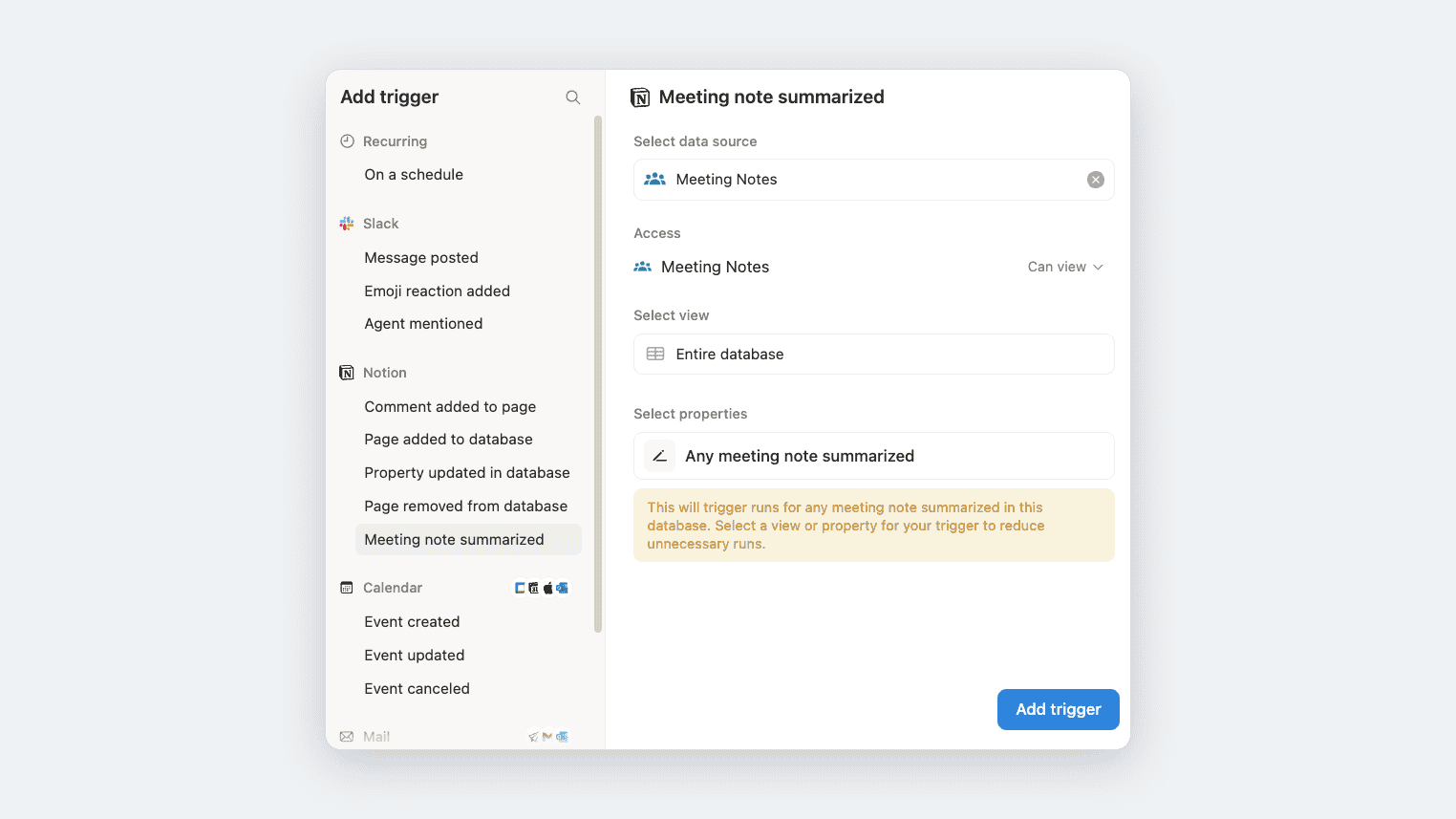
Custom Agents can now be started by a finished AI Meeting Note. When Notion marks a meeting note as summarized, the agent runs on it — no manual kickoff, and no scheduled sweep to catch new notes.
Notion’s own examples are the post-meeting chores: update a project tracker with the latest status, post a recap with decisions and next steps to Slack or email, turn feedback into tickets. The trigger hangs off one data source, and Notion warns in the setup panel that pointing it at a whole database fires a run for any meeting note summarized there — narrow it with a view or a property to keep runs, and credits, down. Custom Agents remain a Business and Enterprise plan feature.
To set it up, open your Custom Agent’s settings → Add trigger → Notion → Meeting note summarized, choose the meeting-notes data source, then pick a view or property that decides which meetings kick it off.
Notion AI: New Usage Interface
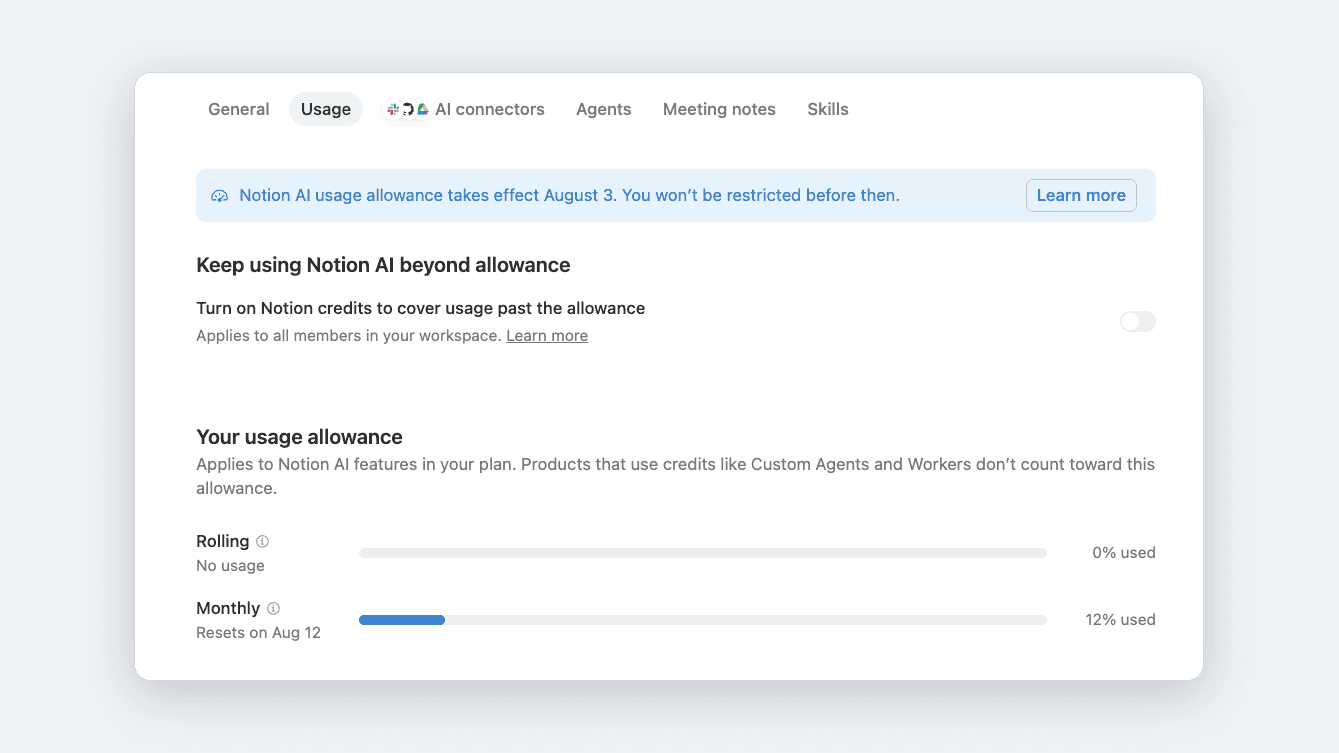
Notion AI usage now has its own view under Settings → Notion AI → Usage, showing how much of your allowance you have spent.
It tracks two windows: a rolling six-hour window and a monthly one tied to your billing cycle. The rolling window frees up gradually as older activity ages out, rather than resetting all at once at a set time.
The timing is the point — from August 3, 2026 the Notion AI usage allowance applies. If you reach it, you can wait for the rolling window to free up, or keep going on Notion credits where your workspace allows it.
Notion Docs: Add All Meeting Attendees at Once
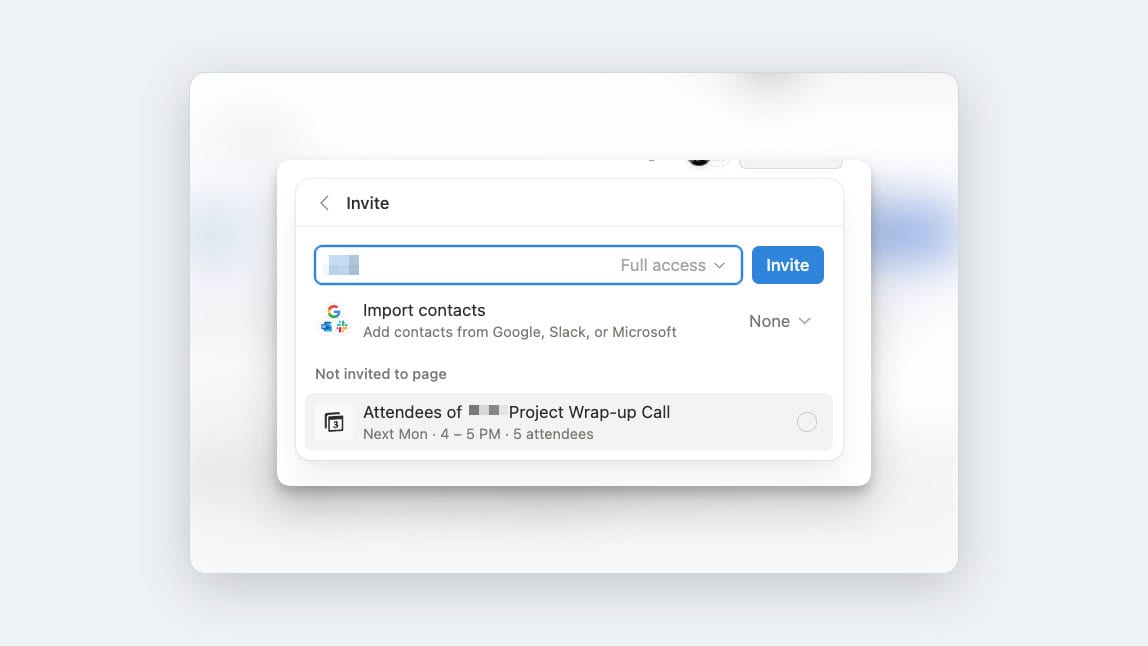
Sharing a doc now offers a shortcut that adds everyone attending an upcoming call.
It is a one-time expansion rather than a live link: selecting it unfurls the individual people, each of whom you can remove before confirming. The attendee list seeds the permissions instead of staying synced to them — if the meeting’s guest list changes later, access to the doc does not follow.
Notion: High Contrast Mode
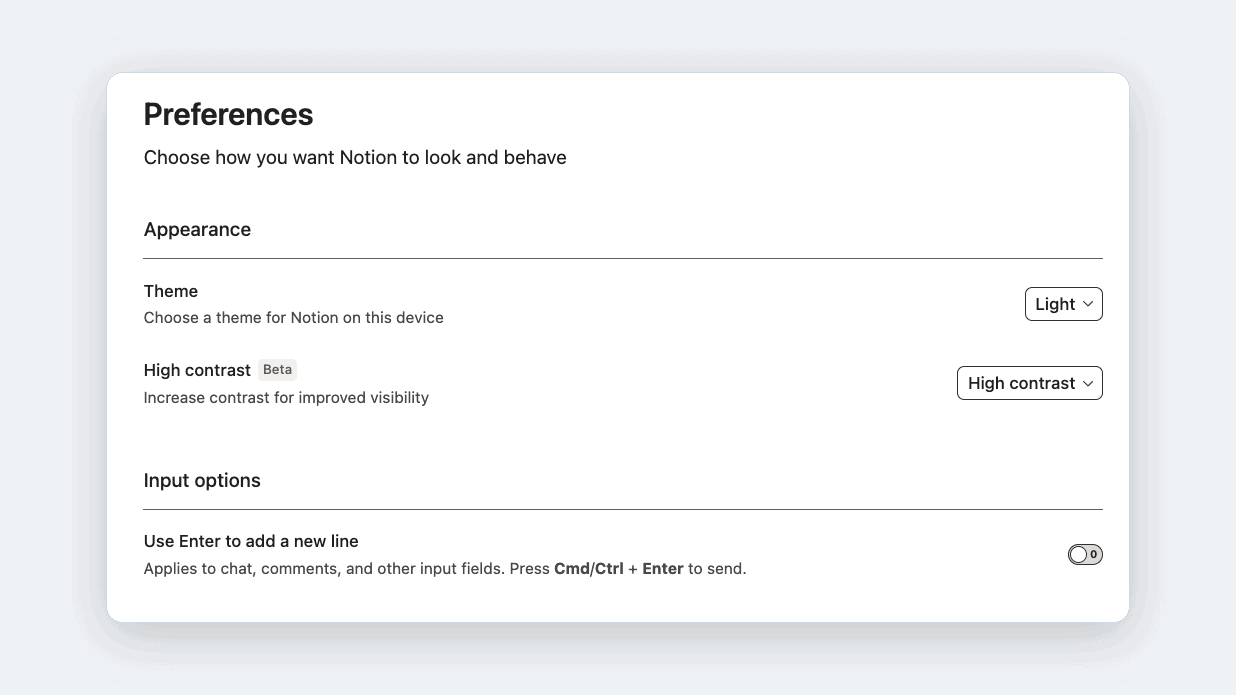
Notion now has a high contrast display mode that increases contrast across text, icons, and borders.
It works independently of the light/dark appearance setting, and offers three choices: follow your device’s system setting, standard contrast, or high contrast. Two constraints worth knowing — it is available on Notion desktop and web only, and the setting is saved per device, so turning it on for your laptop won’t carry to another machine.
To switch it on, open Settings → Preferences and use the dropdown next to High contrast.
Notion Workers: Now in the Credits Dashboard
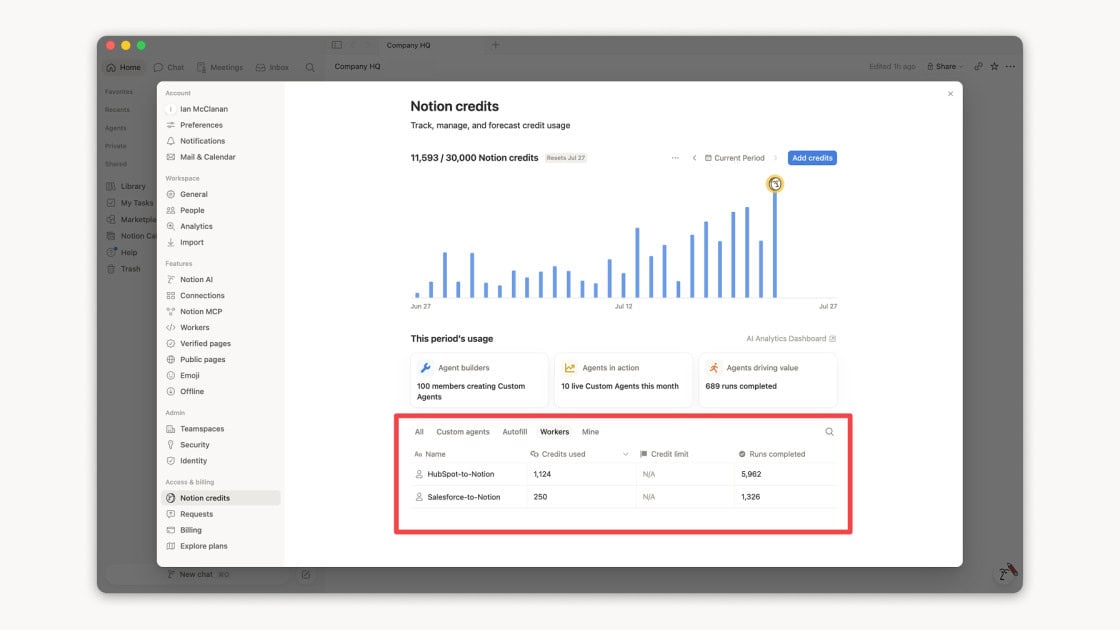
Worker usage now appears in the Notion credits dashboard next to Custom Agent spend.
The dashboard is there because of what follows it: Workers are free during the beta, and from October 15, 2026 every Worker run bills against Notion credits at about $0.0023 per run. Notion’s own worked example puts a sync running every 15 minutes at 2,880 runs a month, or roughly $6.62 — while a Worker an agent fires on every inbound ticket lands far higher.
Workers are off by default per workspace, and admins choose who can use them.
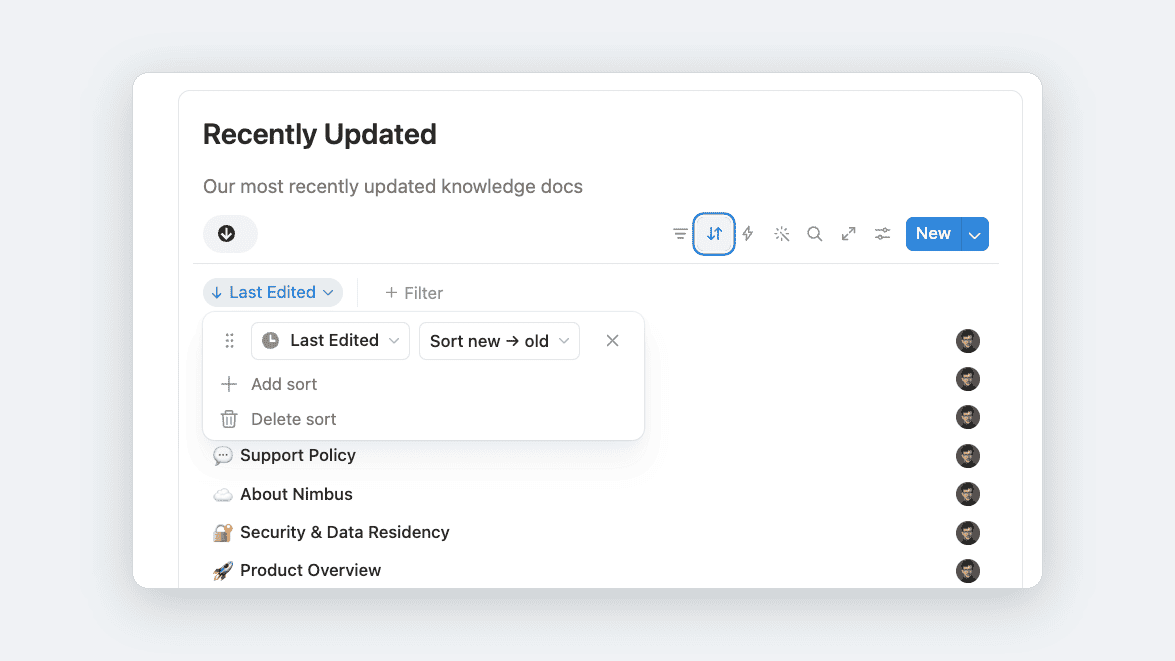
Notion Databases: Sort Direction Now Reads New to Old
Notion has relabelled sort direction on date properties: Ascending and Descending now read as old → new and new → old.
The behaviour is unchanged — this is wording only. It removes a translation step for anyone who had to check which way “ascending” pointed on a date, at the cost of a label that is now opinionated about what dates mean.
On a property like a computed next-birthday date, where every value is in the future, you sort old → new to see what is coming up, which reads oddly.
Notion Agents: Embedding in Pages
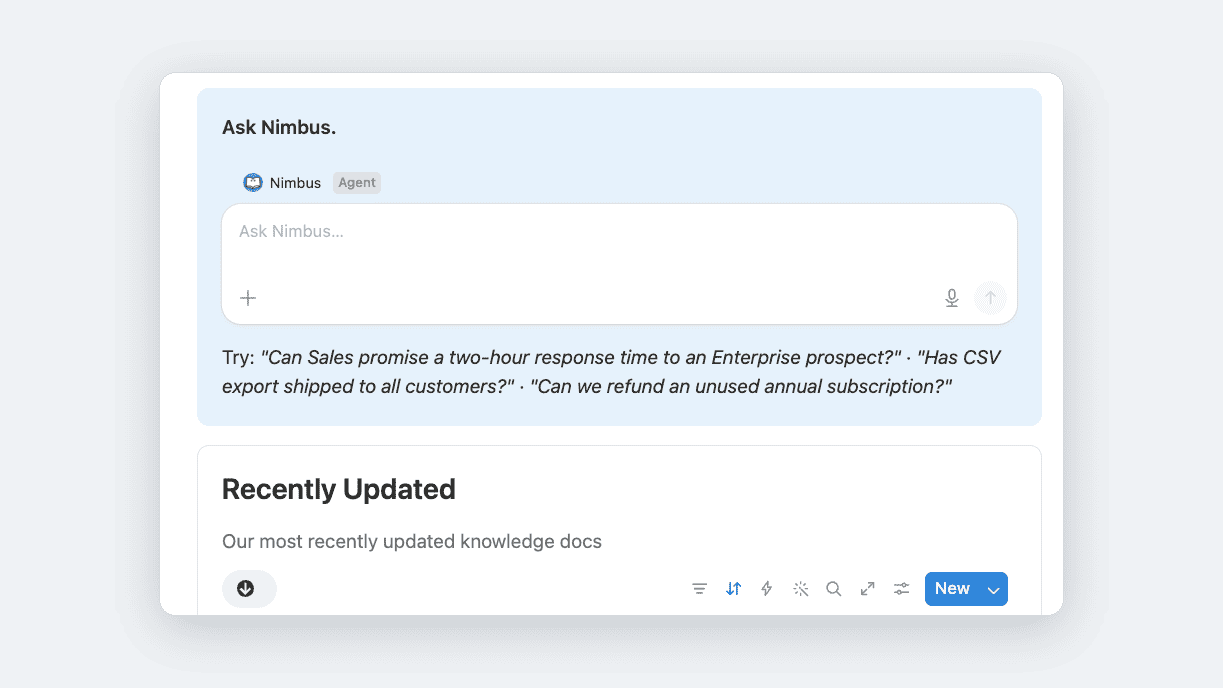
You can embed a Custom Agent directly in a Notion page: copy the agent’s link and paste it in as an embed.
The block renders as a chat box rather than a plain link. Type a question, press Enter, and you are handed off to the agent’s full chat window — so the embed works as an entry point instead of a cramped interface trying to be the whole thing.
That makes it worth placing agents on the pages people already work in. A visible chat box on a team’s home page is a far lower bar than a link someone has to recognise and decide to follow.
Notion Dashboards: Views Keep Their Setup as Widgets
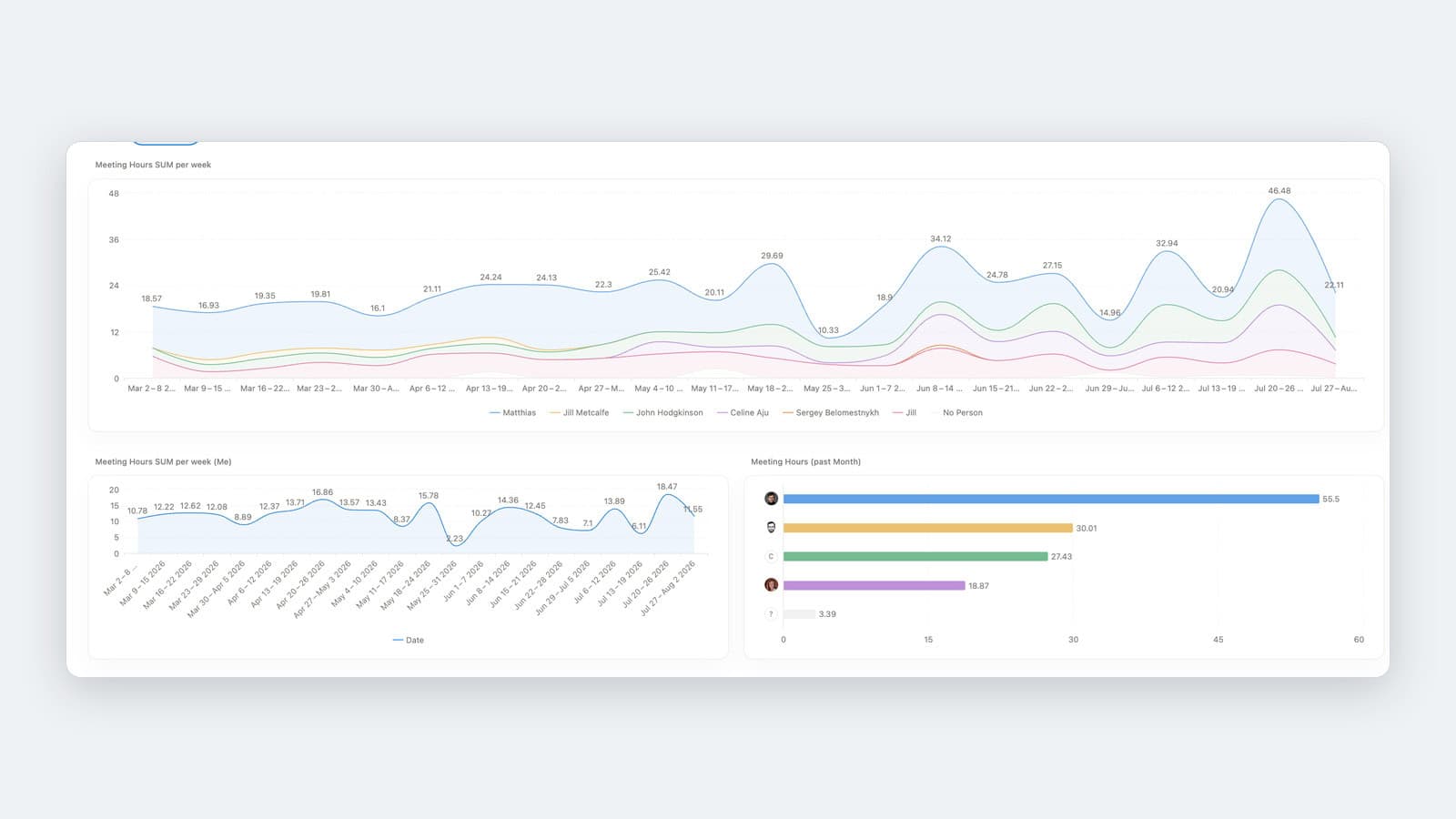
Turning a database view into a dashboard widget now preserves the view’s configuration.
The conversion used to discard it — filters, sorts, and layout had to be rebuilt once the view became a widget. The setup now carries across, so a view you have already tuned goes onto a dashboard without a second round of configuration.
Notion Import: Open Markdown Files Directly
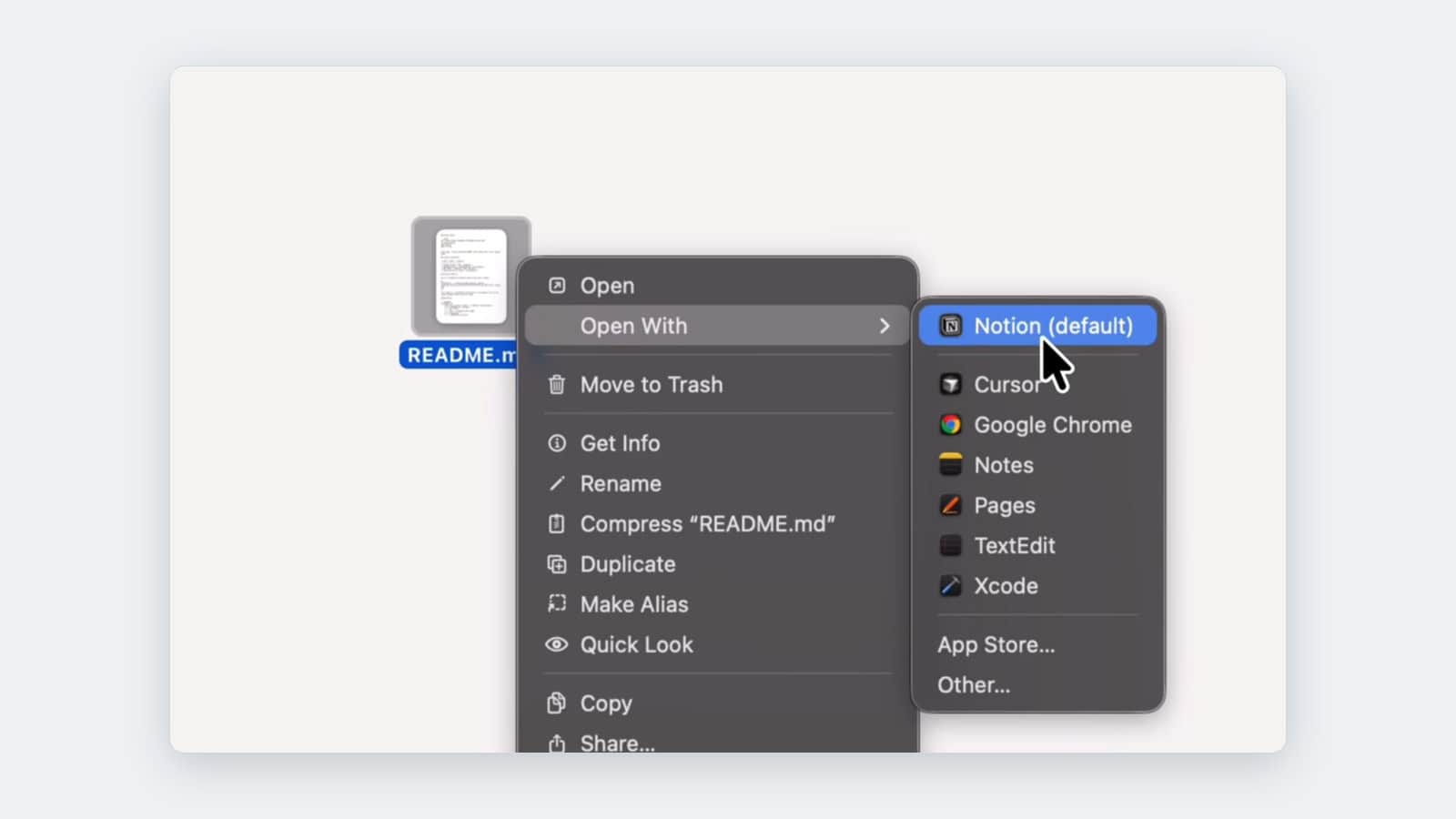
Markdown files can now be opened straight into Notion from your file manager — Notion shows up as an “Open in” option when you right-click a .md file.
The formal import flow hasn’t gone anywhere and still handles bulk jobs. This is the small-scale path: a single file already sitting on disk, opened without going into Notion first and walking through Import.
Notion Agents: Notification Management
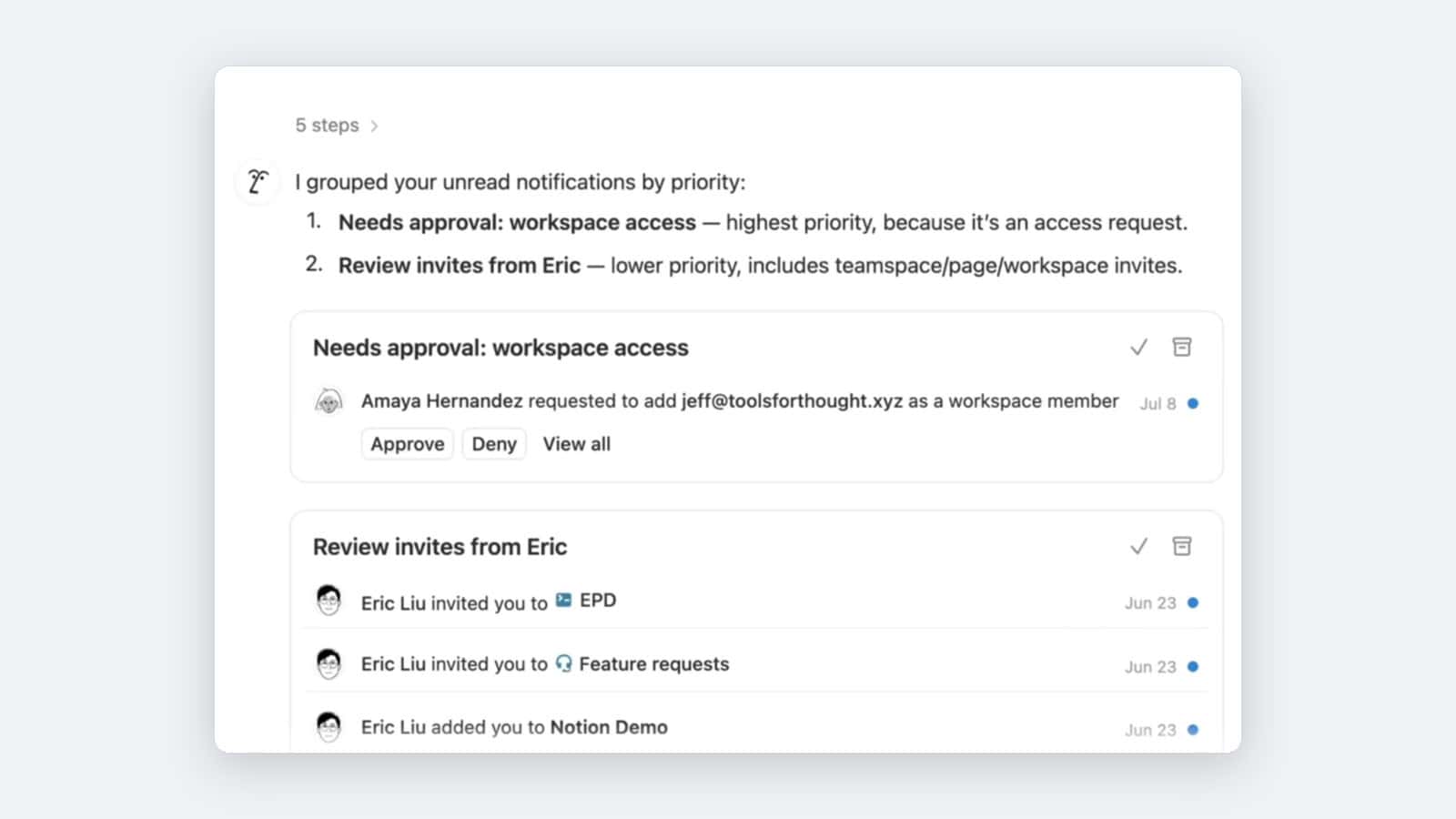
Notion Agents can now act on your notifications, not just read them.
An agent can take the same actions you can on a notification — pull it up, mark it read, archive it, or work through a batch with you. The practical effect is that it can triage the queue and close items out on your behalf instead of handing them back.
Nothing here reduces what generates notifications, and Notion’s streams are noisy. What changes is that the pile is now sweepable — useful if you are trying to reach zero across several notification streams at once.
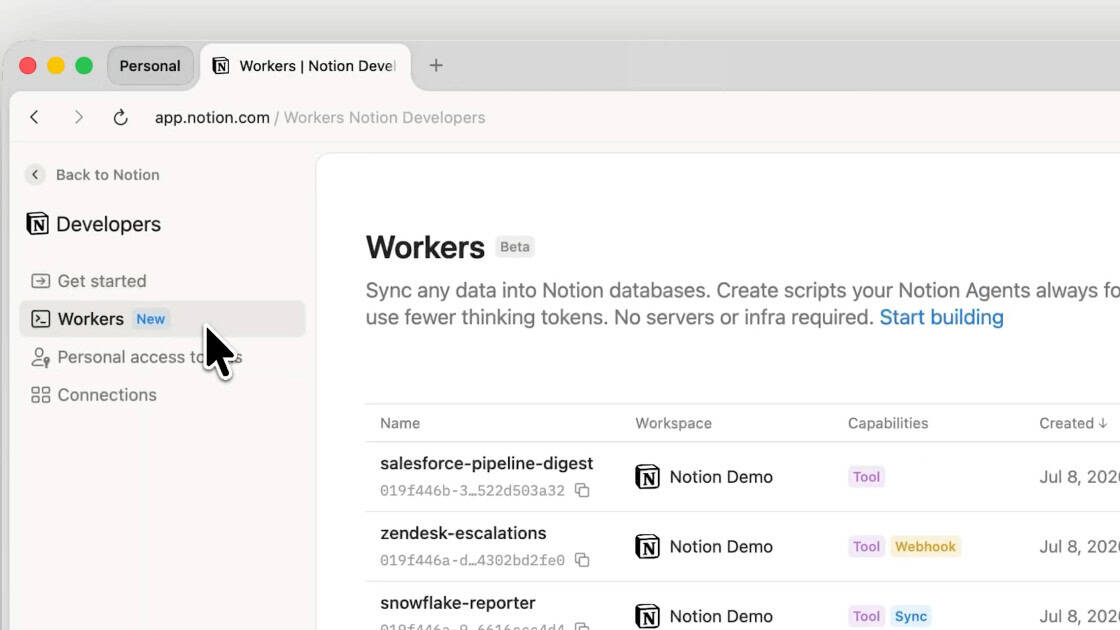
Notion Workers: Sharing and Permissions
A Notion Worker is no longer tied to the person who deployed it — Workers can now be shared with the rest of your team.
Sharing is permission-scoped: collaborators with edit access can change the Worker itself, while “use” access lets someone attach it to an agent without touching its code. Sharing is managed in the Notion Developer Portal, not in the workspace UI.
Workers remain a Business and Enterprise capability.
Notion Agents: Dedicated iOS App
Notion Agents now has its own iOS app, separate from the Notion mobile app.
It adds no new agent capability — everything in it was already reachable through Notion Agent inside the main app. What it changes is friction: a full-screen chat you open directly is faster than navigating into Notion when the only thing you want is to ask an agent something away from a desk.
It is a separate download from the main Notion iOS app.
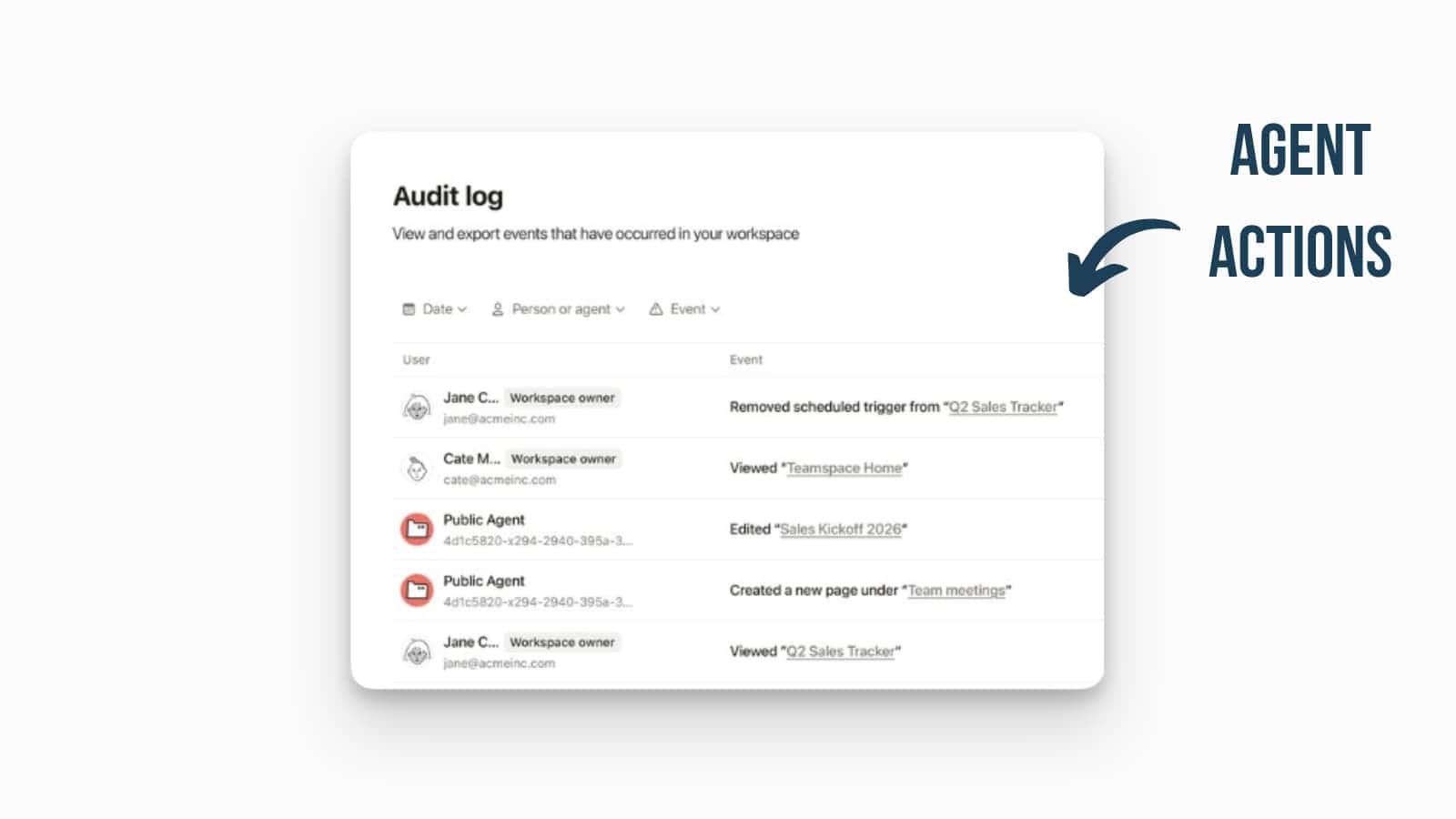
Notion Enterprise: Custom Agent Actions Added to Workspace Audit Logs
Notion’s Audit Log now records Custom Agent activity, giving Enterprise admins visibility into what automated agents do in a workspace.
Agent actions previously left little trace in central admin tools. The log now captures when an agent ran, what it changed — page edits, new sub-pages, changed automation schedules — and what triggered it (a user or a webhook), applying the same oversight to agents as to human members. That gives admins a verifiable audit trail for higher-volume automation.
Admins can review it under Settings & members → Audit log, filtering by the Agent entity to separate automated actions from human ones. (Enterprise plan.)
Notion AI: Multi-Format File Processing for Custom Agents
Custom Agents can now read and create a wider set of office files — PPTX, XLSX, DOCX, and PDF.
That turns file attachments into usable context for an agent instead of something you copy out by hand. An agent can pull data from a spreadsheet, summarize a stack of PDFs into structured pages, or go the other way and export Notion content as a formatted PowerPoint, Word document, or PDF.
Notion Blocks: Native HTML Support with AI Generation
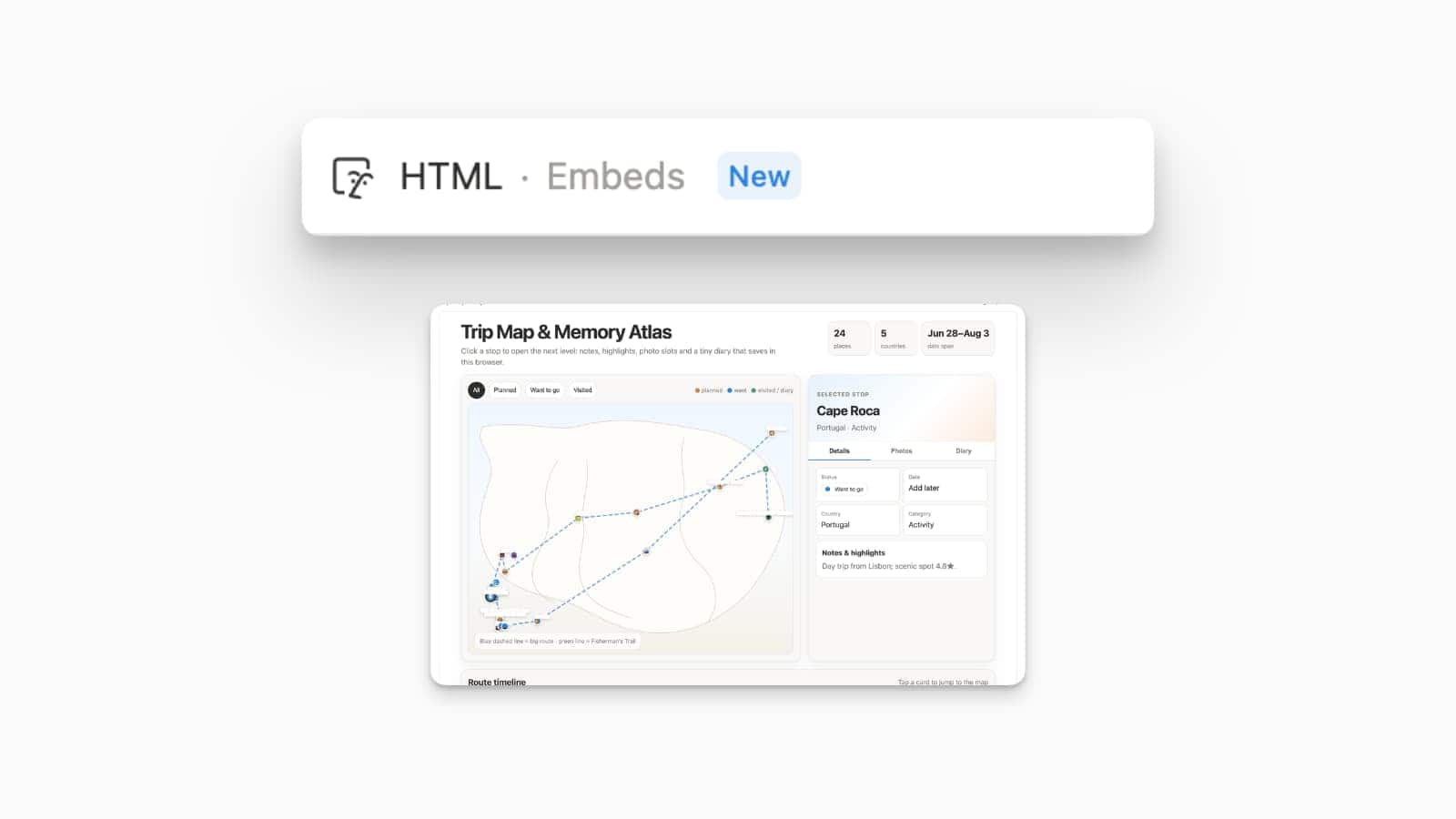
Notion has added a native HTML block — a place to paste, upload, or generate custom HTML directly on a page.
It gives you an isolated canvas for custom web code, so you can build interactive components — calculators, quizzes, live charts, diagrams, org charts — that previously needed fragile third-party embeds. It’s also wired into Notion AI: you can ask an agent to reference the surrounding page content and write the HTML for you, rendering a working interface without a developer.
To add one, type /html on any page and choose the HTML block from the menu, then either paste your own source or prompt Notion AI to generate it.
Notion UX: Faster Linked Database Creation in Teamspaces
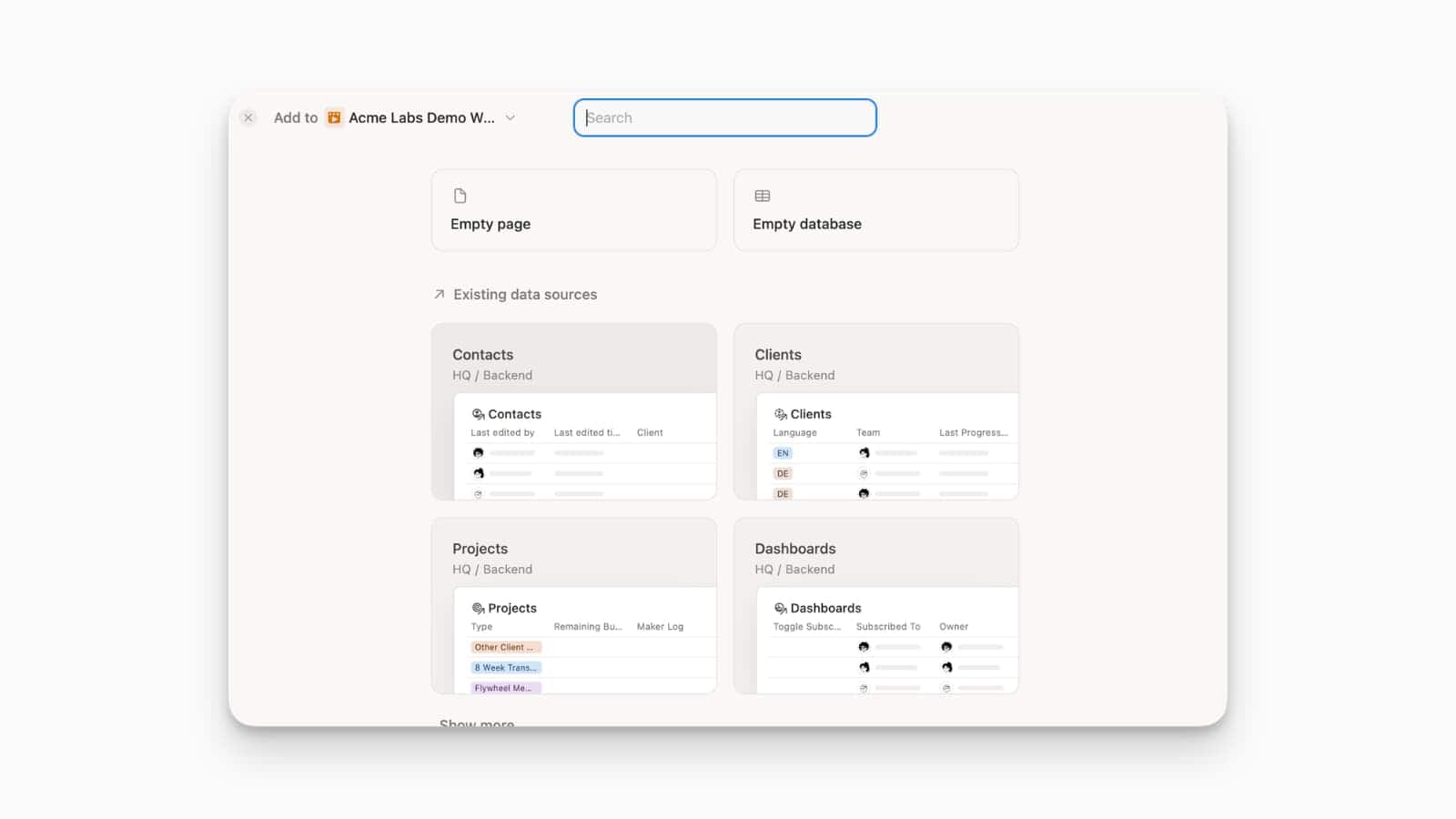
Adding a page to a teamspace now offers a faster way to build a linked view of an existing data source, rather than defaulting to a brand-new database.
The change targets a common habit: the old flow nudged people toward creating redundant new databases instead of reusing existing ones. Now, when you add a page inside a teamspace, an Existing data sources section appears above the Templates gallery, so you can drop in a first-class linked database view in a single step and keep data consolidated from the start.
Notion Calendar + Agents Now Connect to Outlook
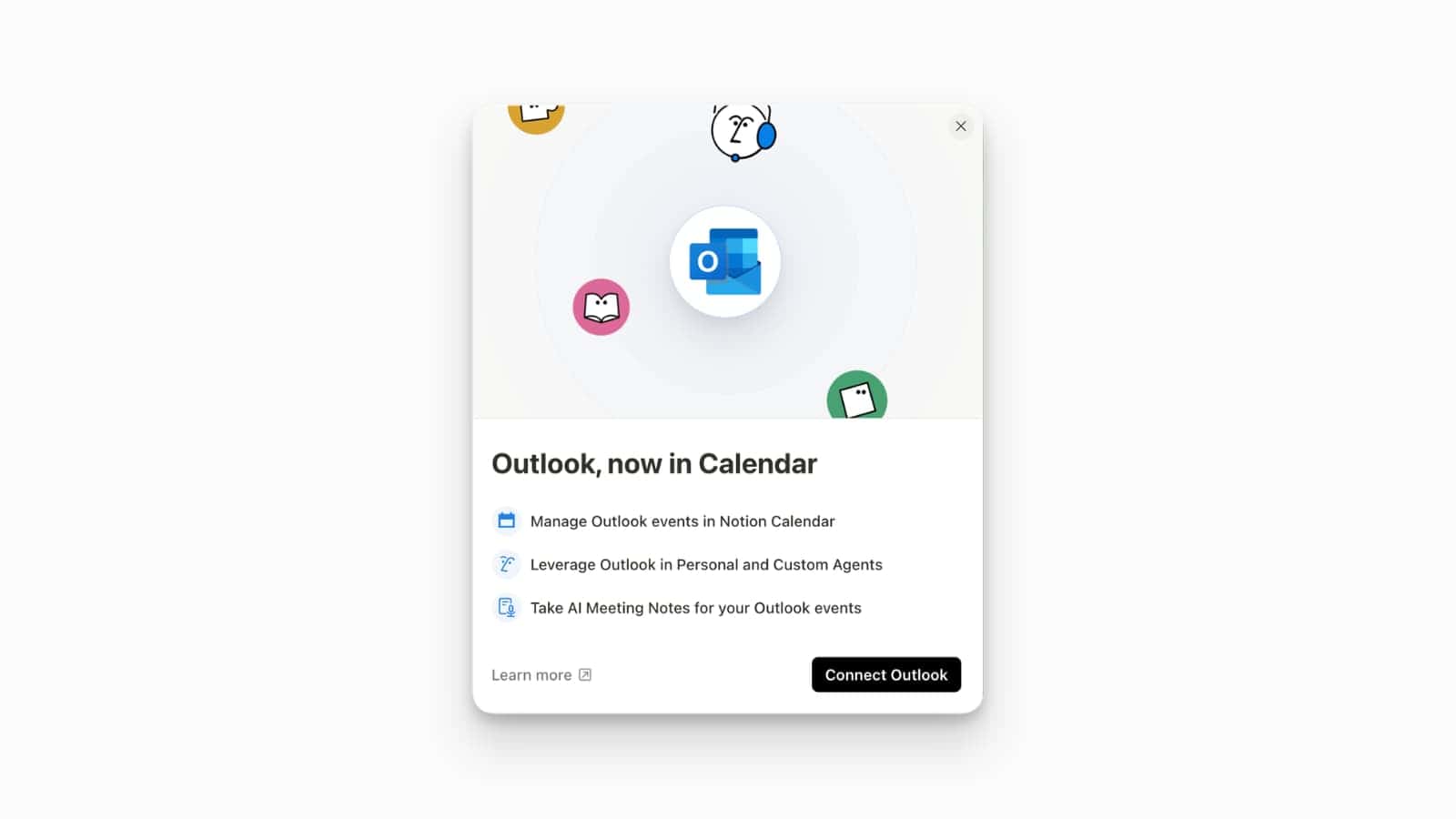
Notion Calendar now connects to Outlook, joining Google and iCloud as supported providers in the unified Notion Calendar interface.
Outlook calendars get the full range of interactions available to other providers — viewing and editing events, RSVPing to invitations, searching, checking availability, and scheduling. Personal agents can now act on Outlook too, alongside the Outlook Mail support added in the same update.
To connect one, open Notion Calendar, go to Add calendar account, and choose Connect Outlook Calendar — it appears alongside the existing Google and iCloud options.
Notion Mail Winding Down
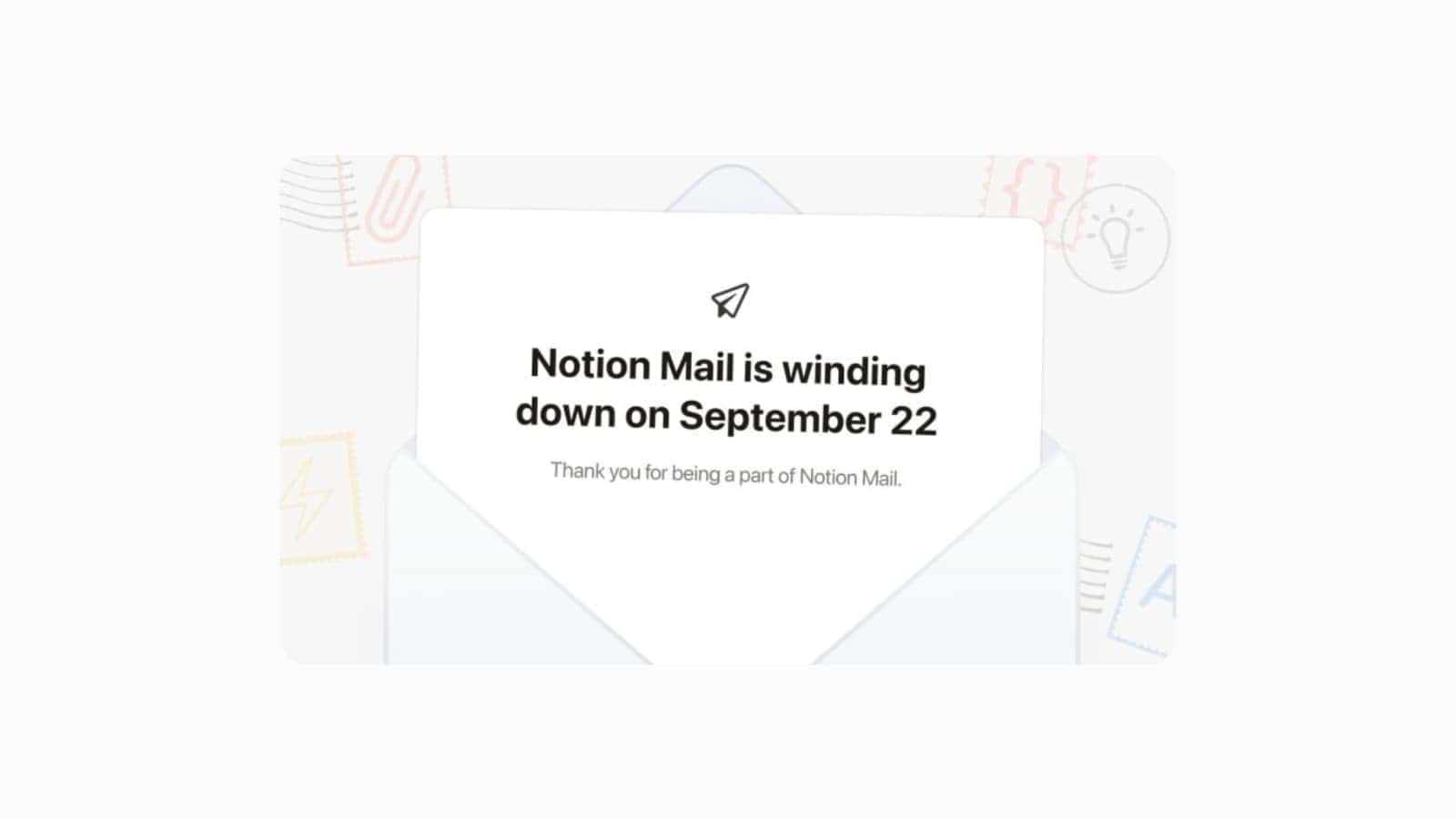
Notion is winding down the standalone Notion Mail inbox — on web, desktop, and iOS — on September 22, 2026.
Notion’s stated reasoning is that more than half of Notion Mail users already manage email through agents without opening the inbox, so it’s shifting effort from a standalone client toward getting email into Notion as usable context — via the Gmail and new Outlook AI Connectors and email automation agents — rather than replacing your primary inbox. Your email itself stays with your provider (e.g. Gmail); export any Notion Mail-only data such as drafts, scheduled emails, snippets, and auto-label instructions by September 21.
We’ve written a fuller guide to what’s changing and what to do instead: Notion Mail Is Shutting Down — What It Means and What to Do.
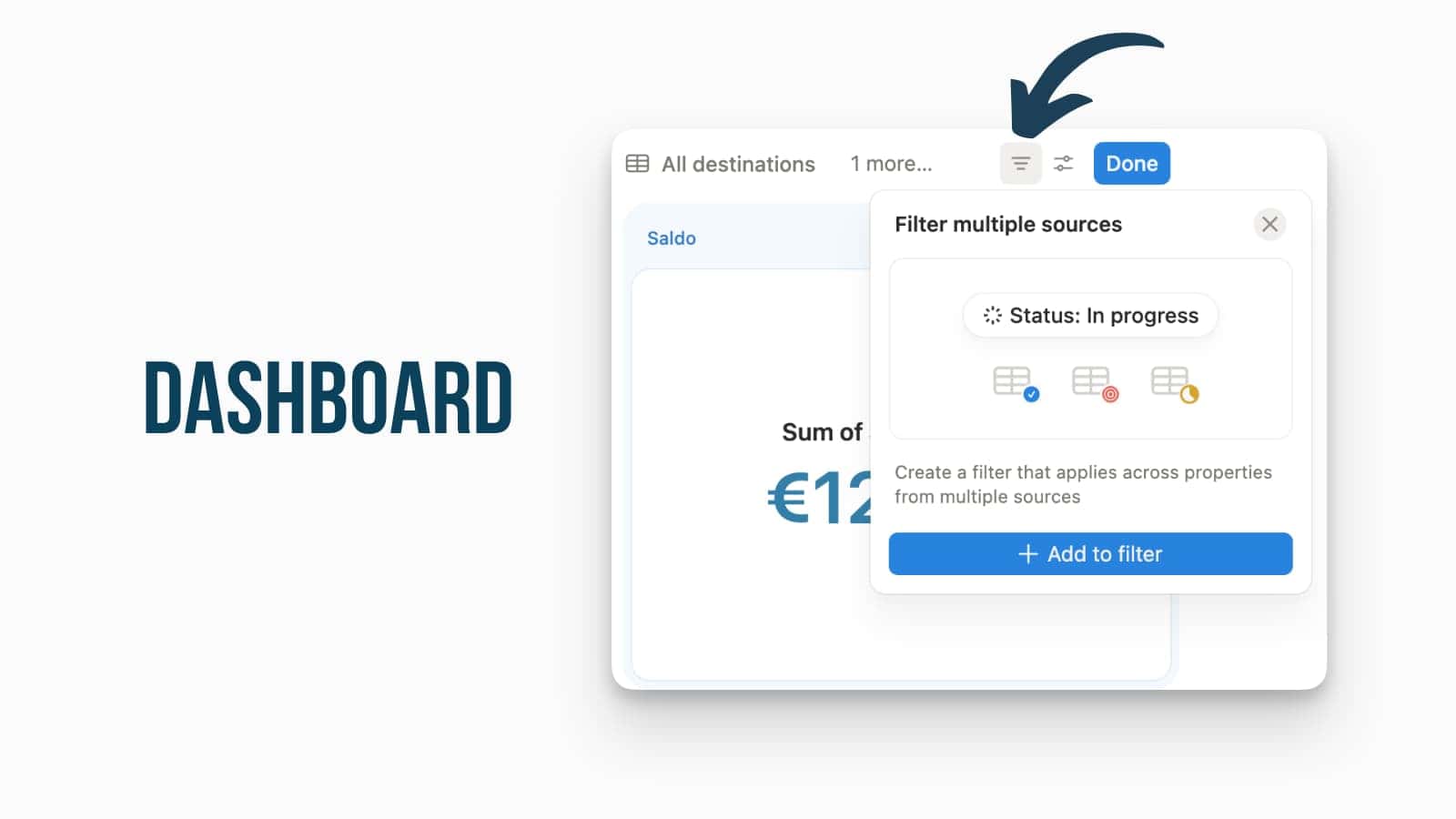
Notion Dashboards: Grouped Multi-Source Filters for Formulas & Rollups
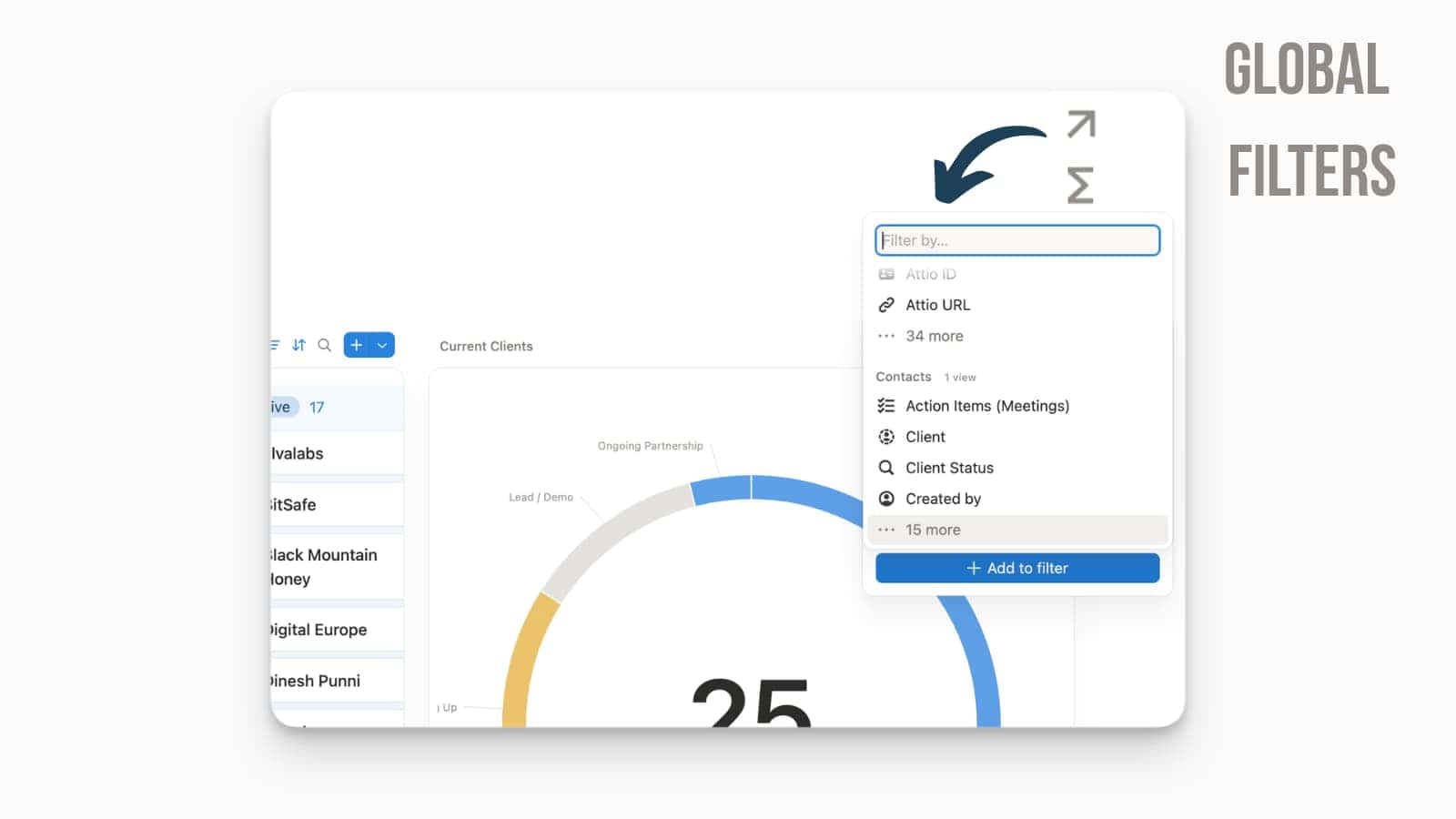
Notion dashboard global filters now work with Formula and Rollup properties, so a single filter can span multiple databases even when they store the value differently.
Global filters apply across the dashboard widgets that share the property you’re filtering on. The update adds type-matching: properties from different sources can sit under one filter when their underlying output type matches — for example a Number property alongside a Formula that returns a number, or a Person property alongside Created by or a person-based rollup. That removes the need to maintain a separate filter per database.
To set one up, open the dashboard, add a filter, choose Filter multiple sources, and map one compatible property per source into the filter.
Notion Calendar: Unified Meeting Notes Integration
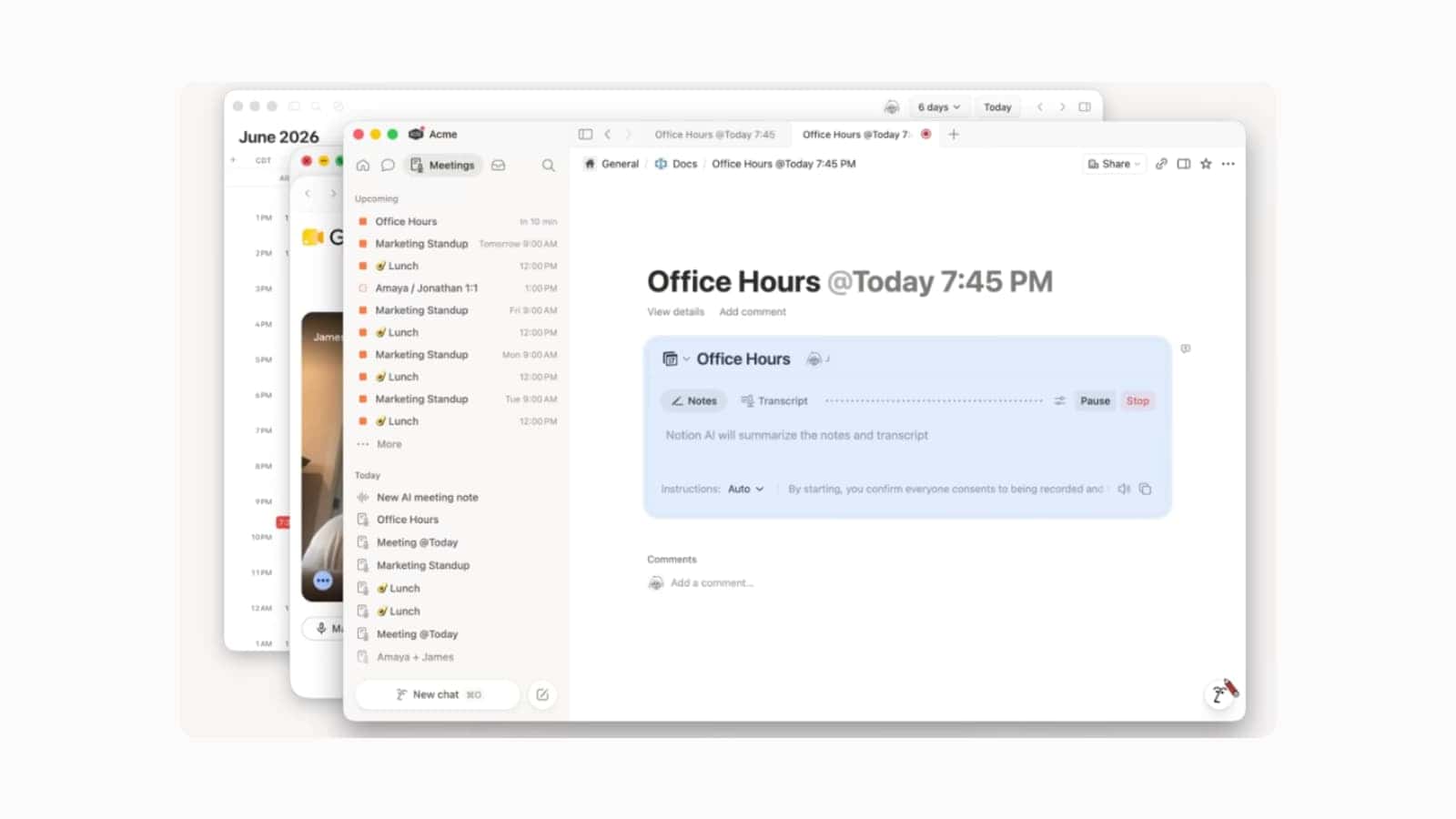
Notion now keeps a single, synced meeting note per event across the Notion app and Notion Calendar, instead of separate notes in each place.
Previously a note attached to a calendar event behaved differently from one created in a workspace database. Now an active meeting note maps and syncs across both interfaces in real time, and the event view in Notion Calendar has been streamlined around the note. From an event you can open its meeting note, join the call, and start an AI transcript, so agendas and action items stay in one place before and after the meeting. Your default meeting-notes database setting syncs between Notion and Notion Calendar.
Notion AI: GLM 5.2 Integration
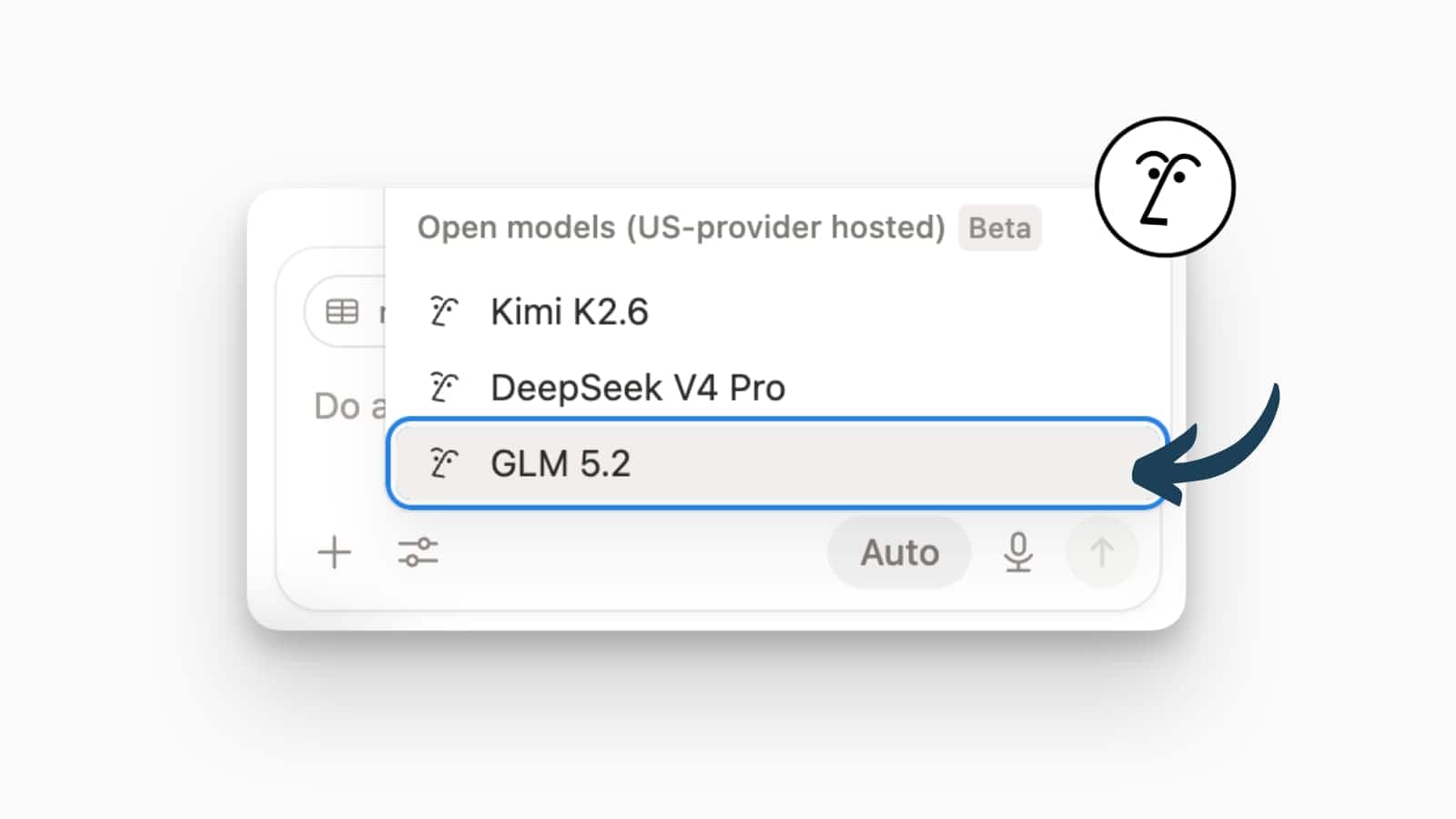
Notion has expanded its multi-model ecosystem by adding GLM 5.2 to its model selector, introducing a powerful frontier-class model developed by Zhipu AI.
Optimised for handling massive engineering context and autonomous tasks, this large language model features a truly usable 1-million-token context window. It excels at keeping track of architectural constraints, codebase structures, and complex data flows, outperforming many standard Western frontier models on long-horizon coding and technical benchmarks for a fraction of the computational cost.
To switch to this model, open any Notion AI chat, click the current model indicator at the bottom of the window, and select GLM 5.2 from the options list. You can immediately leverage its advanced reasoning capabilities to analyse extensive documents or optimise heavy data pipelines directly inside your workspace
New Keyboard Shortcuts
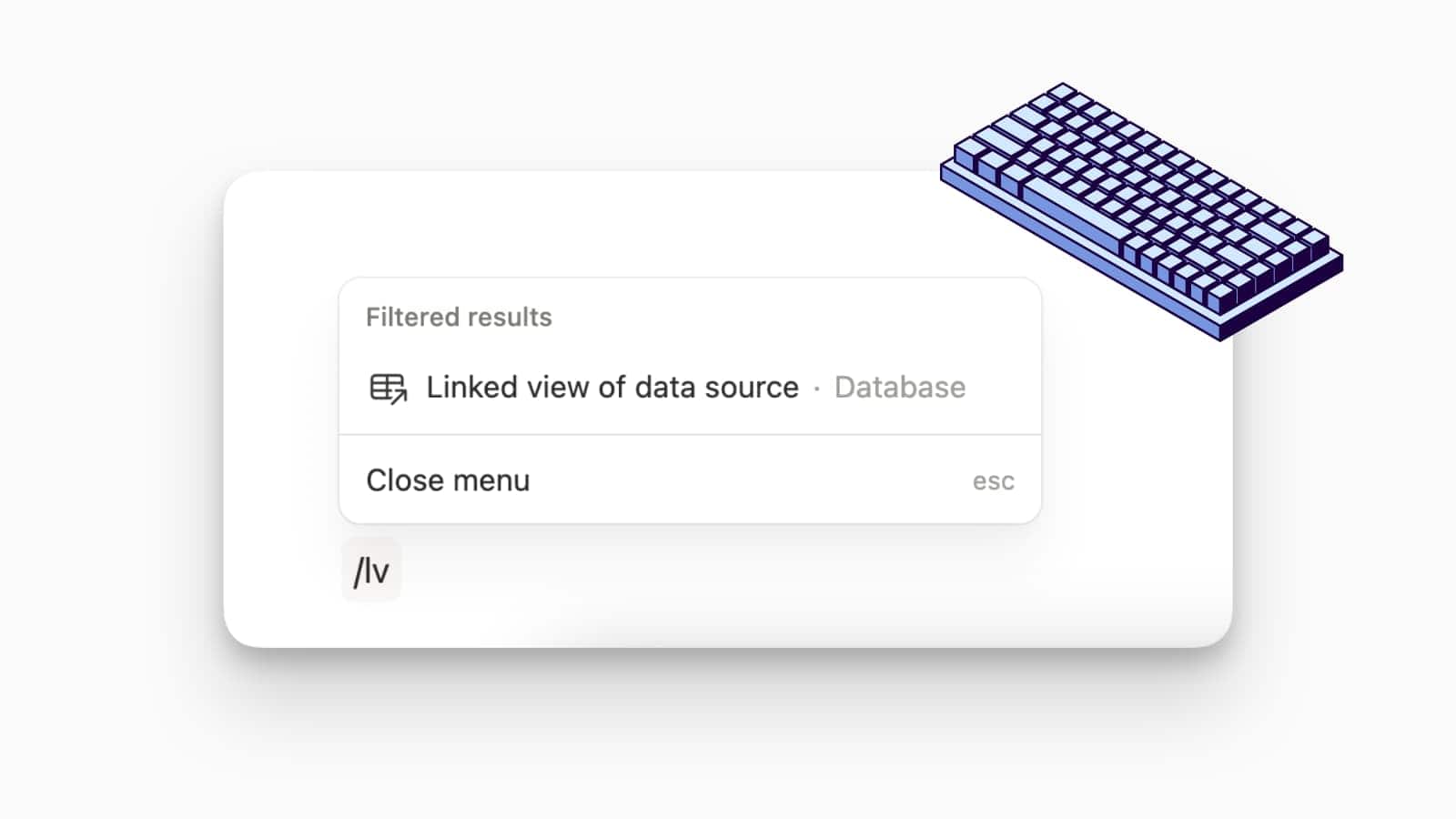
Notion has introduced a dedicated set of two-letter slash commands to restore easy workspace navigation.
The design change comes after a minor phrasing update to the “Dashboard view” option inadvertently broke the historical /cr shortcut, which creators long used to summon a database linked view. This sudden shift in the menu’s fuzzy-search logic disrupted long-established, rapid workflows and risked invalidating existing educational documentation across the community. Responding directly to ambassador and user feedback, Notion implemented permanent, direct shorthand alternatives to isolate core block primitives from future text conflicts.
Typing the new /lv shortcut instantly brings up the “Linked view of data source” block without any surrounding menu clutter. In addition to this database shortcut, users can now type /bt to generate a Button block or /da to quickly create an Inline Database. These intentional, hard-coded combinations bypass complex command-menu indexing entirely, making daily page layout building significantly faster.
Claude And Cursor External Agents Now Available
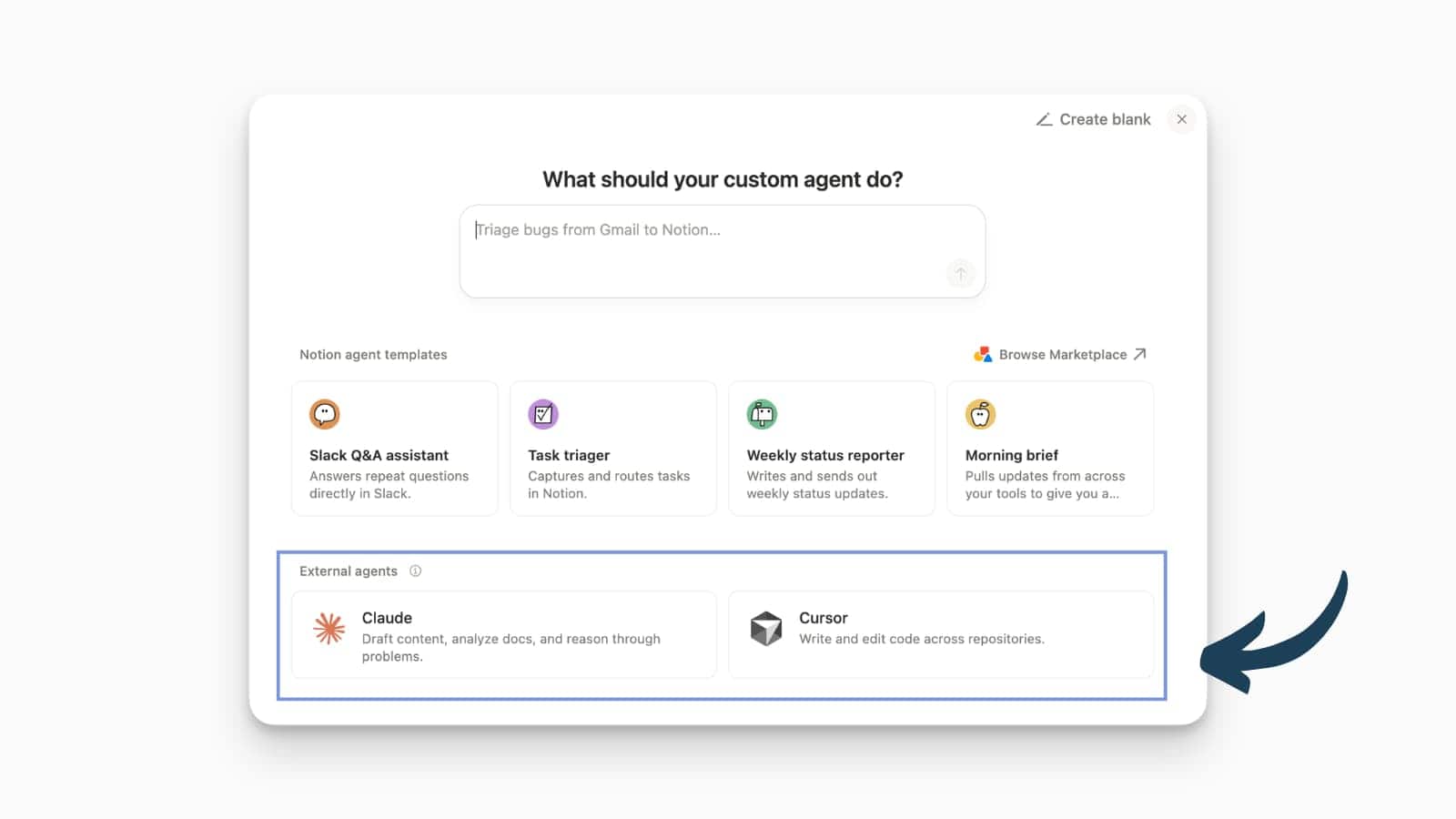
Notion now supports External Agents — Claude and Cursor are the first two — letting third-party AI tools work directly inside a Notion workspace as visible, @-mentionable participants.
External Agents are part of Notion’s Developer Platform (launched May 13, 2026). You add Claude or Cursor to a workspace much like a teammate: @-mention them on a page, assign them a task from a shared board, and follow their progress in the same interface as Notion’s own Custom Agents. Within the pages and databases they’re given access to, they can read content, write into pages, and update properties — useful for cross-tool code work or querying a knowledge base with your preferred model rather than only Notion’s built-in AI.
Notion Workers: Windows Support via npm and winget
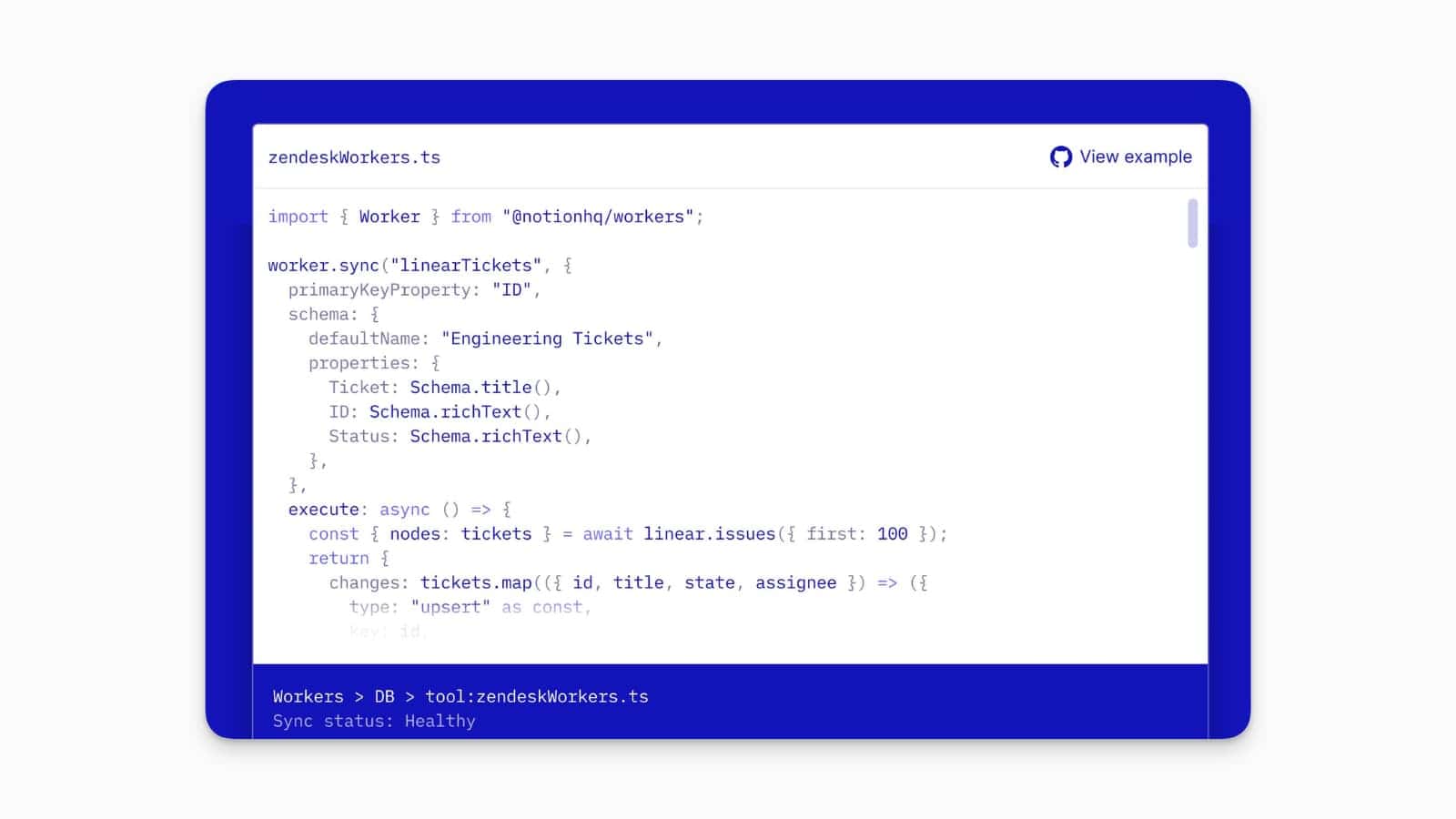
Notion Workers now install on Windows through npm and the Windows Package Manager (winget), bringing the ntn developer toolchain to Windows-based engineers.
Workers are Notion’s hosted runtime for custom TypeScript — sandboxed code that can run as an automation or sync engine, or expose typed tools for Custom Agents to call. Windows support (currently x64 only) closes the gap with macOS and Linux. Workers are free to run through August 11, 2026, after which they’re metered on Notion credits.
To install on Windows, open a terminal and run winget install Notion.ntn, or npm install --global ntn (Node.js 22+ required). After authenticating, scaffold a worker with ntn workers new and deploy it with ntn workers deploy.
Microsoft Outlook AI Connector for Notion
Notion has launched a dedicated Microsoft Outlook AI Connector, enabling teams to link their Outlook inboxes directly to Notion AI for seamless cross-tool search and contextual answers.
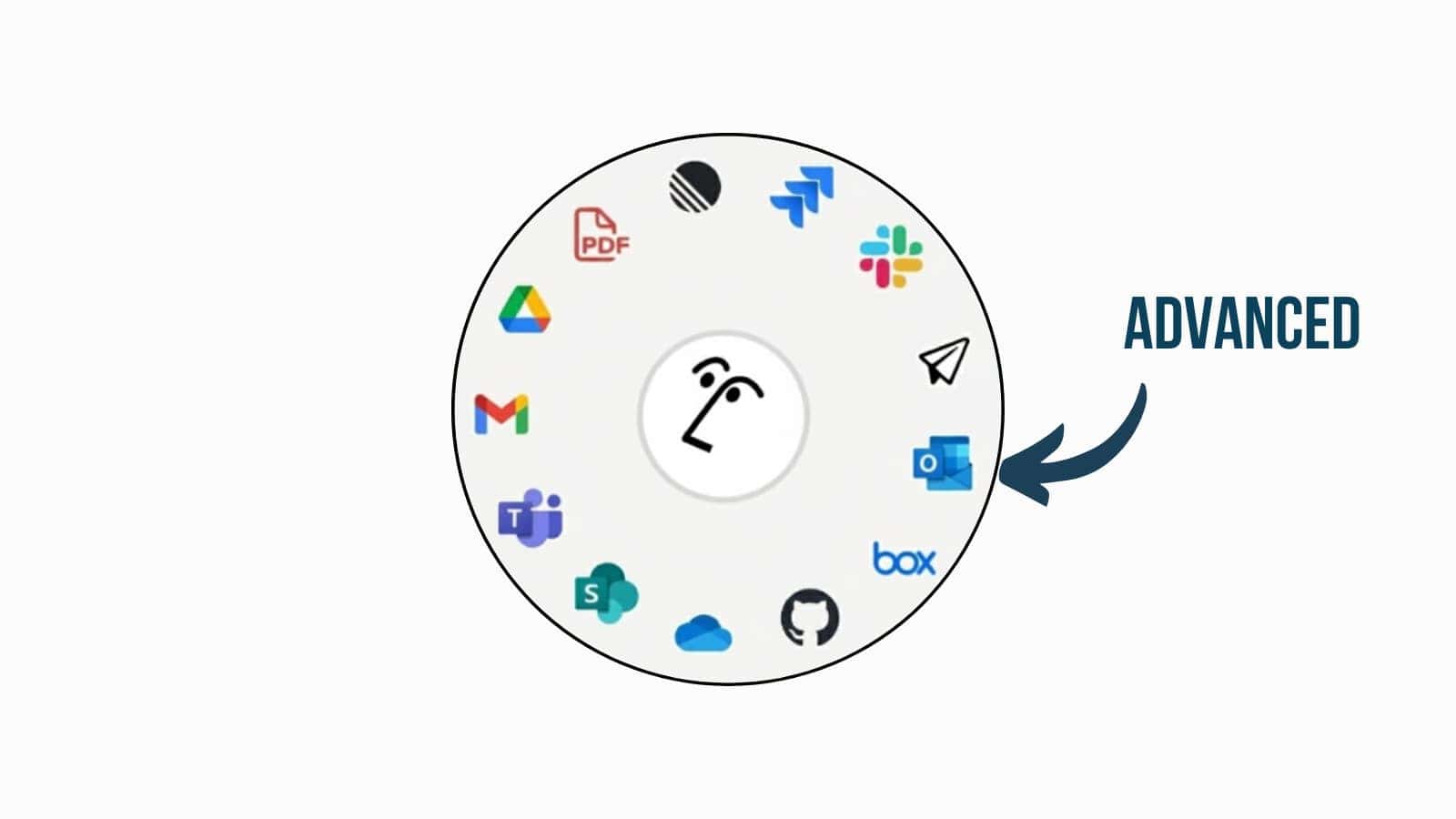
This update transforms how users recall information by allowing Notion AI to surface relevant email content alongside native workspace documentation whenever you ask questions or trigger Agent workflows. Operating strictly in read-only mode for its initial deployment, the integration respects established enterprise permissions, ensuring that employees can only search and access email data they already have direct rights to view within Microsoft 365. To complete the connection, navigate to Settings → Notion AI, click the + button next to Outlook, and accept the application permissions prompted by Microsoft.
An advanced alpha program offering expanded full-access features is also open for sign-up, though completing any initial onboarding requires you to be both a Microsoft 365 Global Admin and a Notion workspace owner on a Business or Enterprise plan.
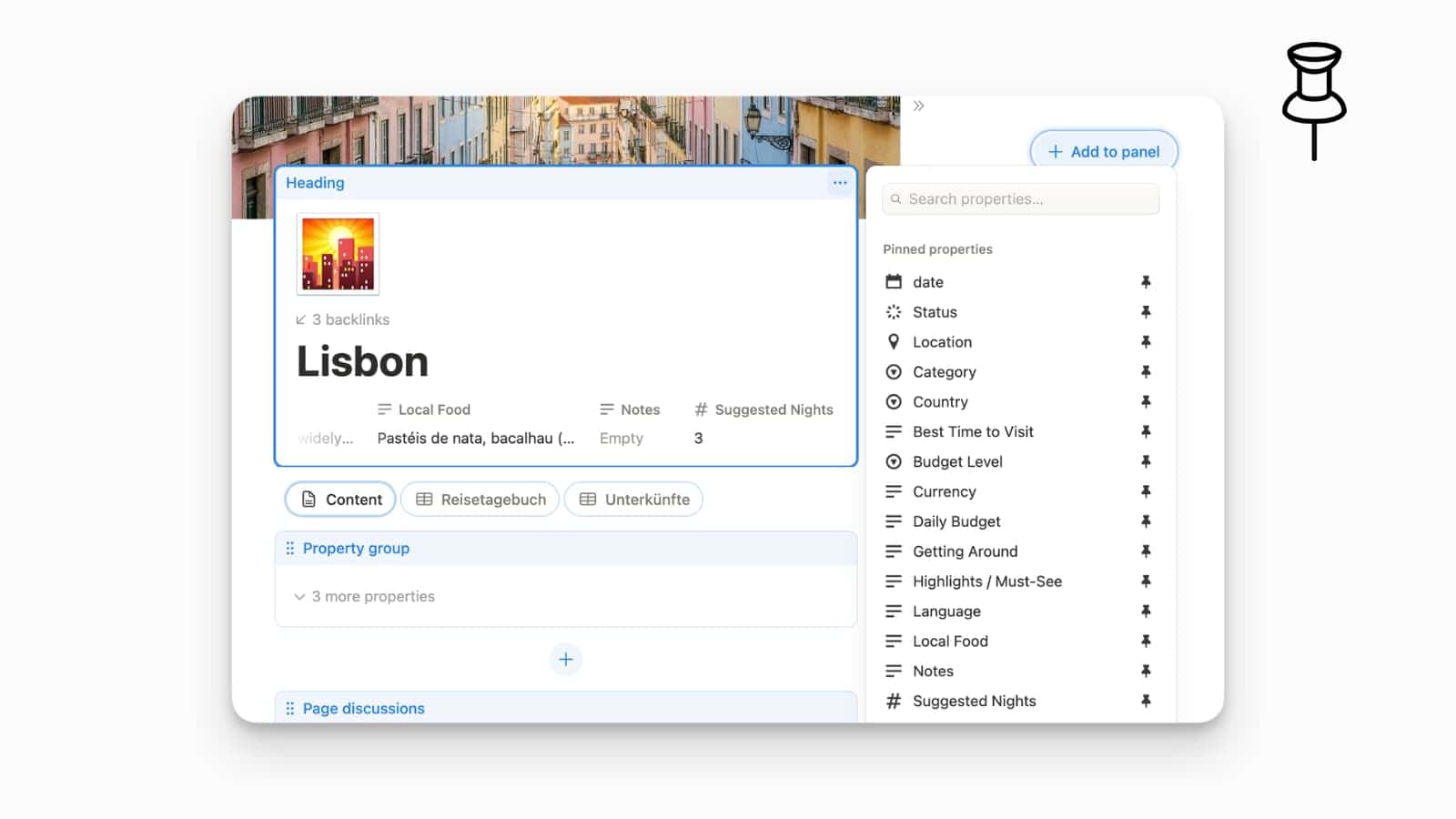
Up to 15 Pins on Database Page Layout
Notion users are asking for “infinite pins”, i.e., the ability to pin more items than today’s UI comfortably allows in database page layouts.
In Notion’s layout builder, pinned properties are currently capped (Notion’s own documentation notes you can pin up to 15 properties), which can be limiting for larger databases where many fields need to stay visible at the top of a page.
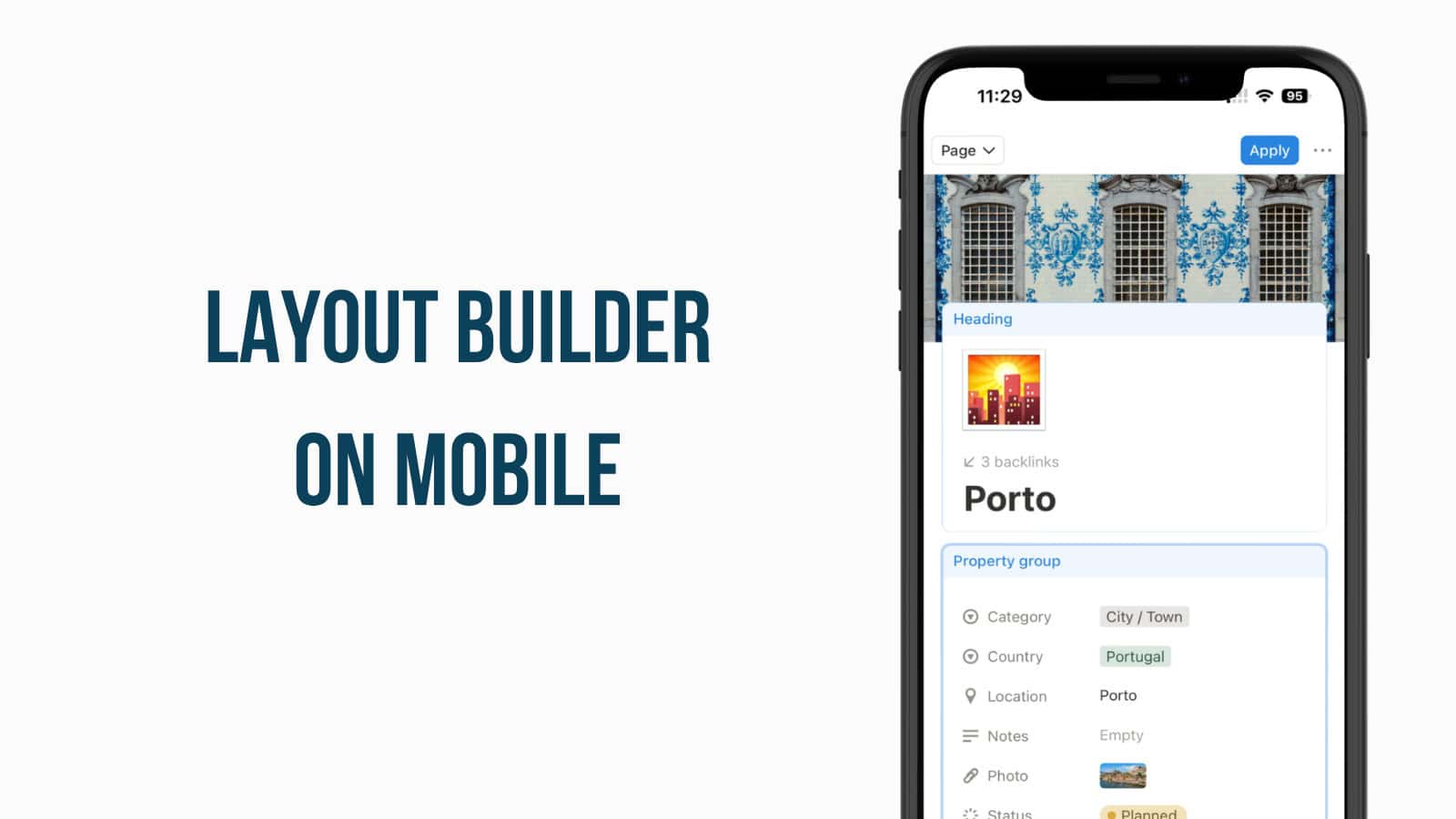
Layout Builder Now Works on Mobile
Notion’s layout builder now works on phones, so you can rearrange database page layouts from the mobile app.
Notion’s official layout documentation now describes mobile support for the layout builder, including a mobile entry point (on a phone or tablet: open a database page, tap ···, then choose Customise layout). This confirms layout editing is intended to be available on mobile, not just viewing.
To use it, open any database page on mobile → tap ··· → Customise layout → make your changes. If you don’t see Customise layout, you may not have edit permission for the database or the feature may not be available in your workspace yet.
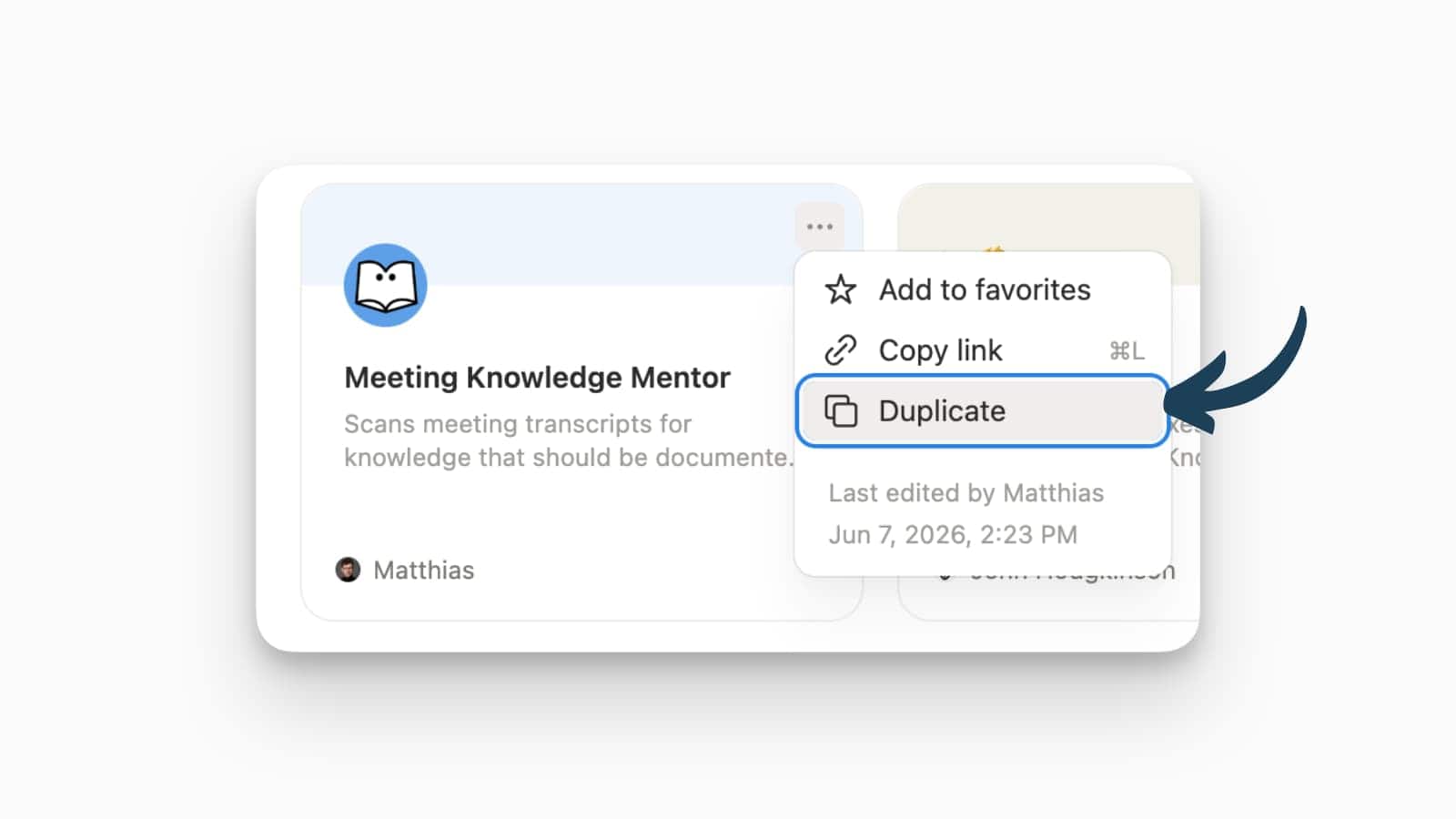
Custom Agent Duplication And Scoped Access
You can now duplicate a Custom Agent to create your own private copy.
Notion’s documentation states the duplicate is private by default, and Notion uses the duplicator’s permissions (not the original agent’s) to decide what carries over: resources you can’t access are removed, triggers tied to resources you can’t access are dropped, and third‑party tools like Slack are not carried over automatically.
To use it, open the Custom Agent and choose Duplicate, then check the copied agent’s tools/access and re-authenticate any external connections you need before relying on it.
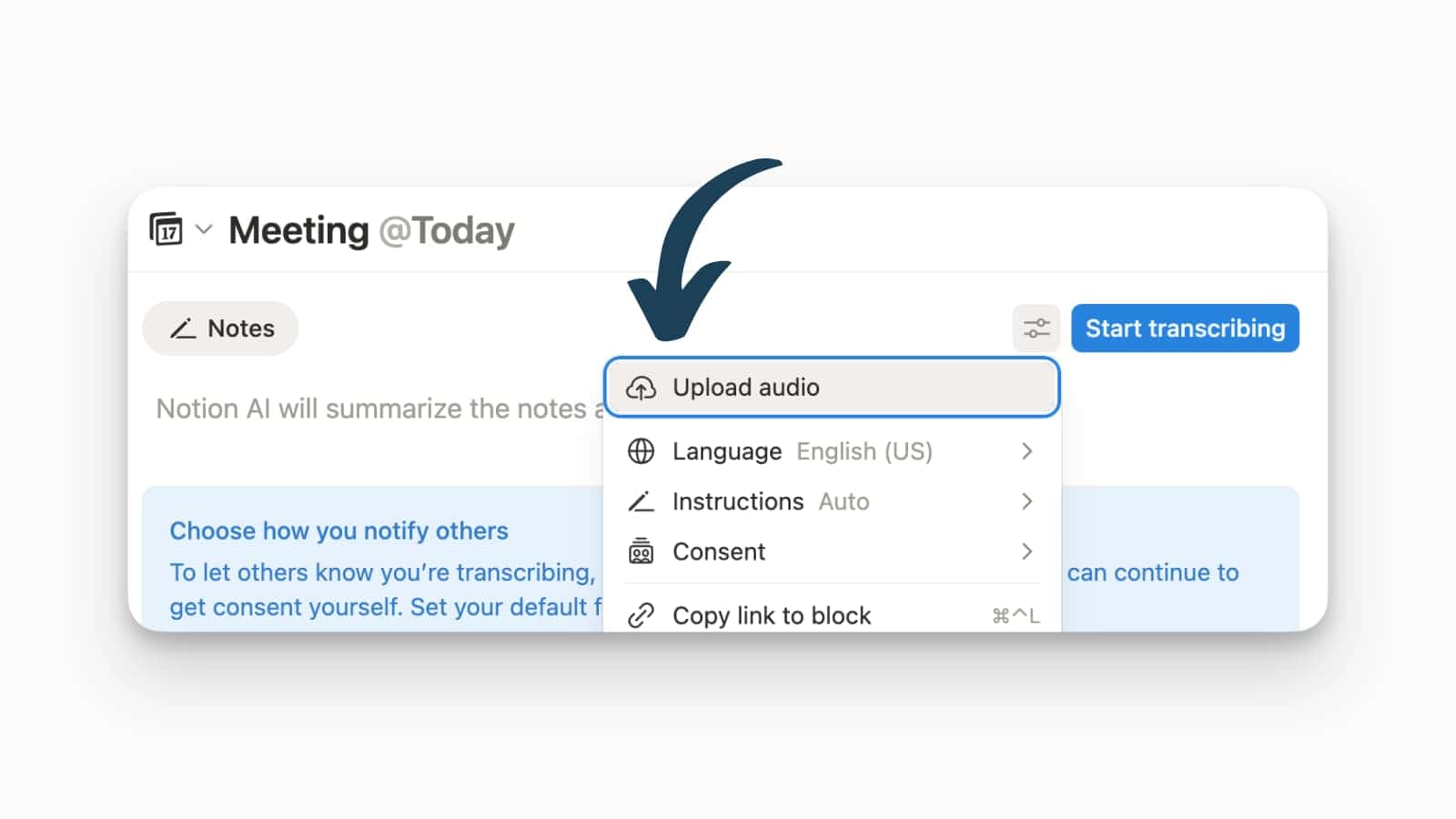
Upload Audio To Notion Meeting Notes
Notion has officially rolled out the ability to upload pre-recorded audio files directly into the AI Meeting Notes workflow, moving past the previous restriction of only allowing live recordings.
This update significantly expands how teams can process asynchronous discussions, external client calls, or voice memos. Pre-recorded audio now integrates deeply with Notion’s AI engine. Once a file is processed, the system automatically generates full transcripts, and structured action items exactly as if the meeting had been recorded live inside the app.
To use this feature, generate a new meeting section on your page by typing /meet. Rather than clicking the live record option, select the new Upload Audio button within the block to import your MP3, WAV, or M4A file, and Notion AI will instantly begin processing the recording
Claude Fable 5 Now Available In Notion
Claude Fable 5 is now available as a model option in Notion, aimed at the most complex Custom Agents and Workers.
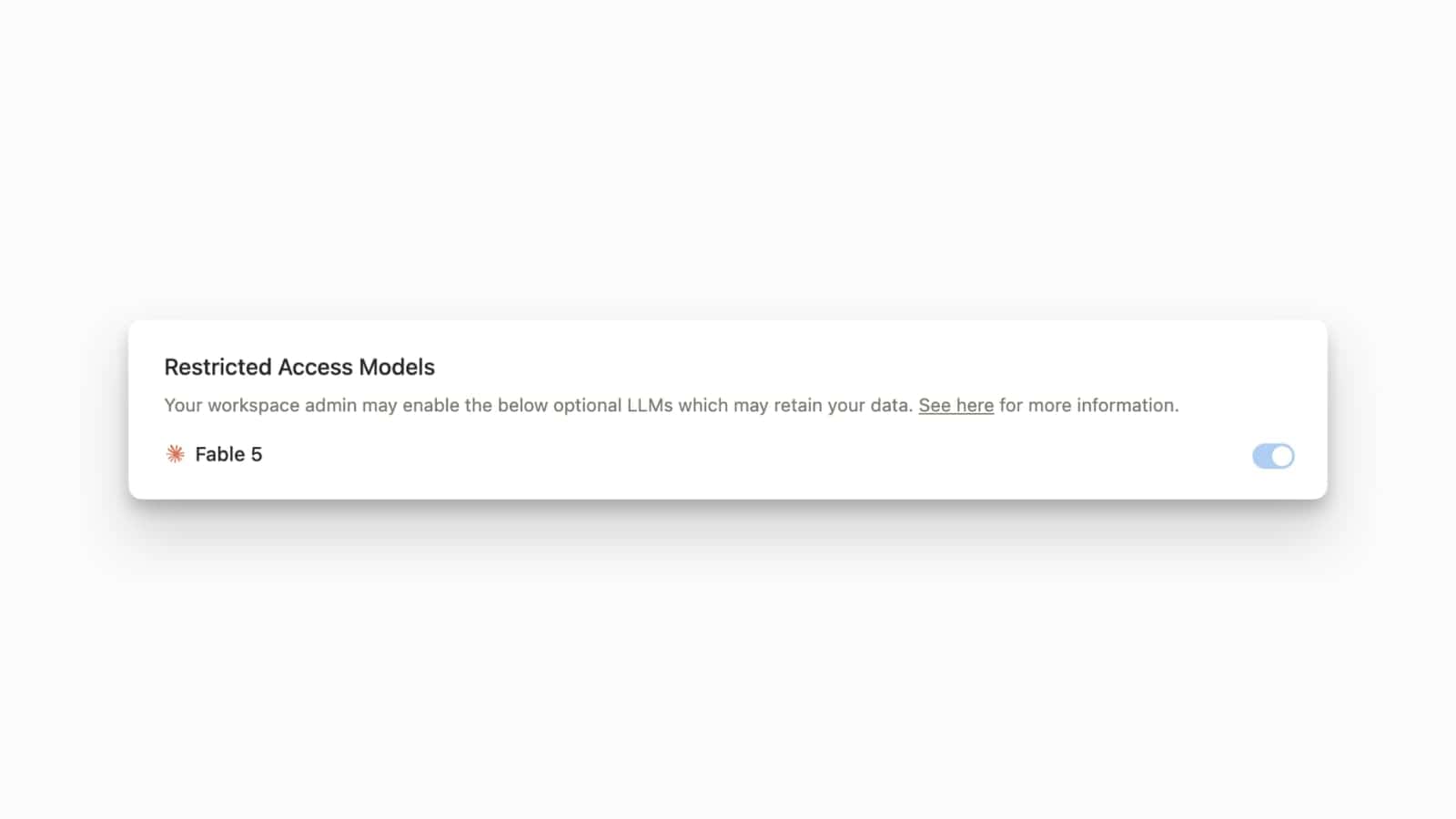
Notion has publicly positioned Fable 5 as the model for hardest multi‑step work, and stated it’s available on Business and Enterprise plans. Notion also notes Fable 5 is opt‑in because of Anthropic’s data-retention behaviour for this model. This release also brings a critical change for power users in the form of per-model usage limits. If an automated agent triggers heavy loops or extensive data syncs, Fable 5 may suddenly grey out mid-task with a restrictive 24-hour timeout error. Because Notion’s native credit interface lacks a granular, per-model consumption meter, users have no visibility into their remaining allocation until they hit the limit.
To use it, an admin enables Fable 5 in Settings → Notion AI, then you can select Claude Fable 5 in the model picker for the relevant agent or workflow.
Custom Agents Can Access the Team Directory
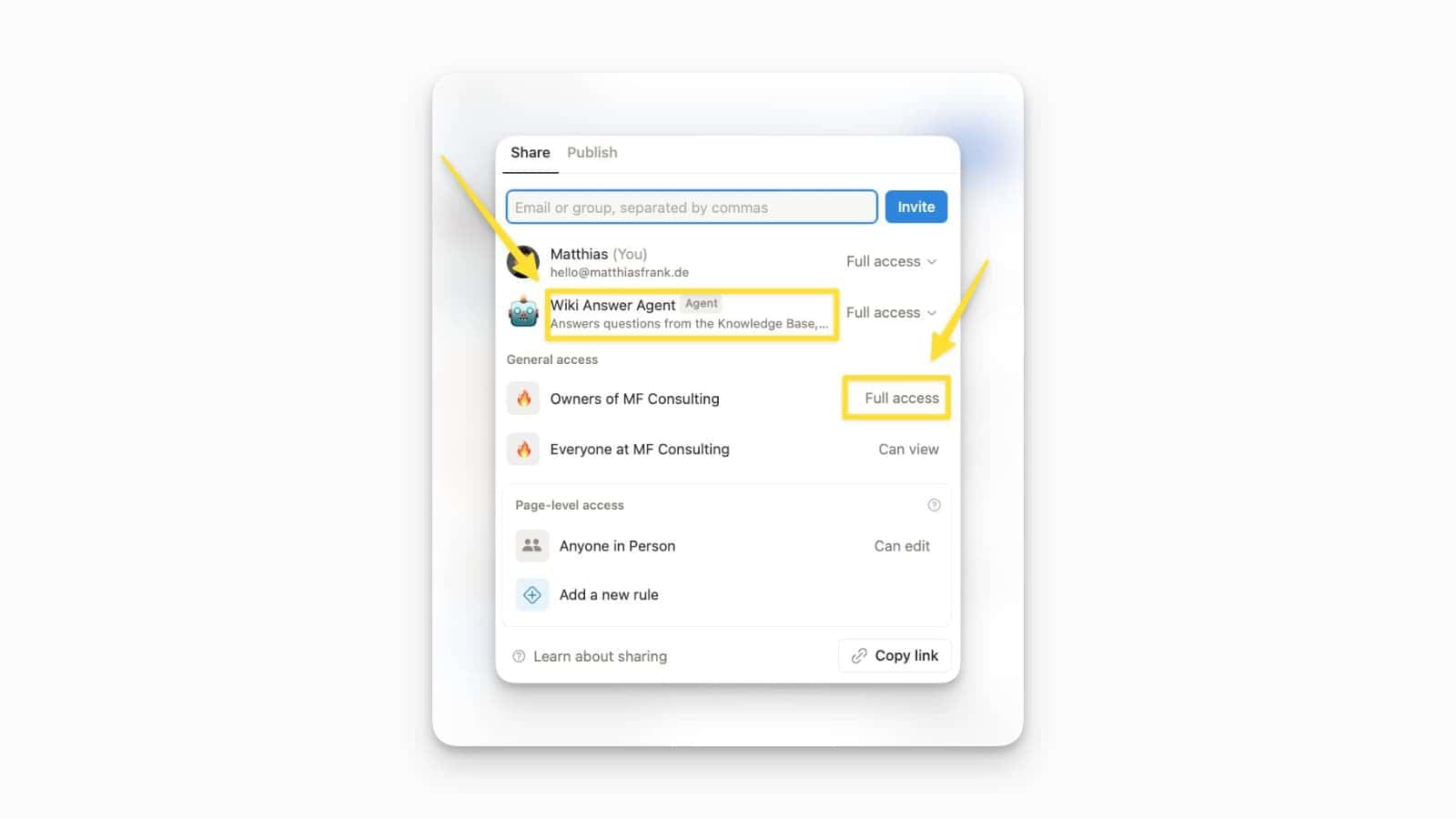
Notion has fully exposed its system-generated People Database to the developer ecosystem, introducing robust programmatic access across the Notion API, the native ntn CLI, and Custom Agents.
This update resolves a major bottleneck for HR teams and workspace administrators who previously could only manage this centralised directory through the manual user interface. The People Database acts as an automated registry tracking every identity in a workspace—including current members, deactivated legacy accounts, and external guests. By unlocking API endpoints for this system data, developers can now build seamless internal workflows that map real-time personnel changes directly to identity provider syncs, onboarding structures, and access auditing logs.
Crucially, this release marks the first time that workspace guests are available programmatically. While the standard List all users API endpoint traditionally restricted results to active, full members, the newly integrated system database allows automations to track, identify, and assign tasks to guests. While Model Context Protocol (MCP) support is currently excluded from this initial deployment, its rollout across other infrastructure guarantees that full multi-tool AI orchestration using your complete workspace directory is on the immediate horizon.
Synced Block Copy Between Workspaces
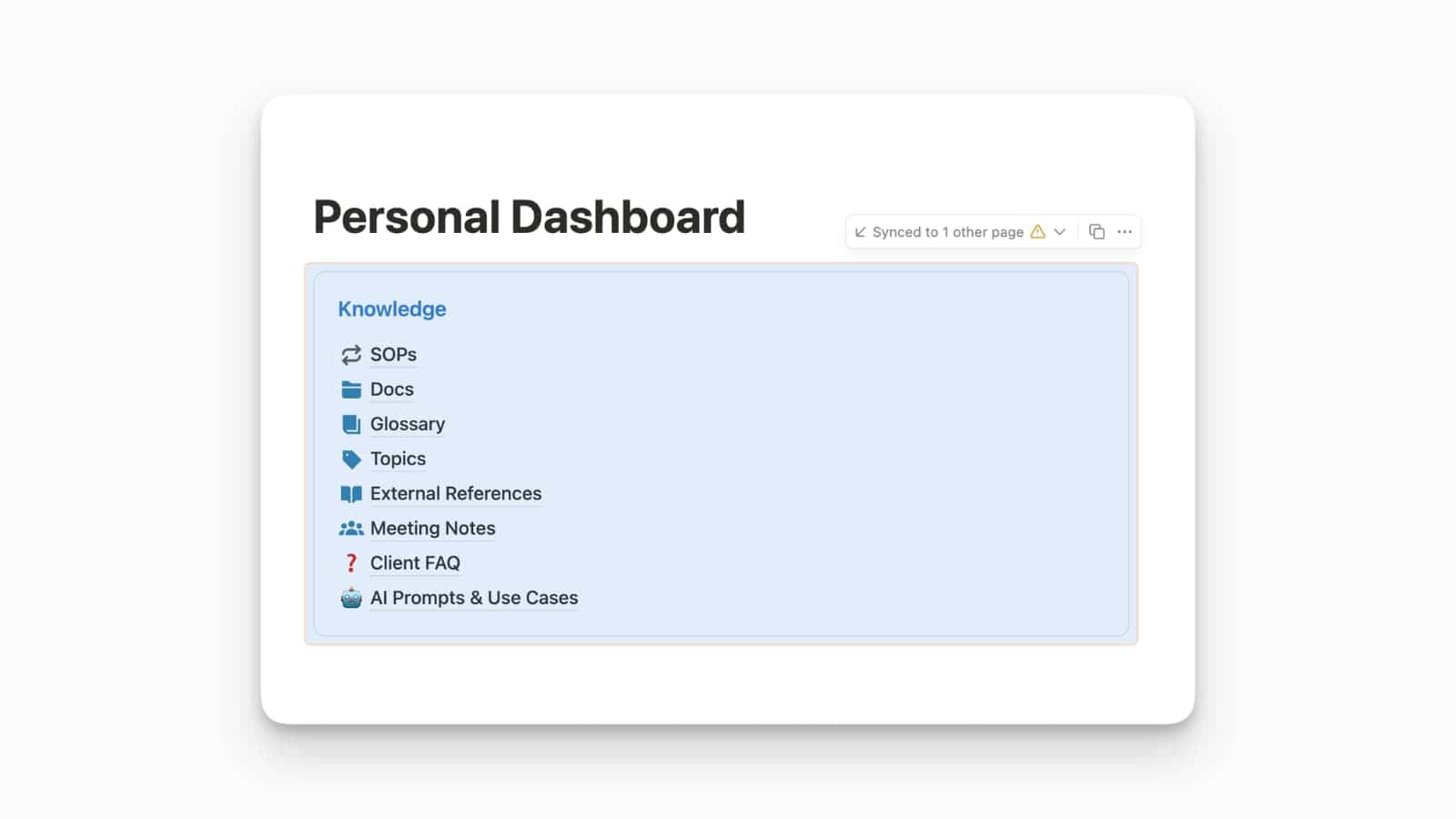
Synced blocks can be copied and synced across pages, and Notion’s documentation explicitly includes syncing blocks across workspaces.
Notion’s synced blocks help article describes turning blocks into a synced block and then copying and pasting them across pages — including across workspaces — while still enforcing access control (people without access to the original source can’t see the contents).
To use it, turn content into a synced block, use the copy action, then paste it where needed (even in another workspace). Confirm permissions on the original source page so viewers can actually see the synced content.
Grok Now Available in Model Selector
Grok models are now available in Notion’s model picker.
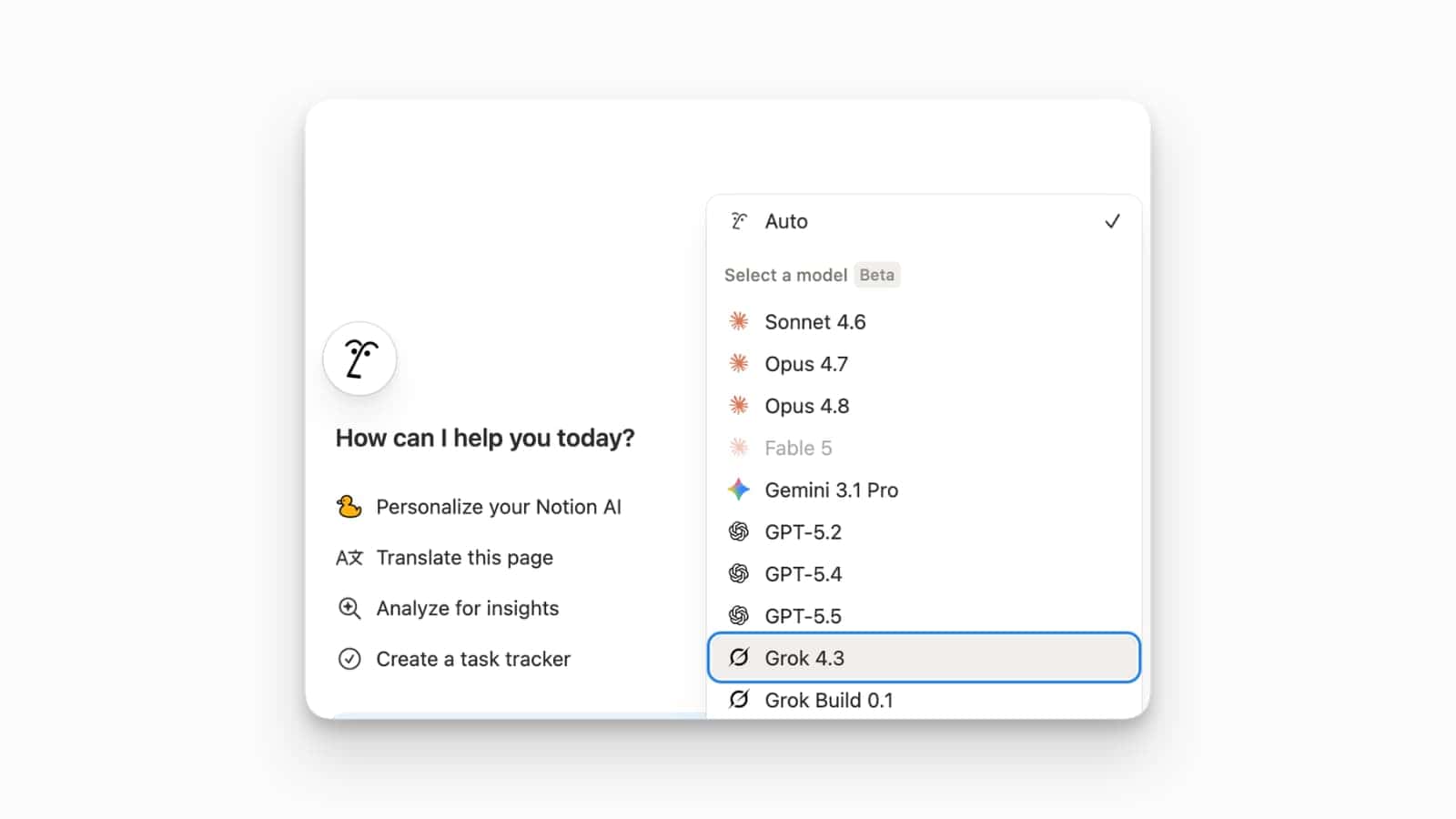
The model menu now includes Grok 4.3 and Grok Build 0.1, expanding Notion AI’s provider options alongside Claude, GPT, and Gemini. This gives you additional choices for different workloads directly inside Notion.
To use it, open Notion AI (or a Custom Agent’s settings), open the model selector, and choose Grok 4.3 or Grok Build 0.1. If you don’t see them yet, update the app and check again—model availability can roll out gradually across workspaces.
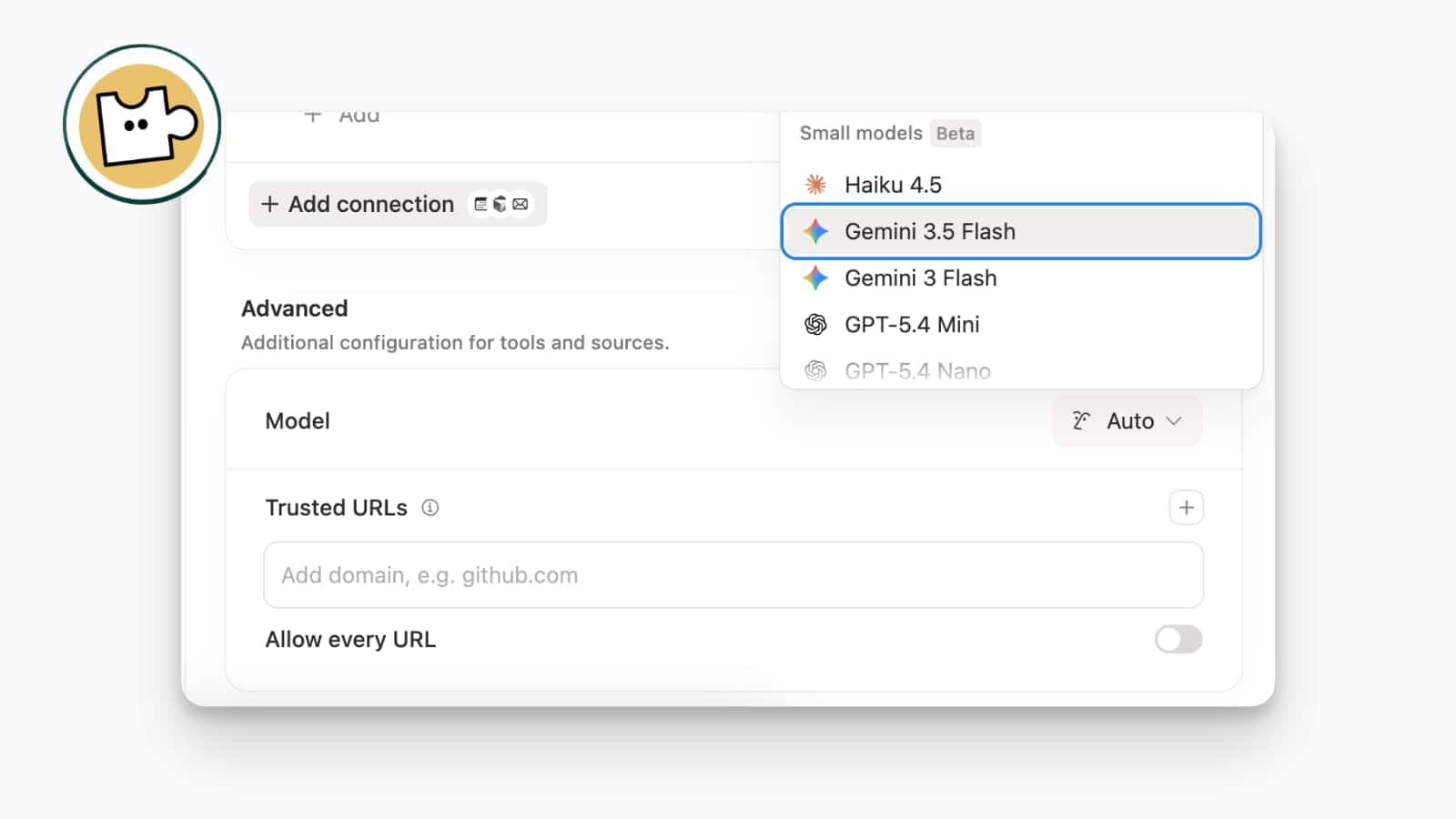
Gemini 3.5 Flash Added As Custom Agent Model
Gemini 3.5 Flash is now available as a model option for Notion Custom Agents.
Notion’s announcement highlights Gemini 3.5 Flash as a new choice in the model picker, with the UI showing a comparison of speed, intelligence, and cost across models. This gives you a faster model option to run agent workflows where latency and cost matter more than maximum reasoning depth.
To use it, go to your agent settings (or Notion AI settings), open the model selector, and choose Gemini 3.5 Flash.
Notion AI: Claude Opus 4.8 Integration
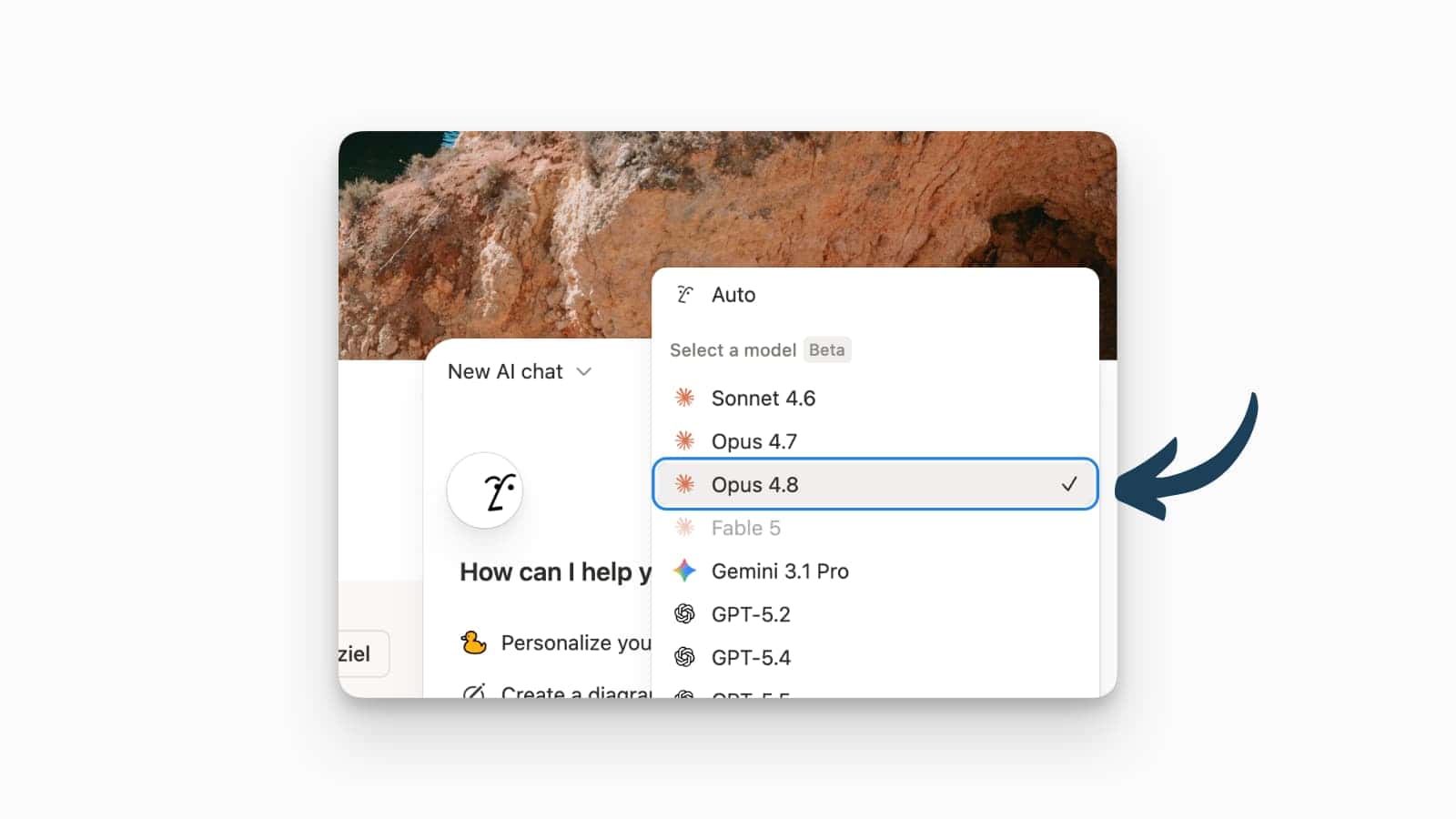
Claude Opus 4.8 is now available as a selectable model in Notion’s model picker.
This expands Notion’s Anthropic model options beyond Opus 4.7, letting you route more demanding writing, reasoning, and agent workflows to Opus 4.8 when you want the extra capability. The screenshot shows Opus 4.8 appearing directly in the model dropdown alongside other models.
To use it, open Notion AI (or your agent settings), open the model selector, and choose Opus 4.8.
Conditional Colour Formatting In Databases
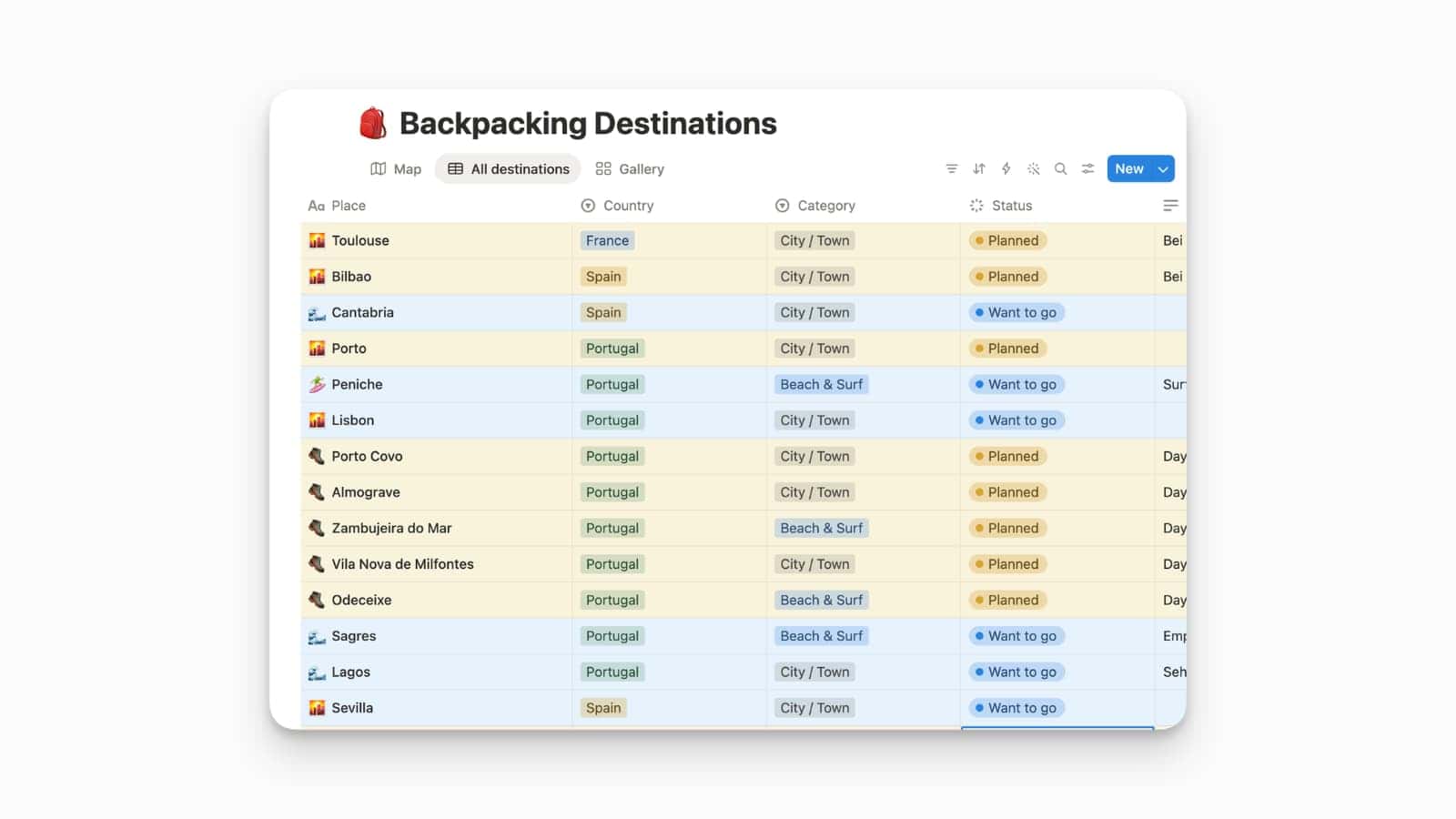
Notion supports conditional colour in database views, letting you highlight rows or values based on rules.
Notion’s database properties documentation includes conditional colour in view settings, indicating it’s a built-in database view feature (configured per view via View settings → Conditional colour).
To use it, open a database view’s settings, go to Conditional colour, and add rules for the properties you want to highlight.
Snapshot Diffs In The Page History
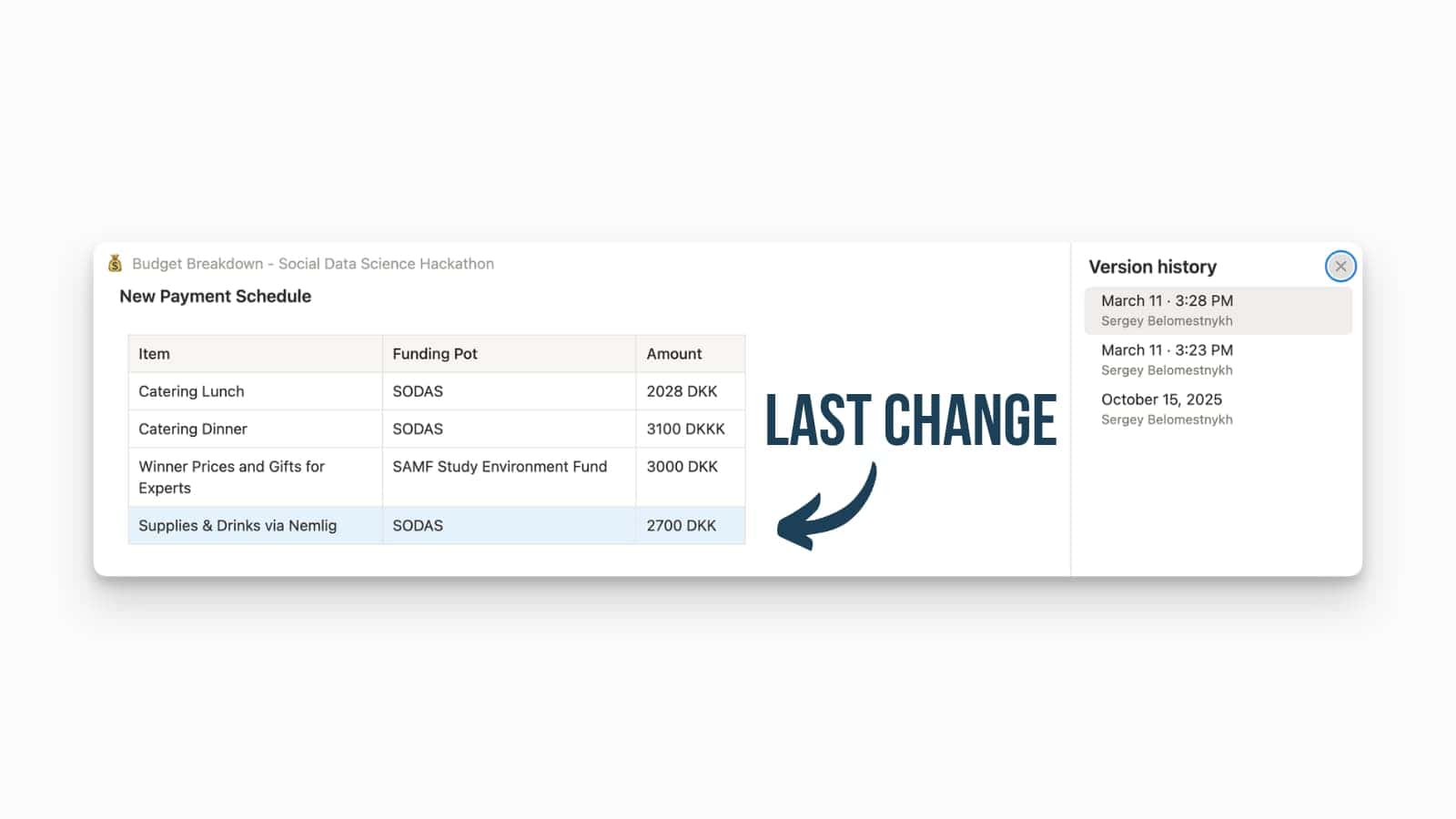
Notion has added Snapshot Diffs in Version history, making it easier to see what changed between edits.
Instead of manually scanning older versions, Snapshot Diffs highlights what moved, changed, or disappeared across common block types (including text, images, and tables) directly inside the Version history experience.
To use it, open a page’s ••• menu → Version history, select a past version, and review the highlighted changes in the diff view (note that detailed version comparison isn’t available on mobile).
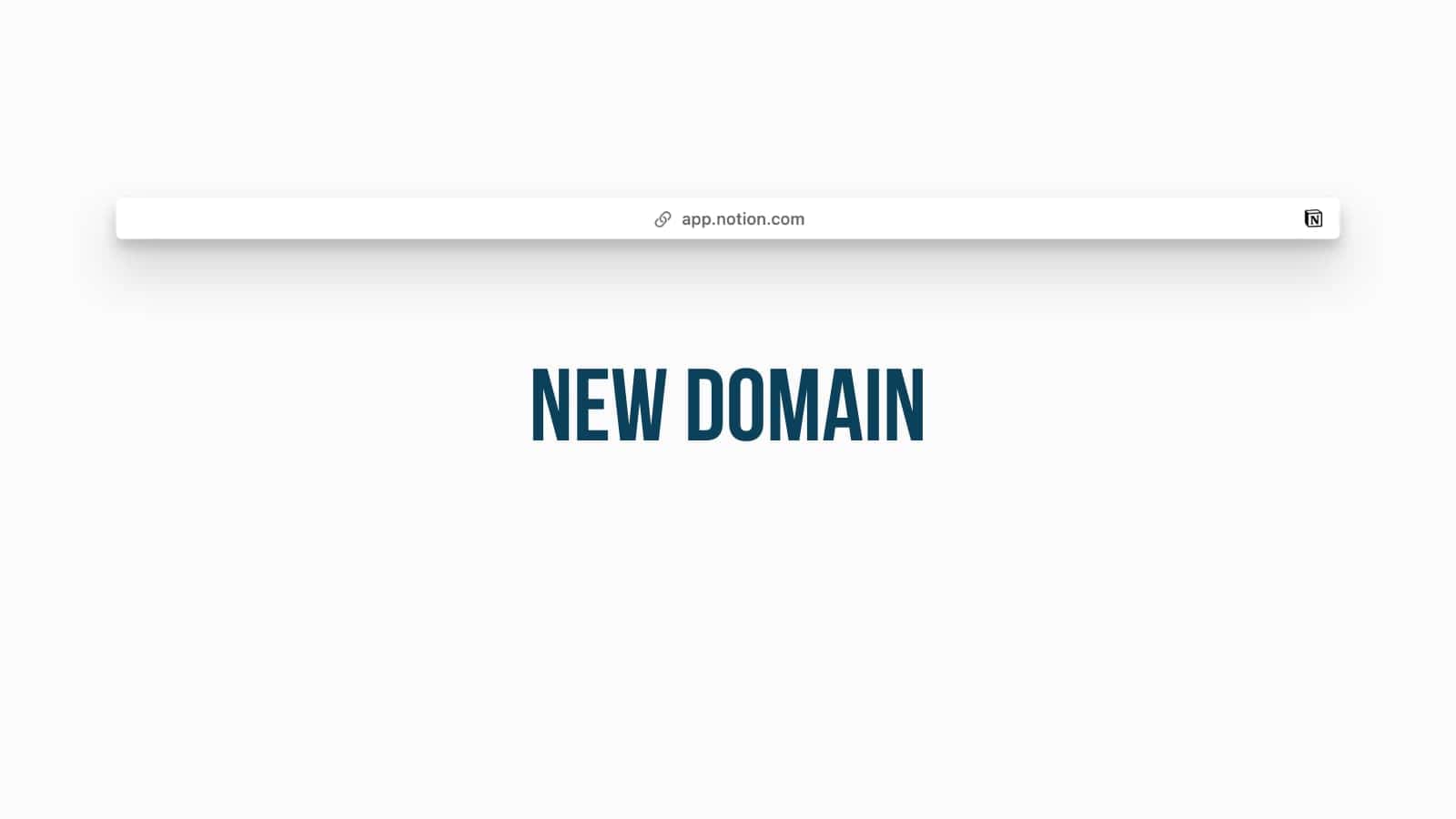
Notion Web Address Moving to app.notion.com
Notion is shifting its primary web app domain to app.notion.com.
Notion’s product update feed lists “Notion Web Address Moving to app.notion.com”, indicating a change to the canonical domain used for the Notion web app.
To adapt, update bookmarks and any internal allowlists or documentation to include app.notion.com, and expect redirects when using older Notion web URLs.
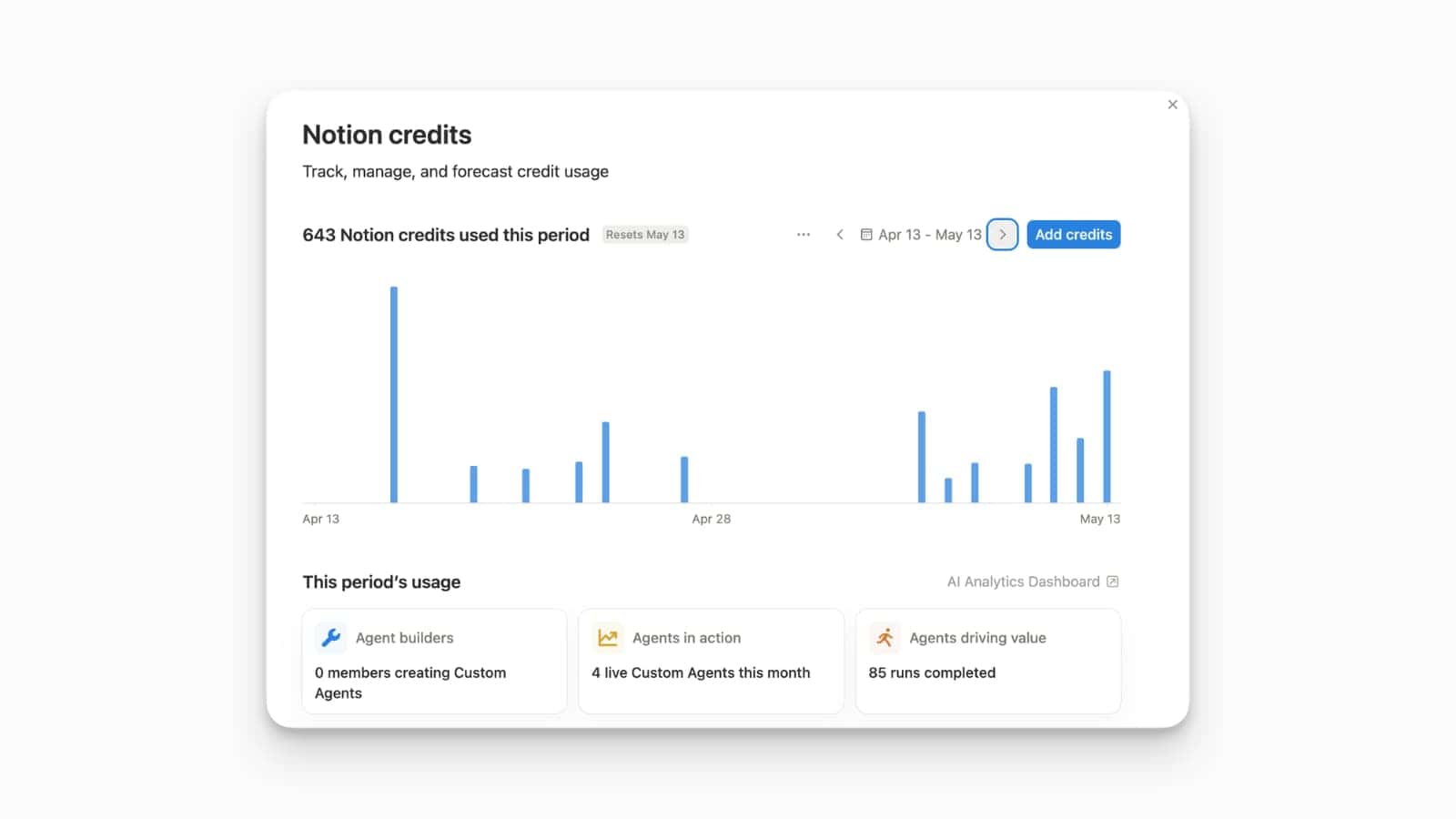
Custom Agent Insights
Notion provides an Insights view for Custom Agents to help you understand activity and credit usage.
Notion’s Custom Agent pricing/help documentation describes using Insights to monitor agent activity and credit usage, identify expensive or failing runs, and review what models, tools, and triggers were used.
To use it, open the agent and look for Insights, then review trends (runs, failures, usage) and adjust triggers, tools, or instructions based on what you find.
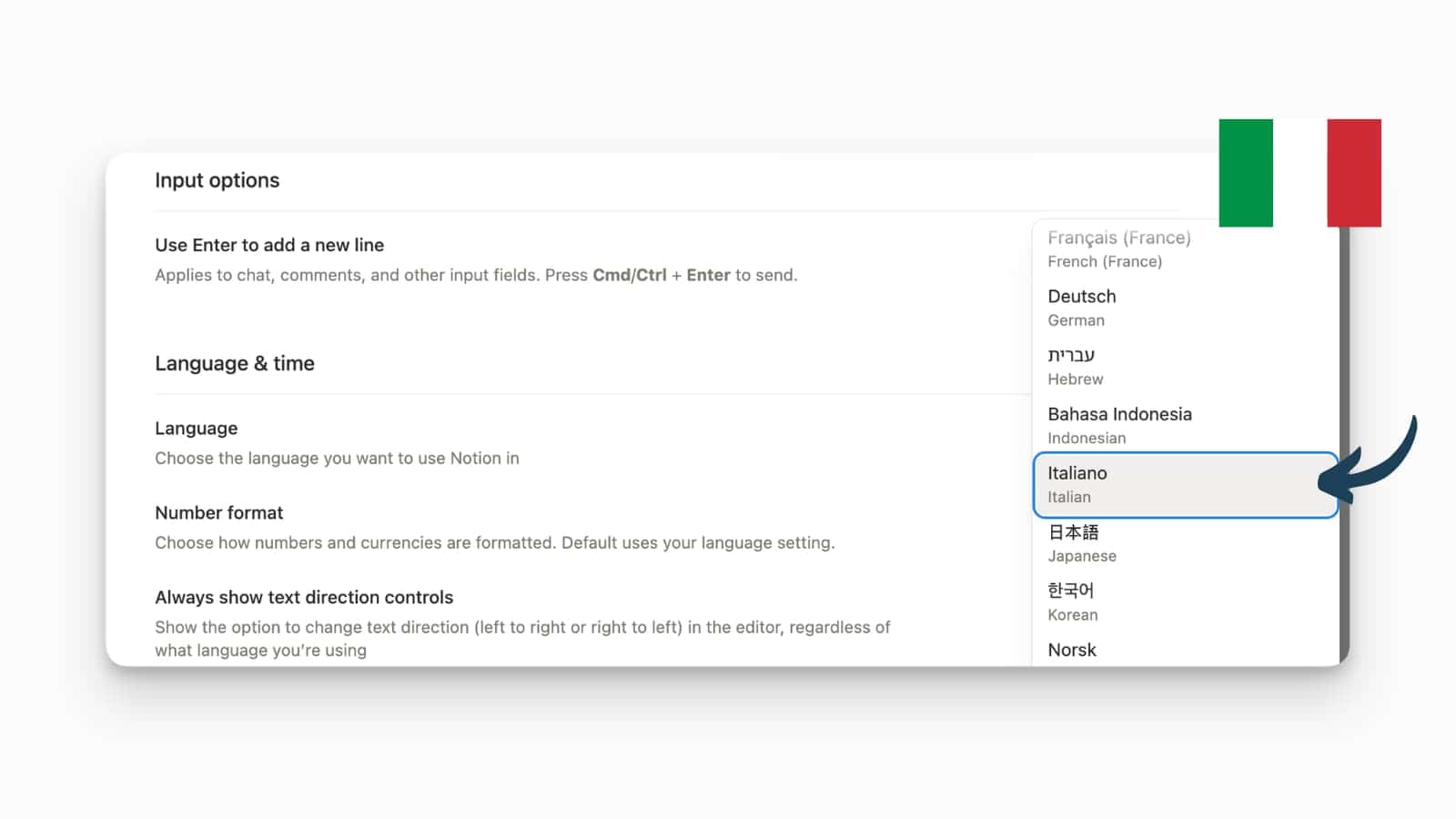
Notion in Italian
Notion now includes Italian as a language option.
This is a localisation update: it expands Notion’s supported interface language list so menus, settings, and core UI labels can be displayed in Italian, which helps Italian-speaking teams standardise on one workspace without relying on English.
To use it, open Settings → Language & region (or equivalent language settings) and switch your display language to Italiano.
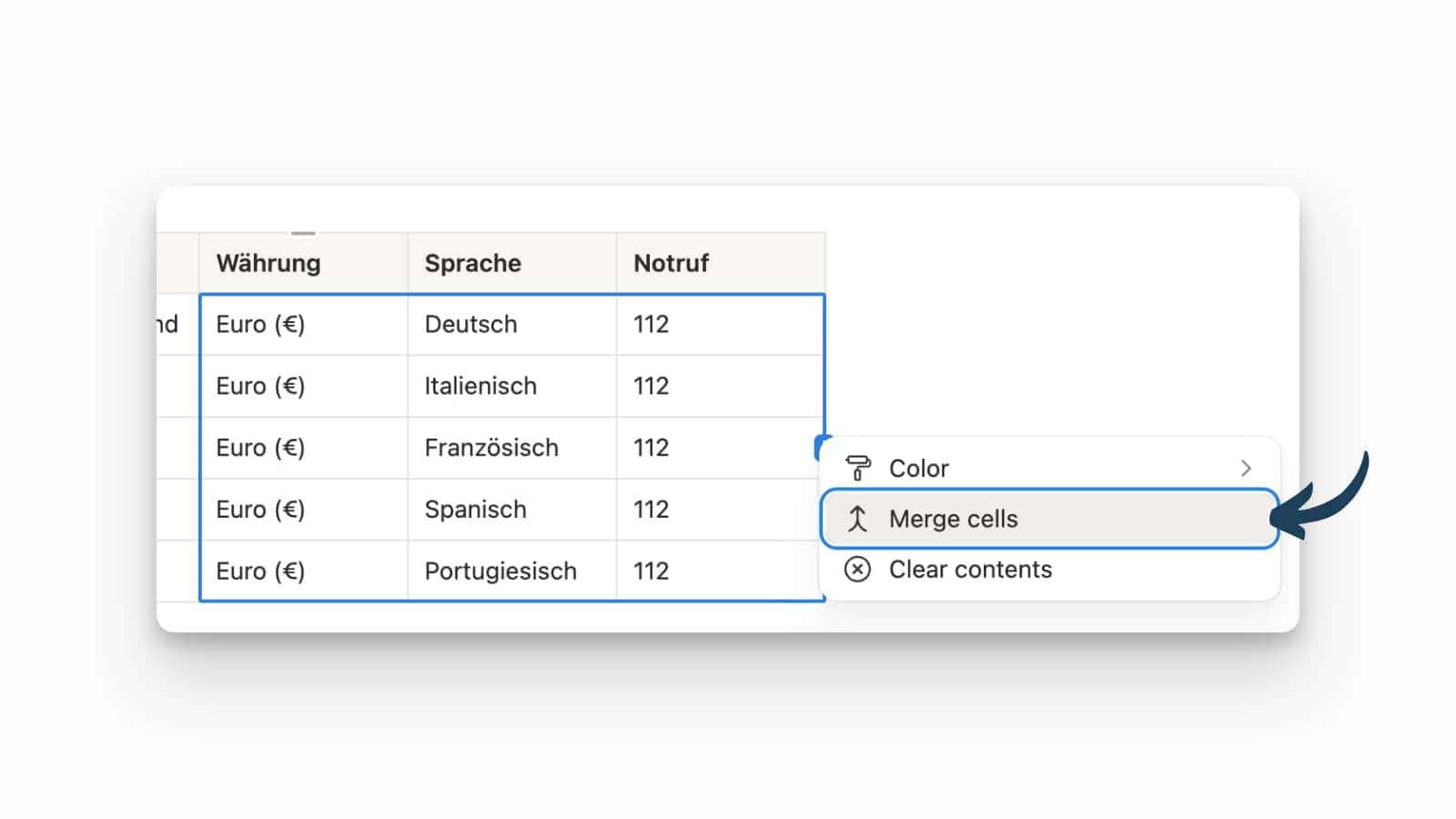
Merge Cells In Simple Tables
Notion has introduced the ability to merge cells in simple tables.
You can now create headers that span multiple columns or combine cells to group related content, which previously required awkward workarounds or separate formatting blocks.
To use it, click into a simple table, select multiple adjacent cells, open the cell menu, and choose Merge cells.
Filter Multiple Sources at Once
Notion now has a “Filter multiple sources” dialogue when filtering across person properties in multi-source dashboards.
The technical detail is that some dashboards can apply a single Person filter across multiple underlying databases, with Notion showing which sources the filter will affect (e.g., different databases feeding the view). That can be powerful, but it also changes expectations if you assumed a filter only applied to one dataset.
To use it, try filtering a dashboard that pulls in more than one database and watch for the multi-source filter prompt. If it appears, confirm the filter scope before applying it—especially if you use person filters for reporting or time tracking—so you don’t accidentally filter out data from a different source.
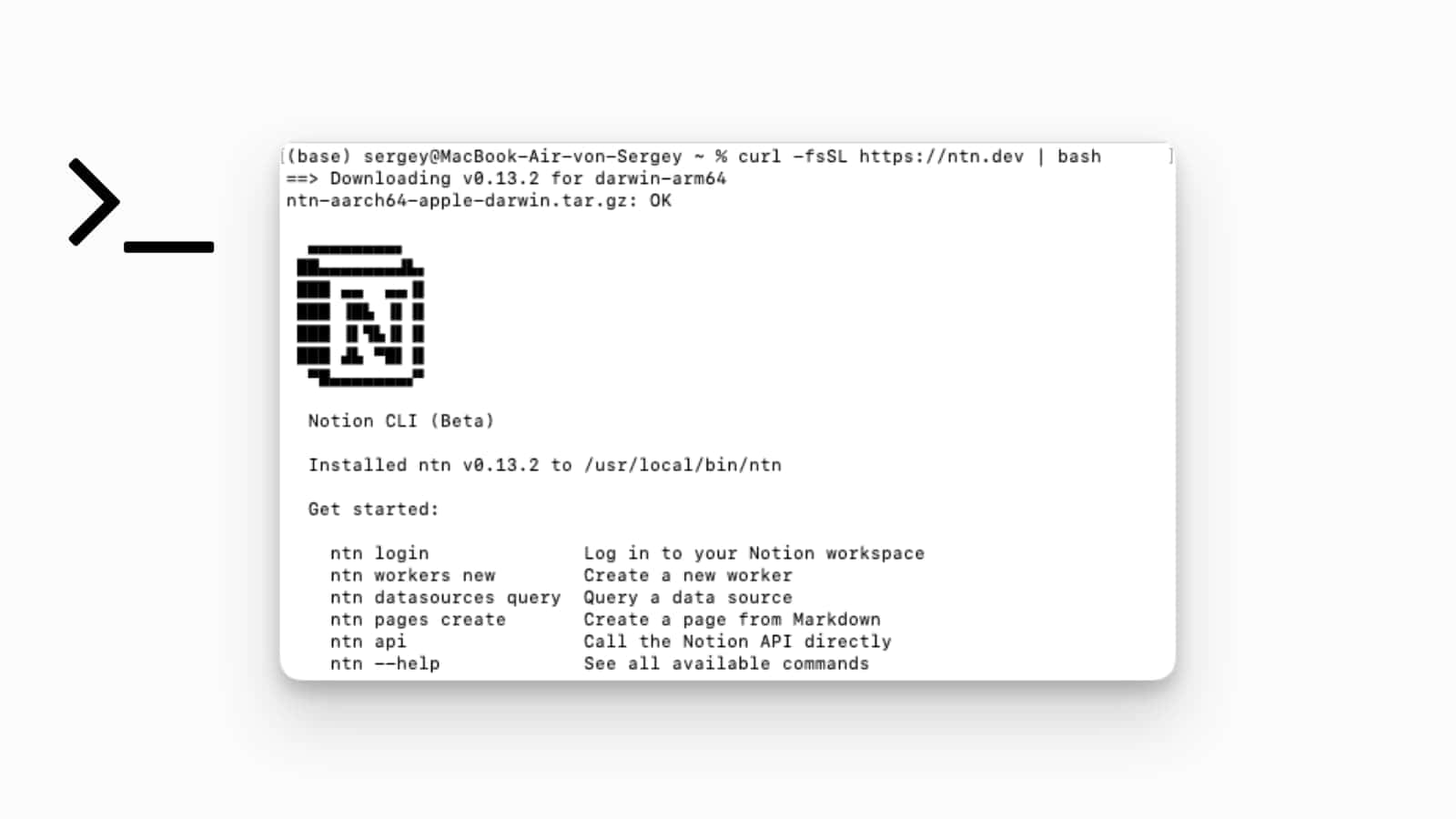
The CLI (ntn) – From UI to Terminal
Notion just released its own CLI (ntn), and it changes how we “talk” to our workspace.
For years, interacting with the Notion API felt like a chore of manual token management. With the new CLI, that friction is gone. It brings the entire Notion API to the terminal, allowing developers and coding agents to ship syncs, tools, and webhooks in seconds.
The standout feature here is the keychain-managed auth. We finally move away from insecurely copy-pasting internal integration tokens and toward a professional OAuth 2.0 flow. For those of us using coding agents to build our workspaces, the CLI keeps the context lean and the deployments secure. It’s the bridge that allows Notion to finally communicate fluently with the rest of our tech stack.
Install with: curl -fsSL https://ntn.dev | bash
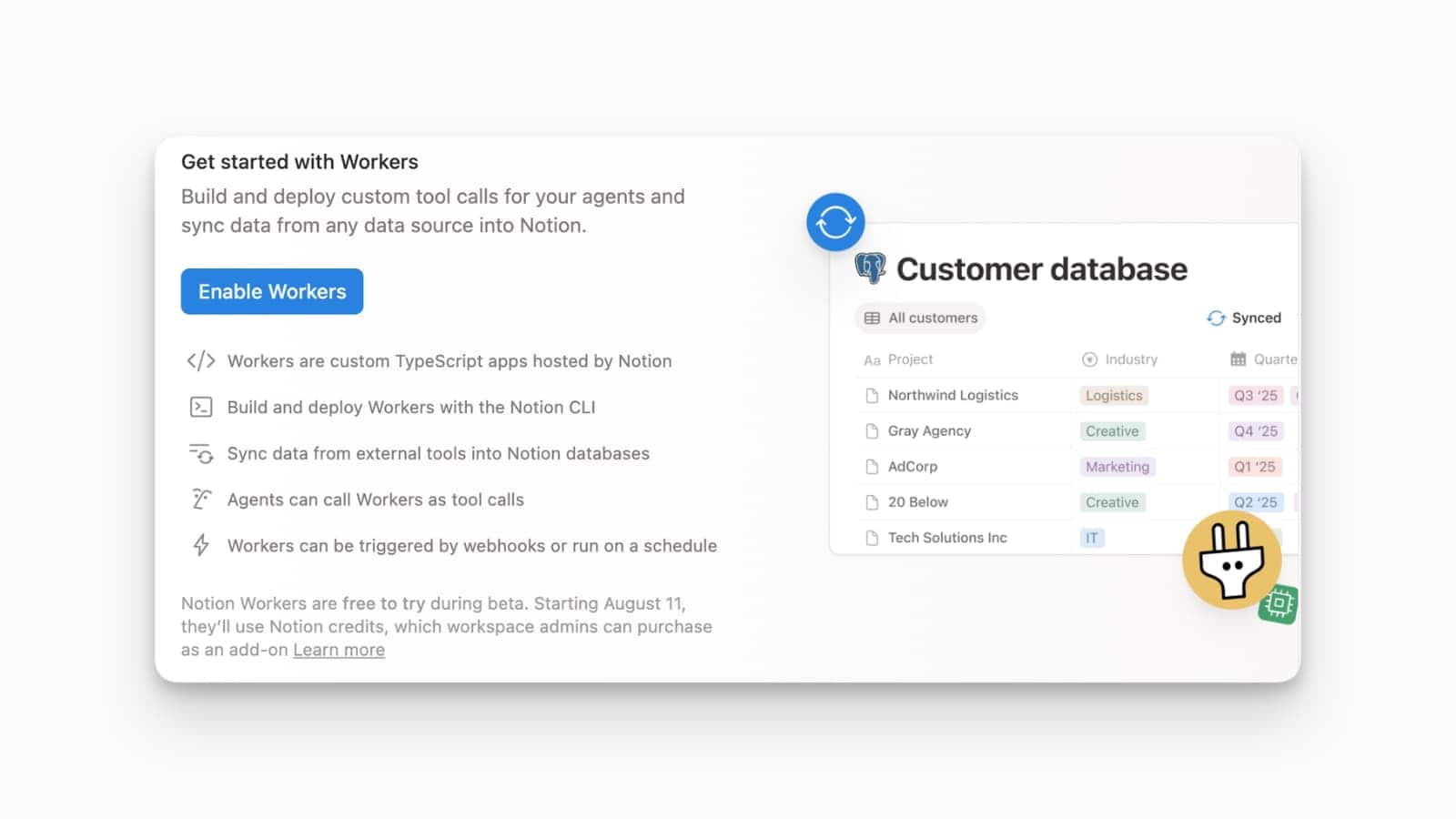
Meet Notion Workers: The end of “fragile” third-party glue code
Notion has officially introduced a native way to extend the platform with code.
Workers allow you to deploy TypeScript logic directly into a secure sandbox on Notion’s infrastructure. This isn’t just a minor feature; it’s the backend layer that replaces the need for external middleware like Make for core business logic.
Three game-changers are now live:
- Database Sync: Native OAuth and persistent cursors mean you can pull Salesforce or Postgres data into Notion with enterprise reliability.
- Deterministic Agent Tools: Shift the “reasoning” from expensive, unpredictable LLM tokens to typed, repeatable code.
- Two-Way Webhooks: Finally, external apps can trigger Notion workflows directly.
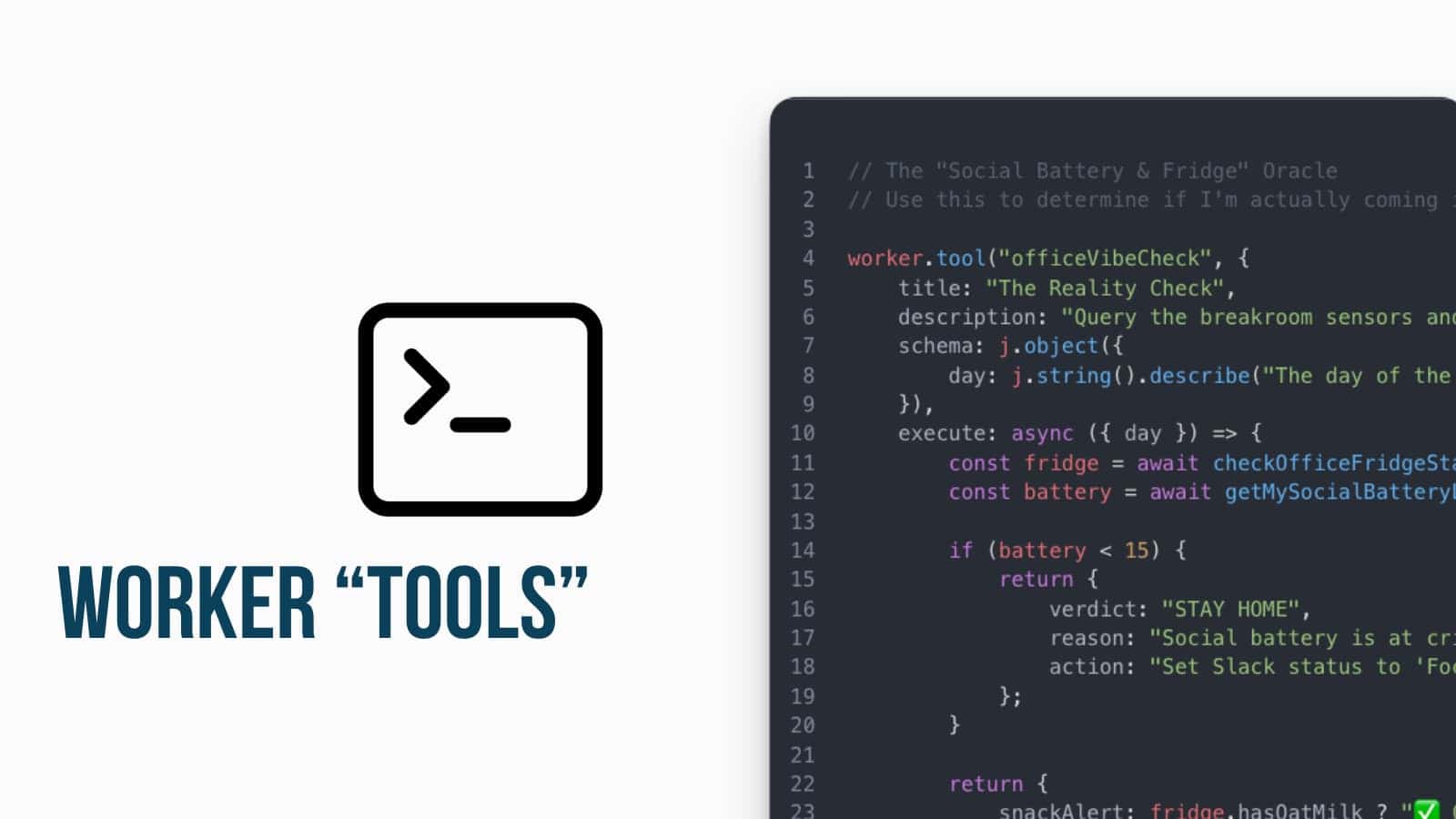
Tools for Custom Agents
We are moving past the “Fixed Action” era of AI. You can now give your Custom Agents any tool you can imagine.
Until now, agents were limited by what Notion allowed them to do. By leveraging Workers, we can now build custom tools with Typed I/O and logged execution. This means your agent isn’t just “guessing” how to help; it’s calling specific, hard-coded functions to turn docs into slide decks or query internal databases.
The fascinating part? It’s significantly cheaper and more reliable than pure LLM reasoning. By offloading complex actions to Workers, we gain absolute precision in our workflows. It’s no longer just an “AI assistant” giving you impressions of agency—it’s a programmable employee capable of taking verified actions across your entire business ecosystem. This is the granularity that turns Notion from a notebook into a powerhouse.
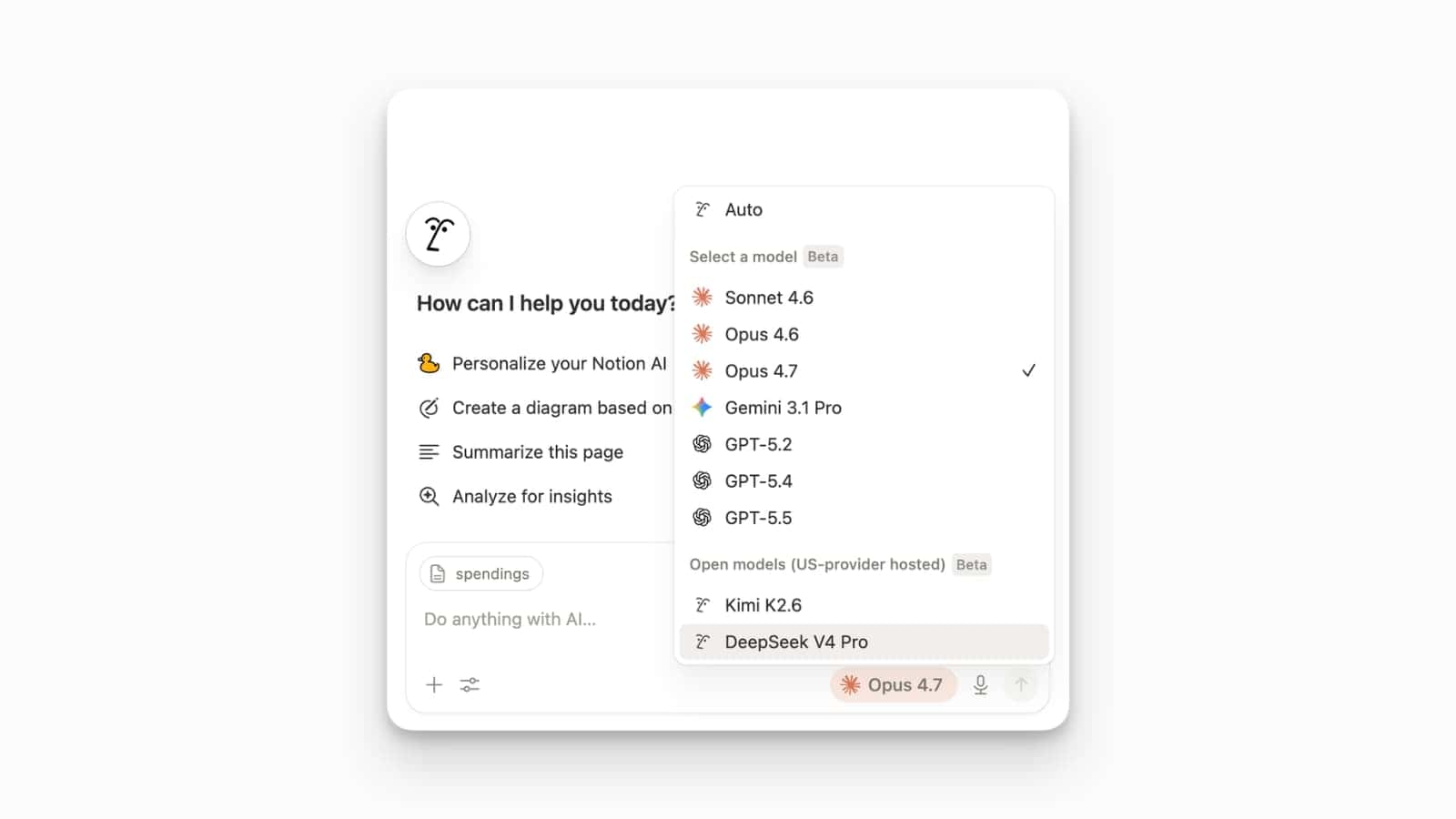
Deepseek V4 Pro Model Integration
Notion has added DeepSeek V4 Pro to its list of available AI models.
This update introduces a model renowned for its exceptional performance in mathematics, programming, and logical reasoning. DeepSeek V4 Pro is specifically optimised for high-efficiency processing and complex problem-solving, making it an ideal choice for technical documentation, data analysis, and architectural planning within Notion.
To switch to this model, open any Notion AI chat, click on the current model indicator (e.g., “Opus 4.7” or “Auto”), and select DeepSeek V4 Pro from the bottom section of the menu.
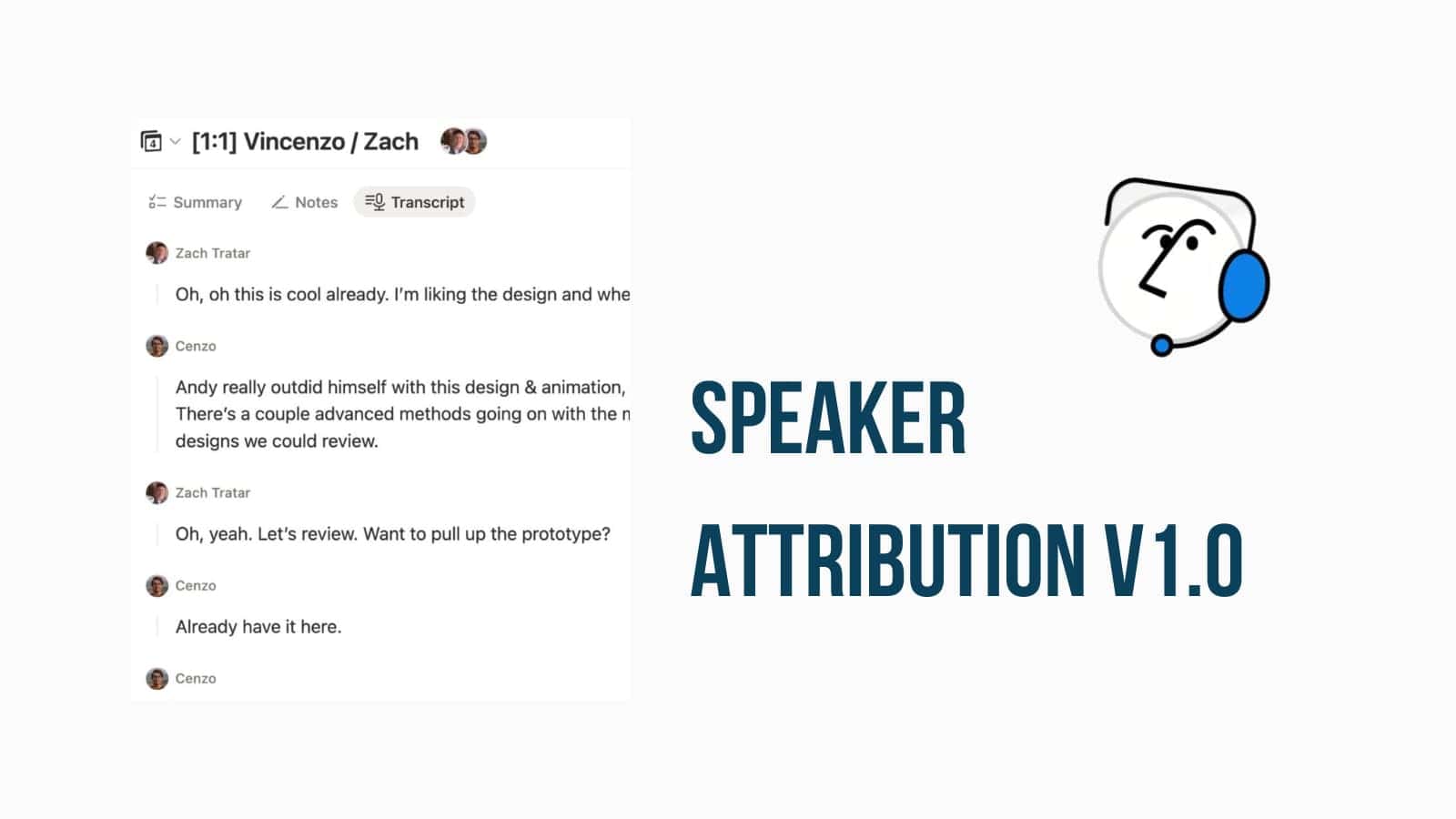
Notion Meeting Notes: Speaker Attribution
Notion has officially launched Speaker Attribution v1.0 for AI Meeting Notes, a major update that enables the system to identify and label who is talking during 1:1 calls and certain video conferences.
This update addresses one of the most significant gaps in Notion’s meeting suite: the “wall of text” transcript. By utilising dual-stream audio capture—processing both your microphone and your computer’s system audio—the AI can now distinguish between participants. In the initial v1.0 rollout, this feature is optimised for 1:1 meetings, where it can cleanly separate the “local” and “remote” voices.
As the transcription begins, you will see that speaker labels appear next to each new line of text. While currently focused on 1:1s and specific conferencing platforms, this foundation sets the stage for more complex multi-speaker identification in future updates.
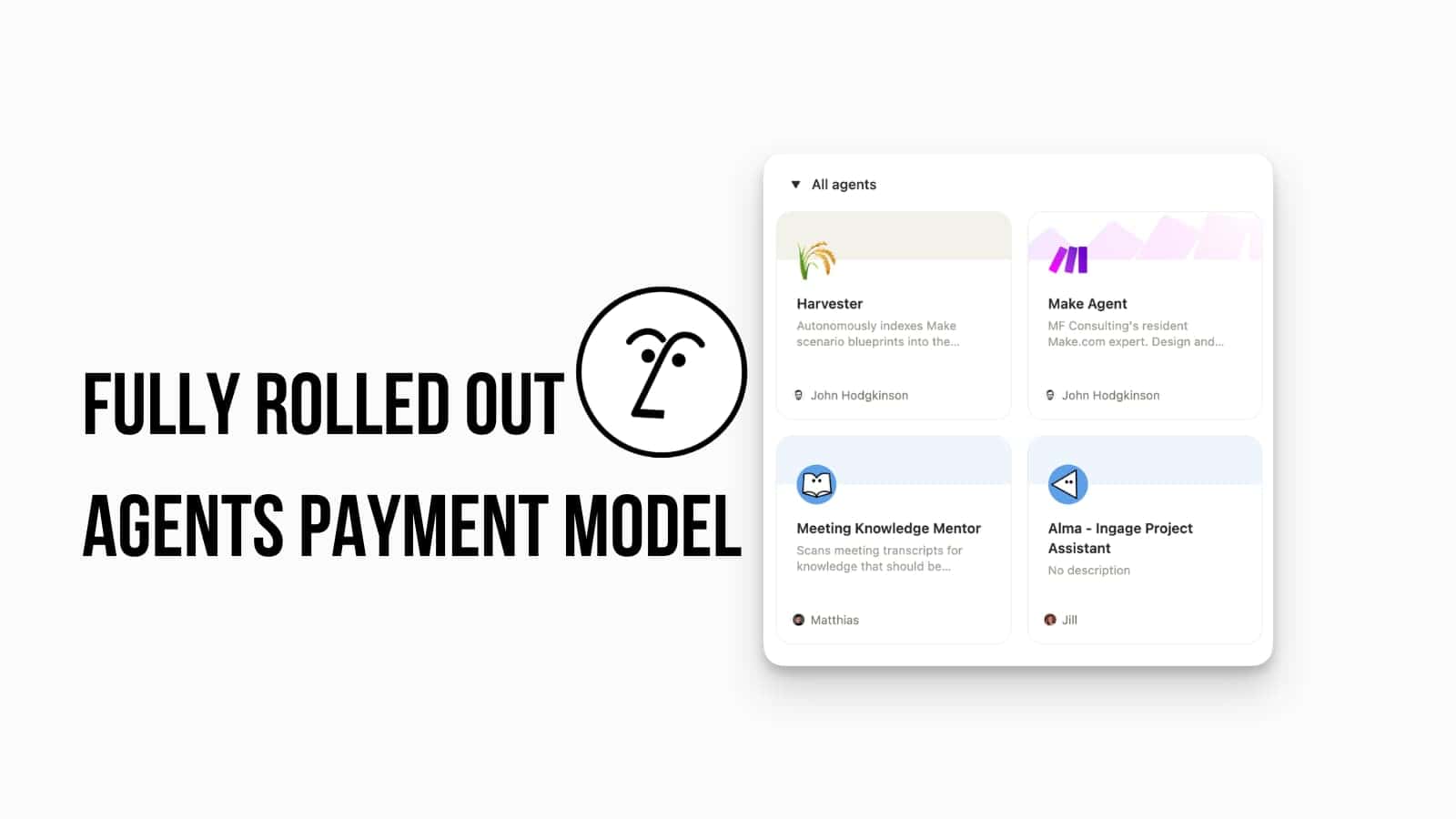
Custom Agent Controls & Credit Dashboard
Notion has introduced New Custom Agent Controls and a centralised Notion Credits Dashboard to provide admins with greater control and financial guardrails as they scale AI automation across their workspace.
This update transitions Custom Agents from a free beta to a credit-based model (starting May 4, 2026), necessitating a robust system for budget management. Admins can now set per-agent credit limits to prevent individual workflows from over-consuming resources. The new dashboard offers real-time monitoring of credit pacing, usage trends, and a breakdown of which agents are “heavy hitters”. Additionally, automatic safety rails have been implemented: admins receive proactive notifications at 80% and 100% usage, and agents will auto-pause if credits run out or if an unusual spend spike is detected, preventing unexpected billing surprises.
To manage these settings, navigate to Settings & members → Notion AI → Agents to control who can create agents, or go to Settings → Notion credits to access the usage dashboard. From here, you can view your monthly credit balance, buy additional packs ($10 per 1,000 credits), and disable any agents that are pacing higher than expected.
Let Notion AI Agents Manage Your Mails
Custom Agents now have full email management capabilities, allowing your AI to search inboxes, draft replies, and perform administrative tasks like unsubscribing from mailing lists.
Beyond simply reading messages, the agent can actively label urgent requests, summarise lengthy threads, and prepare draft responses grounded in your internal Notion documentation. The “Unsubscribe” skill is a notable highlight, enabling the agent to audit your incoming newsletters and prune recurring senders autonomously. This level of agency ensures that your communication remains organised and actionable without requiring constant manual oversight.
To enable this feature, navigate to your Agent’s Settings under Tools & Access and select Mail to add a connection (Gmail or Outlook). Once permissions are granted to modify, draft, and send, you can assign specific instructions—such as drafting replies based on a “Support FAQ” page—while keeping a “Require confirmation” toggle active for added security.
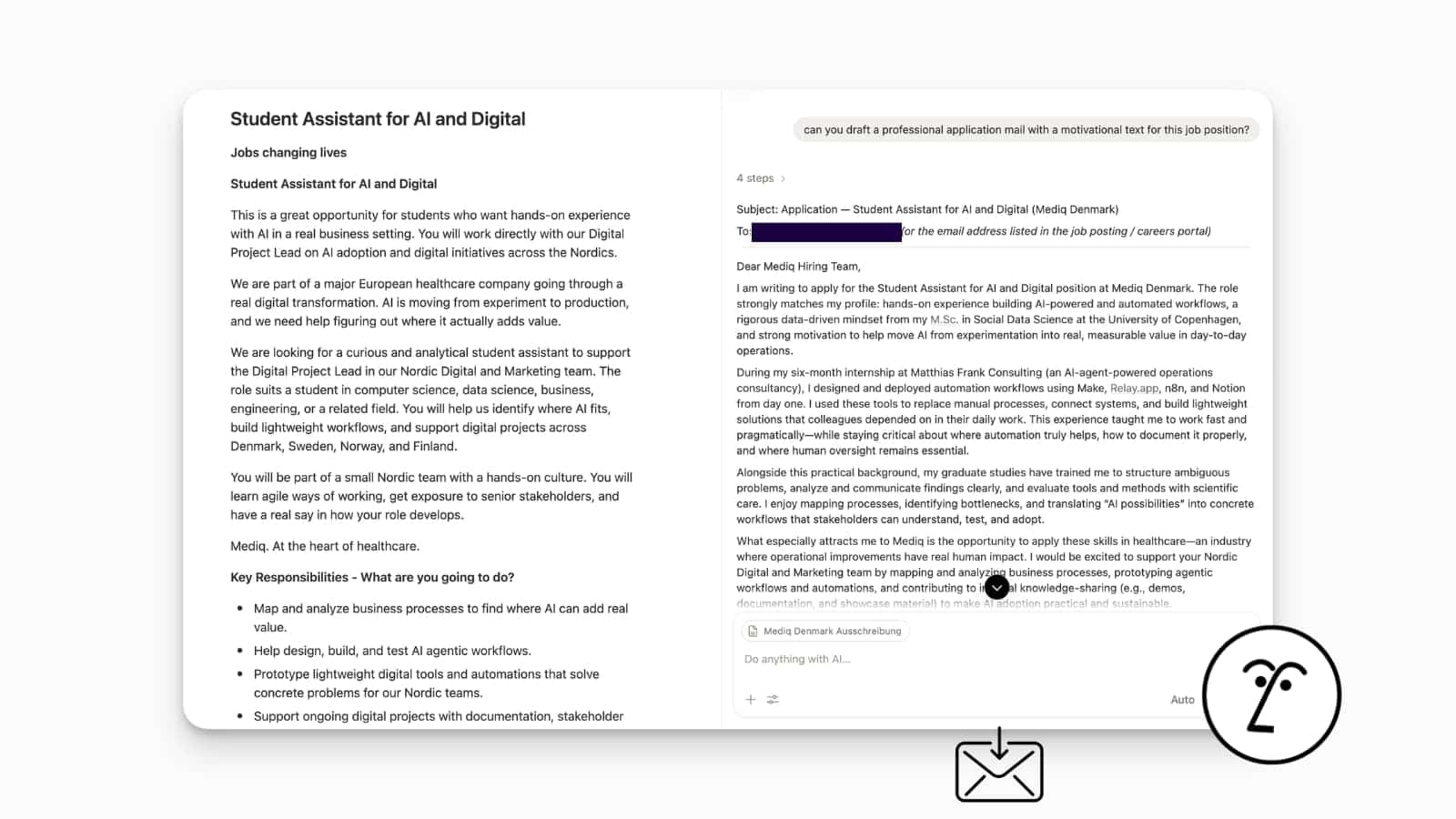
Email Management with Notion Agents
Notion agents now have full email management capabilities, allowing your AI to search inboxes, draft replies, and perform administrative tasks like unsubscribing from mailing lists.
Beyond simply reading messages, the agent can actively label urgent requests, summarise lengthy threads, and prepare draft responses based on your internal documentation. The “Unsubscribe” skill is a notable highlight, enabling the agent to audit and prune your newsletter subscriptions autonomously. This level of agency ensures that your communications remain organised and actionable without requiring constant manual oversight.
To enable this feature, navigate to your Agent’s Settings under Tools & Access and select Mail to add a connection (Gmail or Outlook). Once permissions are granted to modify, draft, and send, you can assign specific instructions, such as drafting replies based on an “FAQ” page, while keeping a “Require confirmation” toggle active for added security.
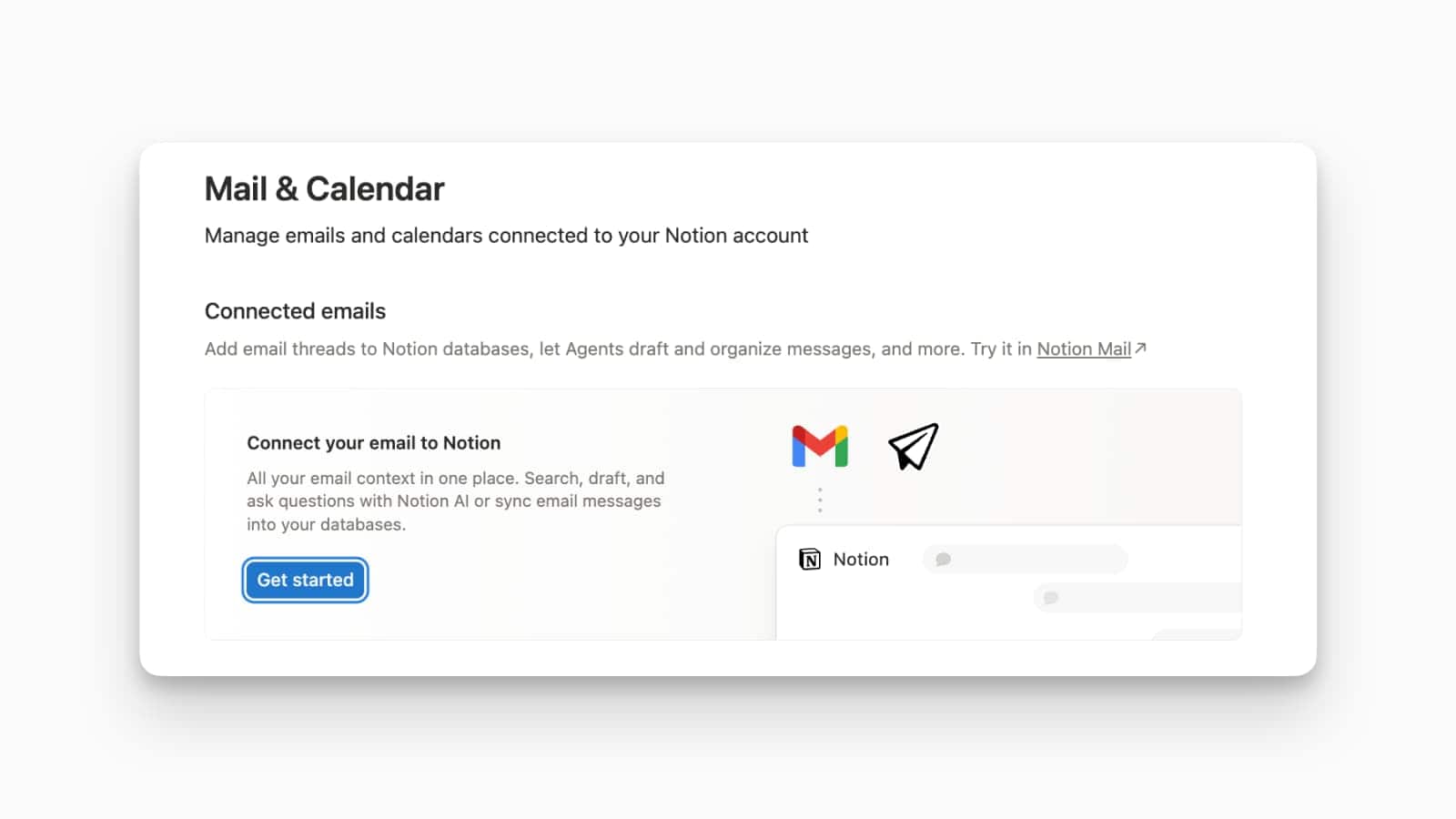
New Tabbed Mobile Navigation
The Notion mobile app has a new tabbed navigation bar at the top of the app to help users toggle between core functions with a single swipe.
This redesign moves away from a static list-view and toward a dynamic dashboard. The new top navigation bar features dedicated icons for Home, AI Chats, Meeting Notes (Calendar), and your Inbox. This change drastically reduces the “taps to task” for mobile users; for example, you can now jump straight into your recent AI Agent conversations or check your upcoming schedule without navigating through the sidebar.
Update your Notion app to the latest version and you will see the new navigation tabs at the top of your screen immediately upon launch!
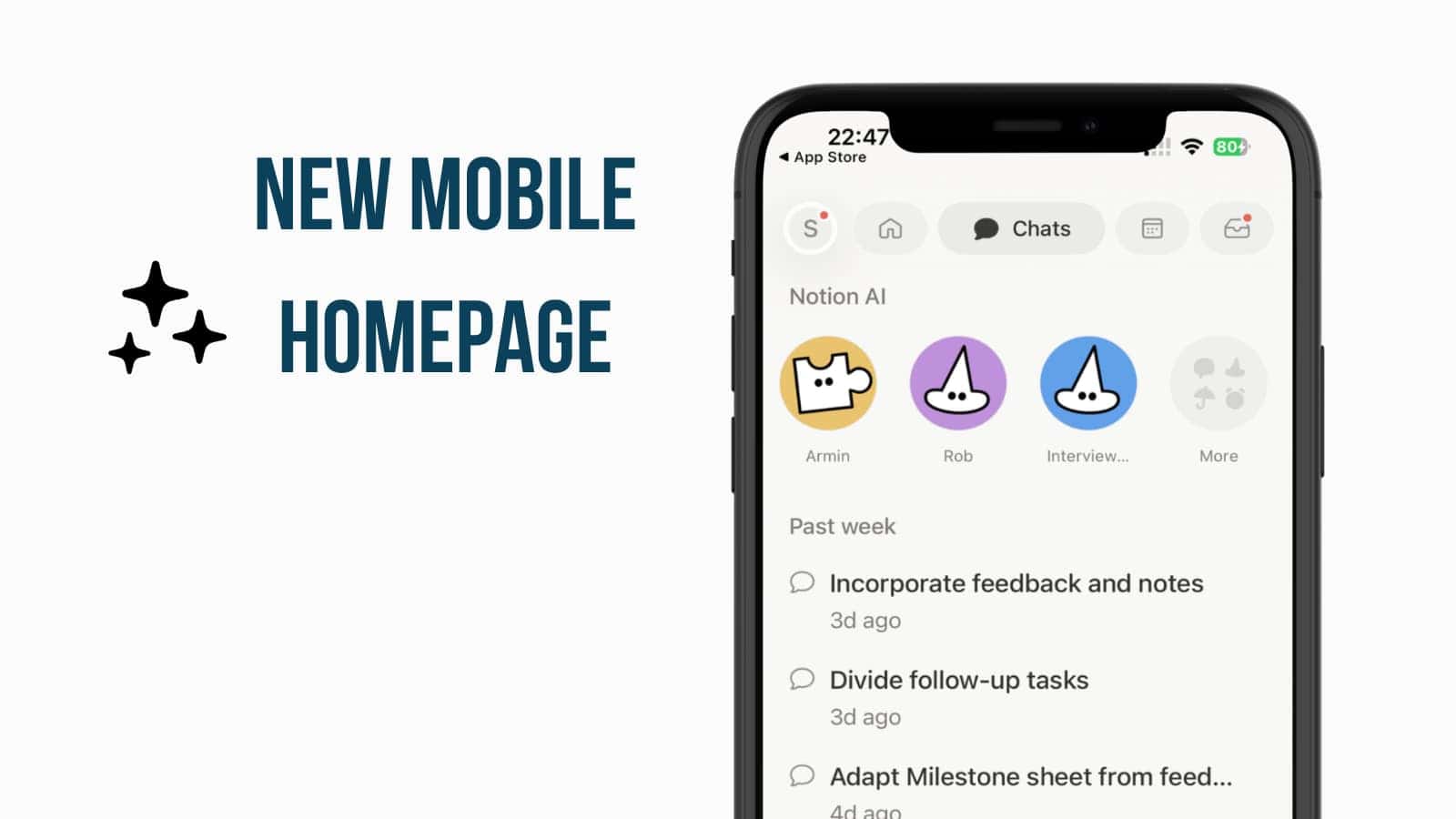
Number Formatting for Rollups
Notion has introduced native Number Formatting and Decimal Control for Rollups, allowing users to format rolled-up data as currencies, percentages, and more without needing workaround formulas.
This update removes a significant point of friction for financial and data-heavy workflows. Previously, Rollups would only display raw numbers; to see a currency symbol (like $ or €) or to limit decimal places, users had to create an additional Formula property to “wrap” the Rollup. Now, you can apply these styles directly to the Rollup itself.
To use this, click on a Rollup property header and select Edit property. You will find new options for Number format (where you can choose USD, EUR, Percent, etc.) and Decimal places to set your desired level of precision.
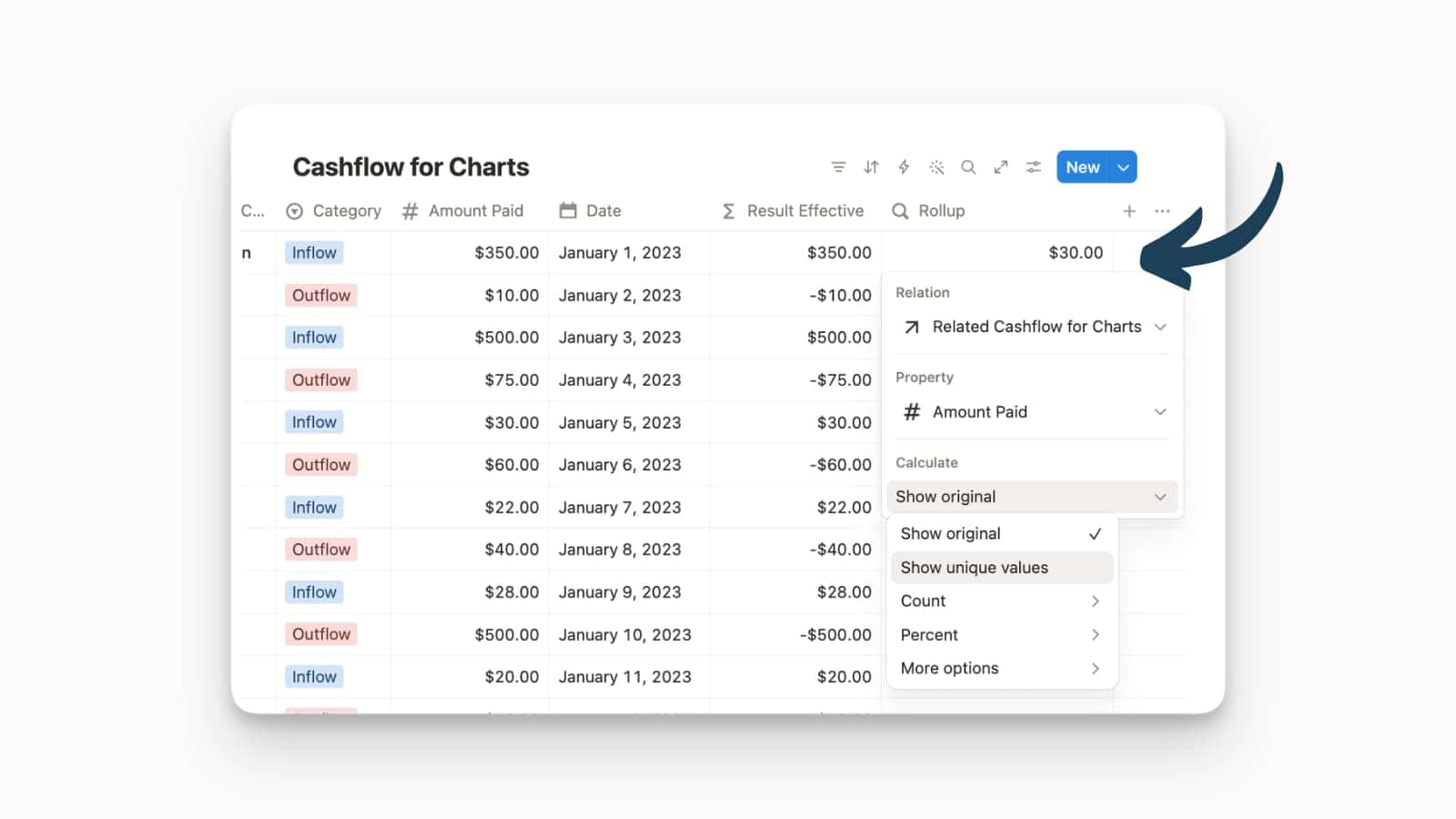
GPT-5.5 Integration
Notion has integrated GPT-5.5 into its AI suite, giving users access to OpenAI’s latest frontier model directly within their workspace.
This update keeps Notion at the bleeding edge of LLM capabilities, offering GPT-5.5 as a high-performance alternative for complex reasoning, advanced coding, and nuanced content generation. By including this model in the “Beta” lineup, Notion allows power users to leverage GPT-5.5’s improved logic and expanded context window for tasks that require deep synthesis of workspace data.
To enable this, open the Notion AI chat or an Agent’s settings, click on the current model selection and select GPT-5.5 from the dropdown menu. You can toggle this model on a per-chat basis to compare outputs and find the best fit for your specific workflow.
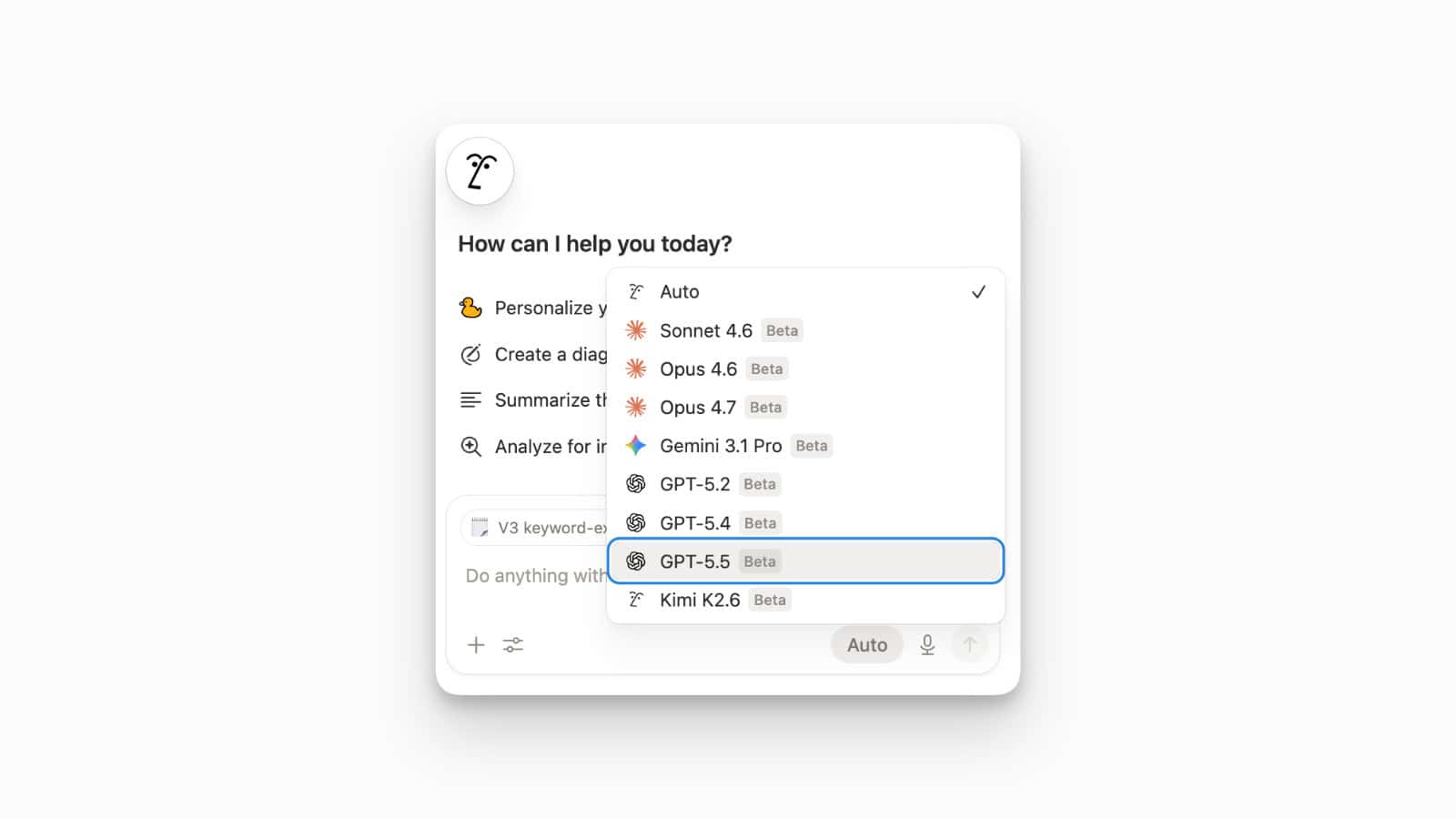
Notion Databases: Filterable Relation Picker
Notion has released a highly requested update for Relation properties, introducing a filterable picker that allows users to narrow down page selections by status, such as “Verified” or “Archived”.
This update addresses a long-standing workflow bottleneck where relating items in large databases often meant wading through hundreds of outdated or irrelevant entries. On Business and Enterprise plans, you can now toggle filters directly within the relation popup to show only “All pages (excluding archived)”, “Verified pages only”, or “Archived pages only”. This level of granular control ensures data integrity by preventing users from accidentally linking to deprecated records or unverified drafts. It makes complex relational databases—like those used for SOPs, legal documentation, or project management—significantly easier to maintain and set up.
To use this, click into any Relation property in a database. In the selection menu that appears, look for the filter icon in the top right corner. From the dropdown, select your desired filter criteria to instantly refine the list of available pages.
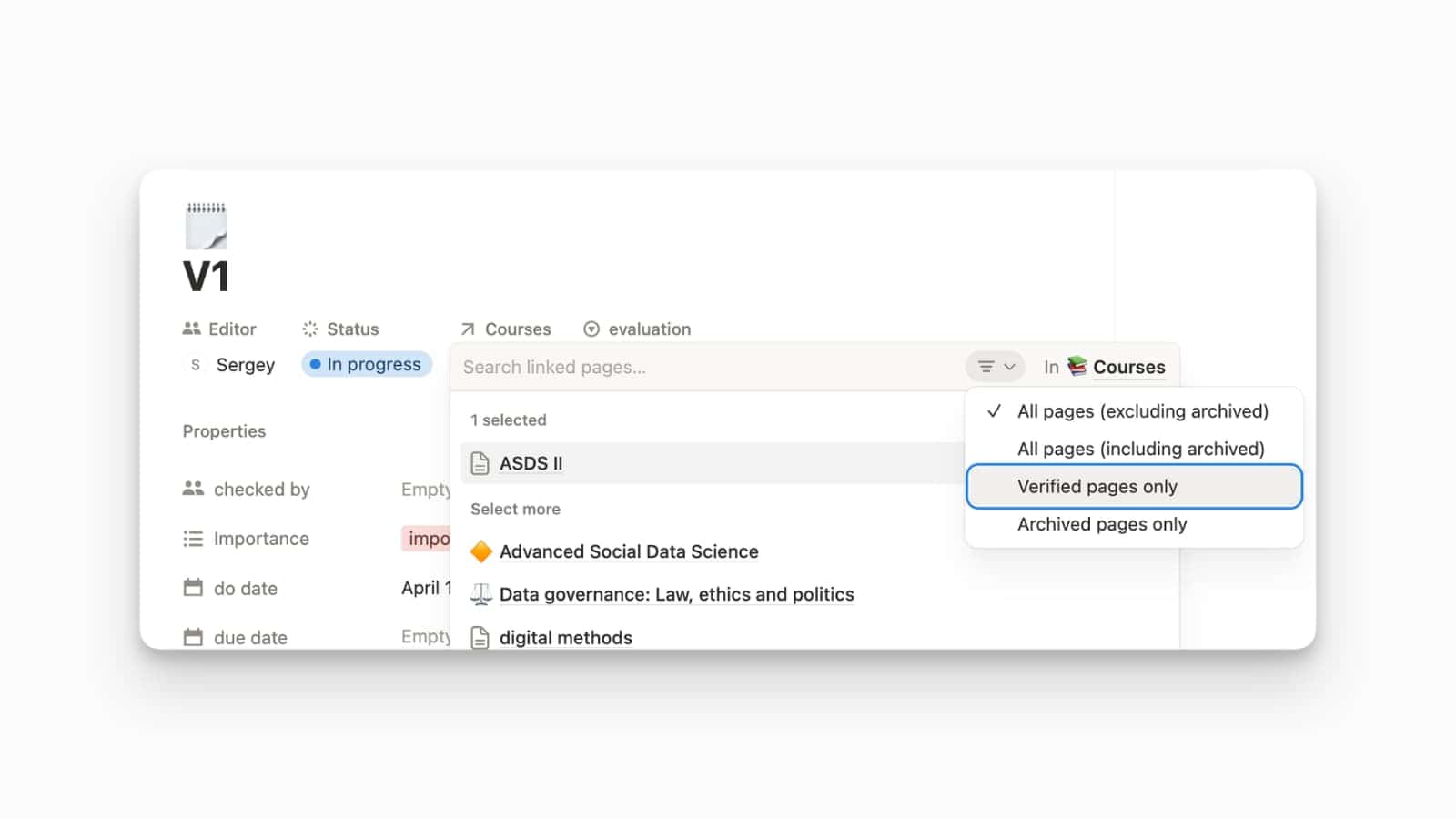
Introducing Notion AI Plan Mode
Notion has launched Plan Mode, a safety and precision feature that allows AI Agents to show their intended actions in a read-only sandbox before making any changes to your workspace.
This update introduces a “Plan → Approve → Execute” workflow, solving the primary concern of AI agents making irreversible or messy changes to complex page structures. In Plan Mode, the agent generates a visual preview of what it intends to build, such as new databases, page layouts, or content blocks. You can review this draft for accuracy and alignment with your goals without the agent “touching” your live data. This is a critical breakthrough for workspace governance and complex project management, as it provides a safety net that ensures the agent’s logic is sound before it commits to the final execution.
To use this, activate Plan Mode in the AI Chat Settings. Review the sandbox, and if satisfied, click the “Approve & Execute” button to apply the changes to your workspace.
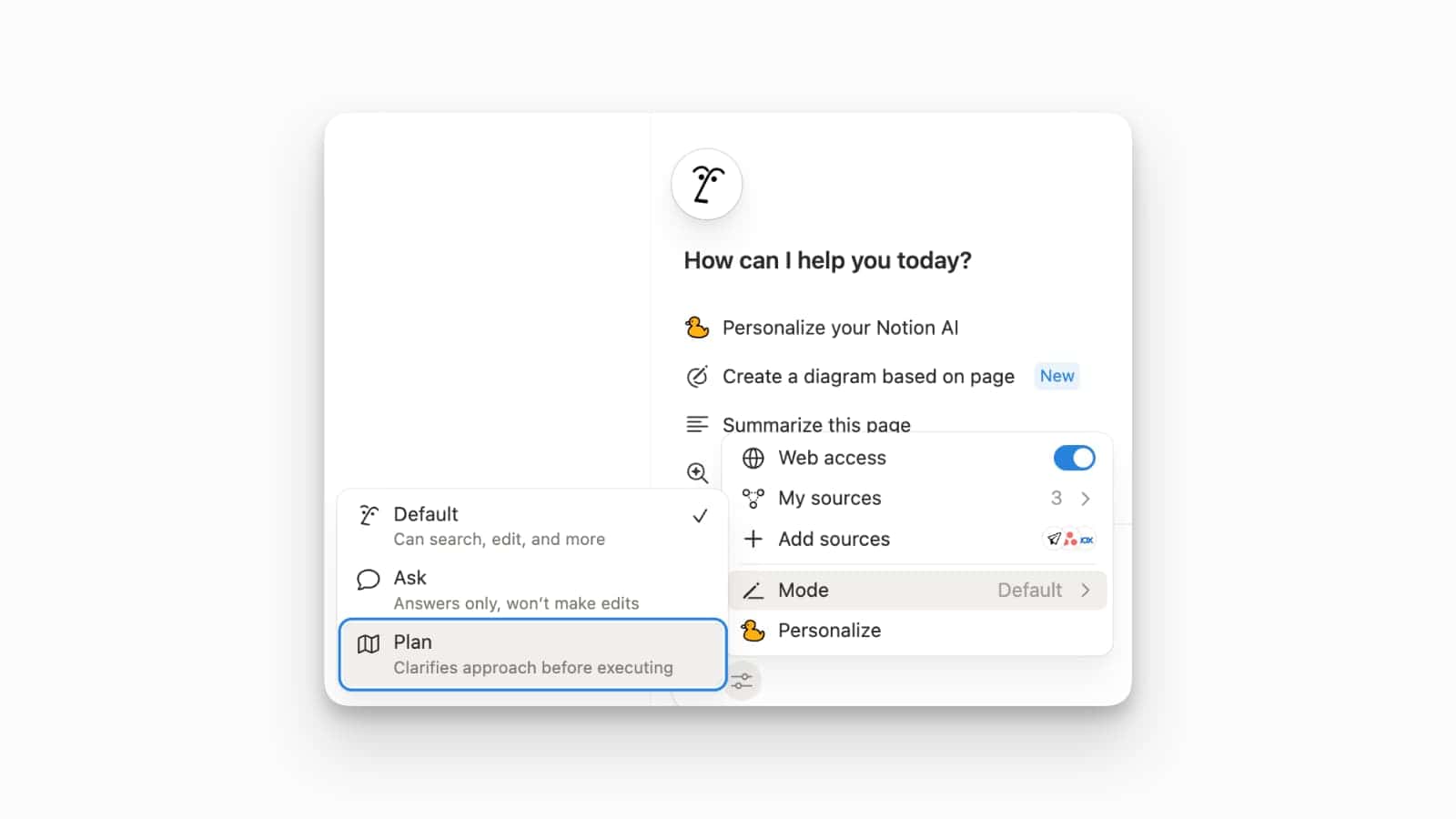
Sibling Page Navigation in Breadcrumbs
Notion has enhanced its Breadcrumb navigation by allowing users to view and jump to sibling pages simply by hovering over a location in the breadcrumb trail.
Previously, breadcrumbs were primarily a “look up” tool, showing the hierarchy and allowing you to go back to parent pages. With the addition of sibling page previews on hover, you can now explore related content within the same parent folder or database without having to return to the parent page first or use the sidebar. This makes browsing complex nested structures much more fluid and reduces the number of clicks needed to pivot between related project documents or sub-tasks.
To use this, locate the breadcrumb trail at the top of any Notion page. Hover your cursor over any page name within the trail, and a dropdown menu will appear listing all other pages (siblings) located within that same parent.
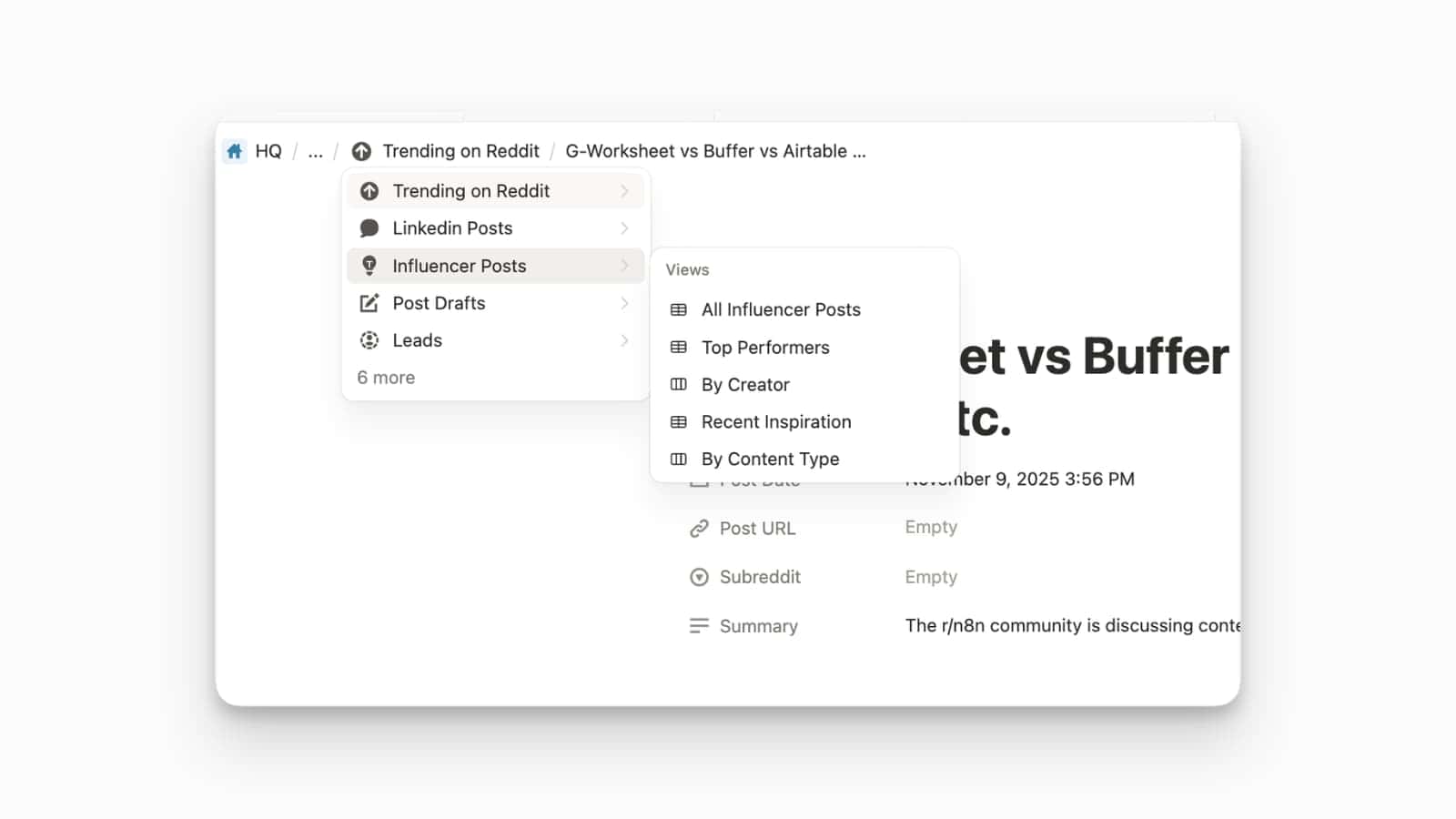
Unified Mail & Calendar Setting in the Notion App
Notion has consolidated all email and calendar connections into a single, dedicated “Mail & Calendar” tab within the user settings menu.
This update streamlines the management of external integrations by providing a central hub for all connected accounts. Previously, mail and calendar connections were often scattered across different areas of the settings or required navigating specific AI connector menus. By bringing them into one view, Notion makes it significantly easier to manage multiple professional and personal accounts simultaneously.
To access this, navigate to Settings of your workspace, and select the new “Mail & Calendar” option. From here, you can see all your connected addresses and calendars, add new accounts, or manage existing permissions in one place
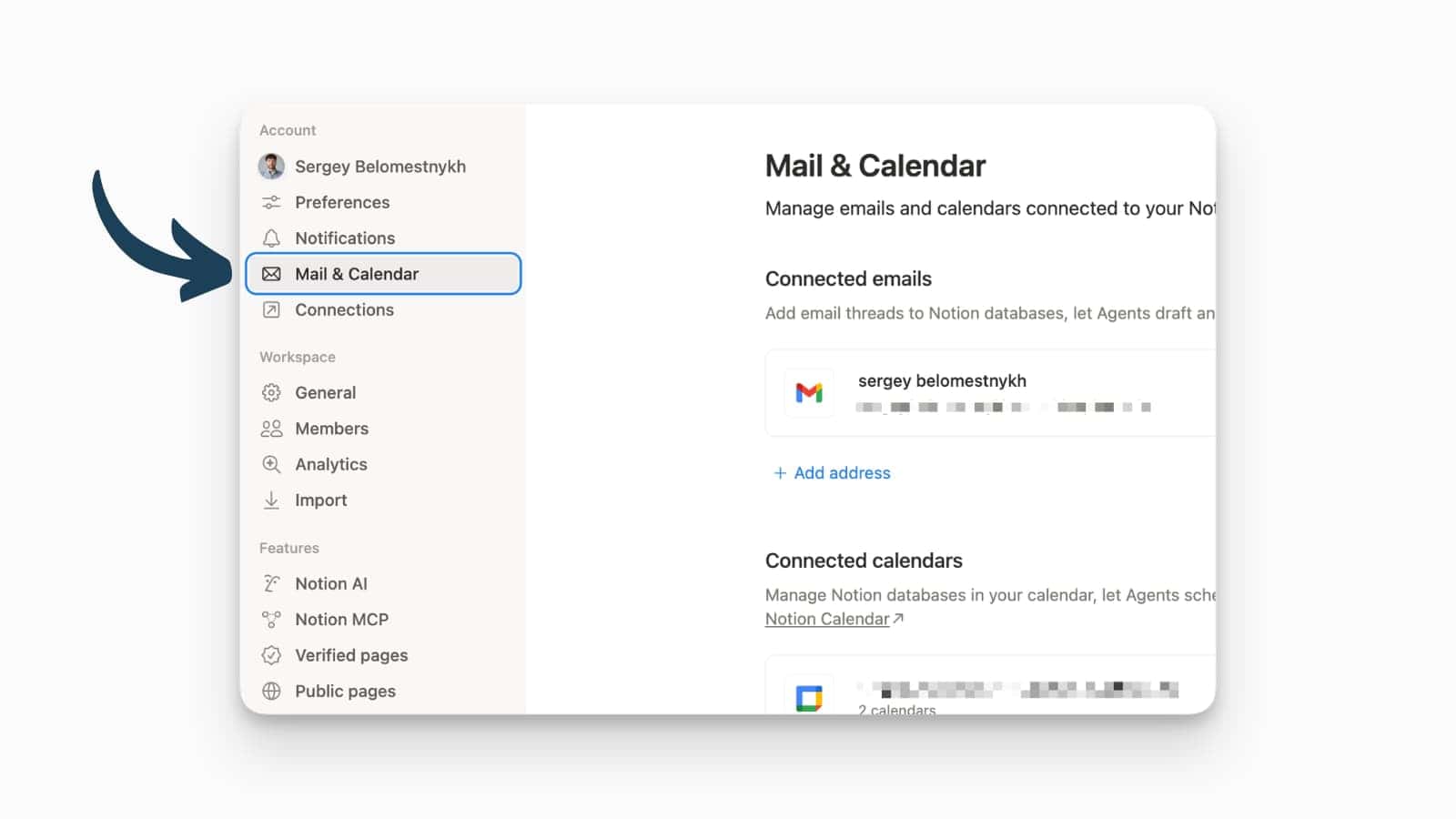
Kimi K2.6 Model Integration
Notion has added Kimi K2.6 to its library of available AI models.
This update introduces a powerhouse model from Moonshot AI, specifically designed for long-horizon coding and autonomous task orchestration. Unlike standard conversational models, Kimi K2.6 is built on a massive 1-trillion parameter Mixture-of-Experts (MoE) architecture that excels at processing deeply interlinked data across large codebases or complex document structures. For users managing technical workflows, this model provides superior structural integrity in code generation and analysis, boasting significantly lower hallucination rates. Its addition to the Notion “model switcher” allows you to leverage its unique 256k context window and specialised “agent swarm” logic for background tasks that require persistent, multi-step execution.
To enable this, open any Notion AI chat or Agent settings, click on the current model name (e.g., “Auto” or “GPT-4”), and select Kimi K2.6 from the dropdown menu.
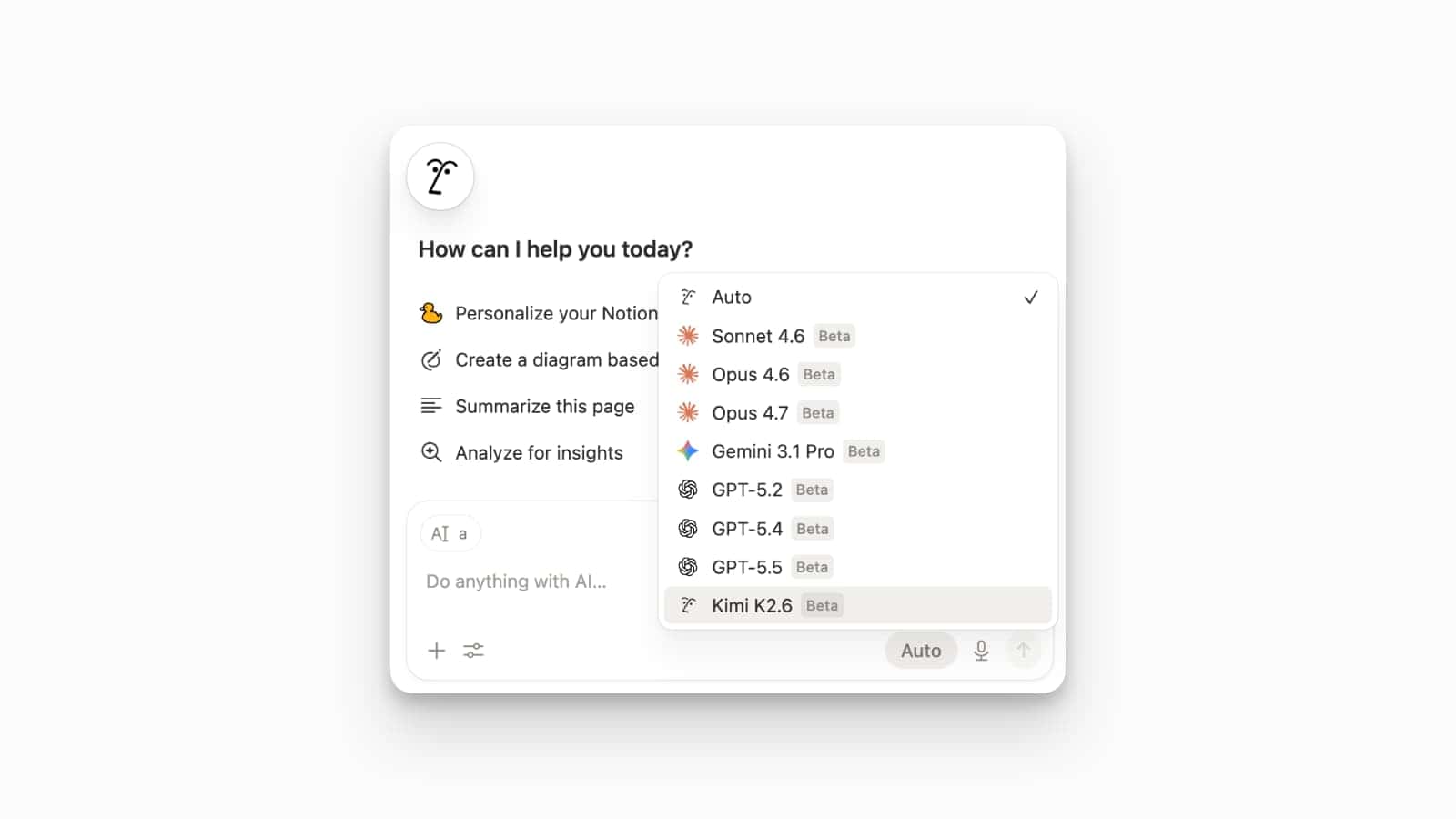
Download Cover Images in Notion
Notion has added a Download button to the cover image menu, allowing users to save the current page’s cover photo directly to their device.
This update provides a seamless way to retrieve high-quality images used within a workspace without needing to inspect the page source or use third-party browser extensions. Previously, if a user uploaded a custom image or found a perfect Unsplash cover, there was no native “Save as” option within the Notion interface.
Now, you will see a new Download (arrow) icon on the far right of the menu bar.
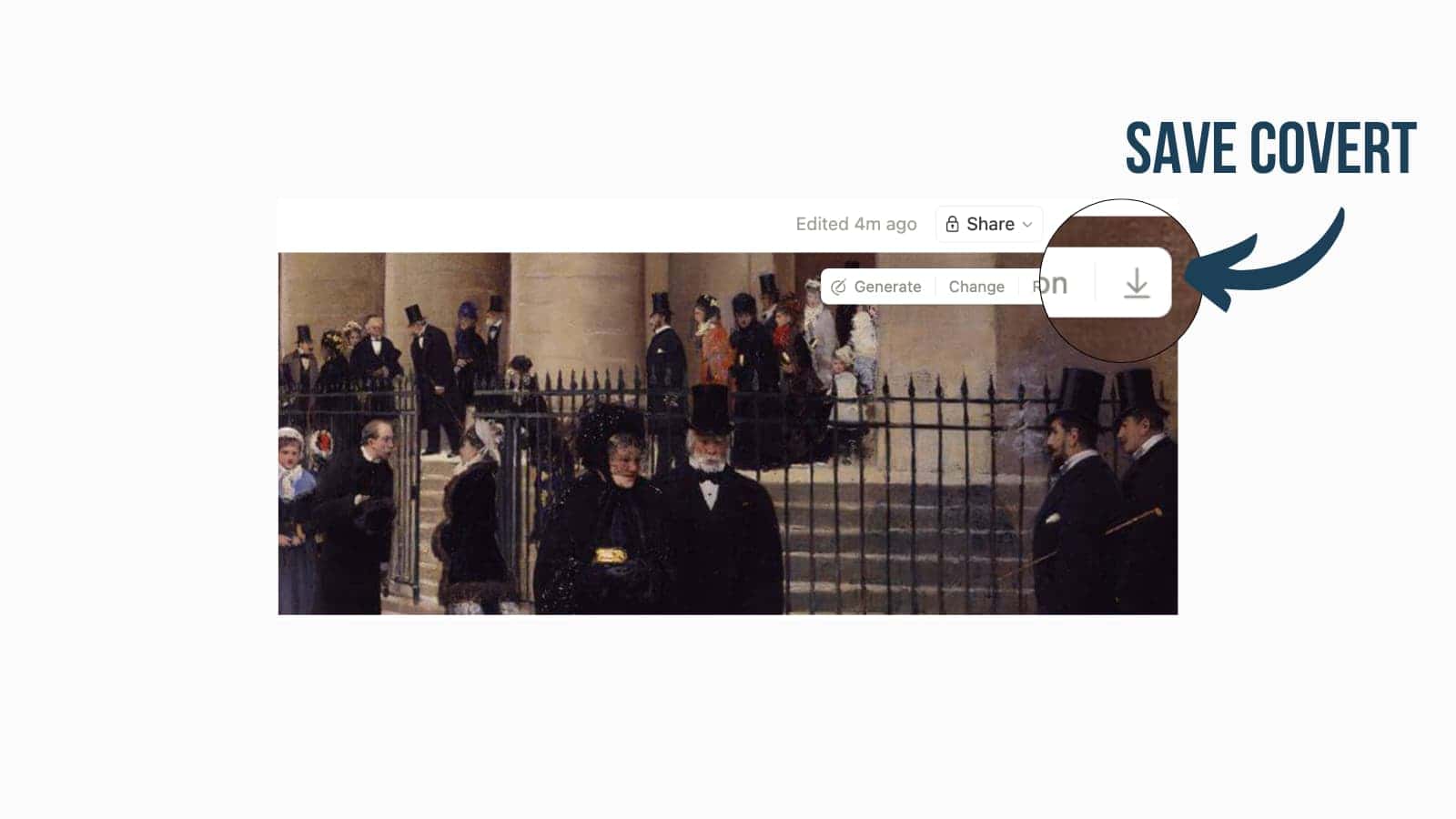
New Cover Art Libraries
Notion has expanded its visual customisation options by adding fresh Cover Art from four new curated libraries.
This update is a welcome aesthetic refresh for workspace organisation. While often seen as purely decorative, cover art plays a functional role in “visual wayfinding”, helping users quickly distinguish between different databases and project sections at a glance. For your research project, these new high-quality collections.
To access these, hover over the top of any Notion page, click Add cover (or Change cover), and browse the new collections under the Gallery tab. You can now select from a wider variety of historical art, scientific photography, and nature-inspired illustrations
Notion AI: Calendar Integration for Agents
Notion has significantly upgraded its AI capabilities by granting Notion Agents direct access to your calendar, allowing them to find meeting times, create events, and display a live grid view within the chat interface.
This update effectively turns Notion AI into a full-scale executive assistant. By bridging the gap between your documentation and your schedule, Agents can now perform complex logistical tasks that previously required manual coordination. You can ask an Agent to “find a 30-minute slot for a GDPR review with the team next Tuesday,” and it will cross-reference everyone’s availability and draft the invite automatically.
To use this feature, open any Notion Agent or AI chat and provide a scheduling-related prompt, such as “Schedule a follow-up meeting” or “What does my Thursday look like?” If it’s your first time, the AI will prompt you to connect your Google or Outlook Calendar via the integration settings to enable these permissions.