Notion HTML blocks are a new block type that lets you drop fully interactive HTML, CSS, and JavaScript straight into any page — calculators, charts, whiteboards, even a working game of Tetris. This is one of the most exciting things Notion has shipped in a while, because it effectively turns your workspace into a canvas for almost anything you’d normally find on the web. In this guide you’ll learn what HTML blocks can do, how to add one, which plans support them, and the important limitations to understand before you start building.
What Are HTML Blocks In Notion?
HTML blocks are a native Notion block that renders your own HTML, CSS, and JavaScript inside a page. Anything you can build for the web can now live directly in Notion.
That covers two big categories: static visuals like custom charts and diagrams, and interactive elements like calculators, whiteboards, and mini-games.
💡 You don’t need to know how to code. Tools like Claude and ChatGPT are brilliant at generating these files for you — and Notion AI can build one from a simple prompt.
How Do You Add An HTML Block?
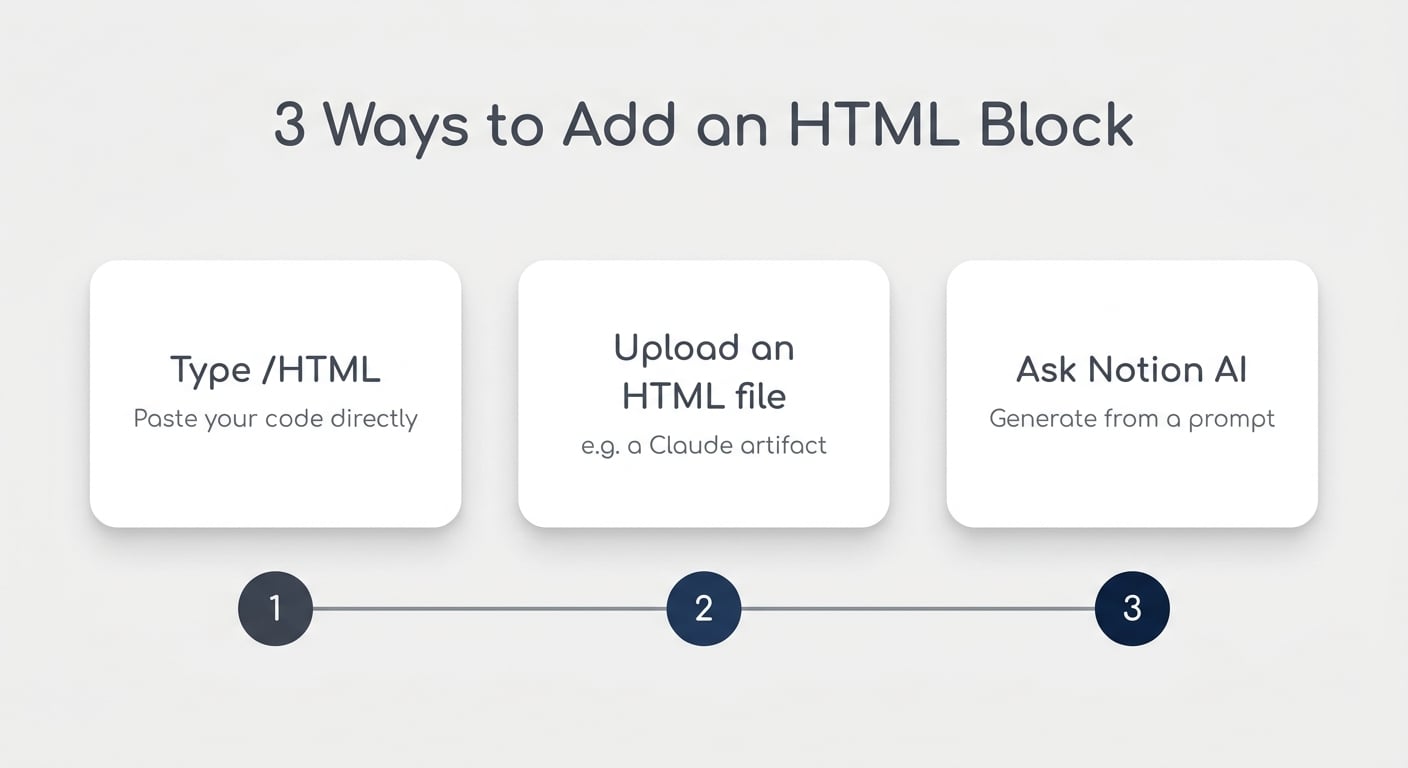
You’ve got three ways to get an HTML block onto your page:
- Type /HTML and add your code directly
- Upload an external HTML file (for example, an artifact you generated in Claude)
- Ask Notion AI to create one for you from a description
Once it’s on the page, an HTML block behaves just like an embed. You can move it around, drop it inside toggles, and resize its width. For anything detailed, open it in pop-up mode so you can see everything at a glance.
Which Notion Plans Support HTML Blocks?
Viewing and embedding HTML blocks works on every Notion plan — including the free tier. Generating one with Notion AI requires a Business plan or higher.
That split matters if you build or share templates. You can generate a block elsewhere (say, with Claude Code) and upload it, and anyone you share the setup with can interact with it — no matter what plan they’re on.
What Can You Build With HTML Blocks?
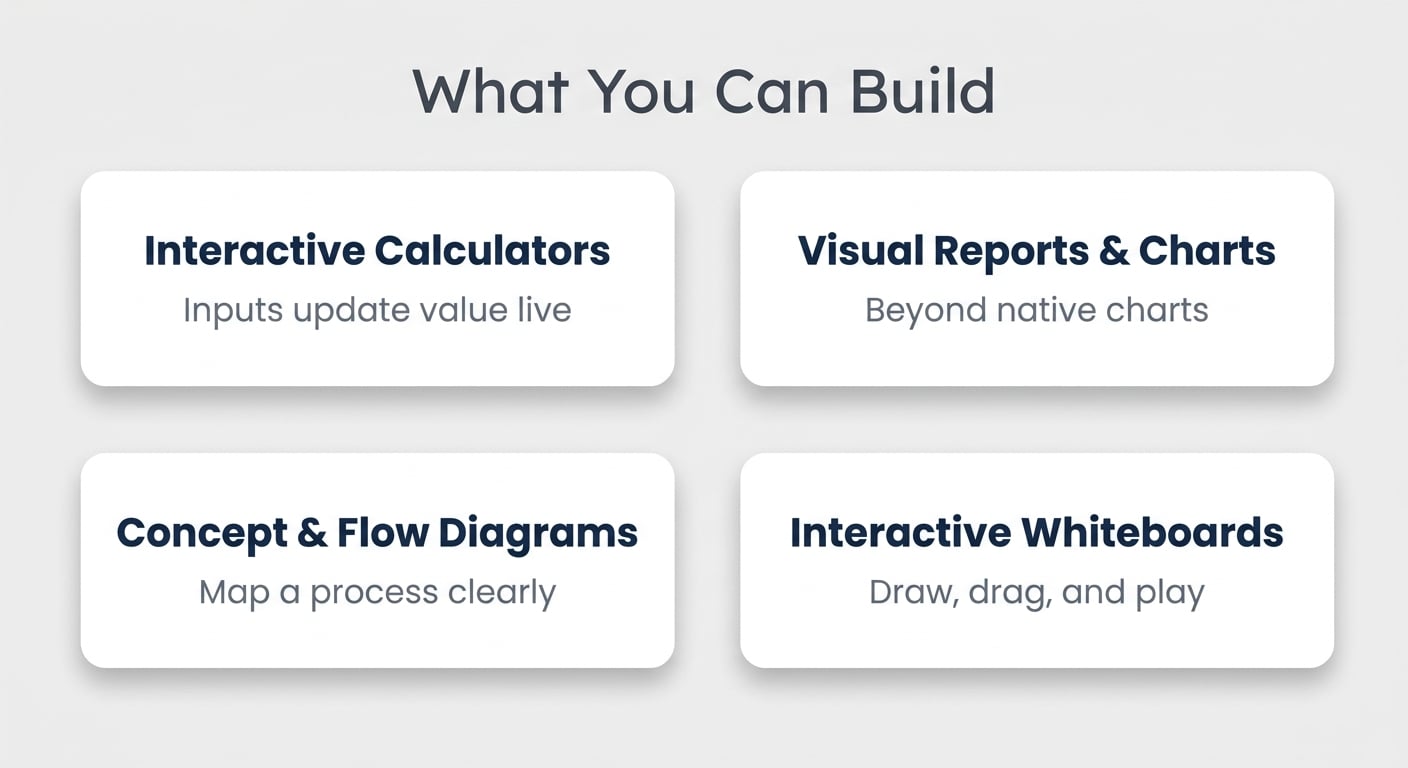
Loads. Here are the use cases that deliver the most value right away:
- Interactive calculators — ROI tools where you tweak inputs (hours saved, cost per person, rollout size) and watch the value update live
- Visual reports and custom charts — go beyond Notion’s native charts when you need a specific visualisation
- Concept and flow diagrams — map a process like feasibility → PRD → engineering steps so it’s instantly graspable instead of a wall of text
- Interactive elements — whiteboards you can draw on, drag-and-drop canvases, and simple games
💡 Pro Tip: Reach for HTML blocks when a visual explains something faster than text. A quick flow diagram or a timeline often lands a concept far better than three dense paragraphs.
What Are The Limitations Of HTML Blocks?
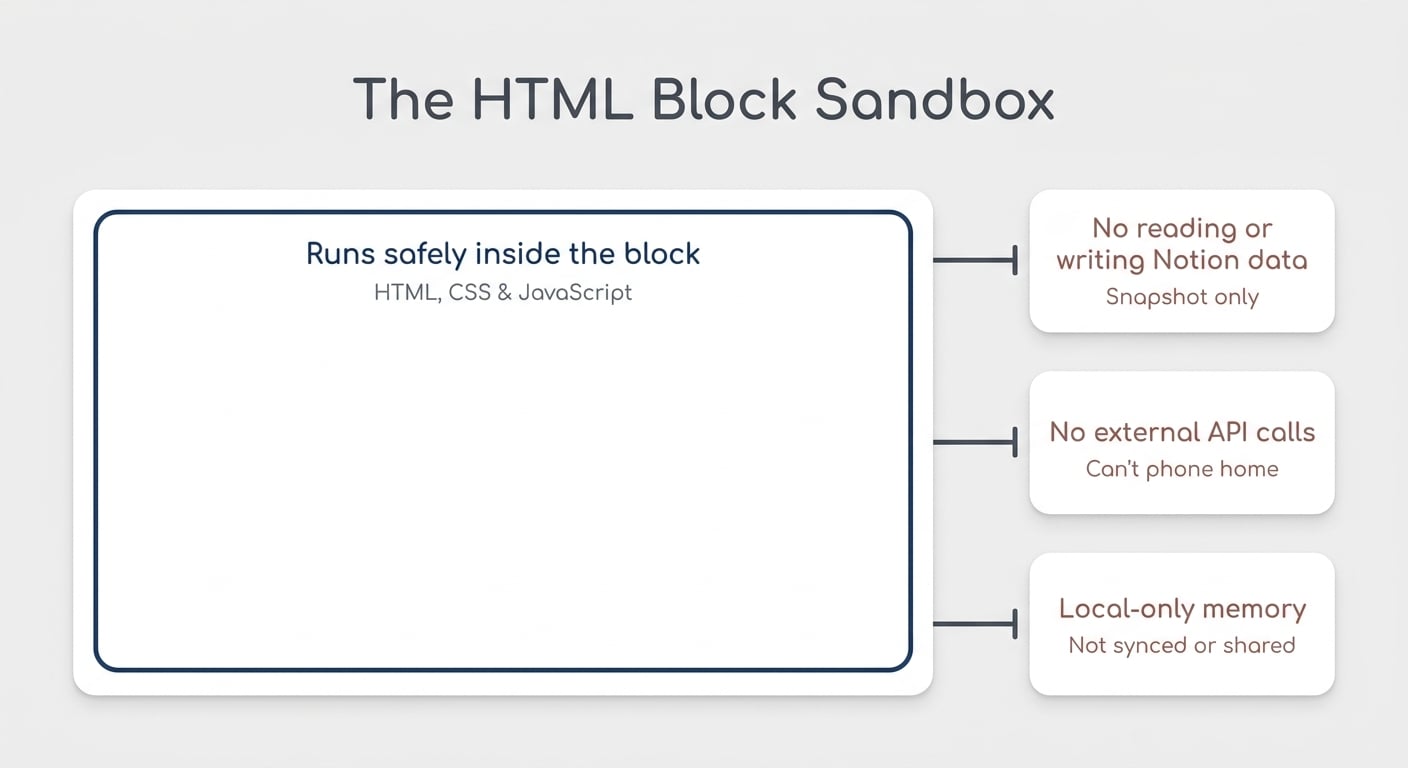
HTML blocks run in a secure sandbox. They can’t read from or write to the rest of your workspace, and they can’t reach out to the wider web. That keeps them safe — but it shapes what you should and shouldn’t build.
They Can’t Read Or Write Notion Data
An HTML block can’t pull live data from your Notion pages or write anything back to them. A report you generate is a snapshot — accurate at the moment of creation.
AI can pull your data at the time it builds the block, but if you add three more invoices afterwards, the block won’t update itself. Just regenerate it to refresh the numbers. For a genuinely live dashboard, you’ll want a custom tool instead.
They Can’t Make External API Calls
The sandbox blocks outside calls, so you can’t wire up something like a live weather widget that hits an external API. Anything that runs entirely inside the block is fair game; anything that needs to phone home isn’t.
Memory Is Local Only
Some blocks feel like they remember things — your whiteboard drawing survives a refresh, a click counter holds its value. But that state is stored locally in your browser, on that one machine.
It isn’t tied to your Notion account and it isn’t shared. A teammate won’t see what you drew, and switching laptops wipes the slate. Great for in-the-moment interaction; not a shared canvas for teams just yet.
The Blocks Are Locked
You can’t hand-edit an HTML block’s code in place. To change it, re-upload the file — or, if you built it with AI, just ask AI to make the tweak and swap it in.
How Do AI And HTML Blocks Work Together?
When you generate a block with Notion AI, it feels native by default. That’s because Notion feeds its own style guide into the generation, so the output matches your workspace look.
You can override this easily — tell it to use your brand guidelines instead, and it’ll style the block to match your colours and fonts.
One more thing on the horizon: MCP and API access for creating HTML blocks is rolling out. Soon you’ll be able to finish an artifact in Claude and push it straight into Notion as an HTML block for the whole team to see.
HTML Blocks At A Glance
Here’s the quick reference for what HTML blocks can and can’t do today:
| Capability | Supported? | Notes |
|---|---|---|
| Embed & view on any plan | ✅ Yes | Free plan included |
| Generate with Notion AI | ✅ Yes | Business plan or higher |
| Interactive elements (calculators, games, whiteboards) | ✅ Yes | Runs inside the sandbox |
| Read live data from Notion | ❌ No | Snapshot at creation; regenerate to refresh |
| Write data back to Notion | ❌ No | Blocked for security |
| External API calls | ❌ No | No live web widgets |
| Shared or persistent memory | ⚠️ Local only | Stored per browser, not synced or shared |
| Edit code in place | ❌ No | Re-upload or ask AI to change |
| Create via MCP / API | 🔜 Rolling out | Coming soon |
Put it all together and Notion is becoming seriously powerful: a workhorse for pulling in data and encoding business logic on one side, and HTML blocks for the visual layer on the other. 🚀
💼 Need the support of certified Notion Consultants? My team and I are here to help! → https://matthiasfrank.de/en/notion-consulting/
📬 Want more Notion updates and practical guides like this? → Get 41 free Notion resources
Frequently Asked Questions
What Are HTML Blocks In Notion?
HTML blocks are a native block type that lets you embed custom HTML, CSS, and JavaScript inside a Notion page. You can use them for interactive tools, custom charts, diagrams, and more. Add one by typing /HTML, uploading a file, or asking Notion AI to build it.
Are HTML Blocks Free To Use?
Yes — viewing and embedding HTML blocks works on every Notion plan, including the free tier. Generating one with Notion AI requires a Business plan or higher, but you can always create a block with an outside tool and upload it on any plan.
Can An HTML Block Pull Live Data From My Notion Pages?
No. HTML blocks are sandboxed and can’t read from or write to your Notion content. Any data in a block is a snapshot from when it was created — to update it, simply regenerate the block.
Do HTML Blocks Save What I Draw Or Change?
Only locally. State like a whiteboard drawing or a click counter is stored in your browser on that specific device, not in your Notion account. It won’t sync across your devices, and teammates won’t see it.
Can I Edit An HTML Block’s Code Directly?
No, the blocks are locked once placed. To make changes, re-upload the file — or, if you built it with AI, ask AI to adjust it and swap in the new version.