Notion AI credits have changed how much work you can get out of your workspace each month. To find out what that actually means, I put Notion’s new Auto mode through 40 test interactions—from quick database edits to building a workspace, an animation and a slide deck. Here’s what 1,500 Standard credits could buy you, how to make sense of the monthly allowance, and why I think Notion’s bigger strategic shift makes a lot of sense. For the full background on how the credit model works, see my Notion AI pricing breakdown.
Last updated: 5 November 2026
Infographic: What 1,500 Notion AI credits can buy, with field-test results and example monthly usage mixes.
What Changed With Notion AI Credits?
Notion’s Business and Enterprise plans generally include 1,500 Standard credits and 500 Select credits per member each month (sign up for Notion to get started). Your exact allowance can vary by plan or purchase arrangement, so check your own workspace under Settings → Notion AI → Usage.
The two allowances cover different types of work:
- Standard credits cover Notion Agent when you use Auto, along with other eligible AI features.
- Select credits generally cover choosing an included model yourself and Custom Agents funded by their owner’s allowance.
- Notion credits are a separate workspace-managed balance that an owner can use to fund eligible extra usage, workspace-funded Custom Agents and high-credit-consumption models.
Standard and Select credits are separate. You can’t combine them, transfer them to another member or roll unused credits over into the next month. If you run out, the affected features pause until the monthly reset unless your workspace owner allows eligible use of additional Notion credits.
There’s one upcoming change worth keeping in mind: according to Notion’s credit documentation, AI Meeting Notes will start using Standard credits on 1 December 2026.
What Is Notion Auto Mode?
Auto is Notion AI’s model router. Instead of asking you to pick an AI model for every task, it chooses from the models available to your workspace based on the work you’re doing.
A quick rewrite might go to a faster, more economical model. A more involved task might go to a more capable one. Auto can also switch models during multi-step work, according to Notion’s Auto documentation.
The idea is straightforward: spend fewer credits where you don’t need the most expensive model, and bring more intelligence in when the task calls for it.
But how does that play out when you actually use it?
How Did I Test Notion Auto?
I did the only responsible thing: I spent my weekly OpenAI allowance getting Codex to coordinate a field test of Notion AI.
Across two test phases on 4 November 2026, we sent 40 interactions to Notion Auto. These ranged from small prompts and database updates to a connected workspace, a dashboard, an animation, a slide deck and an Excel workbook.
We checked the credit meter throughout. At the frozen end of the test, the account had moved by 449 Standard credits: 206 during the first phase, an unattributed four-credit movement between phases, and 239 during the second phase. The infographic also includes a separate 57-credit review, taking the combined figure shown there to 506.
A quick but important caveat: these are observed meter movements, not itemised bills for each task. Credits can appear after a task finishes, and some movements could cross observation windows. A zero on the meter doesn’t prove a request was free.
This was also one small, varied test—not a universal price list. Your tasks, context, follow-ups and results will differ.
How Many Credits Do Different Notion AI Tasks Use?
In my test, simple, uniform changes were inexpensive, while more involved builds and their follow-ups used substantially more. The most useful way to budget is to look at the whole workflow, not just the first prompt.
| Task | Observed Standard credits | What to know |
|---|---|---|
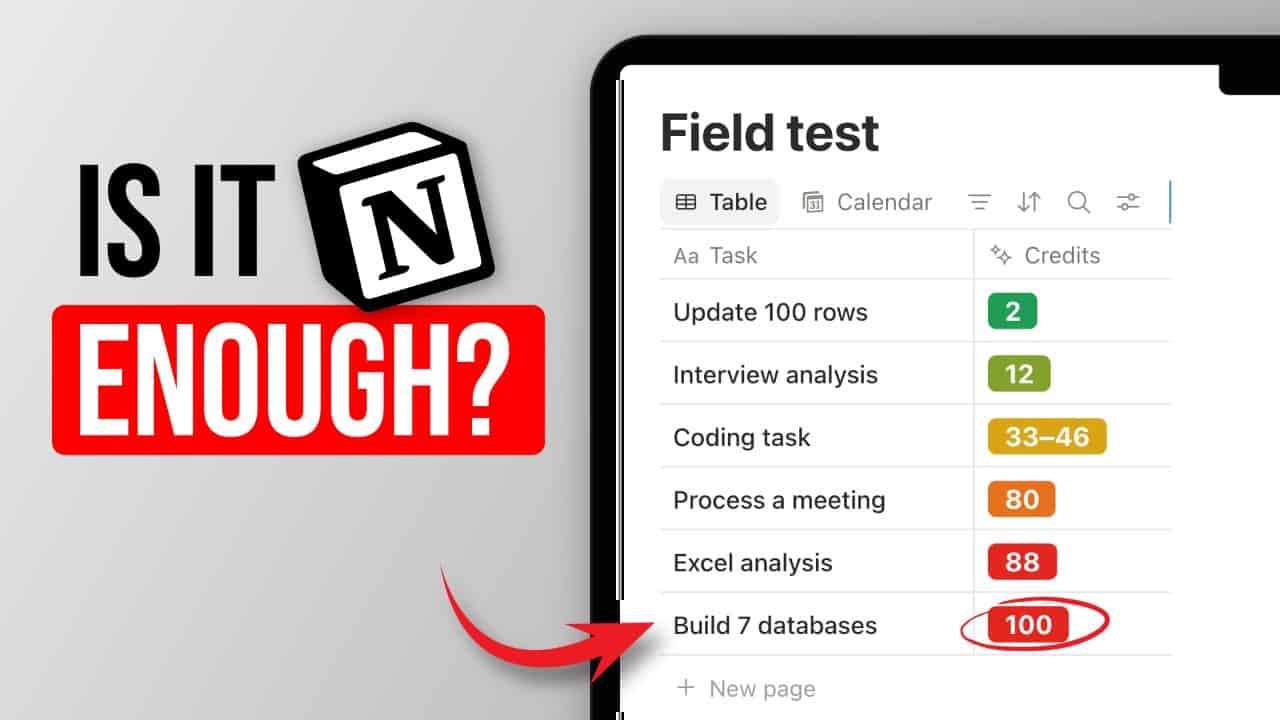
| Update 100 database rows | 2 | The same field change was applied to every row; this was not individual AI analysis of each record. |
| Write a decision brief | 8 | The brief passed all eight required checks in the supplied evaluation. |
| Create a 20-second animation | 18 | The MP4 and interactive HTML passed the checks performed. |
| Research and revise in a chat | 25 | Observed across a 20-turn mixed research and revision conversation. |
| Build a local HTML dashboard | 34 | Local checks passed; the Notion embed was still loading during observation. |
| Create an eight-slide deck | 90 | 63 for the first observed window plus 27 for a guided repair. |
| Build a connected Notion workspace | 100 | 61 for the build plus 39 for follow-up polish; some presentation gaps remained. |
| Build a nine-sheet workbook | 103 | 88 for the first observed window plus 15 for a guided correction. |
The database example is particularly interesting. Updating 10 rows produced an observed one-credit movement, and updating 100 rows produced a two-credit movement. But this was a simple bulk change—not a request for AI to reason separately about every entry.
At the other end of the scale, the workbook took around 26 minutes to reach the first completion observation and showed an 88-credit movement before the correction. A single visible request can involve a lot of work behind the scenes.
Notion’s own estimates are another useful reference point: it suggests approximately five credits for a simple task, 10 for a medium one and 25 for a complex one on Auto. These are estimates, not guarantees, and the task and its context matter. You can find the examples in Notion’s credit guide.
Is Notion Auto Good Enough For Everyday Work?
For everyday knowledge work, my overall experience was positive. Auto produced useful results across a wide range of tasks, from database changes and research to building real files and workspace structures.
The decision brief reconciled its supplied sources and passed the required checks. The animation worked, and the connected workspace contained seven databases and 162 verified records. That’s a lot more than answering a simple question.
You still need to review the result. The first deck contained deadline and capacity mistakes, and the workbook initially marked one threshold incorrectly. Both were corrected after the specific issues were pointed out, with additional credit use.
My takeaway: Auto does the job for a lot of everyday work, but I’d still choose a frontier model for my hardest tasks or when I specifically need that extra level of intelligence. And whichever model you use, check the important details before you rely on the output.
How Far Do 1,500 Notion AI Credits Go?
A monthly allowance of 1,500 Standard credits works out to 50 credits per day on average across a 30-day month. That’s a planning figure, not a daily cap: your allowance is monthly, so you can use more on one day and less on another.
Let’s start with a simple example. If you budget three credits per small request, 50 credits would cover around 16 small requests a day. At 30 credits per larger task, the same average budget would cover around 1.6 larger tasks a day—if you did no smaller ones.
You can also mix them: one 30-credit task plus six three-credit requests comes to 48 credits.
Those three- and 30-credit figures are assumptions for planning, not measured averages or fixed prices. As the test shows, a bigger task can also use considerably more, especially when it needs follow-up work.
For someone who uses Notion AI occasionally, this can be a perfectly workable allowance. For a power user, the limits become more noticeable: I know I have a lot more than 16 things I’d like to hand to AI on a typical day.
What Could A Month Of Notion AI Usage Look Like?
Your mix matters more than your message count. To make that concrete, here are three illustrative months using the observed examples above and a planning assumption of three credits per small request.
Each scenario also sets aside 300 credits as a buffer for variation. The deck and workbook examples include the guided repairs from the test.
- Light month: 379 credits. 40 small requests, four decision briefs, one deck, one workbook and one dashboard. With the buffer held back, 821 credits remain.
- Mixed month: 998 credits. 100 small requests, eight briefs, four decks, two workbooks and two dashboards. With the buffer held back, 202 credits remain.
- Heavy month: 1,664 credits. 100 small requests, 12 briefs, eight decks, four workbooks and four dashboards. That is 164 credits over the allowance before adding the buffer.
These aren’t predictions of what your exact work will cost. They replay a handful of observed examples, and the 300-credit buffer is a choice—not a guarantee that it will cover every variation.
If your small requests average six credits instead of three, the mixed month rises to 1,298 credits. Add the 300-credit buffer, and you’re 98 credits over the allowance. Small differences add up when you repeat a workflow often.
What If You Run Out Of Notion AI Credits?
You have a few options: wait for your monthly reset, ask your workspace owner to fund eligible additional usage with Notion credits, or use an external AI subscription alongside Notion. I’ve also written a fuller guide on how to avoid Notion AI usage limits — including context management and handoff techniques that help you stay within your allowance.
Buying additional Notion credits keeps the work inside Notion. For frequent power users, though, it’s also worth looking at AI subscriptions you already have.
Connect Your ChatGPT Plan To Notion
If you have an eligible ChatGPT subscription, you can connect it to Notion Agent and use that plan when you select a specific GPT model.
To connect, go to Settings → Notion AI → Usage, find Connected subscriptions, and select Connect next to ChatGPT. Then sign in and approve the connection.
There are a few important boundaries:
- Your Notion workspace needs to be on Business or Enterprise, and you need an eligible ChatGPT Plus, Pro or Go account.
- Your ChatGPT plan is used when you select a specific GPT model in Notion Agent. Check the funding label in the model picker before sending.
- Auto and non-GPT models use your Notion allowance instead. The ChatGPT connection does not fund Custom Agents.
See Notion’s ChatGPT connection guide for the current requirements and what happens if your ChatGPT usage runs out.
Connect Claude Or ChatGPT Through Notion MCP
You can also use Claude, ChatGPT or another compatible AI app with your Notion workspace through the Notion MCP. MCP is a connection that lets an AI app work with tools and context in another system. If you want to go deeper on using Claude or Cursor as external Notion agents, that guide covers setup, pricing and which approach suits different teams.
That means you can do the work in your external AI app while it reads or updates your Notion workspace through the connection, subject to your app’s plan, your Notion permissions and your workspace controls.
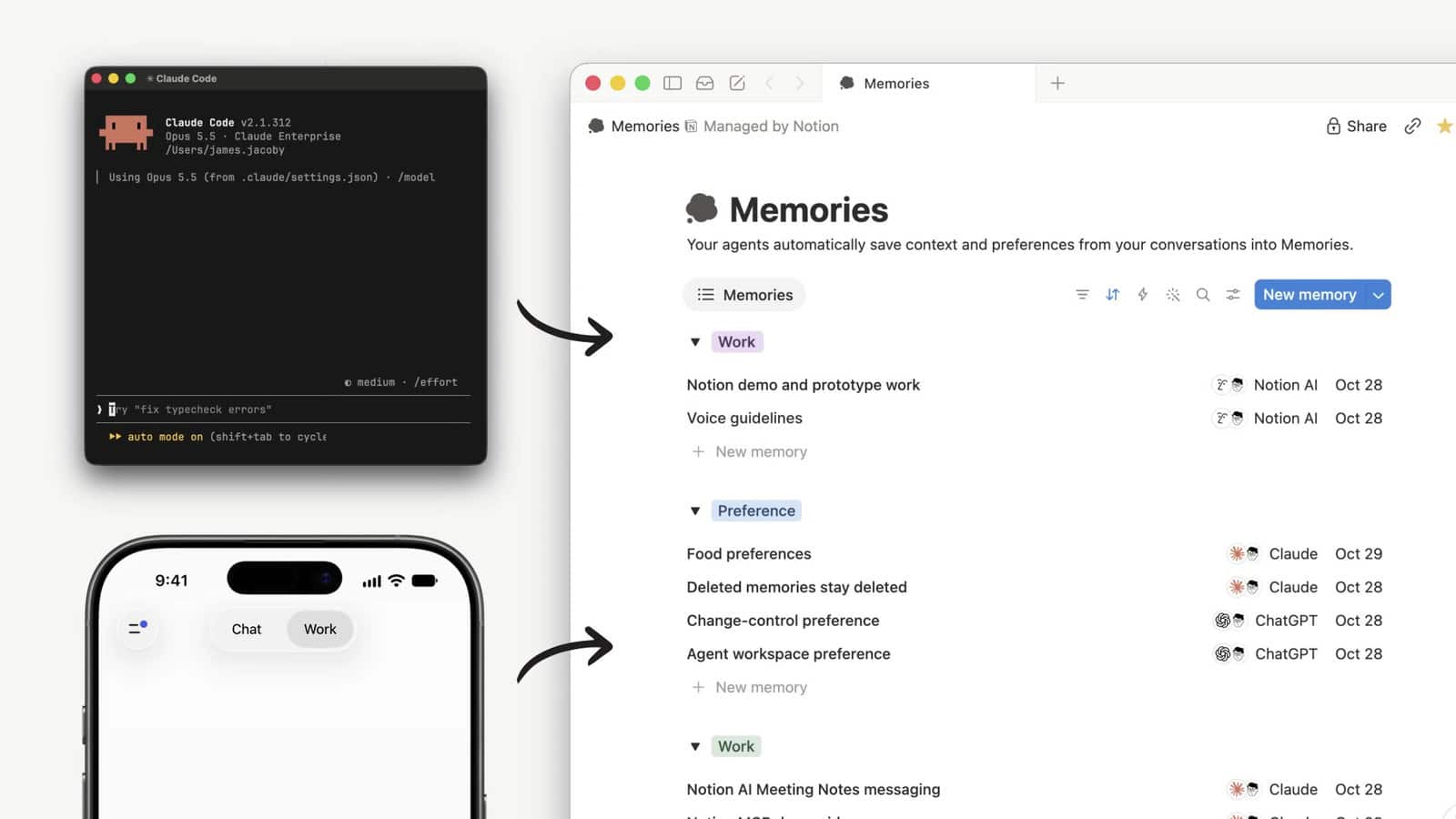
The one thing I’d set up first is a clear set of instructions. Explain where your important databases live, what belongs in each one and how you want the agent to work with them. That context makes the connection much more useful than simply giving an AI access and hoping it figures out your system.
Why Does Notion’s AI Strategy Shift Make Sense?
I think Notion moving away from competing with the big AI labs on model economics—and towards being the context and governance layer for AI work—makes a lot of sense.
Running frontier models is expensive. Today, many direct AI subscriptions offer substantial usage under a flat-rate plan, while API usage can make the underlying cost much more visible. Notion’s new limits mean adjusting expectations: one Notion subscription is no longer a shortcut to effectively unlimited AI usage.
But the bigger opportunity for Notion is still there. Once you have people and agents working across different tools, you need somewhere to bring that work together: a shared surface for your documents, tasks and decisions, with permissions and governance around who can access and change what.
That’s where Notion has always been powerful—and where it can become even more useful as your AI stack grows.
For a power user, the practical setup might look like this:
- Notion as your central context layer: the place where your team’s work, knowledge and decisions live.
- Claude or ChatGPT for heavier AI work: connected to that context through MCP, or through an eligible direct subscription connection where available.
- Notion AI for work inside the workspace: quick requests, admin and other workflows where Auto is a good fit.
You don’t need to pick one tool and force everything through it. Use the right tool for the job, and give it the context it needs.
This is still early days for the new setup. I expect the experience and the economics to keep evolving, so measure a few of your own real workflows and check your credit meter again as things change.
If you want 41 free Notion templates and resources delivered to your inbox, grab them here.
💼 Need the support of certified Notion Consultants? My team and I are here to help!
Frequently Asked Questions
How Many Notion AI Credits Do You Get Each Month?
Business and Enterprise plans generally include 1,500 Standard credits and 500 Select credits per member each month. Your allowance can vary by plan or purchase arrangement; check Settings → Notion AI → Usage for your own balance.
How Many Credits Does Notion Auto Use?
It depends on the task, context and follow-up work. In our field test, a uniform 100-row database update had a two-credit observation window, while an eight-slide deck and guided repair totalled 90 observed credits. These are examples, not fixed prices.
Is Notion Auto A Separate AI Model?
No. Auto is a model router that selects from available AI models based on the task and your workspace’s settings. It can switch models during multi-step work.
Can I Use My ChatGPT Subscription With Notion AI?
Yes, if you meet Notion’s eligibility requirements. Connect a ChatGPT Plus, Pro or Go account to Notion Agent, then select a specific GPT model and check the funding label. Auto, non-GPT models and Custom Agents are not funded by that connection.
What Happens When I Run Out Of Notion AI Credits?
The affected features pause until the monthly reset unless your workspace owner allows eligible extra usage funded by workspace Notion credits. Standard and Select balances are separate, so unused Select credits don’t automatically replace exhausted Standard credits.