Notion is one of the most flexible tools you can use to organise work, run a business, and keep your team aligned.
But the moment you start storing tasks, client projects, financial data, or internal documentation, one question typically pops up:
How secure is Notion, really?
If you are using this tool for daily operations, it’s natural to worry about data access, permissions, leaks, and human mistakes.
I help teams across Europe and the US build secure, scalable workspaces, and I’ve seen the same patterns again and again:
Most Notion “security concerns” don’t come from the tool itself.
They come from how people use it.
This guide walks you through what makes Notion safe to use, the biggest security risks, how to avoid them, and the exact mistakes I see businesses make every day.
You’ll also find practical examples, a checklist you can follow, and real-world advice you can apply immediately in your workspace.
Let’s keep your workspace safe, tidy, and slightly less stressful.
Key Takeaways
✅ Notion is secure for business use, but only if you set it up properly.
🛑 Most Notion security concerns come from user behaviour, not the platform.
🔐 You must configure access, sharing, groups, and 2FA intentionally.
🧨 Automations, buttons, and integrations can cause accidental data loss when misconfigured.
🧯 A Notion security checklist at the end helps you keep everything under control.
🚀 If you want a secure workspace without the stress, our customised Notion systems enable you to avoid the guesswork.

Is Notion Secure For Business?
Short answer: Yes. Notion is secure for business use and adheres to modern industry standards.From Notion’s Security & Privacy statement:
“At Notion, our team is dedicated to developing and implementing data privacy processes and safeguards that meet industry standards and best practices. We conduct ongoing training for our teams to ensure that they are up to speed with developments in legislation and essential privacy and security practices.”
Here are some of the certifications and compliance frameworks Notion follows:
- SOC 2 Type II
- ISO 27001
- ISO 27018
- GDPR
- BSI C5
- TLS 1.2 encryption in transit
- AES-256 encryption at rest
Notion is also regularly audited by third-party security experts and maintains bug bounty programmes to identify vulnerabilities.
But here’s the more important truth:
❗ Notion’s biggest security risk is… your team.
People overshare, misconfigure access, skip two-factor authentication (2FA), send pages to the wrong people, and click on links they shouldn’t.
That’s why the rest of this guide focuses on the actual mistakes that expose your data.
Critical Notion Security Mistakes That Could Expose Your Data
Before we dive in:
Notion is safe.
Human error isn’t.
This is where teams get into trouble.
🌍 Real-world insights: Neglecting to secure your Notion workspace can have serious financial and operational consequences. According to IBM’s 2024 report, the global financial cost of a data breach has increased by 10%, now averaging $4.88 million.
Notion Mistake 1: Not Setting Up 2FA In Notion
🚫 Problem
If you don’t enable two-factor authentication, anyone with your password can access your entire workspace.
That includes:
- Inbox leaks
- Client documents
- Salary data
- Internal strategy
And if your password appears in a leaked database somewhere?
They’re in.
✅ Solution
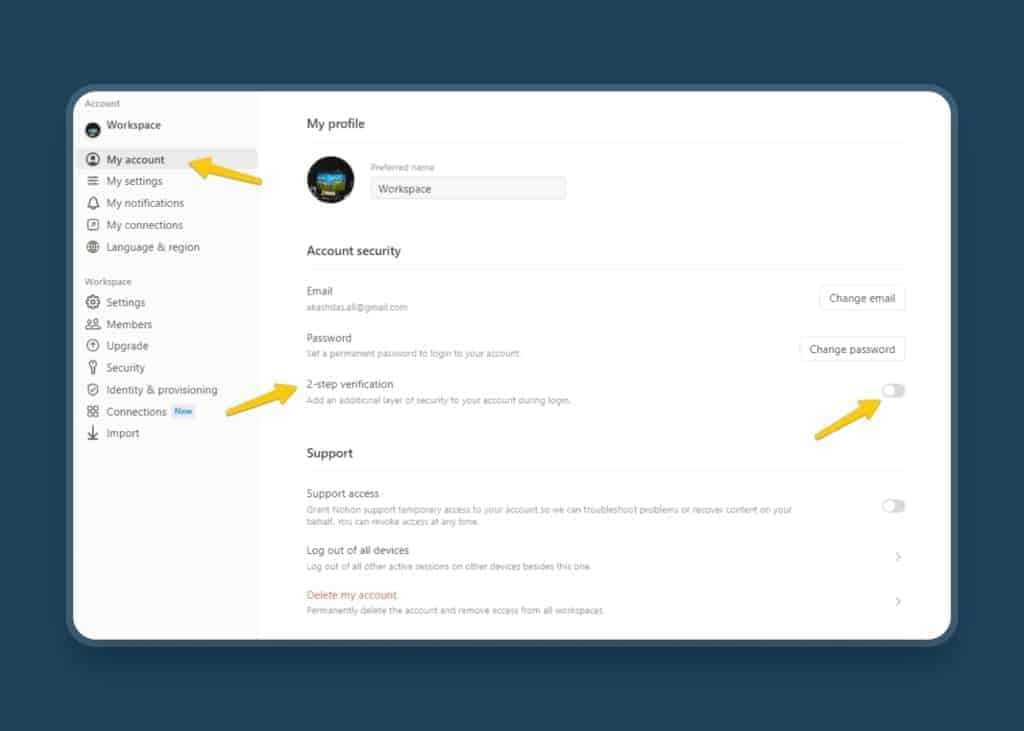
Enable 2FA in Notion in under 30 seconds:
- Go to Settings & Members.
- Open My Account.
- Toggle 2-step verification.
Add your authenticator app (like Authy, Microsoft Authenticator, or Google Authenticator.
💡 Pro Tip: If your team has more than 5 people, consider making 2FA mandatory. It’s the fastest, highest-impact security upgrade you can make.If you upgrade to Notion’s Business or Enterprise plan, you can take it a step further and enforce single sign-on (SSO) using SAML, allowing everyone to sign in through your identity provider instead of managing separate passwords.
🌍 Real-world insights: Microsoft reports that over 99% of account compromise attempts are stopped when MFA is implemented, providing robust protection against potential breaches.
Notion Mistake 2: Storing Passwords In Notion
🚫 Problem
People store passwords in Notion because it feels convenient.
But Notion is not a password manager.
That means:
- No auto-fill
- No secure sharing
- No breach monitoring
- No local encryption
- No password generation
And if you accidentally share a page?
Your passwords go with it.
✅ Solution
- Use a reputable password manager, such as 1Password or Bitwarden.
Store your login credentials there, not in Notion.
Notion Mistake 3: Clicking On Links Without Checking Them First
🚫 Problem
Notion pages can contain any link, including phishing attempts. But there’s another angle many people overlook.
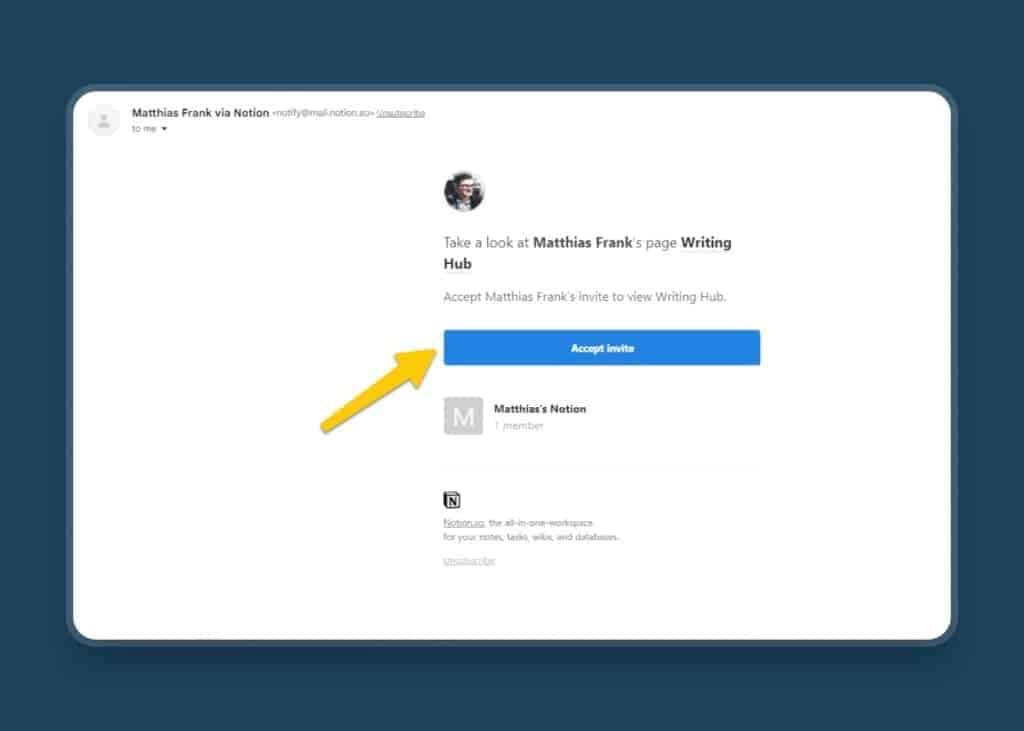
When someone invites you to collaborate in a Notion workspace, Notion sends you an email with a “Click here to join” button. It looks official, so most people instinctively click on it.
The problem?
You don’t actually need to click those links.
You can switch workspaces directly inside Notion.
Attackers know you may just quickly click the link instead, so they tend to mimic these emails to trick you into:
- Sharing your login credentials
- Installing malware
- Opening a fake Notion login page
✅ Solution
Be cautious with any links related to Notion, especially invite emails.
If you receive an email asking you to “join a workspace,” don’t click it immediately. Instead:
- Switch workspaces directly inside Notion
- Verify the invitation from Settings & Members → Workspaces
- Only click the email link if you’re absolutely sure it’s legitimate
And if you do open an email link:
- Hover first.
- Check the domain.
- If anything feels off, avoid clicking altogether.
💡 Pro Tip: Legitimate Notion invitation emails always come from notion.so or notion.com domains. If the sender address or URL looks even slightly different, stay away from it.
Notion Mistake 4: Not Locking Your Notion Pages
🚫 Problem
People think Notion’s “lock page” makes a page private.
It doesn’t.
It only prevents accidental edits.
But most teams never use it, which means:
- Databases get moved
- Headings get deleted
- Templates break
- Important content gets edited by mistake
✅ Solution
Lock:
- Your homepage
- Core databases
- Templates
- Navigation pages
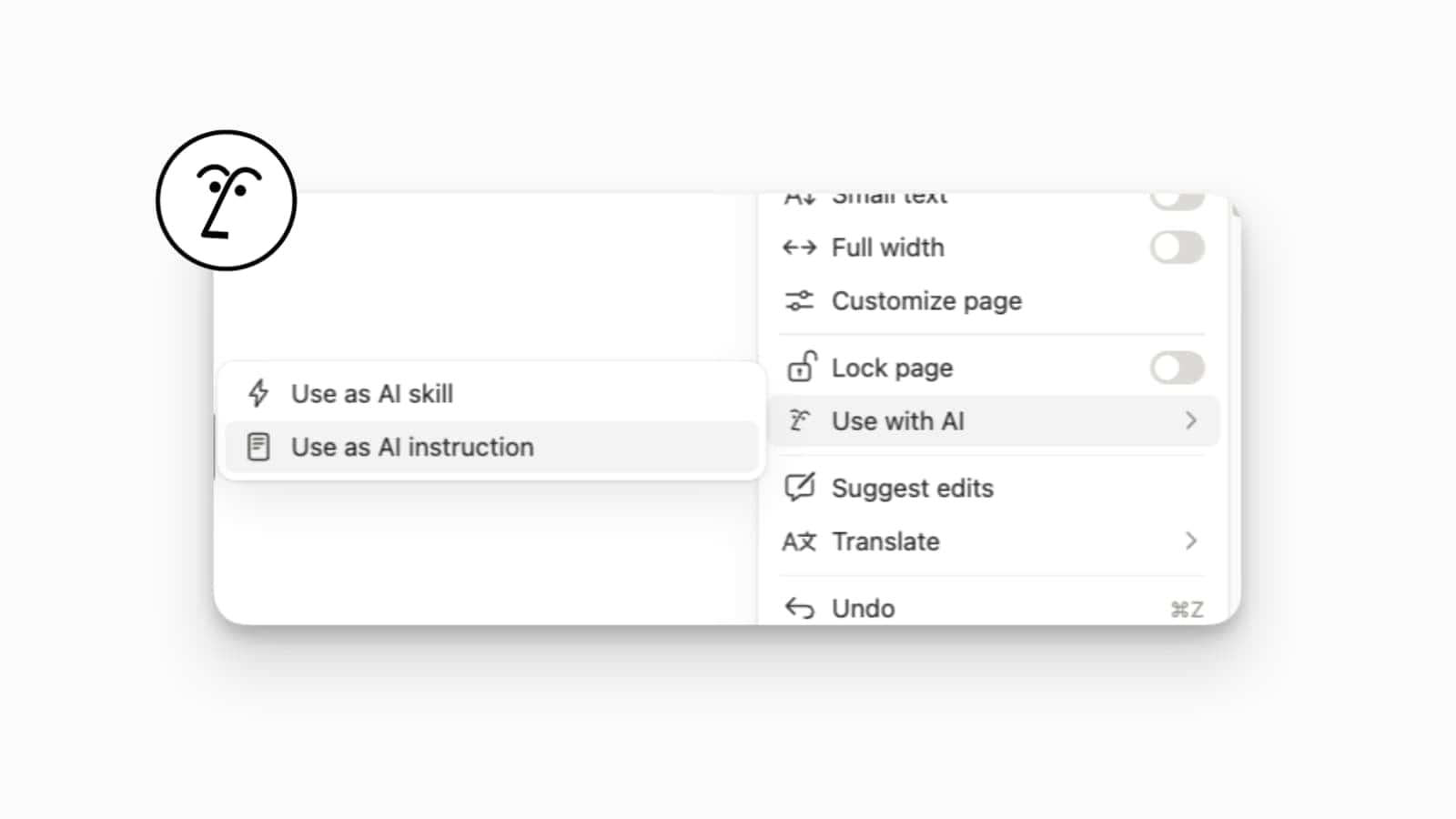
But don’t treat this feature as a security measure.
💡 Pro Tip: To take this even further, set up a proper permission system using Notion groups.
Give editing rights only to your Notion admins and keep everyone else on view-only for core pages.
This creates a “log-like” effect that doesn’t just prevent accidental edits, but also stops any unauthorised changes entirely.
Notion Mistake 5: Giving Full Access When Sharing A Database
🚫 Problem
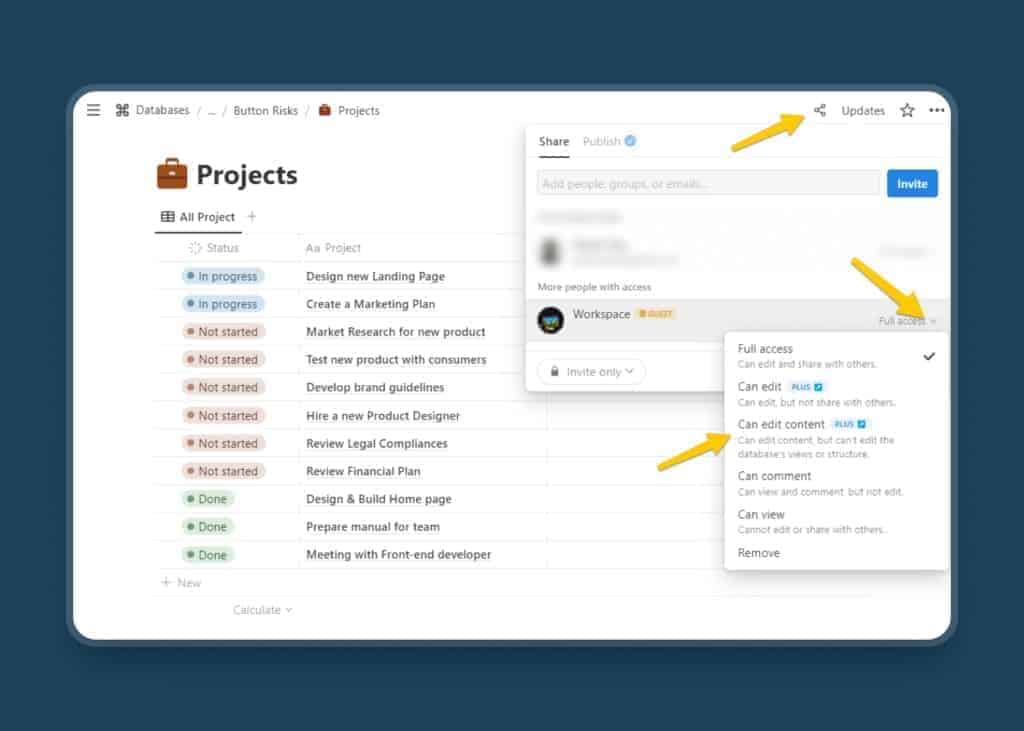
When you share a database, Notion defaults to Full access.
Most people leave it that way.
This means someone can:
- Edit database properties
- Modify relations
- Break formulas
- Delete entire views
- Remove records
All by accident.
✅ Solution
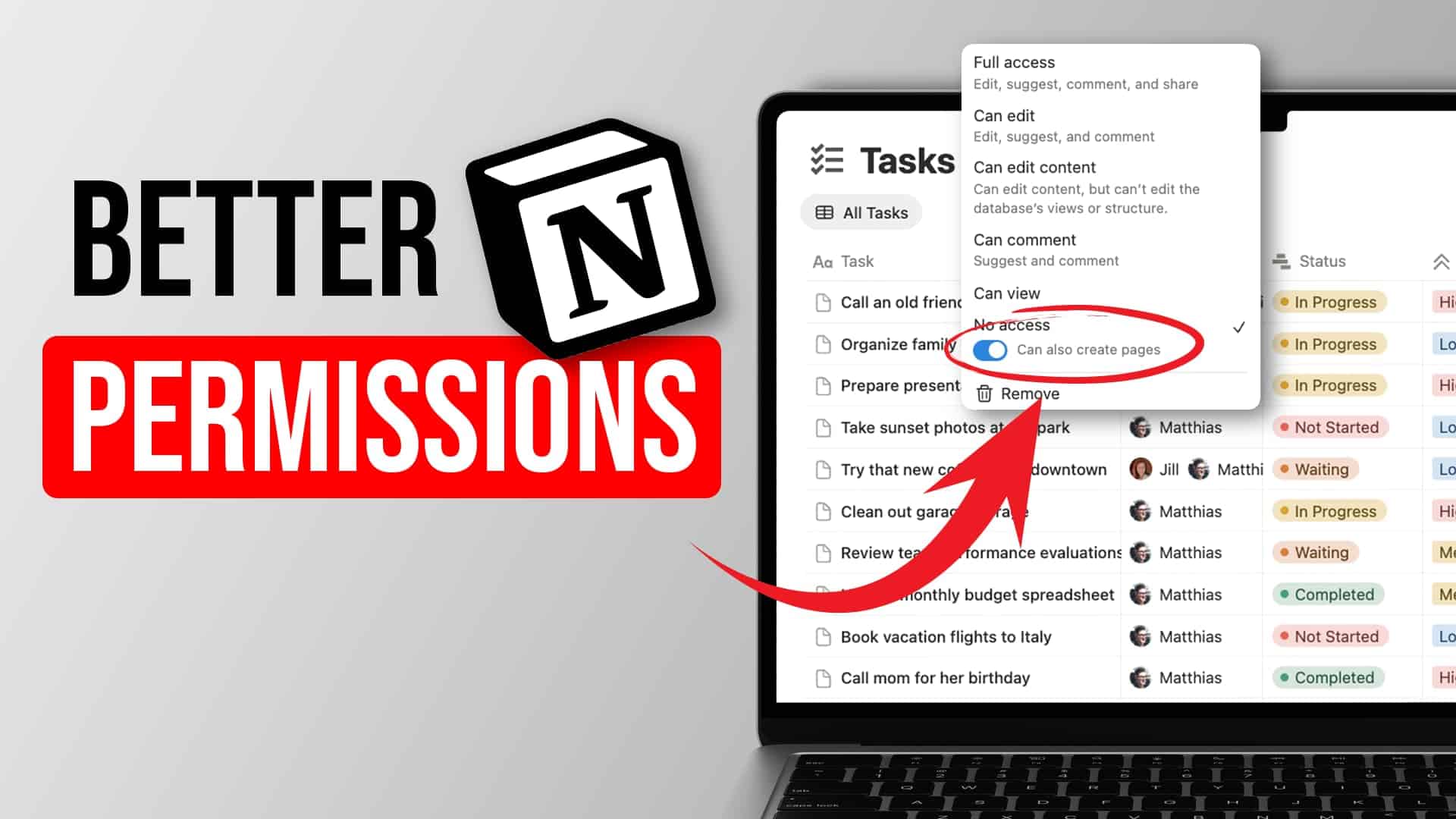
Use the lowest possible access level:
- Can edit content (if users should still be able to modify content in the database, i.e., set a task to done or update a due date)
- Can view (if they should not be able to do anything with the data and just look at it)
And if you share externally, always choose View only unless there is a clear operational reason not to.
You can learn more from my comprehensive guide on granular database permissions in Notions or my easy-to-follow video:

Notion Mistake 6: Giving External Apps Or Extensions Access To The Entire Workspace
🚫 Problem
Integrations like an AI Email Assistant are powerful, but they can be dangerous when misconfigured.
Some apps request access to:
- Every page
- Every database
- Every conversation
- Every file
When an app doesn’t need that scope, you’re opening a door for unnecessary risk.
✅ Solution
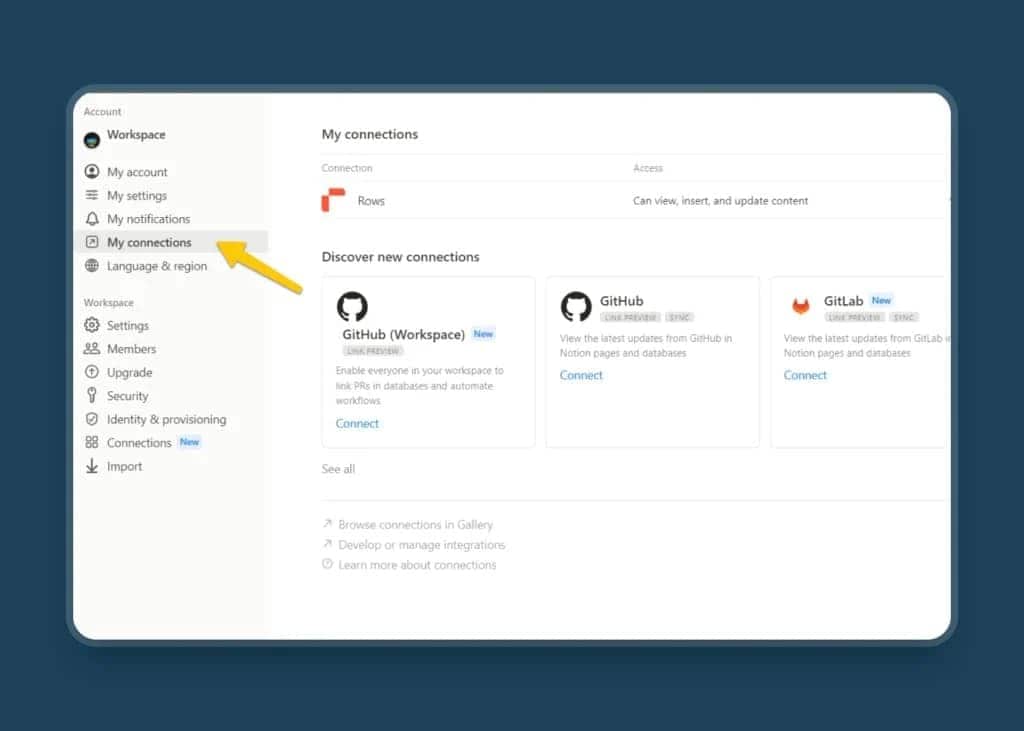
When connecting an app:
- Review the scope.
- Grant access only to specific pages or databases.
- Revoke unused integrations regularly.
💡 Pro Tip: Most integrations don’t need full access. Always choose “Selected pages” unless the workflow truly requires otherwise.
🌍 Real-world insights: A recent cybersecurity report highlights that 98% of organisations have engaged with third parties that have experienced a breach. With this in mind, it’s essential to carefully evaluate any third-party tools before integrating them with Notion to reduce potential risks.
Notion Mistake 7: Not Defining User Groups In Notion
🚫 Problem
Teams with 10+ people often add members individually.
This leads to:
- Messy permissions
- Random access levels
- Inconsistent sharing
- Human error
✅ Solution
User Groups allow you to create a cluster of users for whom you can easily manage access to pages, databases, or even the entire workspace.
Create User Groups for:
- Leadership
- Operations
- Finance
- Engineering
- Contractors
- Clients
Then assign permissions at the database level.
This provides predictable and secure access across your entire system.
To create user groups, head on over to Settings & Members in your sidebar, click on Members under the Workspace section and then navigate to Groups.
Check out my ultimate guide to Notion permissions for more information on that:
Notion Mistake 8: Sharing Databases The Wrong Way
🚫 Problem
Many people assume that sharing a filtered database view keeps everything else hidden. Unfortunately, that’s not how Notion’s permission system works.
When you share a page, you share everything on that page.
If that page contains a database, you are effectively sharing the entire database.
Even if you’ve applied filters to show only a portion of the information, users can still navigate back to the original source and bypass those filters.
So this approach is not secure for sensitive data such as:
- Salaries
- Performance notes
- Internal tags
- Personal records
Linked views work the same way. If someone doesn’t have access to the original database, the view will simply appear empty.
This used to be a huge limitation in Notion… but fortunately, Notion’s new granular database permissions completely change what’s possible.
I’ve explained the full update in detail here:
👉 Granular Database Permissions in Notion
✅ Solution
Use granular database permissions to control exactly what people can see and edit at the database level.
This allows you to safely share only the right rows and only the right fields, without exposing the rest of the database.
If you want a step-by-step walkthrough, here are my video guides that show you how to do this securely:
📺 How to Share Only Part of a Database in Notion With Your Clients:

📺 Granular Database Permissions:

📺 How to Hide Certain Database Properties:

💡 Pro Tip: Granular database permissions make most third-party workarounds unnecessary. Use them as your default method for sharing sensitive database content — they’re safer, cleaner, and built directly into Notion.
Other Notion Mistakes That Put Your Data At Risk
Some of the most painful mistakes don’t involve security leaks.
They involve accidental data destruction.
These mistakes lead to lost work, broken processes, and complete chaos in larger teams.
Notion Mistake 9: Not Testing Your Notion Buttons Carefully
🚫 Problem
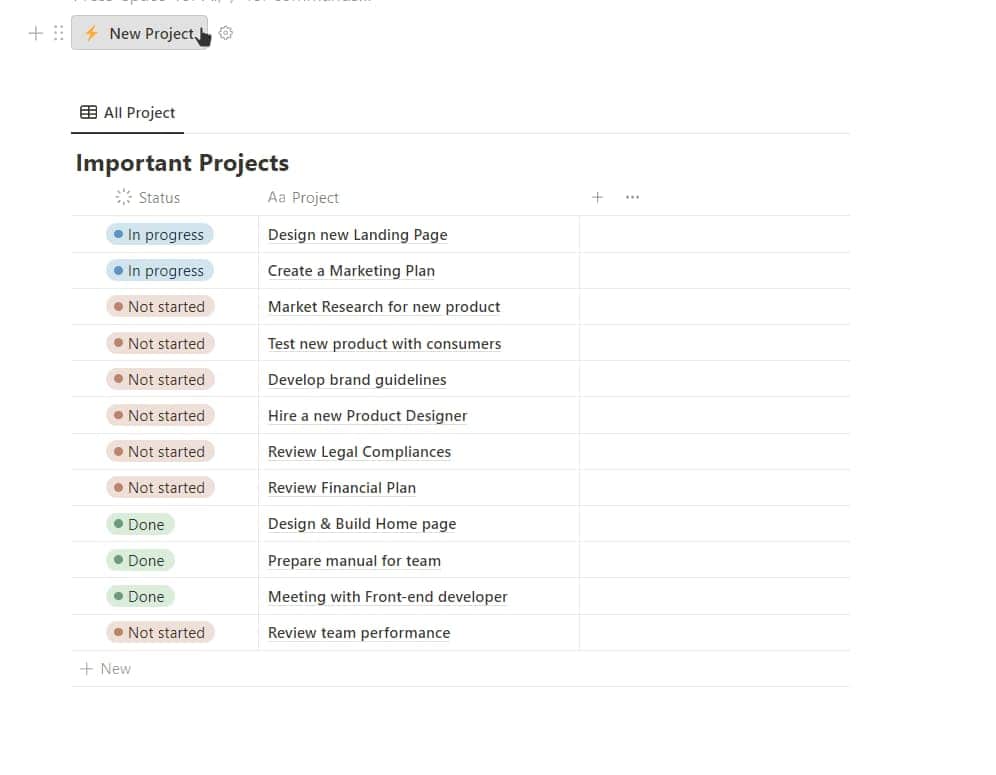
Notion Buttons are powerful. Here’s my explanation why:

They can help you automate your Notion workspace with just the click of, well, a button. You can add new pages to a database, change status, and even create a series of blocks. Amazing, right? But it comes with a price.
A misconfigured button can:
- Delete records
- Duplicate entire databases
- Overwrite fields
- Trigger large workflows unexpectedly
✅ Solution
Before adding a button to a live workspace:
- Clone the page.
- Test the button in a sandbox.
- Confirm every field behaves as expected.
Notion Mistake 10: Not Setting Up Notion Automations Properly
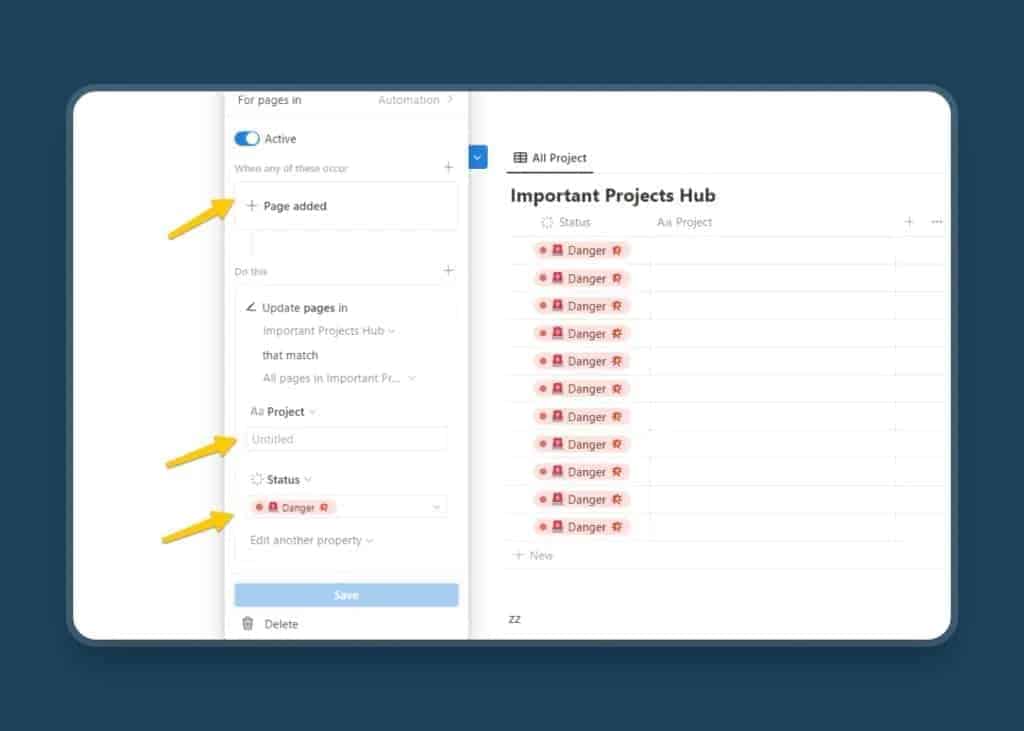
🚫 Problem
Similar to Notion buttons, Notion Automations also carry the risk of altering your database in an unexpected way. Automations can create a chain reaction.
For example:
A task completes → That updates a linked record → Which triggers a new automation → Which moves a record into a new database → Which triggers another automation
Suddenly, data goes missing or ends up in strange places.
✅ Solution
Treat automations like code deployments:
- Test in a separate workspace
- Deploy in stages
- Document the logic
- Review them monthly
Here’s how to set a granular filter in Notion:
Notion Mistake 11: Not Knowing How To Restore Notion Pages
🚫 Problem
People panic when something is deleted.
Teams freeze.
Work stops.
But Notion has an awesome page history system. The problem is that most people don’t know how to use it.
✅ Solution
You can restore:
- Individual blocks
- Entire pages
- Databases
- Deleted items
🔎 Go to Page history → Choose a version → Restore.
Notion Security Checklist: Keep Your Data Safe And Avoid Common Mistakes
Here’s a simple checklist you can run through monthly:
 Turn on 2FA for all members
Lock core pages
Review integration access
Confirm team groups are set correctly
Delete old members
Review shared pages
Check automations
Test buttons in a sandbox
Review database permissions
Keep backups via exports
Stay updated with new features
👉 If you want to stay ahead, sign up for my Notion newsletter that will keep you updated with all the news in a simple, practical way.
Notion Security: Final Thoughts
So… is Notion safe to use?
Very much so.
But only when you use it properly.
Your workspace is like a garden.
Notion gives you the soil, the structure, and the tools.
Security comes from how well you organise your shed and maintain the space. It can be much easier with the help of a professional gardener.
👉 If you want a secure Notion workspace that scales without chaos, we can build custom systems that are fast, safe, and easy for your team to use.
Get Your Perfect Notion Setup→
👉 If you’d rather invest time and learn Notion on your own, you can check out our comprehensive free resources:
Jumpstart Your Notion Workspace With 21+ Free Templates
Frequently Asked Questions
Is Notion Private And Safe To Use?
Yes. Notion uses TLS 1.2 encryption while your data is in transit and AES-256-bit encryption for data at rest, and it follows modern compliance standards like SOC 2 Type II and ISO 27001. These measures make it secure for personal and business use.
Most real risks come from oversharing pages, weak passwords, and misconfigured permissions.
Focus on setting up access levels properly, enabling 2FA, and reviewing what you share.
Does Notion Use End-to-End Encryption (E2E)?
Notion does not use end-to-end encryption. This doesn’t mean your data is “public” or that other people can freely access it.
Rather, it means your information is encrypted on Notion’s servers instead of exclusively on your device.
Notion avoids E2E encryption because it would break key features such as real-time collaboration, full-text search, and the ability for support staff to help recover content when needed.
The platform instead uses strong, industry-standard encryption while prioritising usability and collaboration.
Who Can Access My Notion Workspace?
Anyone you explicitly invite. You control access at the page, database, and group level.
You can also view all external integrations and revoke access at any time in Settings & Members.
What Are The Common Notion Security Concerns?
The main concerns involve human error: oversharing databases, misconfigured automations, dangerous integrations, untested buttons, and weak password hygiene. The platform itself is secure when used properly.
Sources
- Notion’s Security & Privacy https://www.notion.com/help/privacy
- Cost of a Data Breach Report 2024 https://www.ibm.com/downloads/documents/us-en/107a02e94948f4ec
- Microsoft Entra multifactor authentication (MFA) https://www.microsoft.com/en-us/security/business/identity-access/microsoft-entra-mfa-multi-factor-authentication
- Global Third-Party Cybersecurity Breaches https://securityscorecard.com/wp-content/uploads/2024/02/Global-Third-Party-Cybersecurity-Breaches-Final-1.pdf
- SAML SSO https://www.notion.com/help/saml-sso-configuration