Notion’s new “Can Create Pages” database permission finally lets external collaborators and restricted team members add entries to a database — without giving them access to everything inside it. Released on 5 March 2026, this update closes one of the biggest gaps in Notion’s granular permissions system and unlocks powerful new workflows for both guest collaboration and internal document security.

What Was The Problem With Database Permissions Before?
Notion’s granular database permissions already let you control who could see specific rows in a database based on a person property. That was a big step forward — but it left one glaring hole.
Users who only had page-level access couldn’t create new entries.
To click the New button in a database, you needed permissions on the database itself. Page-level access rules only kicked in after an entry existed. So if you had a freelancer, a client, or an external partner who needed to add tasks, documents, or requests — they were stuck.
Your workarounds were limited:
- Notion Forms — functional, but clunky. The person filling out the form couldn’t be tracked automatically, and the experience felt disconnected from the actual database.
- External tools — you could wire something up with Make or Zapier and UTM parameters, but that’s a lot of overhead for what should be a native interaction.
- One database per client — technically possible, but defeats the purpose of having a single global database with permission-based access. Don’t do this.
The result? You could show entries to external parties and let them edit — but you couldn’t give them a clean way to add new ones.
How Does The New “Can Create Pages” Permission Work?
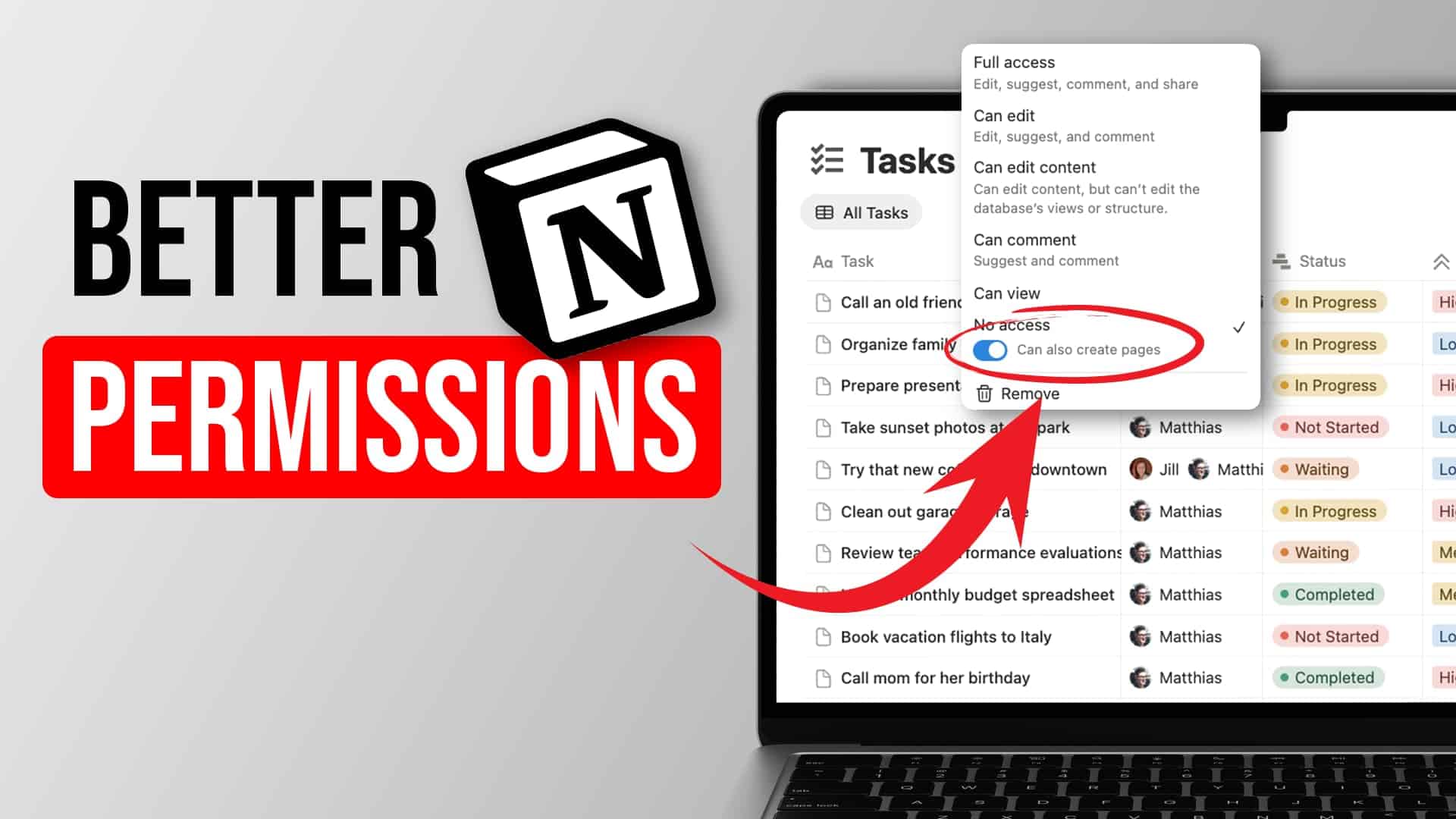
The new permission adds a simple toggle: users who have No Access, Can View, or Can Comment on a database can now also be granted the ability to create pages in it.
| Permission Level | Can View Entries | Can Comment | Can Edit Entries | Can Create Pages (New Toggle) | Can Edit Database Structure |
|---|---|---|---|---|---|
| No Access | ❌ | ❌ | ❌ | ✅ Optional toggle | ❌ |
| Can View | ✅ | ❌ | ❌ | ✅ Optional toggle | ❌ |
| Can Comment | ✅ | ✅ | ❌ | ✅ Optional toggle | ❌ |
| Can Edit Content | ✅ | ✅ | ✅ | Built in (no toggle needed) | ❌ |
| Can Edit | ✅ | ✅ | ✅ | Built in (no toggle needed) | ✅ |
| Full Access | ✅ | ✅ | ✅ | Built in (no toggle needed) | ✅ + Can share |
Here’s how to set it up for an external collaborator:
- Open your database and click Share in the top right
- Type in the guest’s email address
- Set their permission level to No Access (this might feel counterintuitive — stay with it)
- A new toggle appears: Can Create Pages — switch it on
- Notion will prompt you to add a page-level access rule so the creator can edit their own entries. Accept this — choose either Can Edit or Can Edit and Share
- Share a linked view of the database with your guest
That’s it. Your guest now sees an empty linked view (since no entries match their access rules yet), but they can click New and start adding entries.
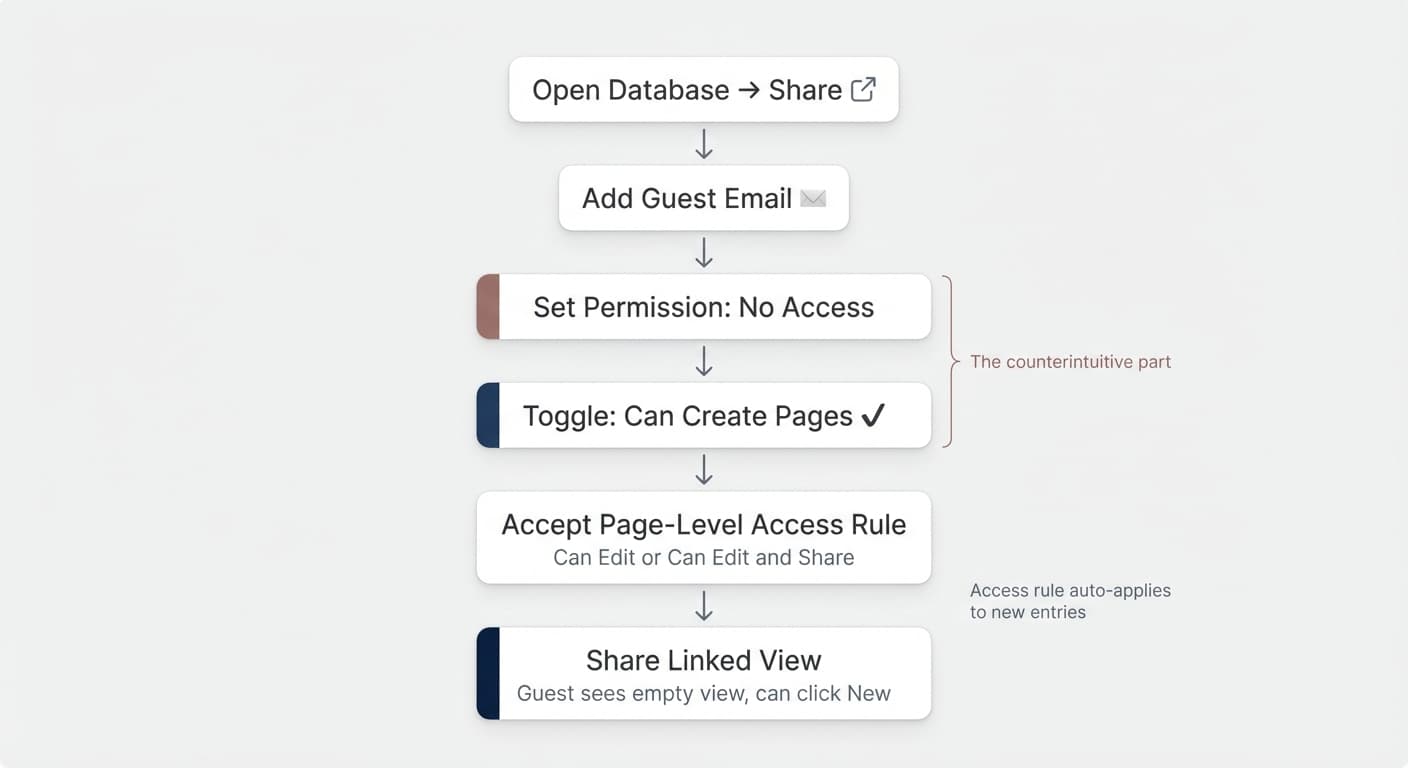
Once they create an entry, the page-level rule kicks in automatically — they can see and edit what they created, but nothing else in the database.
Pro Tip: The “Can Create Pages” toggle is available on three permission levels: No Access, Can View, and Can Comment. It disappears at Can Edit Content and above, because those levels already include creation rights by default.
How Can Teams Use This For Internal Document Security?
This is where the update gets really powerful. The external collaborator use case is straightforward, but the internal pattern — “public by default, secret by exception” — is arguably the bigger unlock.
Here’s the scenario: you have a global Documents database. 90% of entries should be visible to everyone on the team. But a handful — HR documents, finance records, sensitive strategy docs — need to be locked down.
Previously, you’d have to manually adjust permissions on each sensitive page. That meant going into every entry, removing access, adding the right group — and then training your entire team to do the same. It didn’t scale.
Now you can automate the whole thing. Here’s the pattern:
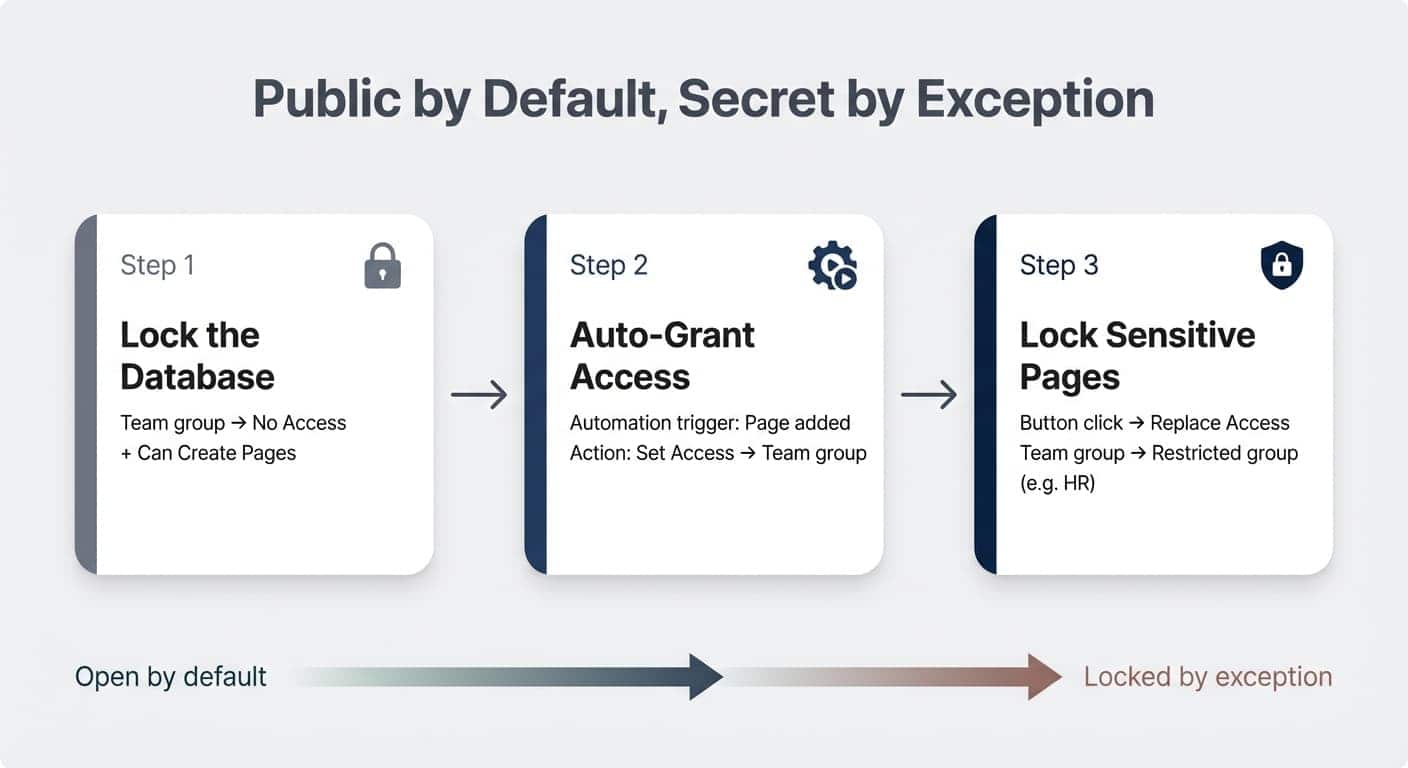
Step 1: Lock Down The Database
Remove general team access from the database itself. Instead of managing access through the teamspace, create a group that includes everyone in the company and give that group No Access + Can Create Pages.
This means nobody can browse the raw database — but everyone can create new entries through a linked view.
Step 2: Auto-Grant Access To New Entries
Set up a database automation:
- Trigger: When a page is added to the database
- Action: Set the Access property (a person property) to your “Team” group
Now every new entry automatically becomes visible to the whole team. No manual step required.
Step 3: Lock Down Sensitive Entries With A Button
Create a database button that:
- Shows a confirmation prompt (“Are you sure you want to restrict this document?”)
- Replaces the Access property value with a restricted group (e.g., “HR” or “Admin”)
When someone clicks the button, the entry disappears from everyone else’s view. Only members of the restricted group can see it.
The result: a self-service system where documents are open by default, and locking something down is a single click.
Pro Tip: This pattern works best when you manage access through groups rather than teamspace-level permissions. Groups give you a clean, central place to control who’s in the “everyone” pool versus specific restricted pools like HR or Finance.
What Are The Current Limitations?
The feature is solid, but there are a few things to watch out for.
Page-level access still requires a person property. All granular permission rules run off person properties in your database. You can’t set rules based on select fields, tags, or any other property type — at least not yet.
Linked views can’t be created via slash command. If a user doesn’t have access to the original database, they can’t type /linked view and search for it. The database simply won’t appear in the search results. The workaround is to provide a pre-built linked view that users can duplicate. If you’re rolling out Notion to a team, build linked views into your standard dashboards so people don’t hit this wall.
Minor bug with newly created entries. Right now, there’s a small delay before a freshly created entry becomes fully openable. If you click it and nothing happens, refresh the page — it should resolve immediately. This is likely to be patched soon.
No native “lock this page” button. While you can build the lock-down workflow with database buttons and automations, Notion still doesn’t have a single built-in button that says “make this private.” You need to set up the infrastructure yourself.
What Does This Mean For Notion AI?
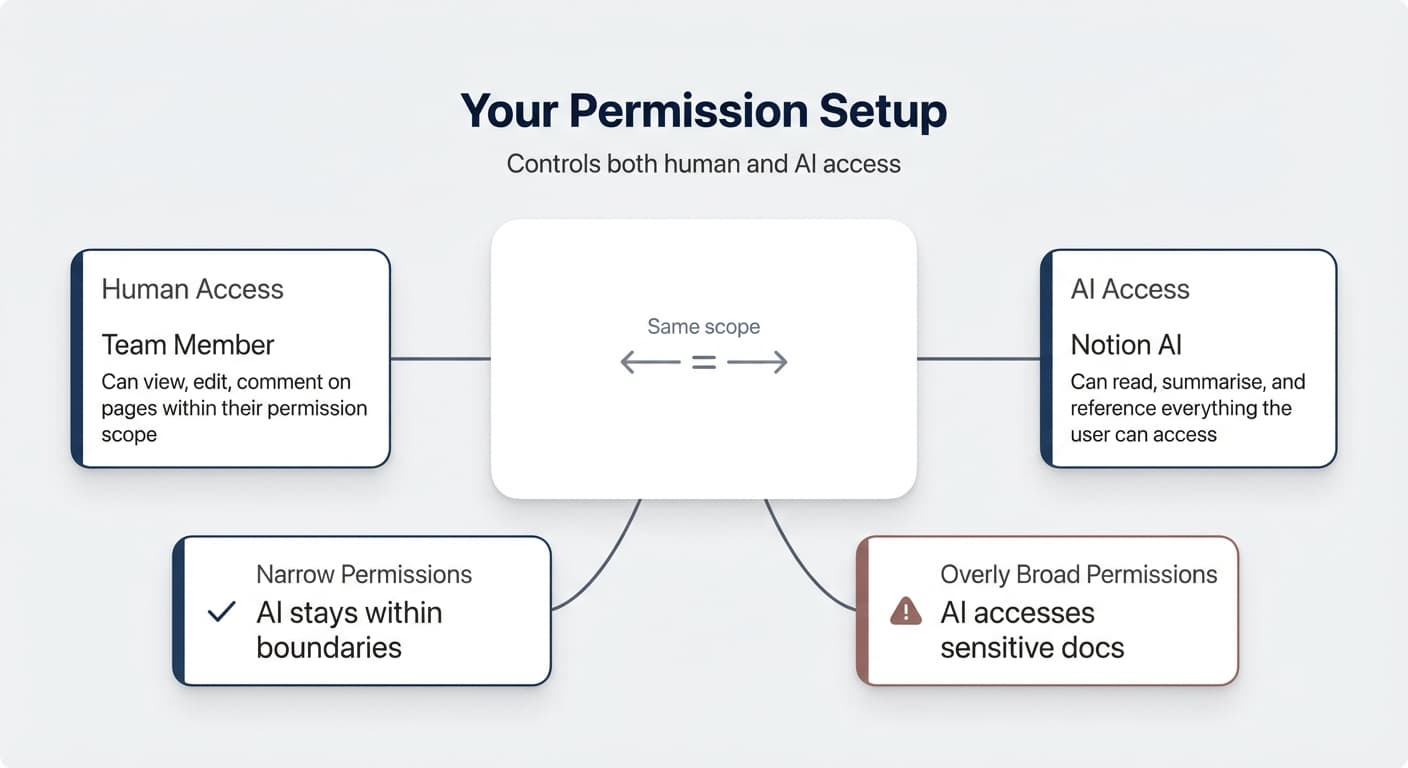
Here’s an angle that’s easy to overlook: Notion AI can access everything you can access.
That makes your permission setup directly relevant to AI behaviour. If a team member has overly broad access, their AI assistant can read, summarise, and reference documents they probably shouldn’t be seeing.
Getting granular permissions right isn’t just about human access anymore — it’s about making sure your AI tools operate within the right boundaries too.
📬 Want to learn how to set up Notion for your team the right way? Our free Notion for Teams email course covers 7 essential frameworks — one per day, 5 minutes each.
Frequently Asked Questions
What Permission Levels Support The “Can Create Pages” Toggle?
The toggle is available on three levels: No Access, Can View, and Can Comment. If a user already has Can Edit Content or higher, they can create pages by default — so the toggle isn’t needed and won’t appear.
Can External Guests Create Entries In A Database They Can’t See?
Yes — that’s exactly what this feature enables. You give a guest No Access + Can Create Pages, share a linked view with them, and they can add new entries. Combined with a page-level access rule, they’ll be able to see and edit only the entries they created.
Do I Need A Database Automation For The Team Use Case?
Yes, if you want the “public by default” pattern. Without the automation, new entries won’t have anyone in the Access property — so nobody except the creator will see them. The automation fills in the team group automatically on every new entry.
Can Users Without Database Access Create Their Own Linked Views?
Not through the slash command — the database won’t appear in search if you don’t have access to it. But you can duplicate an existing linked view. The best practice is to include pre-built linked views in your team’s standard pages and dashboards.
Is This Feature Available On All Notion Plans?
Granular database permissions, including the new “Can Create Pages” toggle, are available on Business and Enterprise plans.
💼 Need the support of certified Notion Consultants? My team and I are here to help! → Get in touch