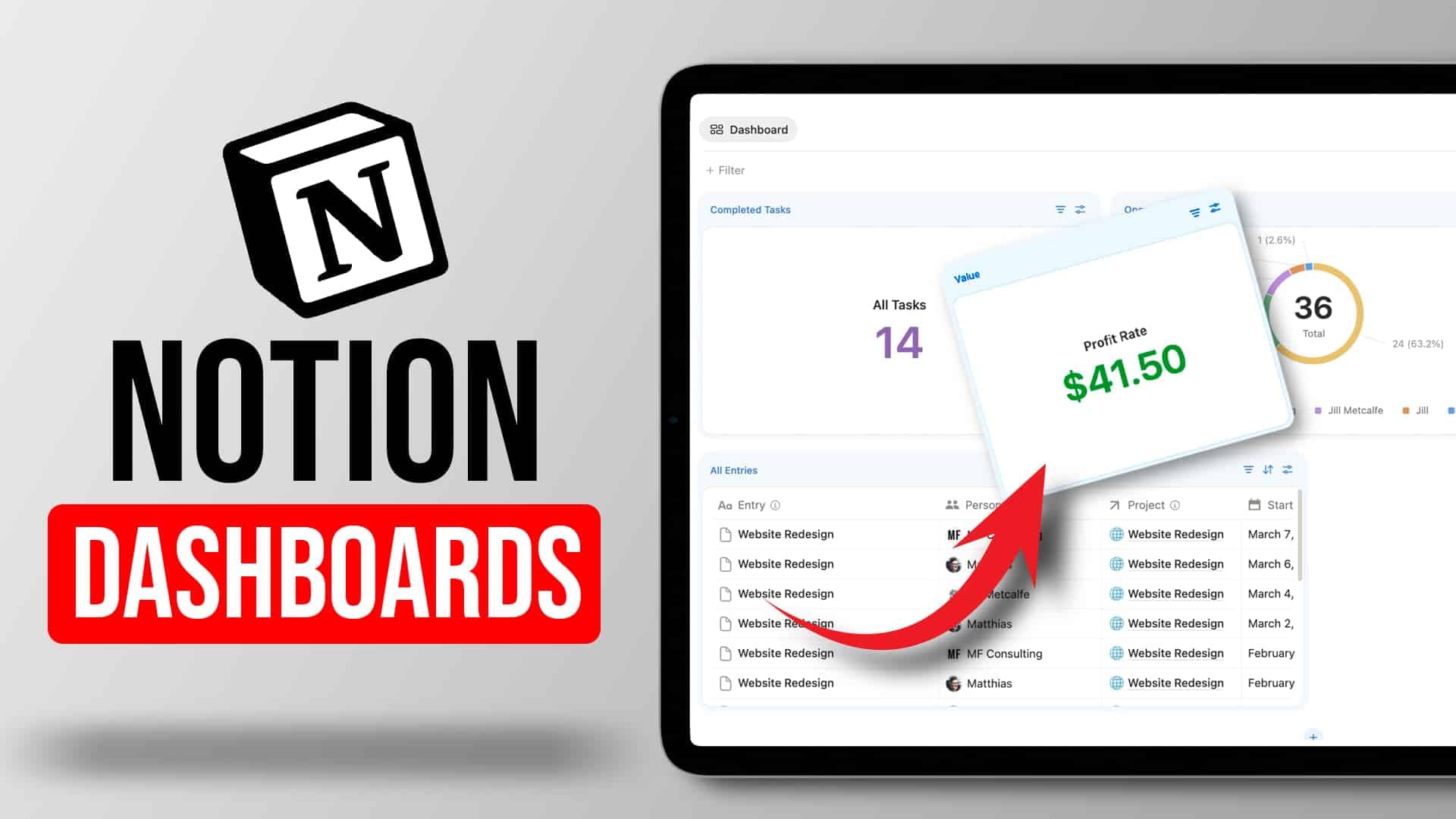
Notion Dashboards are the biggest UI update Notion has shipped in years — and they change how you build, filter, and interact with data across your workspace. This new database view type lets you pull charts, tables, boards, and calendars from multiple data sources into a single responsive container, complete with global filters that work across all of them at once. Whether you want a bird’s-eye view of your team’s workload, a project-specific command centre, or a leadership reporting page with cross-database filtering, Notion Dashboards give you the tools to build it without workarounds or hacks. Here’s everything you need to know about how they work, what they unlock, and where the edges still are.
What Are Notion Dashboards?
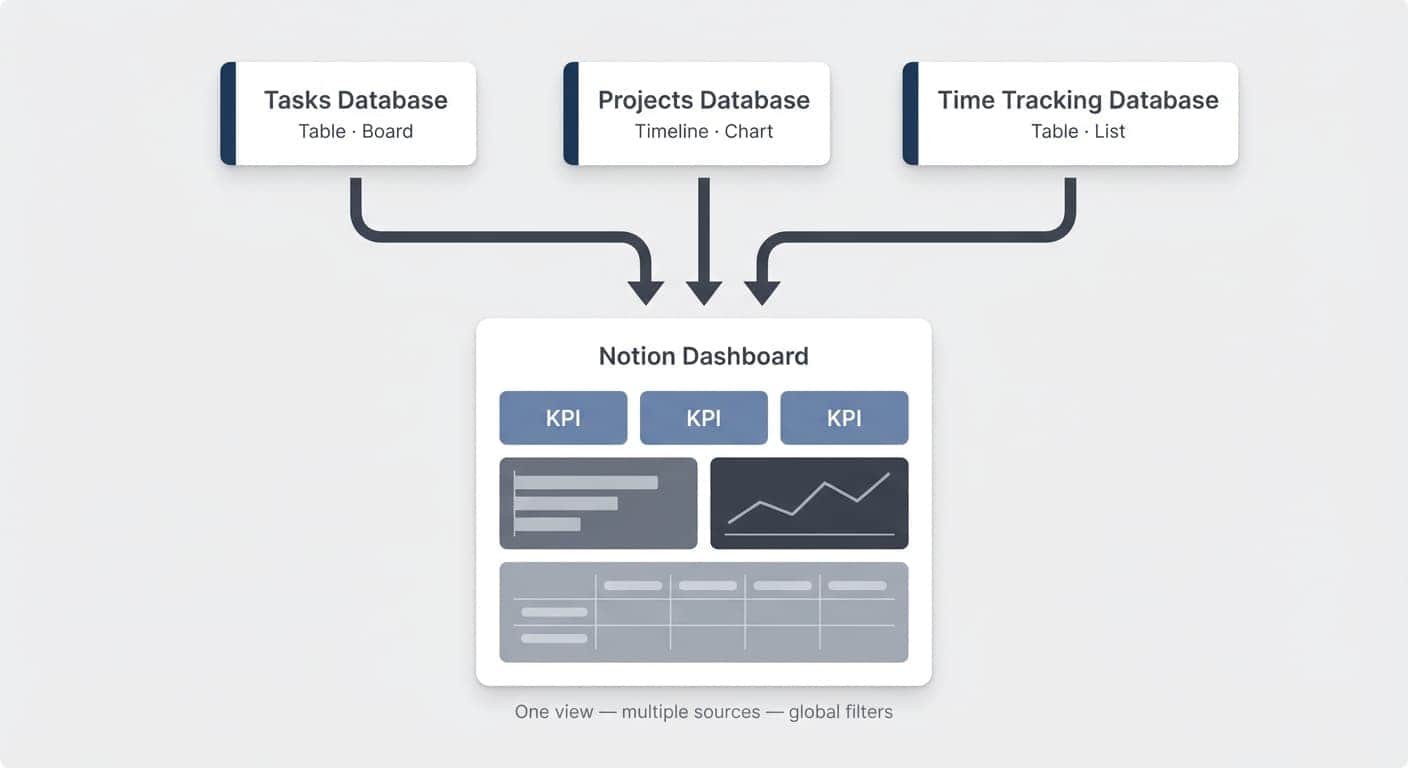
Notion Dashboards are a new type of database view that acts as a container for multiple sub-views. Instead of manually embedding linked database views on a page and wrestling with columns and callouts for layout, you get a dedicated builder that handles responsiveness, spacing, and structure for you.
You can create one in two ways:
- Type
/dashboardanywhere in your workspace - Open any existing database, click + New View, and select Dashboard
Once inside the dashboard editor, you add views from any database in your workspace — charts, tables, boards, calendars, lists. Each view is a widget you can drag, resize, and arrange in rows.
The result is a clean, padded container that looks polished out of the box. Think of it as Notion giving you a proper dashboard builder instead of asking you to fake one with callouts and columns.
Pro Tip: When you’re done editing, click Done to lock the dashboard. This gives you a clean viewing experience and prevents accidental changes — users can still adjust global filters without entering edit mode.
How Do Notion Dashboards Global Filters Work?
Global filters are the standout feature of Notion Dashboards — and the reason they’re more than just a visual upgrade. They let you filter every view inside your dashboard at once, without touching individual view filters.
Click the filter bar above your dashboard views, add a filter (say, Owner), and every widget responds immediately. Previously, filtering seven views meant setting seven separate filters. Now it’s one click.
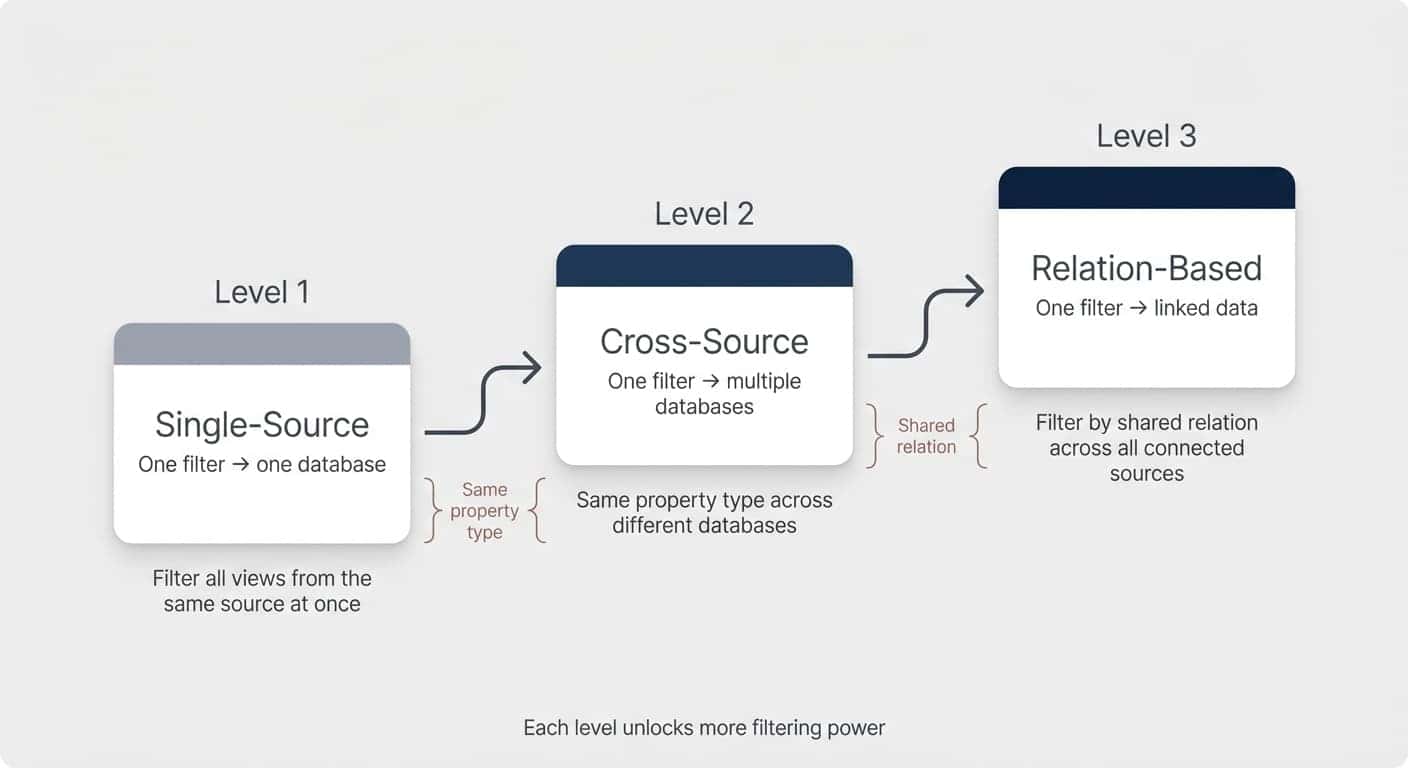
But it gets better. Global filters support three levels of power:
Single-source filters work exactly like regular view filters, but applied from the dashboard level. Add a date filter, and every view from that database narrows down.
Cross-source filters are where things get exciting. If your dashboard pulls from multiple databases — say, Tasks and Projects — and both have a Person property, you can create one global filter that filters both at once. Select your name, and you instantly see only your tasks and your projects.
Relation-based cross filters take it even further. If Tasks and Time Tracking both relate to Projects, you can create a global filter on the Project relation. Pick “Website Design” and every view filters down to show only the tasks, time entries, and data linked to that project.
This is a massive upgrade for interactive dashboards. Instead of building separate pages for different time periods, teams, or projects, you build one Notion Dashboard and let users toggle the filters themselves.
Pro Tip: Global filters currently only support simple filters — you can’t yet create advanced filter groups (with AND/OR logic) at the dashboard level. Use simple global filters for things users should actively change (like Owner or Date Range), and keep your complex filtering logic inside each individual view’s advanced filters.
How Do Notion Dashboards Number Charts Work?
For the first time, you can display a standalone number widget inside a Notion Dashboard — no donut chart wrapper required. This is perfect for KPIs, totals, and at-a-glance metrics.
Add a new view inside your dashboard, select chart, and choose the Number format. You get a clean, large number that you can customise with:
- Decimal places
- Currency formatting (£, $, €)
- Colour coding (blue, green, red — whatever fits your dashboard’s visual language)
- An optional chart title
Drop a “Total Tasks” number next to an “Open Tasks” number and a “Completed” number, and you’ve got a KPI row that loads instantly and communicates status at a glance.
How Do Notion Dashboards Work With Tabbed Layouts?
This is the sleeper feature. If you use database page tab layouts (and you should — they’re one of the best ways to organise information inside database pages), Notion Dashboards solve the biggest limitation tabs have had since launch.
Previously, each tab could only hold one view from one database. If you wanted to show open tasks, completed tasks, and a chart — that’s three tabs. It spiralled quickly.
Now, you can set any tab to Dashboard layout. That single tab can hold multiple views from multiple databases. Your project page can have a “Content” tab for notes and a “Dashboard” tab that shows task breakdowns, time entries, and status charts — all in one place, auto-filtered for that specific project.
Pro Tip: There’s currently a small bug where views added through the Notion Dashboards builder inside a tabbed layout don’t auto-filter for the current page. You’ll need to set that filter manually (either per-view or as a global filter). Expect this to be fixed soon.
What Layout and Sizing Options Do Notion Dashboards Offer?
Notion Dashboards give you a responsive drag-and-drop builder that’s a significant step up from the old column approach.
You can arrange widgets side by side (up to four per row) by dragging one on top of another. Each row has an adjustable height — drag the divider between rows to grow or shrink them.
This is particularly useful for table views. Notion’s minimum load limit has always been 10 rows, which often felt like too many for a dashboard widget. With adjustable row heights, you can visually crop a table to show just four or five entries. The data still loads underneath (there’s a scroll bar), but the visible footprint stays compact.
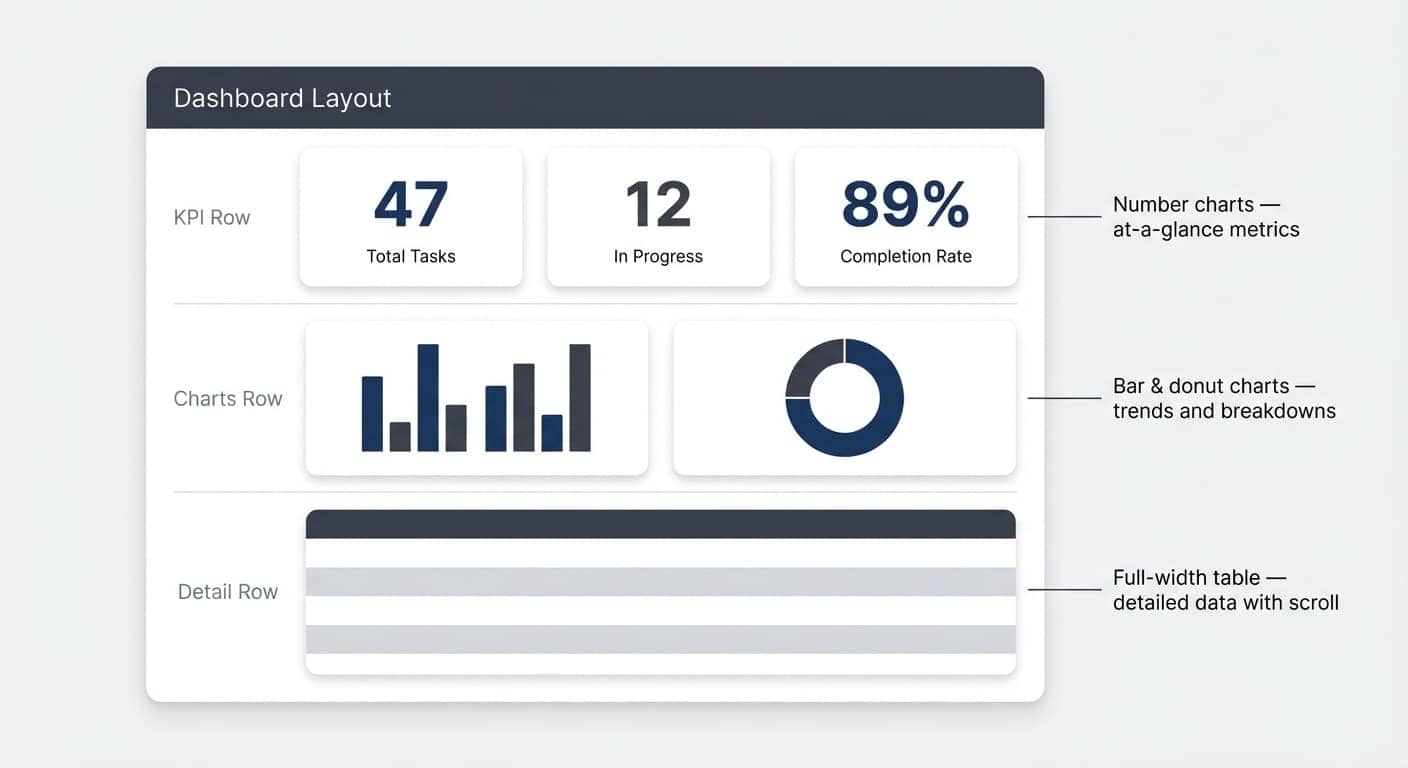
A few layout tips:
- Charts work best side by side — two or three donut/bar charts in a row is a clean look
- Board views need breathing room — don’t squeeze a Kanban board into a quarter-width slot
- Mix and match rows — put a KPI number row at the top, charts below, and a full-width table at the bottom
What Are the Limitations of Notion Dashboards?
No sugarcoating — there are real constraints to be aware of.
12-widget cap. Each Notion Dashboard supports a maximum of 12 views. This is a deliberate performance decision. You can work around it by stacking multiple dashboards on the same page, but this doesn’t work inside tabbed layouts.
Business plan and above only. This is the biggest limitation. Notion Dashboards are not available on Free or Plus plans. If you’re using Notion for work, the Business plan is already a strong recommendation (AI alone makes it essential), but it does mean personal users on free plans are left building dashboards the classic way.
No advanced global filters yet. Global filters are simple filters only — no AND/OR groups. You can still use advanced filters inside individual views, but the dashboard-level filtering lacks that depth for now.
No content blocks inside dashboards. You can’t add text, callouts, toggle headings, or tooltips between your views. Every widget is a database view. If you need explanatory context around your data, you’ll need to combine the Notion Dashboard with regular page content above or below it.
No collapsible sections. Unlike toggle headings on a regular page, you can’t hide or collapse parts of a dashboard. Everything is visible all the time.
Will Notion Dashboards Replace Classic Embedded-View Dashboards?
Not entirely — and that’s fine. Think of Notion Dashboards as a powerful new tool in your toolkit, not a replacement for everything that came before.
Notion Dashboards vs. Classic Embedded-View Dashboards
| Feature | Notion Dashboards (New) | Classic Embedded-View Dashboards |
|---|---|---|
| Global filters across all views | ✅ Built-in — single-source and cross-source | ❌ Each view filtered individually |
| Cross-database filtering | ✅ Filter multiple databases at once by person, date, or relation | ❌ Not supported |
| Responsive layout | ✅ Drag-and-drop builder, adjustable row heights | ⚠️ Manual columns — limited responsiveness |
| Content blocks between views | ❌ Views only — no text, callouts, or tooltips | ✅ Full Notion block support (text, callouts, toggles) |
| Collapsible sections | ❌ Not supported | ✅ Toggle headings hide and show sections |
| Advanced filter logic (AND/OR groups) | ⚠️ Per-view only — not at global level yet | ✅ Full advanced filters on every view |
| Works inside tabbed database layouts | ✅ Multiple views from multiple databases in one tab | ⚠️ One view per tab only |
| Standalone number (KPI) widgets | ✅ Native number chart format | ✅ Native number chart format |
| Maximum views per container | 12 widgets per dashboard | No hard limit (performance-dependent) |
| Plan requirement | Business plan and above | Available on all plans including Free |
Classic embedded-view dashboards (linked views inside callouts, columns, and toggle headings) still have advantages:
- Context blocks. You can add explanatory text, tooltips, and instructions between views. Good UI often needs a sentence explaining what the user is looking at — Notion Dashboards don’t support that yet.
- Toggle headings. Collapsible sections are brilliant for pages where some information is only needed occasionally. This keeps load times fast and reduces visual noise.
- Callout styling. The old method of wrapping a linked view in a callout with no background gives you a similar padded-container look, with more flexibility over icons and labels.
The sweet spot is combining both approaches. Use a Notion Dashboard for your chart overview and cross-filtered data, and use classic embedded views for sections that need additional context or toggle-based progressive disclosure.
Two use cases where Notion Dashboards are unbeatable:
- Tabbed database layouts. The ability to pack multiple views from multiple databases into a single tab is transformative for project pages, client pages, and any database page that needs a dashboard alongside its content.
- Chart-heavy reporting pages. Leadership dashboards, sprint overviews, CRM pipelines — anywhere you need to filter multiple charts and tables by the same criteria. Global cross-filters make this effortless.
Frequently Asked Questions
How Do You Create a Notion Dashboard?
Type /dashboard in any page or open an existing database, click + New View, and select Dashboard. From there, add views from any database in your workspace. Each view becomes a widget you can arrange, resize, and filter. Click Done when you’re finished editing to lock the layout.
Can Notion Dashboards Filter Across Multiple Databases?
Yes — this is one of the most powerful features. Global cross-source filters let you filter views from different databases simultaneously, as long as the filter targets the same property type. For example, a Person filter can target the Owner property on your Tasks database and the Owner property on your Projects database at the same time.
Are Notion Dashboards Available on the Free Plan?
No. Notion Dashboards require a Business plan or above. Free and Plus plan users can still build dashboards manually using linked database views, columns, and callouts — which replicates most of the functionality except for global filters.
What Is the Maximum Number of Widgets in a Notion Dashboard?
Each Notion Dashboard supports up to 12 widgets. This limit exists for performance reasons. If you need more, you can add multiple dashboards to the same page (though not inside a tabbed database layout).
Do Notion Dashboards Support Advanced Filters?
Not at the global level — yet. The dashboard-wide filter bar currently only supports simple filters that stack on top of each other. For complex AND/OR filter logic, you’ll need to set up advanced filters inside each individual view. Expect Notion to add advanced global filter support in a future update.
Can you create single number widgets?
Yes, as part of this update, Notion is also shipping a new chart view type – Number! It’s exactly what it says on the tin. Simply a big clean render of whatever number you’re aggregating through the Chart View. Works both inside the new dashboard view but also anywhere else where you can place a chart.