✅ Key Takeaways
- Notion Custom Agents are now live as of 24 February 2026, available on Business and Enterprise plans.
- Unlike your personal Notion AI agent, custom agents are proactive — they run on triggers like schedules, Slack messages, emails, and database changes.
- You can scope permissions precisely, giving each agent access only to the databases, pages, and tools it needs.
- Custom agents can be shared with your entire team, making them ideal for organisation-wide workflows.
- Notion is introducing Notion Credits — a new add-on pricing model at $10 per 1,000 credits — starting May 4, 2026. Until then, custom agents are free to try.
- The best results come from following the one agent, one job principle and writing ruthlessly precise instructions.
- Custom agents are the final layer of a mature Notion setup — they require a solid data foundation to deliver real value.
🧠 What Are Notion Custom Agents?
Notion Custom Agents were the headline announcement at Notion’s 2025 event — and as of 24 February 2026, they are available to everyone on Business and Enterprise plans.
We have been testing custom agents in early access across multiple client projects over the past months. And they are worth the wait.
So what exactly are they?
The easiest way to understand custom agents is to compare them to something you already know: your personal Notion AI agent.
Your personal agent is the one that lives in the AI bubble at the bottom of your screen. You click on it, you chat with it, and it does things for you. It is incredibly useful.
But it has one fundamental limitation: it only works when you tell it to.
Every report it generates, every database it updates, every workflow it executes — you have to be there, typing the prompt, waiting for the result.
Custom agents flip this on its head.
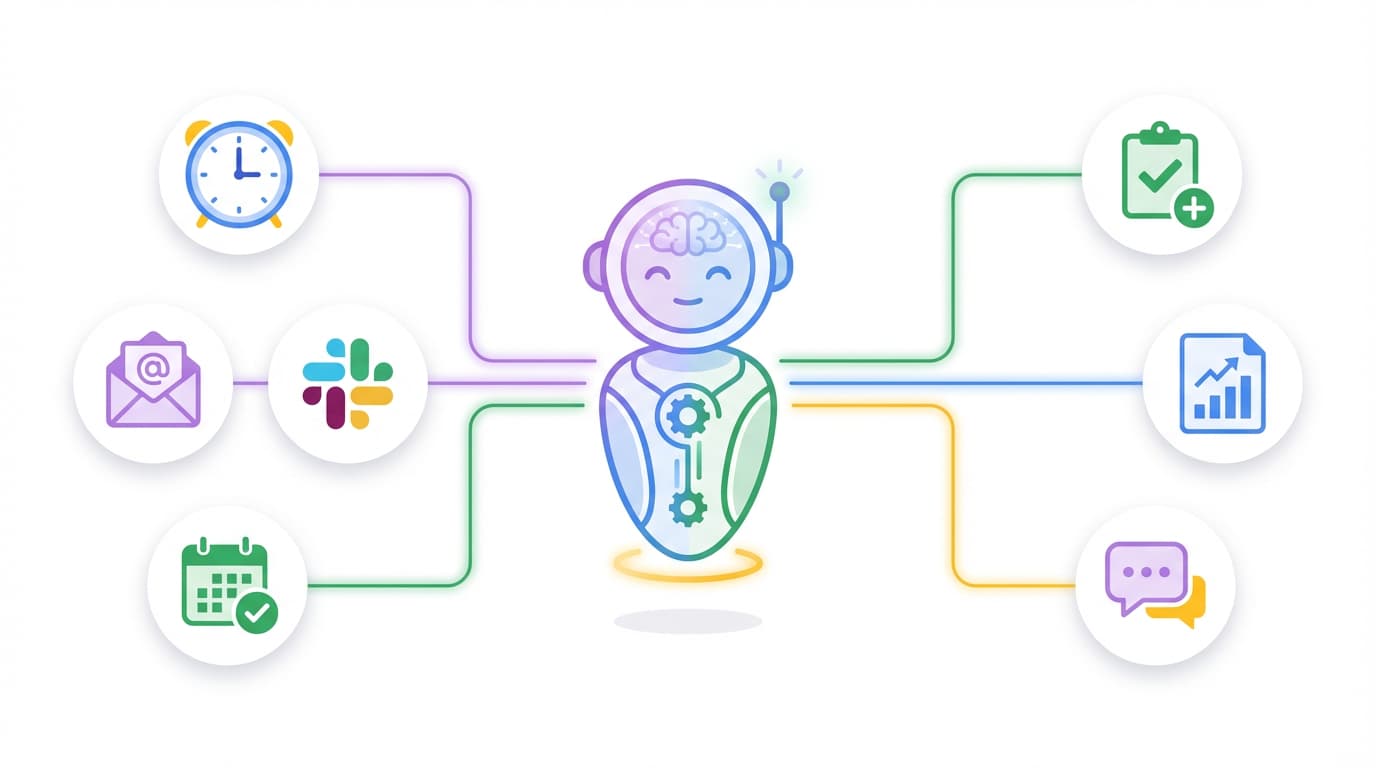
They are proactive. They spring to life based on triggers — a new email arrives, a calendar event is created, a Slack message is posted, or simply every Monday at 9 AM.
No human input required.
⚖️ Personal Agent vs Custom Agent: The Key Differences
There are three fundamental differences that set Notion Custom Agents apart from anything Notion has offered before:
| Personal Agent | Custom Agent | |
|---|---|---|
| Activation | Reactive — only runs when you prompt it | Proactive — runs on triggers and schedules |
| Permissions | Can access everything you can access | Scoped to specific databases, tools, and pages |
| Availability | Only available to you | Can be shared with individuals, teams, or the entire workspace |
Why Scoped Permissions Matter
Your personal agent inherits your full access. That is great for flexibility, but it also means the agent might get distracted by irrelevant data across your workspace.
With custom agents, you can give an agent access to only one database. This dramatically increases accuracy because the agent will only ever look in one place. No risk of it pulling information from somewhere it should not.
Why Sharing Changes Everything
With personal agents, if you want everyone to follow the same AI workflow, you currently need workarounds — like rolling out system prompts through sync blocks.
Custom agents solve this cleanly. Build the agent once, share it with your team, and everyone benefits from the same workflow, the same instructions, and the same quality of output.
Why This Matters For Your Organisation
Personal agents are like having a brilliant assistant who only works when you tap them on the shoulder.
Notion Custom Agents are like hiring a team of specialists — each one watching for a specific event, executing a specific workflow, and reporting back when they are done.
The combination of proactive triggers + scoped permissions + team-wide sharing means you can build an entire layer of autonomous operations across your workspace. Your AI no longer waits for you. It works while you sleep.
🏗️ The Anatomy Of A Custom Agent
Every custom agent has five core components. Understanding these is key to building agents that work reliably.
1. Triggers — When Should the Agent Run?
Triggers define the when. Every agent can always be chatted with directly (just like your personal agent), but the real power comes from autonomous triggers.
Here is what is currently available:
| Source | Available Triggers | Example Use Case |
|---|---|---|
| Schedule | Daily, weekly, or custom recurrence | Monday 9 AM daily briefing |
| Slack | Message posted, emoji reaction, agent mentioned | 🐛 emoji triggers bug ticket creation |
| Notion | Page added/updated/removed, comments, @mention | Form submission auto-routes to the right team |
| Notion Calendar | Event created, updated, or cancelled | New meeting auto-creates a prep doc |
| Notion Mail | Email received, sent, or label applied | Inbound enquiry auto-logged to CRM |
Pro tip: You can combine multiple triggers on a single agent. Your content formatter could run every Monday at 9 AM and whenever you add a new entry to your content database.
Notion keeps building more connectors, so expect this list to grow over time.
2. Instructions — What Should the Agent Do?
This is your prompt — the heart of your agent. The same principles from structured prompting apply here — be specific, go step by step, and eliminate hidden assumptions. We cover prompting strategy in depth in the Tips & Tricks section below.
One key insight: you can reference external Notion pages directly in your instructions using @mentions. This means you can keep detailed instructions in a separate page and simply point your agent to them.
You can find more of our prompting tips in this video:

3. Tools & Access — What Can the Agent Interact With?
This is where scoped permissions shine. You control exactly what each agent can see and do:
Notion pages & databases — View only, or view and edit. By default, a new custom agent has no access to anything in your workspace. You grant permissions explicitly — a security-first design that makes custom agents safer for team environments.
Web browsing — On or off, with an optional URL allowlist if you want to restrict which sites the agent can visit.
Slack — Three levels available: read only, read and reply, or read and write (for proactive messaging into channels). Note: the Slack integration currently only supports public channels — private channels and DMs are not yet available.
Notion Calendar — View or manage events through your Notion Calendar connection.
Notion Mail — Read, draft, or send emails.
Additional connections — Amplitude, Figma, Attio, and others depending on your setup.
Custom MCP servers — Connect to virtually any external tool. This list is growing rapidly.
4. Model Selection
You can lock an agent to a specific AI model or leave it on Auto. Currently available options include Auto (Notion picks the best model for the task), Claude Sonnet, Claude Opus, and GPT-5.2. Notion is quick to add new models, so expect this list to stay current.
Pro tip: For complex, multi-step workflows that require high accuracy, Claude Opus tends to deliver the best results. For simpler tasks, Auto keeps costs down (more on this in the pricing section).
5. Sharing & Visibility
Unlike your personal agent, custom agents can be shared with individual users, specific teams, or your entire workspace. You can also publish agents as templates for external sharing. Build it once, and everyone benefits.
One quirk to be aware of: the sidebar currently shows mostly your own agents by default. If someone shares an agent with you, click More to see all agents you have access to. Make sure your team knows this.
Bonus: Advanced Settings
There is currently one advanced setting worth noting — URL allowlisting. If you enable web access for an agent but want to restrict it to specific websites (for example, only your company domain), you can define an allowlist here.
🔨 How To Build Your First Custom Agent: A Step-By-Step Walkthrough
Let us build a real agent together. This example is a weekly content roundup formatter — it takes raw content data from a database and transforms it into a polished, publish-ready format.
📺 Watch the full walkthrough in our video guide above.
The Problem
A separate automation dumps raw LinkedIn posts into a Notion database every week. The data is there, but it looks terrible — unformatted, inconsistent, and nowhere near ready for publishing.
The old way: Every Monday, open the personal agent, paste the formatting instructions, wait for it to process. Manual. Repetitive. Easy to forget.
The custom agent way: It just happens. Every Monday at 9 AM. No human input required.
Step 1 — Create The Agent
Navigate to your sidebar → Agents → click +.
You will see three options:
- Start from a template — Notion is building an agent marketplace with pre-made templates. Great for inspiration.
- Have AI create it — Describe what you want and let Notion build the agent for you. You can also ask your personal agent to set one up.
- Create blank — Full manual control over every setting.
For learning purposes, choose Create blank. You will see a chat window on the left and the settings panel on the right.
Step 2 — Write The Instructions
When it comes to writing your instructions, the same prompting best principles that apply for other AI tools also apply here.
You want to be as specific as possible and tell the AI exactly how to execute a task.
Hidden assumptions, i.e. leaving elements of the flow up for the AI to interpret, are the number one reason why AI results don’t live up to expectations.
One more tip: you can keep your prompts more efficient by referencing external instruction pages via the @ command in Notion instead of repeating everything in the prompt section.
You are an expert content marketer tasked with formatting weekly content roundups.

When triggered, look at @Roundups and find the last added entry.
Then process this entry according to @How To Format Weekly Content Roundups.
Afterwards, set the status to "Formatted."
Notice how the detailed formatting rules live in a separate page — not in the prompt itself. This is one of the most important best practices (more on this below).
Step 3 — Set The Trigger
Click Add trigger → On a schedule → Every Monday at 9:00 AM. That is it. One trigger. Clean and simple.
Step 4 — Configure Access
The agent is smart enough to detect pages you mentioned in the instructions. You will see them suggested under the access section:
- Roundups database → Set to Can edit content (it needs to update entries and change the status)
- Formatting instructions page → Set to Can view (read-only is sufficient — you do not want the agent modifying its own instructions)
Remember that Notion Custom Agents are still very early in their product cycle, so sometimes it might not properly detect all pages. Always double-check that you’ve given it access to everything it needs.
Step 5 — Save And Test
Click Save, then click Run agent to simulate the trigger. The agent will check itself — does it have the right permissions? Is it set up correctly? Can it execute the task? Then it runs.
You can watch every step in the chat window, just like with your personal agent.
Result: What used to be a 15-minute manual task every Monday morning now happens automatically. The agent formats the content, applies consistent styling — headings, sections, links, colours — and marks it as processed. You just review the output.
After the run, you will see the activity logged under Recent Activity in the agent’s settings. This is invaluable for debugging — you can go back to any previous run, continue the conversation, and understand exactly what happened.
🎯 9 Tips & Tricks For Custom Agents That Actually Work
After months of early access testing across multiple client projects, these are the practices that separate agents that work from agents that create chaos.
Tip 1: Share Your Agents With Your Team
This is one of the biggest advantages over personal agents.
Click Share in the top right corner of any agent and invite individuals, teams, or your entire workspace. If you have your workspace governance set up through Teams, you can simply invite a whole team group.
The key benefit: build once, deploy everywhere. No more rolling out instructions through sync blocks or hoping everyone configures their personal agent the same way.
One important quirk: the sidebar currently shows mostly your own agents by default. Click More to see all agents shared with you. Make sure your team knows this — otherwise shared agents might go unnoticed.
Tip 2: Restrict Agent Creation First (Yes, Really)
This might sound counterintuitive after everything we have just covered. But if you work in a team environment, start by restricting who can create agents.
Agents run proactively without human oversight. Unrestricted creation can quickly lead to dozens of agents making conflicting changes across your workspace.
Here is what we recommend:
- Go to Settings → Features → Notion AI → Agents
- Change “Who can create agents” from All workspace members to Workspace owners only
- Later, expand to Workspace owners and edit groups after your team is trained
Anyone can still use agents that are shared with them. They just cannot create new ones without oversight.
Pro tip: Put a request process in place. Anyone can request an agent, a workspace admin reviews and sets it up, then shares it with the requesting user. This gives you full control over what runs in your workspace.
This is one of the key things we do with every client. Proper agent governance is non-negotiable. The power of proactive AI makes structured rollout essential.
Tip 3: Use Analytics To Monitor AI Usage
If you are on an Enterprise plan, the Analytics → AI section shows you who is using how much AI and which agents execute how many steps.
This is critical for understanding your workspace’s AI footprint — especially once Notion Credits kick in (more on that below).
Not on Enterprise? Do not worry — Tip 8 below shows you a workaround that recreates this on any plan.
Tip 4: Follow The Principle Of Least Required Permissions
Always start with the minimum permissions your agent needs.
If it only needs to read something, give it Can view. Only grant Can edit content when the agent genuinely needs to modify data. Avoid giving access to your entire workspace when a few specific databases will do.
When in doubt, err on the side of caution. Start with an 80% workflow that acts as a reader, then upgrade permissions once you have confirmed it works correctly.
One gotcha to watch for: If your agent needs to set a two-way relation (for example, connecting an incoming ticket to a specific project), it needs edit permissions on both databases. Two-way relations write to both sides of the connection.
Tip 5: Keep Instructions Outside The Agent
This is critical for maintainability and scalability. Wherever possible, store detailed instructions in external Notion pages and reference them from your agent’s prompt using @mentions.
Why does this matter? Imagine you are building a series of marketing agents — a copywriter agent for landing pages, a content roundup agent for weekly publishing, and a newsletter agent for monthly distribution. All three need to respect your brand guidelines and tone of voice.
If you hardcode the guidelines into each agent separately, you end up maintaining the same information in three places. When your brand guidelines change, you need to update three agents.
Instead, create one central Brand Guidelines page and have all three agents reference it. Update once, propagate everywhere.
This applies to less obvious instructions too:
Task creation rules — “Every task needs a due date. Always assign to the relevant team lead.” Shared across all agents that create tasks.
Assignment rules — “Front-end tasks go to this person. Back-end to that person.” One page, multiple agents.
Ticket formatting standards — “Always include severity, requester, and source channel.” One page, any agent can reference it.
Each of these should be a standalone page that any agent can reference. Centralise them from the start.
Tip 6: One Agent, One Job
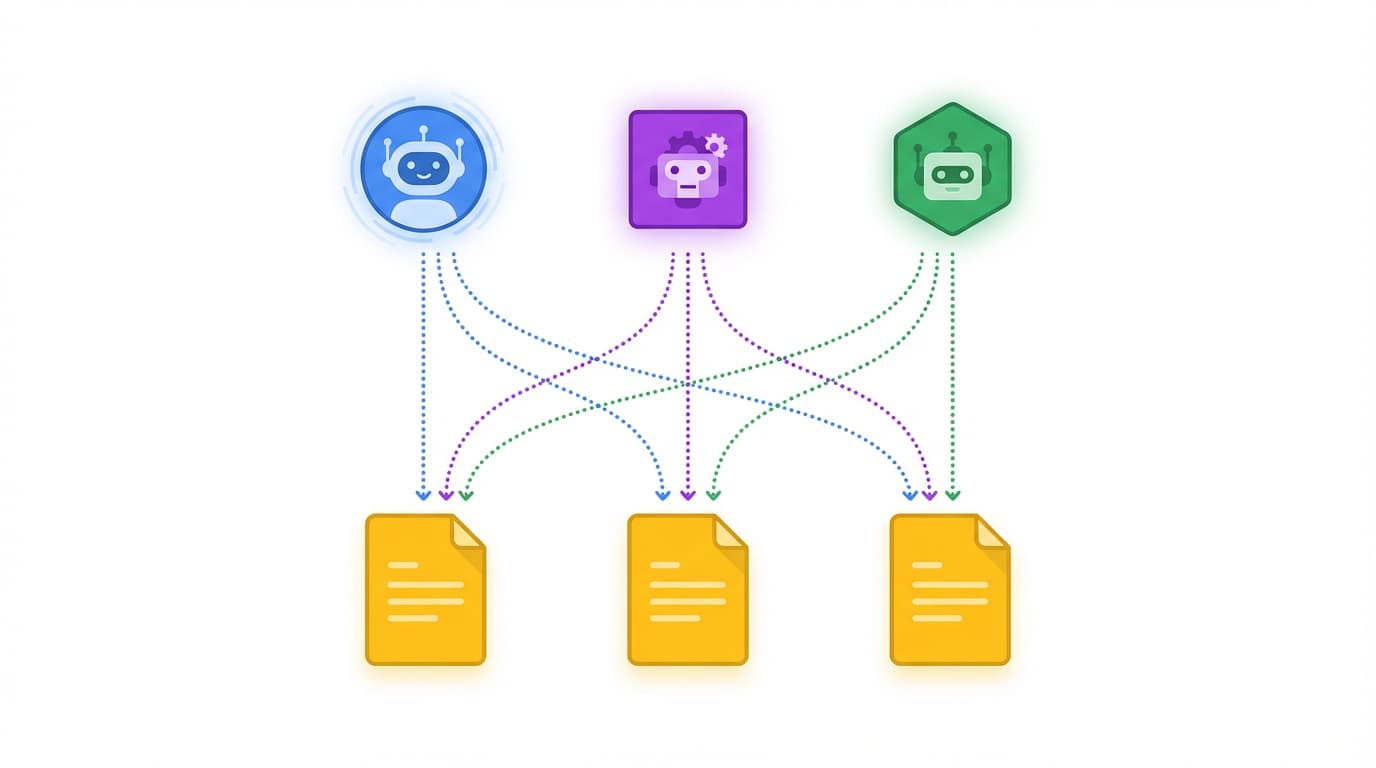
Your results will dramatically improve when every agent has one specific role and does not have to decide which role to play.
The natural tendency is to stuff everything into one giant prompt: “If I ask about marketing, do this. If I ask about planning, do that.” This diminishes performance significantly.
You are much better off with:
- One agent that routes tickets
- A second agent that prioritises them
- A third that handles sprint planning
Since there is no cap on the number of agents you can create, granularity is essentially free. And once Notion Credits go live, leaner agents with fewer steps will also be cheaper to run.
Current limitation: Agents cannot call other agents directly through instructions. You cannot create an “orchestrator” agent that delegates to sub-agents.
The workaround: Chain agents through your system design. Agent A modifies a property or adds a page to a database → Agent B triggers on that change. The chaining works through database triggers, not through explicit agent-to-agent calls.
Tip 7: Build An Agent Directory
As your agent count grows, you need visibility into what is running and why.
Notion’s settings show an overview of all agents (for workspace owners), but it is limited. Most notably, your personal AI cannot currently access this list — so if you ask “which agents do we have?” there is no tool to answer that.
The solution: Create a dedicated database to track your agents.
Track things like:
- Agent name and purpose
- Which triggers it uses
- Which databases it has access to
- Who created it and when
- Status (active, paused, testing)
This makes governance, onboarding, and debugging dramatically easier. We have a template for this available in our newsletter subscriber hub.
Tip 8: Compounding Engineering — The Feedback Flywheel 🔄
This is our favourite tip on the entire list. It borrows from one of the most powerful concepts in modern AI development.
Compounding engineering is a philosophy where every time your system encounters a failure or edge case, you feed that back into the instructions — so the next execution is better than the last. It is a flywheel: the more it runs, the smarter it gets.
How to apply this to your agents:
Add an Agent Run Log database. Include in your agent’s instructions that after every run, it should log what it did. Here is what to capture:
| What To Log | Why It Matters |
|---|---|
| What question or trigger it received | Understand what is being asked |
| What action it took | Audit trail for debugging |
| Confidence level | Flag uncertain responses for review |
| Knowledge gap flag | Identify missing documentation |
| Agent self-feedback | The agent explains what was hard or unclear |
The magic: with every execution, you get hard data on where your system falls short. A Q&A bot that flags knowledge gaps tells you exactly which documentation to create. A ticket router that logs low-confidence assignments tells you which routing rules need refinement. Over time, your agents compound in quality — each run making the next one better.
Bonus hack: Even if you do not need the feedback loop, asking agents to log their runs to an external database recreates Notion’s AI analytics on any plan. You will see exactly how many runs each agent performs, when, and for whom. This is especially useful if you are on the Business plan and do not have access to the Enterprise analytics dashboard.
We have a free Agent Run Log template available in our newsletter subscriber hub.
Tip 9: Be Ruthlessly Precise In Your Instructions
The single biggest reason AI implementations fail: vague prompts with hidden assumptions.
Here is a concrete example showing the difference:
❌ The bad prompt:
“When someone sends a Slack message, create a ticket in Notion. Figure out who sent it and assign it to them. Add a summary and put it on the right team.”
This is what you might tell a human — and even for a human, it is not great. For AI, it is a disaster. Every underspecified detail becomes a coin flip.
✅ The good prompt:
“When triggered: (1) Identify the requester by matching their Slack ID against the @People Directory database. (2) Look up their Team via the team relation on the People database. (3) Create an entry in @Tickets with: Title = first sentence of message, Requester = matched person, Team = looked-up team, Status = ‘New’, Priority = ‘Unset’. (4) Post a confirmation reply to the source Slack channel.”
The good prompt leaves zero room for interpretation. Every step is explicit. Every database is named. Every property value is defined.
For a deep dive on structured prompting, check out our guide on why your team’s AI agents keep failing and how to fix it.
And if you are training AI on complex recurring workflows, the AC/DC framework (Assess → Collaborate → Draft → Certify) is your best friend — we cover it in depth in Agents At Work: From Copy-Paste To Co-Pilot, one of the free resources for our newsletter subscribers.
⚙️ Custom Agent vs Classic Automation — When To Use Which
This is one of the most important strategic decisions you will face. Not every workflow needs an agent. Sometimes a classic automation (Make, Relay, n8n) is the better choice.
Custom agents and classic automations share many similarities: both run proactively based on triggers, both can have granular scope, and both can be deployed for yourself or your team.
So what is the difference?
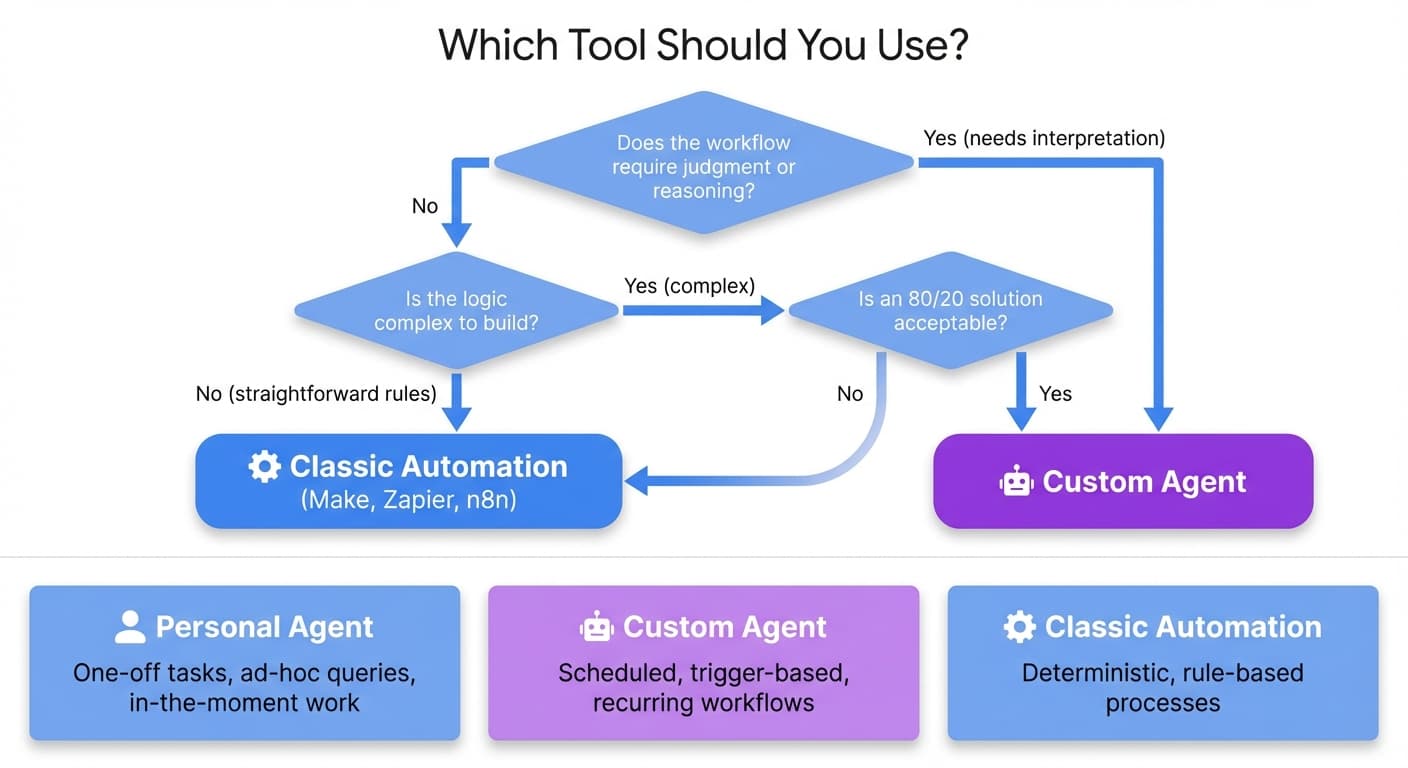
The Key Question: Does the Workflow Require Judgement?
| Classic Automation | Custom Agent | |
|---|---|---|
| Logic | Hard if-this-then-that rules | Soft judgement and reasoning |
| Example | “If deadline < 3 days, send reminder” | “Review these signals and decide whether to follow up” |
| Precision | 100% deterministic | Probabilistic — needs guardrails |
| Build time | Hours to days for complex flows | Minutes to hours for the prompt |
| Best for | Predictable, rule-based workflows | Workflows requiring interpretation or flexibility |
If you have a next follow-up date in your CRM and the rule is simply “when date arrives, remind me” — that is an automation. No AI judgement required. If-this-then-that.
Agents are powerful whenever you need to inject judgement: interpreting the content of a Slack message, deciding who should be assigned to a ticket, or evaluating whether documentation is outdated.
The 80/20 Shortcut
There is a second, less obvious reason to choose a custom agent: speed of implementation.
Sometimes a workflow could be built as a classic automation, but the automation would be extremely complex — requiring significant engineering hours.
A custom agent can often get you an 80/20 solution in half a day that would have otherwise taken weeks.
Example:
Automatically compiling portfolio reports from updates across dozens of companies. A classic automation requires pulling from multiple databases, filtering, formatting, and personalising per recipient — a significant build.
A custom agent?
Give it the right instructions, point it at the databases, and you have a working prototype in hours. It might not handle every edge case the way a polished automation would.
But it gets you a 5–8x productivity increase right away.
Where Does This Leave Your Personal Agent?
Your personal agent will probably still be the most-used AI in your system. Custom agents excel at scheduled, trigger-based, repetitive workflows. But for one-off tasks, ad-hoc queries, and in-the-moment work, your personal agent remains the go-to.
Think of it as a team:
Personal agent = Your versatile day-to-day assistant
Custom agents = Specialised workers handling specific recurring jobs
Classic automations = Deterministic processes following strict rules
💰 The Big Pricing Update: Notion Credits
This is the section many of you have been waiting for. Notion is introducing a significant pricing change alongside the custom agents launch — and it affects every Business and Enterprise workspace.
What Stays The Same
Let us start with the good news: no changes to your existing plan pricing.
All current AI features remain included at no extra cost — your personal Notion AI agent, AI meeting notes, enterprise search, and Notion’s deep research feature. Notion calls these reactive AI — they work when you invoke them. All included as before with your Notion AI plan.
What Is New: Notion Credits
The new pricing applies to proactive AI — which for now means custom agents. Notion is introducing a new token system called Notion Credits.
| Detail | What You Need To Know |
|---|---|
| Cost | 1,000 credits = $10 (add-on purchase) |
| Who can buy | Workspace admins on Business and Enterprise plans |
| Billing | Monthly — credits reset each month and do not roll over |
| Scope | Credits are shared across the entire workspace |
| If you run out | All custom agents pause until the next monthly reset or until more credits are added |
| Scheduled runs | If credits run out, scheduled runs are skipped — they do not run retroactively |
What Determines Credit Consumption?
Credit consumption depends on several factors: how much information the agent processes, how many tools it uses in a single run, how many steps it takes to complete the task, how often it runs, and which AI model it uses (more powerful models consume more credits).
A simple agent that reads a Slack message, looks up an owner, and creates a task will use fewer credits per run. A complex agent that reads Slack, searches multiple databases, evaluates urgency, creates a task with many fields, adds a sub-page, and notifies a team in Slack will use significantly more.
This creates a natural incentive to build lean, efficient agents — which, as we covered in the tips section, is what you should be doing anyway. The one-agent-one-job principle is not just good practice. It is now cost-effective practice.
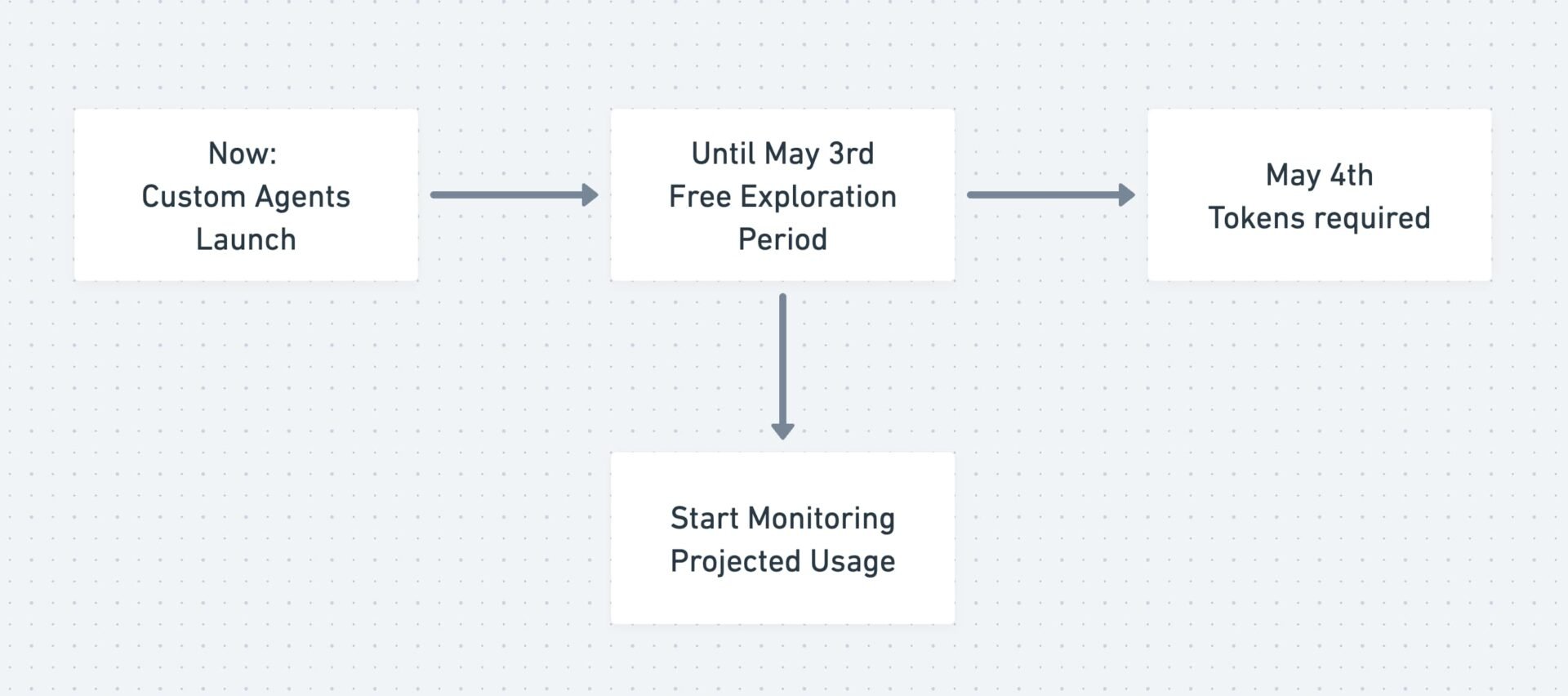
Key Dates You Need To Know
Key Dates At A Glance
🗓️ 24 February 2026: Custom agents launch for all Business and Enterprise plans.
🆓 Now through 3 May 2026 — The exploration period. Custom agents are completely free to try. No credits required. Run as many agents as you want. Test everything. This is your window to experiment, learn, and figure out which agents deliver real value.
💳 Starting 4 May 2026 — Credits required. Custom agents will need Notion Credits to run. If you have not purchased credits by then, your agents will pause.
The Notion Credits Dashboard
Notion is rolling out a dedicated dashboard at Settings → Notion AI → Notion Credits where you can:
📊 Real-time tracking — See how many credits your agents have consumed and projected usage for the month.
🔔 Automatic alerts — Notifications when usage hits 80% and 100%, so you are never caught off guard.
🔍 Agent-level insights — See exactly which agents consume the most credits, making it easy to identify and optimise expensive agents.
⏸️ Instant control — Disable any agent immediately to stop credit consumption.
📩 Team requests — Team members can request more credits from admins directly in-product.
Our Take On The Pricing
The exploration period is a genuine gift — use it wisely.
- Start experimenting now. Build your first agents during the free window. Test them thoroughly.
- Monitor your usage. Once the dashboard goes live, pay close attention to which agents consume the most credits.
- Optimise before May. Cut or restructure any agents that burn through credits without delivering proportional value.
- Focus on lean agents. One agent, one job. Fewer steps. Simpler models where possible.
For most teams, the ROI will be an absolute no-brainer.
If the agent does not do the work, a human has to — and humans are significantly more expensive than $10 per 1,000 credits.
But it does mean you need to be intentional about what you automate. Focus on the ones that deliver measurable time savings or quality improvements.
🚀 7 Use Cases And Templates To Get You Started
We have put together a collection of self-installing agent templates that you can deploy in your workspace. Each template walks you through the setup interactively — just open it up, ask AI to help you configure it for your specific databases and workflows, and you are ready to go.
You can access all templates through our newsletter subscriber hub.
1. 🐛 Bug Triage From Slack
What it does: Watches a specific Slack channel for emoji reactions (for example, a 🐛 emoji) and automatically creates a database entry with bug details, assigns priority, and routes it to the right team member.
Why emoji reactions work best: If you set up multiple agents watching Slack channels, using @mention as the trigger can get confusing — because you always call “Notion AI,” not the specific agent name. Emoji reactions let you assign one specific emoji to one specific agent, making routing crystal clear.
Best paired with: A People Directory database that maps Slack IDs to Notion accounts (so the agent can correctly identify and assign requesters) and assignment rules stored in a central page that the agent references.
Adjacent use case: This pattern works well for internal service desks. Legal, Design, Marketing — any department that functions like an internal agency can use a dedicated Slack channel and agent to receive, triage, and track requests.
Current limitation: The Slack integration currently only supports public channels. Private channels and DMs are not yet available.
2. 📊 Weekly Status Report
What it does: Runs every Monday morning, pulls data from your project and task databases, reviews recent Slack discussions, and generates a formatted summary — either posted to a leadership channel or saved as a report page.
Make it your own: This template is endlessly adaptable. Turn it into a daily briefing that checks your tasks, reviews your calendar, and sends you a morning overview. Or a monthly executive summary that aggregates project progress across the organisation. A perfect way to start every morning with zero effort.
3. 🎓 New Hire Helpdesk
What it does: Monitors a Slack channel and answers onboarding questions — PTO policy, IT setup, who to contact — using your employee handbook as its scoped source. By limiting the source to your verified handbook, all answers come from vetted, approved content.
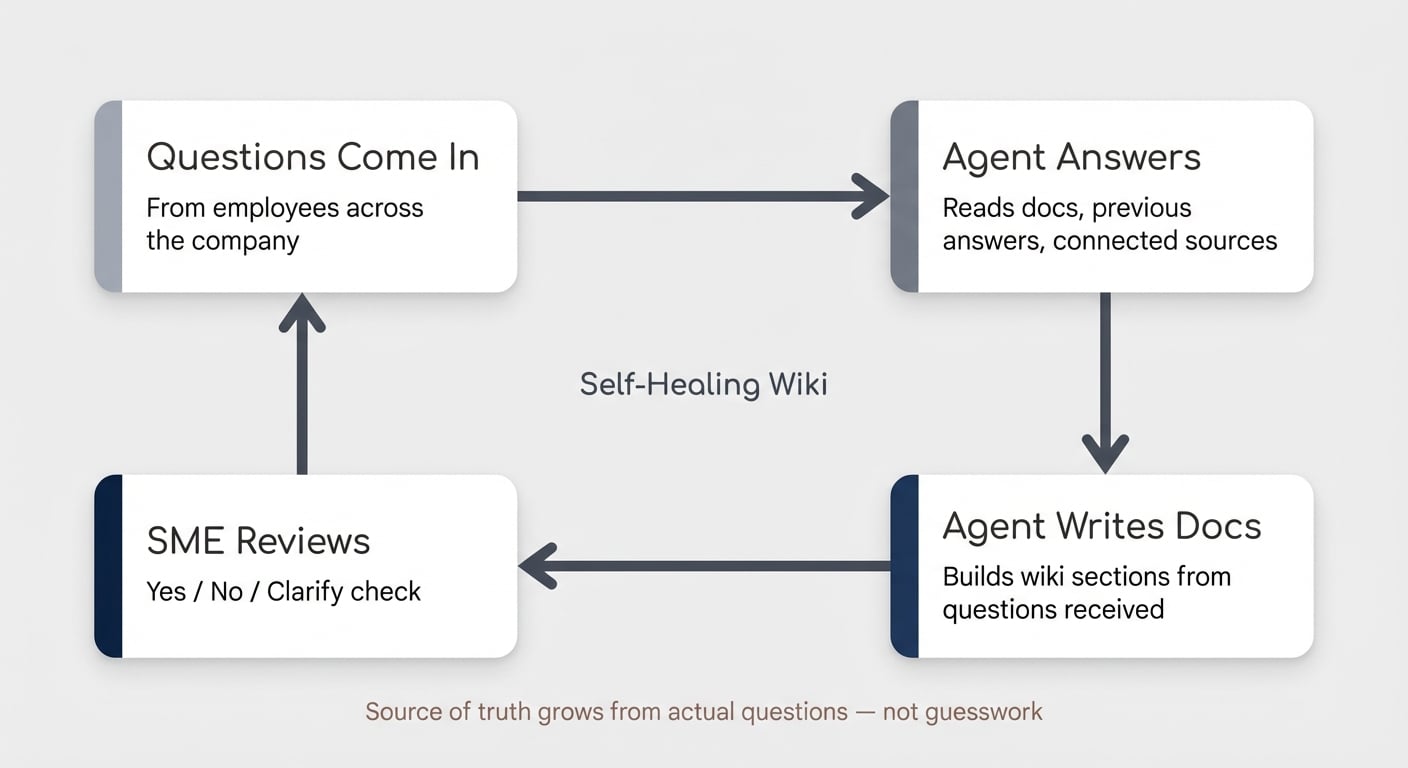
Compounding engineering bonus: Combine this with the agent run log from Tip 8. New hires will have questions you did not anticipate. By logging questions and flagging knowledge gaps, your handbook effectively auto-improves over time. Every unanswered question becomes a documentation task.
4. 📝 Meeting Note Processor
What it does: Auto-processes meeting transcripts — identifies internal and external attendees, extracts action items, creates tasks, and links everything to the right projects and people in your system.
This one works regardless of which AI note-taker you use. Whether it is Notion’s built-in meeting notes, Circleback, or another tool — as long as the transcript lands in a Notion database, the agent can process it.
Important trigger design note: If you create meeting pages in your database before the meeting (for agenda planning), the “page added to database” trigger will not work — because the page exists long before the transcript arrives.
The workaround: Add a checkbox property called “AI Processed” to your meetings database. Run the agent on a schedule (every 6 hours, for example) and have it query all meetings that are not yet processed. After processing each meeting, the agent checks the box. Clean, reliable, and avoids false triggers.
5. 📅 Content Calendar Monitor
What it does: Watches your content database for approaching deadlines and posts Slack notifications when items need review or when publish dates are coming up.
Think broader: This is really a deadline monitor pattern. It works just as well for project deliverables, client milestones, compliance deadlines, or any database where timing matters.
6. 🤝 CRM Follow-Up Nudge
What it does: Goes beyond simple date-based reminders. It evaluates a mix of signals — last contact date, deal stage, recent activity — to determine whether and how you should follow up. Then it drafts a personalised message based on recent interactions.
When to use this vs. a simple automation: If you have a “next follow-up date” and just want a reminder when it arrives, use a classic automation. The agent version is powerful when it needs to evaluate whether to reach out, gather context from recent interactions, and draft a personalised message. That is judgement, not just rules.
Example: A VC firm regularly reaching out to LPs. The agent checks which portfolio companies have sent recent updates, compiles relevant highlights, and drafts a personalised update email for each LP. What would take hours is prepared in minutes.
7. 📚 Knowledge Base Auditor
What it does: Regularly scans your documentation for outdated content. Checks verification statuses, flags pages that have not been reviewed in 90+ days, and — if you give it Slack access — cross-references with recent Slack discussions to determine whether content needs a simple re-verification or a substantive update.
The agent then pings the page owner with a recommendation: “This page was last verified 4 months ago. Based on recent Slack discussions in #product, the pricing section may need updating.”
This is another great example of the automation vs. agent distinction. Checking “has this page been verified in the last 90 days?” is automation territory. But evaluating whether the content is still accurate by cross-referencing with recent conversations? That is where agents shine.
🏛️ The Foundation That Makes It All Work
There is one thing that is even more important for the success of your custom agents than the prompt you write.
It is the rest of your workspace.
Does your workspace have a scalable, efficient data foundation? Are you using global databases? A consistent system across your whole organisation? If not, your custom agents will be severely limited.
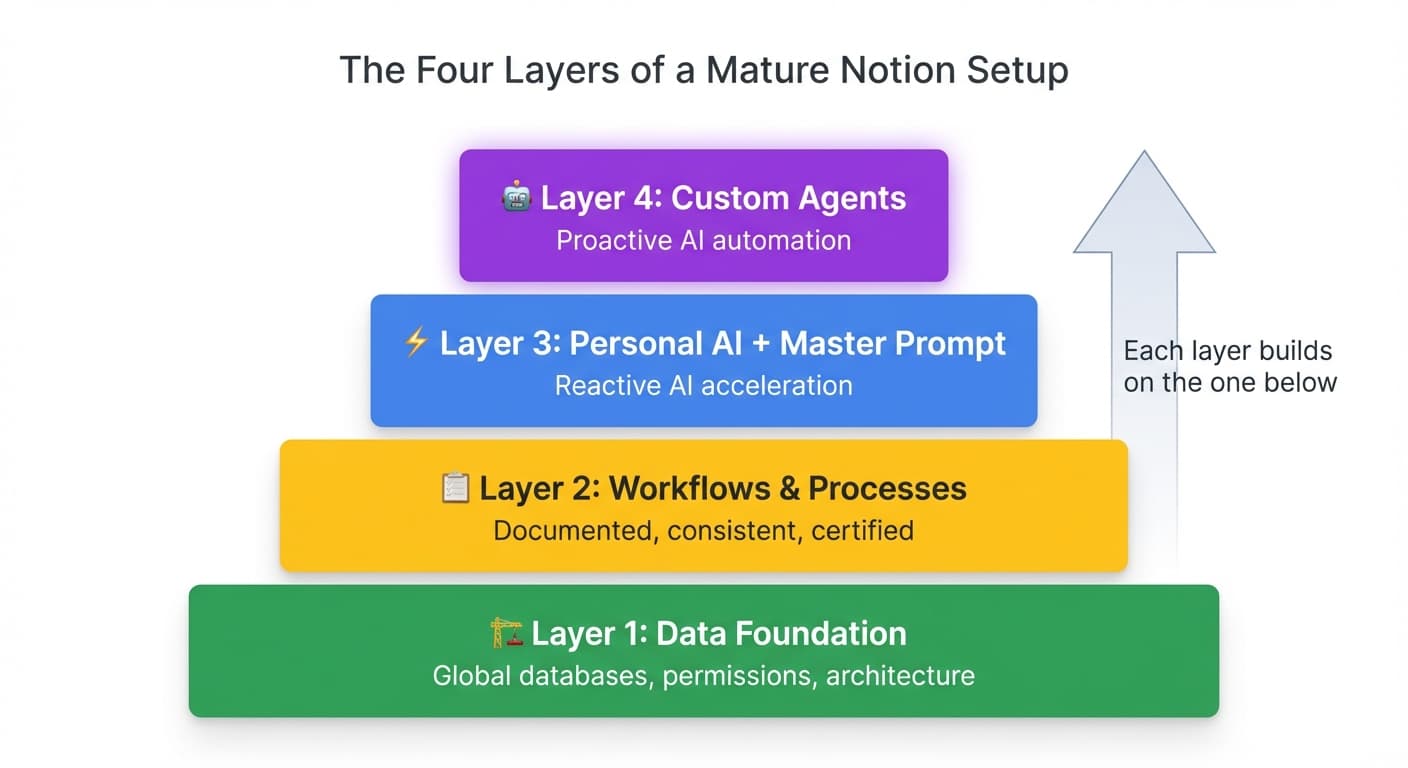
An agent is only as good as the data it works with and the structure it operates in. This is why custom agents are the final layer — not the starting point — of a mature Notion implementation:
Layer 1: Data Foundation — Global databases, permissions, architecture.
Layer 2: Workflows & Processes — Documented, consistent, certified.
Layer 3: Personal AI + Master Prompt — Reactive AI acceleration.
Layer 4: Custom Agents — Proactive AI automation.
Each layer builds on the one below it. Trying to deploy custom agents without a solid data foundation is like hiring a top-tier employee and giving them no tools, no processes, and no access to information.
This is exactly why, when we work with new clients at our Notion consultancy, we first focus on building a best-in-class foundation before we layer AI on top. The foundation is not just the right first step — it is a necessary step.
✅ Your Next Steps
You have read the guide. Now here is exactly what to do — in order.
Step 1: Audit Your Foundation 🏛️
Custom agents are only as good as the system they operate in. Before you build a single agent, make sure your workspace is ready.
Your checklist:
- Global databases in place (not scattered page-level tables)
- Consistent permissions structure across your workspace
- Core workflows documented and certified
- A master prompt configured for your personal AI agent — see How To Create Your Context Layer Prompt

If any of these are missing, start there. The foundation section above explains why this matters.
Step 2: Build Your First Agent During The Free Period 🧪
You have until 3 May 2026 to experiment with zero cost. Do not waste this window.
Your action plan:
- Pick one recurring task that wastes your time every week (content formatting, status reports, inbox triage)
- Follow the step-by-step walkthrough above to build your first agent
- Test it manually using Run agent before enabling the trigger
- Monitor the output for a full week before sharing with your team
- Grab our free agent templates for a head start
Start simple. A daily briefing or a content formatter is perfect for your first build. You can always add complexity later.
Step 3: Scale With Governance 🔒
Once your first agent is running reliably, it is time to think bigger — but with guardrails.
Your governance framework:
- Restrict agent creation to workspace owners (Tip 2)
- Set up an Agent Directory database to track all agents (Tip 7)
- Implement compounding engineering with an Agent Run Log (Tip 8)
- Establish a request process for new agents
- Monitor credit consumption once the dashboard goes live </aside>
This is how you get 10x value without 10x chaos. Every agent should have one job, scoped permissions, and a paper trail.
📚 Continue Learning: Mastering Notion AI
This guide is part of our comprehensive Mastering Notion AI series. Each resource builds on the others. We’ll publish the others as blog posts soon, but you can already access them ahead of time through our newsletter subscriber special.
Structured Prompting Foundations — Why Your Team’s AI Agents Keep Failing (And How To Fix It). The six principles that make AI actually reliable for complex work. Start here if you are new to structured prompting.
The AC/DC Framework — Agents At Work: From Copy-Paste To Co-Pilot. How to train AI on your recurring workflows using the Assess → Collaborate → Draft → Certify method.
Build Your Master Prompt — How To Create Your Context Layer Prompt. Step-by-step template for creating the system prompt that powers your personal AI agent.
Roll Out To Your Team — How To Help Your Team With Self-Installing AI Instructions. The breakthrough method for 95%+ adoption rates when deploying AI instructions across your organisation.
❓ Frequently Asked Questions About Notion Custom Agents
What are Notion Custom Agents?
Notion Custom Agents are autonomous AI assistants that run on triggers — schedules, Slack messages, emails, calendar events, and database changes. Unlike your personal Notion AI agent (which only works when you prompt it), custom agents work proactively in the background, executing workflows without human input.
Are Notion Custom Agents free?
Custom agents are free to try from now through 3 May 2026 on Business and Enterprise plans. Starting 4 May 2026, they will require Notion Credits to run, priced at $10 per 1,000 credits.
What Notion plans support Custom Agents?
Custom agents are available on Business and Enterprise plans only. Free and Plus plans do not include access to custom agents.
What is the difference between a Notion Custom Agent and the personal Notion AI agent?
Your personal agent is reactive (only works when you prompt it), has access to everything you can access, and is only available to you. Custom agents are proactive (run on triggers), have scoped permissions (access only what you grant), and can be shared with your team.
What are Notion Credits?
Notion Credits are a new add-on pricing system for proactive AI features (currently custom agents). They cost $10 per 1,000 credits, are shared across your workspace, and reset monthly without rollover.
What happens when I run out of Notion Credits?
All custom agents pause until your next monthly billing cycle resets or until a workspace admin purchases additional credits. Scheduled runs during the outage are skipped — they do not run retroactively.
Can Notion Custom Agents call other agents?
Not directly through instructions. However, you can chain agents through your system design: Agent A modifies a database property or adds a page → Agent B triggers on that change. The chaining works through database triggers, not through explicit agent-to-agent calls.
Can Custom Agents access private Slack channels?
Not currently. The Slack integration only supports public channels. Private channels and direct messages are not yet supported.
How many Custom Agents can I create?
There is no limit on the number of custom agents you can create. However, once credits are required (after 3 May 2026), each agent’s runs will consume credits based on complexity.
Which AI models can Custom Agents use?
Currently available: Auto (Notion selects), Claude Sonnet, Claude Opus, and GPT-5. Notion regularly adds new models, so expect this list to evolve.
Can I share a Custom Agent with people outside my workspace?
You can publish agents as templates for external sharing. Within your workspace, use the standard Share options to grant access to individuals, teams, or everyone.
What integrations do Custom Agents support?
Currently: Slack, Notion Calendar, Notion Mail, and various connections (Amplitude, Attio, Figma, and others depending on your setup). You can also add custom MCP servers to connect to virtually any external tool.
🤝 Work With Us: Build Your AI-Ready Notion System
Custom agents are the most powerful feature Notion has ever released. But they are only as good as the system they operate in.
We help Europe’s most ambitious teams build AI-ready Notion systems that actually work through our signature 8-Week Notion Transformation:
🔍 Blueprint Phase (Weeks 1–2) — Deep dive into your current state and biggest bottlenecks. Scalable data architecture designed for AI. Process map of your central workflows.
🔨 Build Phase (Weeks 3–6) — Rapid, iterative development with continuous feedback. You see results after week one (not month three). Your team learns governance (no consultant lock-in).
🚀 Launch Phase (Weeks 7–8) — Master Prompt creation for your workspace. Custom agent setup and governance framework. Complete documentation, training, and 24/7 Slack support.
45+ transformations across Europe. 1,000+ employees using our systems.
Book a call to discuss your specific situation →
This guide is based on months of early access testing across multiple client projects, combined with insights from 45+ Notion transformations across Europe. Subscribe to our newsletter for weekly Notion & AI insights. Join 36,000+ readers.