Building a Notion CRM that actually works isn’t about knowing where to click — it’s about knowing how to think.
In 2026, the most efficient way to build any Notion system, including a fully functional CRM with pipeline management, email integration, and AI enablement, is spec-driven development.
If you’d like to skip the build process entirely, our Notion consulting services can handle the complete setup for your team.
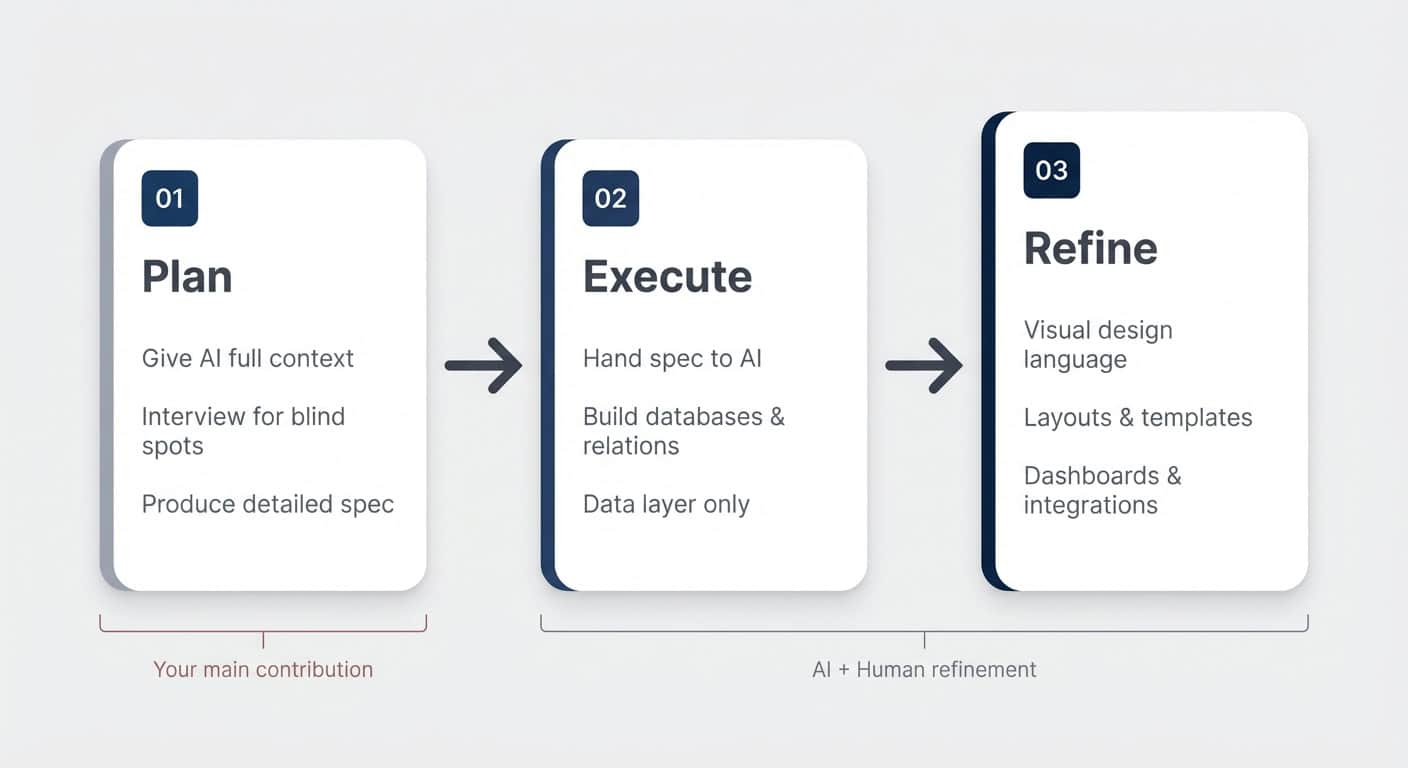
Borrowed from the world of vibe coding, this methodology separates your build into three distinct phases: Plan, Execute, and Refine.
The result is a CRM tailored to your exact needs, built in a fraction of the time, and ready to scale with your business.
In our work building Notion systems for teams of 15 to 150 people, this approach consistently delivers better outcomes than either building from scratch or blindly asking AI to “build me a CRM.”
What Is Spec-Driven Notion Development?
Spec-driven Notion development means your plan is the product. Instead of opening a blank database and clicking your way through properties and views, you invest the majority of your effort upfront — defining exactly what needs to be built before anything gets created.
The approach has three phases:
- Plan — Give AI full context about your business, have it interview you to surface blind spots, and produce a detailed specification
- Execute — Hand the spec to AI and let it build the databases, properties, and relations
- Refine — Step in for the things AI can’t handle yet: visual design, layouts, templates, dashboards, and advanced integrations
The critical insight is that the specification document is your main contribution. The database implementation is just the last mile. And with AI handling that last mile, you can focus your energy on the decisions that actually matter.
How Should You Plan Your Notion CRM With AI?
The planning phase is where the real work happens. Start by giving AI as much context as possible about your business — your sales process, your team size, what you need to track, and how you make decisions.
💡 Pro Tip: Turn on AI dictation and just talk. Two minutes of unfiltered context about your business produces better results than a carefully crafted prompt.
But here’s the step most people skip: don’t jump straight from context to building. After AI has ingested your information, ask it to interview you. This single prompt is arguably the most important one in the entire process.
The biggest gap in deploying AI effectively isn’t the technology. It’s hidden assumptions — all the tacit knowledge that’s obvious to you but that you’ve never externalised. Asking Notion AI to probe your blind spots is a muscle worth developing, and it dramatically improves the quality of the output.
Once you’ve been through a few rounds of questions, review the output carefully. The most common mistake at this stage is over-engineering.
The fewer properties the better — because someone, even if it’s AI, has to fill them out. If a property doesn’t help you make better decisions about your deal flow, cut it. You can always add it back later.
When Should Something Be a Property vs Page Content?
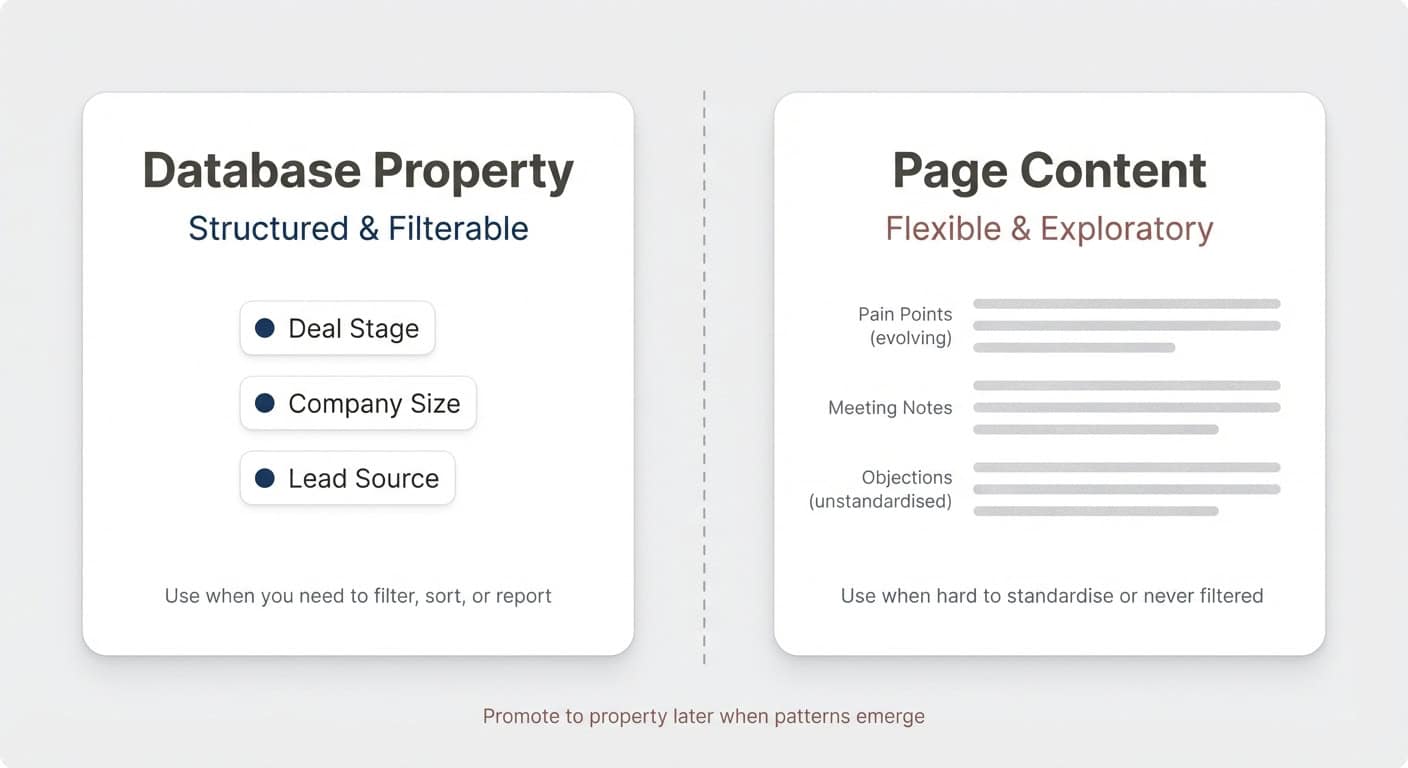
This is more art than science, but there’s a reliable rule of thumb: if you need to filter by it, it belongs as a database property. If it’s hard to standardise and you’d never filter by it, it belongs in the page body.
Pain points and objections are a perfect example. If you have a mature sales motion with well-defined categories (“our clients typically have these three pain points”), they should be structured as select or multi-select properties so you can filter and report on them.
But if you’re still exploring and couldn’t list your standard pain points off the top of your head, keep them as unstructured content in the page body. You can always promote them to properties later — and ask AI to help you backfill the data when you do.
How Does AI Execute the Database Build?
Once your plan is solid, the execution phase is surprisingly hands-off. Open a fresh AI chat, reference your spec, and ask AI to create the databases, properties, and relations.
A few principles to keep in mind:
- Use the most capable model available. This isn’t the time to optimise for speed. Select the most advanced reasoning model your Notion plan offers
- Start a new session. If your planning phase was long, the context window may be saturated. Make sure AI has externalised all its thinking to the page first, then do a clean handover in a fresh chat
- Skip views for now. Ask AI to set up the data layer only — databases, properties, and relations. You’ll build views yourself in the refinement phase, and they’ll be better for it
- Request two-way relations explicitly. AI sometimes creates one-way relations by default. Add a line to your prompt specifying that all relations should be two-way — it saves cleanup later
The execution phase is fast. While AI builds your backend, you can already start thinking about refinement.
What Can’t AI Do Yet in Your Notion CRM Build?
This is where your expertise matters. AI can scaffold a solid data layer, but three categories of refinement work still need a human touch: visuals, core functionality, and advanced flows.
Why Does Visual Design Language Matter?
A consistent visual design language is one of the most underrated aspects of Notion — especially for teams using it across 50 or 100 people. Learn more about building scalable team systems with Notion. When 50 or 100 people use a system, it needs to communicate without explanation.
The key moves:
- Swap emojis for Notion icons. AI defaults to emojis. Icons look cleaner and feel more professional across the board
- Standardise property icons across every database. A “Notes” property should carry the same icon everywhere it appears. A relation to “Companies” should show the company icon, not a generic arrow
- Apply icons to templates so every new entry inherits the right visual identity automatically
This isn’t just aesthetics — it’s information architecture. When you scan a page and instantly know “this is a deal” because of its briefcase icon, that’s a design language doing its job.
How Should You Set Up Database Layouts?
Database layouts control how individual entries look when you open them. The default shows every property in a long vertical list, which gets overwhelming fast.
The conceptual framework:
- Move properties to the side panel. This immediately declutters the page body and gives your content room to breathe
- Pin only the 3–4 most critical properties. You get four pins — choose wisely. Everything else lives behind a “View details” click
- Use tabs to pull in related data. Instead of scrolling through tiny relation chips, create tabs that show linked entries as full database views. A company page gets a “Contacts” tab and a “Deals” tab, each showing the relevant entries with their own properties visible
Templates extend this further. A good template doesn’t just set a default icon — it pre-structures the page body with headings for unstructured information you’ll want to capture. Think “Key Pain Points” or “Main Objections” as page body sections that guide users without forcing rigid properties.
What Are Default Views and Why Do They Matter?
This concept separates a decent Notion workspace from a truly scalable one. Before you build any dashboards, go to each backend database and set up the most common ways you’d want to look at that data.
For deals, that might be a Kanban grouped by stage with value visible. For companies, a gallery sorted alphabetically. For contacts, a list sorted by created time.
These become your building blocks. When you later create a dashboard and pull in a linked view, you can select an existing view instead of building from scratch. You can still modify it locally — add a filter for “high value deals only” — without affecting the original.
The time you invest here pays dividends every single time you build a new interface.
💡 Pro Tip: If you’ll reuse a specific view across multiple dashboards, create it on the source database. If it’s a one-off (like a “My Deals” filter), build it directly on the linked view.
How Do You Build an Effective CRM Dashboard in Notion?
The dashboard is your front end — the page where you actually do work. Your backend databases store the data; the dashboard presents it for decision-making.
This separation between backend and frontend is what sets a solid Notion workspace apart from one that crumbles at scale. Your databases live tucked away in a backend section. Your dashboard is what the sales team actually opens on Monday morning.
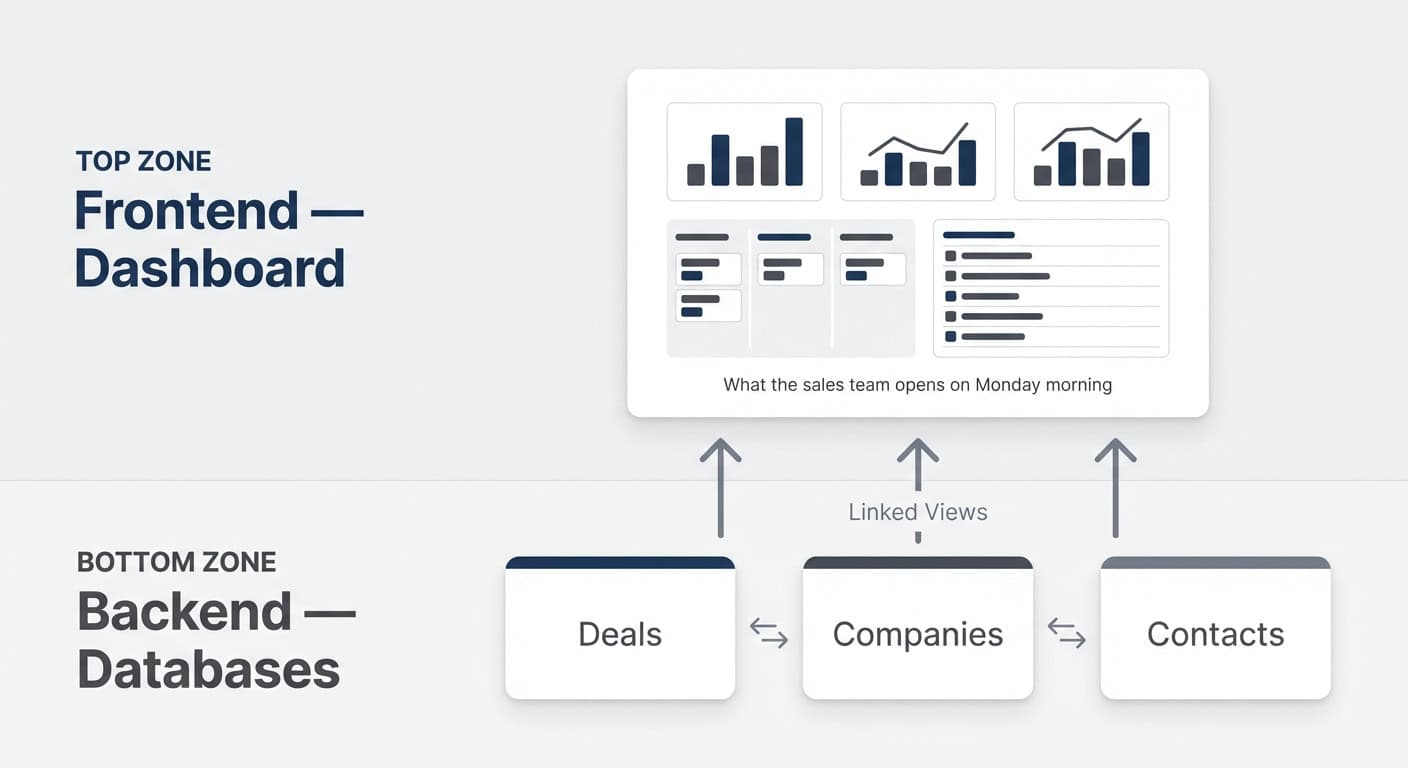
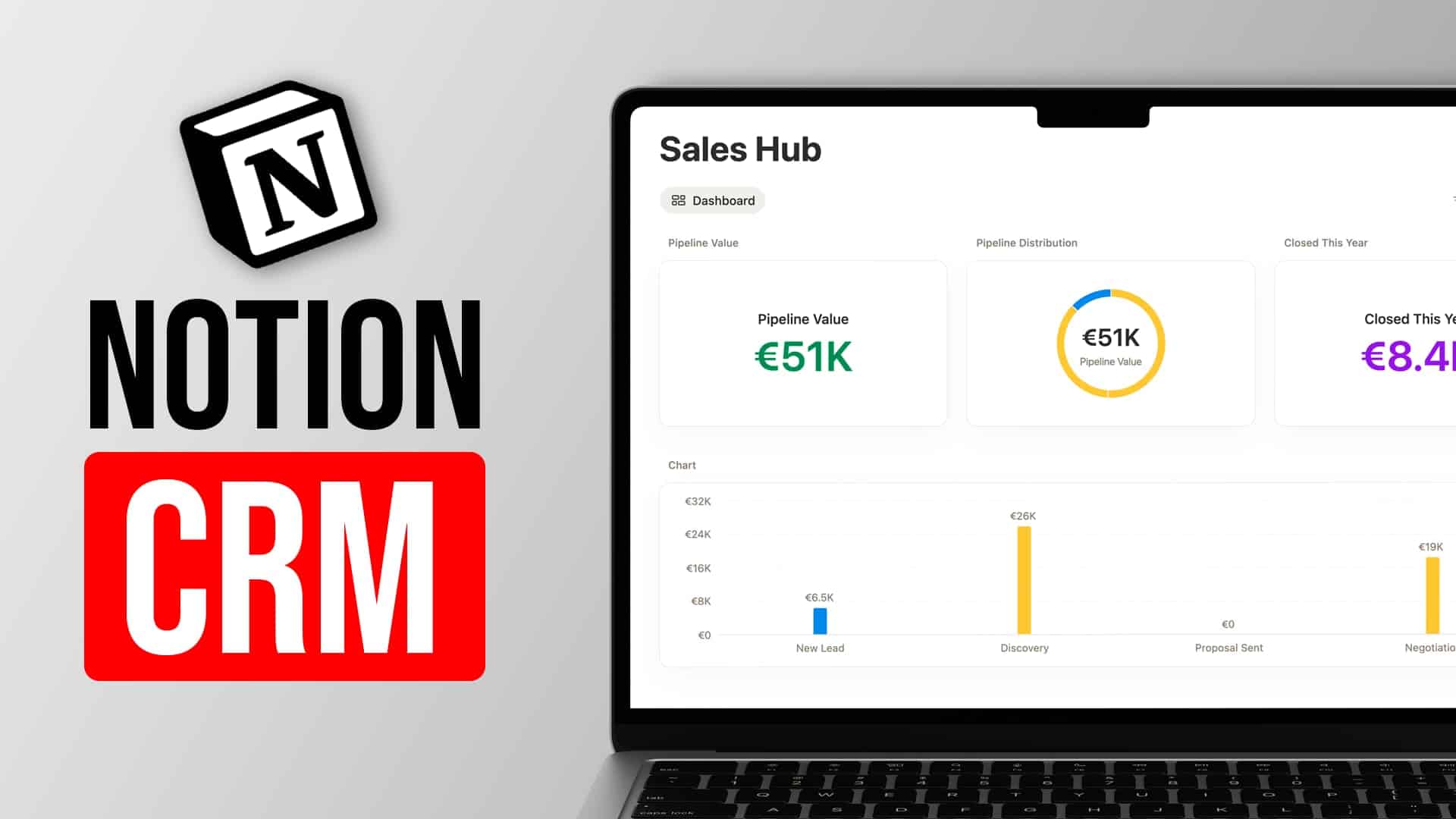
Notion’s Dashboard feature (available on Business plans and above, launched March 2026) lets you create KPI rows with charts and numbers at the top of your page. Think pipeline value, stage distribution, revenue closed this year — all updating in real time.
A few architectural principles:
- Use global filters on dashboards to avoid repeating the same filter across every chart. If you always want to exclude won and lost deals from your active pipeline view, set it once at the dashboard level
- Keep KPI charts in the dashboard block, interactive views outside it. Charts are brilliant for at-a-glance numbers, but interactive views — where you drag cards, open entries, and process information — work better as on-page linked views with more breathing room
- Use columns for side-by-side sections. Recent contacts on the left, recent communications on the right. This mirrors how a natural sales workspace feels
If you’re not on a Business plan, you can still build effective dashboards using linked database views, columns, and headings. You just won’t have access to the chart and global filter widgets.
How Do You Sync Emails Into Your Notion CRM?
Email integration turns a Notion CRM from a static tracker into a living system. Notion Mail (currently available for Google accounts only) provides the simplest path to get email data into your databases.
The concept:
- Create a filtered view in Notion Mail that captures the emails you care about (e.g., auto-labelled client emails)
- Connect that view to your CRM email database in Notion’s settings
Every new email matching your filters gets pushed into Notion as a page. Emails within the same thread appear as a single entry that grows as the conversation continues.
One important limitation to know about: Notion Mail syncs the email body as page content but doesn’t carry over structured metadata. You won’t get the sender’s email address, the date, or any extracted fields as database properties. The page contains the raw email text — and that’s it.
This is exactly where AI agents come in.
💡 Pro Tip: If you’re not on a Google Workspace email, you can still get emails into Notion using third-party automation tools like Relay or Make. The setup is more involved, but the end result is the same.
How Do Custom AI Agents Enhance a Notion CRM?
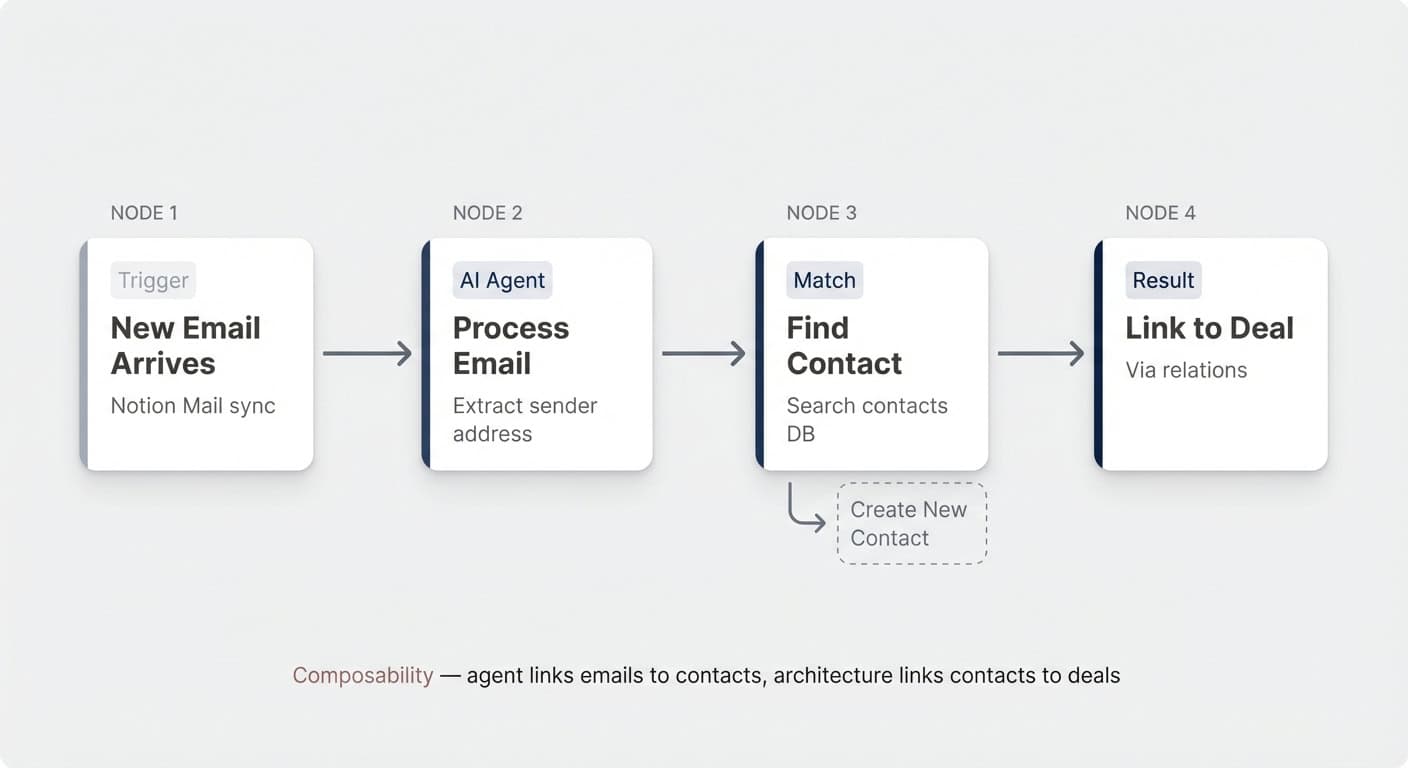
Custom AI agents bridge the gap between raw email content and structured CRM data. The most powerful first agent to build is an email processor that:
- Reads each new email that lands in your sync database
- Extracts the sender’s email address from the page content
- Searches your contacts database for a match
- Links the email to the existing contact — or creates a new contact if none exists
This runs automatically via a database trigger (whenever a new page is added to the email database) and keeps your CRM connected without any manual effort.
A few principles for building effective CRM agents:
- Optimise for token efficiency. Your agent instructions should be minimal and specific — extract, search, link. Nothing more
- Use a lightweight model. Email-to-contact matching doesn’t need advanced reasoning. Lightweight models handle this perfectly and keep your costs down
- Give precise database access. The agent needs edit permissions on both the email and contacts databases. Edit, not just read — because creating a relation requires write access
The beauty of this approach is composability. Once contacts are linked to emails, and contacts are linked to deals, you can surface all relevant communication on a deal page using a simple rollup. The agent never needs to reason about deals at all — the data architecture handles it.
When Should You Use Automations Instead of AI Agents?
Here’s one of the most important architectural decisions in any Notion system: don’t use AI for deterministic tasks.
AI is brilliant for non-deterministic work — reasoning about which contact an email belongs to, deciding how to categorise something, or generating content. But when the rules are fixed and the outcome is predictable, automations are faster, cheaper, and more reliable.
A perfect example: when a deal is marked as “Won,” you want to automatically create a contract. The values to carry over are known (deal name, company, value). The trigger is clear (stage changes to Won). There’s no reasoning required.
Build this as a database automation, not an AI agent. Map the values from the trigger page into the new contract entry using the formula builder. It fires instantly, costs zero tokens, and never hallucinates.
The rule of thumb: if you can write the logic as “when X happens, do Y with values Z,” it’s an automation. If the task requires judgement, interpretation, or searching — that’s an agent. Read more about how Notion uses AI agents internally to see this distinction in practice.
| 🤖 AI Agent | ⚡ Automation | |
|---|---|---|
| Best for | Non-deterministic tasks requiring judgement | Deterministic tasks with fixed rules |
| Example | Match email to correct contact in CRM | Create contract when deal marked “Won” |
| Trigger | New page added, page updated | Property value changes to specific state |
| Speed | Seconds (model inference) | Instant |
| Cost | Token usage per run | Zero tokens |
| Reliability | High but probabilistic — can hallucinate | 100% deterministic — never hallucinates |
| Decision rule | Task requires interpretation or searching | Logic fits “when X, do Y with values Z” |
What Can AI Do vs What Can’t It Do in Your Notion CRM?
| Category | ✅ AI Handles Well | ⚠️ Still Needs a Human |
|---|---|---|
| Planning | Generating database specs, interviewing you for blind spots, suggesting properties and relations | Reviewing output critically, removing unnecessary properties, applying domain expertise |
| Database creation | Creating databases, properties, relations, and sample data from a spec | Setting default property values (e.g., default stage), ensuring two-way relations |
| Visuals | — | Swapping emojis for icons, standardising property icons, building a consistent design language |
| Layouts & templates | — | Configuring page layouts, pinning properties, setting up tabs with related views, structuring templates |
| Views | — | Creating default views per database, setting filters, sorts, and grouping as reusable building blocks |
| Dashboards | — | Building KPI charts, designing the front-end interface, choosing global filters |
| Email sync | Processing emails via custom agents, linking to contacts, creating new contacts automatically | Setting up Notion Mail connection, configuring email views and sync filters |
| Automations | Drafting automation logic when prompted | Building deterministic automations (e.g., create contract on deal won), mapping formula values |
💼 Ready to build your AI-enabled CRM? Join our 7-day Notion for Teams email course — learn the frameworks teams use to run their operations in Notion. Or if you’d prefer professional guidance, my team and I are here to help with Notion consulting services.
Frequently Asked Questions
Does Notion Mail Work With Outlook or Non-Google Email?
Not yet. As of early 2026, Notion Mail’s email-to-database sync only supports Google accounts (Gmail and Google Workspace). If you’re on Outlook or another provider, you’ll need to use third-party automation tools like Relay or Make to push emails into Notion.
Can AI Set Default Property Values When Creating Databases?
No. Notion’s AI can create databases, properties, and relations from a spec, but it currently can’t assign default values to properties — like setting a default stage on a select property. You’ll need to configure defaults manually after the build.
How Many Properties Should a CRM Database Have?
As few as possible. Every property is a field that needs filling — whether by a human or an AI agent. If a property doesn’t directly help you make better decisions about your pipeline, remove it. You can always add properties later as your sales process matures.
Is the Dashboard Feature Available on All Notion Plans?
The Dashboard feature with KPI charts and global filters requires a Business plan or above. On lower-tier plans, you can still build effective dashboards using linked database views, columns, and headings — you just won’t have access to the chart widgets and global filter controls.
Should You Use AI Agents or Automations for CRM Workflows?
Use automations for deterministic tasks with clear, fixed rules (e.g., “when a deal is won, create a contract with these values”). Use AI agents for tasks that require reasoning or interpretation (e.g., “match this email to the right contact in our database”). Mixing them up wastes tokens on simple tasks or produces unreliable results on complex ones.