
Notion Changelog & Feature Updates
Every Notion Update.Tracked and explained.
The most comprehensive, independent resource for Notion updates. We track every new feature, improvement, and change — so you're always the first to know.
Need help implementing these features for your team?
Explore Our ConsultingNotion Updates FAQ
Common QuestionsAbout Notion Updates
How to update Notion?
Notion Updates roll out automatically to your workspace, which means you usually don't need to do anything.
However, in some rare cases, your Notion Workspace can get temporarily "stuck". Check the Troubleshooting Notion Updates question below for step-by-step instructions.
Why can't I see the latest Notion Updates in my workspace?
Typically, Notion Updates roll out to all users over the span of a day.
That means other Notion users might already have a new feature and post about it on social media before you can see it in your workspace.
In these cases, all you can do is wait until it's time for your workspace to receive the update (which should usually not take longer than 24 hours).
Notion usually only publishes their update announcement after rolling out the update to everyone — and we also only add an update here after that.
If an update has been officially announced and you still don't see it, check the Troubleshooting Notion Updates question below for step-by-step instructions.
Troubleshooting Notion Updates
If you can't see a Notion Update even after the official announcement, here's what you should do to fix the situation:
1. Check your internet connection
Notion can only update if you have a stable internet connection. If you see a little "Offline" notice at the top of your Notion window, it means something is wrong with your internet connection.
2. Refresh Notion
Most issues with Notion can be resolved by simply refreshing the app. If you use the Notion Desktop app, press Cmd + R (on Mac) or Ctrl + R (on Windows) to refresh it. If you use Notion in your browser, reload the page (most browsers also use Cmd + R or Ctrl + R).
3. Reset Notion
Resetting Notion involves deleting all local data and clearing the cache, which means you will be logged out of all accounts. Make sure you have your login data ready before doing this!
Reset instructions might change occasionally, so make sure to check Notion's official reset documentation.
4. Contact Notion Support
If all else fails, you have to open a ticket and reach out to Notion Support. You can do so by scrolling to the very bottom of your left Notion Sidebar. There, you'll find an option called "Help & support".
I have a Notion Update in my workspace that's missing here. Why?
You might see a Notion Update that's missing here for one of three reasons:
1. Notion Update Rollout in Progress
Notion Updates roll out in steps to every user and it can take up to 24 hours for every workspace to receive the update. Notion usually only officially announces an update once the rollout has been completed — and we also only add features here that should have rolled out to everyone. So if you see a feature already, you might be one of the lucky early users who got the update!
2. Notion is A/B Testing Features
Notion is constantly testing the product UI and sometimes that includes A/B testing changes without an official update. If you don't see anyone talking about this most recent change in the software, you probably got a special version. After a while, Notion will either make this the new official UI for everyone or revert your version back to the standard one.
3. Notion accidentally leaked a feature
From time to time, Notion accidentally pushes a feature (or a hint of a feature) to production that's not supposed to be live yet. These usually disappear quickly, so you won't be able to see it for too long in your workspace.
Do I need to manually update my Notion app for the latest features?
No, Notion will update automatically regardless of whether you use the Notion Desktop App or the Browser Version.
If you should see an update and need to troubleshoot, check the Troubleshooting Notion Updates section above.
Can I roll back to a previous version of Notion if I don't like an update?
Unfortunately no. Notion doesn't support different versions, which means you can always only use the latest update.
However, the team is super responsive — so if you don't like a change, share your constructive feedback with the team via a support ticket or on social media.
I want to learn more about Notion. Can you help me?
Sure thing!
If you want to learn more about Notion, you can check out the Learn Notion Hub on this website or my Notion YouTube Channel.
You can also subscribe to my newsletter to get all the latest updates delivered straight to your inbox. As an added bonus, you'll also get more than 21 free Notion Templates!
I want to implement Notion features for my team. Where do I start?
Knowing about new features is a great start — but actually implementing them for a team requires a completely different skill set.
When I first started working with Notion more than five years ago, technical expertise was all that mattered. The product had a lot of missing pieces, and mastering Notion meant understanding every technicality so you could push the software to its limits.
Today? Technical knowledge is table stakes.
The real challenge isn't understanding what a feature does — it's designing workflows, permissions, and adoption strategies that make the tool work for your entire organisation. How do you actually get your team to work in Notion? What are the most common pitfalls to avoid? And what sets an okay workspace apart from a great one?
That's exactly what we help with. Here are two ways to get started:
Data Residency: Now in Japan & Korea
Enterprise customers can now ensure their workspace data stays within the Asia-Pacific region with the launch of data residency for Japan and Korea.
By hosting data in-region, Enterprise users can meet strict local regulatory requirements without sacrificing any of Notion’s core collaborative features or real-time syncing capabilities.
To configure your primary storage location, workspace owners can navigate to Settings & members → Security to select the appropriate Asia-Pacific data residence for their organisation.
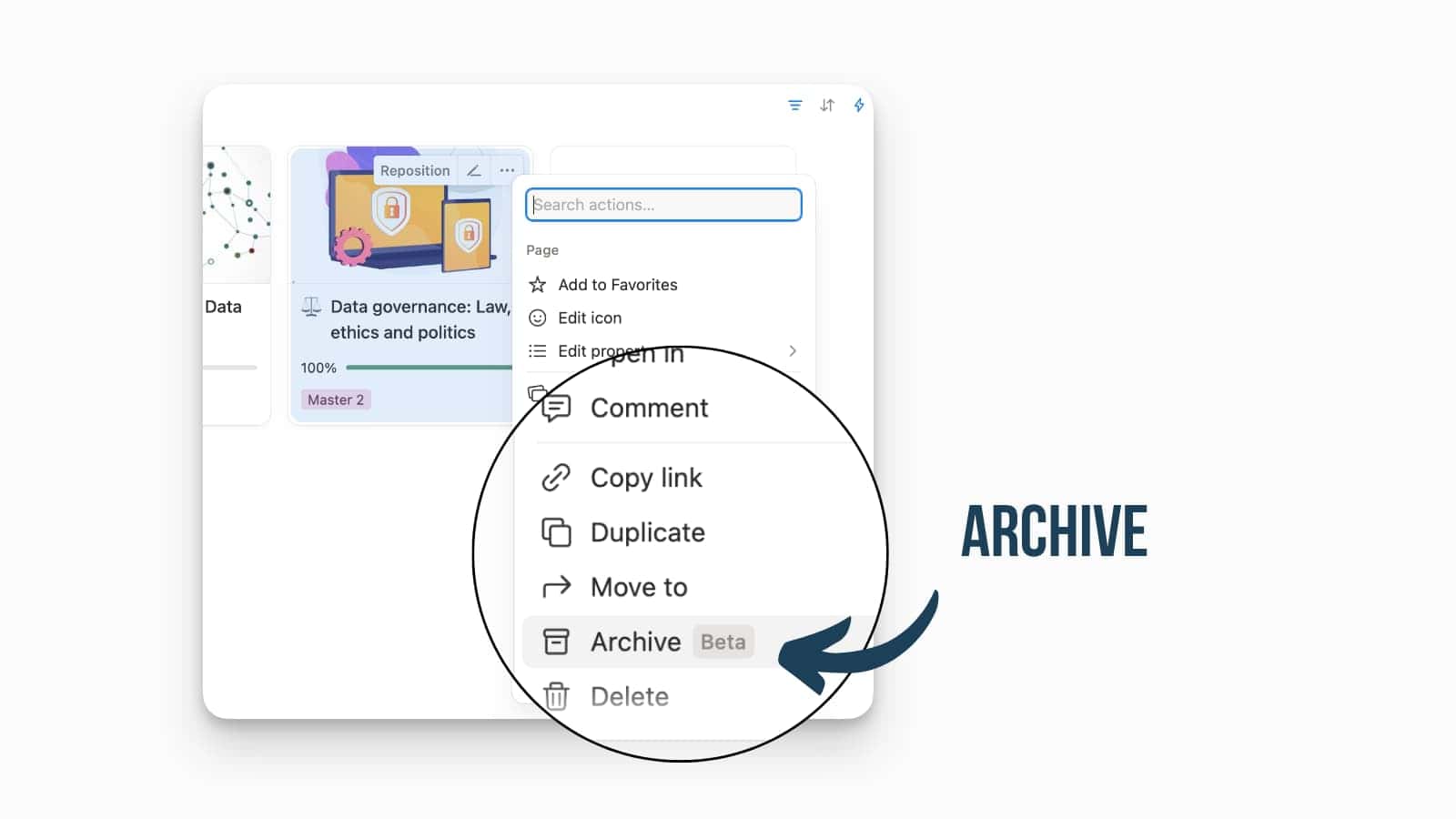
Notion Page Archive
Besides deleting outdated pages Notion now also offers an archive.
Archived pages are hidden from search by default, the archived state is passed down to sub-pages, and archived pages are filtered out of database views. They remain visible (greyed out) when nested as sub-pages, and they still appear in relation pickers.
Views Now Available In The Notion API
Views are now available via the API.
This means automations and external tools can reference view configuration and identifiers, which should make it easier to build consistent reporting and integrations without hardcoding database logic.
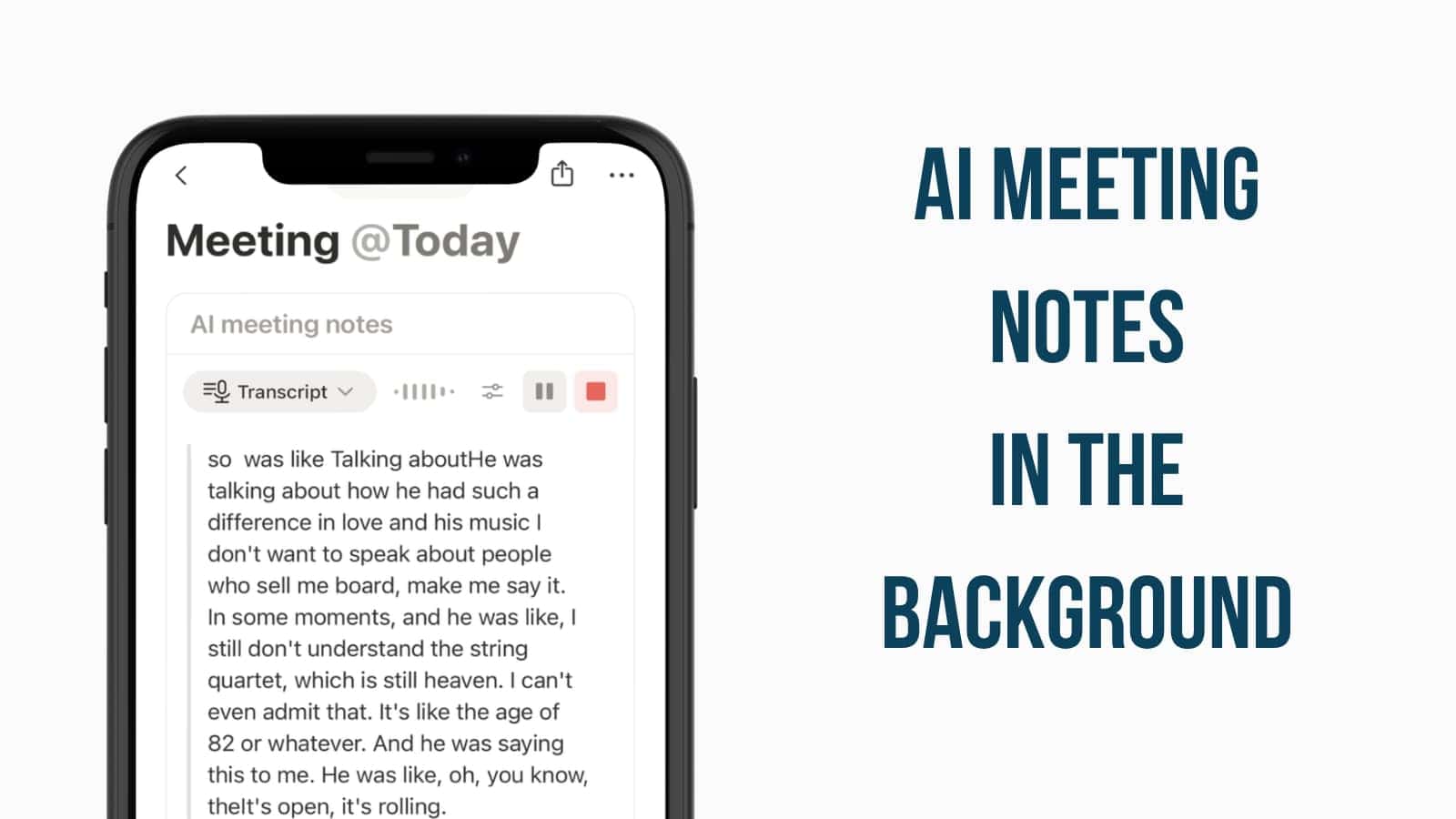
AI Meeting Notes: Background Transcription
You can now record and transcribe meetings on the go without keeping your Notion app open or your screen active.
This “quality of life” update for mobile users ensures that AI Meeting Notes run in the background, allowing you to switch to other apps for reference or lock your phone entirely to save battery during long sessions. The recording and transcription will persist regardless of your device’s state, providing a reliable way to capture every detail of a live discussion without constant manual intervention. It’s a vital improvement for field researchers and traveling professionals who need a “set it and forget it” solution for capturing high-fidelity meeting data in real-world environments.
Background transcription is enabled by default in the latest mobile app update; simply start a recording session and feel free to lock your screen or navigate away from the app.
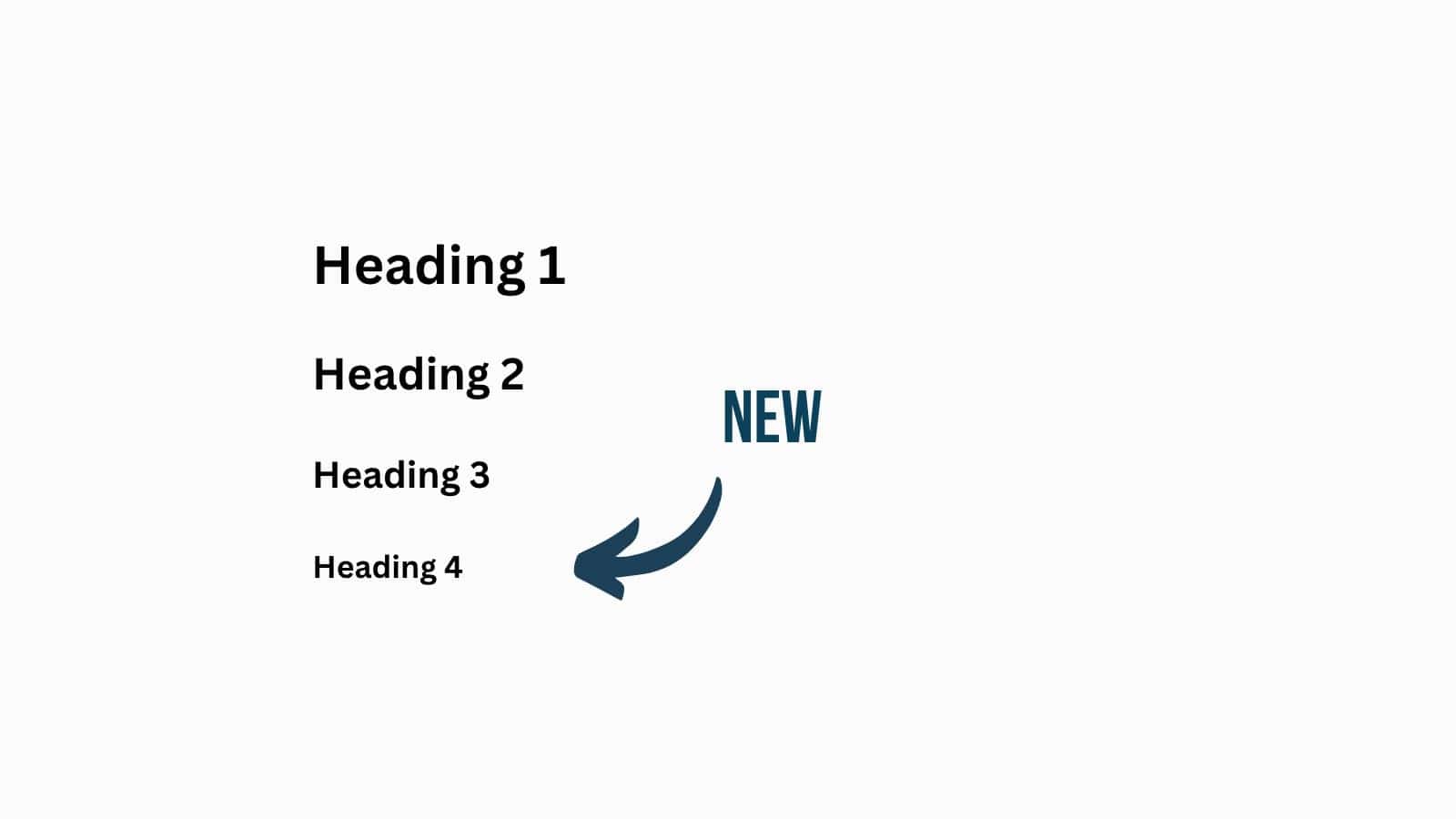
Heading 4 in Notion
You can now add a fourth heading level to your Notion pages.
While this is mostly just a neat way to structure content better, it also is actually a big improvement if you manage your content from Notion.
If you use any kind of integration to push, for example, blog posts from Notion to the web, you have now one more HTML heading level to work with.
Notion Tabs: Organize Without the Scroll
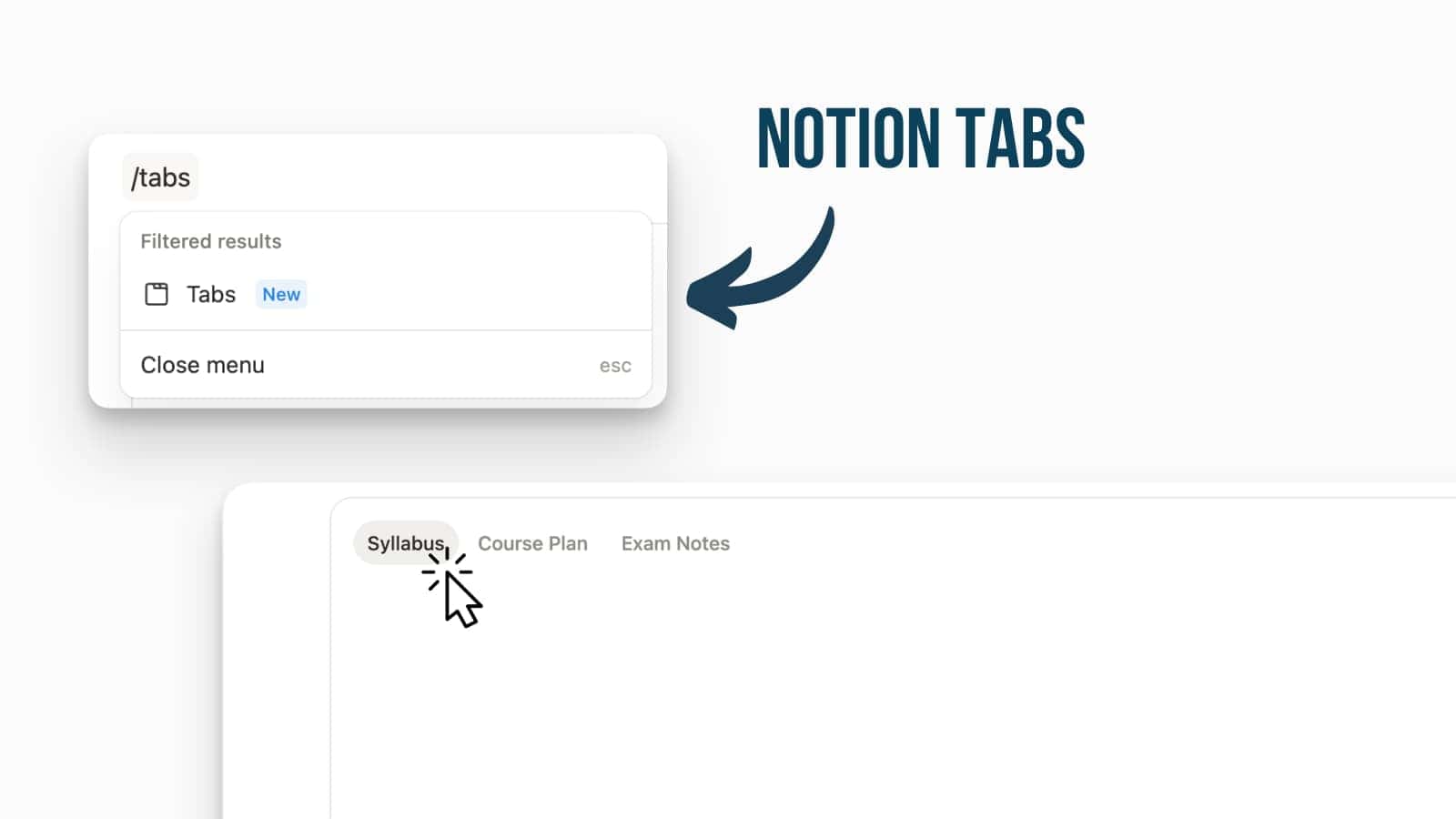
Notion has introduced a native Tabs block to help you organise dense pages without relying on subpages or creating “mile-long” scrolls.
Instead of forcing users to scroll through multiple database views or text sections, you can now toggle between different categories of information instantly within the same page context. It’s an ideal solution for project hubs, personal dashboards, or any document where you want to maintain a high-level overview while keeping granular details neatly tucked away but easily accessible.
Simply click into any empty block on a page and type /tabs to start building your first segmented layout.
AI Meeting Notes: Custom Instructions
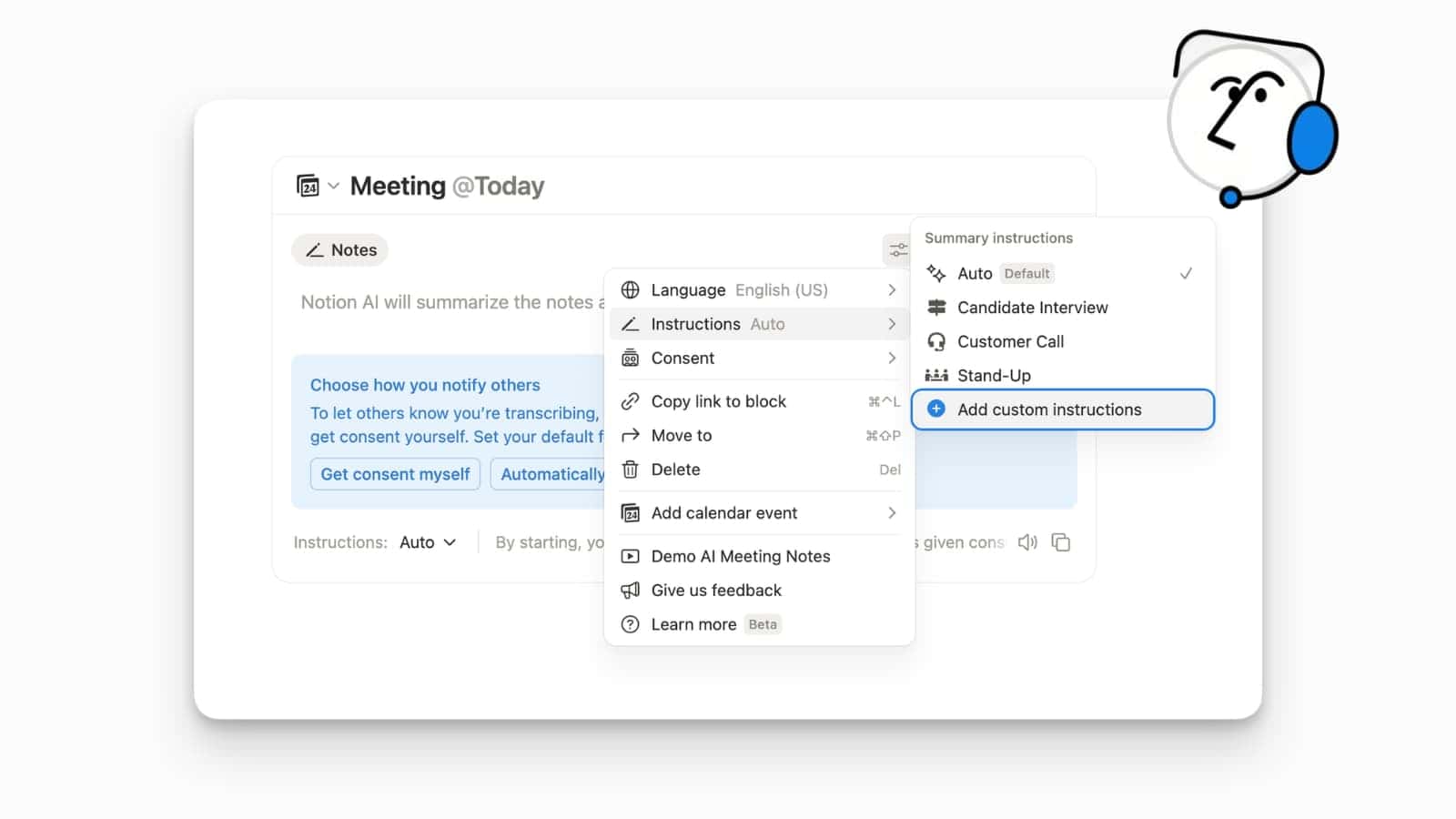
Notion AI Meeting Notes just became significantly more flexible with the addition of custom instructions to tailor your automated summaries to the specific needs of any meeting.
This update recognises that a “one-size-fits-all” summary doesn’t work for every context, whether you’re conducting a candidate interview, a customer discovery call, or a technical stand-up. You can now create templated instructions that tell the AI exactly what to look for and how to format the output, such as focusing on pain points for sales calls or technical blockers for engineering syncs.
To use this, open a meeting note, select the Instructions dropdown within the AI Meeting Notes block, and choose from existing templates or select Add custom instructions to define your own rules.
Markdown Support for Notion API
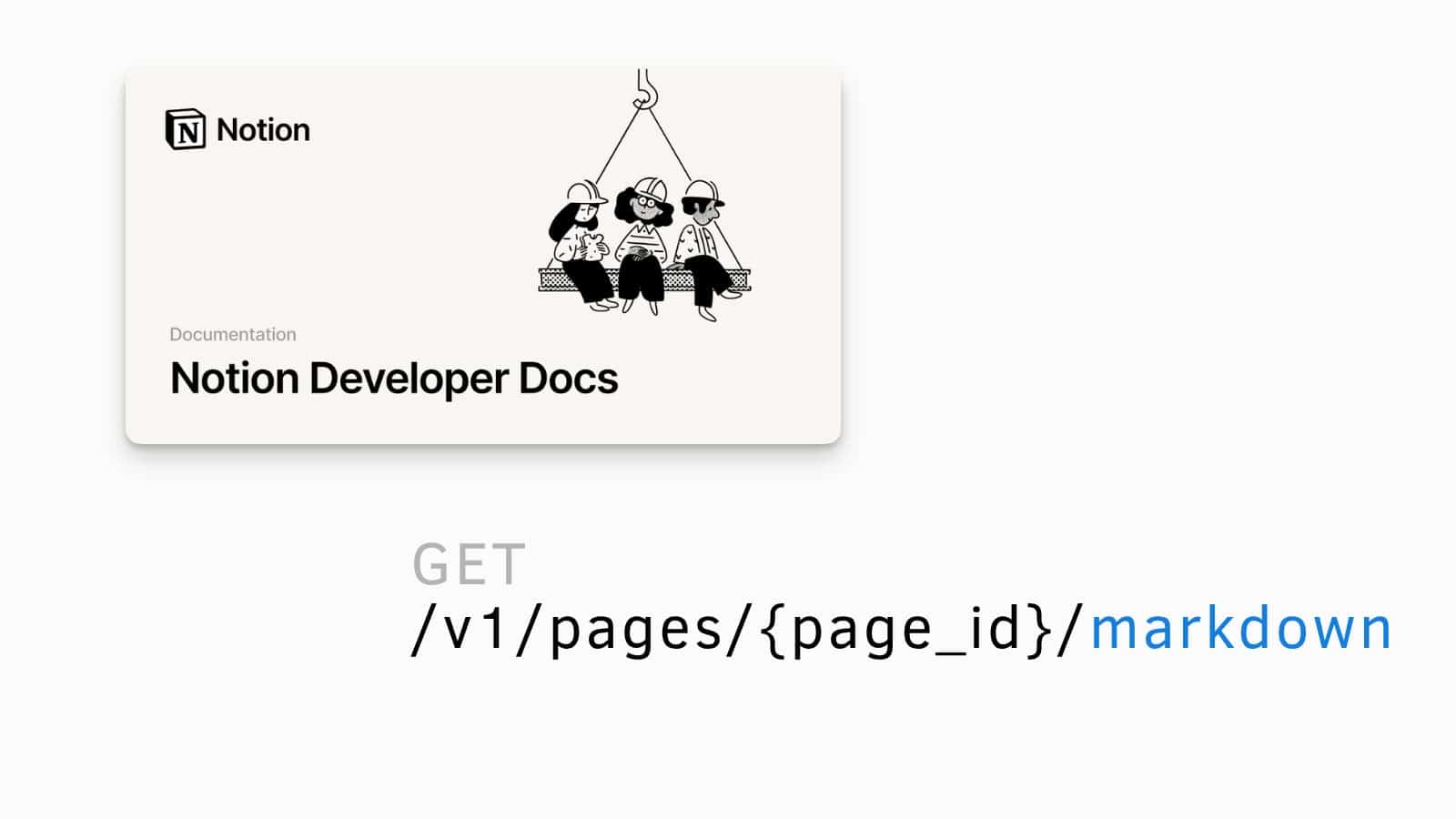
The Notion API now supports Markdown.
This makes it easier to move content in and out of Notion without working directly with block-based structures. This allows you to extract formatting, mentions, and rich blocks from Notion pages.
Particularly helpful if you plan on giving your external agents access to Notion.
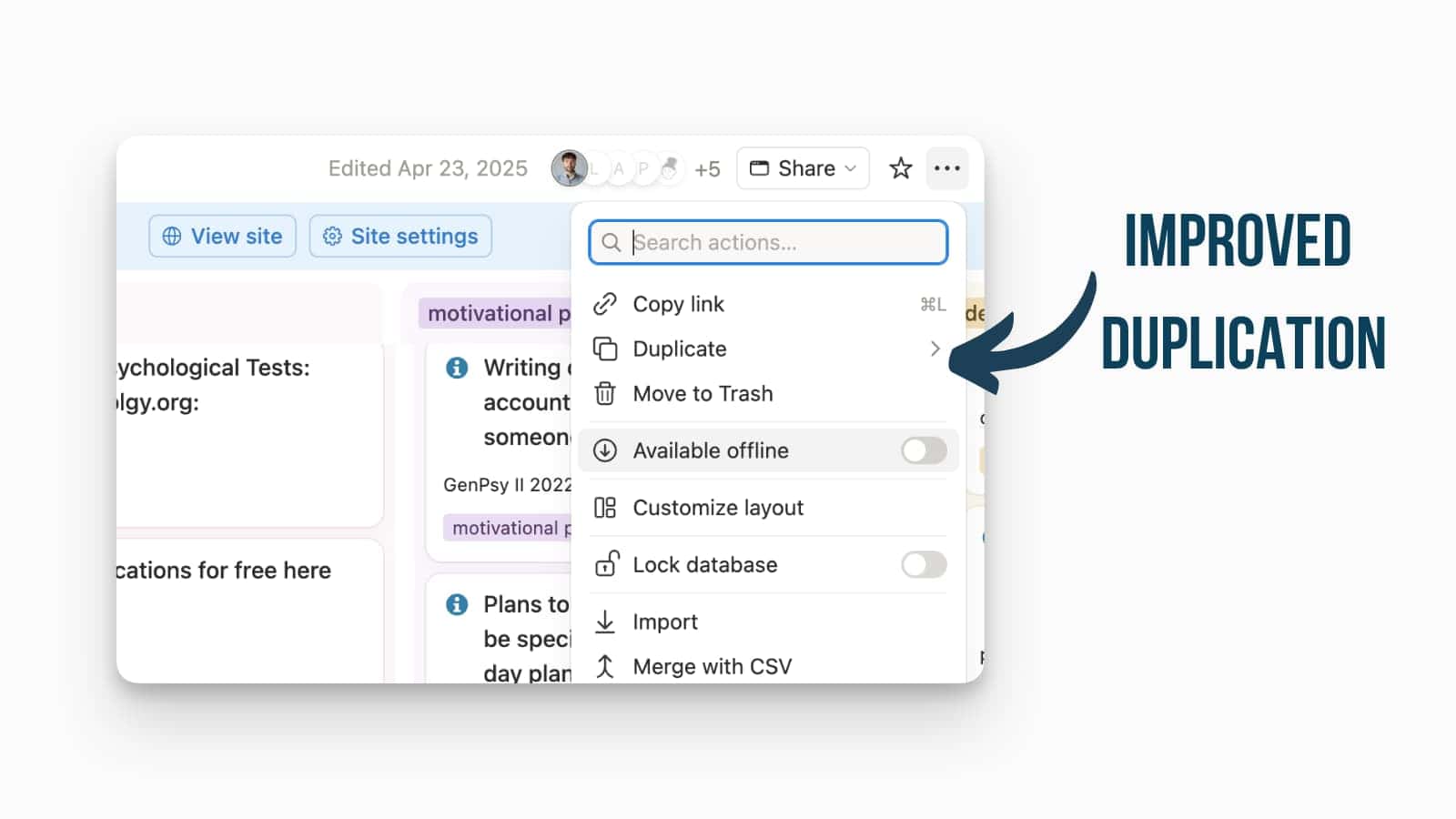
Improved Duplication Performance
The technicalities about duplication processes have been improved to increase reliability and efficiency.
This reduces friction when copying pages, databases, or templates, and may address common issues such as missing relations, permissions edge cases, or inconsistent template behaviour.
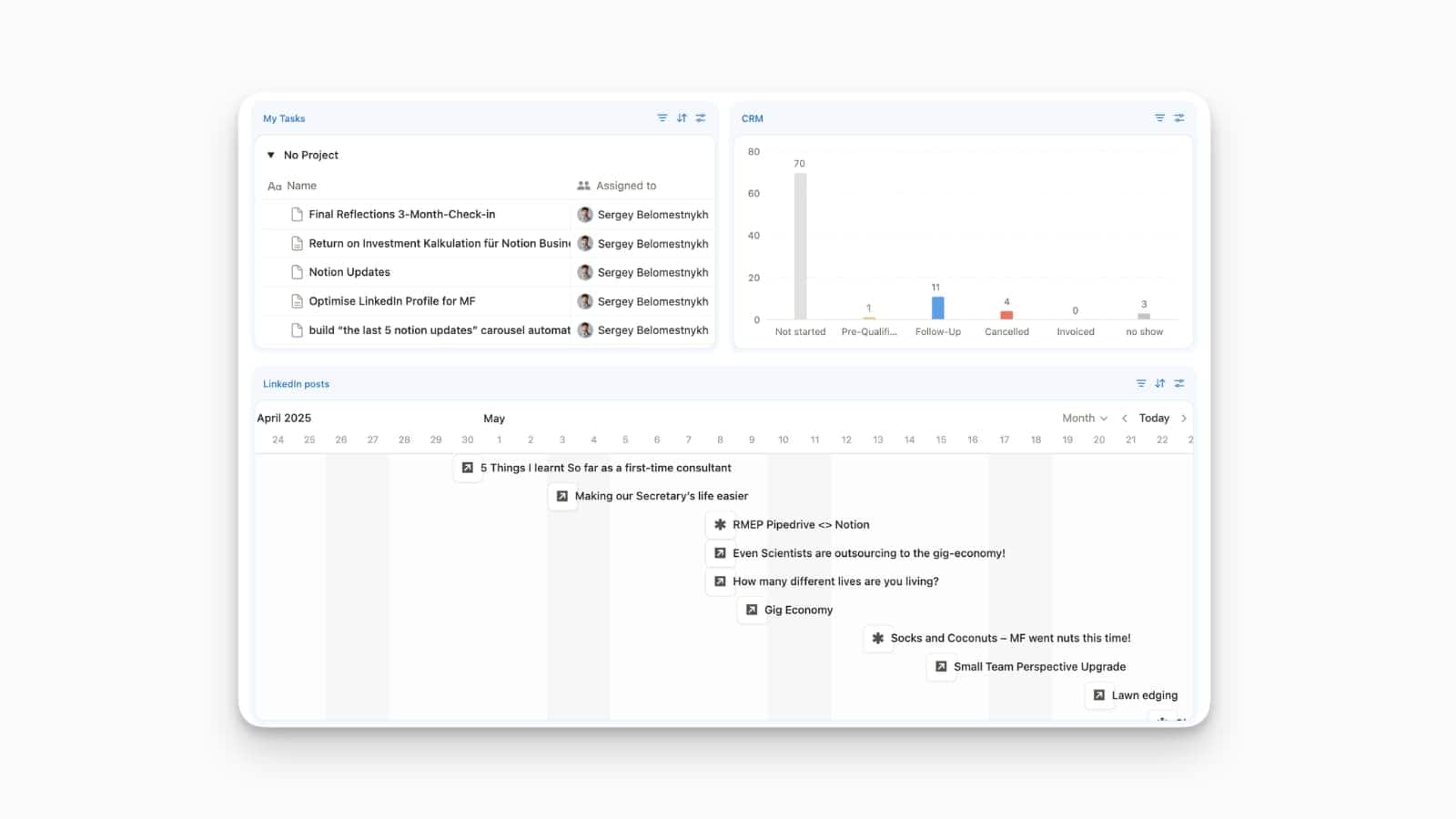
Notion: Dashboards
Notion Dashboards are here — and they bring global filters, cross-database filtering, number charts, and a completely new way to build interactive reporting views in Notion.
Global filters allow you to control the data displayed across multiple charts and databases simultaneously from a single control point at the top of your page. Instead of updating every individual block, you can simply change a global filter—such as a specific “Team” or “Status”—and watch as every connected visualisation on your dashboard updates in real time. This is a significant step forward for those building complex reporting hubs or project command centres, as it provides a truly interactive way to slice and dice workspace data without breaking the page layout.
You can find the Filter button in the top right of your Dashboard view to begin linking your database properties to a global controller.
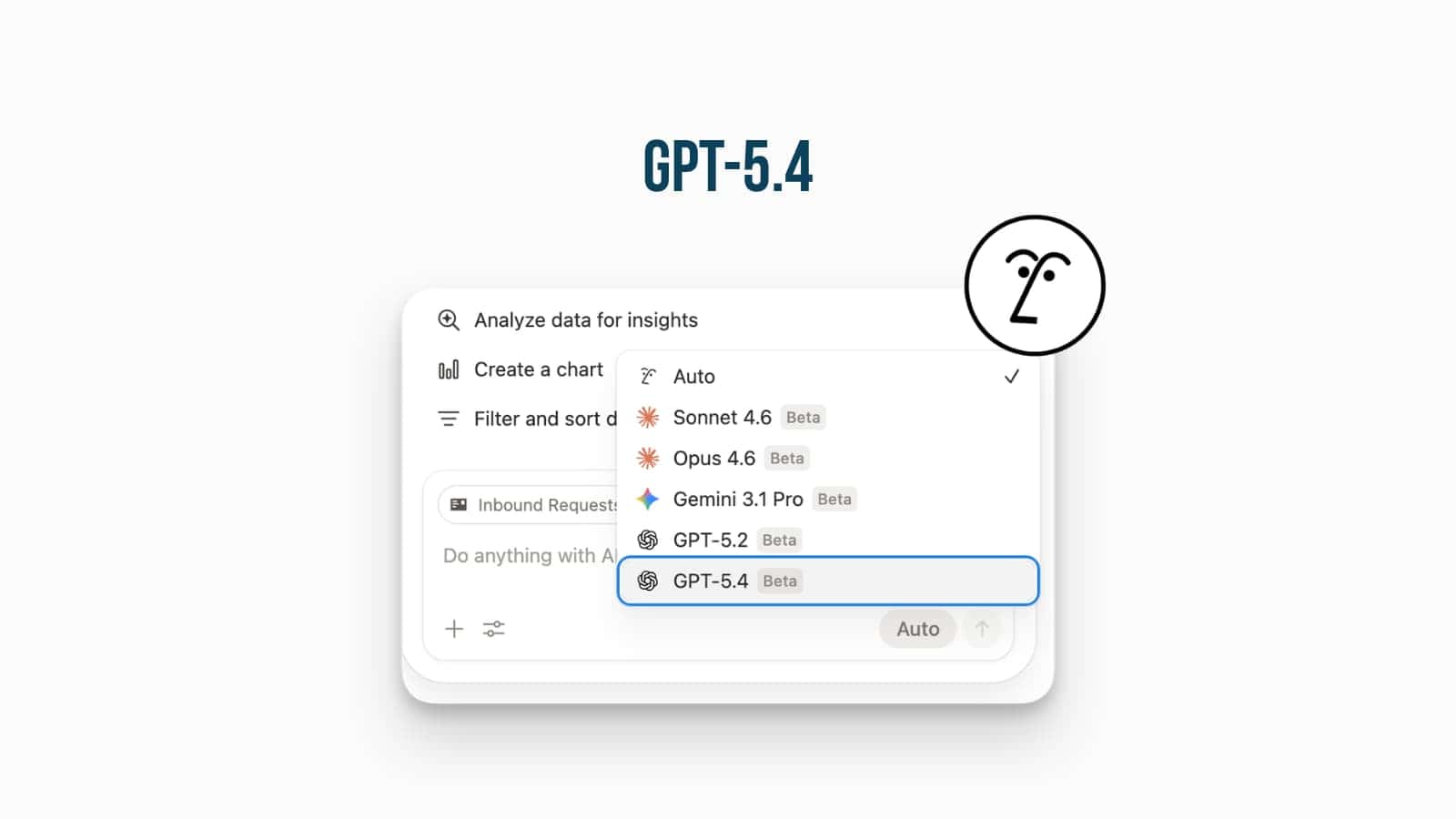
GPT-5.4 in Notion AI
Notion AI has further expanded its model library with the addition of GPT-5.4.
This update is designed for “long-horizon” tasks that require complex planning and execution across your databases and pages. GPT-5.4 excels at processing vast amounts of context to deliver more accurate, less verbose outputs, making it particularly effective for automated morning briefings or summarising intricate project threads.
To start using the new model, open any Notion AI chat or the model selector within an Agent’s settings and select GPT-5.4 from the dropdown menu.
Notion AI: Expanded Image Generation Limits
Notion AI has increased its daily image generation limits, giving users more flexibility to refine and regenerate visuals for pages.
The daily limit has been doubled from 5 to 10 generations. While the total monthly limit remains at 30 generations, this shift toward a higher daily volume is a significant “quality of life” improvement for users who prefer to do their deep design work in concentrated bursts.
This change is active immediately for all users with AI access, so you can head to any page and start using the /image or cover generation tools with your newly expanded daily allowance.
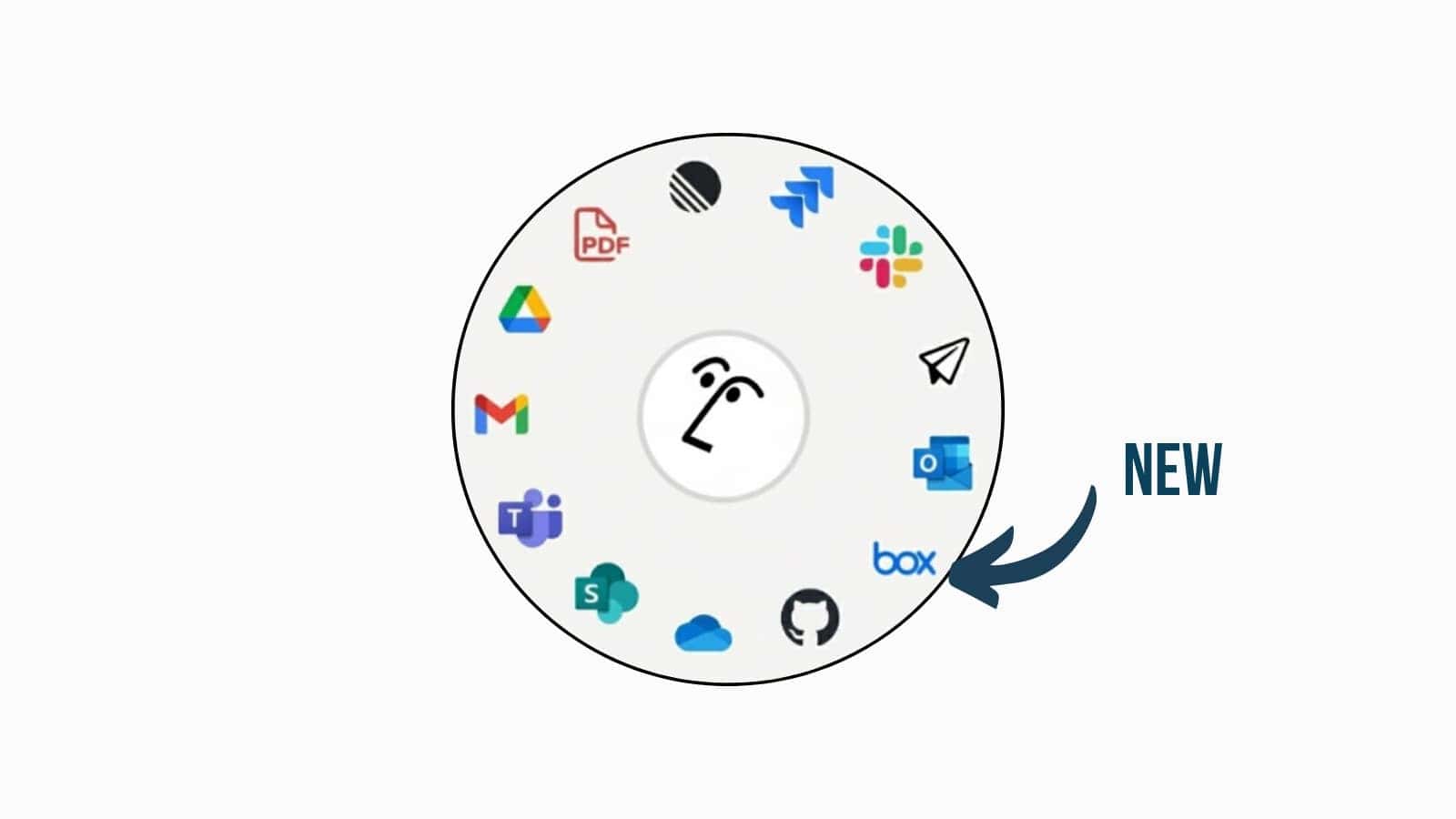
Box AI Connector: Multi-Platform Knowledge Search
Notion has expanded its AI ecosystem with the Box AI Connector, allowing users to search, summarise, and compare files stored in Box directly from their Notion workspace.
By connecting Box to Notion, the AI can now query your Box library to surface relevant project plans, handcrafted documents, or meeting notes without requiring you to leave your current page. This unified search experience significantly reduces context-switching and enables cross-platform document comparisons, effectively turning Notion into a centralised hub for all your organisational data, regardless of where the original files are hosted.
To enable this connection, navigate to Settings → Connections in your workspace and authorise the Box AI Connector to begin indexing your external files for search and summarisation.
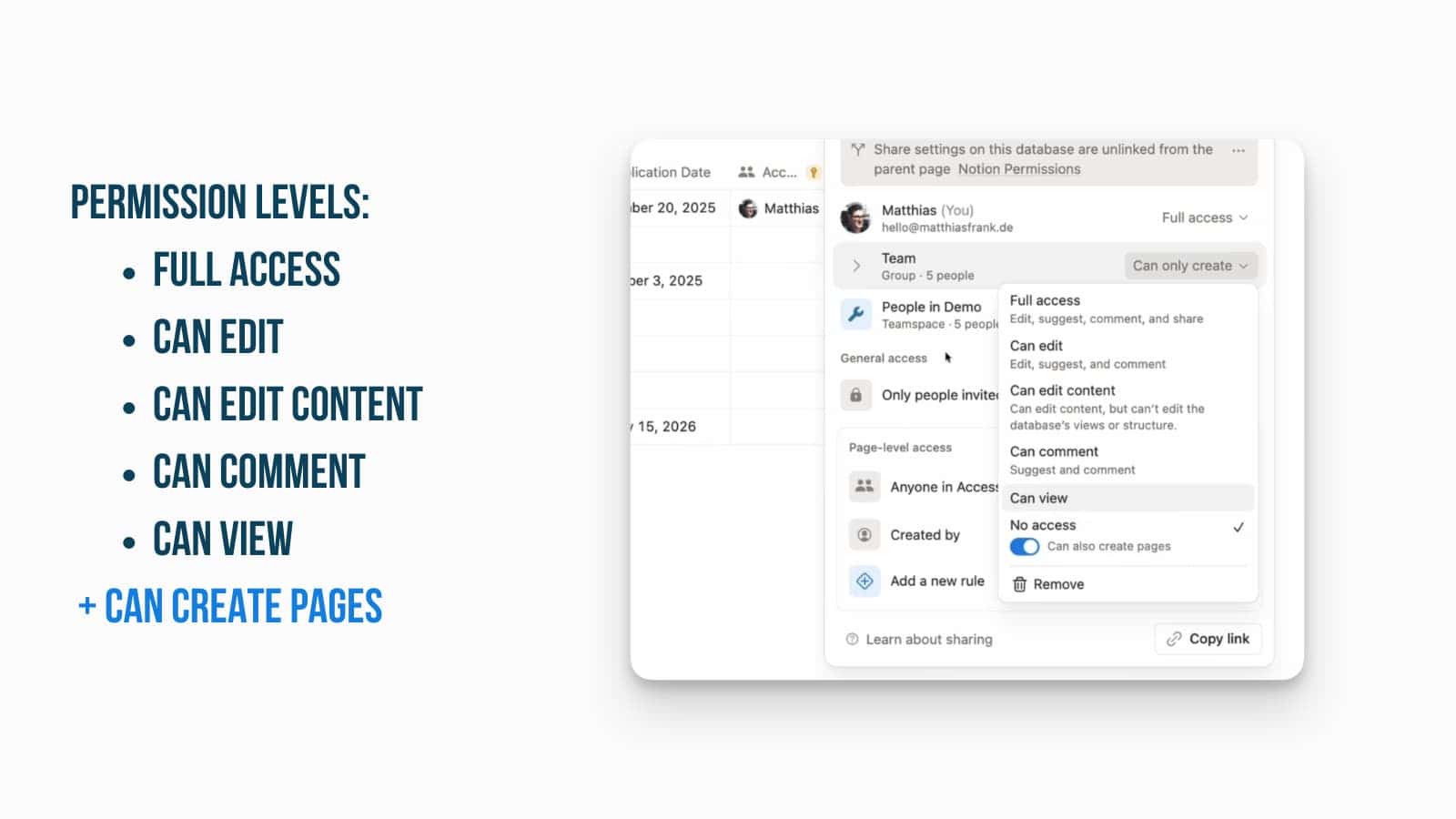
Notion Databases: New “Can Create Pages” Permission
Notion has released a highly anticipated “Can Create Pages” toggle that allows users to add new entries to a database without granting them broader editing or viewing rights.
Previously, users needed at least “Can edit content” access to add rows, which often exposed the entire database or allowed accidental edits to existing data. Now, admins can set a user’s base permission to “No Access” or “Can View” and simply switch on the “Can Create Pages” toggle. This enables powerful “self-serve” workflows—such as sales teams adding leads or employees submitting support tickets—where contributors can only create new items and are blocked from seeing or changing existing records they didn’t create.
To enable this, navigate to the Share menu of any database, invite a person or group, set their access to “No Access”, and then toggle on the “Can Create Pages” option located within the permissions dropdown.
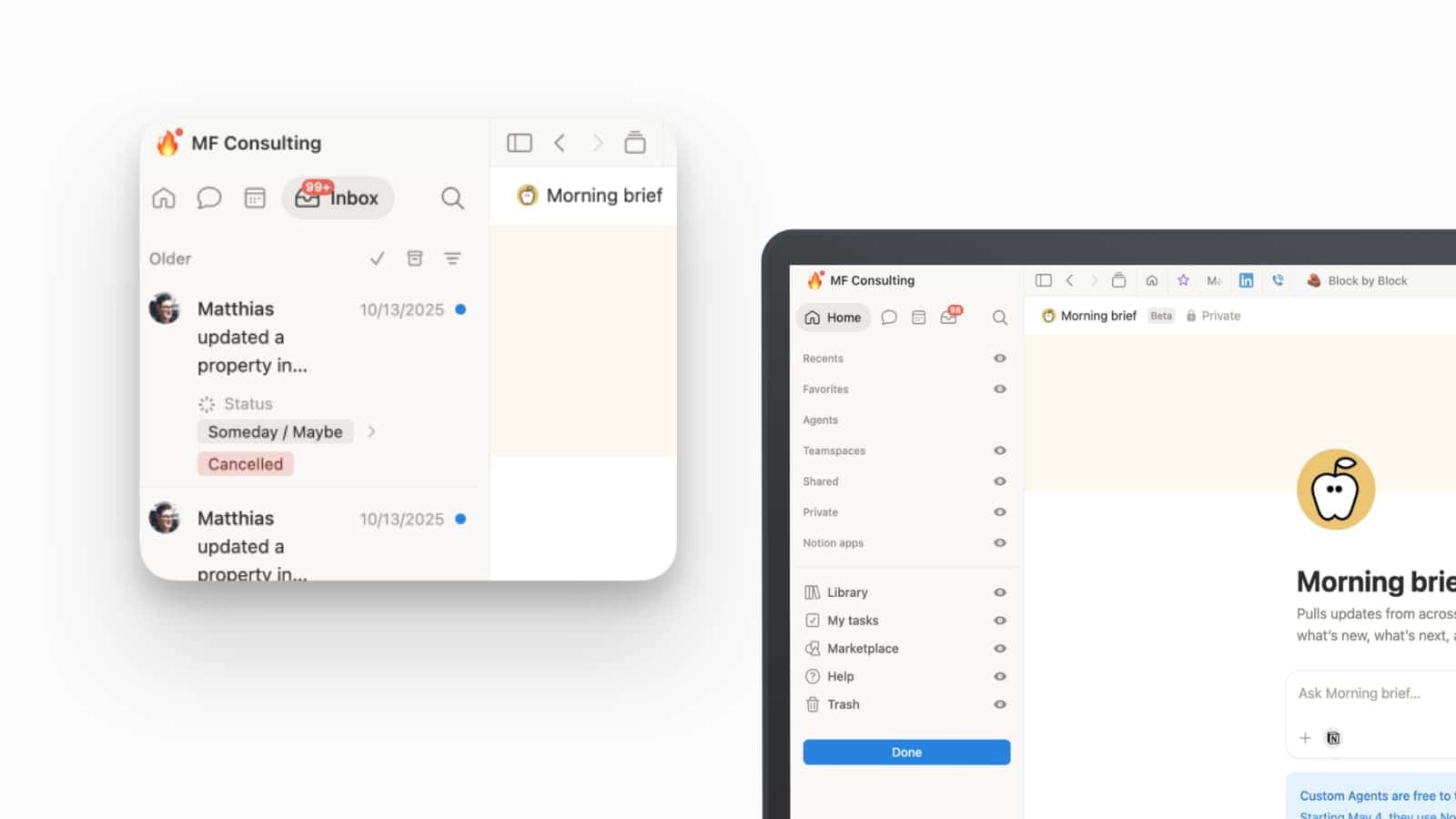
UI Update: The New Opt-In Sidebar
Notion has officially launched an optional, rebuilt sidebar designed to provide a smoother and more organised way to navigate your workspace content and threads.
The new layout introduces a cleaner, tabbed interface at the top of the sidebar, creating a dedicated space for high-frequency areas like Home, Search, and Inbox. This change reduces the density of the main sidebar list, making it much easier to focus on your pinned pages and teamspaces without getting lost in administrative noise. Because this is currently an opt-in experience, teams have the freedom to test the new navigation flow and update their internal documentation before the segmented model becomes the workspace standard.
You can try the new look by clicking on your workspace name in the top left.
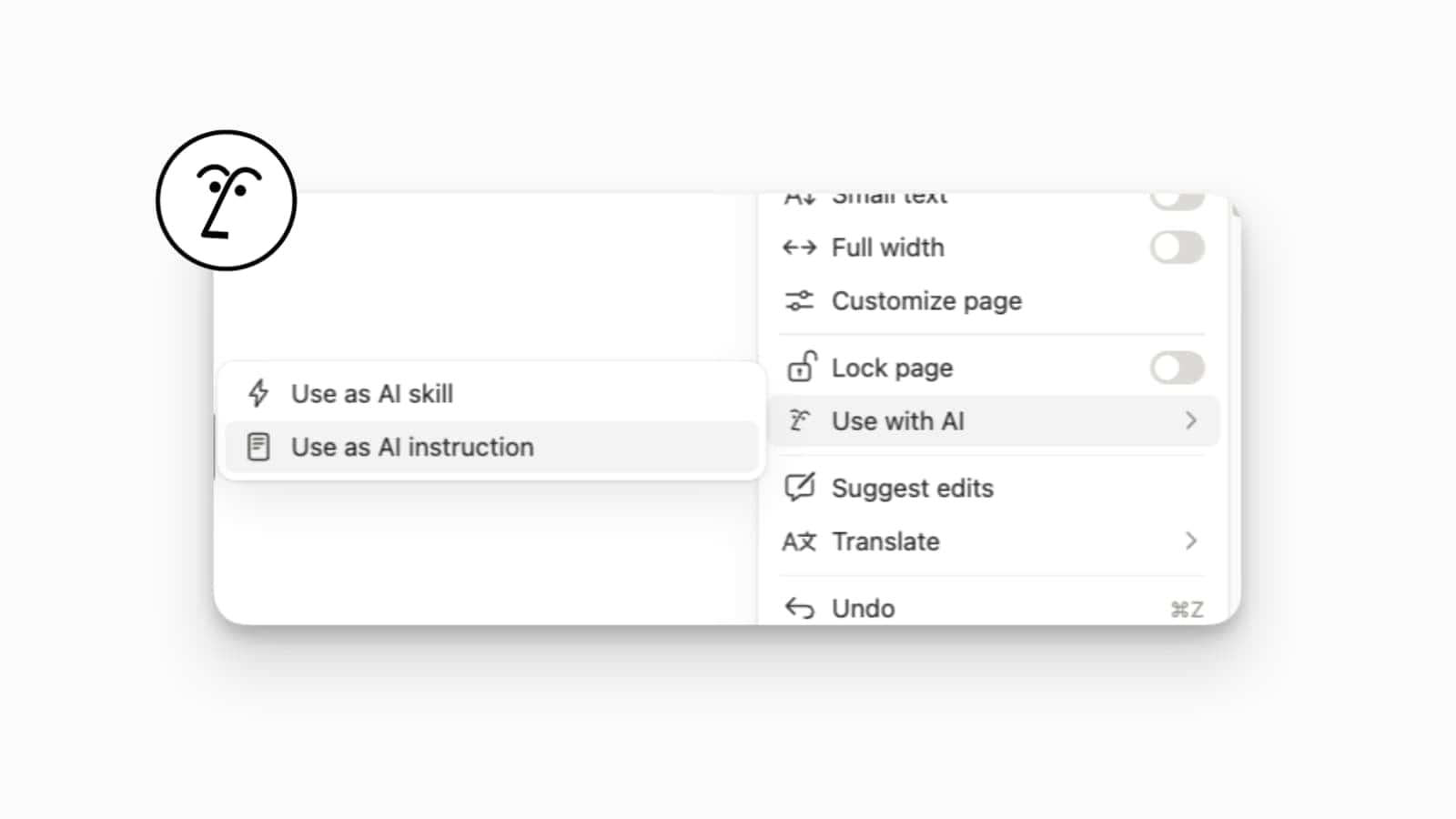
Notion AI: Turn Pages into Skills and Instructions
You can now turn any existing Notion page into a set of “skills” or “instructions” for your AI Agent, giving it instant context on how you want work to be done.
This feature allows you to bridge the gap between your static documentation and your active AI workflows. By tagging a page—such as a brand style guide, a coding standard, or a project framework—as an instruction, the AI will automatically reference that content when performing tasks. This level of dynamic personalisation ensures that your agent isn’t just generic; it becomes a specialised teammate that understands your specific organisational vocabulary and procedural rules, leading to much more accurate and relevant outputs.
To define a page’s role, click the three-dot menu (…) in the top right of a page, select Use with AI, and choose either Use as AI skill or Use as AI instruction.
Notion AI: Custom Open-Weight Models
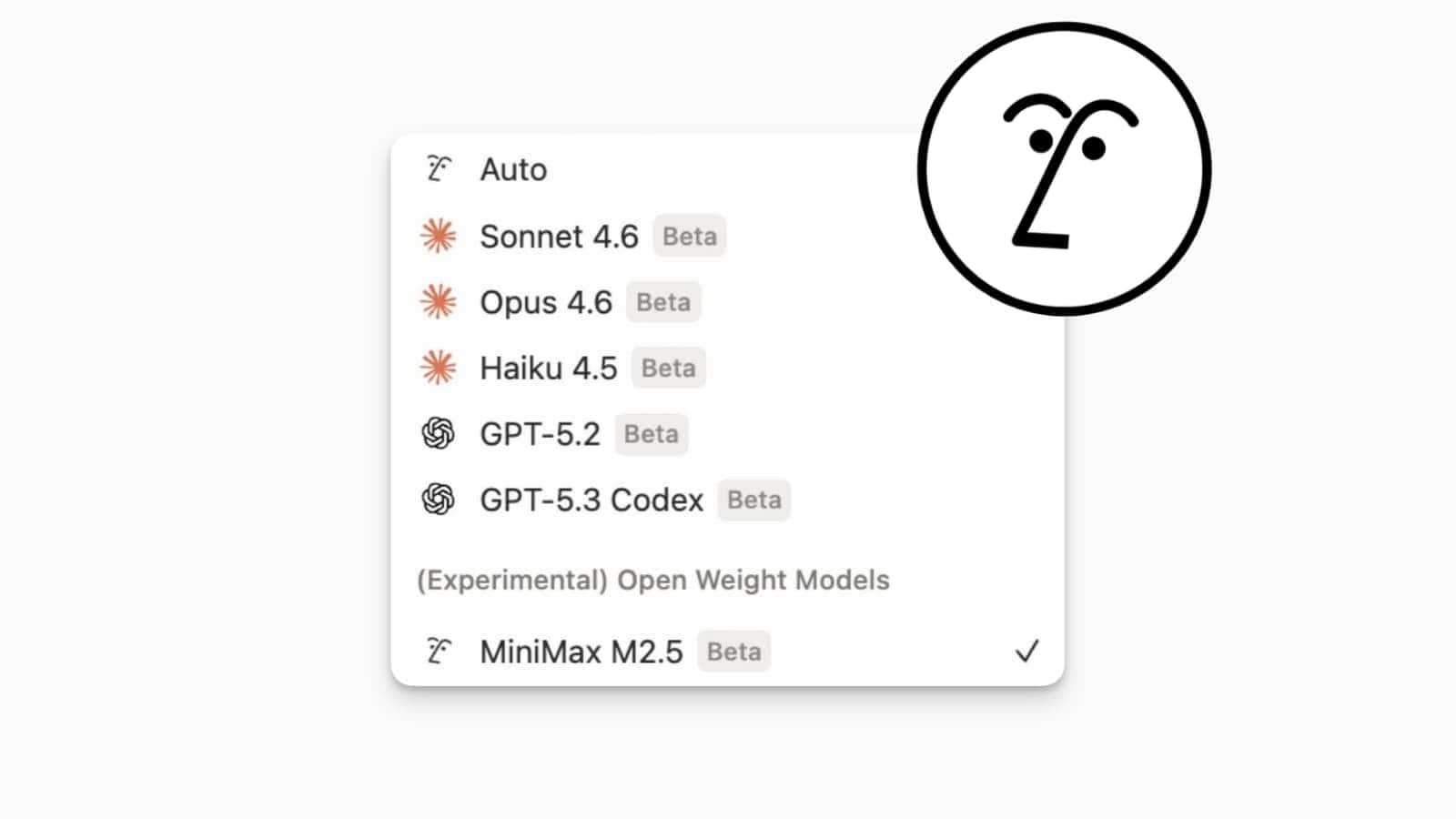
Notion AI has officially entered a new era of flexibility with the introduction of “open-weight” models for Custom Agents, starting with the integration of MiniMax M2.5.
This update is a strategic shift for users who need to balance high-level automation with cost-efficiency. By offering open-weight models alongside proprietary giants like GPT-5 and Claude 4.6, Notion allows you to route simpler, high-volume tasks to models that are significantly cheaper and faster to run. While proprietary models remain the choice for complex reasoning, these new open-weight options provide a “Goldilocks” solution for routine database updates and basic content generation, ensuring that your Custom Agents remain highly performant without scaling your API or subscription costs unnecessarily.
To swap your agent’s brain, open the Notion AI settings within your chat or agent configuration and select MiniMax M2.5 from the new “Experimental” or “Open Weight Models” section of the dropdown menu.
AI-Powered Banner Generation
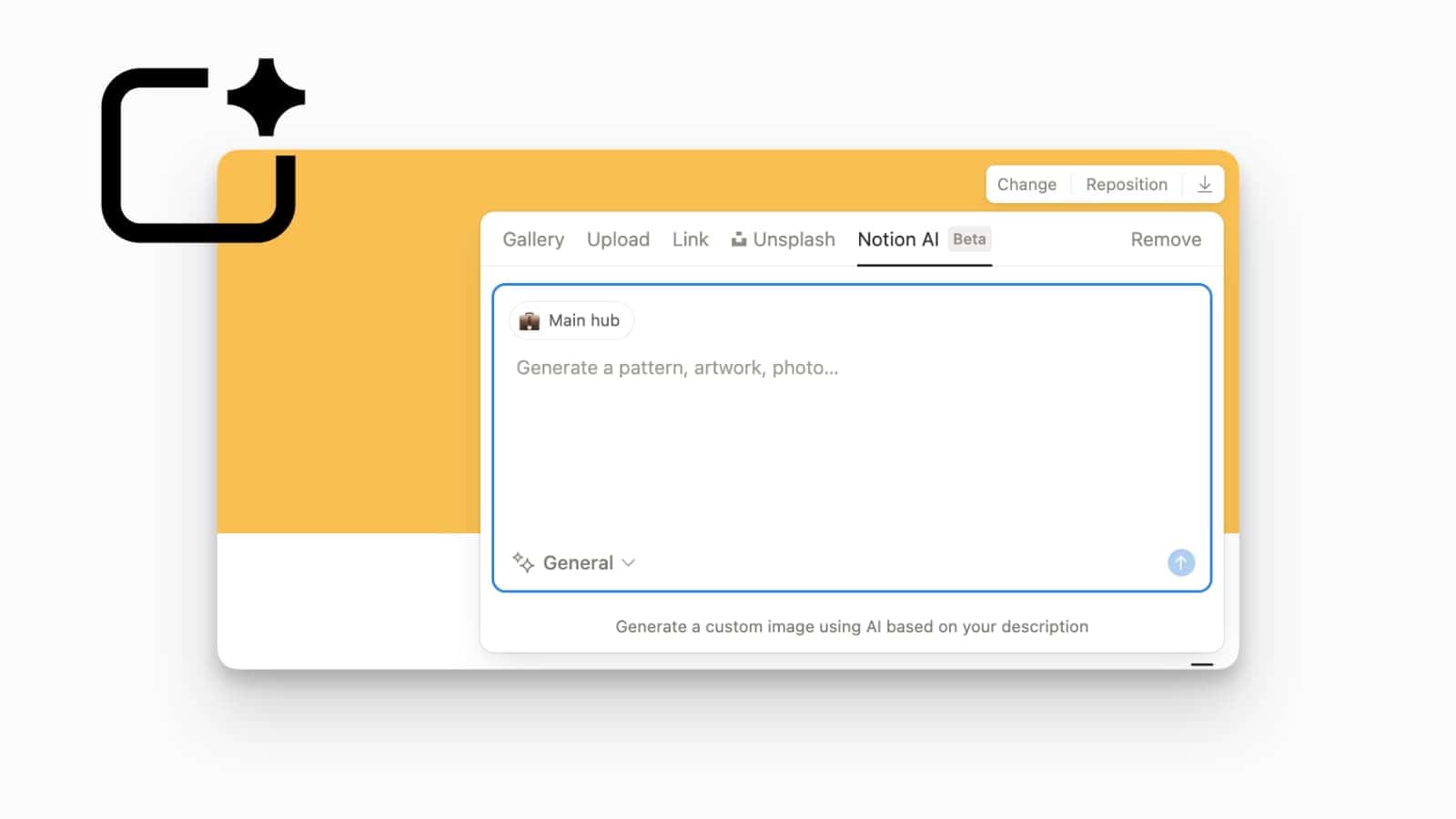
You can now use Notion AI to create custom, high-quality page covers and banners directly from a text prompt.
This update brings generative art into your document workflow, allowing you to create unique, contextually relevant visuals for your pages without hunting through stock photo libraries. By describing the vibe or subject matter—such as “abstract capacity planning” or “minimalist architecture”—the AI generates a custom image tailored to your page’s theme. It’s an excellent way to maintain a cohesive aesthetic across your workspace while ensuring that every project or team hub has a distinct and professional look.
To generate a cover, hover over the top of any page, click Add cover, select Change cover, and navigate to the Notion AI (Beta) tab to enter your prompt.
API: Markdown and Transcript Support
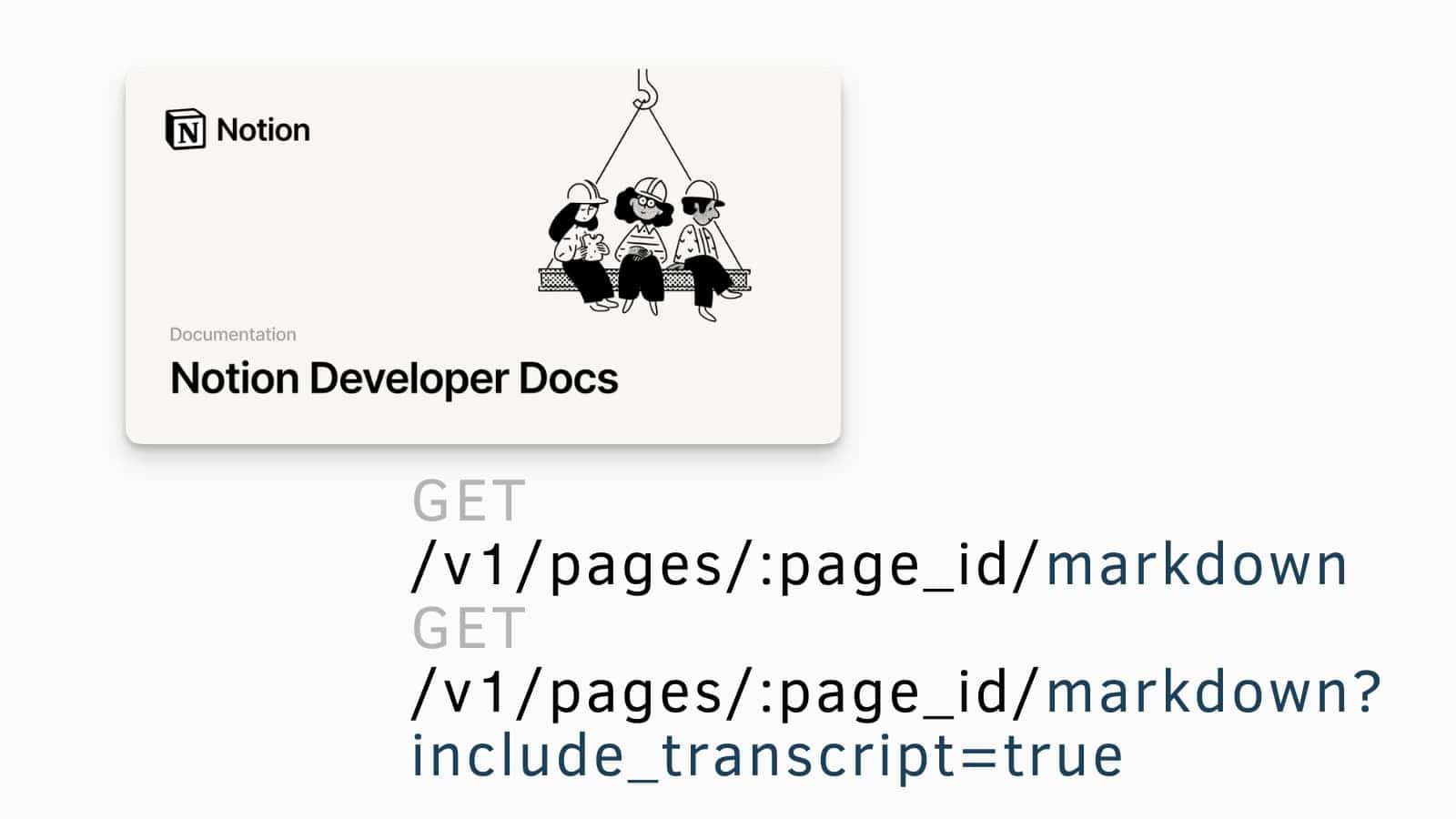
Developers now have significantly more power to move content in and out of Notion thanks to new API endpoints for Markdown and AI meeting transcripts.
This update addresses a major technical hurdle by allowing the Notion API to return full page content as clean Markdown instead of the complex, block-based JSON format. Additionally, the GET /pages/page_id/markdown endpoint now supports an include_transcript parameter, allowing automated workflows to pull the full text of AI-generated meeting recordings. This is a massive win for automation and backup tools, as it makes it significantly easier to sync Notion data with external code repositories, static site generators, or third-party CRM systems.
Developers can find the specific syntax and body parameters for these new features in the Notion Developer Docs under the February 26, 2026, changelog.
Notion Workers: Custom Agent Tools
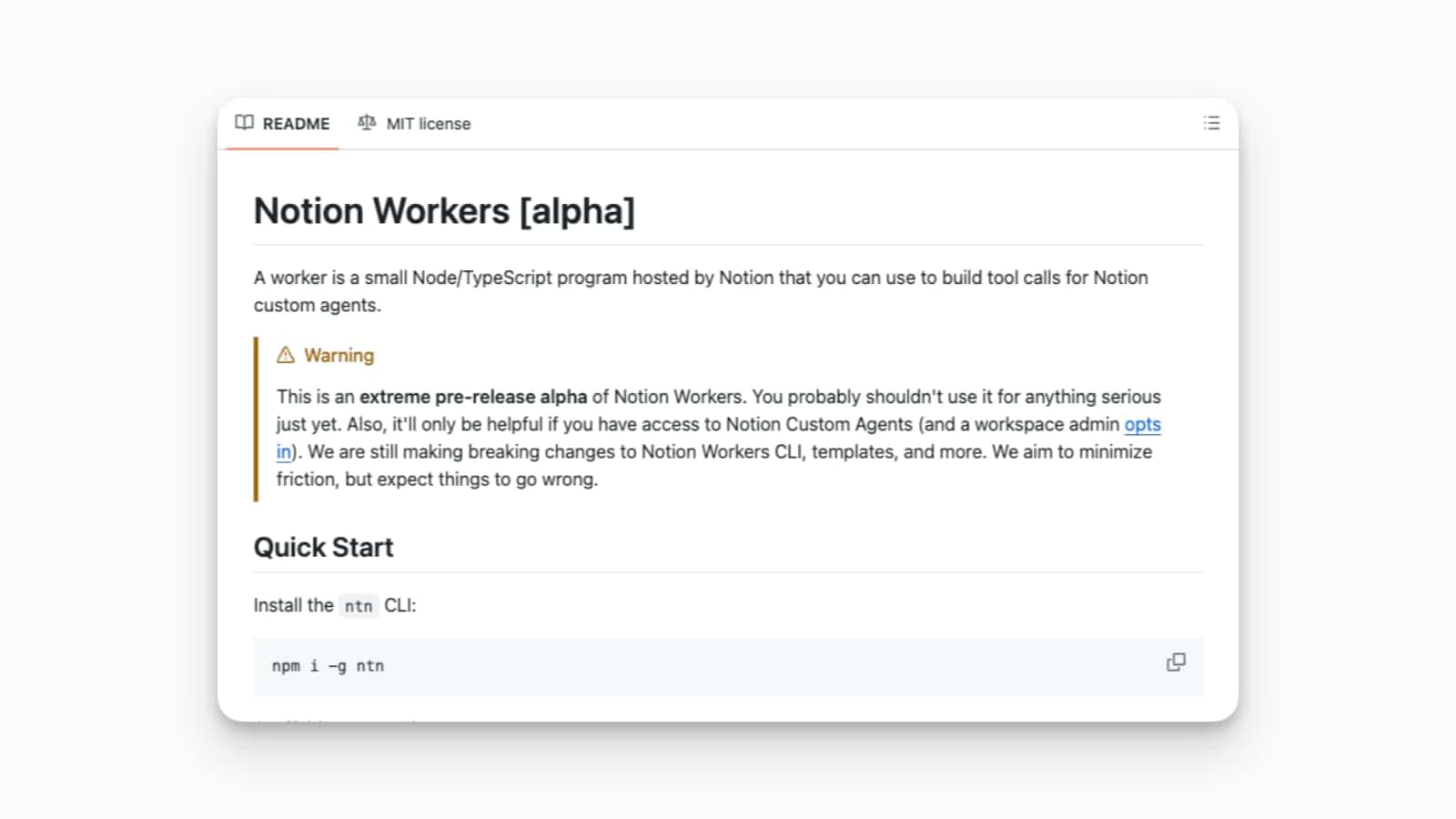
Notion has introduced “Workers”, a generic code execution environment that allows you to build custom tools for your AI Agents.
This is a massive leap forward for workspace extensibility, as it allows developers to write arbitrary code that their Notion Agents can then execute to perform specific tasks. By creating these custom agent tools, you can enable your AI to interact with external APIs, perform complex calculations, or manipulate data in ways that were previously impossible. It effectively turns Notion into a programmable productivity platform, where the AI isn’t just a chatbot, but an active participant capable of running custom logic to get the job done.
Developers can start building by exploring the Notion Workers documentation and using the new interface to deploy code-based tools for their workspace agents
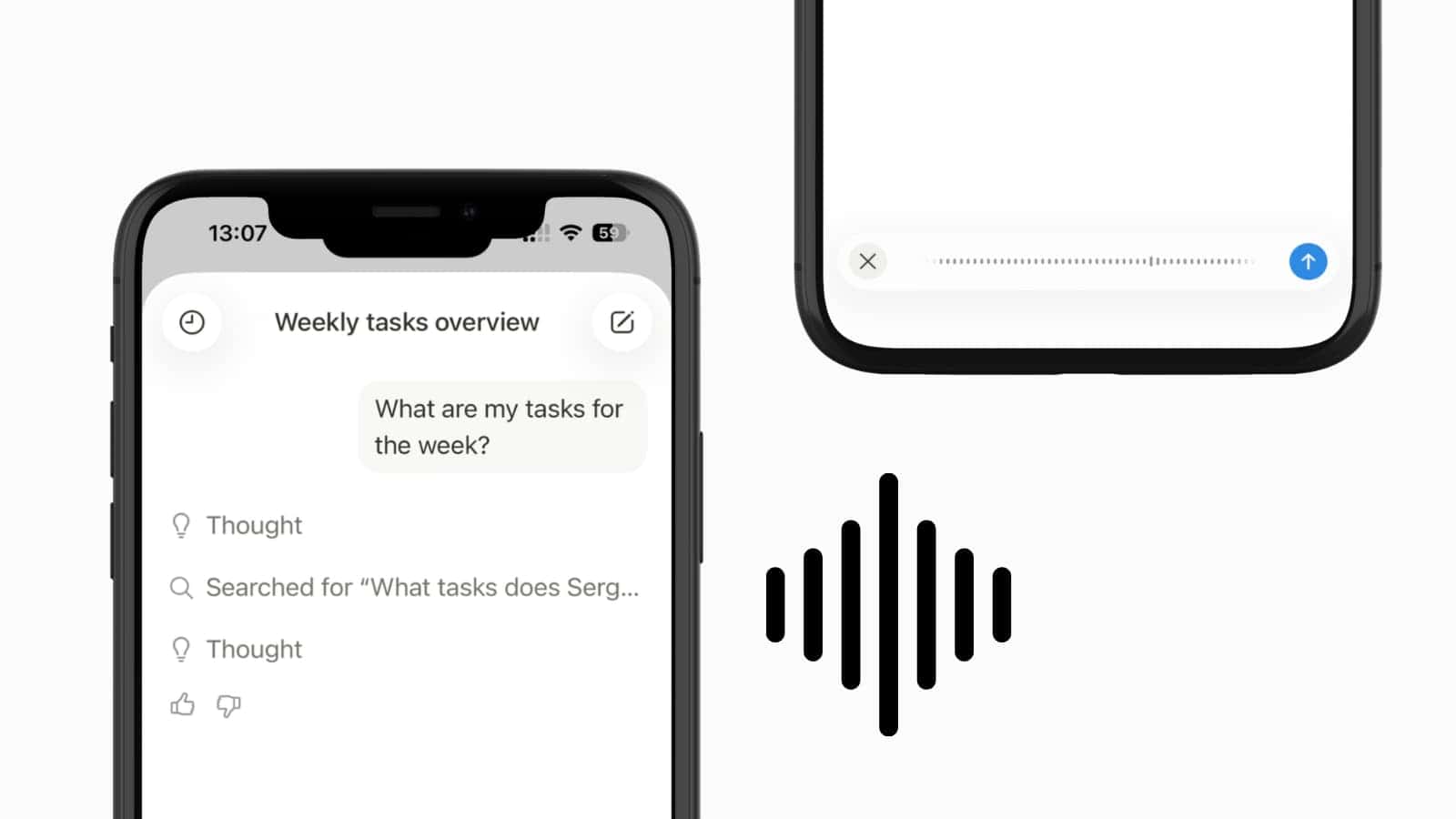
Notion AI: Voice Input on Mobile
You can now talk directly to Notion AI on your mobile device, allowing for a more natural and hands-free way to manage your workspace on the go.
This update is a massive step toward a true “intelligent assistant” experience, enabling you to dictate prompts and questions rather than typing them out on a small screen. Whether you are pacing during a brainstorm or commuting, the native voice input captures your thoughts and triggers the AI Agent to execute tasks—like summarising your weekly schedule or finding a specific document—instantly.
To try this out, tap the microphone icon in the Notion AI chat bar on your mobile app to begin speaking your prompt directly to your Agent.
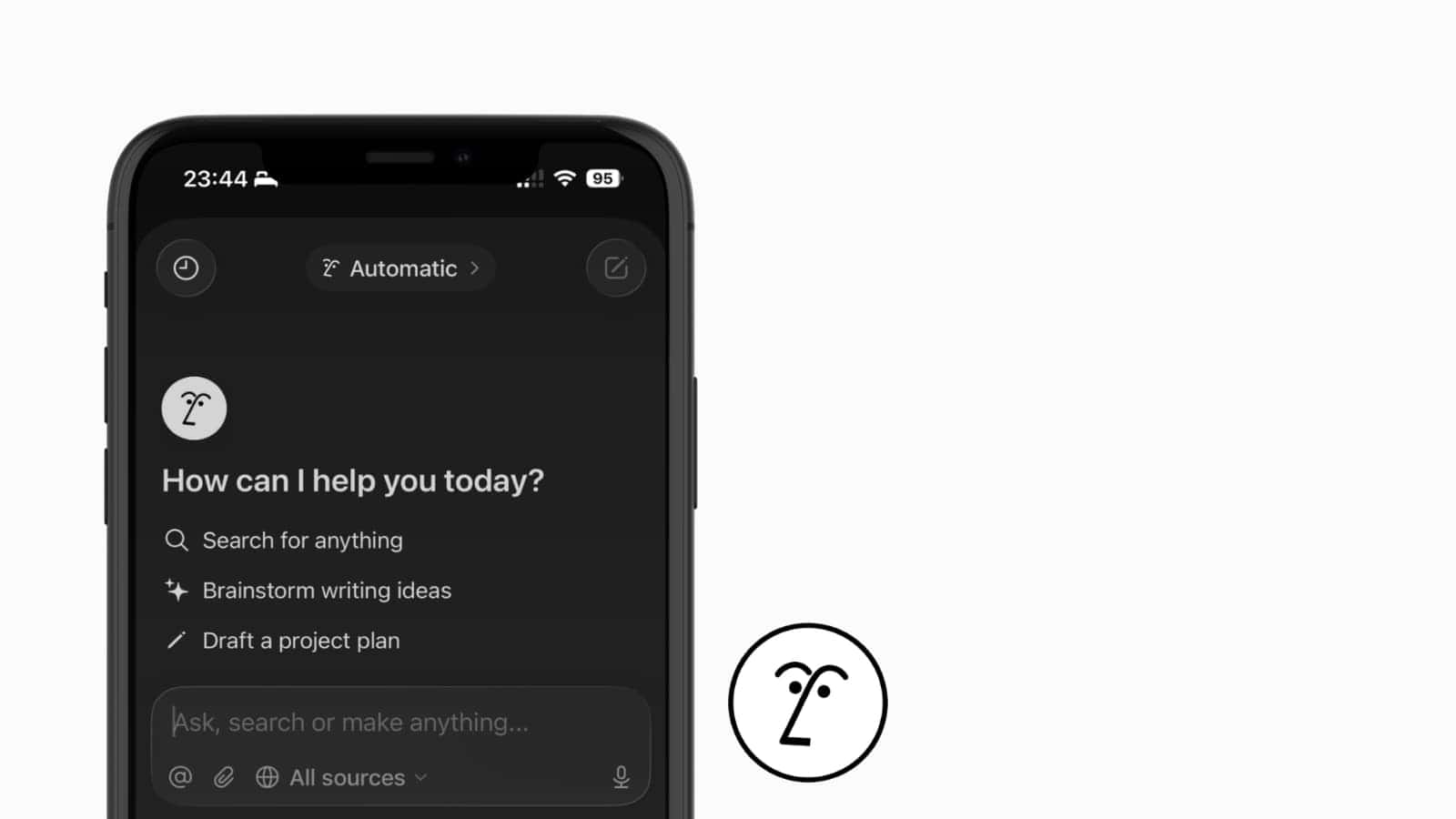
Agent Personalisation on the Phone
You can now add a touch of personality to your workspace by personalising your Notion AI Agent, “Nosey”, directly from your phone.
This whimsical update allows you to customise the visual appearance of your agent by selecting various accessories, including seasonal items that appear throughout the year. Beyond the aesthetic, the mobile experience also makes it easier to choose from instruction templates and reuse your most successful prompts. It’s a mobile-first experience designed to make the AI feel more integrated and “human” within your team, allowing you to tailor how the Agent responds and looks while you’re working on the go.
To personalise your Agent, tap the Nosey icon within the AI chat feature on the mobile app to access the new customisation menu.
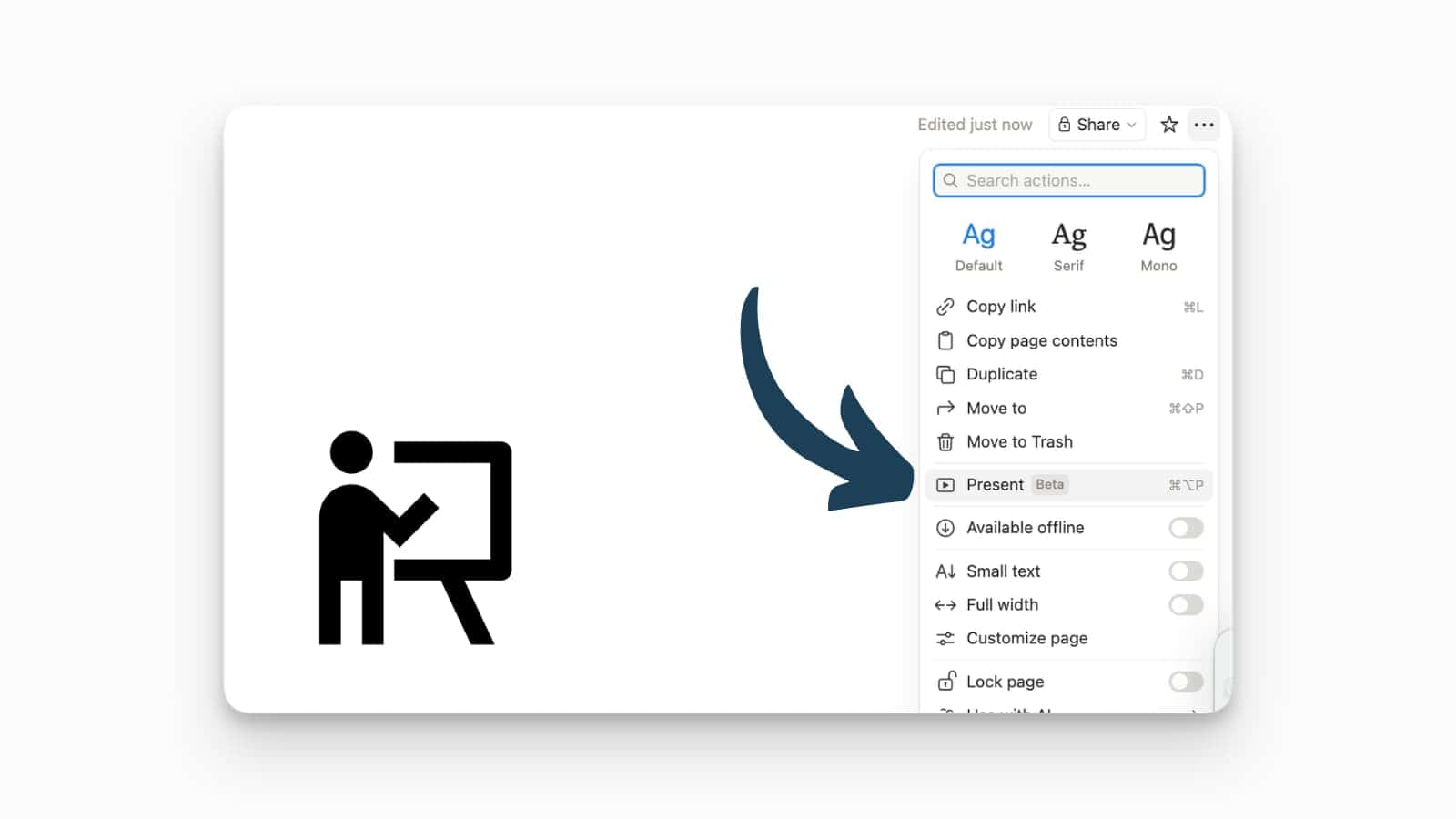
Notion Slides: Native Presentation Mode
You can now turn any Notion page into a professional presentation with the launch of the native Slides feature.
Presenting Notion pages has always been a struggle and required (paid) plug-ins. No more! By selecting the Present option from the page menu, Notion automatically formats your page into a clean, slide-based interface that respects your existing hierarchy and media. It’s a massive win for consistency, as any updates you make to the page are instantly reflected in the presentation, allowing you to move from deep work to a live showcase without any extra formatting steps.
To try this out, click the three-dot menu (…) in the top right of any page and look for the Present (Beta) option to enter the full-screen slideshow view. There is unfortunately no PDF export function yet.
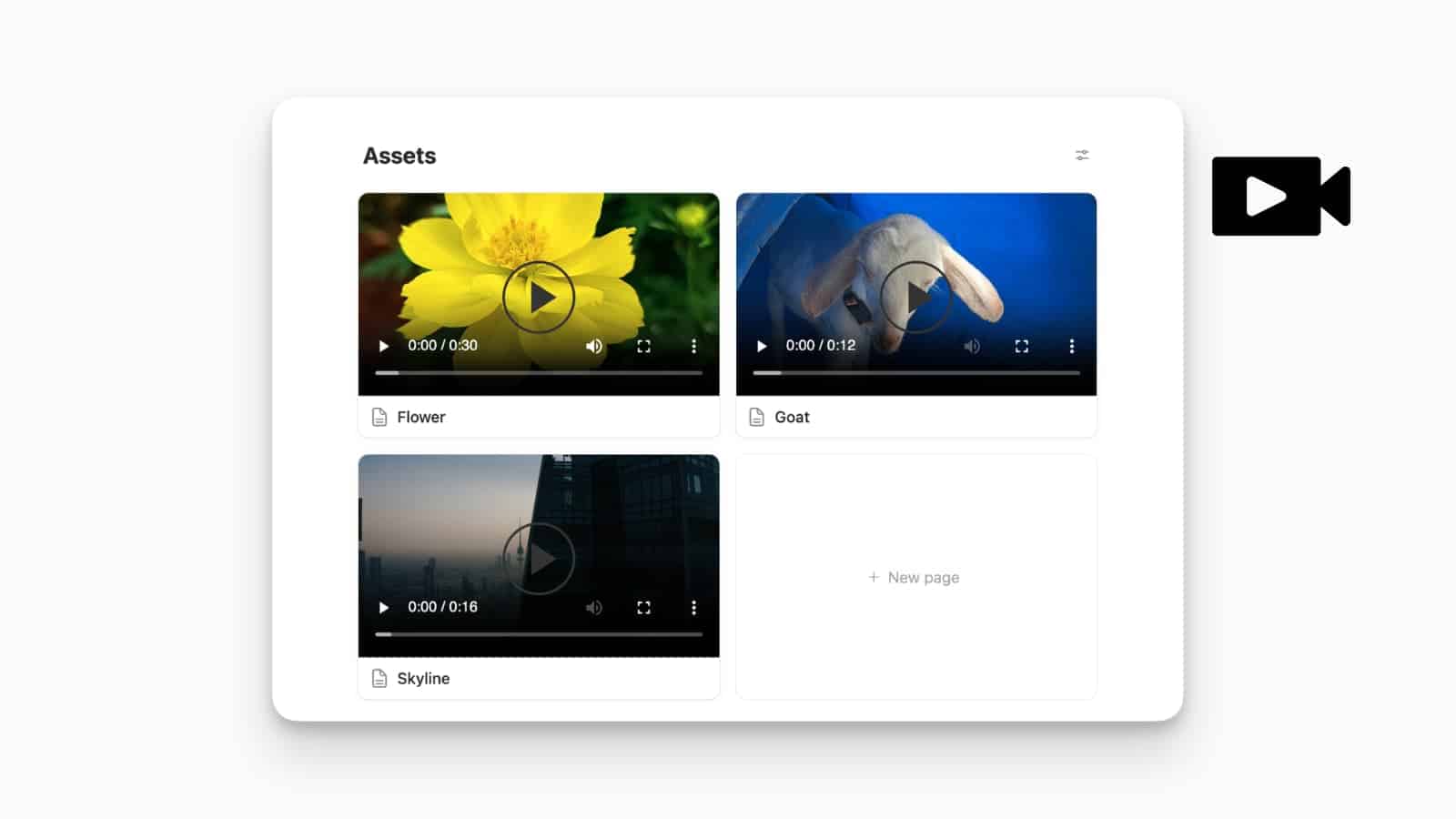
Video Previews for Gallery Views
Gallery views now come with the ability to preview video for your cards.
Perfect for creative teams and social media managers, this update allows videos stored in your database to play directly within the gallery card preview. Instead of clicking into a page to view a “Sizzle video” or “Story edit”, you can now hover or scroll to see the motion content instantly. This makes gallery views a much more effective tool for managing visual asset libraries and campaign previews, as it provides immediate context for the file’s content without adding extra clicks to your workflow.
To enable this, go to your Gallery view Properties, select Card preview, and ensure it is set to the file property containing your video content.
Bullets in Simple Tables
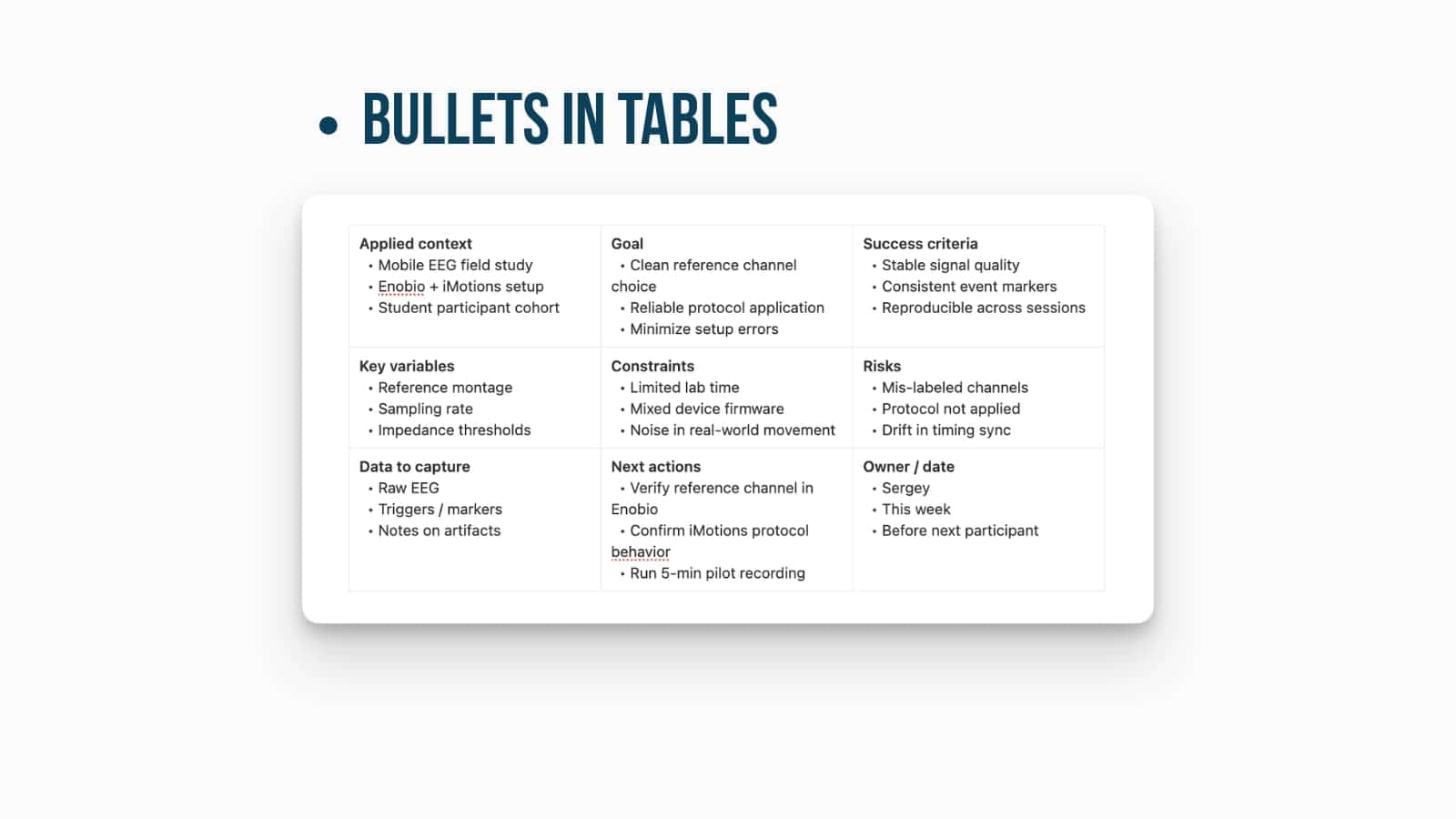
One of the most requested formatting features is finally here: you can now add bulleted lists directly inside simple tables.
Simple Tables quickly fill up and appear dense, and unreadable. Now, you can nest multiple points within a single cell without resorting to clunky line breaks or separate pages. Whether you are listing pros and cons, task requirements, or multiple stakeholders, the ability to use native bullet points makes your tables look much more professional and organised. It brings the flexibility of the standard Notion editor into the structured grid of a simple table, satisfying a long-standing “quality of life” request from the community.
To add a list, simply click into a table cell and use the standard dash (-) or asterisk (*) followed by a space to trigger the bulleted formatting.
Copy Page Contents as Markdown
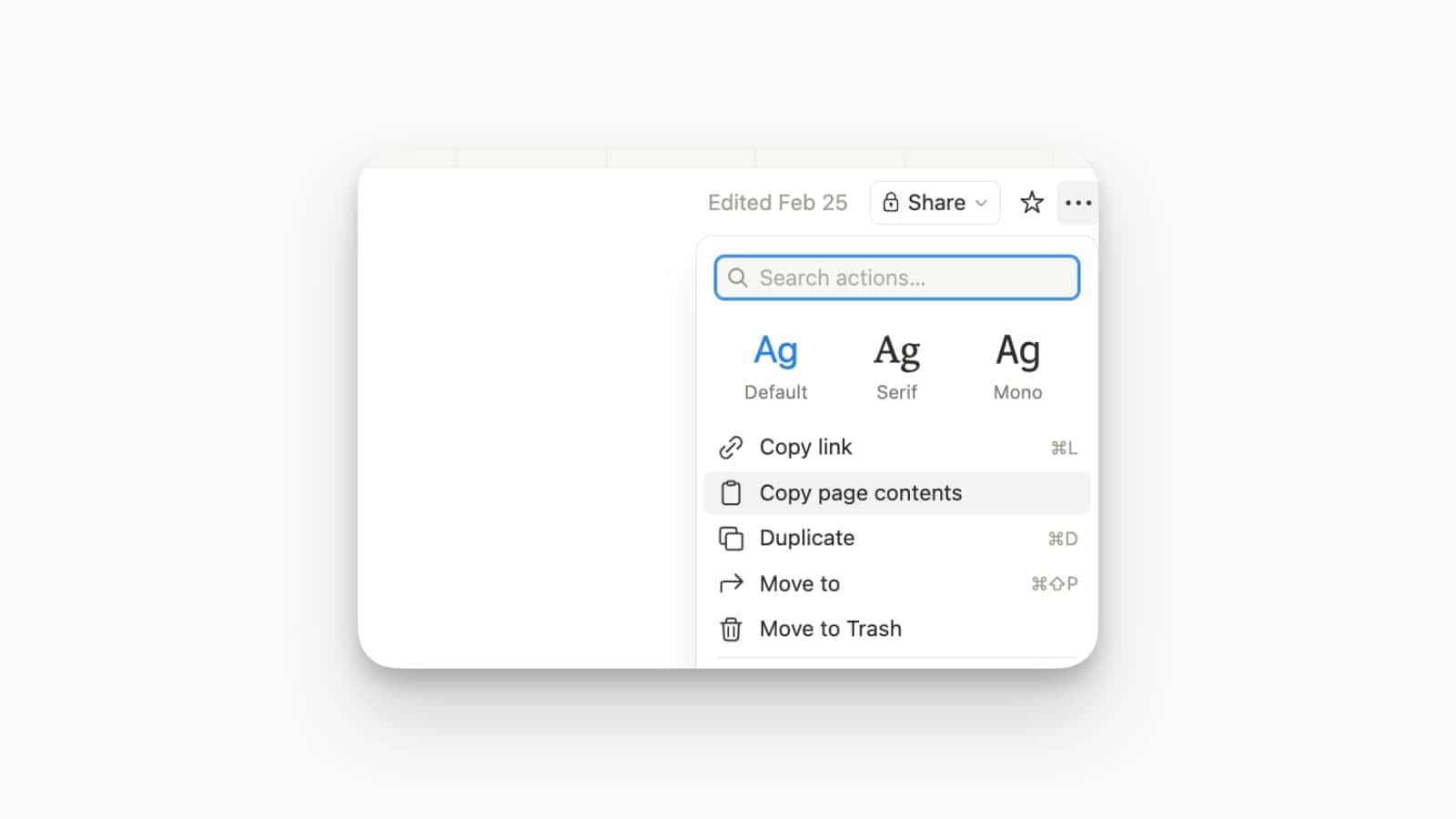
Exporting your content out of Notion just got a lot easier with the new “Copy page contents” feature.
This update allows you to instantly grab the entire content of a page and copy it to your clipboard as clean Markdown, making it effortless to move data into other tools or code editors. This is especially useful for developers and writers who need to transfer content between platforms where traditional exporting might be too slow or restricted by workspace permissions. It essentially provides a “portable” version of your Notion data, ensuring you can quickly move your thoughts into an email, a Slack message, or a code repository without losing your core formatting.
To use this, click the six-dot block handle or the page’s three-dot menu (…) and select Copy page contents to copy the formatted text.
UI Update: Expanded Date Format Options
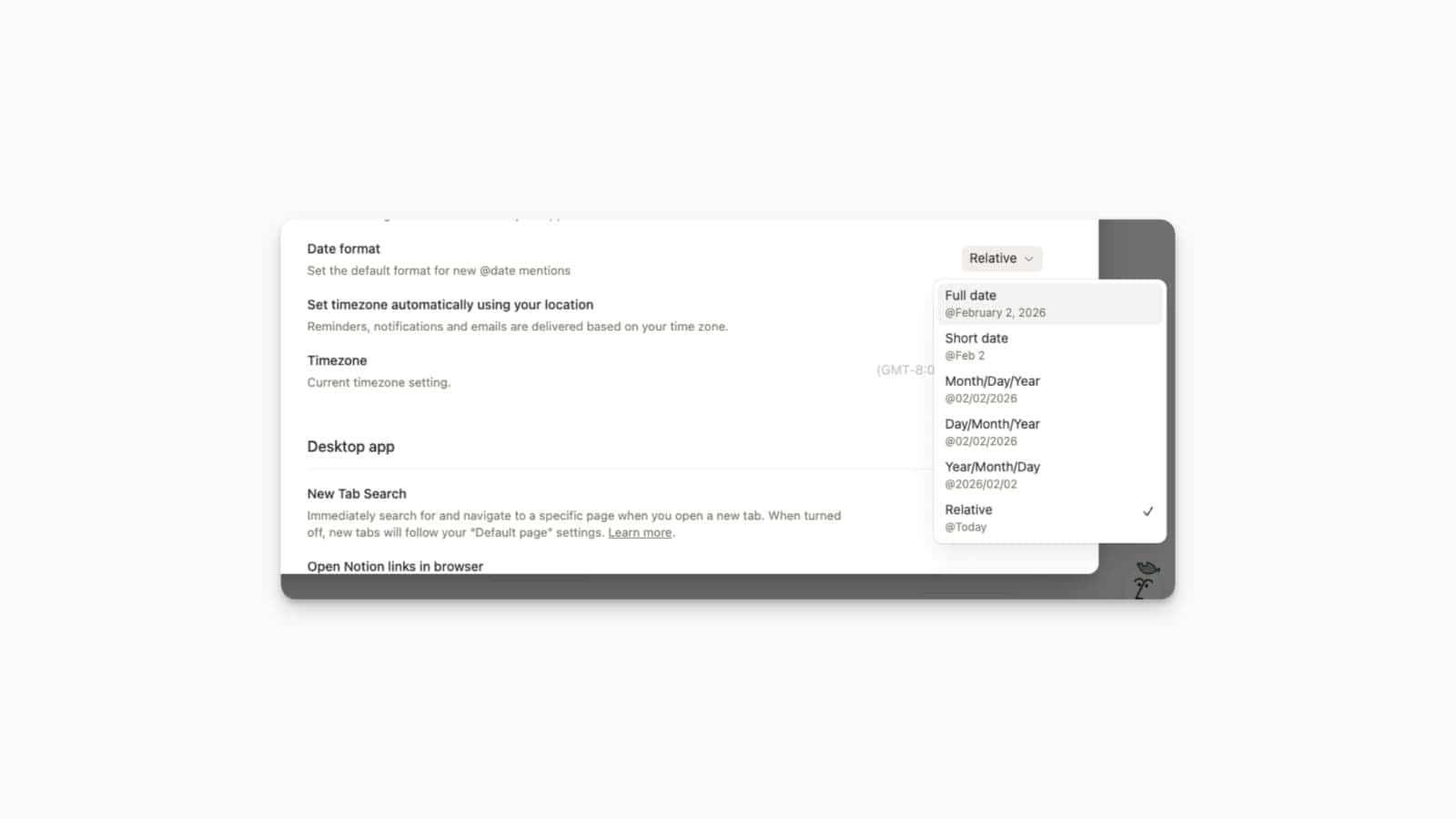
Notion has expanded its date formatting capabilities, giving you much more control over how @date mentions and reminders appear across your pages.
This update addresses a long-standing request for better internationalisation and personal preference in document aesthetics. You can now choose from a variety of styles in your workspace settings, including Full date, Short date, ISO-standard (Year/Month/Day), and Relative dates like “Today” or “Yesterday”. By setting a workspace-wide default, you ensure that every team member sees a consistent timeline format, which is critical for global teams who may interpret numerical dates differently. It’s a subtle but powerful way to reduce ambiguity in project deadlines and meeting logs.
You can customise these settings by navigating to Settings & members → Language & region and selecting your preferred style under the Date format dropdown menu.
Notion AI: Rename Chat Threads
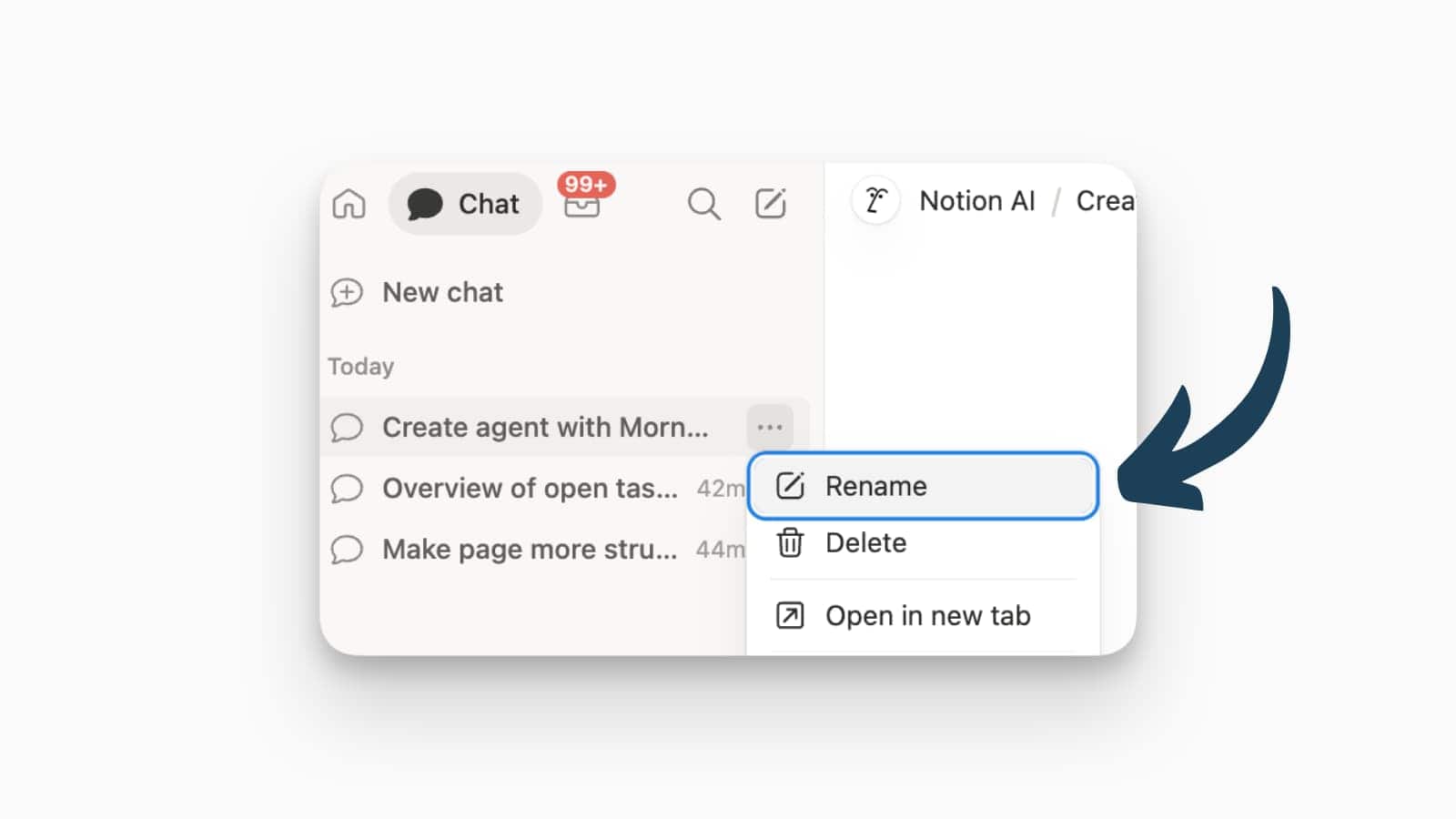
You can now manually rename your Notion AI chat threads to keep your sidebar organised and your past conversations easy to find.
While Notion AI usually does a decent job of generating automatic titles based on your first prompt, those titles aren’t always perfect for long-term reference. This update allows you to overwrite the default titles with your own custom names, making it much easier to categorise chats by specific projects, clients, or recurring tasks. By providing this level of manual organisation, Notion ensures that your AI chat history functions more like a structured knowledge base rather than a cluttered list of generic queries.
To rename a thread, open your AI Chat history, hover over the specific conversation in the sidebar, click the edit symbol, and enter your new title.
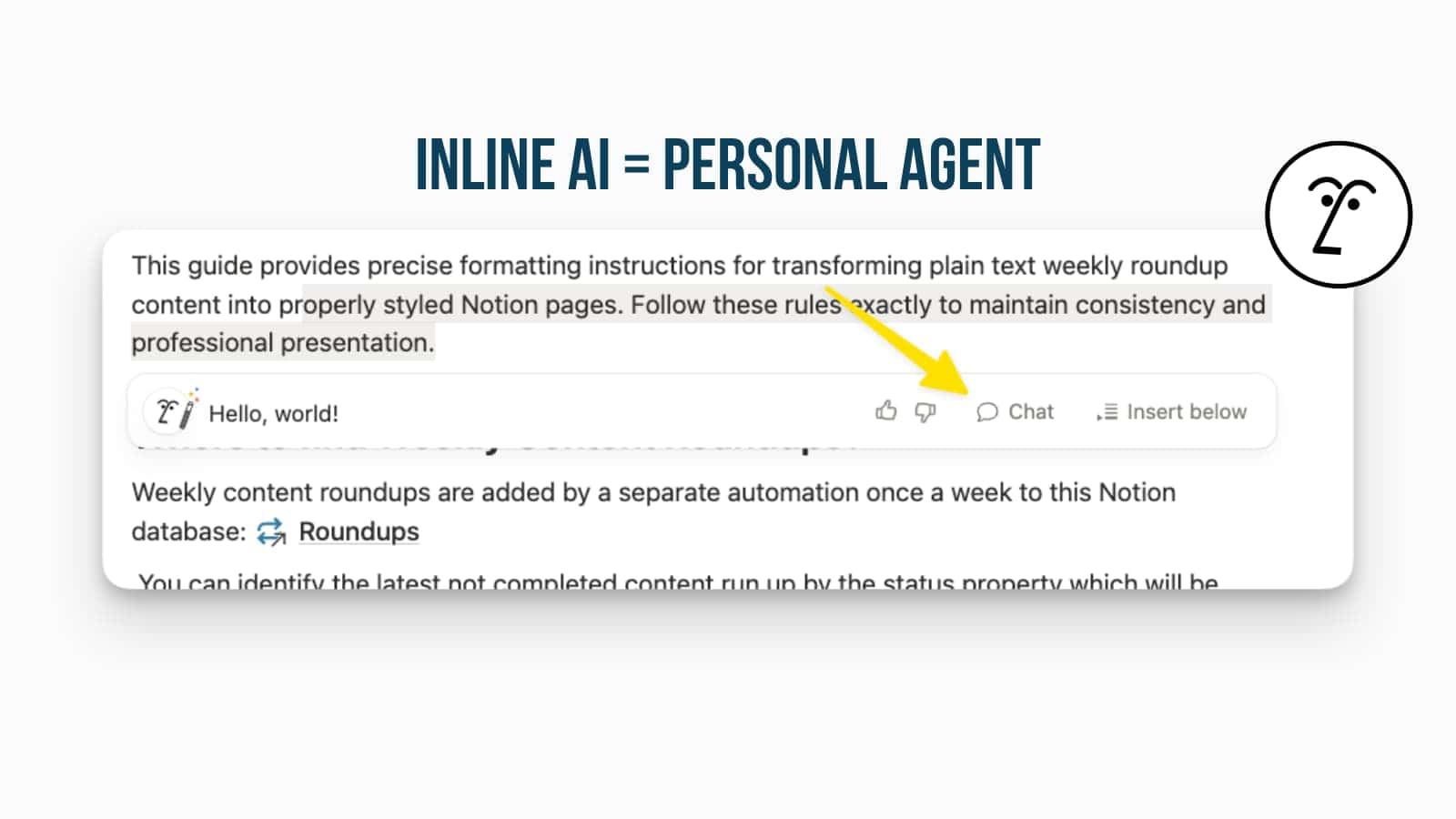
Inline AI: Sidebar Chat Integration
The gap between “inline” AI and “sidebar” Agent chatting has officially been closed, allowing you to move your AI conversations seamlessly across the workspace.
Notion is rolling out a deeper integration where your inline AI prompts can be continued in the sidebar. This means you can start a chat directly on the page to brainstorm a specific paragraph and then pop that conversation into the sidebar to keep it as a persistent reference while you navigate to other pages. It’s a vital update for long-form work sessions, ensuring that your AI assistant remains a constant, context-aware companion rather than a tool confined to a single block or window.
When using the inline AI command (Cmd/Ctrl + J), look for the “Open in chat” icon to move your current dialogue into the sidebar for a more expansive, multi-turn conversation.
Notion AI Usage Insights
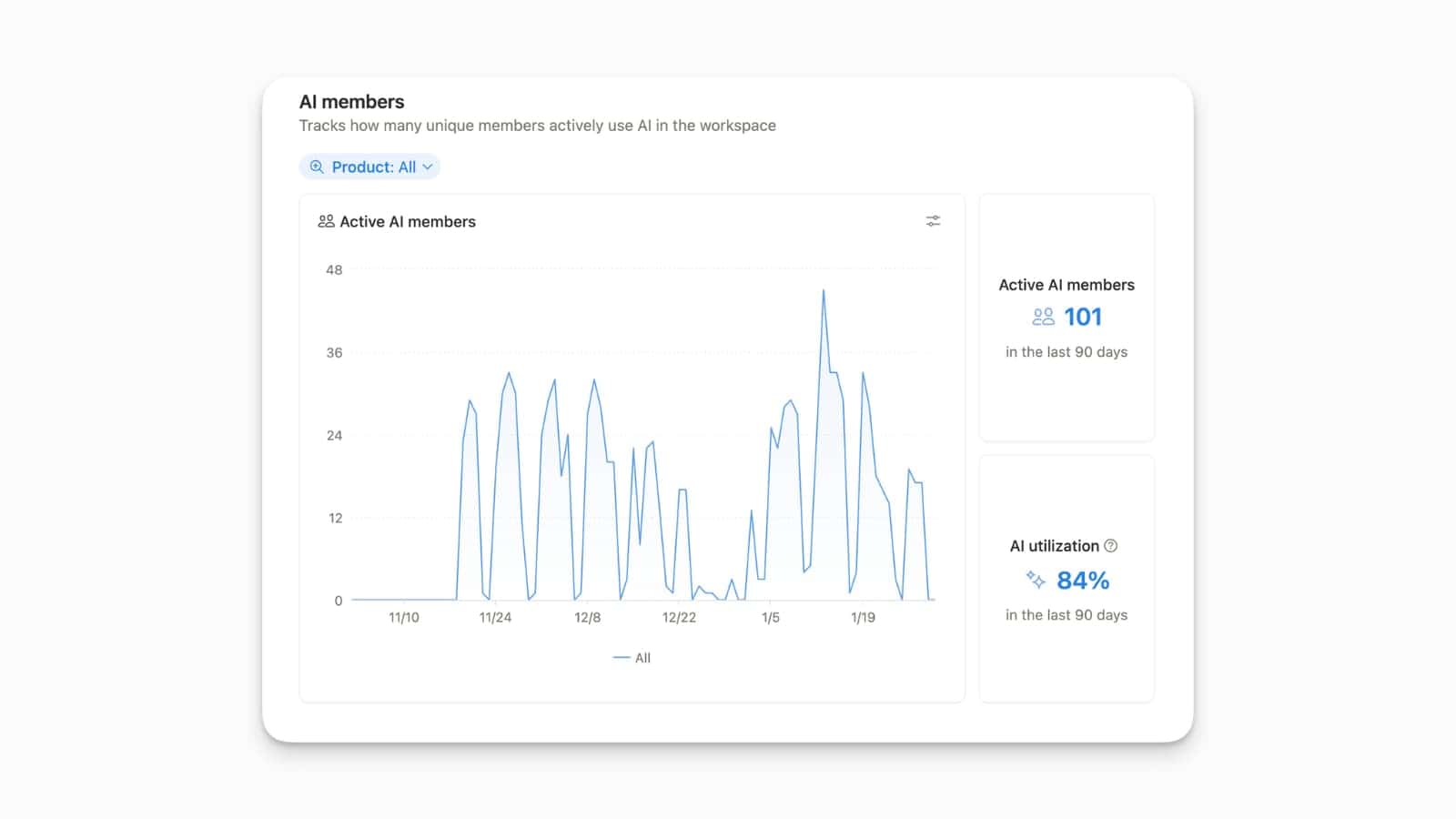
Workspace admins can now access a dedicated analytics dashboard to monitor exactly how their teams are using Notion AI.
This update provides essential transparency for organisations looking to measure the return on their AI investment and identify power users across different departments. The new dashboard tracks active AI members over 90-day periods, displaying key metrics such as utilisation percentages and which specific features—like Agents, Q&A, or writing assistance—are driving the most engagement. By visualising these usage trends, admins can spot adoption gaps, justify seat licensing, and tailor internal training to help less active members get the most out of the tool’s autonomous capabilities.
Enterprise admins can access these reports by navigating to Settings → Analytics → AI to view the full suite of usage charts and member activity logs.
Notion AI: Show & Hide Changes
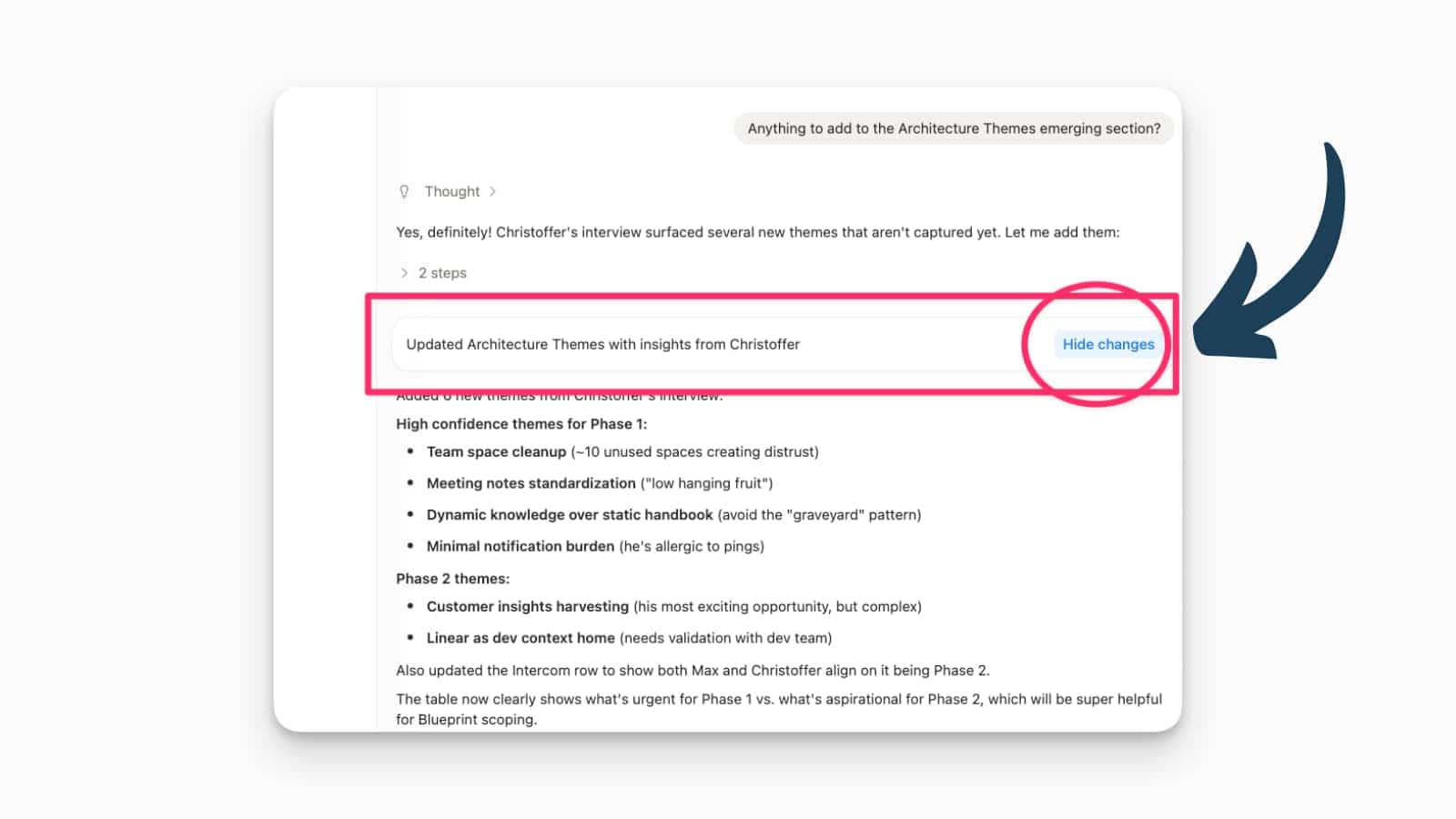
Notion AI makes it now easier to track (or hide) changes that it made.
After the agent updated or modified a page, you have the option to show changes in Notion’s track change light blue overlay or to hide them to see the final result.
Notion Mail: Push to Notion Workspace
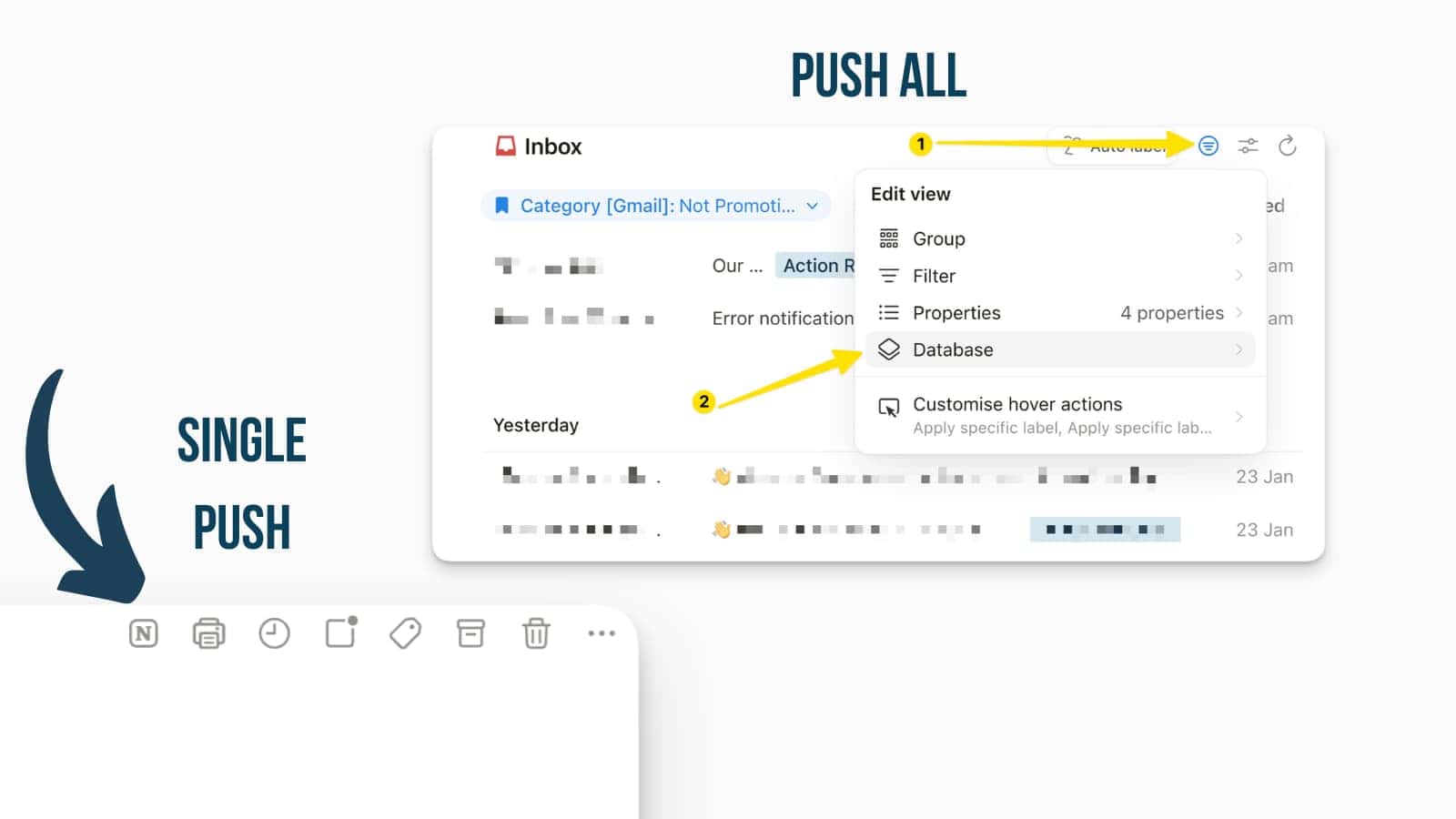
Notion Mail has introduced a highly requested feature that allows you to push emails directly into your workspace pages and databases.
This update finally connects Notion Mail to your workspace, making it “not just another” Mail App, but a truly smart one. You can turn single emails into actionable database entries with a single click. Whether you are triaging support tickets, saving research, or tracking applicants, you can now send that data straight to the structured systems where your team already works.
You can find the “push” button in the top-right corner of the mail. You can also set a general database in the Notion Mail settings of a specific view where you want all your mails to be copied to.
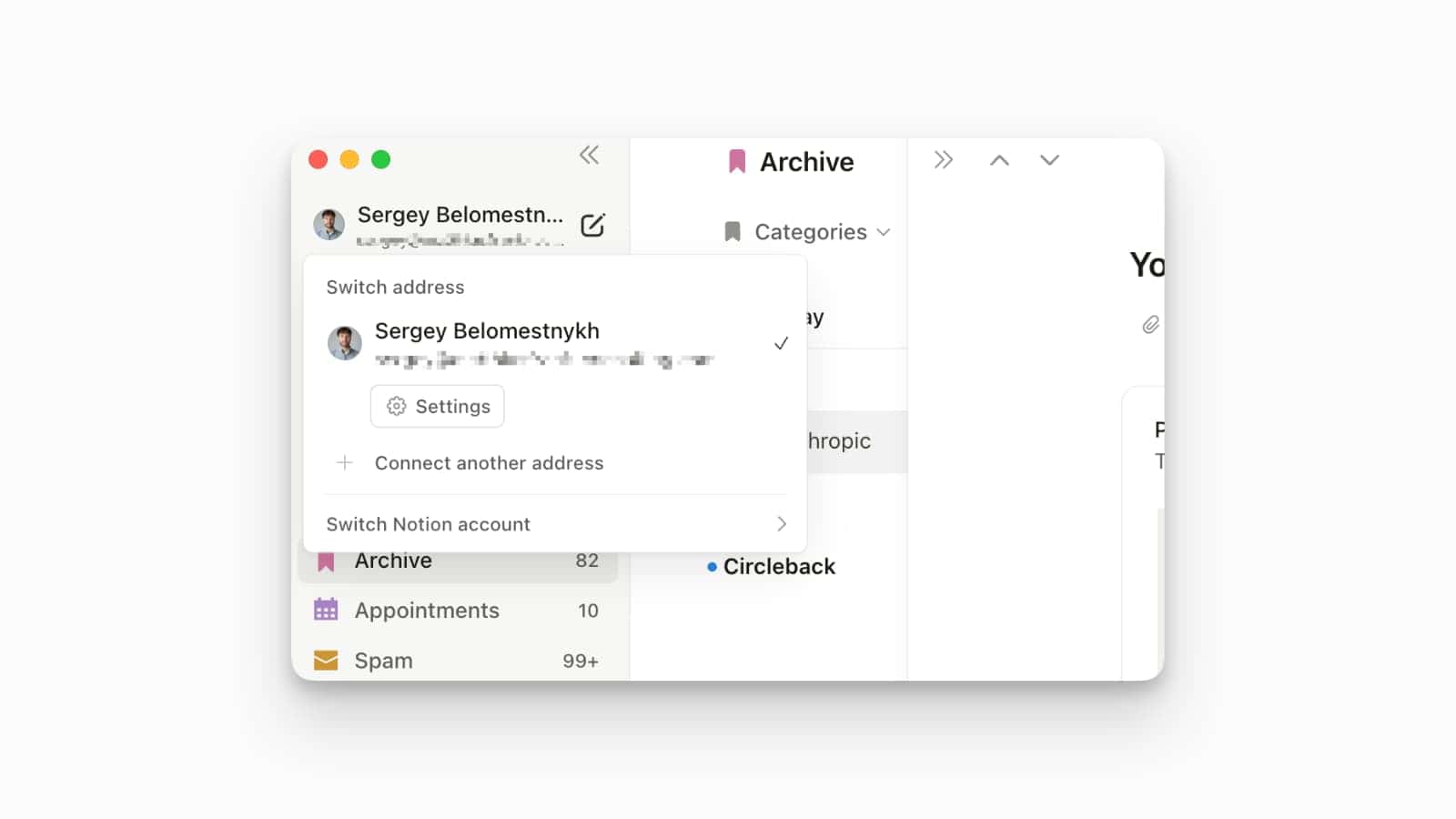
Account Switching in Notion Mail
Notion Mail finally supports multiple accounts, allowing you to manage several email addresses from a single interface.
Previously, users were limited to one email account per Notion profile. With this update, you can now connect and toggle between multiple accounts without needing to log out. There are still some limitations, like that there is no combined inbox.
You can add your account in the Notion Mail App in the same way that you would add and switch between Notion workspaces.
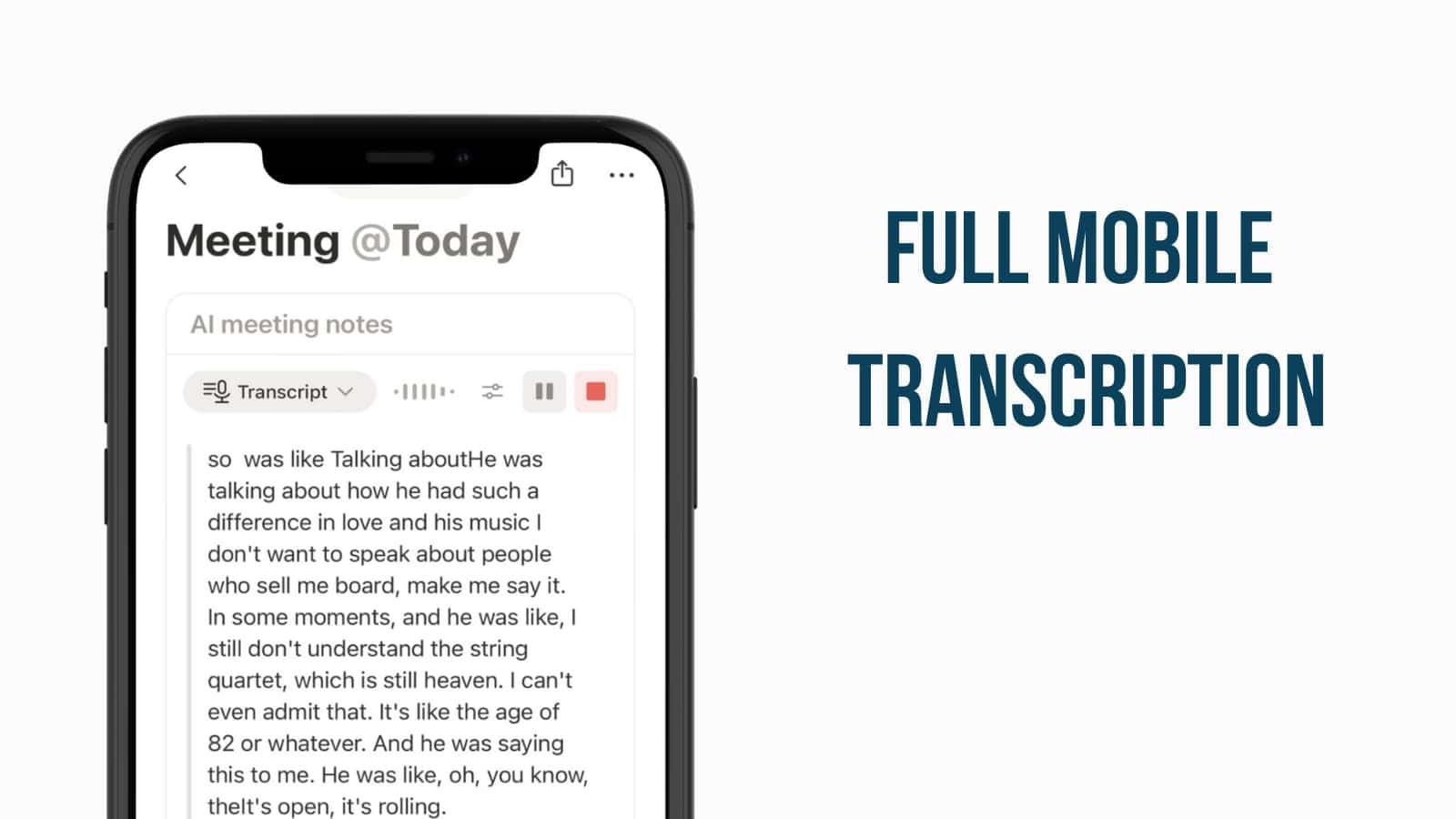
Updated Notion Meeting Notes on Mobile
Notion AI now brings the power of full meeting transcription and automated summaries directly to your mobile device.
Previously, Notion meeting notes would stop the second you switched away from the Notion app or activated the lock screen, but now you can start a transcript and then keep using your phone however you want, while Notion will still capture everything for you to work with later.
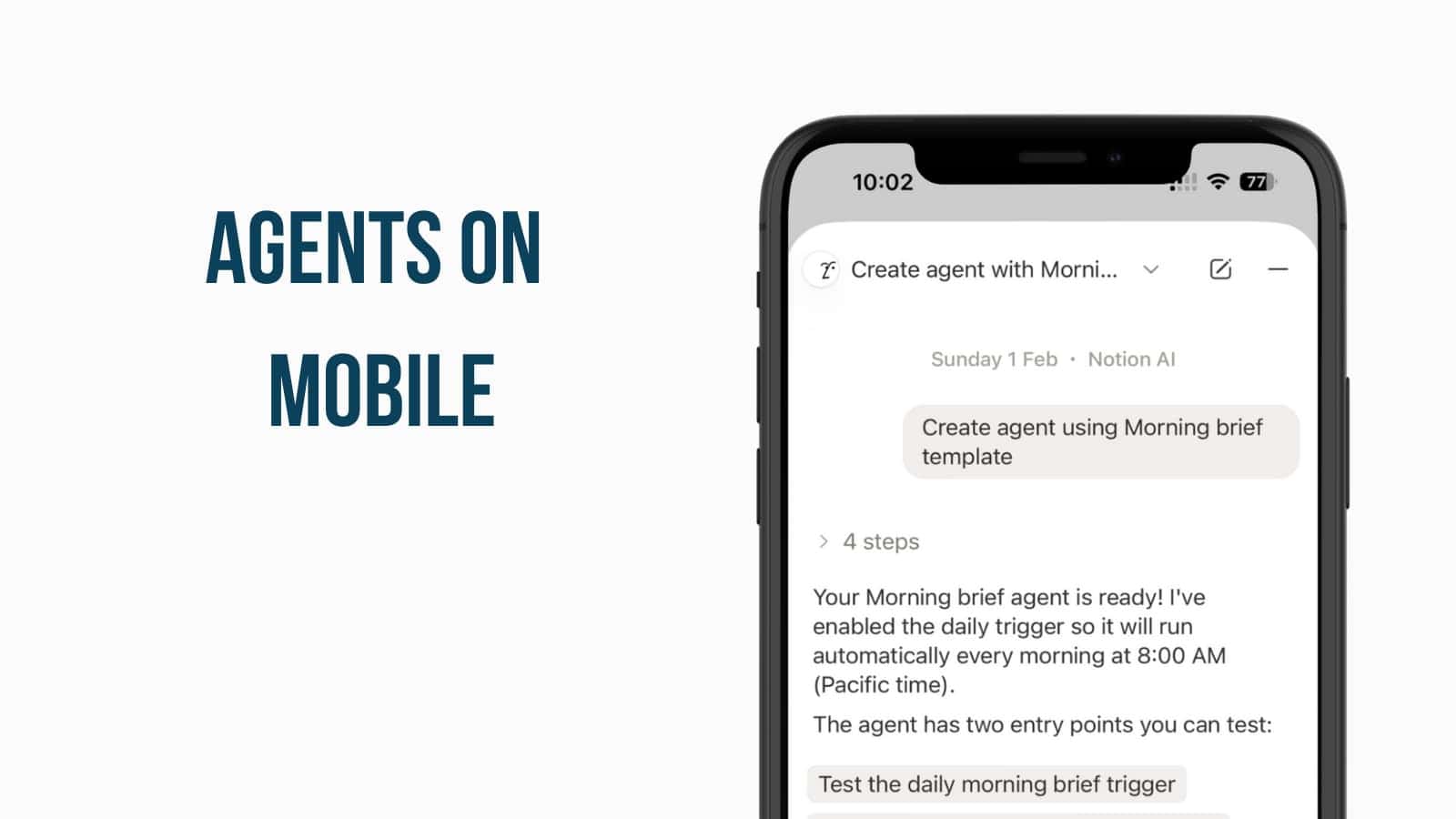
Notion Agents on Mobile
The full functionality of Notion Agents has officially arrived on mobile, putting an autonomous power user in your pocket.
You no longer need a desktop to delegate complex tasks, as your mobile Agent can now build databases, create forms, and search across your entire workspace just like its desktop counterpart. This evolution allows you to hand off manual work—like triaging requests or generating project updates—and let the Agent execute those multi-step workflows in the background while you move on to your next task. It’s a significant boost for on-the-go productivity, effectively turning a quick mobile thought into a fully realised database or report.
You can interact with your Agent via the Notion AI button at the bottom of the mobile app to assign tasks or check the progress of ongoing background work. Agent Settings can only be edited on the Desktop version.
Enhanced Jira Integration: Two-Way Sync
Notion’s Jira integration now supports full two-way synchronisation, allowing teams to bridge the gap between engineering and planning seamlessly.
This update solves a major friction point for teams where developers live in Jira but product managers plan in Notion. You can now sync development work into Notion and add custom Notion properties—like revenue impact or quarterly goals—directly alongside Jira data. For Enterprise users, the “two-way” part of this update is the real star: you can now edit key Jira fields directly from within Notion, and those changes will sync back to Jira automatically, keeping both tools in perfect harmony.
To enable this, go to Settings → Connections to authenticate your Jira account and set up a synced database with the “Two-way sync” toggle enabled.
Desktop Performance Improvements
Notion has delivered a significant boost to its desktop experience, with measurable speed increases across both major operating systems.
By optimising core dependencies and refining how the app handles content, pages now load and open noticeably faster than before. Specifically, Windows users will see a 27% improvement in page load times, while Mac users will experience an 11% speed increase.
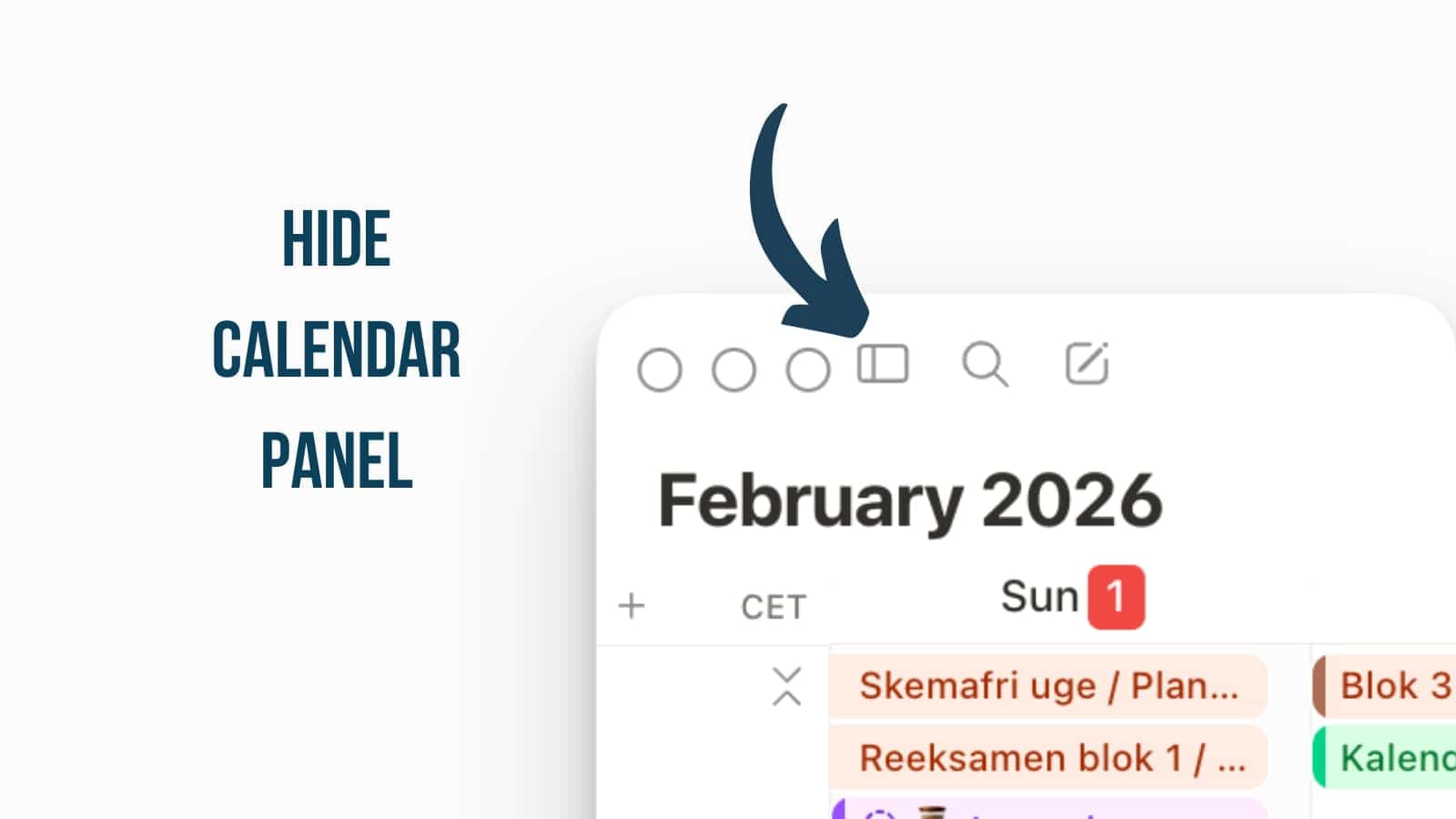
Hide Calendar Panel
You can now hide the side context panel in Notion Calendar to give your schedule the full-screen space it deserves.
By toggling the panel off, you gain a wider layout that makes it much easier to manage dense calendars or view multiple time zones simultaneously. It’s a simple change, but the difference is noticeable.
To hide the panel, look for the arrow icon or sidebar toggle in the top navigation bar of your Notion Calendar app or use the standard sidebar keyboard shortcuts
You can hide both the right and left panel. When hiding the left panel, you’ll instead get a floating calendar panel similar to what Google Calendar has.
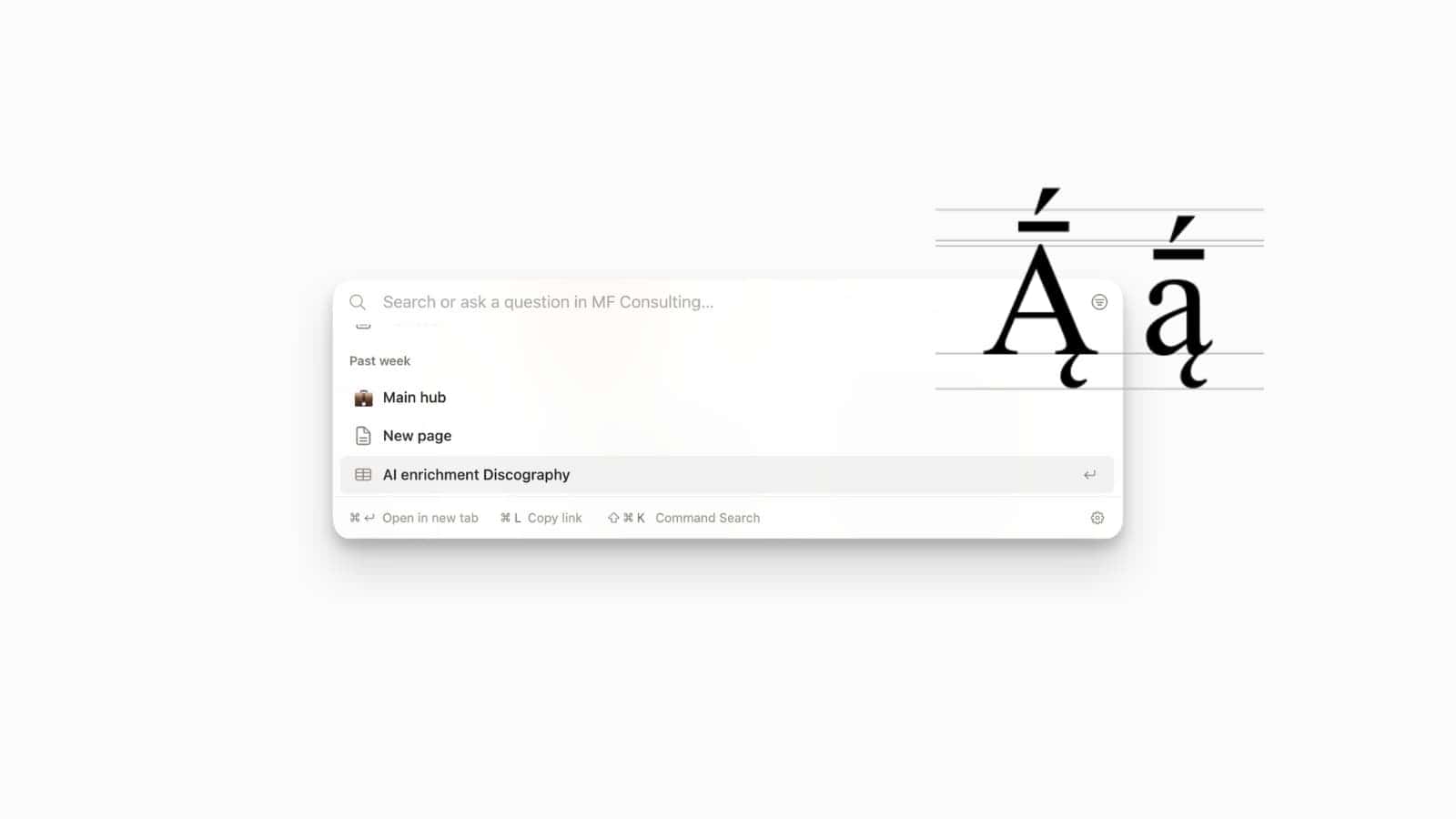
Diacritics Search Support
Searching for pages or content containing accents and diacritics is now more intuitive and reliable across all Notion platforms.
Previously, searching for a word like “café” or “naïve” could be hit-or-miss if you didn’t include the exact special character. With this update, Notion’s in-page find and global search now recognise the relationship between accented and unaccented characters. This means searching for “cafe” will correctly surface “café”, making the tool much more accessible for multilingual workspaces and international teams who regularly work with diverse character sets.
This functionality is enabled by default for all users, so you can immediately begin searching for accented terms using Cmd/Ctrl + P or the in-page search.
Notion MCP for Enterprise
The Model Context Protocol (MCP) has been enhanced for Enterprise users, adding critical security and advanced data handling features.
These improvements focus on giving admins more control over how AI interacts with sensitive data. Enterprise workspaces can now track all MCP activity within audit logs, providing a clear record of when and how external AI tools are accessing workspace content. Additionally, the update enables the ability to query multiple databases simultaneously through MCP, allowing AI agents to synthesize information across different sections of your organization more effectively.
Organization owners can find MCP activity records in the Audit Log tab under Workspace Settings and configure multi-database access through their MCP connection settings.

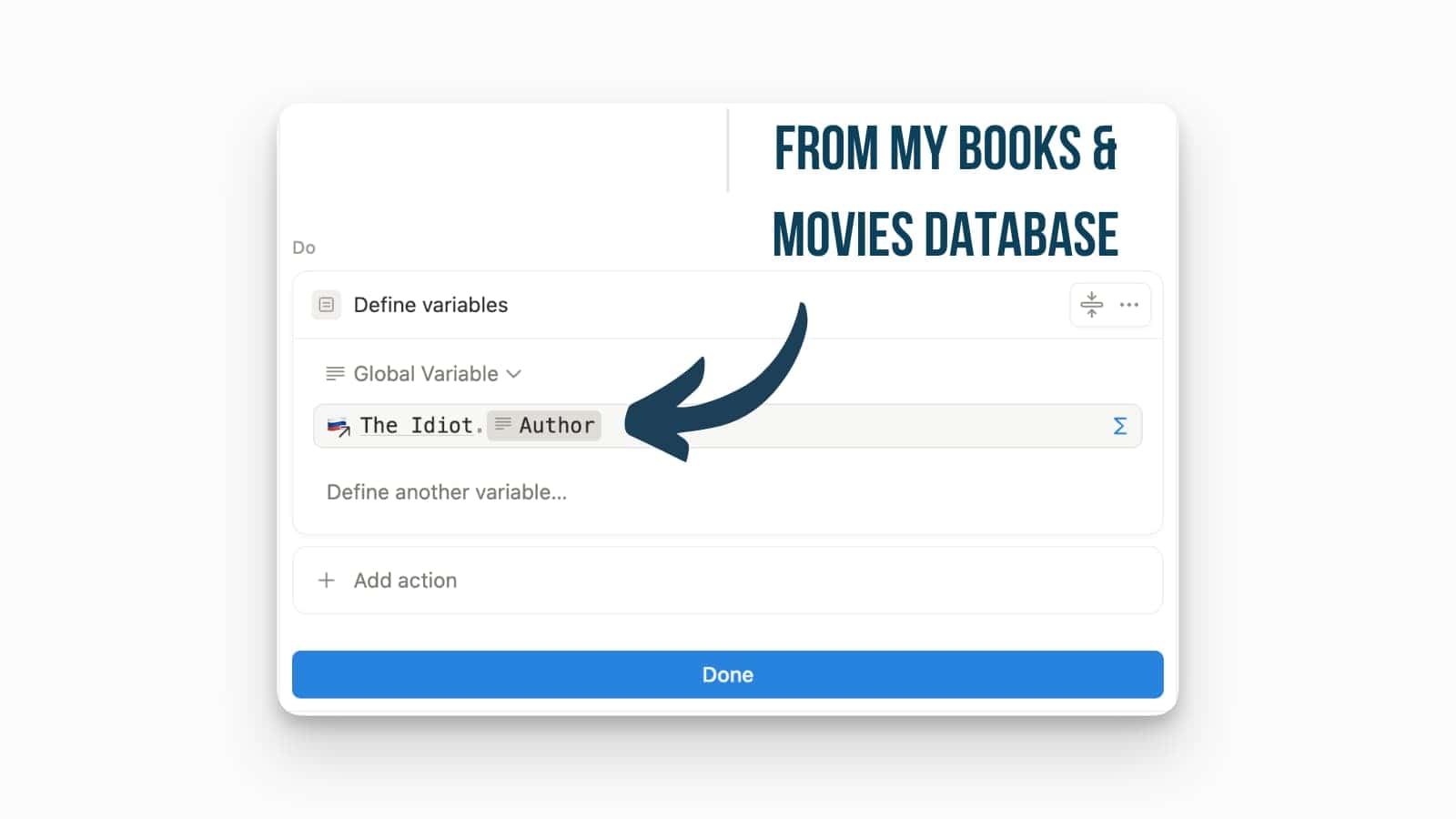
Map Page Properties as Global Variables
You can now use variables within Notion formulas to store and reuse values from all pages.
While in the past you were always restricted to reusing values solely from the page you were currently on or its directly linked pages, you can now use variables within formulas to store and reuse values from all pages across your workspace. This effectively expands the scope of your data processing and access to data from different corners of your Notion workspace.
Confetti Effects for Buttons
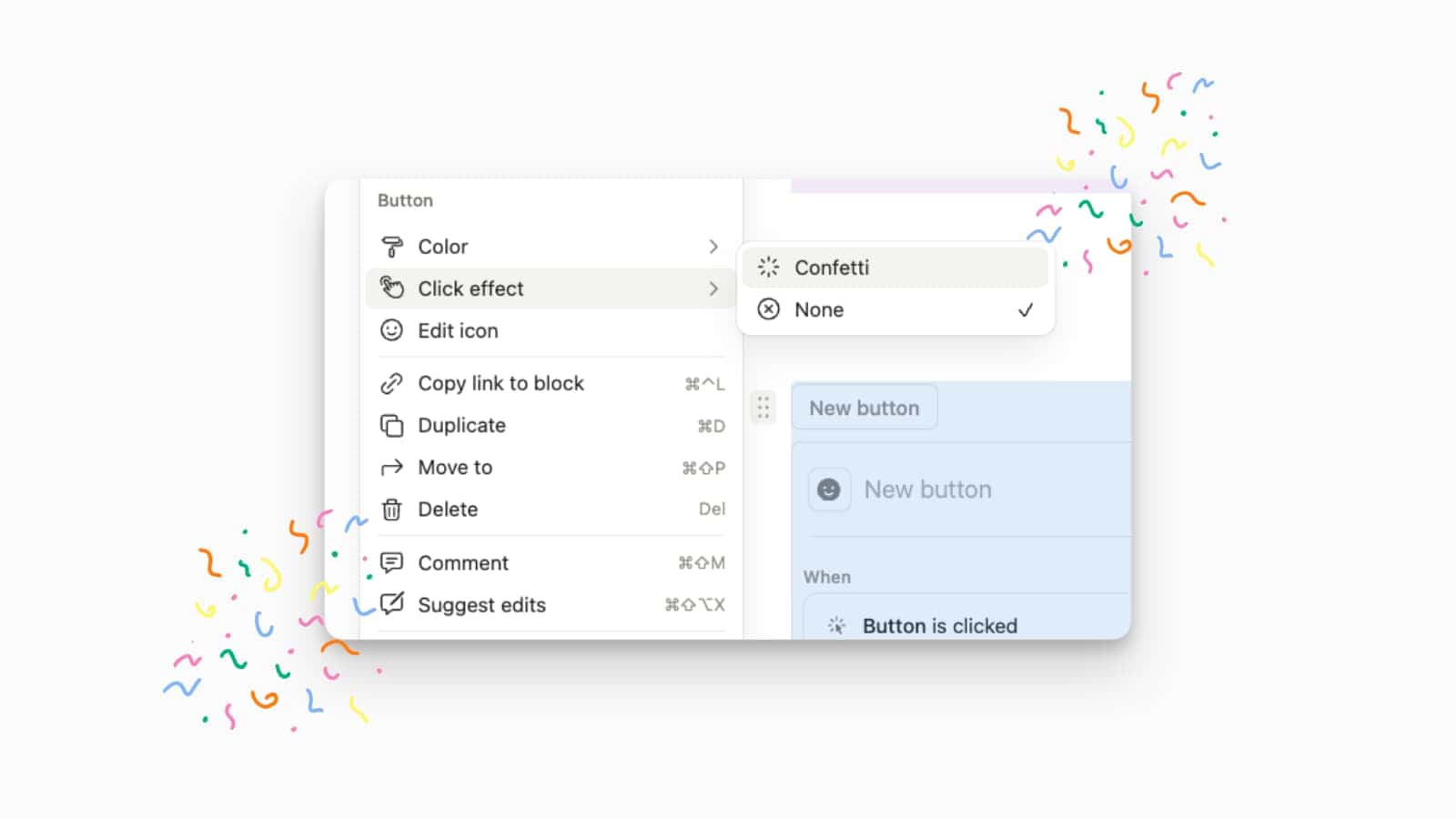
You can now add a touch of celebration to your workspace with confetti click effects for buttons.
This new visual customisation allows you to trigger a confetti animation whenever a specific button is clicked.
Open the settings for any button, navigate to Click effect, and select Confetti.
This currently only works on page-level buttons, not database buttons.
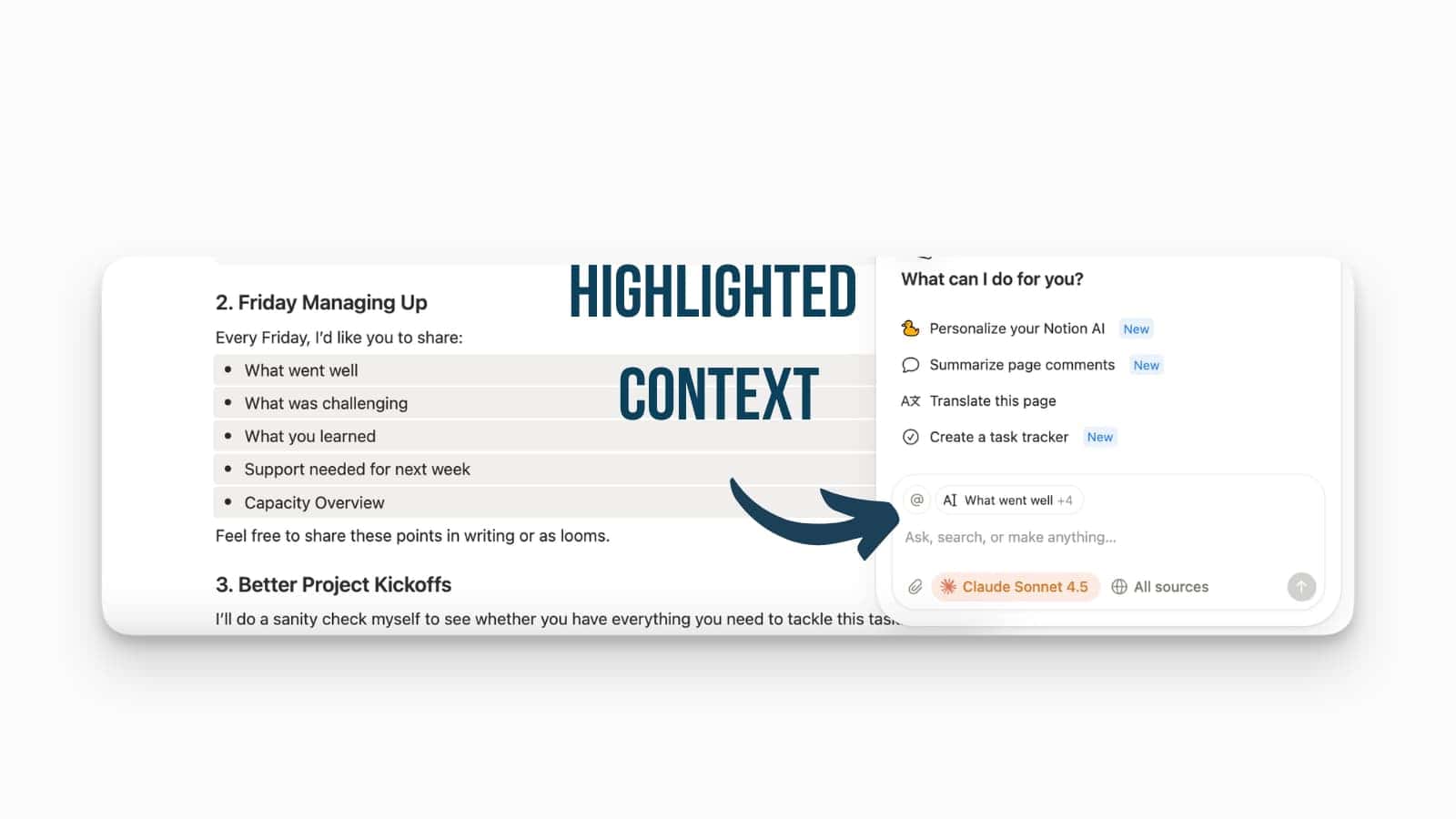
Highlight Text for Notion AI Agent Context
The Notion Agent can now see exactly what you are looking at through simple text highlighting.
Similar to AI-powered coding tools like Cursor, highlighting any element on a page will now automatically add it as context to the Notion Agent. This makes it significantly easier to “zoom in” on a specific piece of information and ask the Agent to analyse, translate, or summarise that specific selection without manually providing extra background.
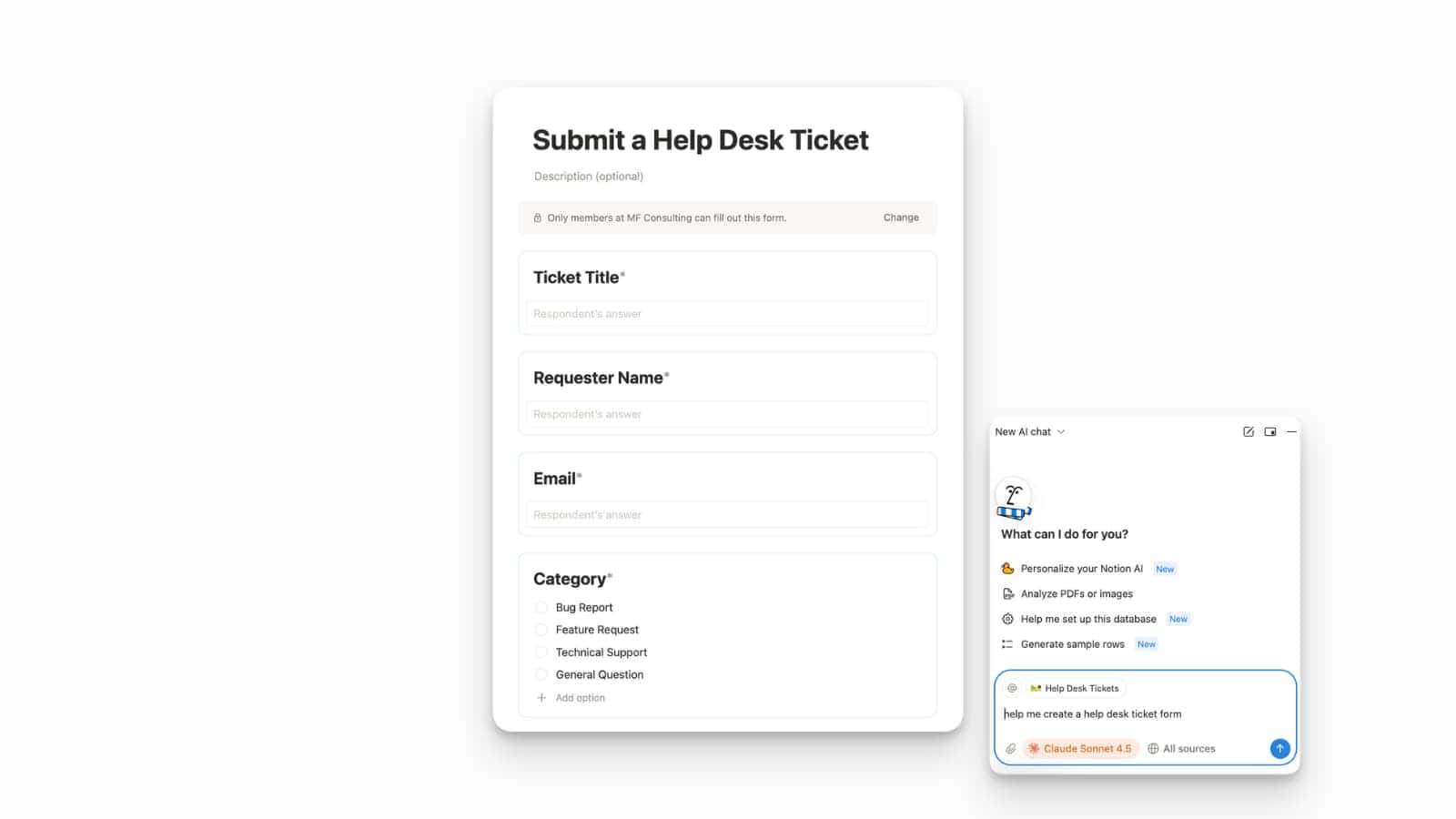
Notion AI Powered Forms
You can now ask your Notion AI agent to build a form from scratch, or let it suggest one automatically.
Simply ask the AI for a form, and it will design the layout and properties based on your needs, such as a “Help Desk Ticket Form”. Notion AI can now detect when a specific task seems to require a standardised input and will automatically add a form to it.
Advanced Teamspace Permissions Also on Business Plan Now
Advanced permissions for Teamspaces have officially arrived on the Business Plan, bringing powerful security features that were previously exclusive to Enterprise Plans.
You can now set teamspace-level permissions for specific users and groups.
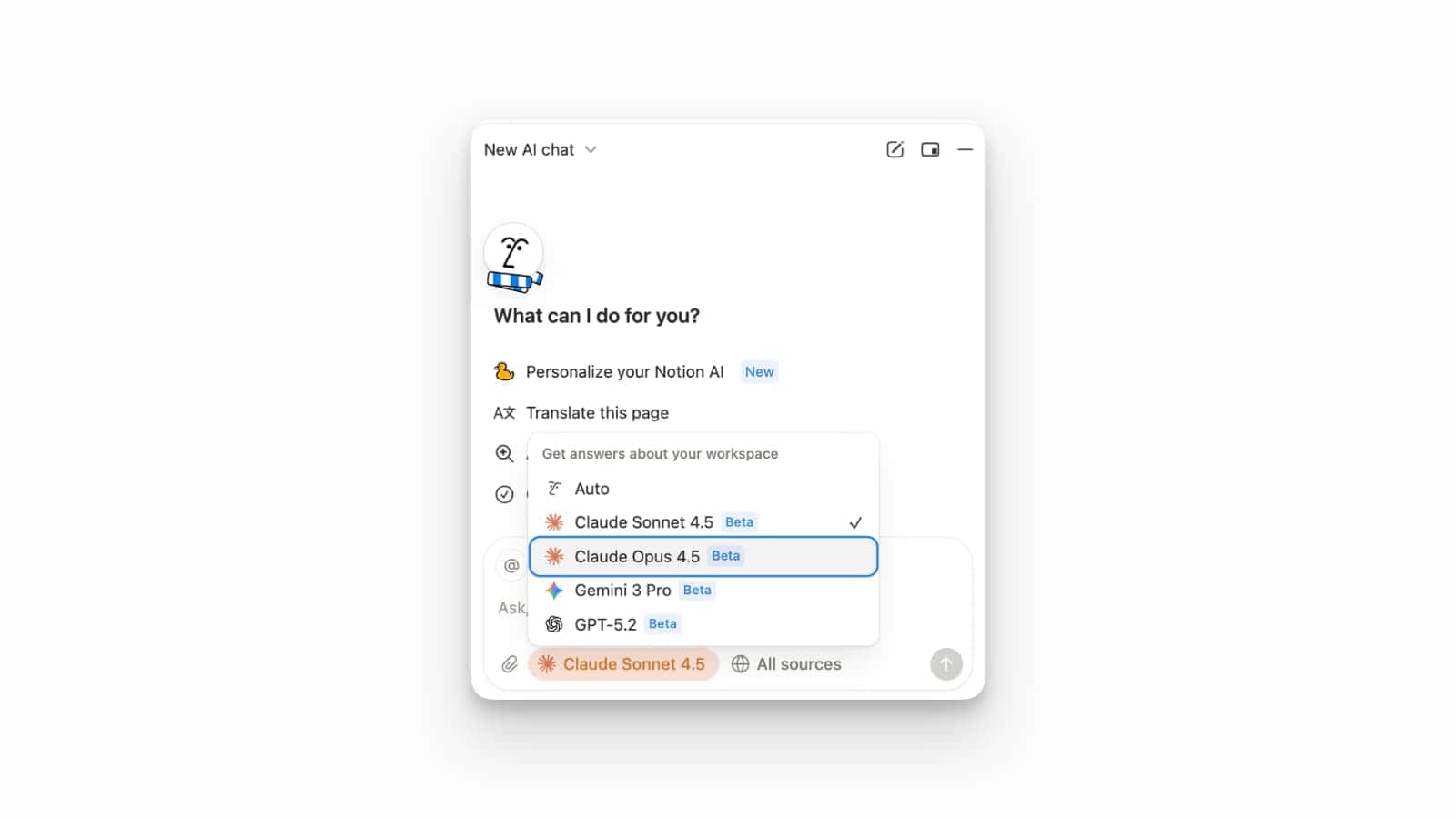
Claude Opus Available in Notion AI
Claude Opus, Anthropic’s most powerful model, is now available directly within Notion AI.
This addition further expands the Notion Agent’s versatility, offering users access to high-level reasoning and creative capabilities alongside other top-tier models like Gemini 3 Pro, Claude Sonnet 4.5, and GPT-5.1. Opus is particularly well-suited for complex analysis, deep writing tasks, and nuanced problem-solving within your workspace.
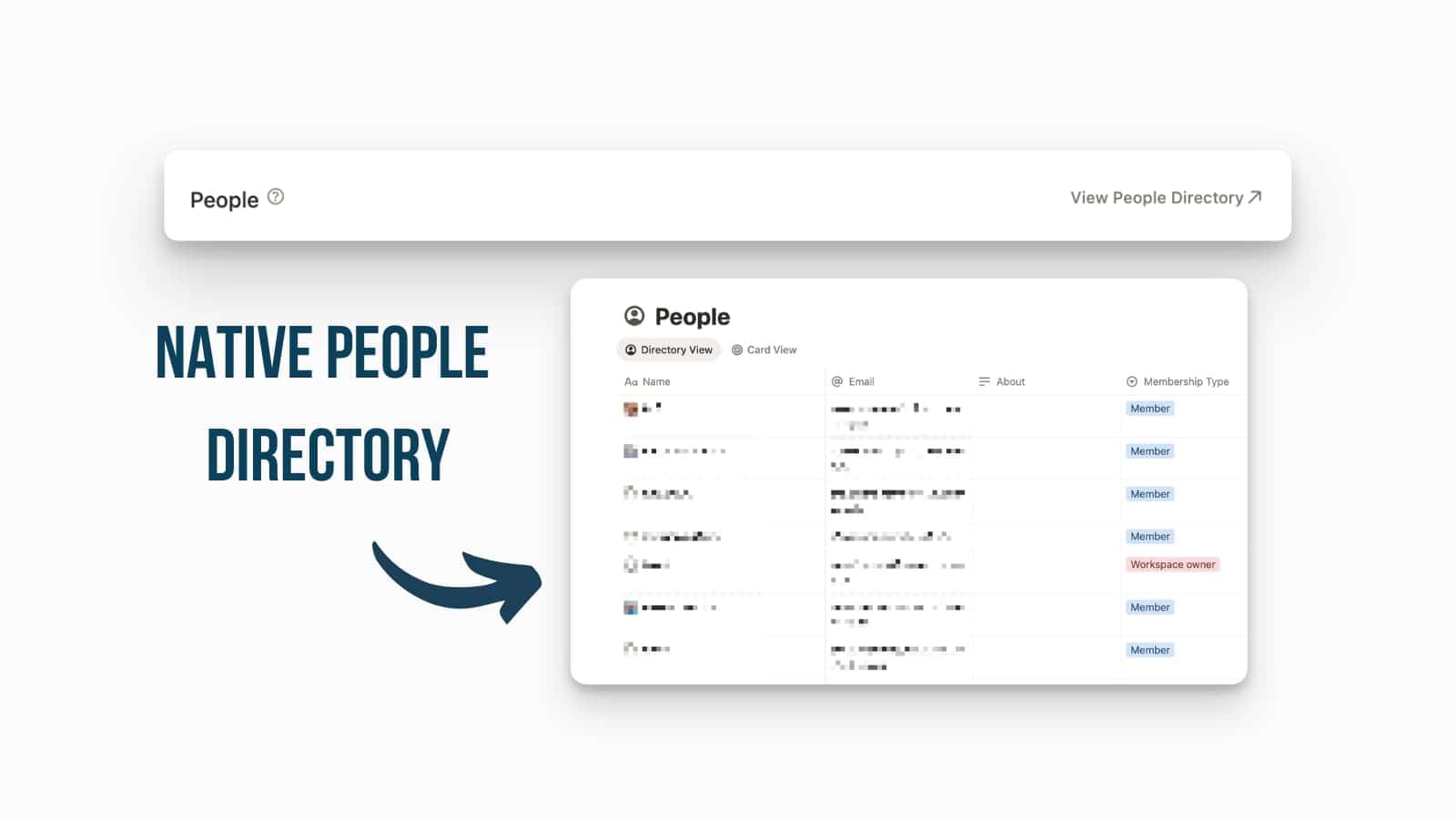
New System Database: Workspace Members
Workspace members are now available as a built-in system database, allowing you to manage your team directly within a Notion table.
This new “People” database displays critical information such as names, email addresses, “About” sections, and membership types (e.g., Member or Workspace Owner). Having this data in a database format allows for better organisation and navigation of your team directory.
You can toggle this database on or off via Settings > Workspace > General under the people section.
Figma x Notion: Context Without Tab-Shuffling
Figma Make now reads your Notion pages to build context and writes updates back to Notion automatically.
This integration aims to provide clarity and efficiency by giving designers direct access to project context without the constant need for tab-shuffling. By bridging the gap between documentation and the design canvas, teams can ensure that prototypes are always built using the most up-to-date acceptance criteria and PRDs.
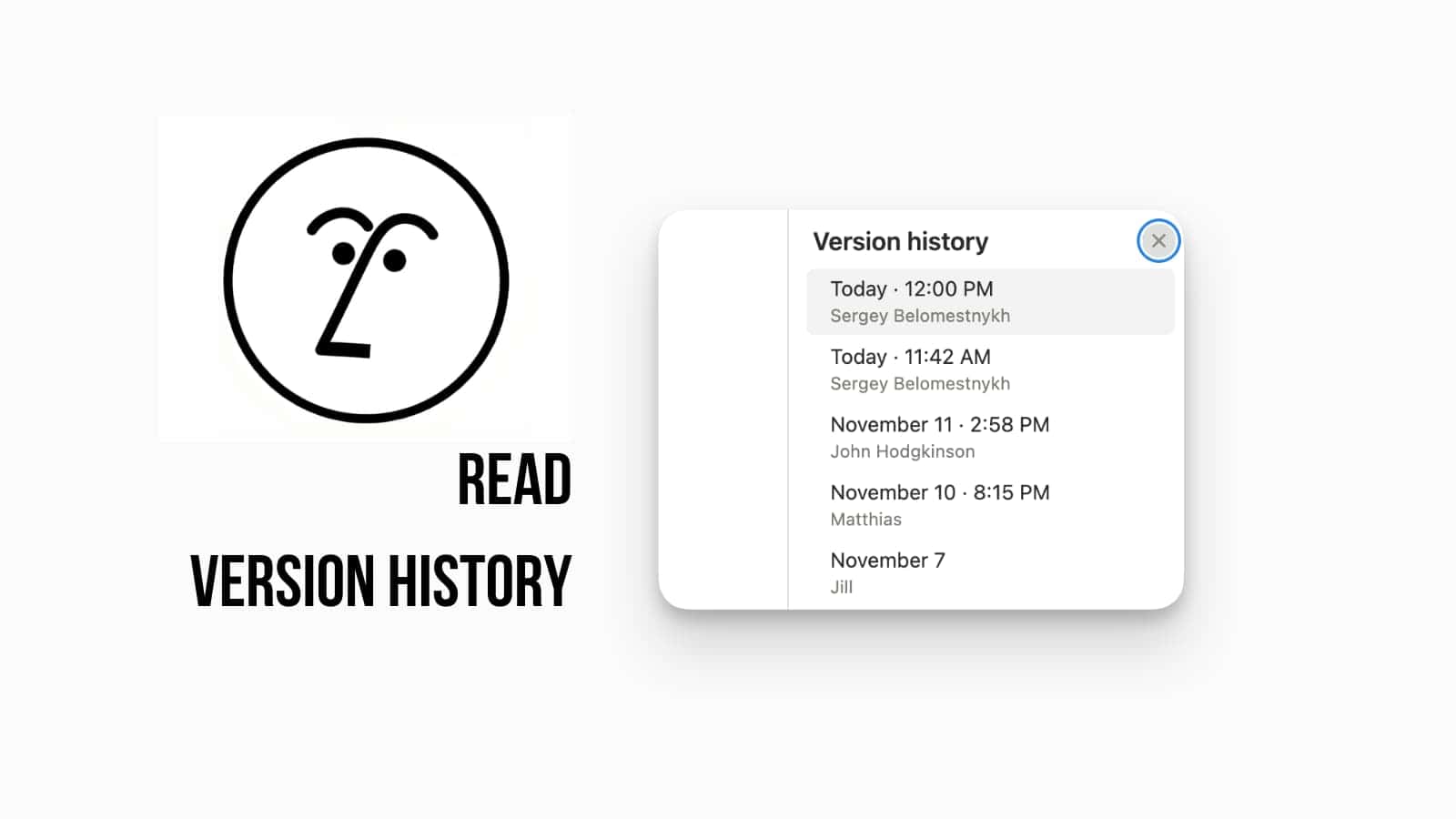
AI Agent Now Reads Version History
Your AI Agent can now read a page’s entire version history to understand who changed what, and when.
This update significantly deepens your Agent’s knowledge base. When you ask your Agent a question about a document, it can now go beyond the current content and analyze the history of changes. This is incredibly useful for getting answers about why something changed, who made a specific edit, or tracking the evolution of a policy or project.
This advanced capability is available automatically within the Notion AI Agent. Just ask your Agent a question about a page’s history, and it will use the version history as a source for its answer.
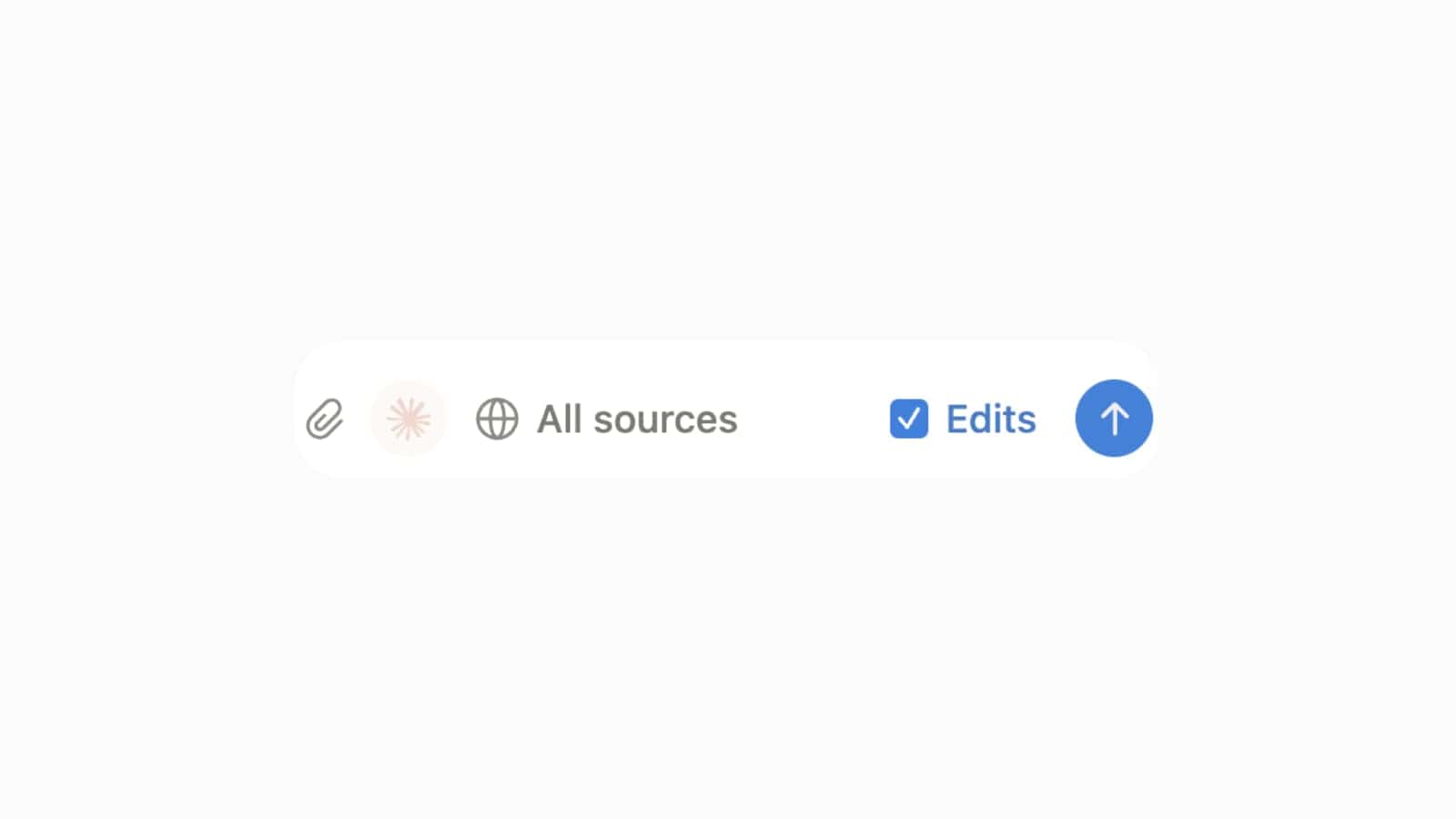
Control Notion AI Edits
You can now explicitly block Notion AI from making edits when it’s generating content for you.
This update gives you more control and security over your documents. When you are using Notion AI, you can now toggle off its ability to directly edit your page content. This is a crucial setting for protecting important documents, ensuring the AI only provides suggested text rather than automatically writing over or inserting new content.
This control is available directly in the AI console. Just look for the Edits toggle when you activate the AI, and ensure it is unchecked if you want to restrict the AI to read-only access.
New Chrome Extension: New Tab to Notion
Your new browser tabs can now open directly to Notion, giving you one-step quicker access to your workspace.
Notion just launched a new Chrome extension that allows you to set Notion as the default page for every new browser tab you open. You can customize what opens when you launch a new tab, choosing between your Home page, the Last visited page, the Top page in your sidebar, or even the Notion AI console.
To get started, install the Notion New Tab extension for Google Chrome. Once added, open the extension to configure which of your workspaces it connects to and select your preferred start page from the Open on start settings.
AI Meeting Notes in the Browser
You can now launch Notion AI Meeting Notes directly from your web browser, instead of relying only on the desktop app.
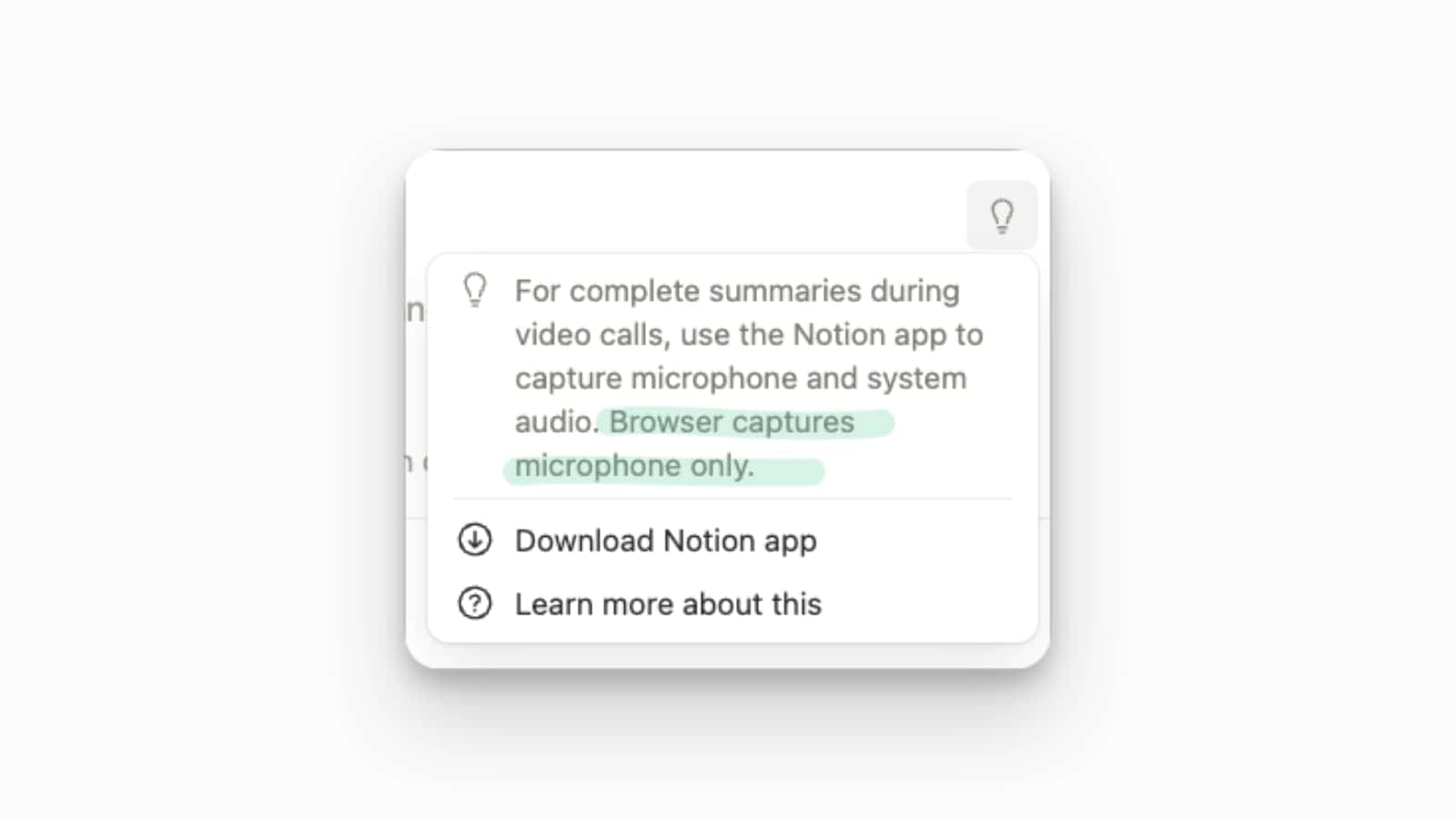
This update significantly expands the accessibility of the one-click AI Meeting Notes feature. Now, if you are working entirely in your browser, you can still start AI notes for your video calls without needing to switch to the dedicated desktop application. This makes the feature more convenient for all web-based workflows.
While the feature is now available in the browser, be aware of a limitation: the browser can only capture microphone audio. For complete summaries during video calls (capturing both microphone and system audio), you still need to use the Notion desktop application.
Conditional Color Upgrade
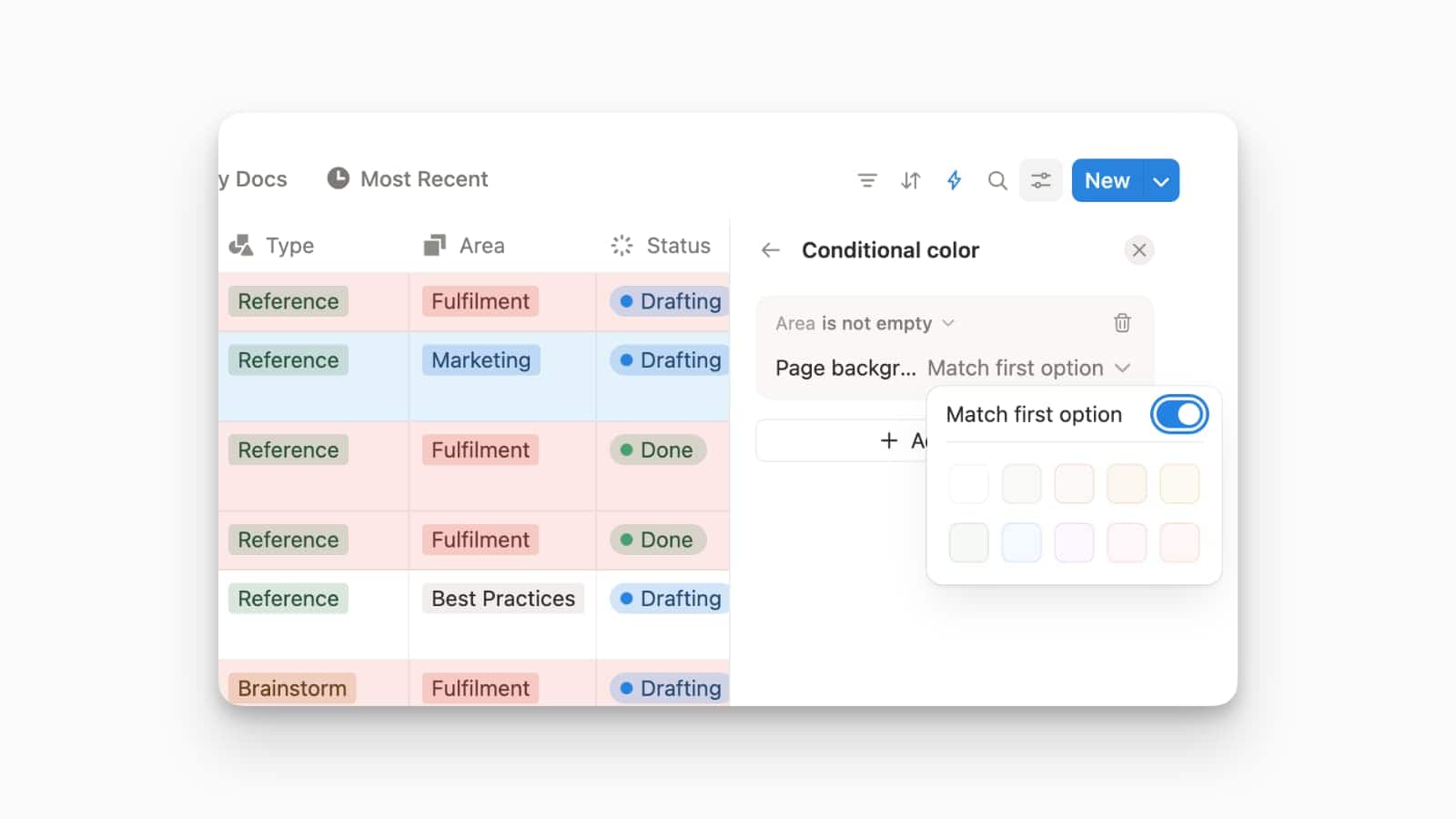
Conditional coloring in databases is now much more powerful, working with formulas, relations, and rollups.
This tune-up expands conditional coloring far beyond simple properties. You can now set rules to color a row based on complex logic calculated by a formula (e.g., risk level), the status of a related project, or a numerical rollup (e.g., budget completion). This makes visual categorization incredibly dynamic.
To access these new options, open the ••• menu on your database view, select Conditional color, and choose + Add another. You will now see all your Formula, Relation, and Rollup properties available in the selection list.
Meetings Have a New Home
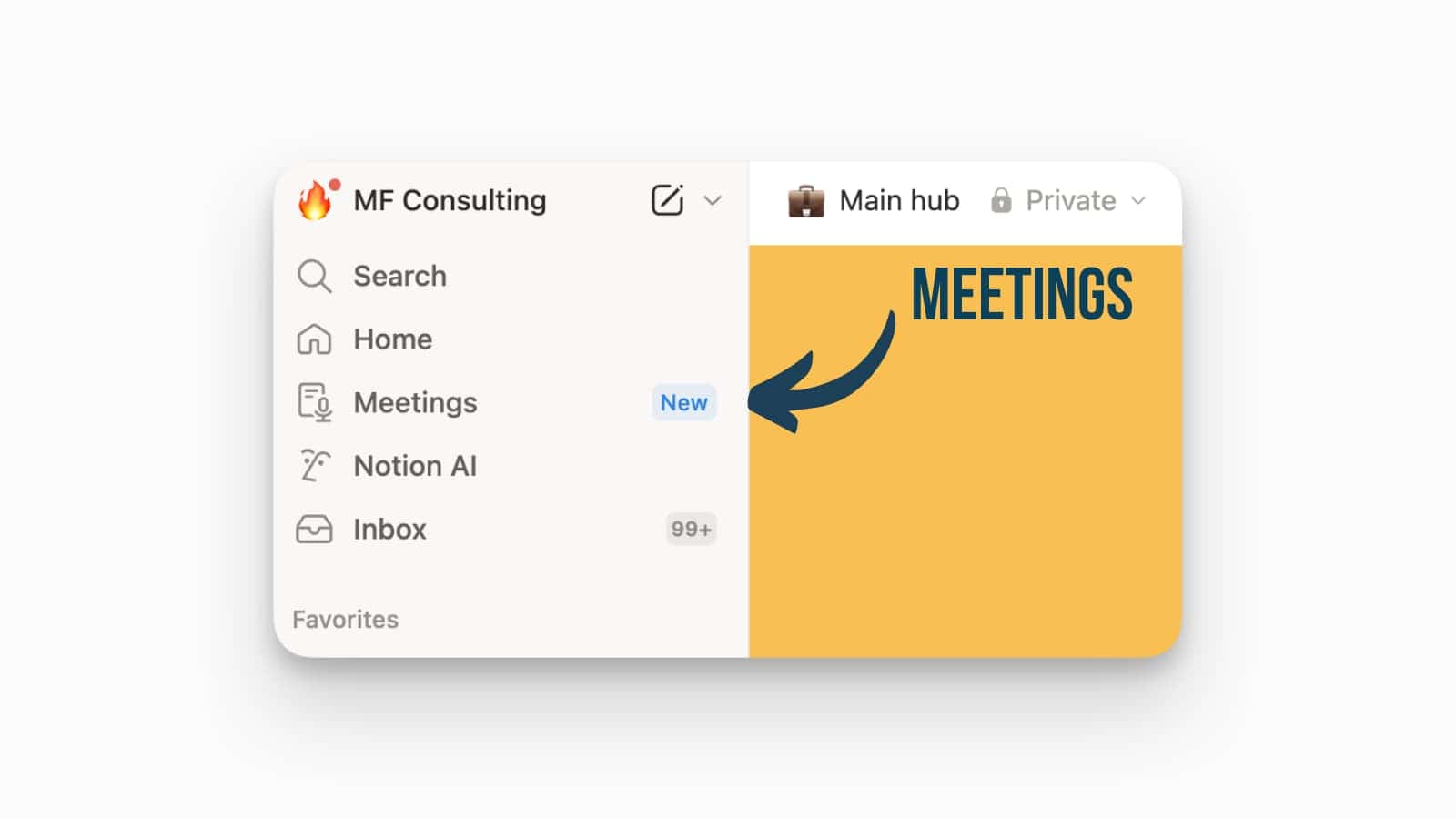
You can now connect your calendar to Notion to give every meeting a dedicated space for prep, notes, and follow-up.
This update streamlines your entire meeting workflow by creating a single, organized home for all your meetings. Before your meeting, a dedicated note space is automatically created and shared with participants. During the meeting, you get a one-click reminder in the Notion app to jump straight into AI Meeting Notes. Afterward, all your notes are automatically collected and stored in one organized location for easy follow-up.
To enable this feature, connect your calendar within Notion. This will ensure every upcoming meeting gets its own linked page, making note-taking frictionless and keeping all your meeting intelligence centralized.
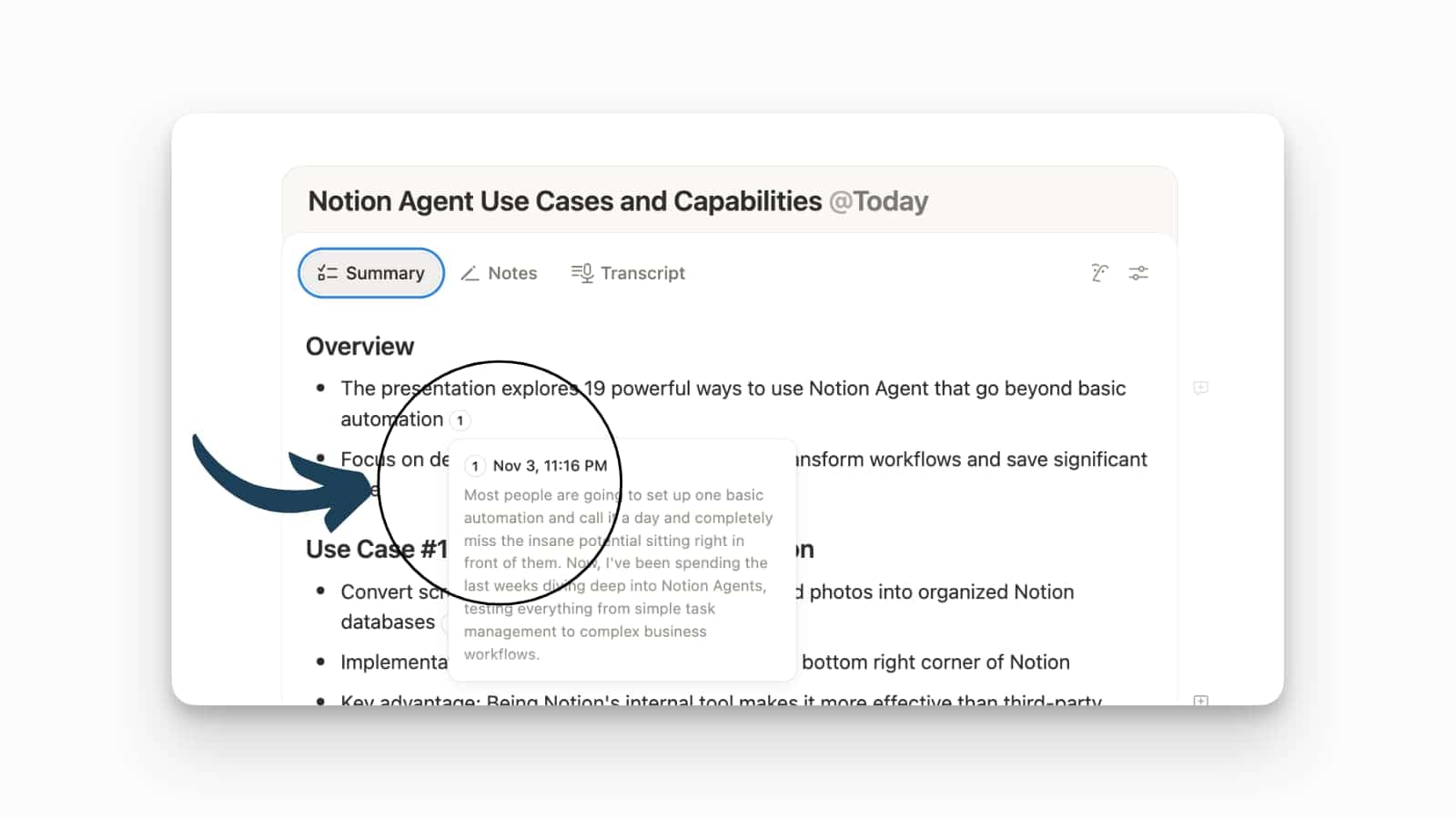
AI Notes Now Cite Sources
AI Meeting Notes can now cite their sources, allowing you to easily verify where each takeaway came from.
Meeting summaries generated by Notion AI now include citations that link directly back to the relevant section in the full meeting transcript. This means you can instantly jump to the exact moment in the conversation that produced a specific action item or key takeaway, adding transparency and accuracy to your summaries.
This feature is automatically available in your AI Meeting Notes. Simply review a summary and click on the citation to be taken directly to the corresponding part of the transcript.
Slack Connector Accesses Private Channels
Your Notion AI can now access information from your private Slack channels and direct messages!
This update significantly expands the utility of the Slack AI Connector. Previously, Notion AI could only access public channels, not private ones. This addition is helpful for management and knowledge retrieval where key context often lives in private, secure conversations.
To enable this access, the Slack AI Connector needs to be updated. Importantly, every user must individually authenticate to grant the connector permission to access their private channels and messages.
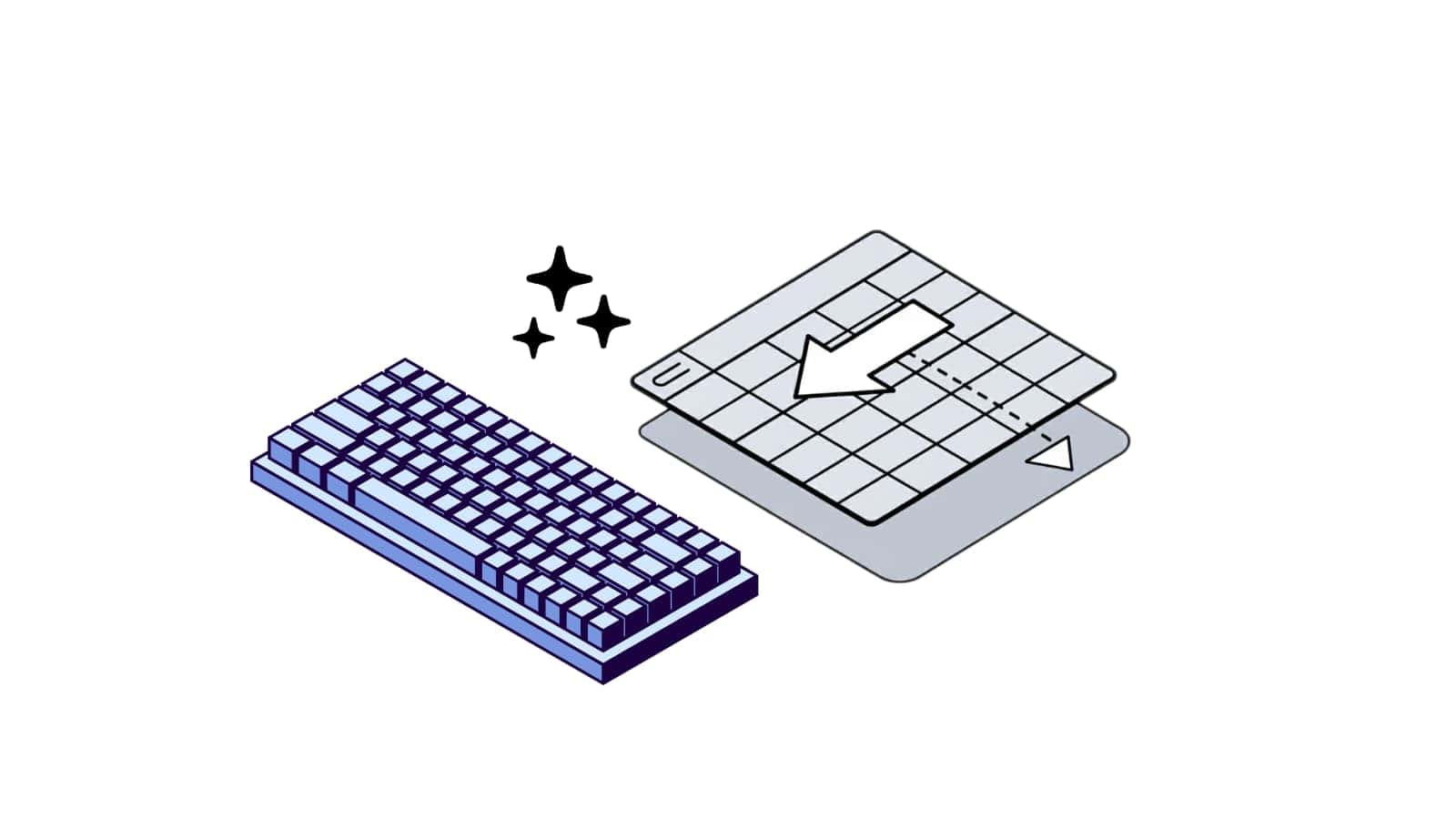
New Spreadsheet Keyboard Shortcuts
You can now navigate and select data faster within your Notion databases using new keyboard shortcuts.
This small update brings more spreadsheet-like efficiency to your databases, especially in Table view. The two new shortcuts allow you to quickly move around and select large amounts of data:
- Cmd/Ctrl + arrows: Instantly jump to the end of the row or column.
- Cmd/Ctrl + Shift + arrows: Instantly select everything to the edge of the database data.
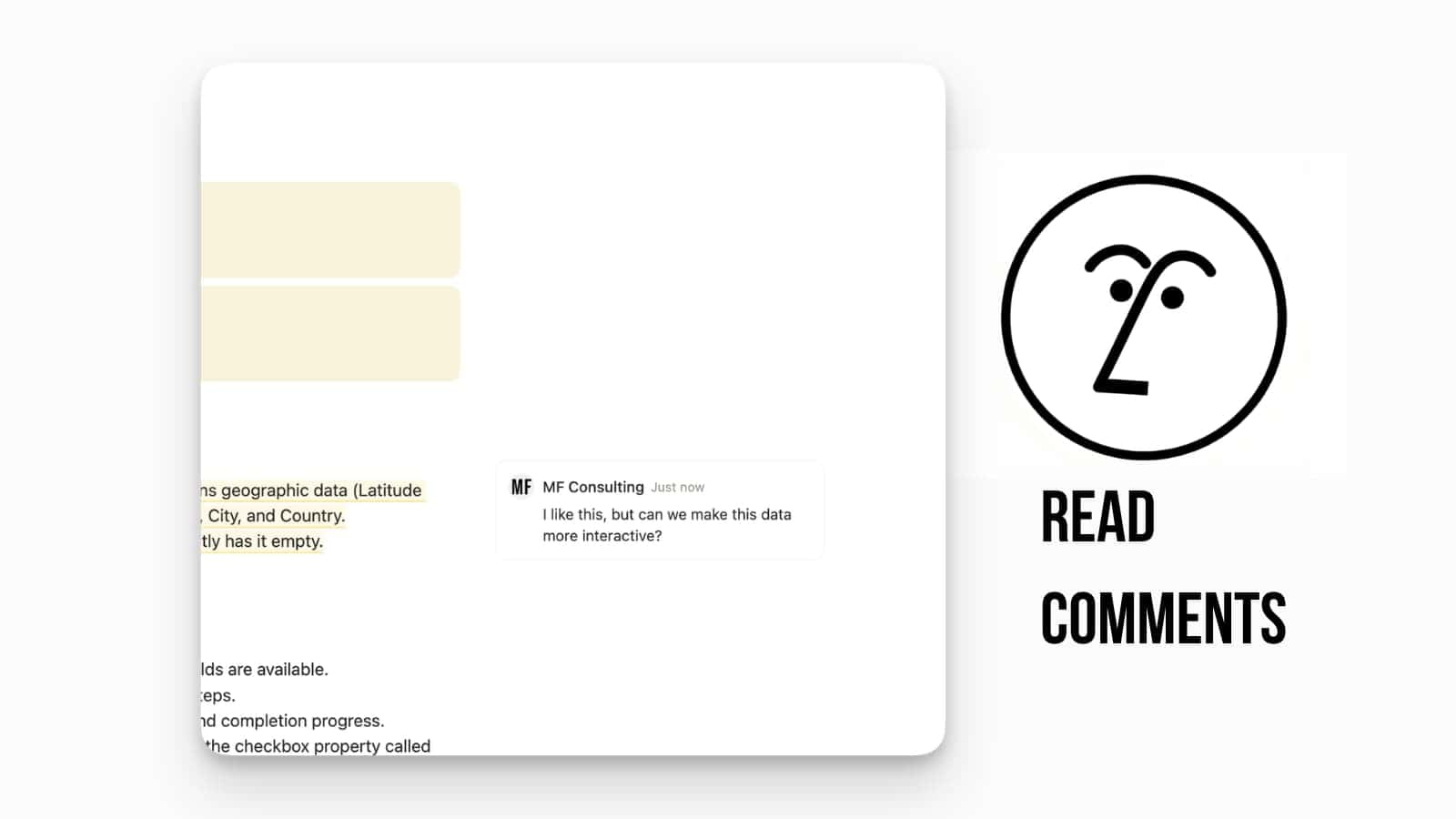
AI Agent Now Reads Comments
Your Notion AI Agent can now read page comments when answering your questions, providing you with more informed and contextual answers.
This update significantly improves the intelligence of your Agent. When you ask it a question about a page, it no longer just reads the body text; it also considers the insights, feedback, and discussion points left in the comments. This is especially useful for pages like meeting notes or project docs where key context often lives in the discussion thread.
New Formula Functions: formatNumber and splice
Your Notion databases just got two powerful new functions: formatNumber and splice.
The formatNumber function is a huge quality-of-life update that lets you easily format numbers with commas, currency symbols (like €12,346), or even automatically “humanize” large numbers (like 1.2M) and data sizes (like 2 KiB). The splice function works just like the popular JavaScript method, letting you insert, delete, or replace items in lists within your formulas without complex workarounds.
Faster Icon Coloring
You can now pick icon colors directly as you select your icon, saving you a step in customization.
This is a great quality-of-life update to the icon picker menu. Instead of selecting an icon, closing the menu, opening the menu again to select a color, and then applying it, you can now change the color right alongside the icon selection. This makes customizing your pages and database entries faster and more intuitive.
Notion API: Create Pages from Templates
You can now use the Notion API to create pages directly from your existing templates.
This is a major win for automation, allowing developers to build automated workflows and one-click updates that rely on pre-built templates. The update gives developers the ability to apply a data source template to a newly created page, and it includes a new, optional body parameter called erase_content that helps clear a page’s existing content before reapplying a template.
Developers will need to refer to the official Notion API documentation on creating pages from templates for the specific body parameters and syntax required to call and utilize your existing database and page templates.
Conditional Colors Based on Formulas
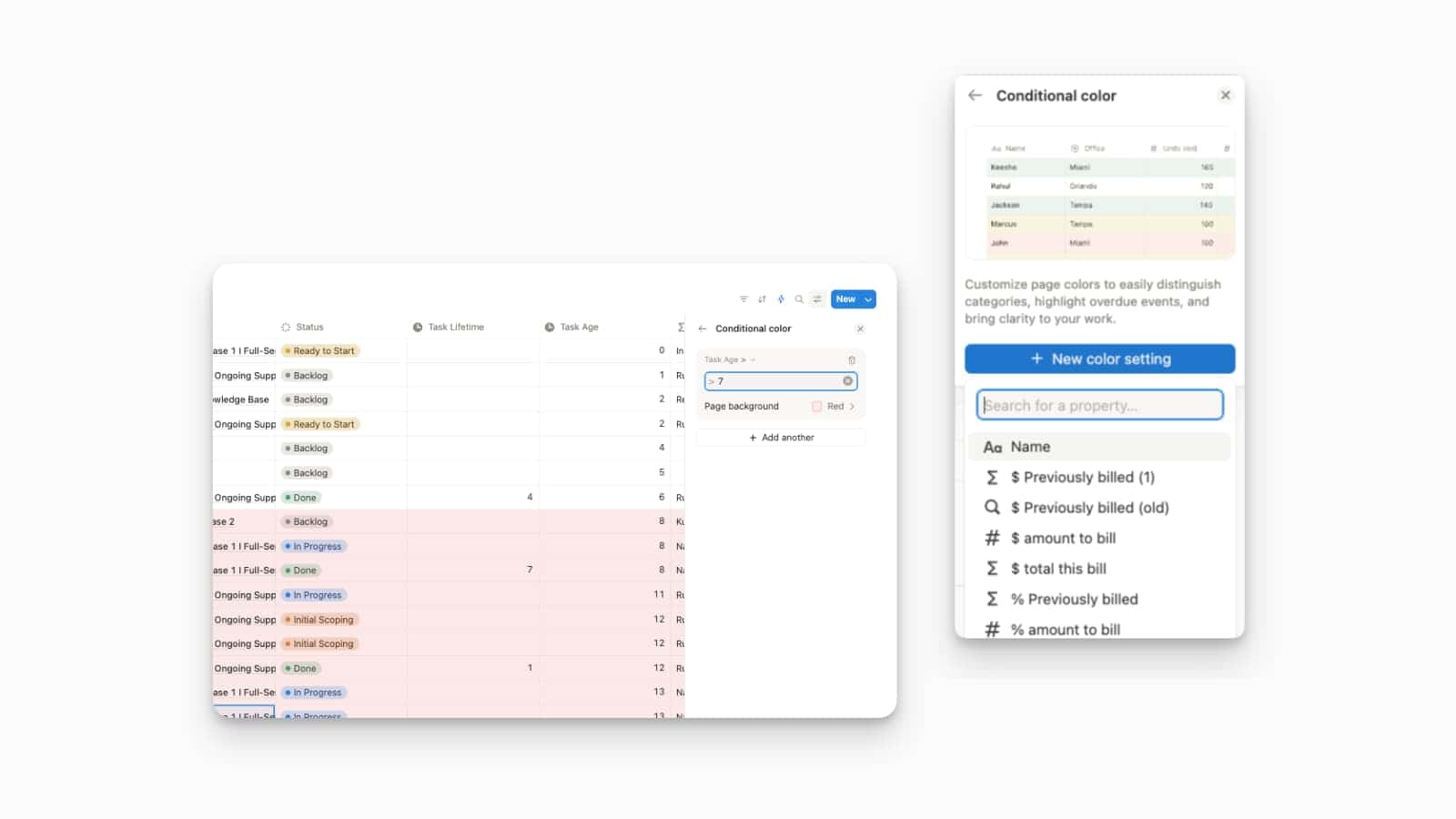
You can now apply Conditional Colors in your databases based on the results of a Formula property.
This update dramatically expands the visual organization capabilities of your databases. Previously, conditional colors were limited to simple properties, but now you can use them with complex formulas. This means you can create rules to automatically highlight rows based on dynamic criteria, such as overdue events, complex budget thresholds, or performance metrics calculated by a formula.
To set up this powerful feature, open the ••• menu on your database view, select Conditional Color, and choose + New color setting. When selecting the property to base the condition on, you will now see all of your Formula properties available in the list.
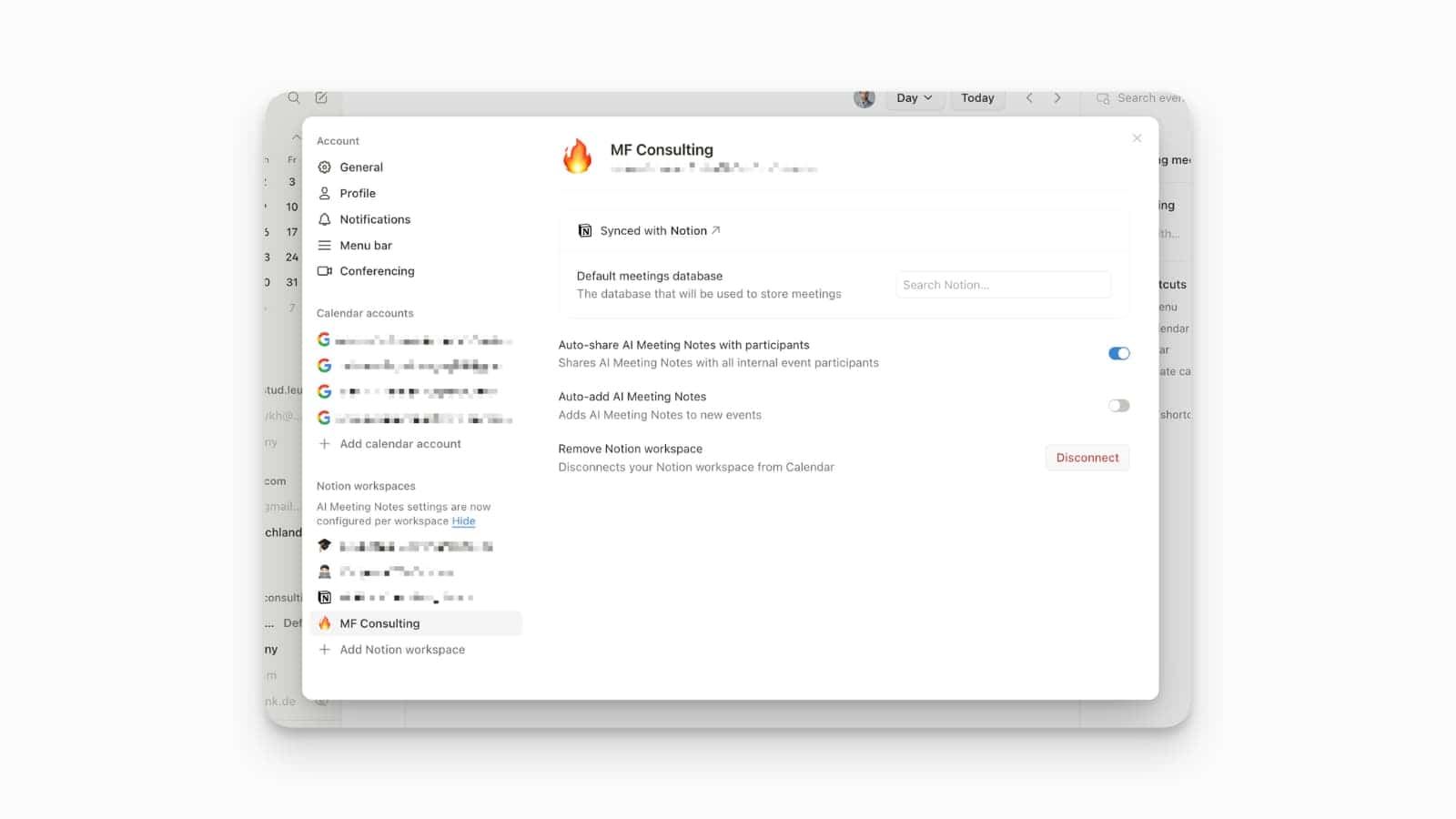
Workspace-Specific Meeting Notes
You can now set custom meeting note preferences for each Notion workspace you use with Notion Calendar.
This update solves the problem of meeting notes landing in the wrong place by allowing you to designate a specific default meetings database for each linked Notion workspace. For example, notes from your personal calendar can go to your “Personal Projects” database, while your work meetings land in your “Team Meetings” database, keeping all your information perfectly organized.
To set your preferences, open Notion Calendar settings and go to Notion workspaces. From there, you can choose the default meetings database for each linked workspace.
Map View in Notion Databases
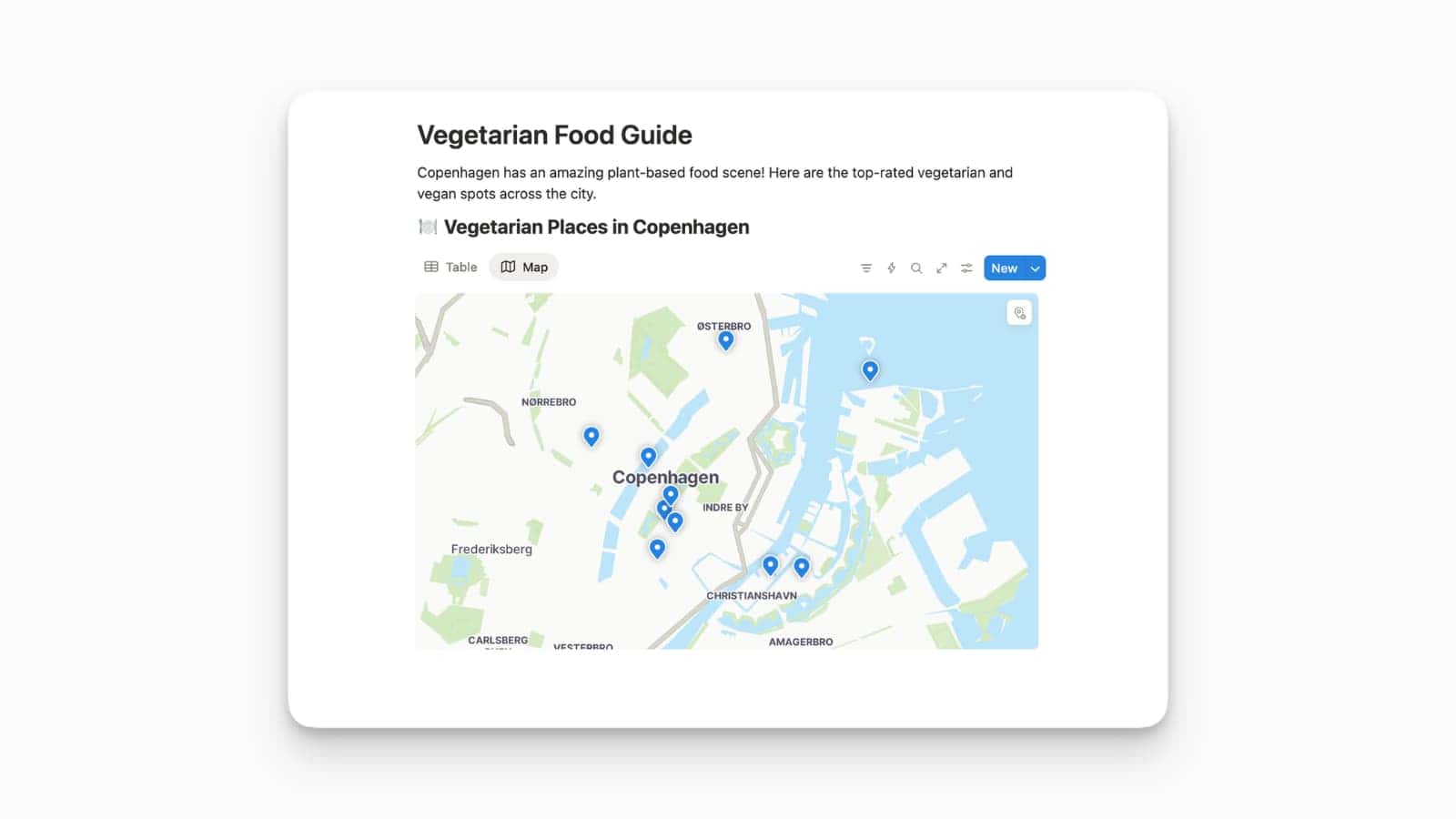
Map view lets you visualize your database items on an interactive map, perfect for planning trips, tracking sites, and organizing fieldwork.
This new Map View is powered by the new Place property, which can be easily populated by granting access to your current location, entering an address, or searching for a location name. Once the property is set up, you can add a map view to your database or create a new one by typing /map on a page. You can then click any pin to open the corresponding database item.
To get started, simply add a new Place property to your database and select Map when creating a new view. Keep in mind that for now, the map view can display up to 100 items at once, and filtering and sorting are text-based on the place’s name or address.
Notion AI Claude Sonnet 4.5 Integration
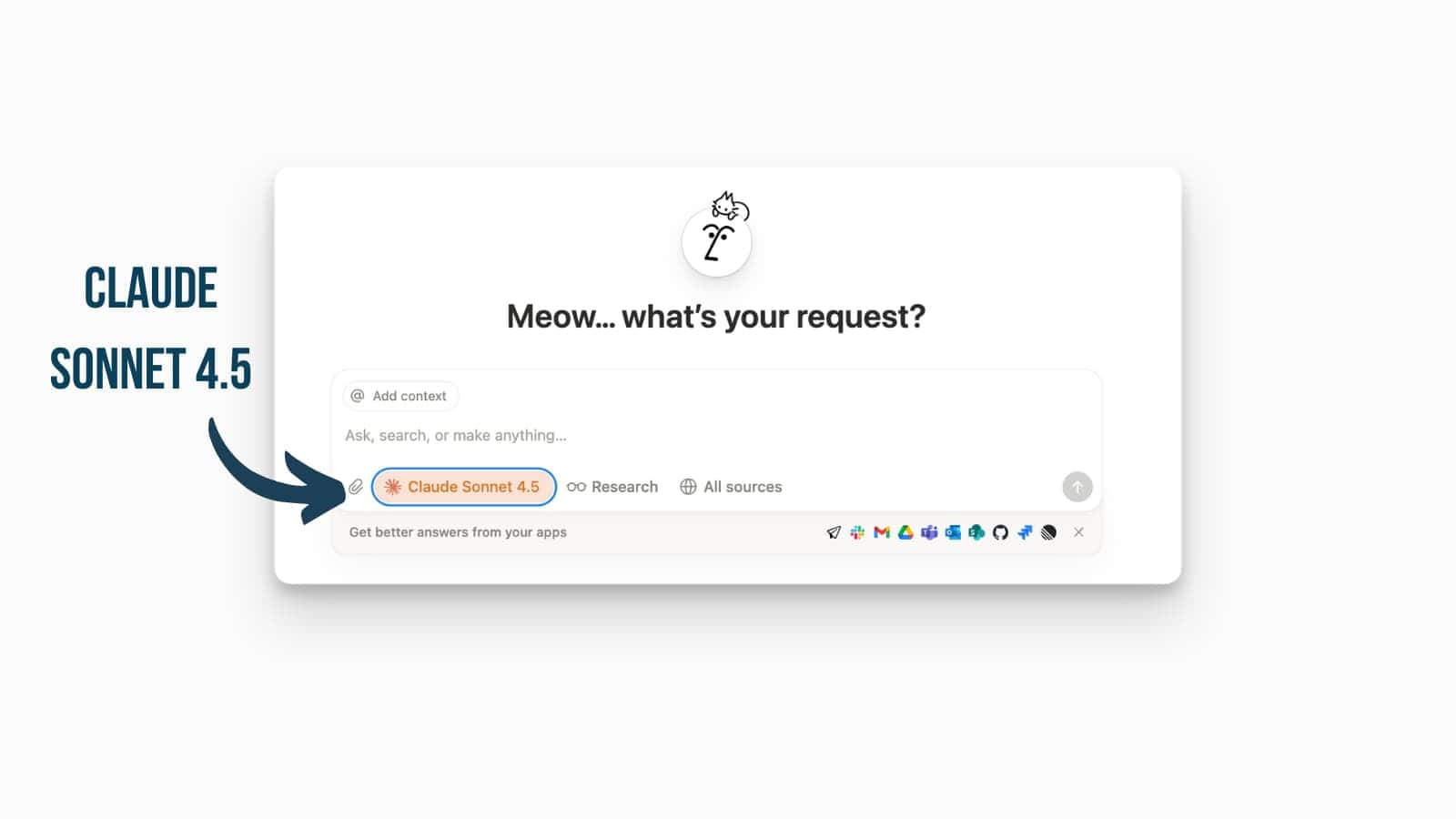
Anthropic’s newest AI model Claude Sonnet 4.5 is now integrated into Notion AI.
This integration allows you better reasoning and smarter planning capabilities for your tasks. Access it by selecting the model in the AI panel’s options.
Notion AI Connects to Your Inbox
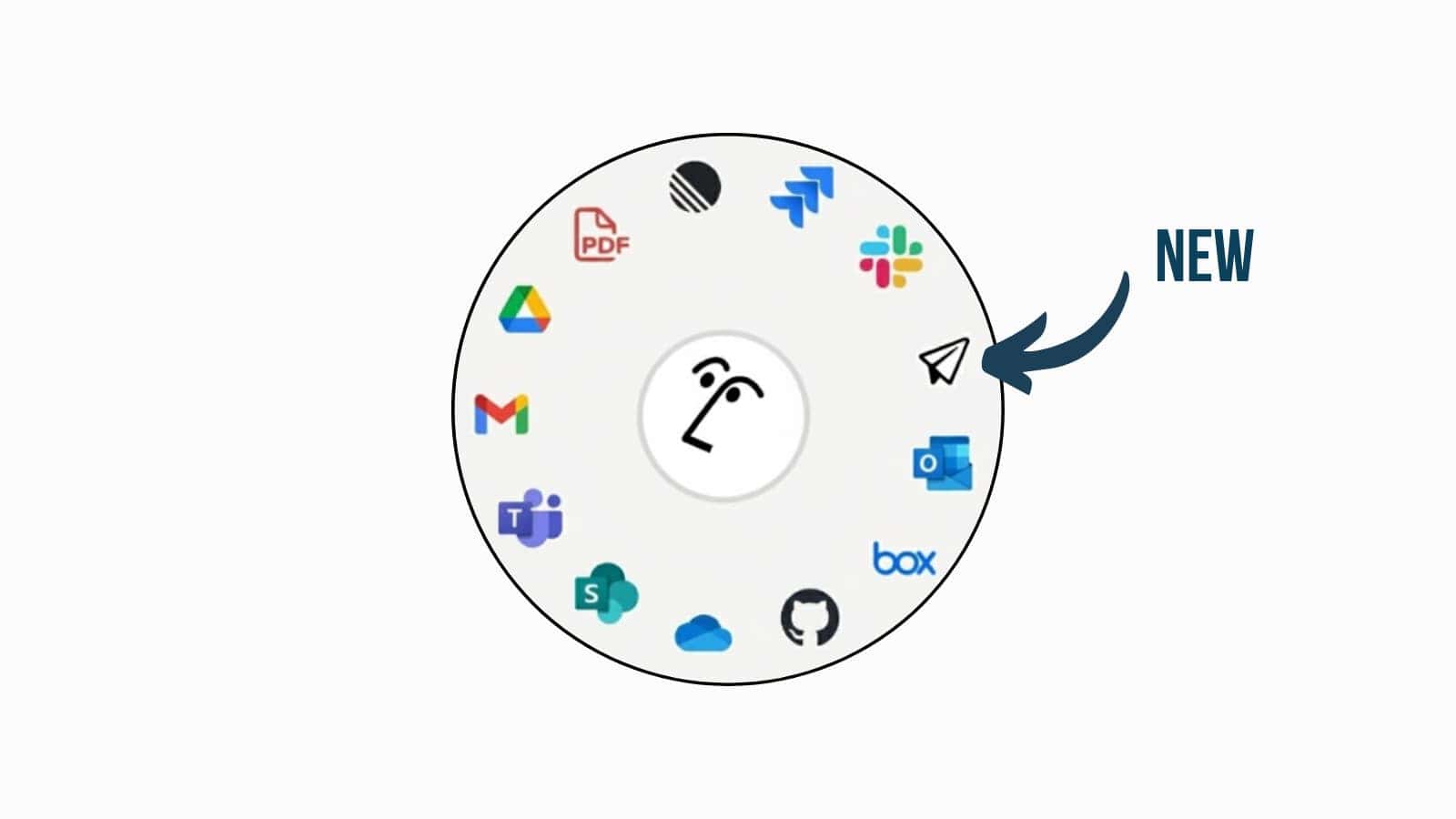
You can now find and use information from your emails directly inside Notion.
The new Notion Mail connector has just launched, allowing your Notion AI to search across your connected Notion Mail account to retrieve the specific details you need. Your AI Agent can now find “That One Email” and use its contents to provide richer answers, all without you having to leave your Notion workspace.
To enable this, head to your Settings and look for the new Notion AI section to find the connector options.
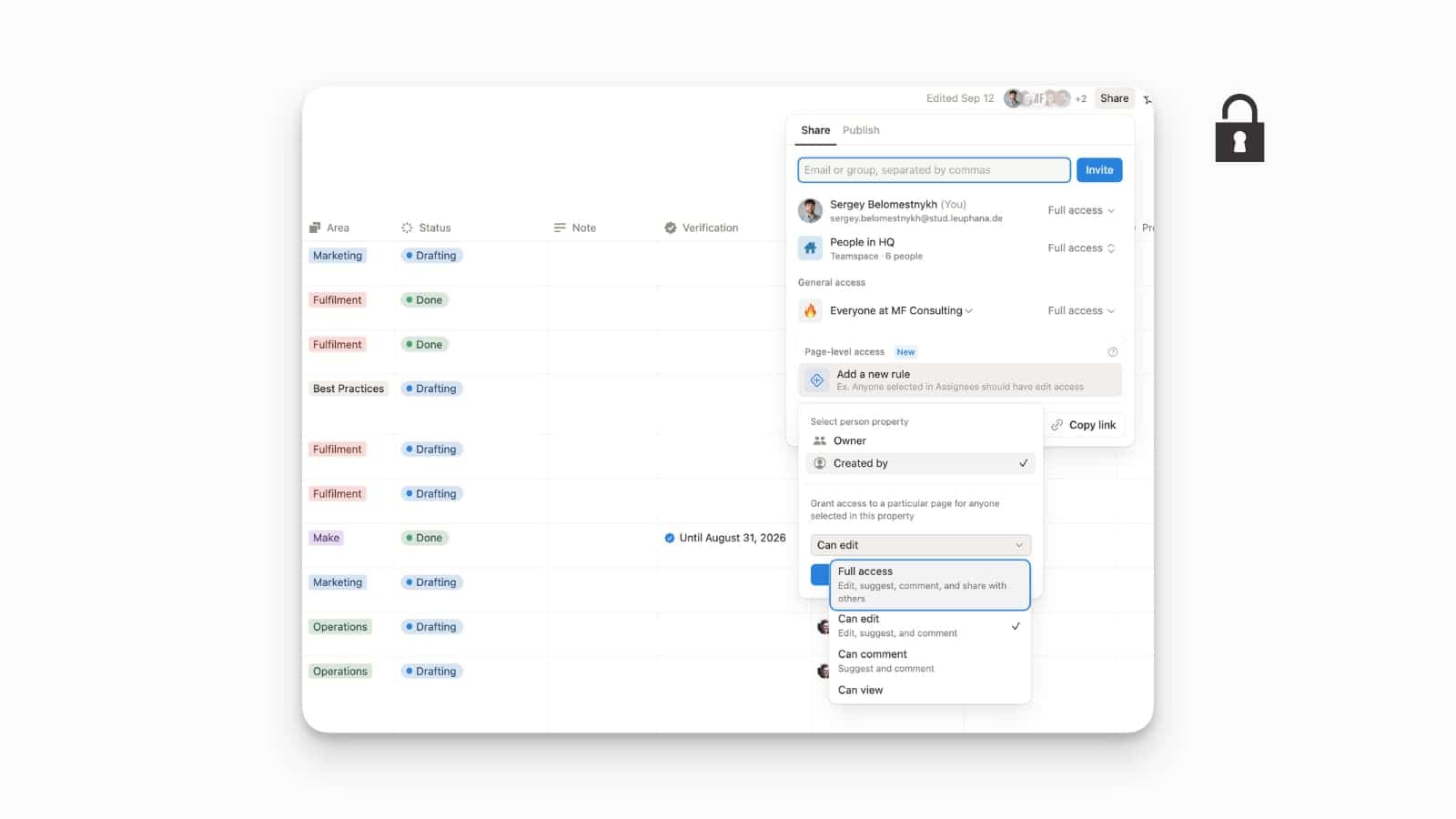
Finally Granular Permissions for Databases
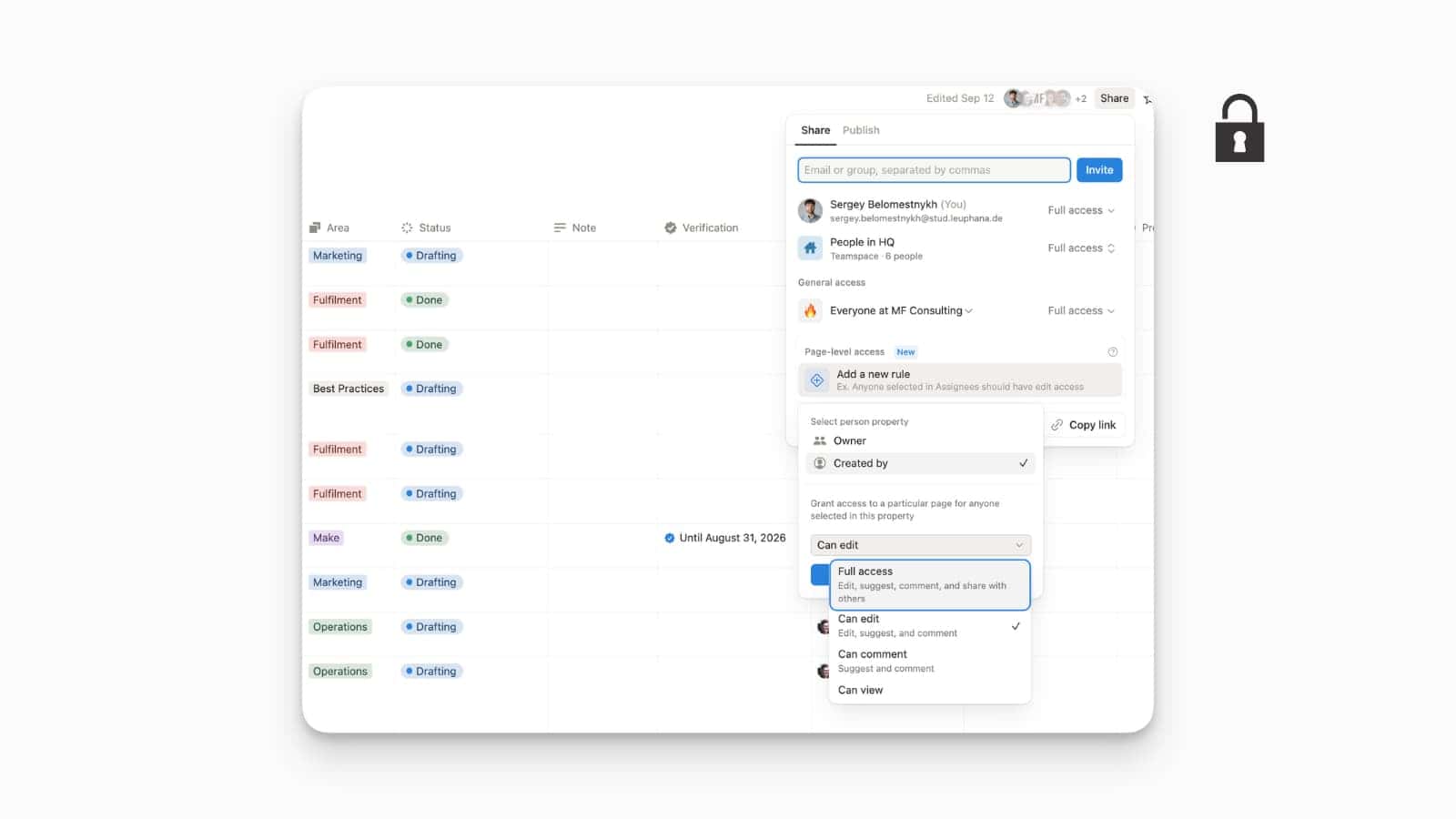
You don’t have to provide full database access to someone anymore.
This is a major update for teams and companies, allowing you to set specific access rules for a page or database based on a person property. For example, you can automatically grant “Can edit” access to the “Owner” of a project or give “Can view” access to anyone selected in a “Reviewer” property. This level of control streamlines workflows and ensures the right people always have the right access.
To use these new rules, go to the Share menu on any page. You’ll see a new option to Add a new rule, where you can customize access based on a variety of properties and roles.
Notion Notifications in Discord
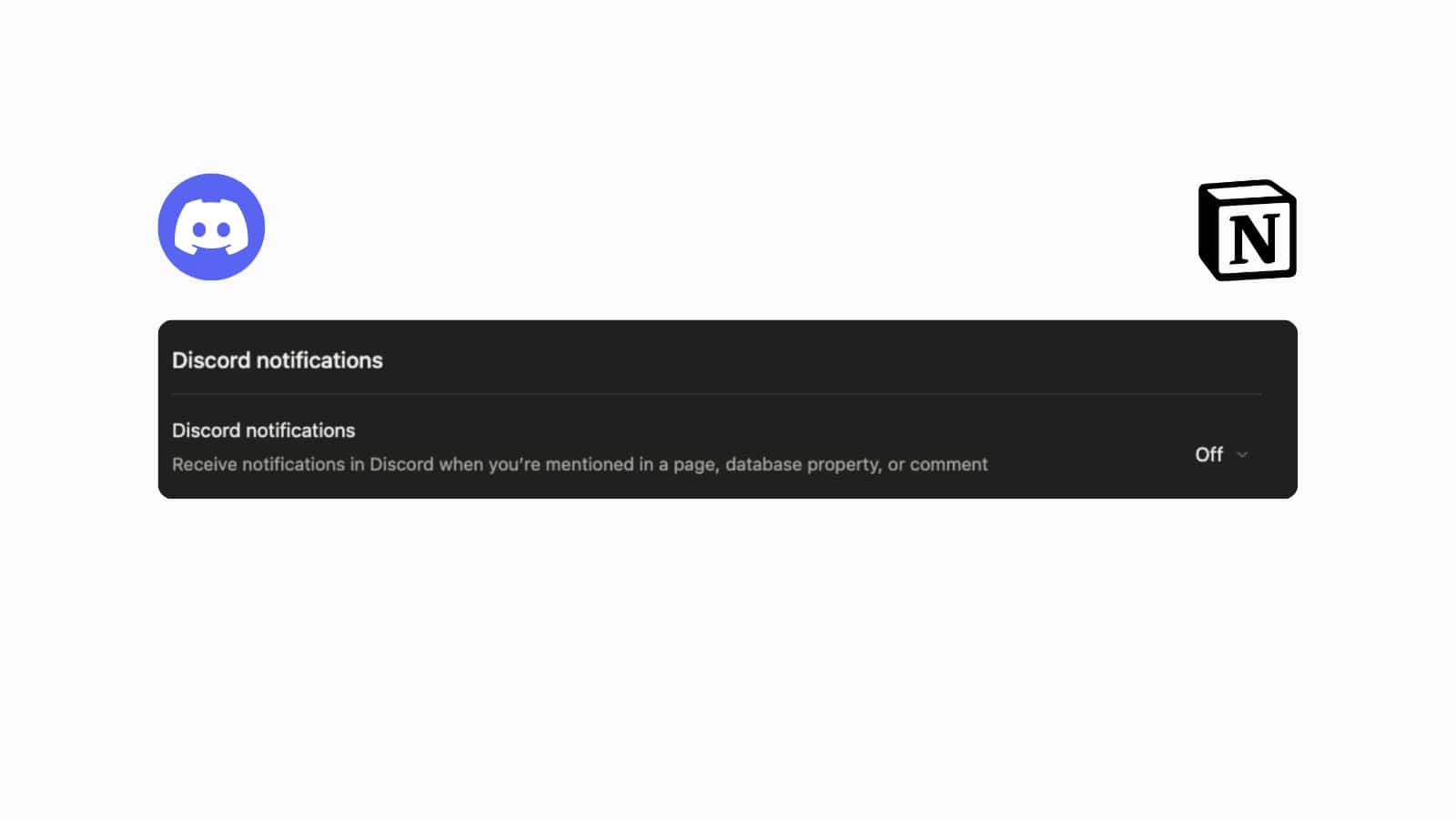
You can now receive Notion notifications right inside Discord.
This new integration allows you to connect your Notion workspace with your Discord account. When enabled, you’ll receive a direct notification on Discord whenever you’re mentioned in a Notion page, a database property, or a comment, keeping you in the loop without having to switch apps.
To set it up, go to your Notion settings. Find the new Discord option and simply toggle it on to start receiving your mentions and updates.
Smoother Margin Comments
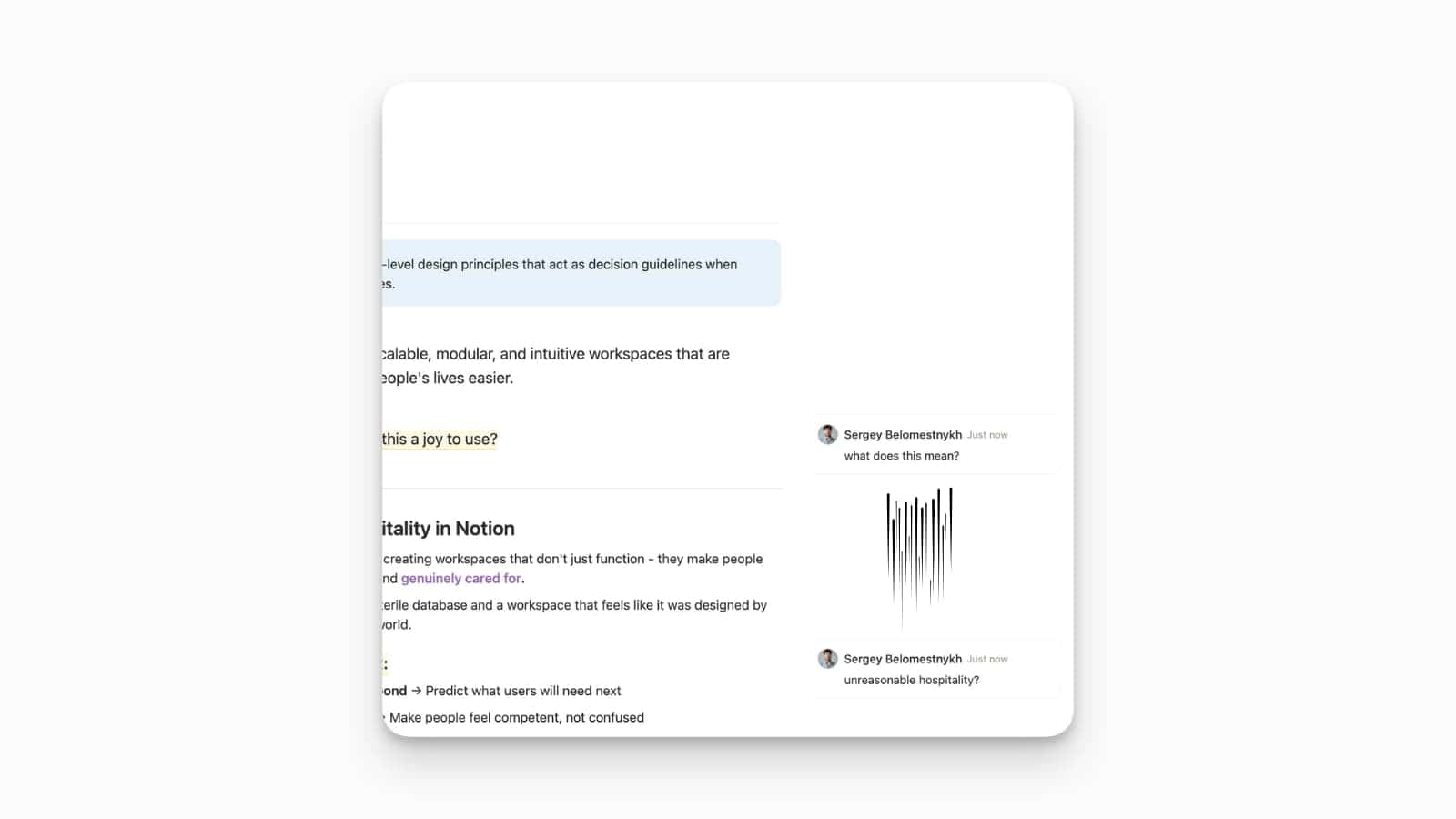
A small animation update makes margin comments feel smoother and more responsive.
Margin comments now appear with a smooth, gliding animation.
Store Your Company’s Data in the EU
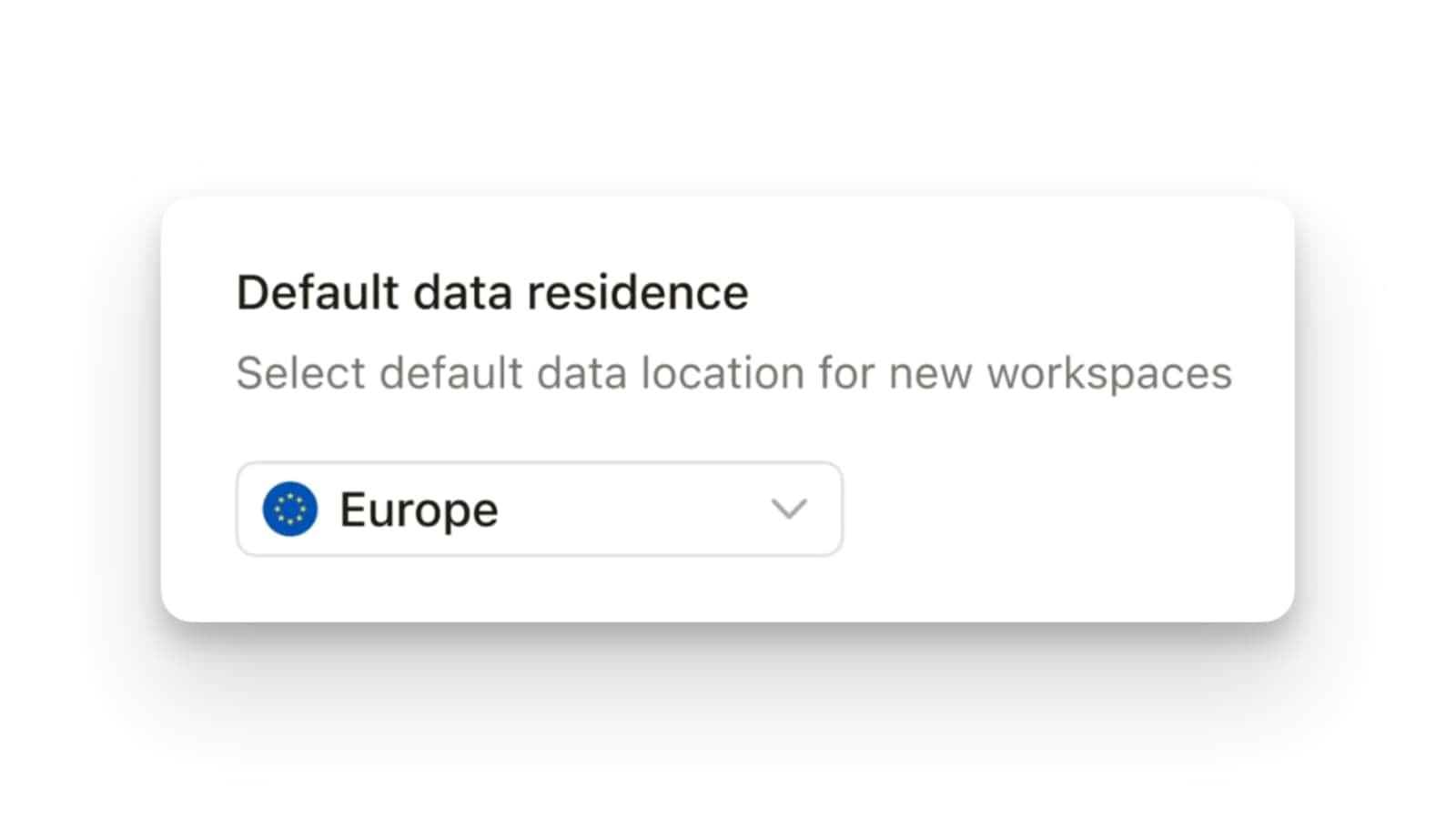
Companies’ data in Notion can now reside in the EU!
Notion Enterprise Plan customers are given the option to choose the European Union as the storage location for their workspace data at rest. This is a significant move toward helping businesses comply with EU data residency laws, giving them more control over where their data is stored.
While this is a major step forward, it’s not a perfect solution yet. There are a few limitations to be aware of: the feature only covers certain types of data, and information like user accounts, billing, and analytics, Notion Calendar, Notion Mail, and any Beta Services are not covered by this data residency feature.
Refreshed AI Block
The /ai block is now smarter and can pull information from more places to give you better answers.
The /ai block just got a major refresh. Previously, it was quite limited and could only use the content on your current page to generate a response. Now, Notion AI can pull information from your entire workspace, the web, and even Slack, allowing for richer, more accurate, and more comprehensive results.
To use the updated block, simply type /ai on any page. The enhanced functionality is automatically built-in, so you can start getting more powerful AI-generated responses right away.

Download Audio from AI Notes
You can now store and download local copies of your meeting audio.
This new feature automatically saves the 10 most recent audio files from your AI Meeting Notes directly to your local device. This gives you a personal, private copy of the audio that only you, as the meeting recorder, can access and download for your own use.
This capability is turned off by default. To enable it for your workspace, go to Settings & members, then My settings, click on Notion AI, and toggle on Store audio locally. This feature is still in the process of rolling out to all users.

Default Database for AI Notes
You can now automatically save all your AI Meeting Notes to a single database.
This new setting allows you to designate a default database for all your AI-generated meeting notes. Instead of having them scattered across your workspace, this feature ensures that every note you create with the one-click meeting notes button is automatically saved in one central hub. This keeps your meeting notes organized and easy to find.
To set this up, go to Settings & members, then navigate to My settings and click on Notion AI. From there, you’ll see a section for AI Meeting Notes, where you can link to an existing database or create a new one to store all your future meeting notes.

Group Mentions in Databases
You can now easily mention an entire group of people at once in your databases.
Notion has enabled Group Mentions in databases. This means you no longer have to manually tag each person when you need to get a team’s attention. Instead, you can simply mention a group—like your marketing or finance team—and everyone in that group will receive a notification. This makes it much faster to assign tasks or share updates with the right people.
To use this feature, just pick a people property and start typing the name of a group. The group will appear in the mention menu, and a single click will select & notify everyone you need to reach.

Custom Page Comment Location
You now have more control over your page layout by choosing where comments appear.
This new feature allows you to decide if page comments go before or after the main page content. Previously, comments were in a fixed location, but now you can place them where it makes the most sense for your workflow. For instance, you might want comments at the top for quick access on collaborative docs or at the bottom to keep them out of the way on a long-form article.
To change this setting, go to the ••• menu at the top-right of any page and select Customize page. From there, you will find a new option to set your preferred location for all page comments.

One-Click AI Meeting Notes
Starting your meeting notes is now a single click away on desktop.
Notion can now automatically detect when you join a meeting and give you a one-click prompt to start your notes. This new feature helps you avoid the hassle of setting up a new page, so you can focus on the meeting itself. It also uses AI to help you summarize and organize your notes as you go.
This feature is available on the Notion desktop app. To see it in action, just join a video call with the desktop app running, and the AI meeting notes prompt will appear automatically.

Prompting Complex Formulas with Notion AI
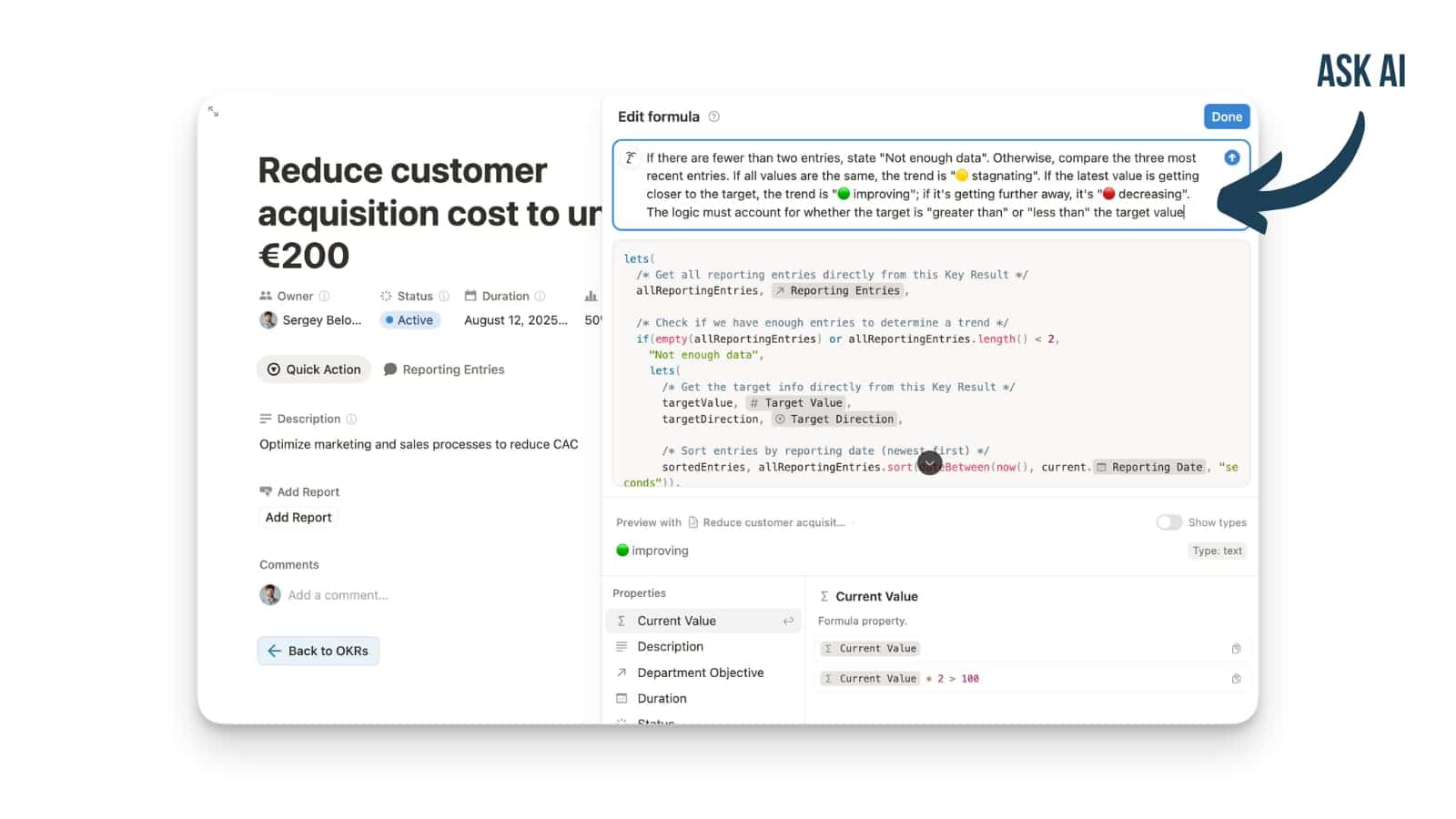
You can now create complex Notion formulas just by describing what you want in plain language.
Notion has introduced AI Formulas, which makes creating powerful database functions incredibly simple. You no longer bound to knowing Notion’s formula language. Instead, you can simply tell Notion AI what you want the formula to do, and it will write the correct code for you automatically.
To use this feature, you need to be on the Business Plan and add a Formula property to your database. When you open the formula editor, you can type your request in plain English, and Notion AI will handle the rest. This makes a powerful part of Notion accessible to everyone.
Notion Offline Mode is here
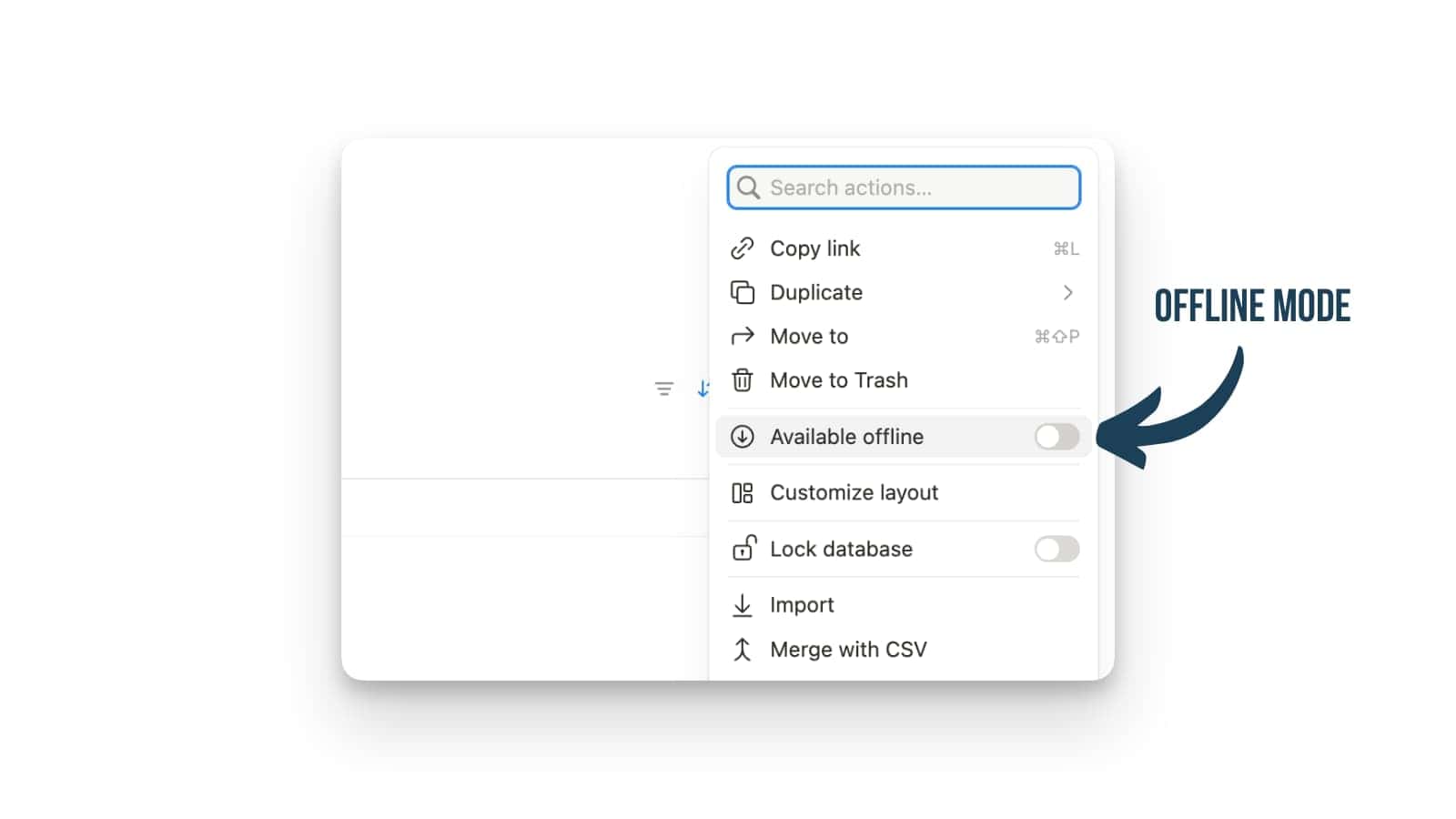
You can now use Notion without an internet connection.
Notion’s new offline mode lets you view, edit, and even create new pages when you’re not connected to the internet. Any changes you make will be saved locally on your device and will sync automatically the next time you get a signal. This means your workflow remains uninterrupted, whether you’re on a flight or simply trying to focus without distractions.
To enable this, simply open any page you need to access offline, click the ••• menu in the top-right corner, and turn on Available offline. Remember to do this on every device you plan to use. On a paid plan, your recent and favorited pages are automatically saved for you.
See all your tasks in Notion Calendar
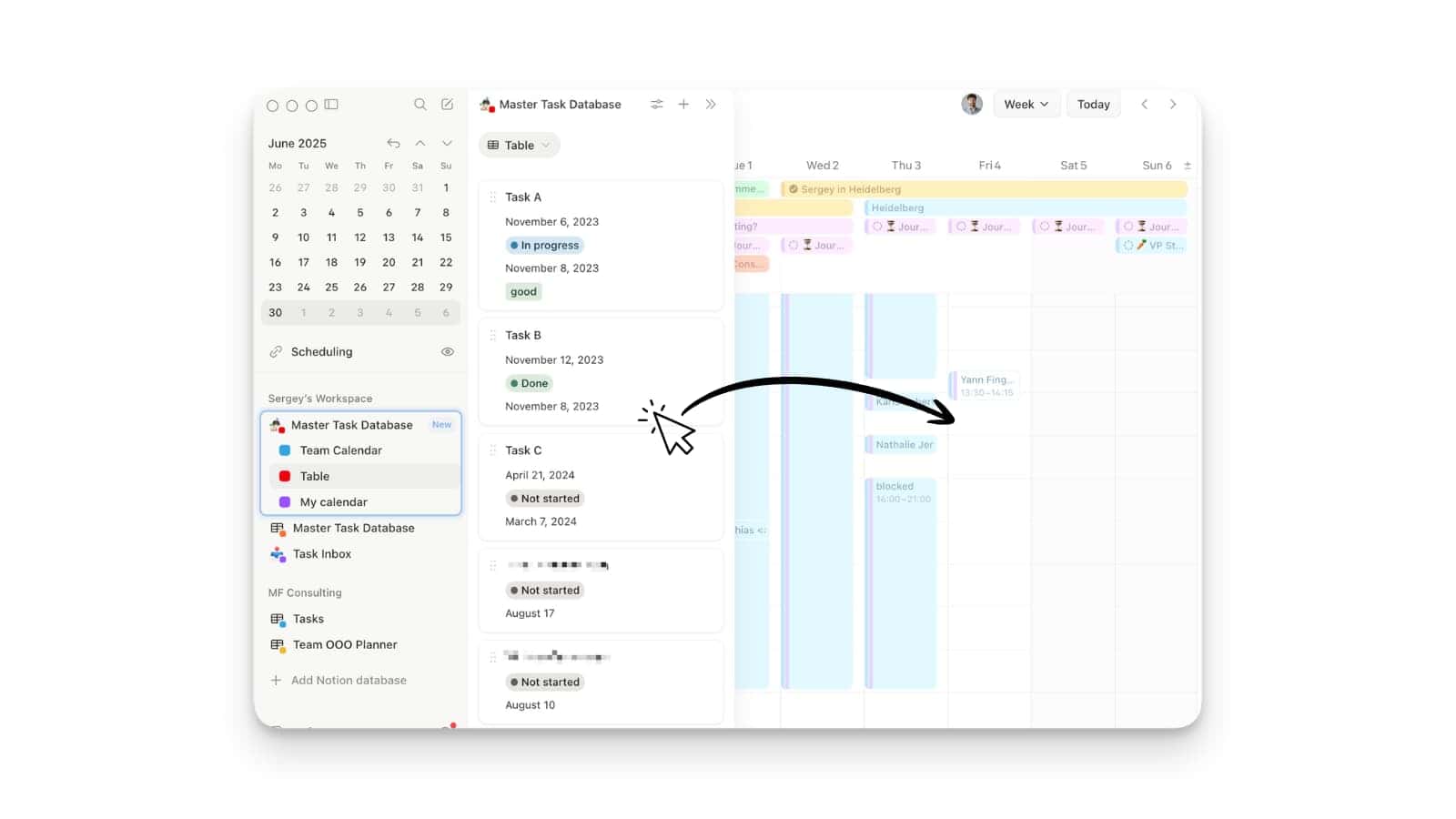
Now you can see your tasks and calendar events on the same page in Notion Calendar.
Say hello to the new list panel, which lets you connect a Notion database with dates directly to your Notion Calendar. This feature puts your tasks and projects side-by-side with your scheduled events, so you can plan your week and manage deadlines all in one place.
To start using this, just connect any database that has a date property to your calendar. You’ll then be able to see your tasks and events together, making it easier to schedule your work and stay on track.
Notion Mail for iPhone and iPad
The wait is over: Notion Mail for iOS is now available on the App Store.
Notion Mail is now available for download on iOS devices, bringing your email and your Notion workspace closer together on your iPhone or iPad. This update also includes support for more than 18 languages, making Notion Mail more accessible to users around the world.
To get started, simply download the Notion Mail app from the App Store on your iOS device. The new language support will be available automatically.
Notion Keyboard Shortcuts
You can now switch pages much faster with new keyboard shortcuts.
Notion has added a bunch of new keyboard shortcuts to help you navigate and edit pages more efficiently. These shortcuts are designed to help you quickly perform frequent actions without ever having to take your hands off the keyboard.
To see all the available shortcuts, simply press Cmd/Ctrl + / on your keyboard. This will bring up a menu where you can discover all the new ways to speed up your workflow.
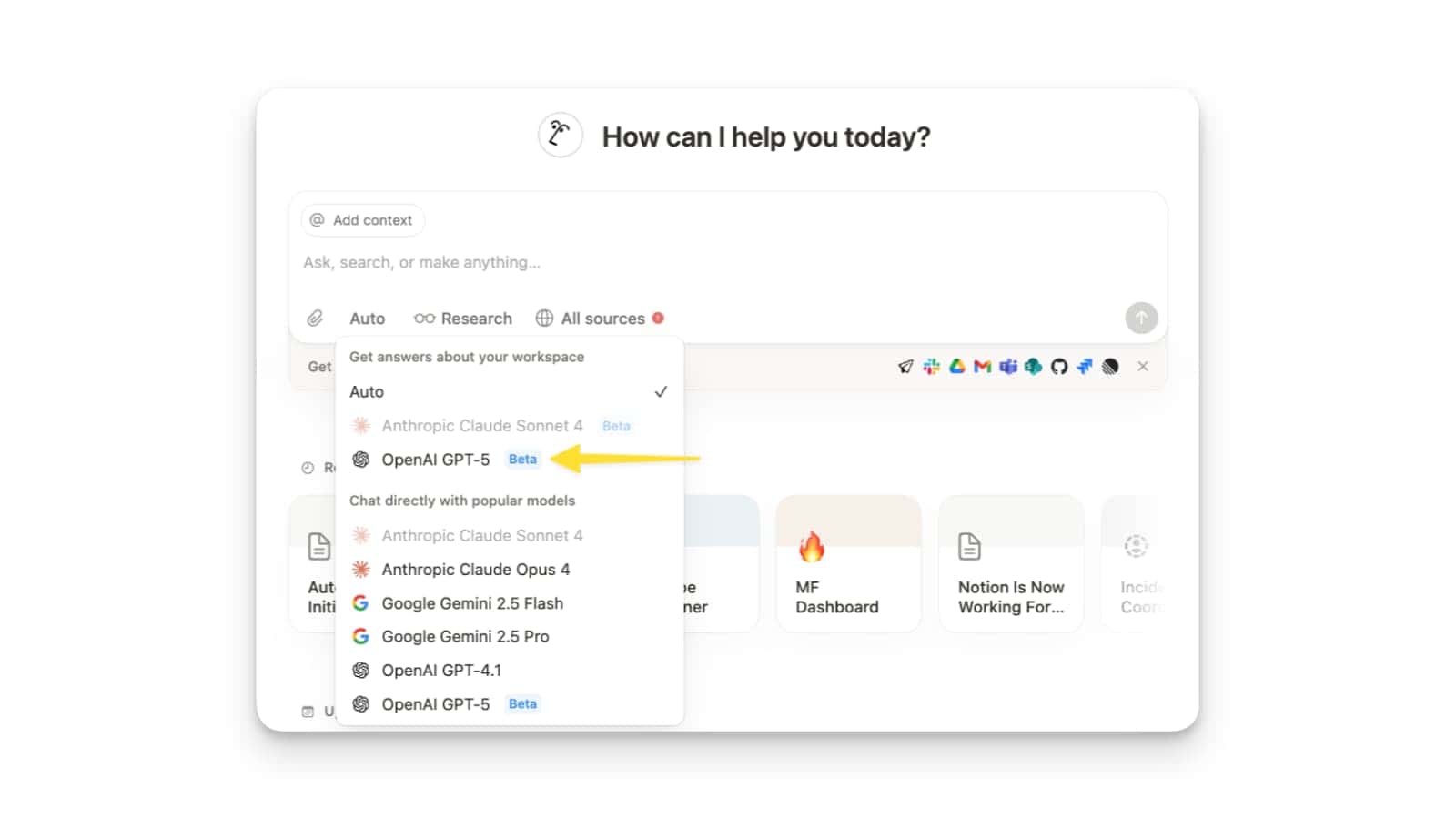
GPT-5 in Notion
Notion AI now gives you access to the powerful new GPT-5 model from OpenAI.
You can now choose OpenAI’s GPT-5 as your preferred AI model right within Notion. This integration brings the latest in AI technology to your workspace, allowing you to get even more advanced, accurate, and powerful responses for all your AI tasks, from writing to data analysis.
To switch to the new model, simply open the Notion AI panel and click on the current model name. You can then select OpenAI GPT-5 from the list of available options.
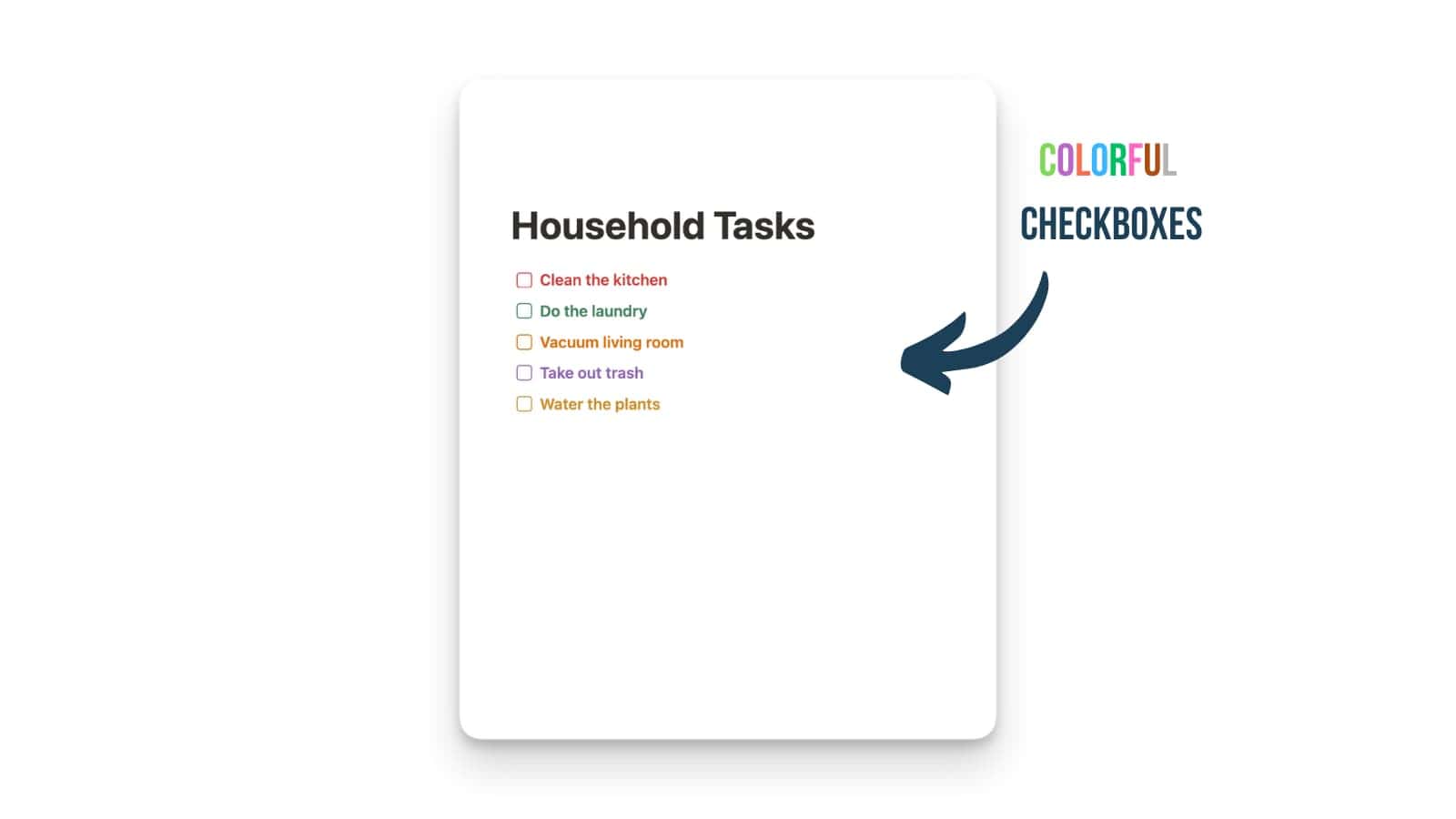
Colored Checkboxes in Notion
You can now personalize your checkbox lists with a variety of colors.
This update allows you to change the color of checkboxes in your Notion pages. This little aesthetic tweak could also be helpful for organizing and categorizing your checklists!
To change a checkbox’s color, simply click the drag handle (the six dots). From the pop-up menu, select Color and choose the desired color.
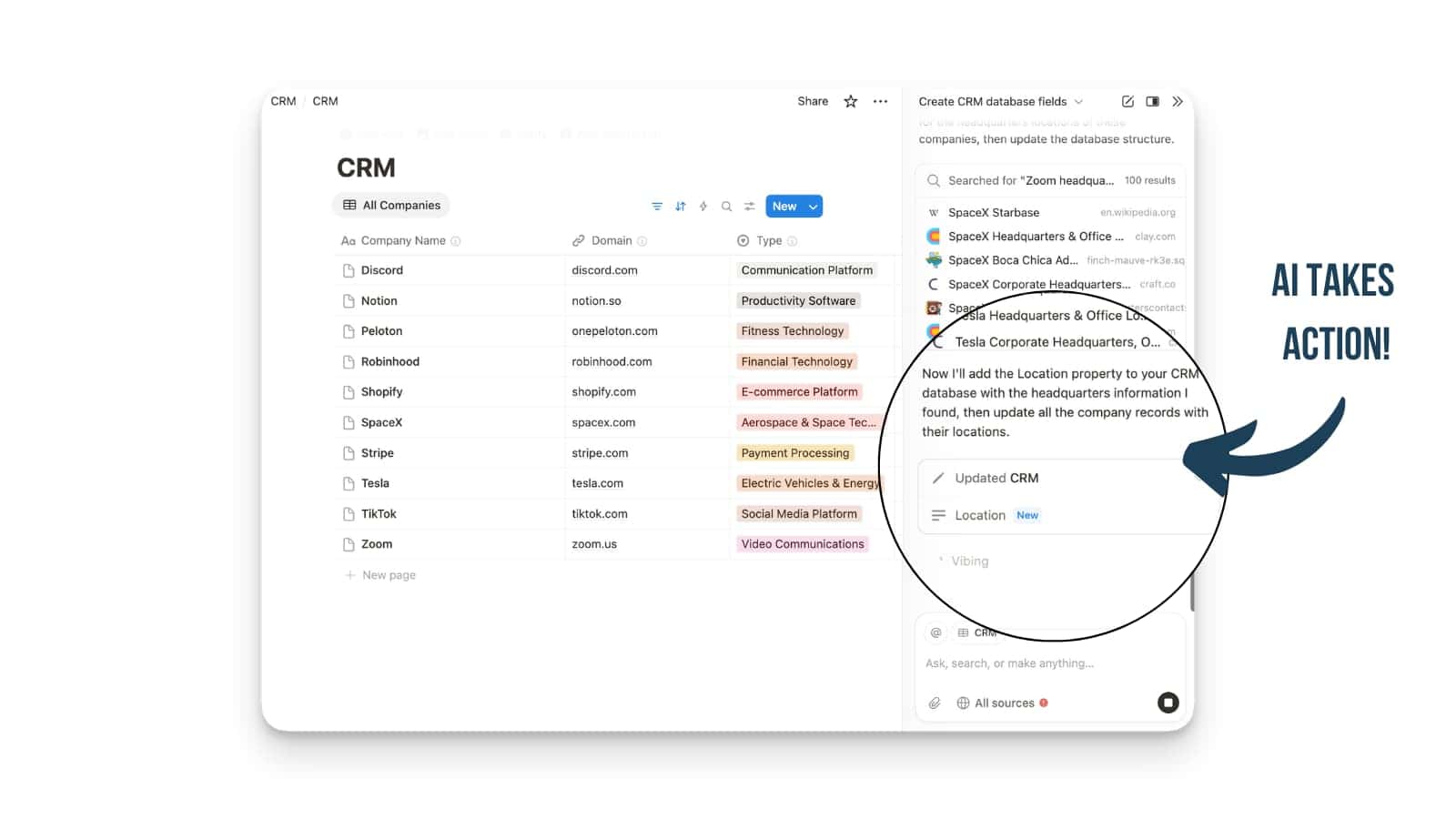
Notion AI Automates Multi-Step Tasks
Notion AI can now perform multi-step tasks for you, acting like a built-in power user.
This update transforms Notion AI from a simple text generator into an integrated tool that can actually use and manipulate your workspace. It can now handle complex jobs like editing multiple pages at once, updating entire databases, and other multi-step actions, all from a single prompt.
This new functionality is being rolled out over the next few weeks. To access it, you will need to have Notion AI enabled in your workspace. Once available, you can use the new, expanded prompts to ask Notion AI to perform these advanced tasks for you.
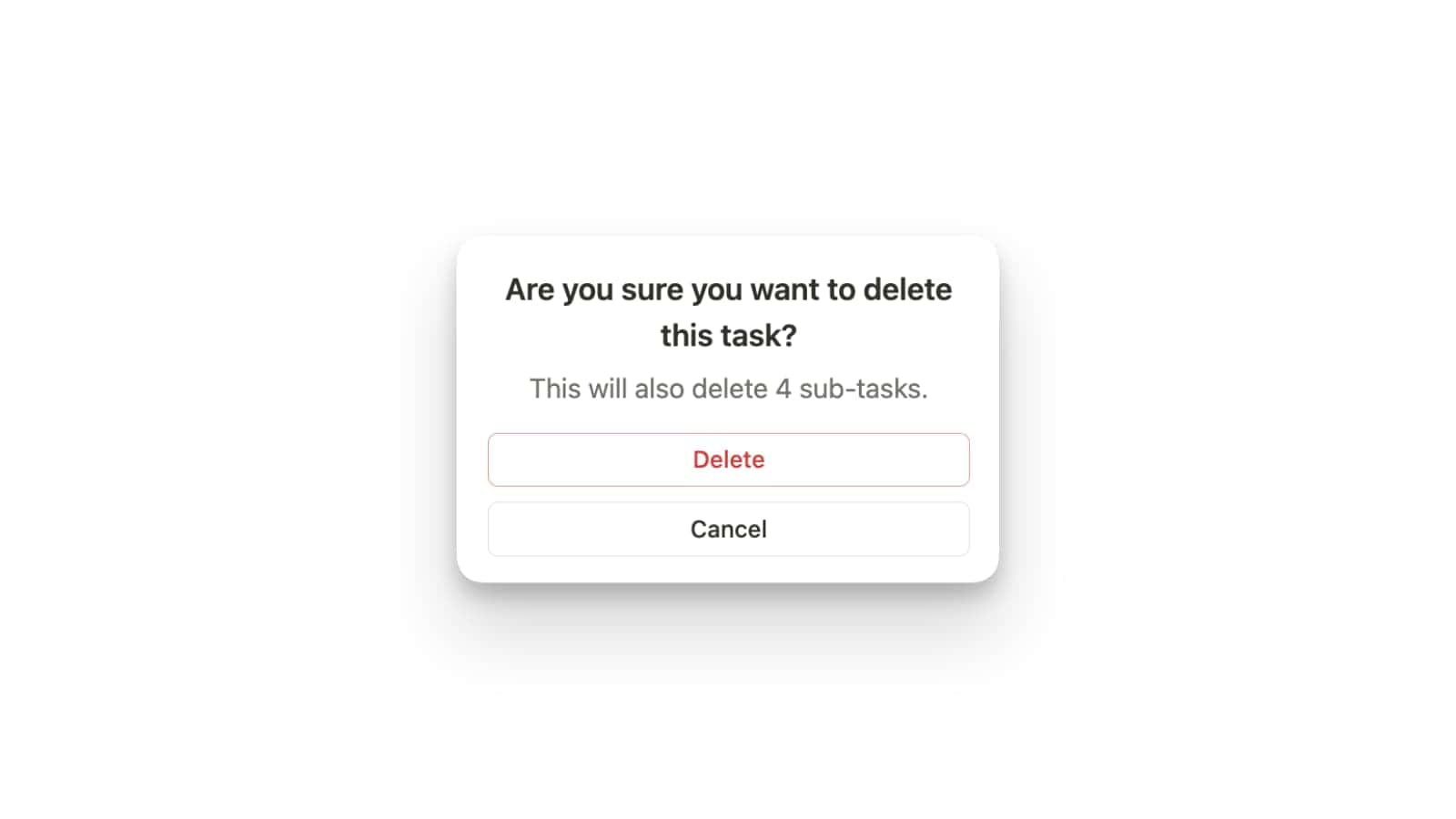
Consistent Sub-Item Actions
Managing items with sub-items is now more logical and intuitive.
When you duplicate an item, its sub-items are now duplicated along with it. Similarly, when you delete a parent item, all its sub-items are also deleted automatically. This update ensures that your sub-items are always handled in a way that matches the action you take on the parent item.
This is an automatic update to how items with sub-items behave. You don’t need to enable anything; the new functionality is now the default behavior when you duplicate or delete a parent item in a database.
Better Mermaid Charts
Mermaid charts in your Notion pages now have a much cleaner and more organized layout.
This update automatically improves the rendering of all Mermaid charts, both new and old. Notion has switched the default layout engine to Elk, which is designed to create better-structured diagrams. This means that your flowcharts, graphs, and other diagrams will appear more neatly arranged and are easier to follow.
This change is a backend update, so you don’t need to do anything to enable it. All Mermaid charts on your pages are automatically rendered with the new, improved layout engine.

One-Click to View All Page Visitors
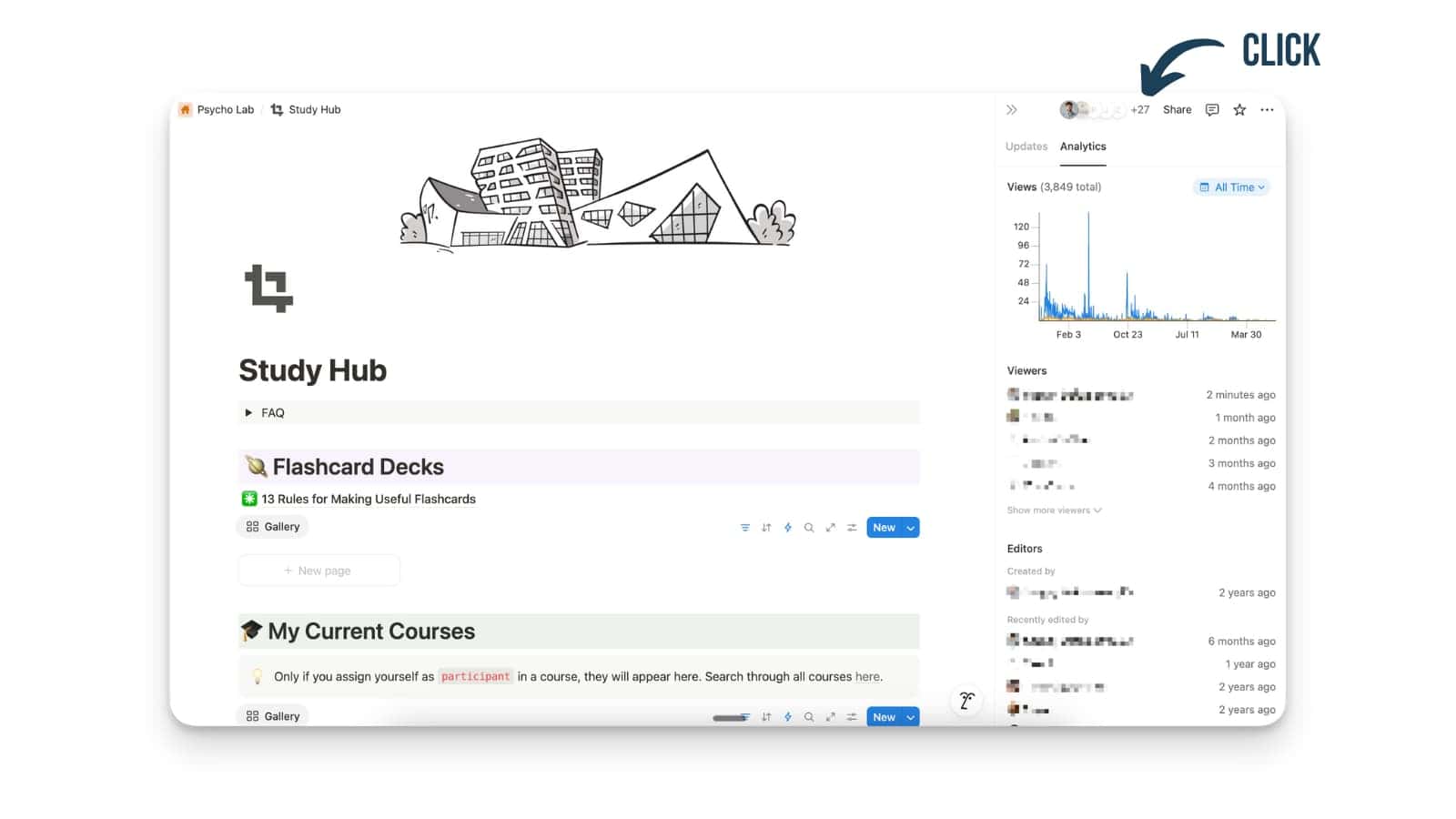
Finding out who’s viewed and edited a page is now a single click away.
The small “+X” viewer counter, which appears on pages with multiple visitors, is now clickable. Clicking this counter will instantly open the page analytics sidebar, where you can see a detailed list of everyone who has viewed and edited the page. Previously, you had to navigate through a separate menu to access this information.
To see who has been on a page, simply click on the viewer count located in the top right corner of the page. This feature is available on pages where more than one person has viewed or edited the content.
Easier Custom Page Icons
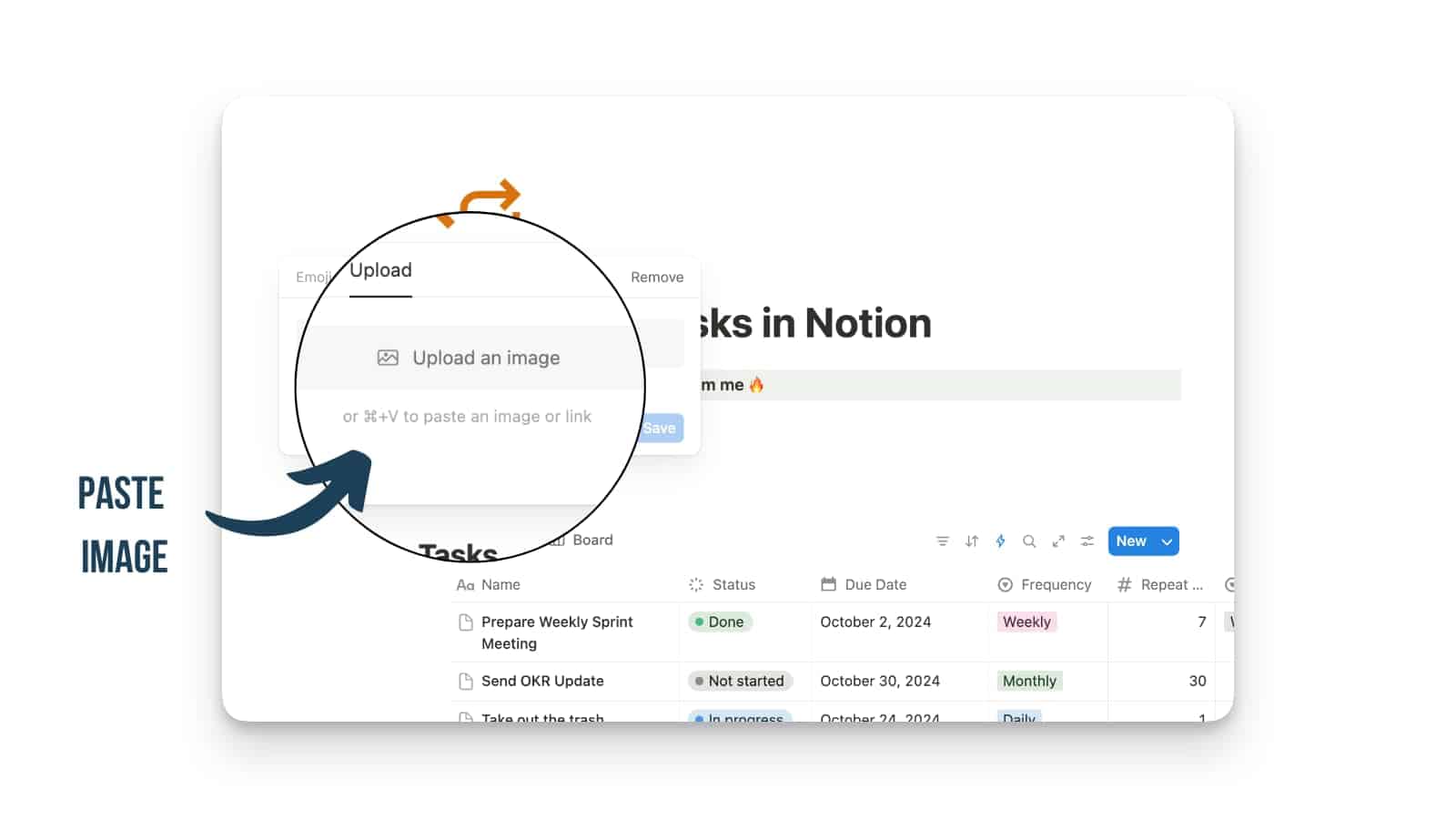
Now it’s much faster to set a custom page icon with an image from your clipboard.
This new feature allows you to use local image files directly as custom page icons. Previously, you were limited to using a URL to an image hosted online. This update streamlines the process by letting you copy an image from your computer and simply paste it into the custom icon section.
To use it, just copy an image file, like a screenshot or a saved JPG, to your clipboard. Then, open the Notion page icon menu, click on Upload, and paste your image.
Conditional Formatting for Notion Databases
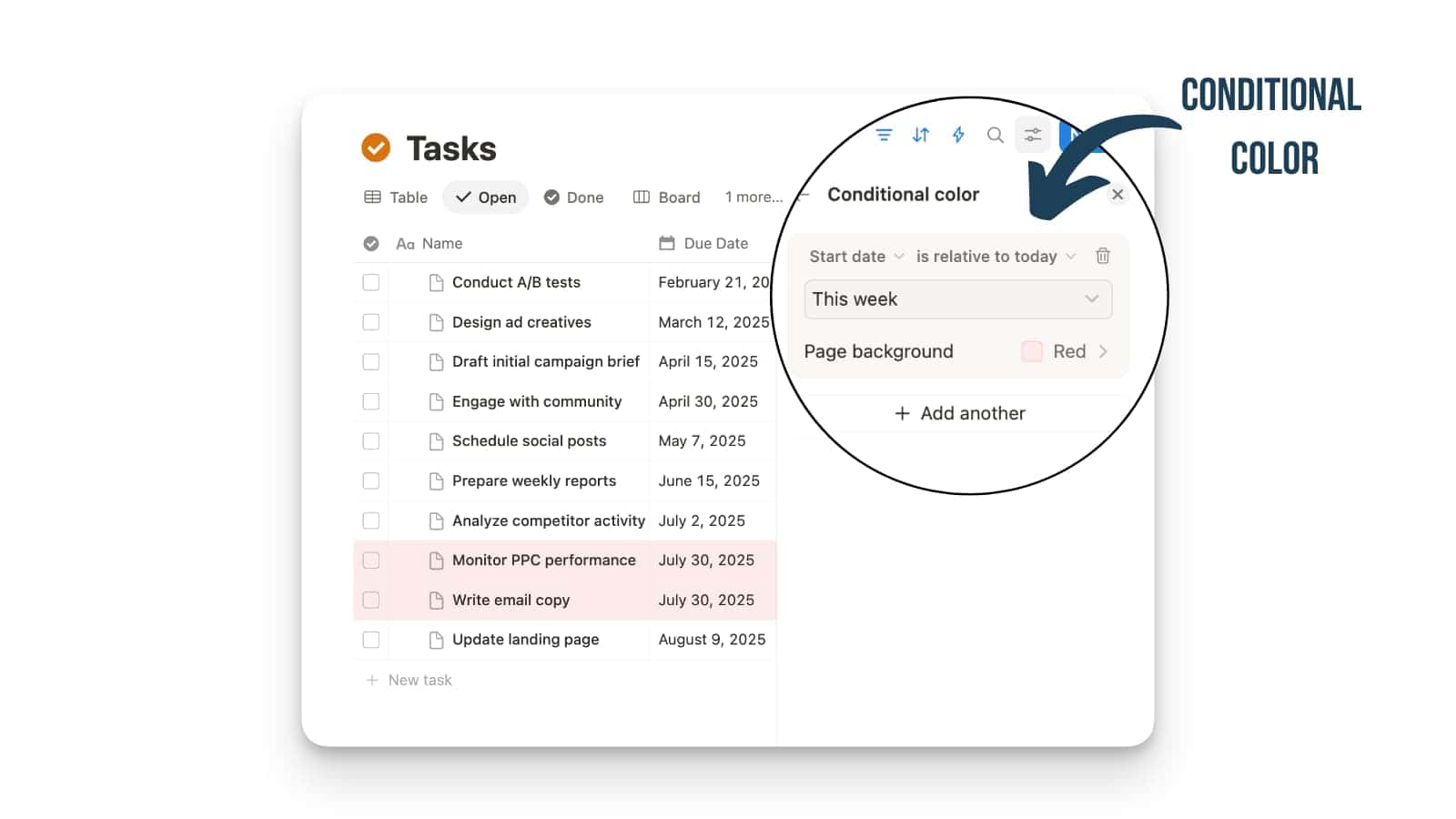
Notion databases just got a major visual upgrade with the new Conditional Formatting feature.
You can now automatically color-code entire rows in your databases based on the properties you set, such as highlighting all tasks due this week in a specific color.
To get started, just click the ... menu on any database view, select “Color”, and start creating rules to make your data stand out.
Tab Groups for Organizing Notion Pages
Notion now has a new way to help you declutter important pages and switch between different contexts.
New Tab Groups let you group related pages together. Just look for the new tab options when you’re setting up your Notion pages or spaces to start tidying things up.
This makes it much simpler to organise your Notion pages in terms of spaces like work, life or creative stuff.

New Linear AI Connector
Notion’s AI connector capabilities have expanded once again, now offering the popular issue-tracking app, Linear.
Notion AI can now search for and link to your Linear projects and issues directly from Notion, streamlining your project management and documentation workflows.
You only have to enable the connector in the Settings under Notion AI.

6 Months of Notion Plus with AI for LinkedIn Premium Accounts
How about Notion, for free?
Really cool collaboration this month – if you have LinkedIn Premium, you can get 6 months of Notion including AI for free.
Click here to redeem it.
Easy Notion Integration in Claude
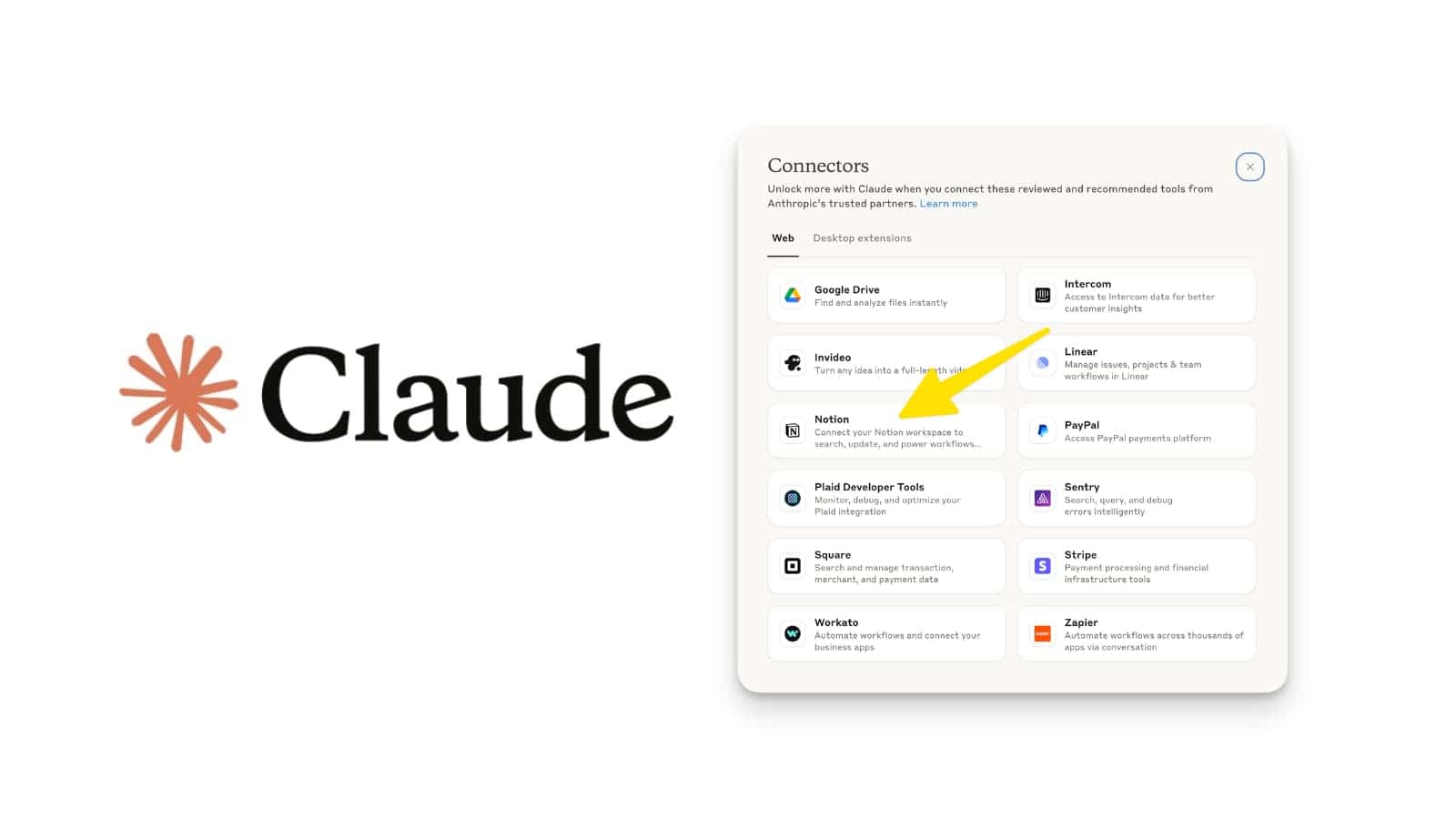
Connecting Claude to Notion is now a breeze, letting the AI get things done for you right inside your workspace.
And it’s not just for Notion!
You can also hook Claude up with other popular tools like Canva, Figma, Stripe, and Zapier. These new connections are available for paid users on both web and desktop.
Default Reminders to Date Properties
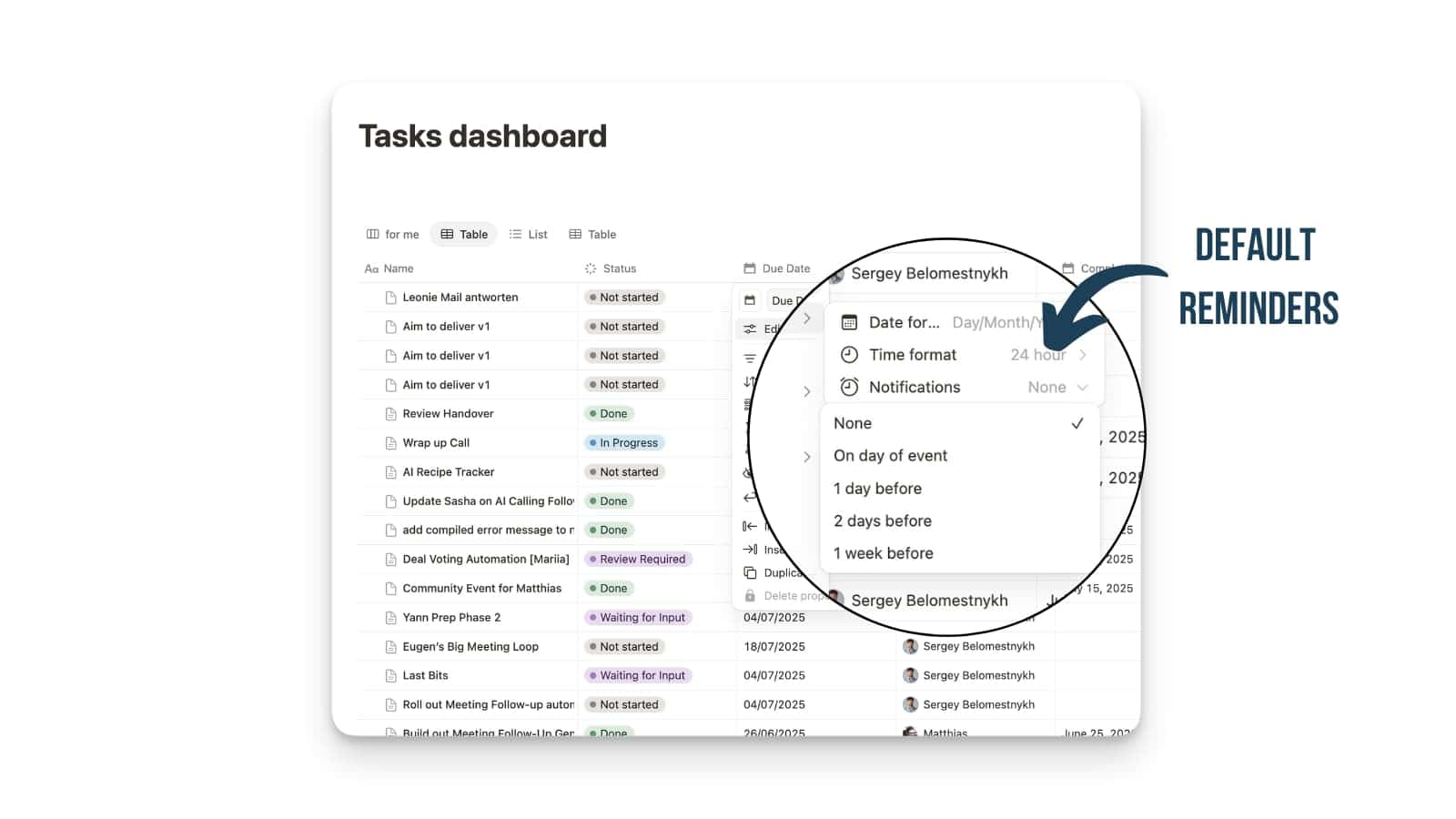
You can now apply a default reminder to an entire Date column.
If you’ve ever been frustrated with reminders in Notion, then this one is for you!
Just set it up once for the column, and any date added from then on will automatically get that reminder. The best part is that it works everywhere, no matter whether the date is added manually, through a template, or via an automation.
Personal Hover Card & Profile Page
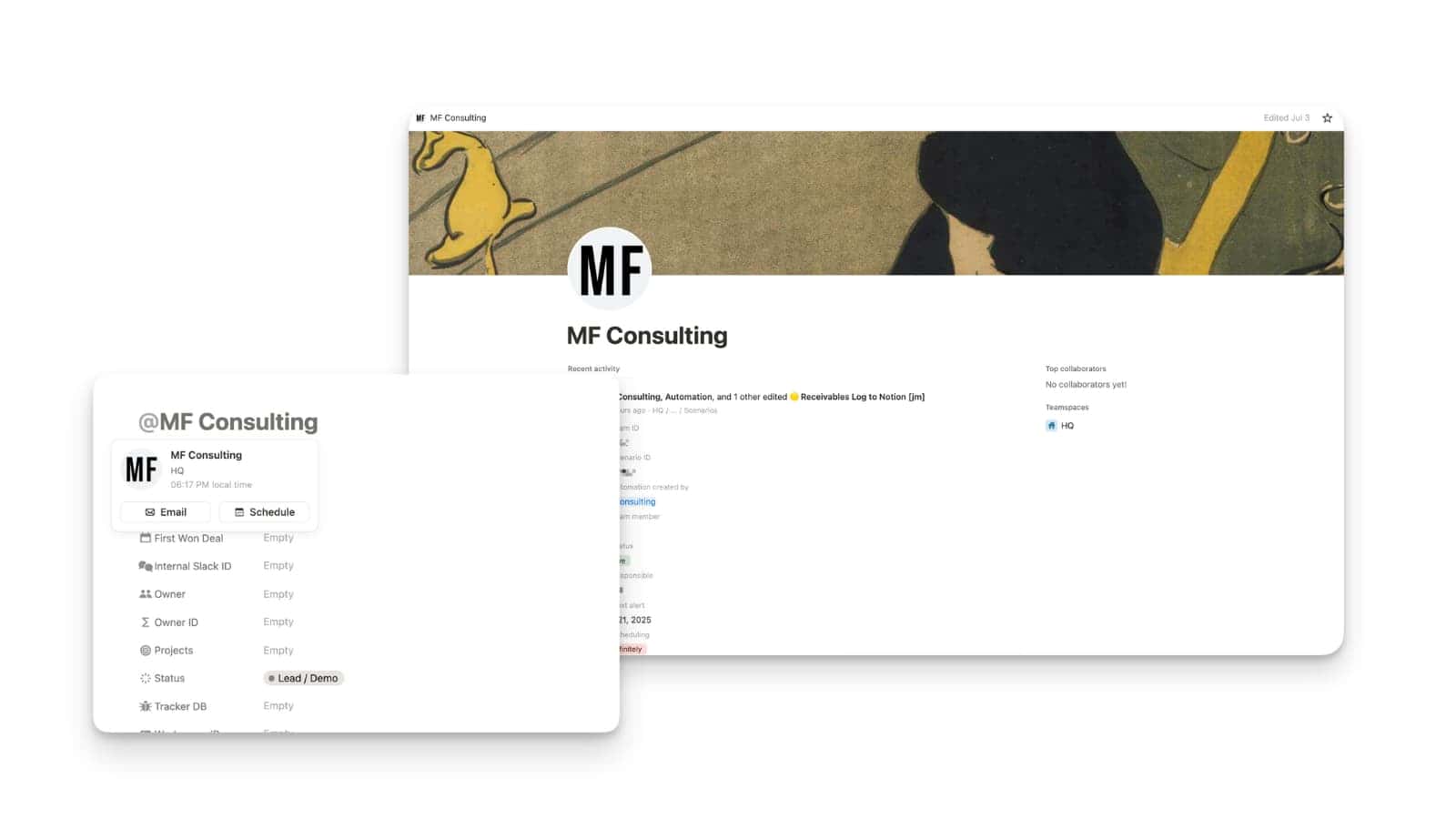
Now, whenever you hover over someone’s @-mention, a handy little profile card pops right up with their key info.
This card is also your ticket to a new, full-blown profile page for your teammate. Click on it to see their latest activity, who they collaborate with most, and the teamspaces they’re in. It’s the perfect way to quickly see what your colleagues are working on, making it easier to connect or book a meeting.
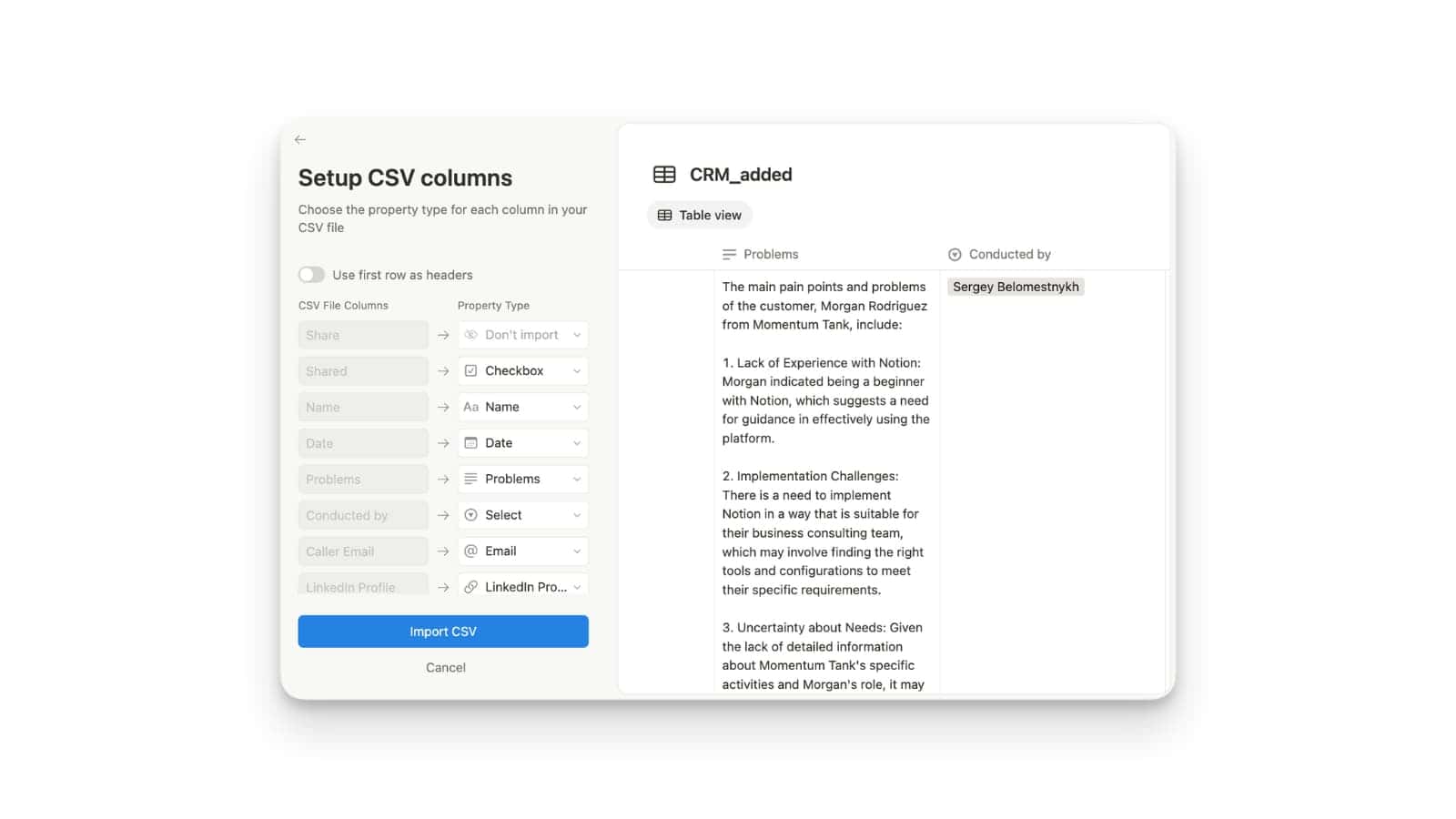
Better CSV Migration to Notion
Getting your data into Notion from a CSV file just got a lot smoother! It’s now much easier to set up your columns and see how everything will look before you bring it in.
When you import a CSV file, you can now tell Notion what kind of content is in each column – like if it’s a number, text, or a date. You also get a quick preview of your database right there. Find this by going to Database Page Settings -> Merge with CSV.
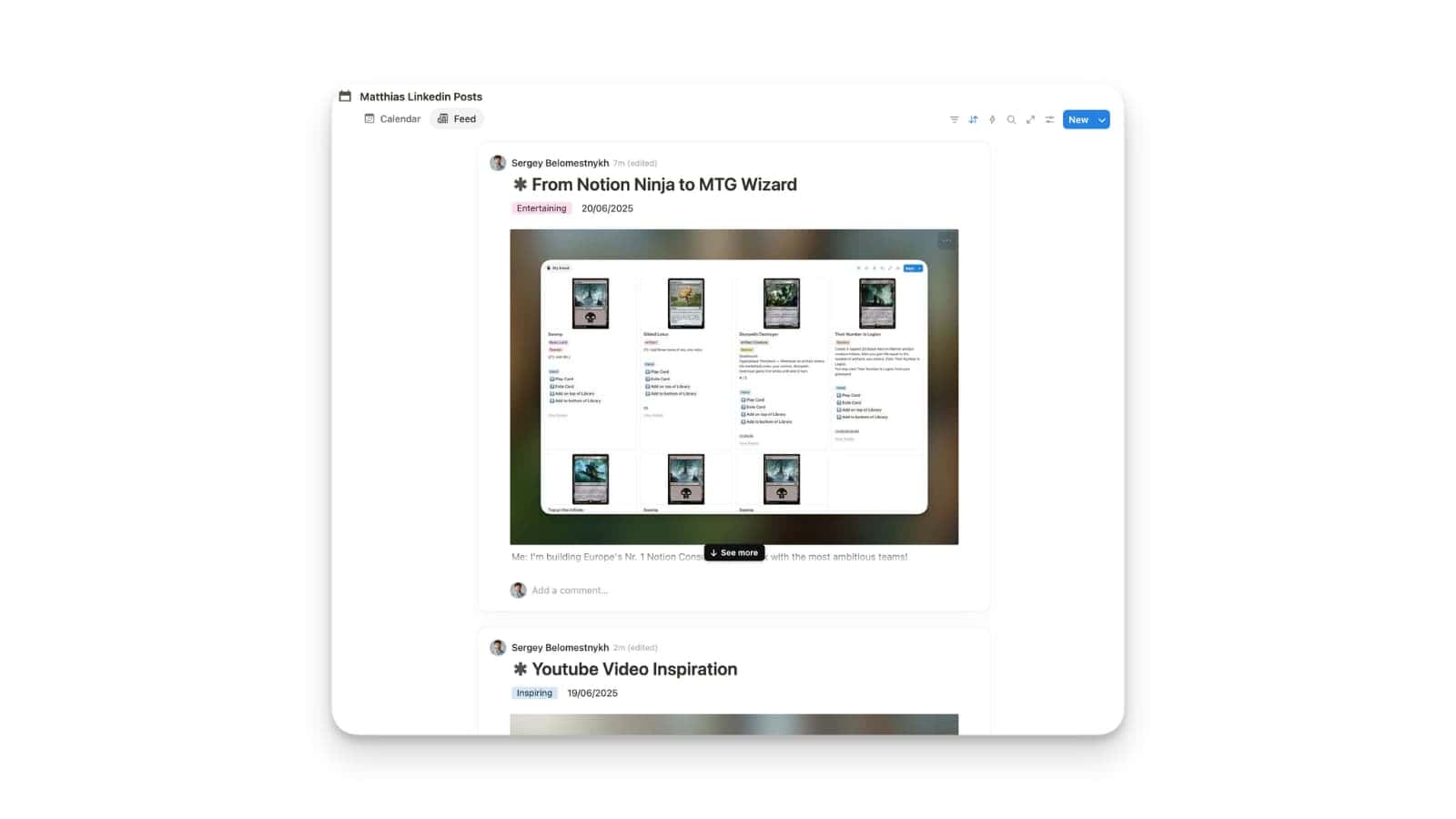
Notion Introduced a New Database View: Feed
Notion now has a new Feed view that brings a familiar web page feel to your databases.
Every entry in your database will turn into a scrollable card that shows a preview of the actual page content – giving you a window into your notes and media from the Notion page body.
To try it out, just go to your database views and pick “Feed” from the list of options.
All Your Dated Databases in Notion Calendar
Good news for your Notion Calendar! You can now see and manage any Notion database directly in your Calendar, as long as it has dates.
If your Notion database has a date property, it can now show up in your Notion Calendar. This makes it super easy to keep track of tasks and deadlines, helping you manage your time right from your calendar. No special setup or specific database view is needed anymore.

New Database Looks
Notion database just got a refresh with many UI improvements!
You’ll notice some handy updates: settings for databases are now accessed via a dedicated icon instead of the three dots, and the menu has been reorganised for less scrolling. Creating new database properties is also more intuitive with a new “select type” option that lets you name the property directly. You can minimise and expand database settings, and the database header line was abandoned. Rightly so! Plus, you can now right-click on existing properties to quickly insert new ones to their left or right.
To put it in a nutshell, there is less distraction now. Also for the mobile view.

Send Custom Slack Messages From Notion Automations
You can now send custom Slack messages from Notion automations.
Just set up an automation and choose the Slack notification action. You can write your own message, mention people, use variables like @now, and add emojis. This works with database automations and button blocks, so you can provide your team with the necessary context!

